How to fix
NO_MORE_IRP_STACK_LOCATIONS Blue Screen
on Windows
Resolve the NO_MORE_IRP_STACK_LOCATIONS Blue Screen error in Windows 10 and 11 quickly. Expert-tested solutions for a smoother experience, fixed in minu…

What causes How to fix NO_MORE_IRP_STACK_LOCATIONS Blue Screen in Windows?
- Drivers are outdated
- Drivers are corrupted
- System file corruption
- Improper communication between hardware and software
Repairs Windows system files, removes malware, and restores a clean OS state — without reinstalling.
Hello, I have recently started experiencing PC crashes with the NO_MORE_IRP_STACK_LOCATIONS Blue Screen. It happens several times a day, and it is really frustrating to deal with. It started about a week ago and doesn't seem to go away. I am using a Windows 10 machine.
Windows is an intricate operating system that has been evolving for decades by now. It is the most popular operating system, and despite this, it does not avoid issues. Blue Screen of Death[ref en-1] crashes are probably the most notorious traits of Windows, as they have been prevalent since its creation, and most users are familiar with them.
While BSODs may result in a rather negative experience (computer crashes and reboots immediately, interrupting all the work being done at the time), it fulfills an important role - to stop further damage.
NO_MORE_IRP_STACK_LOCATIONS is one of many Blue Screen errors that users have to deal with. It can occur at any time when the computer is being booted, shutting down, when apps are being launched, or seemingly without any reason whatsoever. All the encounters with these crashes can be frustrating - users lose data and have their work disrupted.
Most BSODs get solved as soon as the system is rebooted, as Windows recovers from the critical error that caused it. Unfortunately, BSODs seem not to go away on their own in some cases, which indicates that there's something wrong with the operating system that needs to be addressed.
There could be plenty of reasons for the NO_MORE_IRP_STACK_LOCATIONS error to show up. The most common issue that causes BSODs is drivers[ref en-3] - software that allows proper communication between the computer's hardware[ref en-2] components and software. If something goes wrong, it could result in errors or even system crashes. This usually happens when the driver is outdated or corrupted.
In other cases, system file corruption could be the culprit. Repairing Windows system files can be done manually or automatically - [d1] is something you could use to fix NO_MORE_IRP_STACK_LOCATIONS Blue Screen of Death crashes fast. Alternatively, you can always rely on the solutions we provide below.
Fix 1. Update drivers
Windows can be used to update drivers, although it's not always effective. Thus, you should try using [rev id="DriverFix"] instead - you won't have to worry about driver problems. Alternatively, proceed with the following:
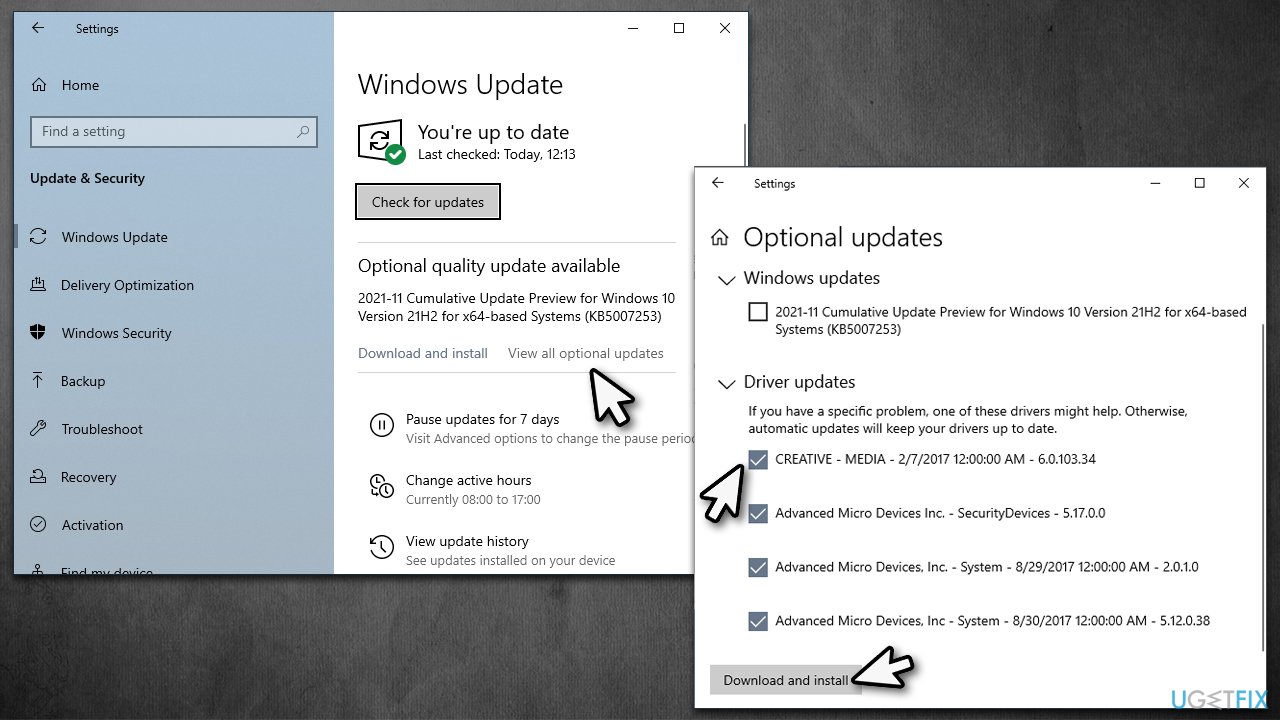
- Type Updates in Windows search and press Enter
- In the Settings window, click Check for updates
- Install the main updates
- Next, click View all optional updates
- Tick all the available driver update boxes and install them all
- Restart your system.
Fix 2. Reinstall audio drivers
If updating drivers did not help, reinstalling them might work.
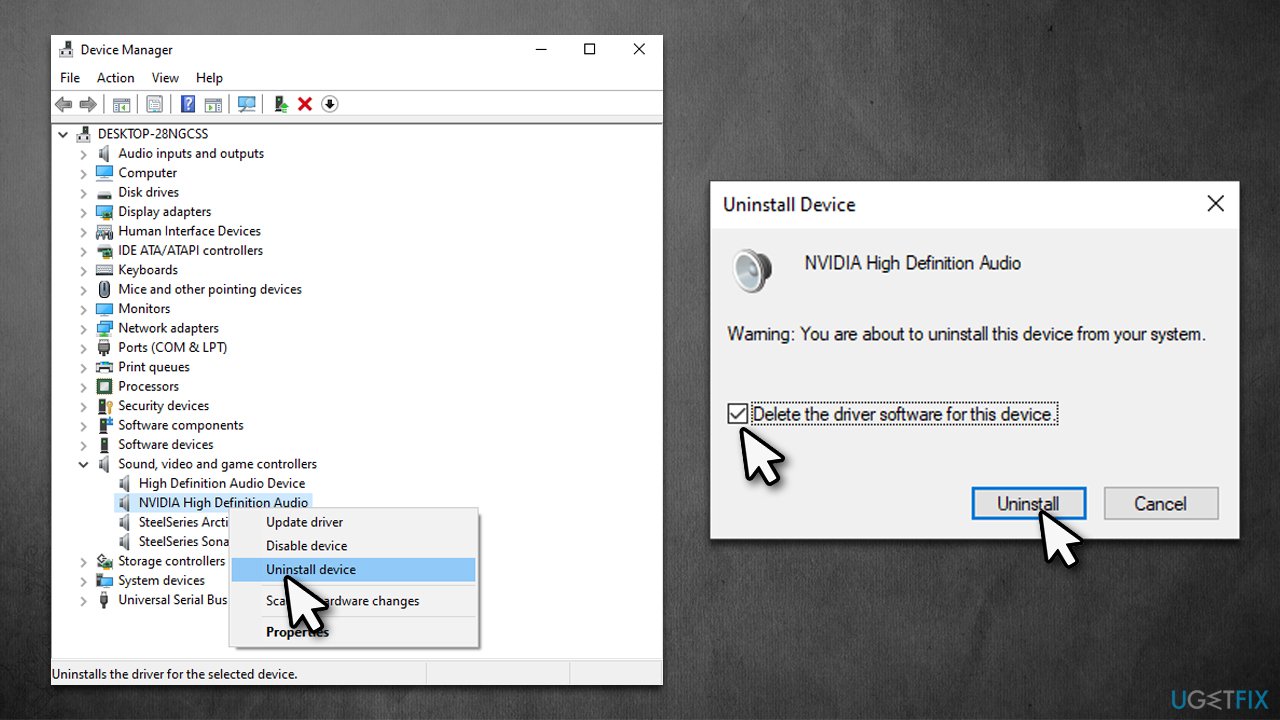
- Right-click on Start and pick Device Manager
- Expand the Sound, video and game controllers section
- Right-click on your audio driver and select Uninstall device
- In the new window, mark the Delete the driver software for this device and click Uninstall
- Restart the computer.
Once uninstalled, you can find the latest drivers on the manufacturer's website or by following the instructions from the first solution above.
Fix 3. Run SFC and DISM
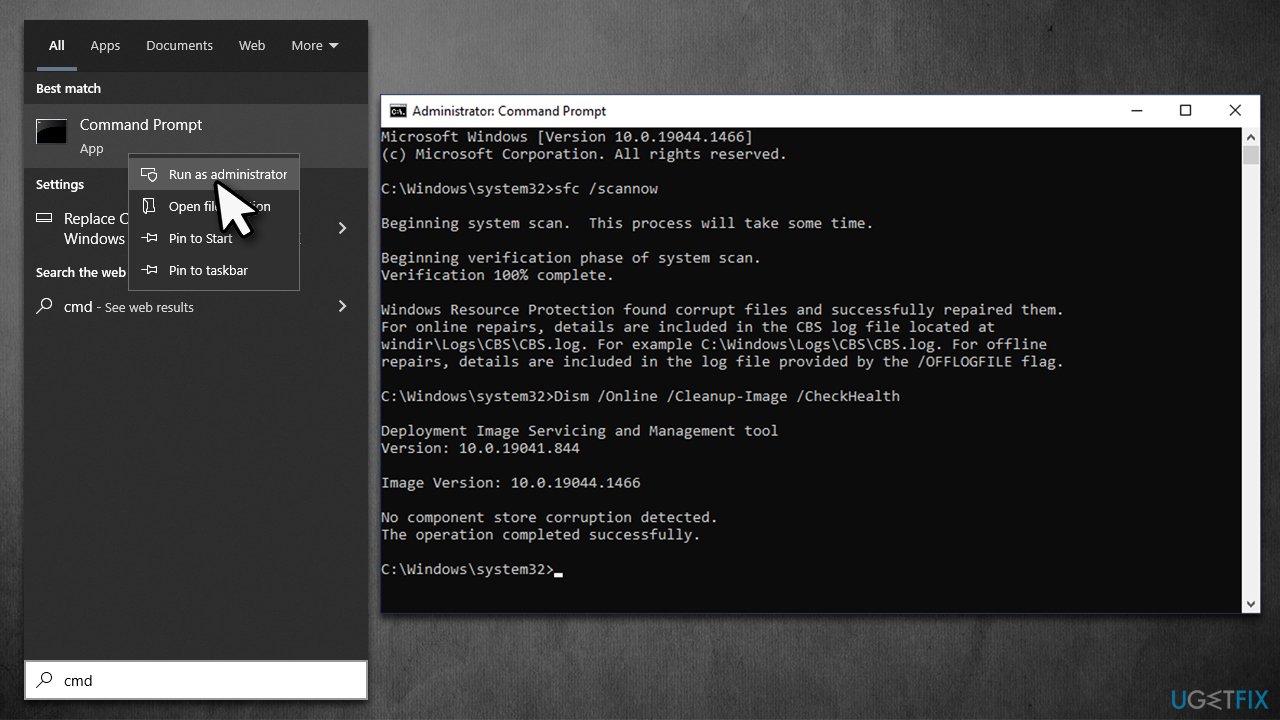
- Type cmd in Windows search
- Right-click on Command Prompt search result and select Run as administrator
- When the User Account Control window shows up, click Yes
- Copy and paste the following command, and press Enter:
sfc /scannow - Once done, use the following commands, pressing Enter after each:
dism /online /cleanup-image /scanhealth
dism /online /cleanup-image /checkhealth
dism /online /cleanup-image /restorehealth - Close down Command Prompt and restart the PC.
Fix 4. Check the hardware
NO_MORE_IRP_STACK_LOCATIONS may occur due to corrupted hardware. There are several checks you can make:
- Open Command Prompt as administrator, as we explained above
- In the CMD window, use the following commands:
bootrec.exe /rebuildbcd
bootrec.exe /fixmbr
bootrec.exe /fixboot - Once done, type in the next command to check your storage drive:
chkdsk c: /f /r /x - If an error occurs, type in Y and press Enter
- Restart your PC
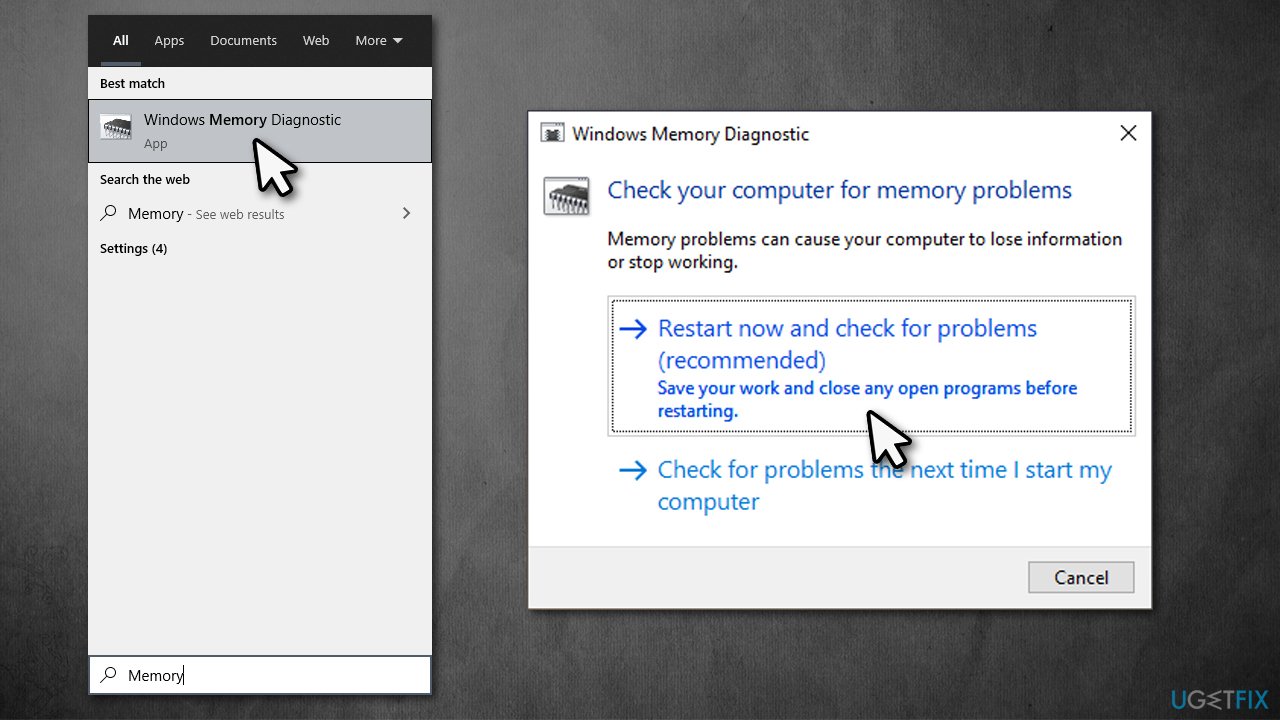
- After a reboot, type Memory in Windows search and press Enter
- Pick Windows Memory Diagnostics result
- Select Restart now and check for problems (recommended)
- Your computer will restart, and checks will begin
- Results will be displayed after Windows boots back up.
Fix 5. Reset Windows
You can easily reset Windows without losing your personal files. Nonetheless, we recommend making file backups just in case. Also, before proceeding, make sure to uninstall any third-party antivirus and disconnect unnecessary peripherals such as printers or cameras.
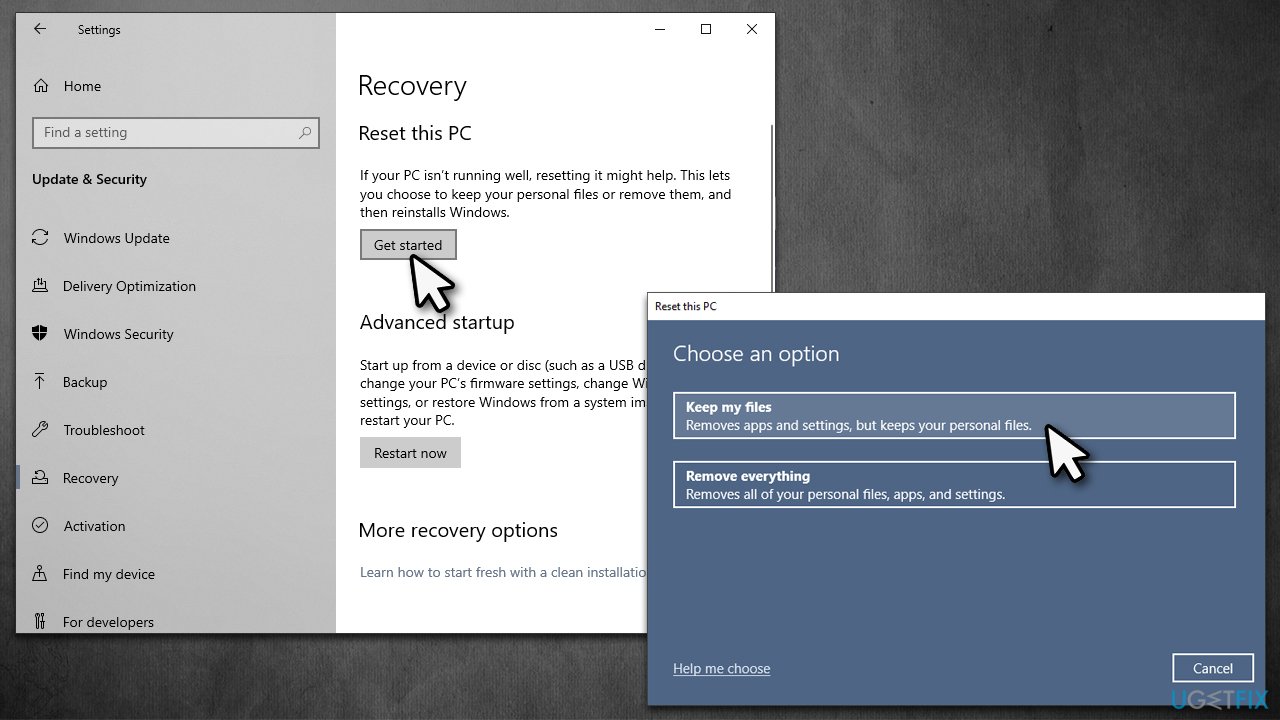
- Right-click on Start and pick Settings
- Go to Update & Security and pick Recovery
- Find Reset this PC section and click Get Started
- Select Keep my files > Cloud download
- Proceed with the on-screen instructions (your PC may restart several times).
Related topics:
Bottom line
To fix the NO_MORE_IRP_STACK_LOCATIONS Blue Screen, you can update or repair drivers, and check for system file corruption. If these solutions do not resolve the issue, consider using a dedicated tool to repair Windows system files.
Frequently asked questions
This error is often caused by faulty drivers, especially those related to network or storage devices, or by issues with system files in Windows 10.
You can update drivers by going to Device Manager, right-clicking the problematic device, and selecting 'Update driver' to automatically search for updates.
Yes, running the System File Checker (sfc /scannow) can repair corrupted system files that may contribute to the NO_MORE_IRP_STACK_LOCATIONS error in Windows 10 and Windows 11.




Report an issue
What's wrong with this guide? We review every report and update or remove content.
Report received — thank you. We'll review and fix it.
You need a free account to submit a report.
Be the first to comment