How to fix
NotificationController.dll not found or missing
on Windows
Resolve the NotificationController.dll missing error in Windows 10 or 11 quickly and easily. Expert-tested solutions for seamless performance!

What causes How to fix NotificationController.dll not found or missing in Windows?
- Accidental deletion of the file
- Corruption of the file
- Malware infections targeting DLLs
- Problems with software installations
- Issues during updates or system upgrades
Repairs Windows system files, removes malware, and restores a clean OS state — without reinstalling.
Hello. I keep getting errors that say NotificationController.dll is not found or missing. How do I fix this?
NotificationController.dll is a critical system file that is essential for the proper operation of various applications on the Windows operating system. Users may encounter problems if this critical DLL (Dynamic Link Library)[ref en-1] file is not found or is missing from their system. The absence of NotificationController.dll can cause a variety of issues and have an impact on the overall user experience on their Windows device.
When NotificationController.dll is missing, applications and processes that rely on it may not function properly. While using certain programs, users may encounter error messages indicating the absence of the DLL, as well as crashes, freezes, or unexpected behavior. Users may experience inconvenience and frustration as a result of the missing DLL issue, especially if they rely heavily on specific applications that require NotificationController.dll to function properly.
Furthermore, this problem may have an impact on the overall stability and performance of the Windows operating system. Certain system functions and features that rely on NotificationController.dll may become inaccessible, affecting the user interface and system utilities' smooth operation. As a result, the user may experience decreased performance and responsiveness, resulting in a less satisfying computing experience.
There could be several causes for the disappearance of NotificationController.dll. One common cause is the user's or the system's accidental deletion or corruption of the file. Malware infections can also target critical system files such as DLLs, such as NotificationController.dll, and cause them to be deleted or altered. Furthermore, problems with software installations, updates, or system upgrades can sometimes result in the missing DLL error.
In this guide, you will find 6 steps that should help you fix NotificationController.dll not found or missing error. You can also run [d1] repair tool that can fix most system errors, BSODs,[ref en-2] corrupted files, and registry[ref en-3] issues. Otherwise, follow the step-by-step instructions below.
Method 1. Restart Windows
By restarting Windows, you can clear the cache memory and resolve temporary glitches.
- Press the Windows key.
- Click on the Power icon.
- Select Restart from the drop-down menu.
- Wait for your PC to restart.
- Check if the error persists after the restart.
Method 2. Fix Corrupted System Files
Use Command Prompt commands to repair system file corruption:
- Open Command Prompt as administrator
- Use the following command and press Enter:
sfc /scannow

- Reboot your system
- If SFC returned an error, then use the following command lines, pressing Enter after each:
DISM /Online /Cleanup-Image /CheckHealth
DISM /Online /Cleanup-Image /ScanHealth
DISM /Online /Cleanup-Image /RestoreHealth
Method 3. Install Windows Updates
- Press the Windows key + I on your keyboard to open the Settings window.
- From the left sidebar, click on the Windows Update tab.
- Click on the Check for updates button.
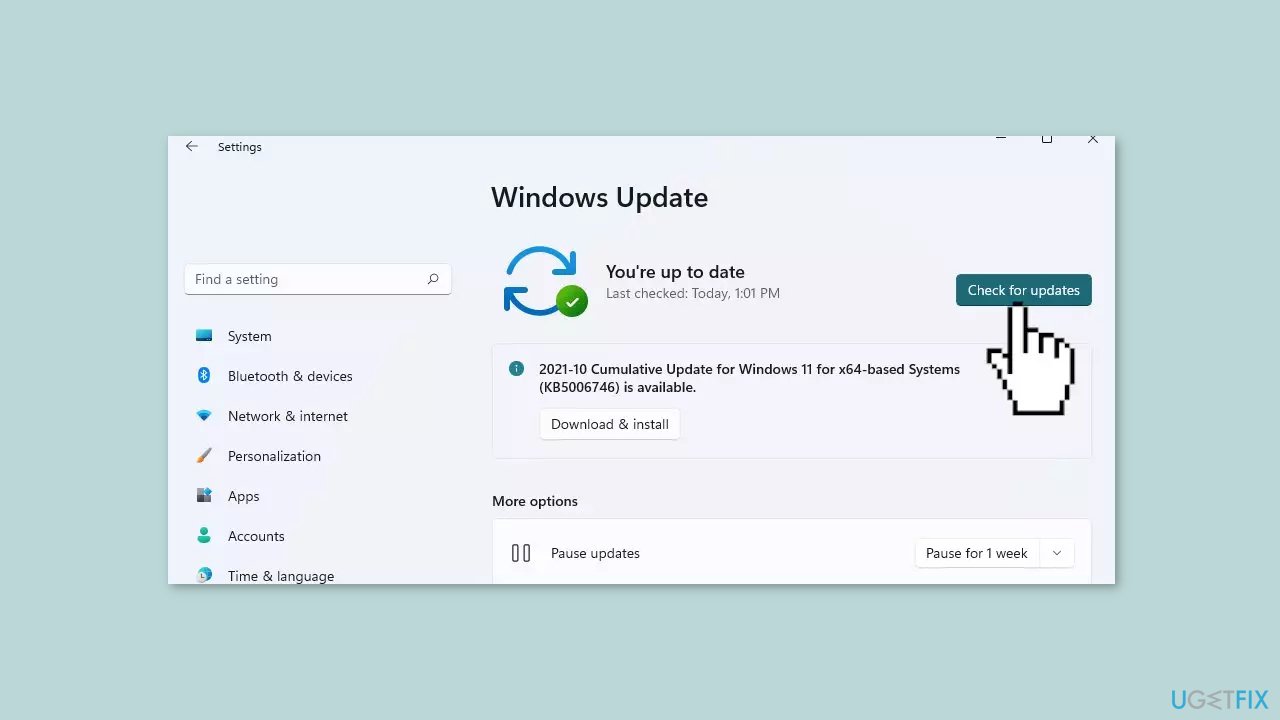
- Wait while Windows checks for available updates.
- If new updates are found, download and install them.
- Follow the on-screen instructions to complete the update process.
Method 4. Re-Register the Notificationcontroller.dll File
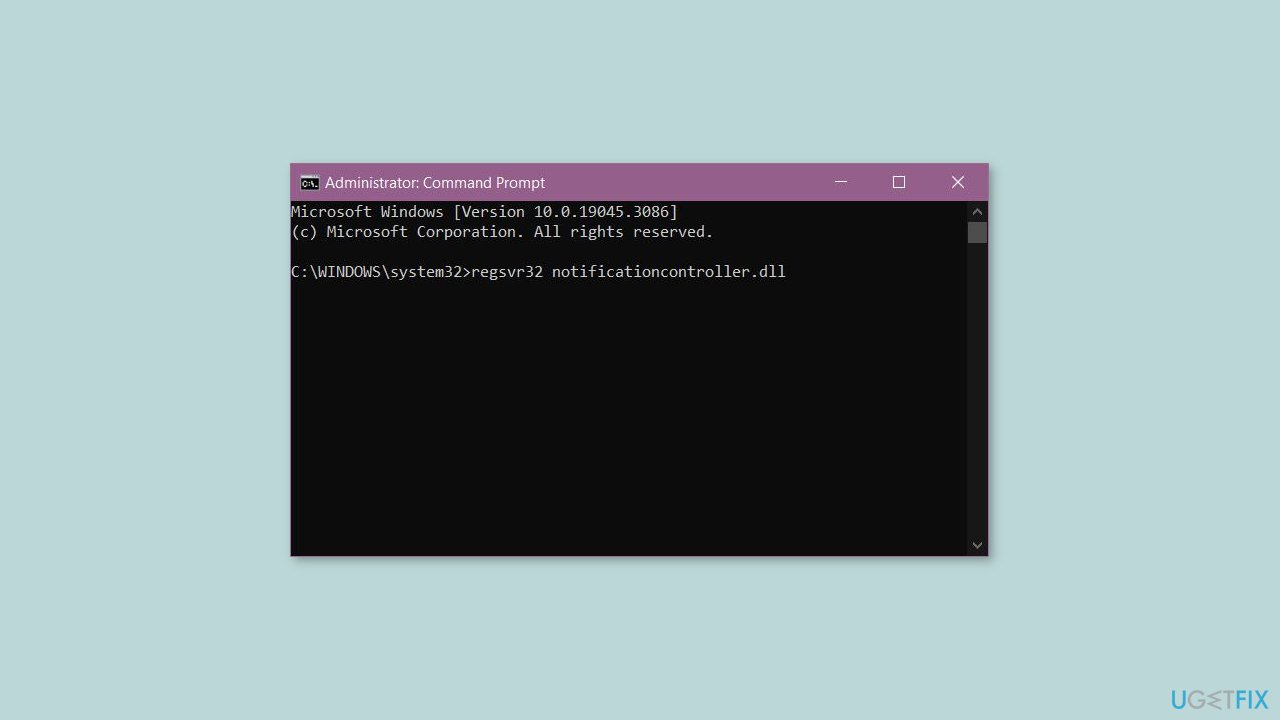
- Open the Command Prompt as an administrator.
- Type the following command and press Enter:
regsvr32 notificationcontroller.dll
- Check if the issue is fixed.
Method 5. Reinstall the Affected App
- Type Control in the Windows Search bar and open Control Panel.
- In the Control Panel, select the Category view.
- Choose the option to Uninstall a program.
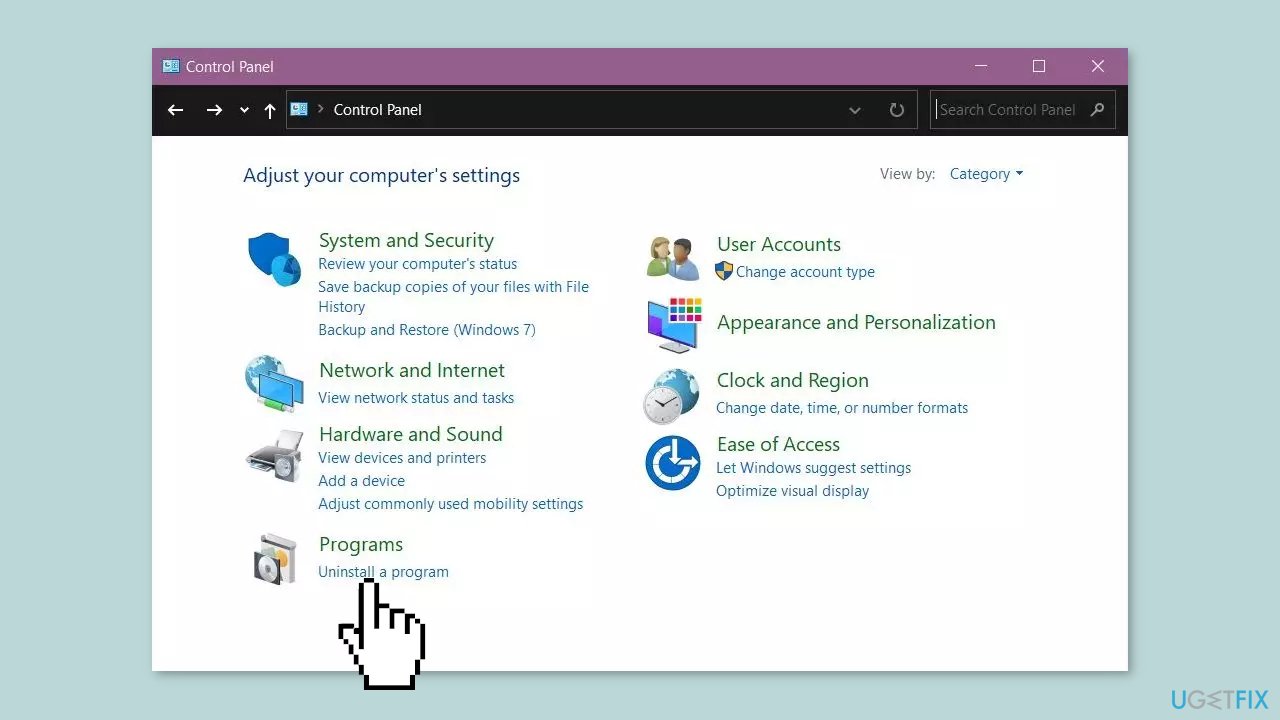
- Locate the troubled program or game from the list.
- Right-click on the troubled program or game and select the Repair option.
- Follow the further instructions provided during the repair process.
- Once the repair is complete, restart your PC to apply the changes.
Method 6. Use System Restore
System Restore is a feature in Microsoft Windows that allows users to revert their computer's state to a previous point in time. This can be helpful if you have made changes to your system that are causing problems.
- Press the Windows key + R on your keyboard to open the Run box.
- Type SystemPropertiesProtection and press Enter.
- Go to the System Protection tab.

- You will see the System Restore… button. Click it to run System Restore.
- Follow the prompts until you can select a restore point.
- Select the one you want (ideally before the issue started occurring) and go ahead with the process.
Bottom line
To fix the NotificationController.dll not found or missing error, you can try restarting Windows, running a repair tool, or following the step-by-step instructions provided in the guide. If none of these solutions work, further investigation may be necessary to identify the underlying issue.
Frequently asked questions
You can try restoring the missing DLL file by running the System File Checker tool. Open Command Prompt as an administrator and type 'sfc /scannow' to initiate the scan.
It's recommended to avoid downloading DLL files from unofficial websites due to security risks; instead, try reinstalling the app that is causing the error or perform a Windows update.
Yes, you can fix the error by performing a repair installation of Windows 10, which keeps your files and applications intact while fixing system files.




Report an issue
What's wrong with this guide? We review every report and update or remove content.
Report received — thank you. We'll review and fix it.
You need a free account to submit a report.
Be the first to comment