
How to fix the nt_wrong_symbols.sys BSOD on Windows 10 and 11

Prefer to fix it yourself? The manual steps follow.
- 7methods
- 15 to 60 minutes
- Intermediate
Applies to Windows 11 and Windows 10 PCs whose crash dump analysis names nt_wrong_symbols
7 methods in this guide
Hello, all. I've been getting a BSOD when trying to play games like Fallout 4, Sims 4, State of Decay, and many others. The error reports the nt_wrong_symbols.sys file as the culprit, but I cannot find such a file. There's no information on the Internet, although many people are looking for the nt_wrong_symbols.sys BSOD solution. Could you please help?
nt_wrong_symbols.sys is not a driver and not a file on your PC. It is a placeholder name a crash reader such as WinDbg gives the Windows kernel when it cannot load the matching symbols, so the real cause of your blue screen is still hidden. Read the dump again with Microsoft's symbols first, then fix the driver it really names.
You cannot find nt_wrong_symbols.sys because it does not exist. The crash reader could not match symbols to your Windows kernel, ntoskrnl.exe, so it invented that name and blamed it. Open the newest file in C:\Windows\Minidump in current WinDbg, run .symfix and .reload, then !analyze -v while online (Fix 1). The real driver it names decides the next step; for games, that is most often the graphics driver (Fix 2).
| Error | A crash analysis that names nt_wrong_symbols, nt_wrong_symbols.sys or ntoskrnl.wrong.symbols.exe as the cause of a blue screen, often next to Kernel symbols are WRONG. Please fix symbols to do analysis. |
|---|---|
| Where it appears | Not on the blue screen itself. It appears when you open a crash dump from C:\Windows\Minidump or C:\Windows\MEMORY.DMP in WinDbg or another dump reader. |
| Main cause | The dump reader could not load the symbols that match your exact kernel build: no symbol path, no internet access to Microsoft's symbol server, or a damaged dump. |
| Fastest fix | Read the same dump again in current WinDbg with .symfix, .reload and !analyze -v (Fix 1). It takes about 10 minutes. |
| Also written as | nt_wrong_symbols, nt wrong symbols, nt_wrong_symbols.exe, nt_wrong_symbols!<number>, WRONG_SYMBOLS_X64 in the failure bucket. |
| Is it a file? | No. Searching the disk for it finds nothing. It is the kernel ntoskrnl.exe under a placeholder name. |
| Vendor status | Microsoft runs a free public symbol server for its debuggers. WinDbg itself suggests .symfix; .reload when it prints this name. |
| Where the real cause is logged | C:\Windows\Minidump (one .dmp per crash) and Event Viewer, Windows Logs > System, source BugCheck. |
| Affects | Any Windows version. Windows 10 left support on 14 October 2025. |
| Time to fix | 10 minutes to read the dump correctly, then 10 to 40 minutes for the fix it points to. |
Facts checked on 15 October 2026. Steps written for Windows 11 (25H2 and 26H2) and Windows 10 22H2.
What nt_wrong_symbols.sys means
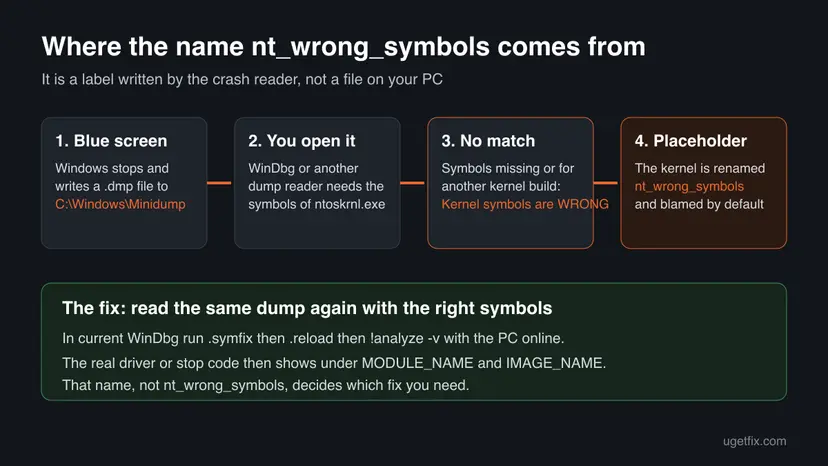
When Windows hits a blue screen, it saves a crash dump. To turn that dump into names you can read, a debugger needs symbols: small files that describe one exact build of each Windows file. The most important one is for the kernel, ntoskrnl.exe, which the debugger calls nt.
If the debugger cannot get symbols that match your kernel build, it cannot trust anything it reads from the kernel. It then gives the kernel a placeholder name, nt_wrong_symbols, and the automatic analysis points at it. That is why a tool says nt_wrong_symbols.sys caused your crash while no such file exists anywhere on your disk.
This is what the lines look like in a real WinDbg analysis that a user posted on Microsoft Q&A. The number after the exclamation mark is the kernel's time stamp and size, so it differs on every PC.
WinDbg output when the kernel symbols do not match
Unable to load image \SystemRoot\system32\ntoskrnl.exe, Win32 error 0n2
*** WARNING: Unable to verify timestamp for ntoskrnl.exe
...
Kernel symbols are WRONG. Please fix symbols to do analysis.
...
You can run '.symfix; .reload' to try to fix the symbol path and load symbols.
IMAGE_NAME: ntoskrnl.wrong.symbols.exe
MODULE_NAME: nt_wrong_symbols
SYMBOL_NAME: nt_wrong_symbols!442B24E51047000
FAILURE_BUCKET_ID: WRONG_SYMBOLS_X64_...Your PC really did stop with a blue screen. Only the name of the guilty module is wrong. Do not download a file called nt_wrong_symbols.sys: there is no such file to replace.
Why the analysis shows nt_wrong_symbols: causes, most common first
Two separate questions hide behind this name. Why did the reader fail to load symbols? And what really crashed the PC? The first is fixed in the debugger, the second on the PC.
| How often | Cause | Sign | Fix |
|---|---|---|---|
| Most often | No symbol path, or the PC was offline while WinDbg read the dump | Symbol search path is: is empty or the server cannot be reached | Fix 1 |
| Often | An old dump reader that does not know your Windows build | A newer Windows build than the tool's release date | Fix 1 |
| Less often | A firewall or proxy blocks msdl.microsoft.com, or the network lacks TLS 1.2 | Symbol download errors in !sym noisy output | Fix 1 |
| Rarely | The dump itself is damaged | Lines such as Missing image name, possible paged-out or corrupt data. | Read a newer dump |
Once the dump is read correctly, the real cause of the blue screen varies. In games, as in the question above, the graphics driver is the usual suspect. Other common names are third-party kernel drivers, memory or overclock problems, damaged Windows files and a recent update.
Sites that offer a download of nt_wrong_symbols.sys sell or bundle something else. The name belongs to no program, so any file under that name is not what it claims.
Find the crash dumps and the stop code first
Before Fix 1, make sure you have something to read. Windows keeps a record of every blue screen, even when the stop screen flashed past too fast.
- Press Win + R, type
eventvwr.mscand press Enter. - Open Windows Logs > System and look for an Error with the source BugCheck. It gives the stop code and the dump file name.
- Open
C:\Windows\Minidumpin File Explorer. Windows writes one small.dmpfile per crash, named by date. - If the folder is empty, look for
C:\Windows\MEMORY.DMP, the larger kernel dump. - Copy the newest dump to your desktop, so you can open it without administrator rights.
The old version of this guide listed DRIVER_POWER_STATE_FAILURE, WHEA_UNCORRECTABLE_ERROR, UNEXPECTED_STORE_EXCEPTION and 0x1000007E next to nt_wrong_symbols. Any stop code can appear with it, because the placeholder comes from the reader, not from the crash.
How to fix the nt_wrong_symbols.sys BSOD
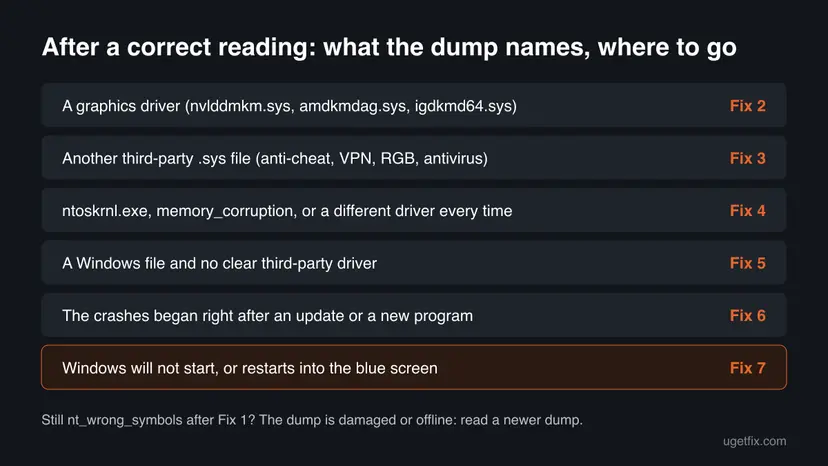
Fix 1 does not stop the crashes by itself. It replaces the false name with the real one, and that name picks the next fix. Do not skip it: changing drivers at random can hide the real cause for weeks.
| What you see or know | Start with | Then |
|---|---|---|
| Any tool says nt_wrong_symbols or Kernel symbols are WRONG | Fix 1 | The fix for the real name |
| The real analysis names a graphics driver, or crashes happen only in games | Fix 2 | Fix 4 |
| The real analysis names another third-party .sys file | Fix 3 | Fix 5 |
| Each dump names a different driver, ntoskrnl.exe or memory_corruption | Fix 4 | Fix 5 |
| The crashes started right after a Windows or driver update | Fix 6 | Fix 2 |
| Windows restarts into the blue screen before you can sign in | Fix 7 | Fix 6 |
Fix 1. Read the dump again in WinDbg with Microsoft's symbols
10 minutesLow riskEvery reader whose crash analysis names nt_wrong_symbols, nt_wrong_symbols.sys or ntoskrnl.wrong.symbols.exe.
The placeholder appears only because the matching kernel symbols were missing. Microsoft's public symbol server has them, and WinDbg itself suggests .symfix and .reload when it prints this name.
- Make sure the PC is online. Right-click Start, select Terminal, and run
winget install Microsoft.WinDbg. You can also install WinDbg from the Microsoft Store. - Open WinDbg from the Start menu. Select File > Open dump file and pick the newest
.dmpfromC:\Windows\Minidumpor your desktop copy. - Wait until the bottom line shows a prompt such as
0: kd>. - Type these commands one at a time and press Enter after each:
.symfix c:\symbols .reload !analyze -v - Wait while the symbols download. The first time can take a few minutes.
- Read MODULE_NAME, IMAGE_NAME and the stop code line near the top. Write them down.
.symfixpoints WinDbg at Microsoft's public symbol server,https://msdl.microsoft.com/download/symbols, and keeps a local copy inc:\symbols..sympathshows the full path, so you can check it took effect.- If symbols still fail, type
!sym noisy, then.reloadagain: WinDbg prints why each download failed. - Microsoft says the symbol server only accepts TLS 1.2 or newer. A firewall, proxy or old security tool can block it.
Lines such as Missing image name, possible paged-out or corrupt data. mean that dump cannot be fully read. Open the next newest dump instead; another crash usually gives a clean one.
It worked if: The output no longer says Kernel symbols are WRONG, and MODULE_NAME shows a real name, such as a driver ending in .sys or nt for the kernel itself.
If not: If every dump stays unreadable, skip to Fix 4 and Fix 5, which help with most unknown blue screens.
Fix 2. Reinstall the graphics driver when the dump names it or games crash
15 minutesLow riskThe correct analysis names nvlddmkm.sys, amdkmdag.sys, igdkmd64.sys or another display driver, or the blue screens happen only while games run.
Games load the graphics driver harder than anything else, and a half-updated or damaged display driver is the most common real culprit behind game crashes like the ones in the question.
- Download the newest driver for your exact card from NVIDIA, AMD or Intel first, so you have it ready offline.
- Right-click Start and select Device Manager.
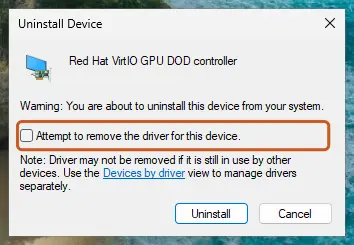
- Expand Display adapters, right-click your graphics card and select Uninstall device.
- Tick Attempt to remove the driver for this device and select Uninstall.
- Restart the PC. Windows starts with a basic display driver.
- Run the driver installer you downloaded and choose a clean installation if it offers one.
- Restart again and play the game that used to crash.
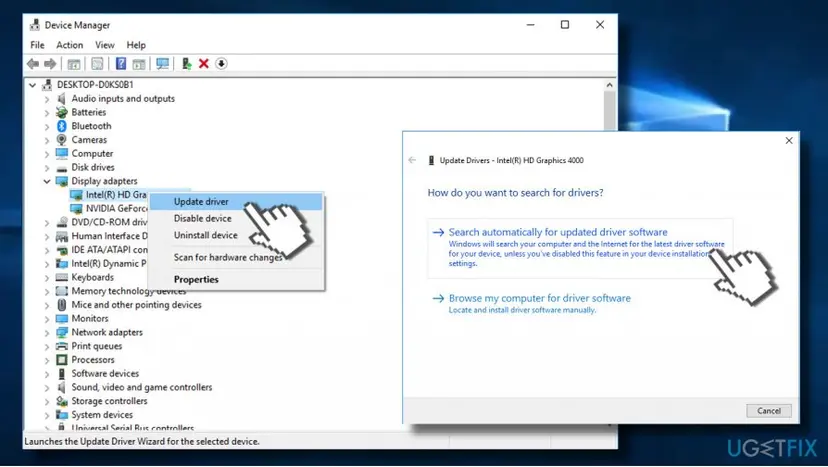
Step by step with all screenshots: Update, roll back or reinstall a driver
It worked if: The game runs past the moment it used to crash, and no new file appears in C:\Windows\Minidump.
If not: If games still crash with a fresh driver, go to Fix 4: an unstable memory or overclock setting often shows up first in games.
Fix 3. Update or remove the third-party driver the dump names
15 minutesLow riskThe correct analysis names a .sys file that is not part of Windows, for example from an anti-cheat, VPN, antivirus, RGB or fan control tool.
Kernel drivers from other programs run with the same rights as Windows. When the real analysis names one, updating or removing its program removes the crash at its source.
- Search the exact file name from IMAGE_NAME to find which program installed it. On uGetFix, many of these drivers have their own guide.
- Check the program maker's site for a newer version and install it.
- If no update exists or the crash returns, press Win + I, open Apps > Installed apps and uninstall that program.
- Restart and use the PC as before.
Step by step: Uninstall a program or app in Windows. To find a clashing driver when the name is not clear, a clean boot starts Windows with only Microsoft services: How to perform a clean boot in Windows
It worked if: The program is updated or gone, and the PC runs a full day of normal use without a new dump.
If not: If the dumps then name a different driver each time, go to Fix 4.
Fix 4. Test the memory and go back to default clock speeds
30 minutes or moreLow riskEach dump names a different driver, or names ntoskrnl.exe or memory_corruption, or crashes happen outside games too.
Faulty or overclocked memory damages data at random, so each crash lands in a different module. That pattern is the main sign of hardware rather than one bad driver.
- Save your work. Press Win + R, type
mdsched.exeand select OK. - Select Restart now and check for problems (recommended) and let the test finish.
- After Windows starts, open Event Viewer, Windows Logs > System, and look for the MemoryDiagnostics-Results entry.
- If you overclocked the CPU, GPU or memory, or the BIOS has XMP or EXPO turned on, set them back to default for a test.
- Use the PC normally and watch for new dumps.
Step by step with screenshots: How to test your RAM with Windows Memory Diagnostic
It worked if: The memory test reports no errors, and the crashes stop at default clock speeds.
If not: If the test finds errors, the RAM or its slot is at fault: see the still-broken section. If it passes, go to Fix 5.
Fix 5. Repair Windows system files with DISM and SFC
20 minutesLow riskThe correct analysis names a Windows file and no clear third-party driver, or the dumps cannot be read at all.
A damaged Windows file, including the kernel itself, can cause crashes. DISM fetches clean copies and SFC puts them in place, so this rules out Windows' own files.
Run DISM first, then SFC, in an administrator Terminal: Run DISM and SFC to repair Windows system files
- Open an elevated command window. Right-click Start and select Terminal (Admin), or type cmd in the search box, right-click Command Prompt and select Run as administrator. Select Yes when Windows asks for permission.
- Run DISM first. Type the command below and press Enter. DISM downloads clean copies of damaged components from Windows Update, so it can take several minutes. Wait until it says The operation completed successfully.
DISM.exe /Online /Cleanup-Image /RestoreHealth - Run System File Checker. In the same window, type the command below and press Enter. Do not close the window until the verification reaches 100%.
sfc /scannow - Read the result and restart. Compare the last message with the table below this guide, then restart the PC so that repaired files are loaded.
These steps were written for Windows 11 24H2 and 25H2. The full page with the other versions and what each result means: Run DISM and SFC to repair Windows system files
It worked if: SFC reports that it found no integrity violations, or that it repaired the damaged files.
If not: If SFC cannot repair some files, or the crashes go on, go to Fix 6.
Fix 6. Undo the last update or change with System Restore
20 to 40 minutesRead the warningThe blue screens started right after a Windows update, a new driver or a new program.
If the crashes began on a known day, returning Windows to the state before that day removes the change that caused them, without hunting for its name.
System Restore keeps your documents and photos, but removes programs, drivers and updates installed after the point you pick. Note what you installed since then so you can add it back.
- Press Win + R, type
rstruiand press Enter. - Select Next and pick a restore point from before the first crash.
- Select Scan for affected programs to see what will be removed, then Next and Finish.
- Wait while the PC restarts and restores.
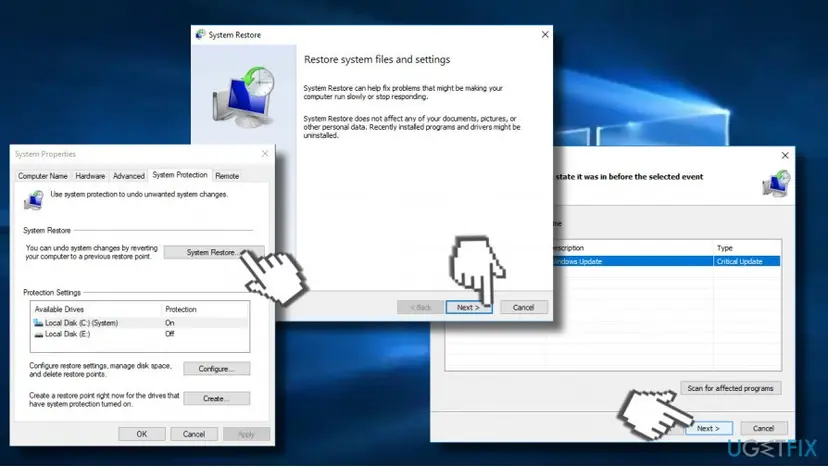
Step by step: Undo recent changes with System Restore. To remove only one Windows update instead: How to uninstall a Windows update
It worked if: Windows starts with the message that System Restore completed successfully, and the crashes do not return.
If not: If there is no restore point from before the first crash, uninstall the newest update or driver by hand, then go back to Fix 1 with a new dump.
Fix 7. Use Safe Mode when Windows keeps restarting into the blue screen
20 minutesLow riskThe PC crashes before or right after you sign in, so you cannot run the other fixes.
Safe Mode starts Windows with a basic set of drivers, so a third-party or graphics driver that crashes every start does not load, and you can work.
- Start the PC and, when the Windows logo appears, hold the power button until it turns off. Do this three times to open Automatic Repair.
- Select Advanced options > Troubleshoot > Advanced options > Startup Settings > Restart.
- Press 5 or F5 for Safe Mode with Networking, so WinDbg can still download symbols.
- In Safe Mode, copy the newest dump and read it with Fix 1, then apply the fix it points to.
- If Safe Mode also crashes, use System Restore from the same Advanced options screen.
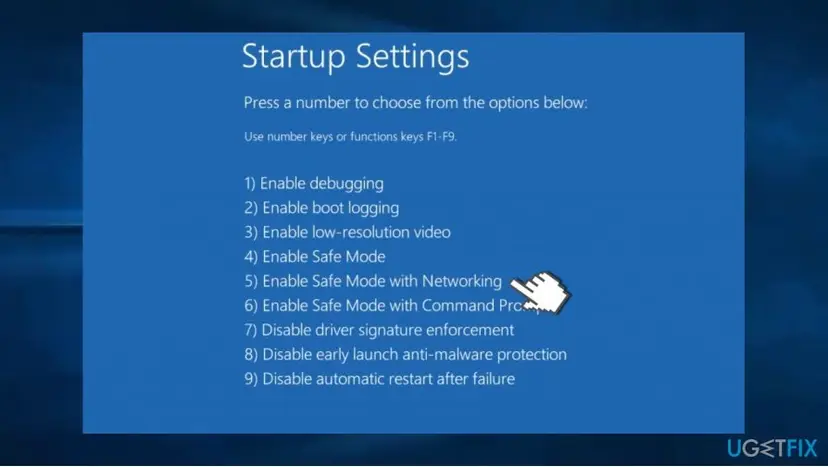
All the ways to reach Safe Mode: Start Windows or a Mac in Safe Mode
It worked if: Windows reaches the desktop in Safe Mode, with Safe Mode written in the corners of the screen.
If not: If no fix helps and System Restore fails, a repair install keeps your files: Reinstall Windows without losing files
Still crashing: what to read and what to send
If the blue screens continue after the fix that matches the real name, collect the facts before you ask for help. Anyone who helps you will ask for a correctly read dump first, not for nt_wrong_symbols.
- The three newest
.dmpfiles fromC:\Windows\Minidump, zipped. - The full
!analyze -voutput from Fix 1, with real names instead of nt_wrong_symbols. - Your Windows version from Settings > System > About.
- Your processor, board and BIOS version from
msinfo32.
| What the dumps show | Who can fix it |
|---|---|
| A graphics driver after a clean reinstall | The GPU maker's support or forum |
| Another program's driver | That program's maker |
| Memory test errors, or random names on every crash | The PC maker, the seller or a repair shop: likely RAM, board or power supply |
| Windows files that SFC cannot repair | Microsoft Support, or a repair install of Windows |
How to avoid nt_wrong_symbols and the crashes behind it
- Read dumps with the current WinDbg while the PC is online, with
.symfixset. - Keep graphics drivers from the GPU maker's site, and reinstall cleanly when games start to crash.
- Keep Windows updated and leave System Protection on so restore points exist.
- Return to default clock speeds before you blame a driver.
- Download a file called nt_wrong_symbols.sys from any site.
- Trust a crash reader that blames nt_wrong_symbols: it means the reading failed.
- Install driver updater tools that replace many drivers at once.
- Turn off Windows protections such as Secure Boot or memory integrity to stop crashes.
Windows 10 left support on 14 October 2025. A PC that can move to Windows 11 gets driver and security fixes that Windows 10 no longer receives, which also lowers the chance of crashes from old drivers.
Frequently asked questions
What is nt_wrong_symbols?
nt_wrong_symbols is the name a Windows debugger gives the kernel, ntoskrnl.exe, when it cannot load symbols that match the kernel build in a crash dump. The analysis then blames this placeholder, so it looks like a driver caused the crash. It is not a file, a driver or a virus. The real cause is still in the dump and shows once the dump is read with Microsoft's symbols, as in Fix 1.
Why can't I find nt_wrong_symbols.sys on my PC?
Because it does not exist on any PC. Tools add .sys or .exe to the module name when they display it, so nt_wrong_symbols becomes nt_wrong_symbols.sys or ntoskrnl.wrong.symbols.exe. Searching the disk, the registry or Device Manager for it finds nothing. Do not download a file under that name: open the dump in current WinDbg with .symfix and .reload instead.
What does Kernel symbols are WRONG. Please fix symbols to do analysis. mean?
It means WinDbg could not get symbol files that match the Windows kernel in the dump, so its automatic analysis cannot be trusted. Usually the symbol path is not set, the PC is offline, or a firewall blocks Microsoft's symbol server. Run .symfix, .reload and !analyze -v while online. If the message stays, try !sym noisy to see why the download fails, or open a newer dump.
Is the nt_wrong_symbols BSOD a hardware problem?
The name tells you nothing about hardware, because it is only a failed reading. The crash behind it can be software or hardware. Read the dump correctly first. If the real analysis names a different driver on every crash, or names memory_corruption, test the RAM and go back to default clock speeds (Fix 4). If it names one driver every time, that driver is the likely cause.
Why does the nt_wrong_symbols blue screen happen in games like Fallout 4 and Sims 4?
Games do not create the placeholder; they create load. Under a game, the graphics driver, memory and power supply work hardest, so a weak spot crashes there first. In a correct reading of such dumps, the graphics driver is the usual suspect. Read the dump with Fix 1, then do a clean graphics driver reinstall with Fix 2 if the dump names it.
Should I uninstall the Windows 10 Fall Creators Update?
No. The old advice to roll back the Fall Creators Update, version 1709, dates from 2017 and no longer applies. Windows 10 is now on version 22H2, and the option to go back to an older version only lasts a short time after a feature update. If crashes began after a recent update, uninstall that one update or use System Restore, as in Fix 6.
Does BlueScreenView or WhoCrashed show nt_wrong_symbols too?
We could not confirm which third-party crash readers show this name. Any reader that relies on Microsoft's debugging engine depends on the same symbols, so if one names nt_wrong_symbols, check that it is up to date and that the PC is online. The most reliable check is the current WinDbg from Microsoft with .symfix and !analyze -v, as in Fix 1.
What is the error 0x1000007E with nt_wrong_symbols?
0x1000007E is a stop code, the reason Windows gave for the crash, and it is separate from the module name. The old version of this guide listed it next to nt_wrong_symbols, but any stop code can appear with the placeholder. Note the stop code from Event Viewer or the dump, then read the dump with Fix 1 to see which driver was running.
Can a virus be named nt_wrong_symbols?
A real program could in theory use any file name, but the debugger's nt_wrong_symbols is not one. If a security scan finds a file with that name on your disk, treat it as suspicious, because Windows itself never installs it. In that case run a full Microsoft Defender scan: How to scan for malware with Microsoft Defender
Sources
- Microsoft Learn: Microsoft public symbol server (learn.microsoft.com)
- Microsoft Learn: Install the Windows debugger (WinDbg) (learn.microsoft.com)
- Microsoft Q&A: a WinDbg analysis showing nt_wrong_symbols and WRONG_SYMBOLS (user report) (learn.microsoft.com)
Did this fix work?
One click, no account. It tells the next reader which guides are worth their time.
Questions and experiences: fix the nt_wrong_symbols.sys BSOD on Windows 10 and 11
Still broken, or found a fix we did not cover? Ask here: members and our editors answer. Reading is open; writing needs a free account.
…