How to fix
Nvidia installer cannot continue
on Windows
Resolve the Nvidia installer error on Windows 10 and 11 effortlessly with expert tips and easy fixes. Get your graphics running smoothly today! Expert-t…


What causes How to fix Nvidia installer cannot continue?
- Incompatible graphics hardware
- Outdated Nvidia graphics card drivers
- Issues with Windows version
- Anti-virus software interference
- Incomplete Nvidia software installation
Repairs Windows system files, removes malware, and restores a clean OS state — without reinstalling.
Hello, I have a problem with driver updates for my Nvidia 980 GTX graphics card. Every time I try to update my drivers, it comes up with the following message: Nvidia installer cannot continue. Is there any way to fix this, please?
Graphics drivers[ref en-1] are an essential part of the proper operation of the computer, especially when it comes to graphics-intensive tasks like HD video editing or gaming. Unfortunately, many users recently reported that they receive an error "Nvidia installer cannot continue" that prevents them from updating drivers to the latest versions.
Fortunately, several methods could help you fix "Nvidia installer cannot continue" error, even though there are multiple reasons why the error can appear. Typically, the problem lies within Nvidia graphics card drivers version and Windows version.
The error message suggests the following:
NVIDIA Installer cannot continue. This graphics driver could not find compatible graphics hardware. Please update your driver using GeForce Experience to download the correct version.
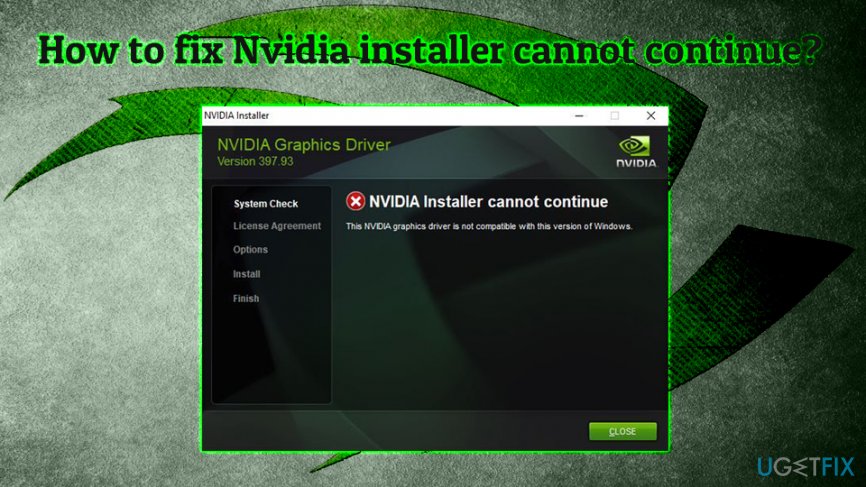
While some users struggle to update drivers for no apparent reasons, others encounter the "Nvidia installer cannot continue" error after installing brand new Windows 10 operating system (version 1809)[ref en-3] or after buying a new laptop/desktop.[ref en-2]
The former group of people should check the solutions that include downloading drivers manually, checking issues with a graphics card, disabling anti-virus software, reinstalling all Nvidia software, and similar. For those who are dealing with the fresh Windows install, we prepared as particular solution method that will be able to fix "Nvidia installer cannot continue" error (check the fix number 5).
Before you start, we would like to offer you scan your machine with PC repair software [d1]. Because there are multiple reasons why you can encounter "Nvidia installer cannot continue," the mentioned application might be able to fix your PC automatically, which is especially valuable for those less computer savvy individuals.
Fix 1. Download drivers via GeForce Experience
Some users who reported the "Nvidia installer cannot continue" error said that downloading and installing the driver via GeForce Experience worked for them. Please follow these steps:
- Open GeForce Experience
- Click Drivers
- Select Download and wait till it finishes
- Pick Express Installation
- Follow on-screen instructions
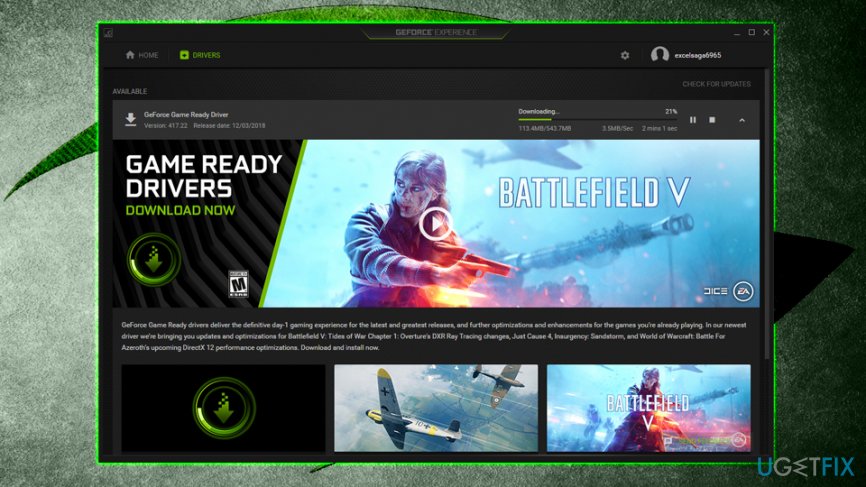
Nvidia installer cannot continue download via geforce experience
Fix 2. Download drivers via the Device manager in Windows
- Right-click on the Start button and pick Device Manager
- Expand Display adapters
- Right-click on your GPU, and pick Update Driver
- Next, select Search automatically for updated driver software
- Follow on-screen instructions and restart your PC
Fix 3. Disable anti-malware software
Sometimes security software might block the installation of legitimate files. Therefore, it might be a good idea to temporarily disable your anti-virus software while the updates install. To deactivate your AV engine, you should right-click on the icon in the taskbar and pick Disable or Quit. Additionally, you can stop the process by pressing Ctrl + Shift + Esc and ending the task in the Task Manager.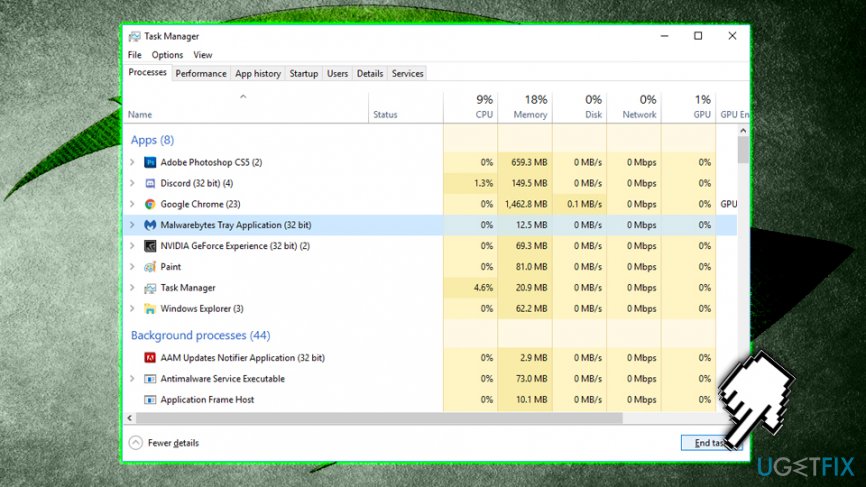
Fix 4. Rename Nvidia's folder
Another possible fix for "Nvidia installer cannot continue" error might be as simple as renaming Nvidia's folder located in Program files. Please follow these steps:
- Go to the drive your OS is installed (C by default)
- Find Program Files x86 and double-click it
- Scroll down and locate NVIDIA Corporation folder
- Rename it to NVIDIA Corporation.old or anything else for that matter
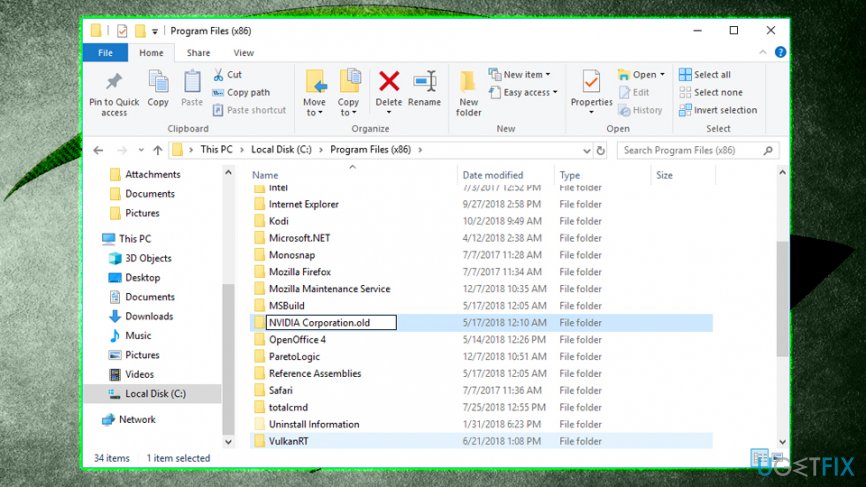
Nvidia installer cannot continue rename nvidia folder - Try to install Nvidia drivers again
Fix 5. Fix Nvidia installer cannot continue fix via Command Prompt
This method should work for those who have a clean Windows install and still cannot download the required graphics drivers. This problem happens due to windows downloading and installing 398.36 DCH drivers automatically via the Windows update. To prevent this, please follow these steps:
- Go to Device manager and expand Display adapters
- Select your GPU, right click and choose Properties
- Go to Details and, under Property, select Inf name
- Write down the value (note that it varies from machine to the machine- ours was oem29.inf)
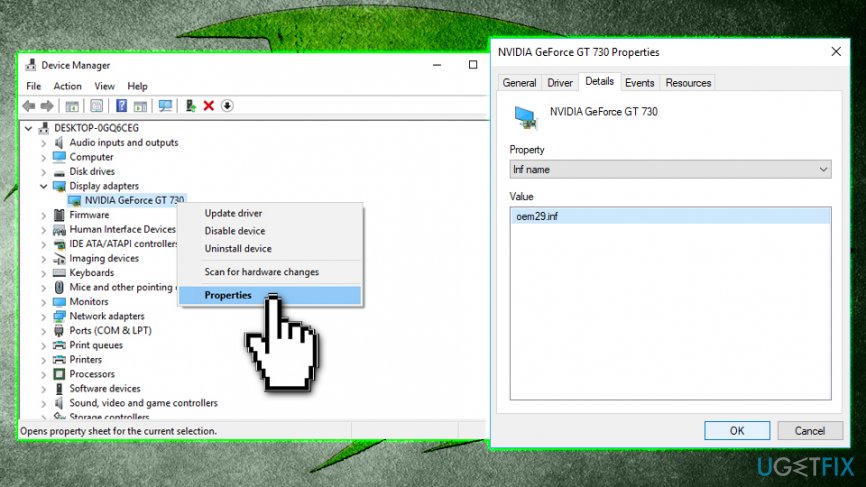
Nvidia installer cannot continue check inf name - Next, type in Command Prompt or cmd into the Windows search box, right click on the search result and select Run as administrator
- Type in the following command into the Command Prompt window: pnputil /delete-driver X /uninstall (enter the value that you wrote down earlier and replace the X with it in our case it would be pnputil /delete-driver oem29.inf /uninstall) and press Enter
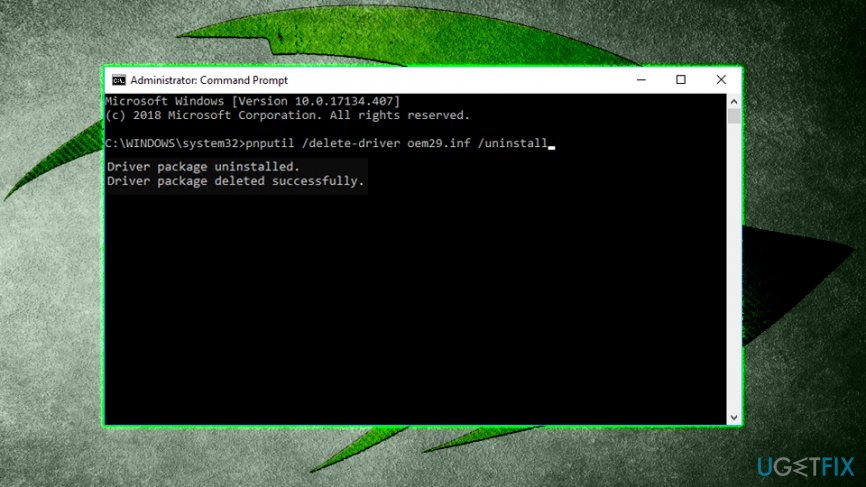
Nvidia installer cannot continue uninstall dch driver via command prompt - Next, type in sc delete nvlddmkm and hit Enter again
Bottom line
To fix the 'Nvidia installer cannot continue' error, you can try downloading drivers via GeForce Experience, manually updating drivers, checking for graphics card issues, disabling anti-virus software, or reinstalling all Nvidia software. If none of these solutions work, consider using PC repair software to automatically fix potential issues.
Frequently asked questions
Try uninstalling any previous Nvidia drivers using the Device Manager and then restart your computer before attempting to install the latest drivers again.
Ensure that your Windows 11 is fully updated and check for any pending Windows updates that might affect driver installations.
Yes, common error messages include 'Nvidia installer cannot continue' and 'Nvidia graphics driver is not compatible with this version of Windows,' which indicates compatibility issues.




Report an issue
What's wrong with this guide? We review every report and update or remove content.
Report received — thank you. We'll review and fix it.
You need a free account to submit a report.
Be the first to comment