How to fix
OneDrive is not uploading photos
on Windows
Resolve OneDrive upload issues on Windows 10 and 11 effortlessly. Follow our expert-tested solutions for a seamless cloud experience today!

What causes How to fix OneDrive is not uploading photos in Windows?
- Internet connectivity problems
- Incorrect OneDrive settings
- OneDrive not enabled for automatic uploads
- Folder not included in OneDrive backup settings
- Insufficient storage capacity on OneDrive account
Repairs Windows system files, removes malware, and restores a clean OS state — without reinstalling.
Ho. For some reason, OneDrive is not uploading my photos. I just noticed this a few days ago and I am not sure what could have caused it. Please advise.
Sometimes, you might run into problems with photos not uploading when using OneDrive on Windows. It can be rather annoying to deal with this common issue, particularly if you depend on OneDrive to back up large photo collections. This article explains why OneDrive is not uploading photos in Windows more thoroughly and includes easy-to-follow instructions for fixing the issue.
What can cause OneDrive not to upload photos?
Several factors can cause your photos not to upload to OneDrive. Firstly, internet connectivity problems are a primary cause. If your connection is unstable or too slow, OneDrive may struggle to upload files. Secondly, incorrect OneDrive settings can prevent uploads.
For example, if OneDrive is not enabled to upload images automatically or if the folder you are attempting to upload from is not included in your OneDrive backup settings, uploads will fail. Furthermore, they will also fail if you have run out of storage capacity on your OneDrive account.
What can you do to fix OneDrive not uploading photos in Windows?
Understanding the potential resolutions can help mitigate this problem. The fundamental first step is to make sure your internet connection is reliable and fast enough for uploads. It's also important to check your OneDrive settings to make sure that the specific folders are selected for backup and that automatic photo uploads are enabled.
Furthermore, you should ensure that your OneDrive account has enough storage space to accommodate new files. Regularly monitoring your saved files and removing superfluous stuff will help you avoid running out of space. If you require comprehensive instruction to perform all of these tasks, please see the instructions below.
Any other ways?
If you feel that these methods are too complicated, you may always use PC repair software [d1], which can immediately resolve any underlying Windows problems that can cause OneDrive to fail to upload photos. You'll save time by using this method, and it's also a great tool for people who are not technical.
Fix 1. Ensure your settings are correct
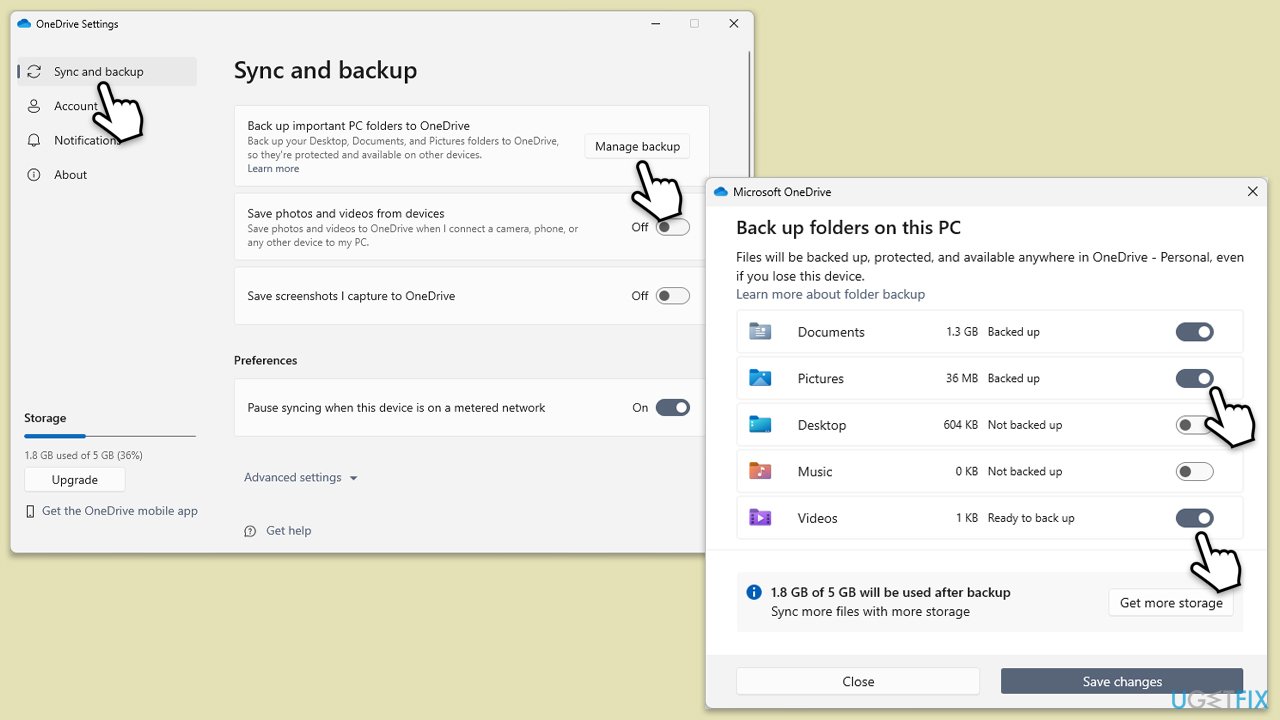
This fix involves checking and adjusting your OneDrive settings to ensure that photos are set to upload automatically. Misconfigured settings are a common reason for upload issues.
- Open the OneDrive app on your PC.
- Click on the Help & Settings icon, usually found in the bottom right corner of your screen.
- Select Settings from the menu.
- In the settings window, go to the Sync & backup section.
- Click Manage backup.
- Ensure that the Pictures and Videos option is enabled.
- Check that the folders where your photos are stored are included in the backup selections.
Fix 2. Install all Windows updates
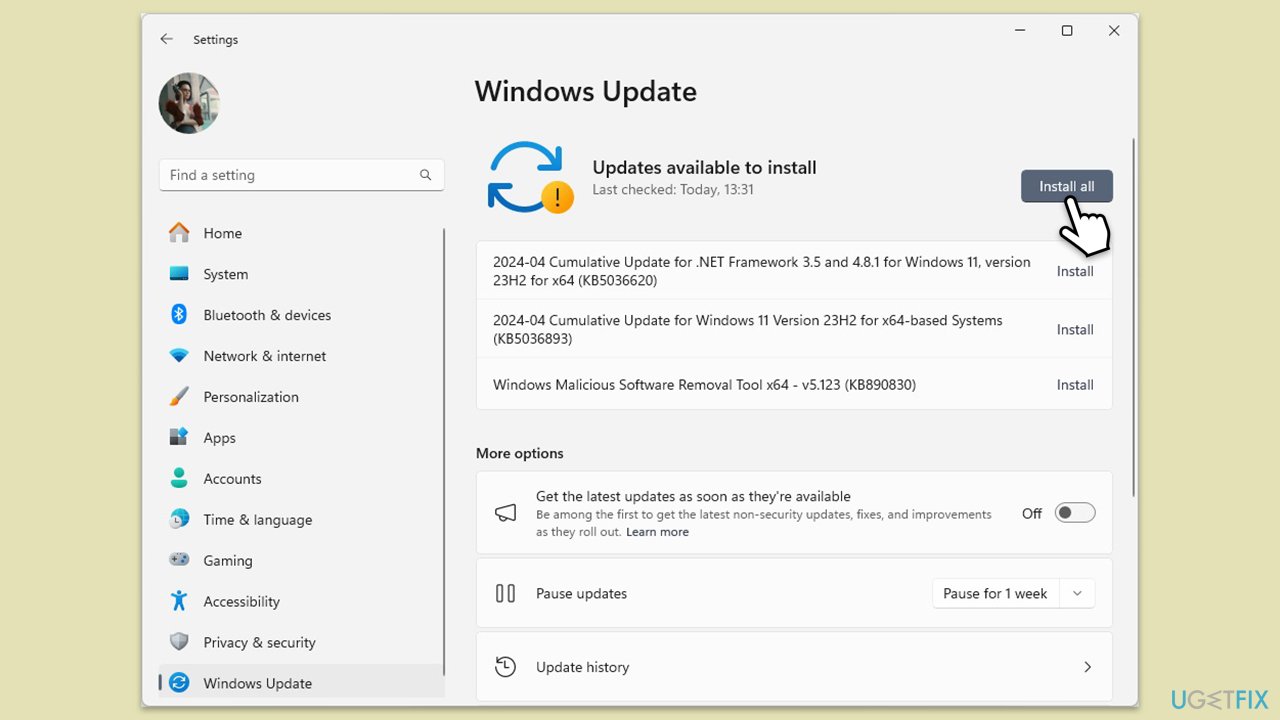
Updating Windows can resolve underlying system issues that might be preventing OneDrive from functioning properly. It ensures that both the operating system and OneDrive can work together without conflicts.
- Type Updates in Windows search and hit Enter.
- If updates are available, click Install updates.
- Otherwise, click Check for updates.
- If optional updates are available, install them as well.
- When all the update processes are complete, restart your device.
Fix 3. Update OneDrive manually
Making sure you have the latest version of OneDrive can eliminate bugs that may be causing upload problems.
- Open the OneDrive app on your PC.
- Click on the Help & Settings icon in the notification area.
- Select Settings.
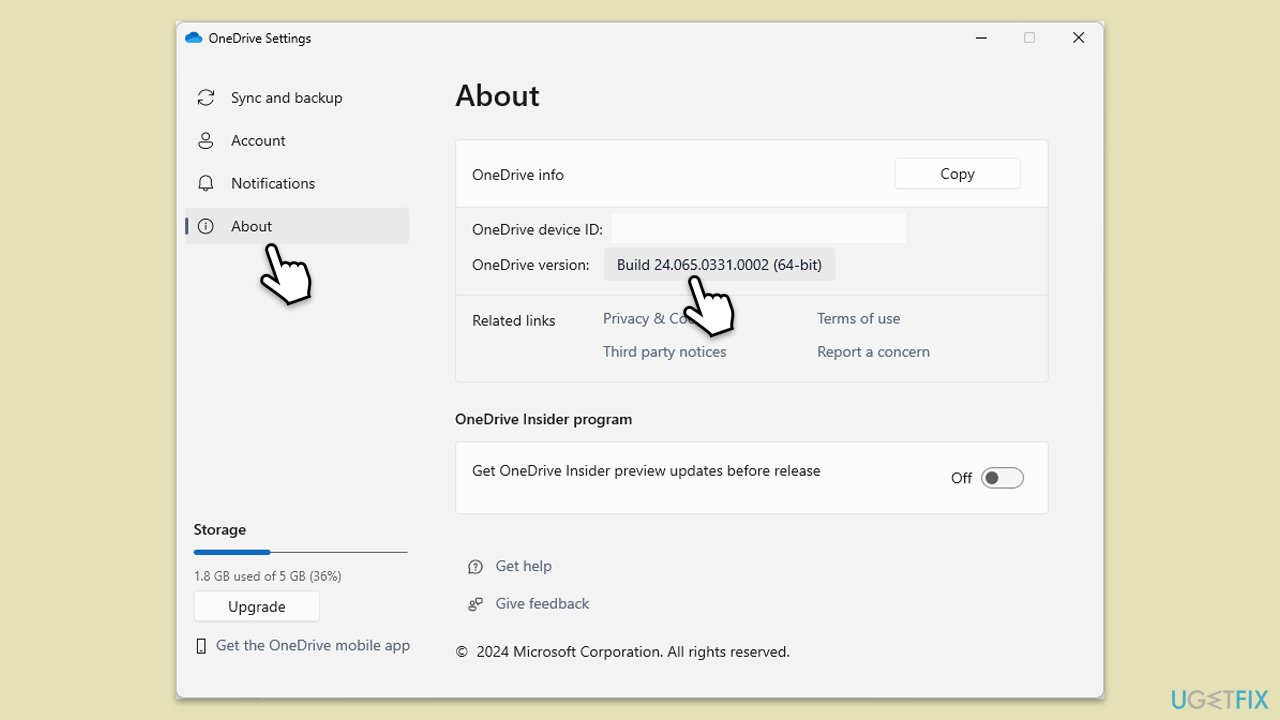
- In the settings menu, go to the About tab.
- Click on the OneDrive version - this should open the browser and the release notes from Microsoft.
- If the latest version listed there matches with the one on your app, you are up to date.
- If the version does not match, simply click on Download OneDrive for Windows, follow the installation instructions and it will install the latest version on your device.
Fix 4. Set OneDrive to run as administrator
Running OneDrive with administrator privileges can help bypass some permission-related issues that might block file uploads.
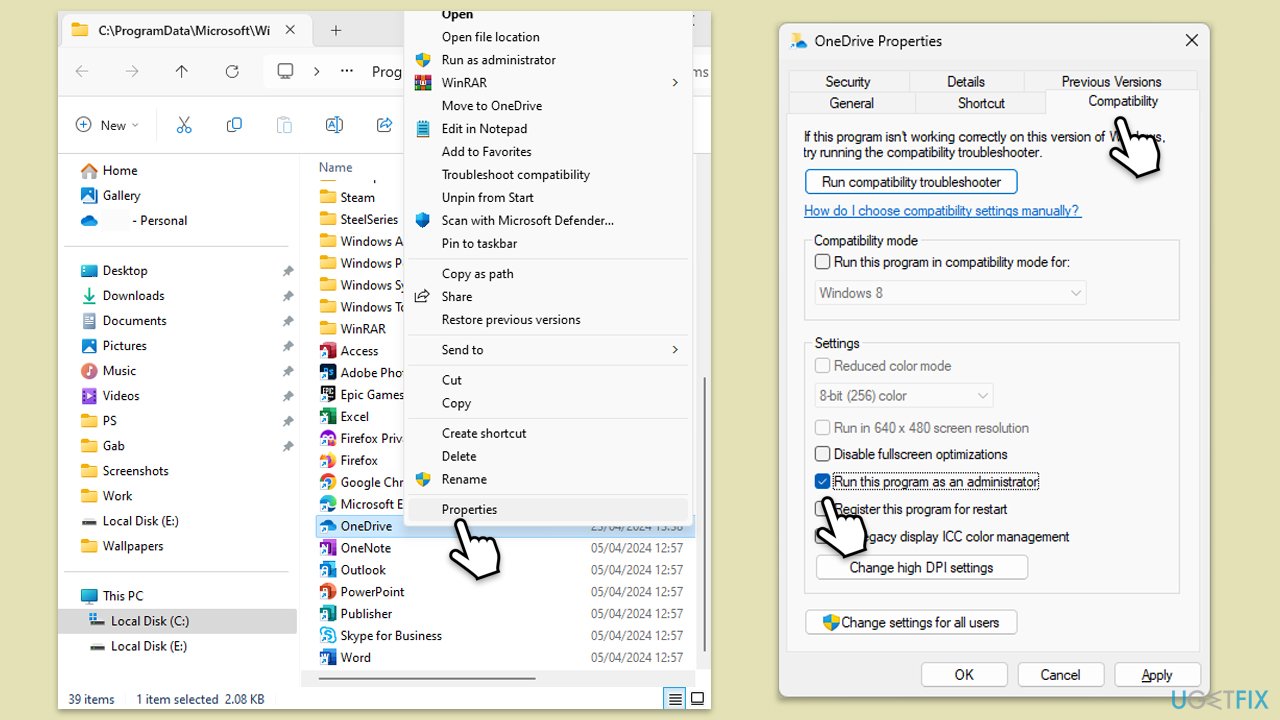
- Type OneDrive in Windows search.
- Right-click on OneDrive and select Open file location.
- Right-click on the OneDrive shortcut and select Properties.
- Go to the Compatibility tab.
- Check the box next to Run this program as an administrator.
- Click Apply, then OK.
Fix 5. Ensure you have enough storage space in OneDrive
Lack of storage space can prevent new uploads. Checking and managing your storage can help alleviate this issue.
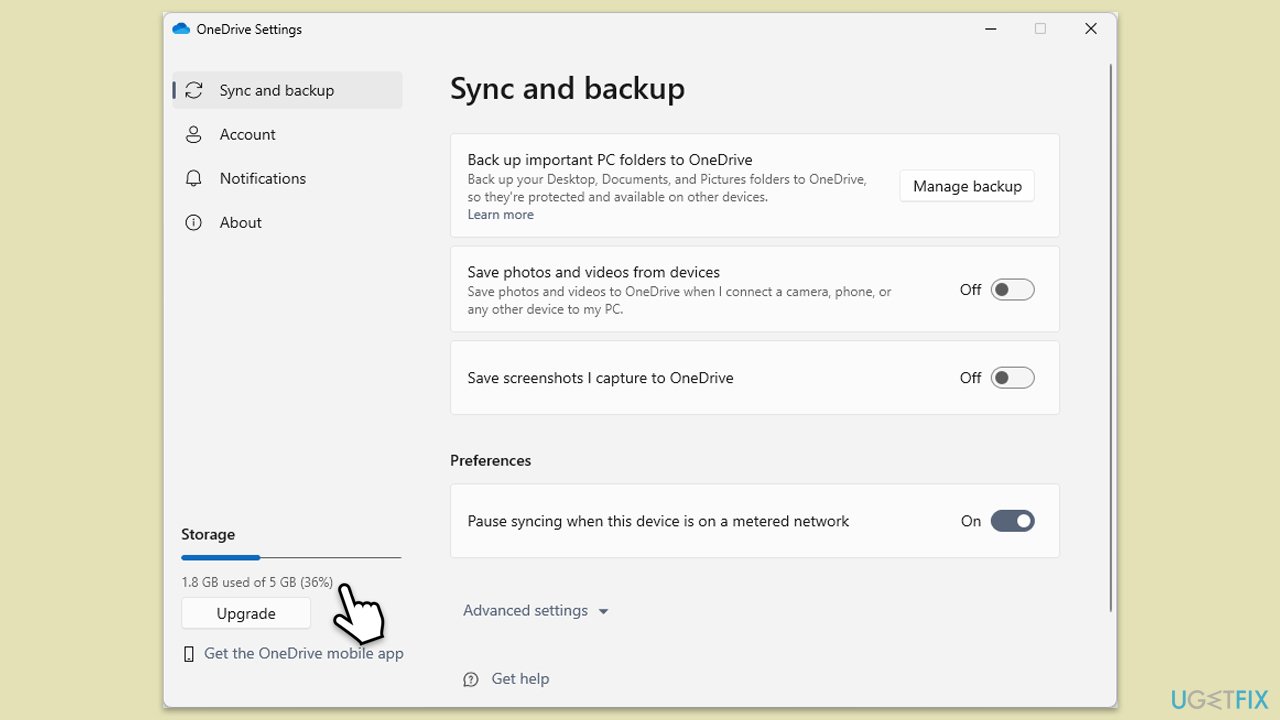
- Open the OneDrive app.
- Click on the Help & Settings icon.
- Select Settings.
- You'll be able to see how much storage space you have left in the bottom left corner of the window.
- If you are close to your storage limit, consider deleting unnecessary files or purchasing additional storage.
Fix 6. Run Network troubleshooter
Network issues can hinder OneDrive's ability to upload files. Running the Network troubleshooter can identify and potentially resolve these issues.
Windows 11
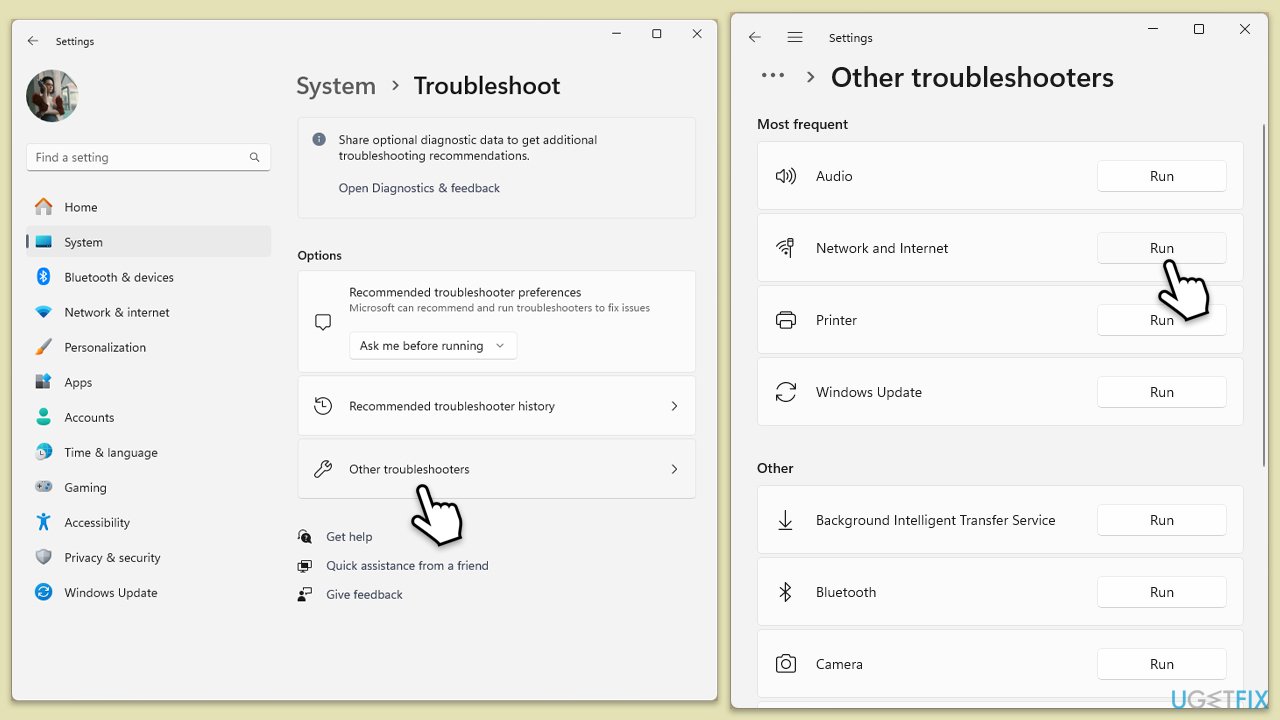
- Type Troubleshoot in Windows search and hit Enter.
- Select Other troubleshooters.
- Locate Network & Internet troubleshooter from the list and click Run.
- Wait till the process is finished and apply the recommended fixes.
- Restart your computer.
Windows 10
- Right-click on Start and pick Settings.
- Go to the Network & Internet section.
- On the right side, find the Advanced network settings section.
- Click Network troubleshooter and wait.
- The fixes will be automatically applied.
Fix 7. Reset OneDrive
Resetting OneDrive can clear up any errors or glitches within the app itself that might be causing upload problems.
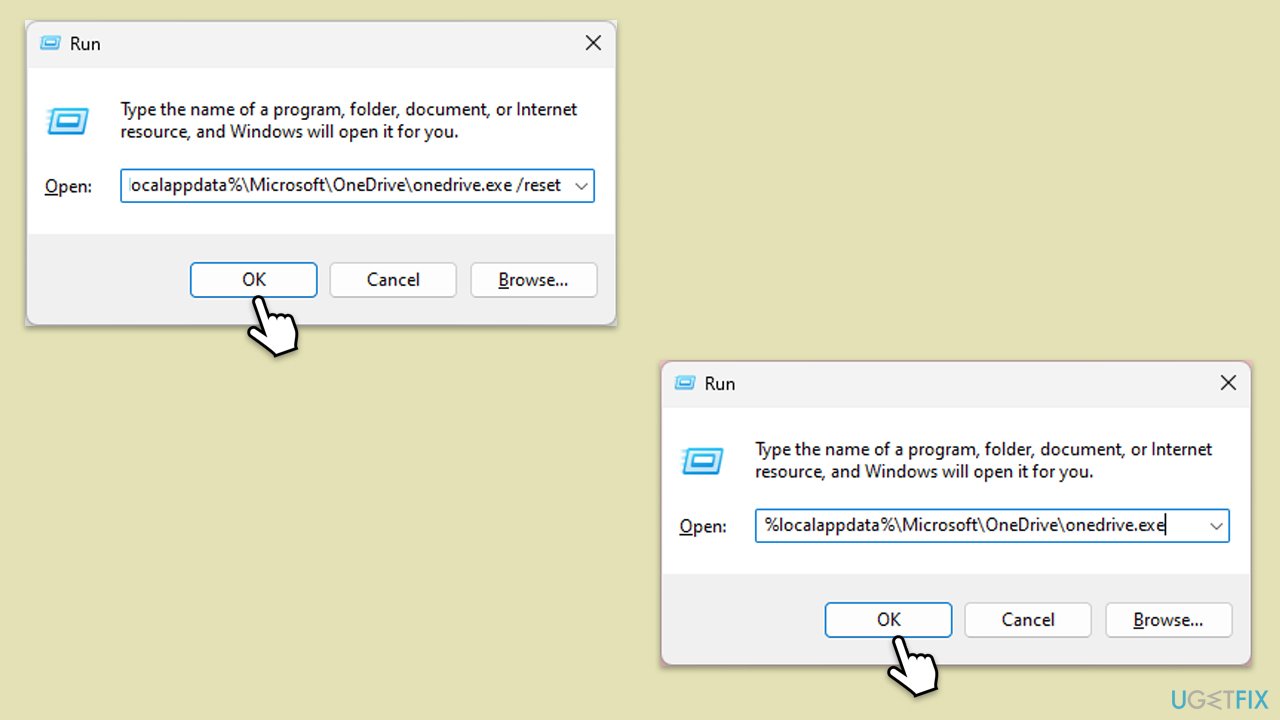
- Press Win + R on your keyboard.
- When the Run window opens, copy and paste the following text into it:
%localappdata%\Microsoft\OneDrive\onedrive.exe /reset
(use %programfiles(x86)%\Microsoft OneDrive\onedrive.exe /reset instead if you get an error here) - Press Enter or click OK.
- After this command is executed, the app should be reset, and OneDrive should open.
- If it doesn't, wait a few minutes, then open the Run window again and use the following command:
%localappdata%\Microsoft\OneDrive\onedrive.exe - Press Enter.
Fix 8. Reinstall OneDrive
If all else fails, reinstalling OneDrive can provide a fresh start, potentially resolving persistent upload issues.
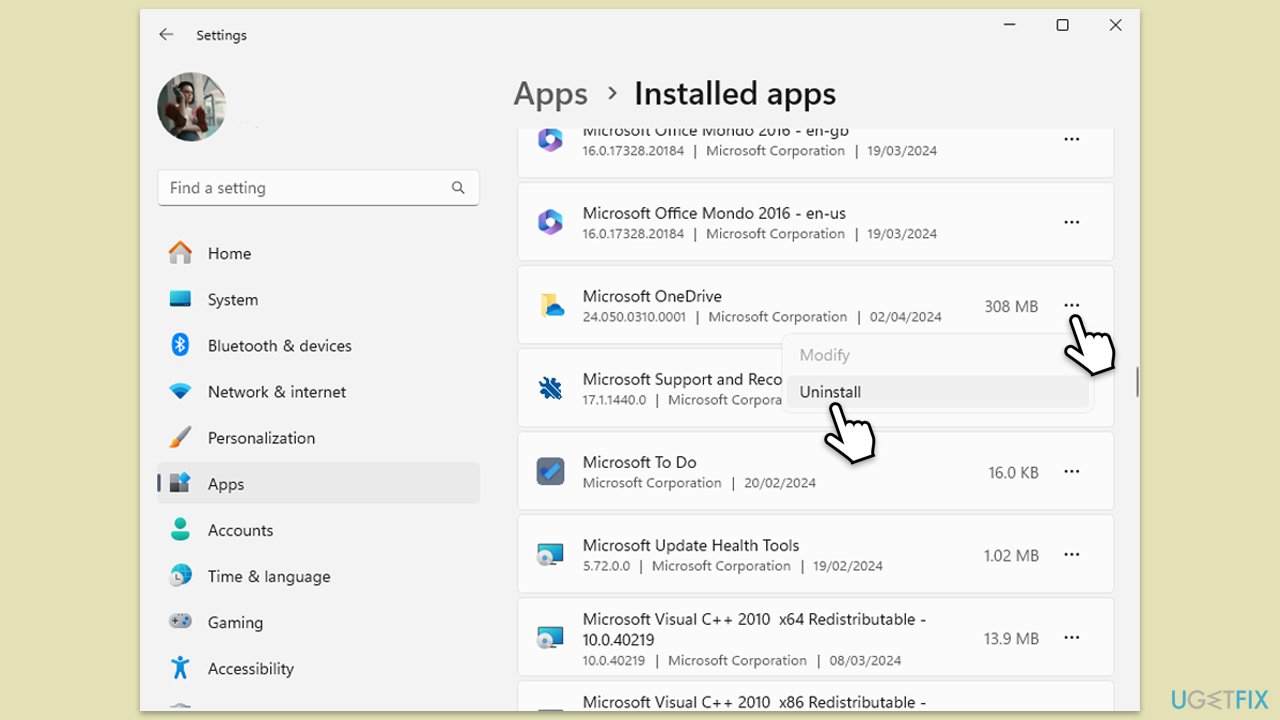
- Right-click on Start and pick Apps & Features/Installed apps.
- Find OneDrive in the list, select it, and click Uninstall, then follow the on-screen instructions.
- After uninstallation, download the latest version of OneDrive from the official Microsoft website and install it by following the on-screen instructions.
- Sign in to your OneDrive account to start syncing your files again.
Bottom line
To fix OneDrive not uploading photos, ensure your internet connection is reliable, check that the correct folders are selected for backup, and verify that automatic uploads are enabled. Additionally, make sure you have enough storage space in your OneDrive account. If these solutions do not resolve the issue, consider using PC repair software to address any underlying Windows problems.
Frequently asked questions
OneDrive may not upload photos due to insufficient storage space, a poor internet connection, or settings that prevent automatic uploads. Check your OneDrive settings and ensure you have enough available storage.
To restart OneDrive, right-click the OneDrive cloud icon in the taskbar, select 'Close OneDrive', and then relaunch it from the Start menu. This can help refresh the app and resolve upload problems.
If OneDrive is stuck syncing, try pausing and then resuming the sync, or check for any pending Windows updates that may affect OneDrive's functionality. You can also reset OneDrive using the command prompt for a more thorough fix.




Report an issue
What's wrong with this guide? We review every report and update or remove content.
Report received — thank you. We'll review and fix it.
You need a free account to submit a report.
Be the first to comment