How to fix
Openal32.dll missing or not found error
on Windows
Resolve the Openal32.dll missing error in Windows 10 and 11 with our easy troubleshooting tips. Expert-tested solutions for a smooth experience!

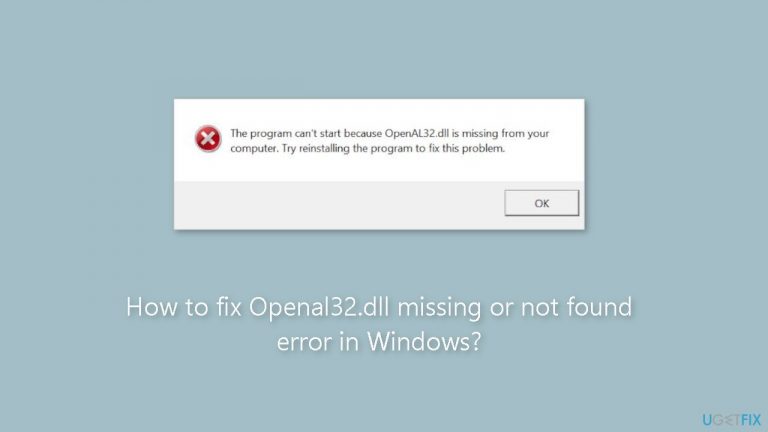
What causes How to fix Openal32.dll missing or not found error in Windows?
- OpenAL package file is missing
- Corrupted OpenAL files
- Outdated audio drivers
- Incompatible audio drivers
- Game or application not properly installed
Repairs Windows system files, removes malware, and restores a clean OS state — without reinstalling.
Hello. When I try to launch some games on my Windows PC I receive errors that Openal32.dll is missing or not found. Is there a way to fix this?
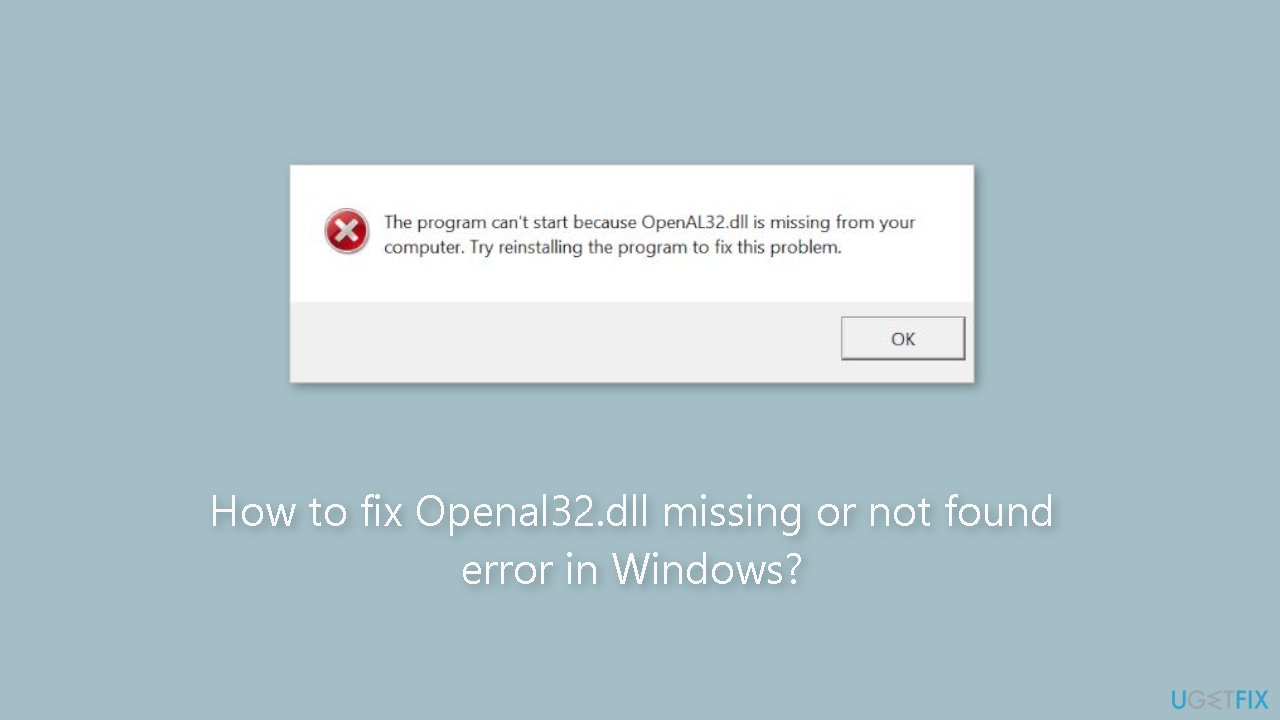
The OpenAL (Open Audio Library) is a cross-platform audio API[ref en-1] that is used as a core component in many games to improve the user experience by providing efficient rendering of multichannel three-dimensional positional audio. An error message such as "The program can't start because openal32.dll is missing from your computer" indicates that the required OpenAL package file is missing from the user's computer.
This problem may have a number of consequences for users. For starters, it prevents the affected application or game from properly launching or running. Users may experience crashes, freezes, or an inability to start the program entirely. The absence of the openal32.dll file can severely impair the game's overall functionality, particularly its audio features. The user's experience may be hampered if the game lacks spatial audio effects or fails to produce immersive soundscapes without OpenAL.
There are a few potential solutions available to address this issue. Reinstalling the game or application that is causing the error message may replace any missing or corrupted files, including the openal32.dll file. Another option is to manually search for and download the missing DLL file, ensuring that it is placed in the correct directory on the user's computer. Users can also look into updating their system's audio drivers, as outdated or incompatible drivers can sometimes cause conflicts with OpenAL.
In this guide, you will find 4 steps that should help you fix Openal32.dll missing or not found error. You can also run a maintenance tool like [d1] that can fix most system errors, BSODs,[ref en-2] corrupted files, and registry[ref en-3] issues. Otherwise, follow the step-by-step instructions below.
Solution 1. Use the Game’s DLL Package
- Press the Windows key + E to launch the File Explorer.
- Navigate to the folder where the Steam application is installed.
- Go to the following file path:
Steam/SteamApps/common/<your game>
- Replace <your game> with the name of the game you are having the error message with.
- Inside the game folder, locate and open the directory named _CommonRedist.
- Once inside the _CommonRedist folder, find and open the OpenAL folder.
- Inside the OpenAL folder, locate and open the 0.7.0 folder.
- Within the 0.7.0 folder, you will find an executable file named exe. Execute this file to replace the missing DLL file.
- After the DLL file has been installed, restart your computer.
- Launch the game after your computer has restarted.
Solution 2. Copy the DLL File
- Press the Windows key + E to launch the File Explorer.
- In the search bar at the top right corner of your screen, type openal32.dll.
- Windows will start searching for the package and iterate through all the entries. Allow the process to finish.
- If the library openal32.dll is found, copy it.
- Navigate to the location we discussed in Solution 1, which is inside the game's _CommonRedist folder.
- Paste the copied library into the designated location.
- Execute the executable file found inside the library after it has been copied to the correct place.
- Restart your computer to apply the changes.
- After the computer restarts, check if the problem has been resolved.
Solution 3. Reinstall the Game
Games installed through Steam:
- Right-click the Steam client and select Run as administrator to launch it.
- Click on Library at the top to display a list of all your games.
- Right-click on the game causing the problem and select Uninstall.
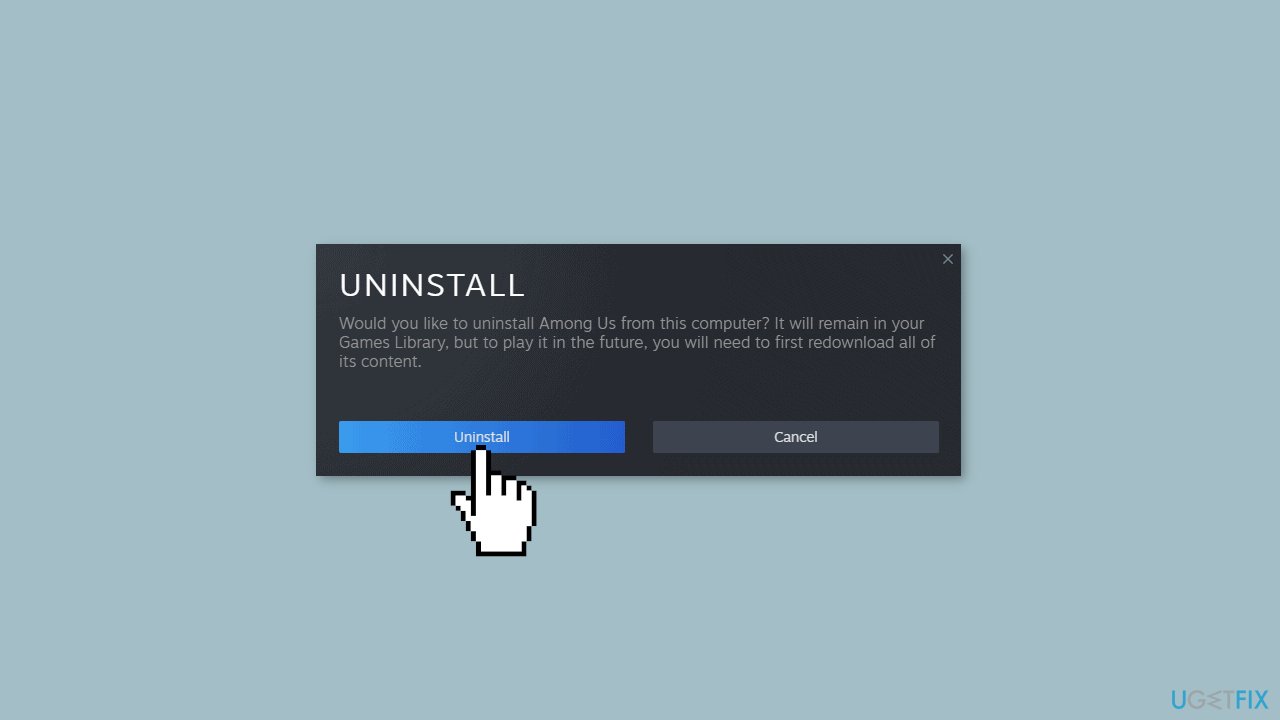
- After uninstalling the game, navigate to the location where it was installed and ensure that all files related to the game are deleted.
- Download the game files again and proceed with the installation.
Games not installed through Steam:
- Press the Windows key + R to open the Run dialog.
- Type appwiz.cpl and press Enter.
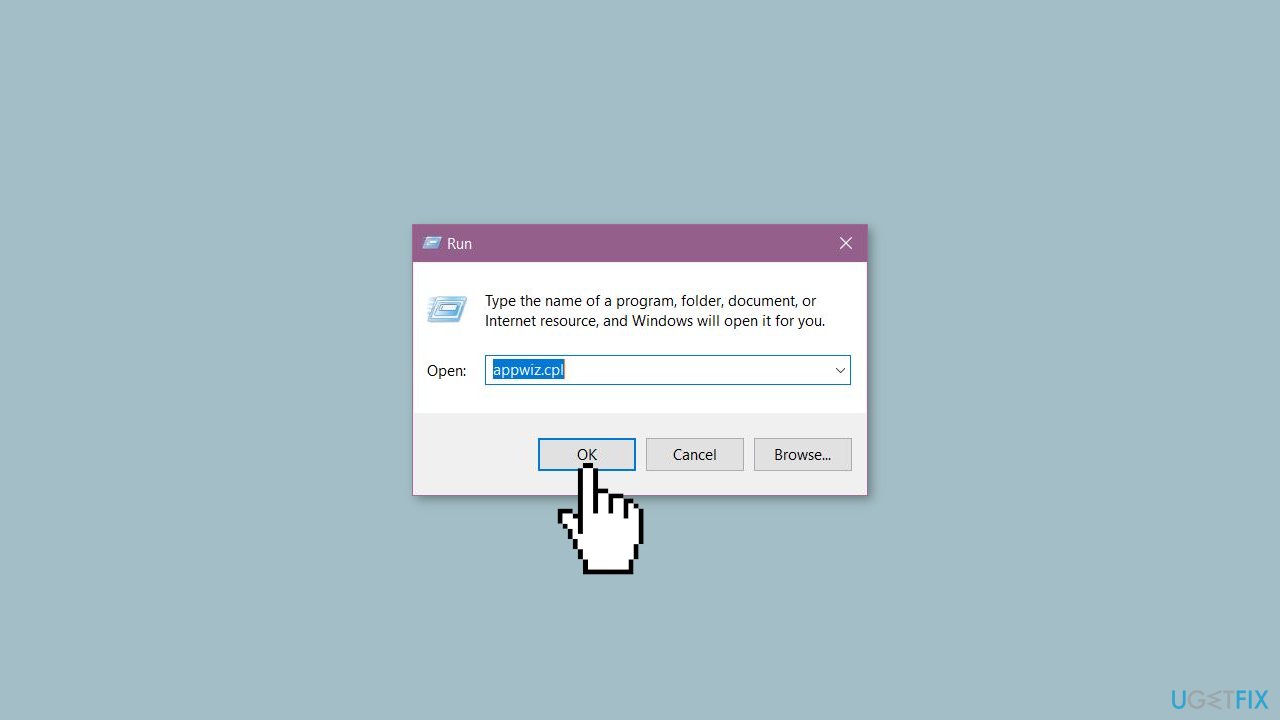
- The Programs and Features window will appear, listing all the installed applications and games.
- Scroll through the list until you find the game that is causing the problem.
- Right-click on the game and click Uninstall.
- Restart your computer to complete the uninstallation process.
- Make sure all the files related to the game are deleted before you proceed with reinstalling it.
Solution 4. Use System Restore
System Restore is a feature in Microsoft Windows that allows users to revert their computer's state to a previous point in time. This can be helpful if you have made changes to your system that are causing problems.
- Press the Windows key + R on your keyboard to open the Run box.
- Type SystemPropertiesProtection and press Enter.
- Go to the System Protection tab.
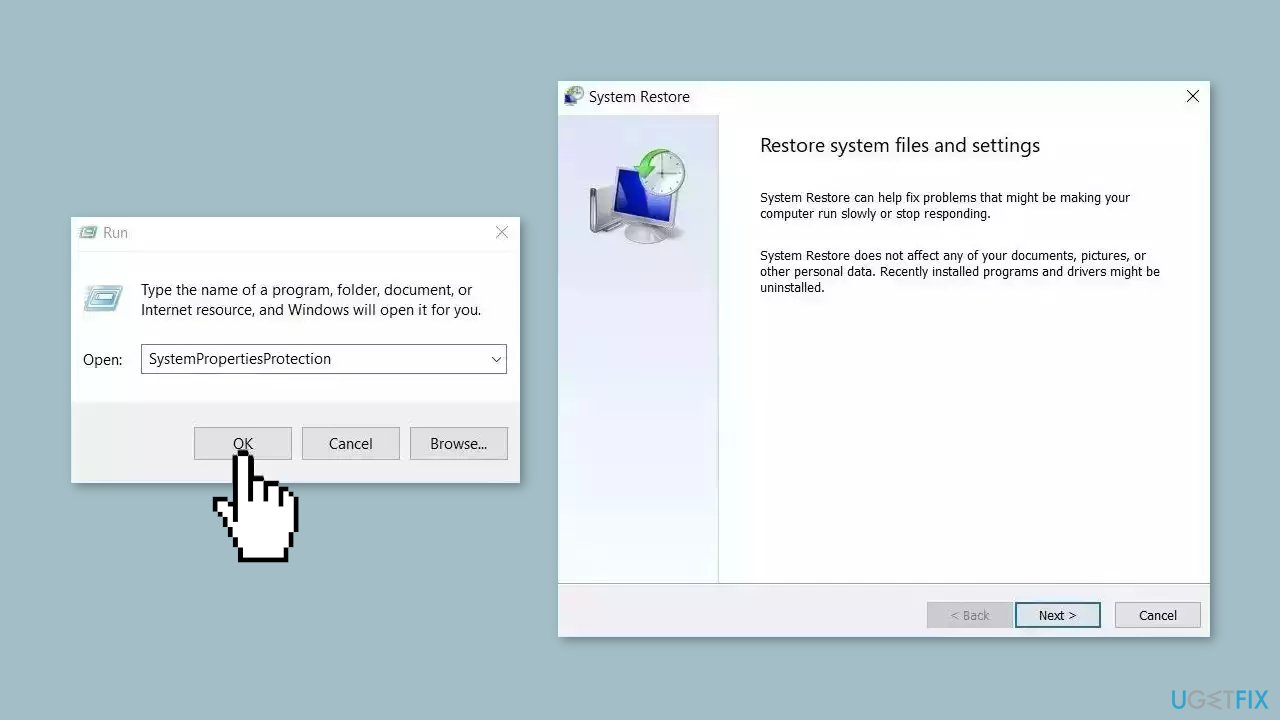
- You will see the System Restore… button. Click it to run System Restore.
- Follow the prompts until you can select a restore point.
- Select the one you want (ideally before the issue started occurring) and go ahead with the process.
Bottom line
To fix the Openal32.dll missing or not found error, you can try reinstalling the game or application, manually downloading the missing DLL file, or updating your system's audio drivers. If these solutions do not resolve the issue, consider using a maintenance tool to fix system errors.
Frequently asked questions
The Openal32.dll missing error can be caused by a corrupted or deleted file, often due to incomplete software installations or malware infections in Windows 10 or Windows 11.
You can restore the Openal32.dll file by reinstalling the application that requires it or by downloading the file from a reliable source and placing it in the appropriate system folder.
It is not recommended to download Openal32.dll from third-party websites due to the risk of downloading malware; always try to restore the file through official software channels.




Report an issue
What's wrong with this guide? We review every report and update or remove content.
Report received — thank you. We'll review and fix it.
You need a free account to submit a report.
Be the first to comment