How to fix
OpenCL.dll missing or not found error
on Windows
Resolve the OpenCL.dll missing error in Windows 10 or 11 effortlessly. Get expert-tested solutions that fix the problem in minutes!

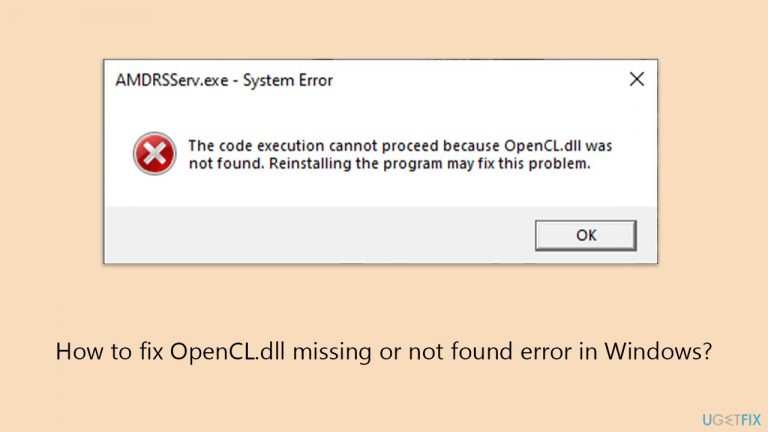
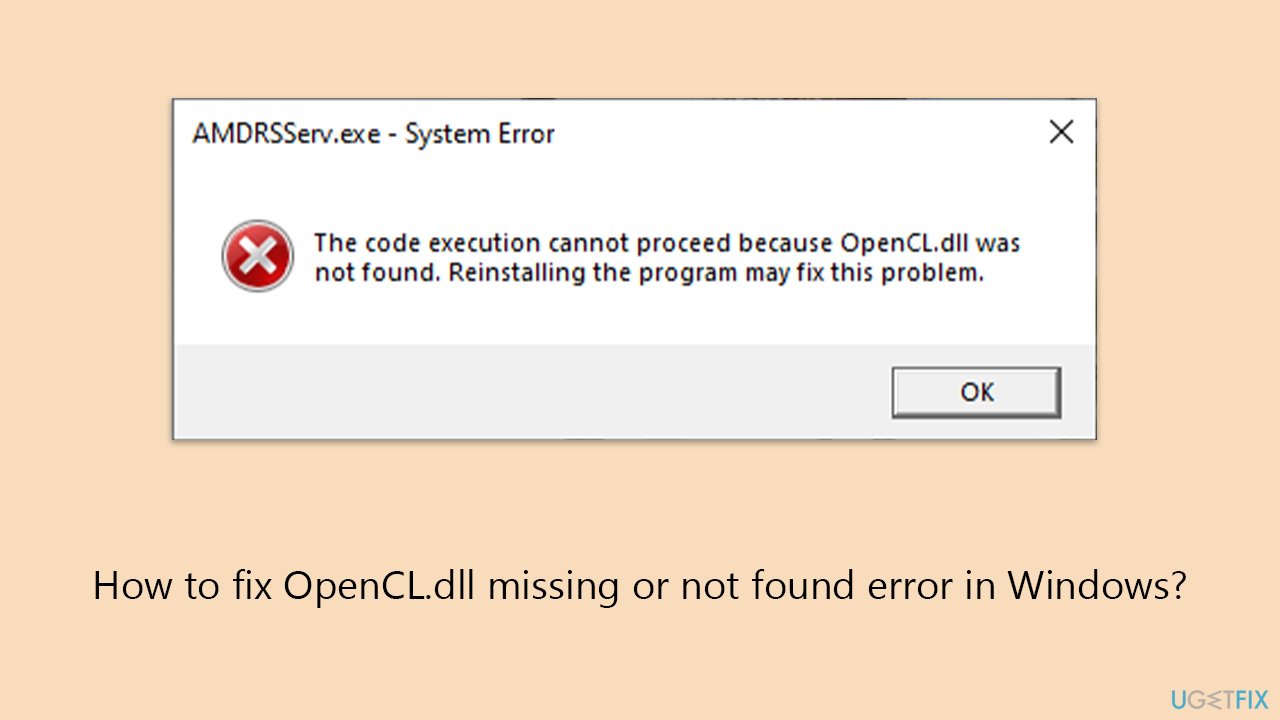
What causes How to fix OpenCL.dll missing or not found error in Windows?
- Missing OpenCL.dll file
- Corrupted OpenCL.dll file
- Incompatible version of OpenCL.dll due to software installation or update
- Outdated graphics drivers
- Malware affecting system files
Repairs Windows system files, removes malware, and restores a clean OS state — without reinstalling.
How do I fix the OpenCL.dll file missing error in Windows? This pops up whenever I boot into Windows each time.
The "OpenCL.dll missing or not found" error in Windows is a typical problem users face. This issue is often caused by a missing, deleted, or corrupted OpenCL.dll file, which is required for executing OpenCL (Open Computing Language) programs. OpenCL provides a framework for building programs that run on several platforms, including CPUs, GPUs, and other processors.
It is not surprising that many users would have no way to determine what is causing this error, as they often aren't even provided the name of the program in the message box, making the fixing process a much harder task. Here are some of the reasons why "OpenCL.dll missing or not found" error could occur:
- The problem can occur if the OpenCL.dll file is mistakenly removed or corrupted, which could be due to malware or system changes.
- When you install or update software, it may overwrite the existing OpenCL.dll with an incompatible version.
- Outdated or corrupted graphics drivers are a typical cause of OpenCL application failure.
To fix the "OpenCL.dll missing or not found" error, several strategies can be employed effectively. Firstly, updating the graphics card drivers is a crucial step. This ensures the installation of the correct version of OpenCL.dll required by the system, potentially resolving the error. If a specific application triggers the error, reinstalling that application might help by replacing the missing or corrupted OpenCL.dll file with a new one, thus eliminating the error source.
Another potent solution involves utilizing Windows SFC and DISM tools. This utility can scan for and repair corrupted system files, including OpenCL.dll, thereby fixing the error without requiring manual file handling. These and more solutions for the error can be found below, but before you proceed with manual troubleshooting steps, we highly recommend you check an automatic Windows repair tool [d1].
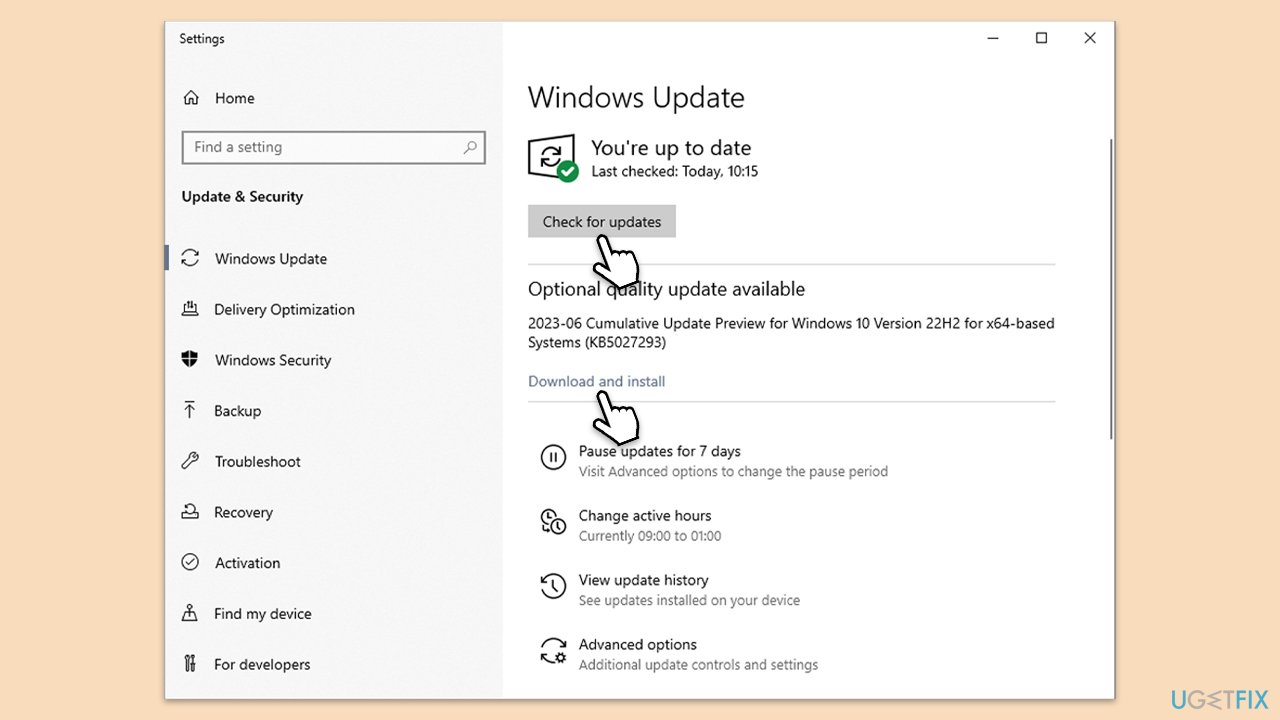
Fix 1. Install Windows updates
Windows updates often contain fixes to common system errors and improvements to the stability and security of your operating system.
- Navigate to Settings > Update & Security.
- Click on Windows Update, then Check for updates.
- If updates are available, install them. Make sure you install optional updates as well.
- Restart your computer once updates are installed.
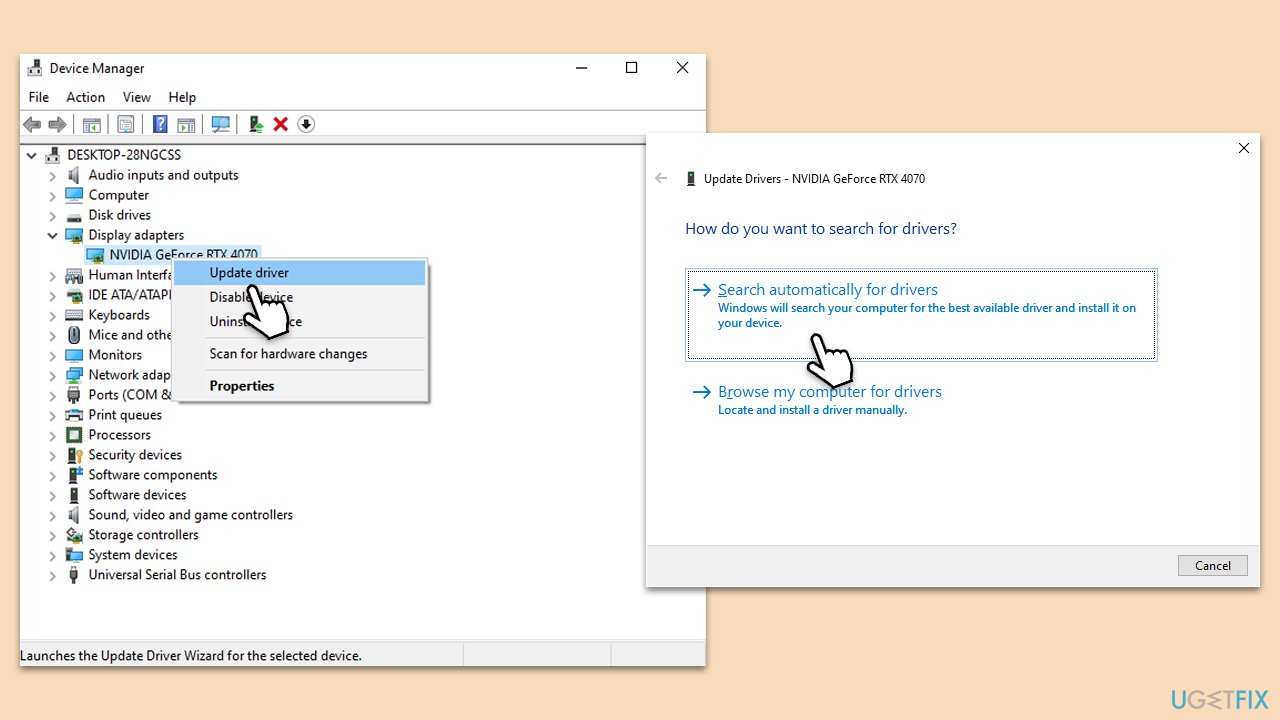
Fix 2. Update GPU drivers
The easiest way to update drivers is by using automatic software, such as [rev id="DriverFix"]. Alternatively, you can either download the driver from the official website or employ the Windows update feature:
- Right-click on the Start button and select Device Manager from the menu.
- Expand the Display adapters section.
- Right-click on your graphics card and select Update driver.
- Pick Search automatically for drivers.
- If updates are found, allow them to install.
- Restart your computer after updating all necessary drivers.
Fix 3. Reinstall the affected software
Reinstalling software that is causing the error can replace the missing or corrupted file with a fresh copy, potentially resolving the issue.
- Right-click on Start and pick Apps and Features.
- Scroll down to the app that's causing the error to show up.
- Select it and click Uninstall - follow the prompts to finish the process.
- Once done, reboot your system.
- Visit the official website of the software and download the latest version.
- Install the software by following the installation instructions.
- Launch the app to see if the error persists.
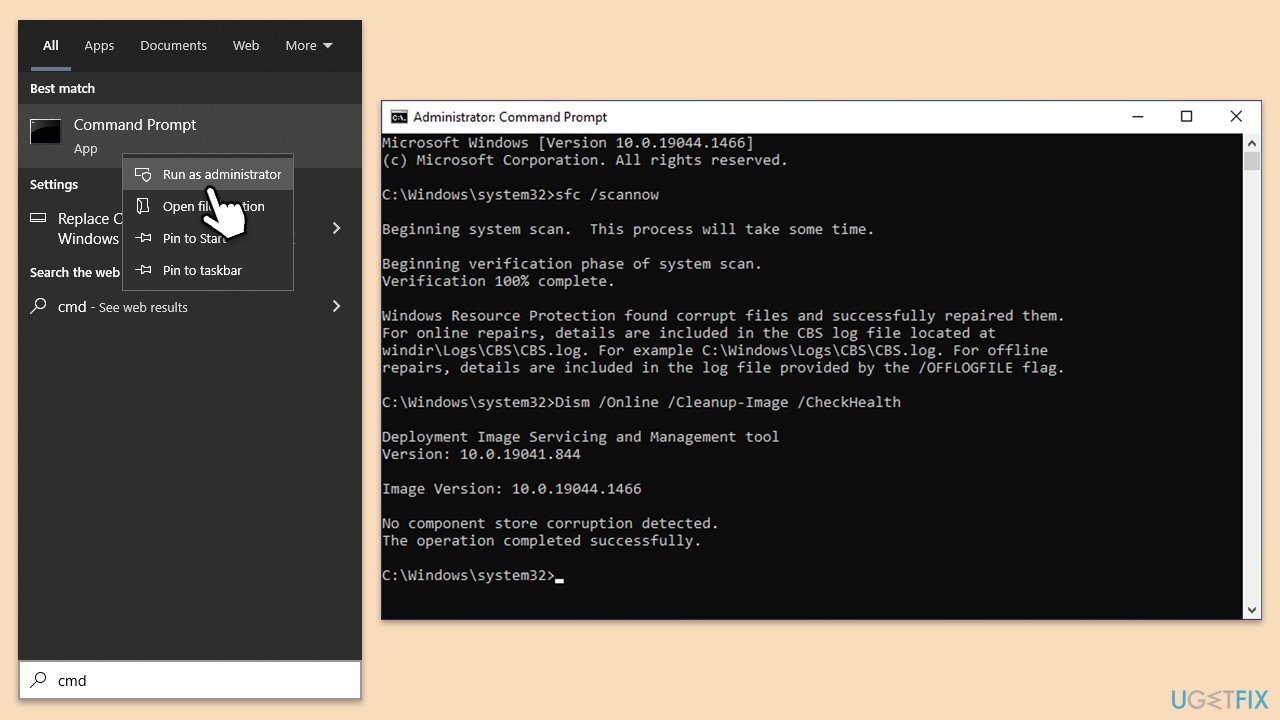
Fix 4. Run SFC and DISM
SFC scans for and replaces corrupted files, while DISM repairs the Windows image and resolves issues preventing SFC from working correctly.
- Type cmd in Windows search.
- Right-click on Command Prompt and pick Run as administrator.
- User Account Control window will show up - click Yes when prompted.
- Then, copy and paste the following command, pressing Enter after:
sfc /scannow - Wait till the scan is finished. If Windows finds system file integrity violations, it will attempt to fix them. After this, use the set of the following commands, pressing Enter each time:
DISM /Online /Cleanup-Image /CheckHealth
DISM /Online /Cleanup-Image /ScanHealth
DISM /Online /Cleanup-Image /RestoreHealth - (Note: if you get an error executing this last command, add /Source:C:\RepairSource\Windows /LimitAccess to it and try again).
- Close down the Command Prompt and restart your computer.
Fix 5. Try Clean Boot
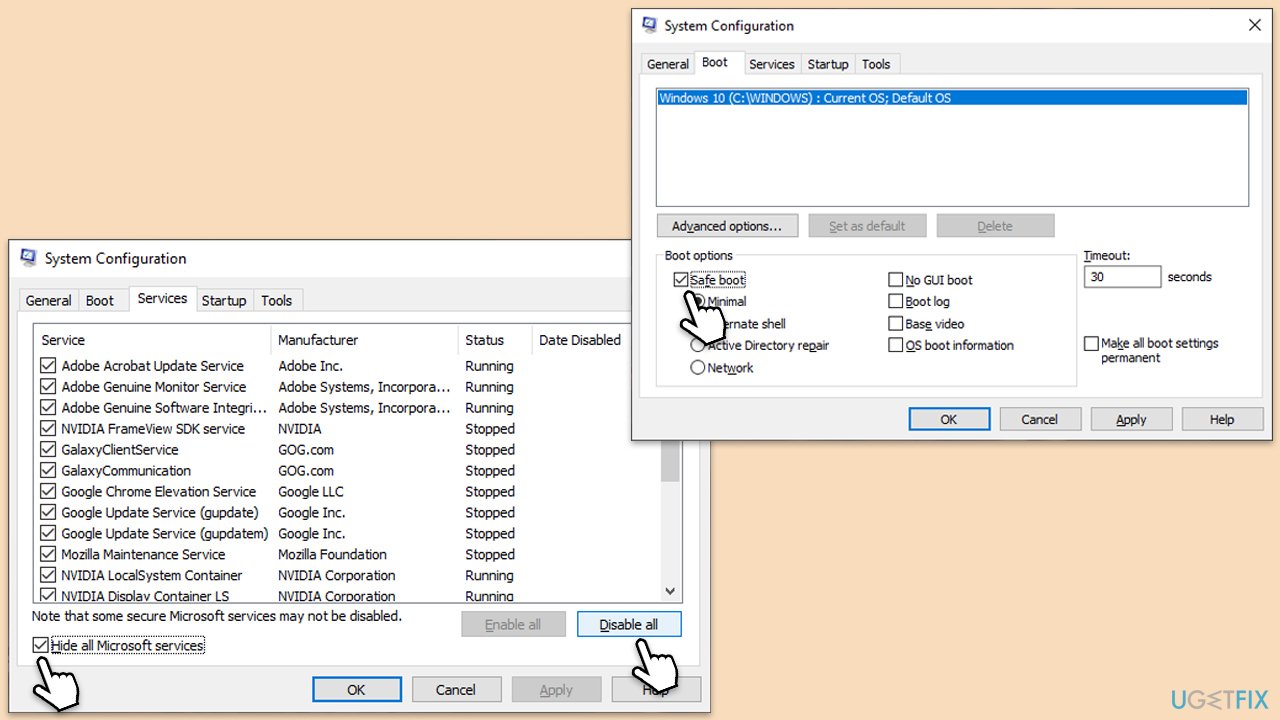
Performing a clean boot starts Windows with a minimal set of drivers and startup programs, helping to identify if background programs are causing conflicts with OpenCL.dll.
- Type msconfig in Windows search and press Enter.
- In the System Configuration window, click on the Services tab.
- Check the box that says Hide all Microsoft services, then click Disable all.
- Next, click on the Startup tab.
- Click on Open Task Manager.
- Under the Startup tab in Task Manager, for each startup item, select the item and then click Disable.
- Close Task Manager.
- On the Startup tab of the System Configuration dialog box, click OK, and then restart your computer.
- After rebooting, check if the issue persists. If not, enable services and startup items one by one to identify the culprit.
Fix 6. Run Check Disk
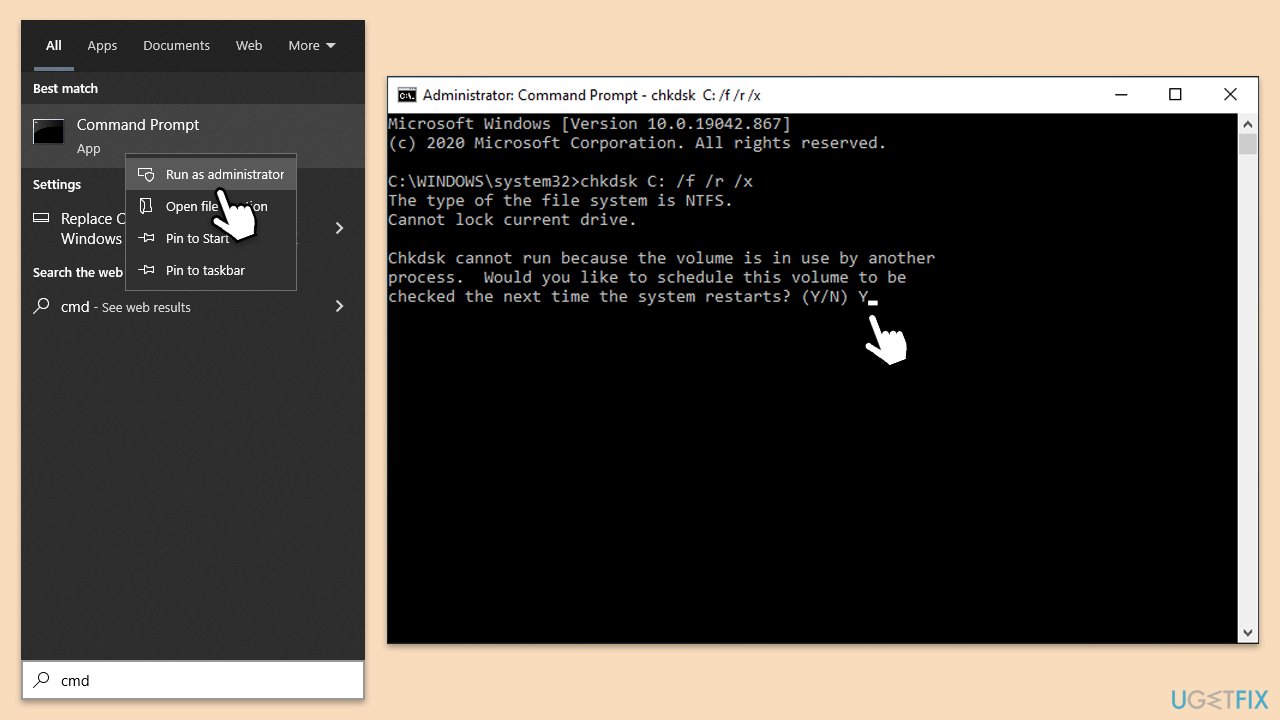
Errors on the hard drive can lead to corrupted files, including DLL files.
- Open Command Prompt as administrator.
- In the new window, type in the following command and press Enter after:
chkdsk c: /f
(Note: use chkdsk c: /f /r /x command if you are using SSD as your primary partition) - If you receive an error, type in Y, close down Command Prompt and restart your system.
- Wait until the scan is finished - you can find the results in the Event Viewer.
Fix 7. Restore the system to its previous state
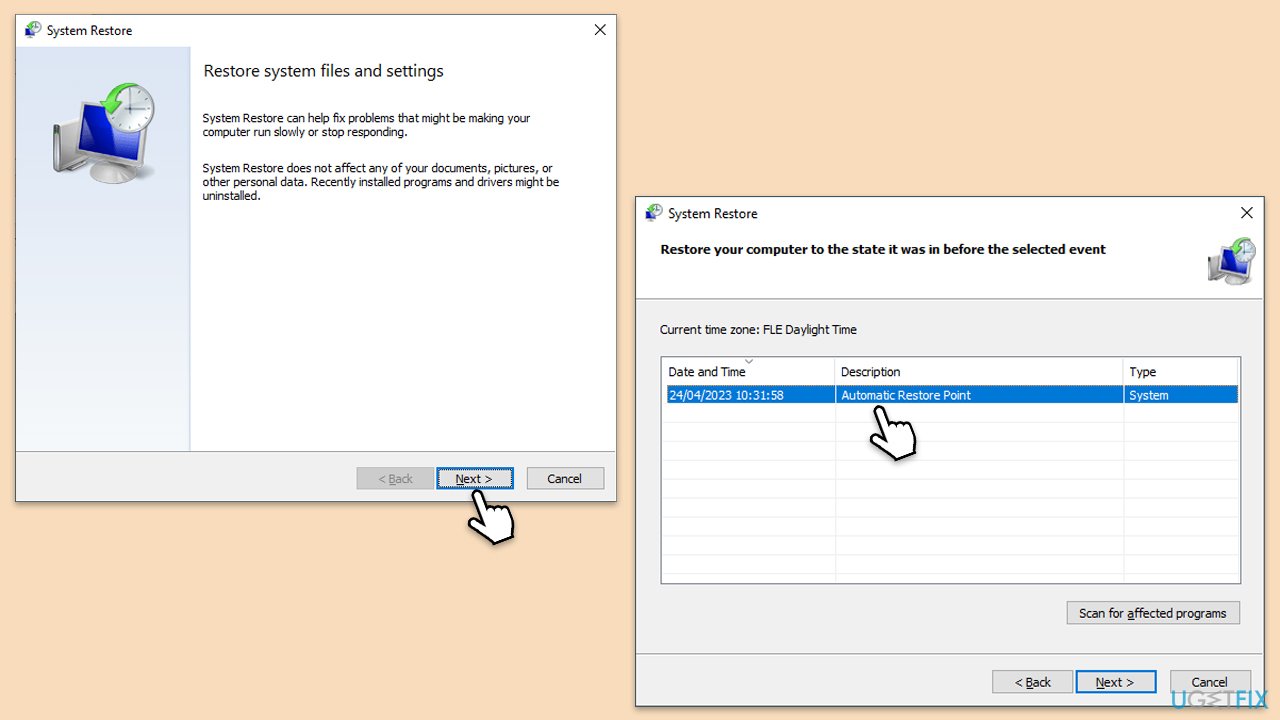
Using System Restore to revert your computer's system files and settings to an earlier point in time can fix issues caused by recent changes to the system.
- Type in Create a Restore point in Windows search and hit Enter.
- Go to the System Protection tab and pick System Restore.
- Click Next.
- Click Show more restore points (if available).
- Pick the time before the problem occurred and click Next.
- Follow the prompts to finish the process.
Fix 8. Register OpenCL.dll manually
If the OpenCL.dll file is present on your system but not properly registered, manually registering it can resolve the error.
- Open Command Prompt as administrator.
- In the prompt, type in the following command and press Enter:
regsvr32 /u opencl.dll - After that, type the next command and hit Enter:
regsvr32 /i opencl.dll - Restart your computer to apply the changes.
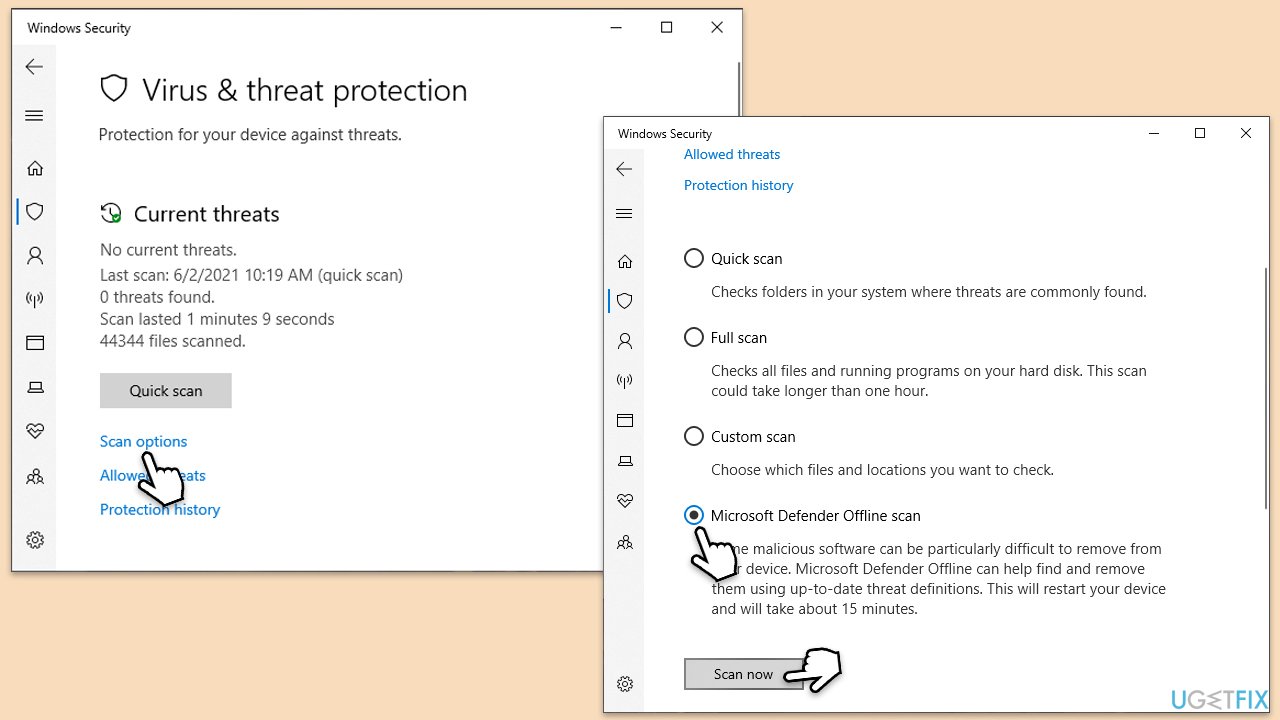
Fix 9. Scan for malware
Malware infections can cause DLL errors by corrupting or deleting the OpenCL.dll file. Running a comprehensive malware scan can identify and remove these threats.
You can employ Microsoft Safety Scanner, a third-party security app, or simply rely on Windows Defender:
- Type Windows Security in the Windows search bar and hit Enter.
- Select Virus & threat protection.
- Pick Scan options.
- Choose Microsoft Defender Offline scan and click Scan now.
- Your computer will immediately restart and begin a deep scan.
Bottom line
To fix the 'OpenCL.dll missing or not found' error, you can update your graphics card drivers, reinstall the application that triggers the error, or use Windows SFC and DISM tools to repair corrupted system files. If these solutions do not resolve the issue, consider using an automatic Windows repair tool.
Frequently asked questions
The OpenCL.dll missing error can occur due to corrupted or outdated graphics drivers, or if the OpenCL.dll file itself is accidentally deleted or misplaced.
You can restore OpenCL.dll by reinstalling your graphics drivers or by downloading the DLL file from a trusted source and placing it in the C:\Windows\System32 directory.
To prevent the OpenCL.dll error from recurring, ensure that your graphics drivers are always up to date and regularly perform system scans for malware or corrupted files.




Report an issue
What's wrong with this guide? We review every report and update or remove content.
Report received — thank you. We'll review and fix it.
You need a free account to submit a report.
Be the first to comment