How to fix
Page could not be loaded in Microsoft Store
on Windows
Resolve the "Page could not be loaded" error in Microsoft Store on Windows 10 or 11 effortlessly. Expert-tested solutions ensure smooth browsing!


What causes How to fix Page could not be loaded in Microsoft Store?
- Corrupted system files
- Bugged caches
- Virus infections
- General bugs
- Recent updates applied
- OS reinstalled
Repairs Windows system files, removes malware, and restores a clean OS state — without reinstalling.
Hello, I have recently reinstalled my PC, and now I can't use Microsoft Store properly. Whenever I try to launch it, I always receive the "Page could not be loaded. Please try again later" error. Pressing "Refresh this page" doesn't really do anything, and I am not stuck with a store that does not work. Please help.
Microsoft Store, previously known as Windows Store, is one of the most significant additions to the operating system as a whole.[ref en-2] It allows users to download and update applications that have passed the extensive security checks - going to third-party websites and downloading software is needed much less than before.
"Page could not be loaded. Please try again later" is a Windows error that users receive when they are trying to use Microsoft Store. While in some cases the occurrence is not consistent, many people said that they simply encounter the error every time they try to launch the app, rendering it completely useless in such a state.
The circumstances users encounter this error may also differ. Some users said that the activity started abruptly, without them installing anything or changing anything on their operating systems. However, most people claimed that the "Page could not be loaded" Windows Store error started occurring after a certain event, for example, after the latest updates were applied, or the OS was reinstalled.
In some cases, users also reported receiving an error code that goes along the error message - 0x80131505, 0x8000FFFF, 0x80131500, and a few others. These errors codes might provide a slight hint on why the error occurs, although there is no particular reason given within the message.
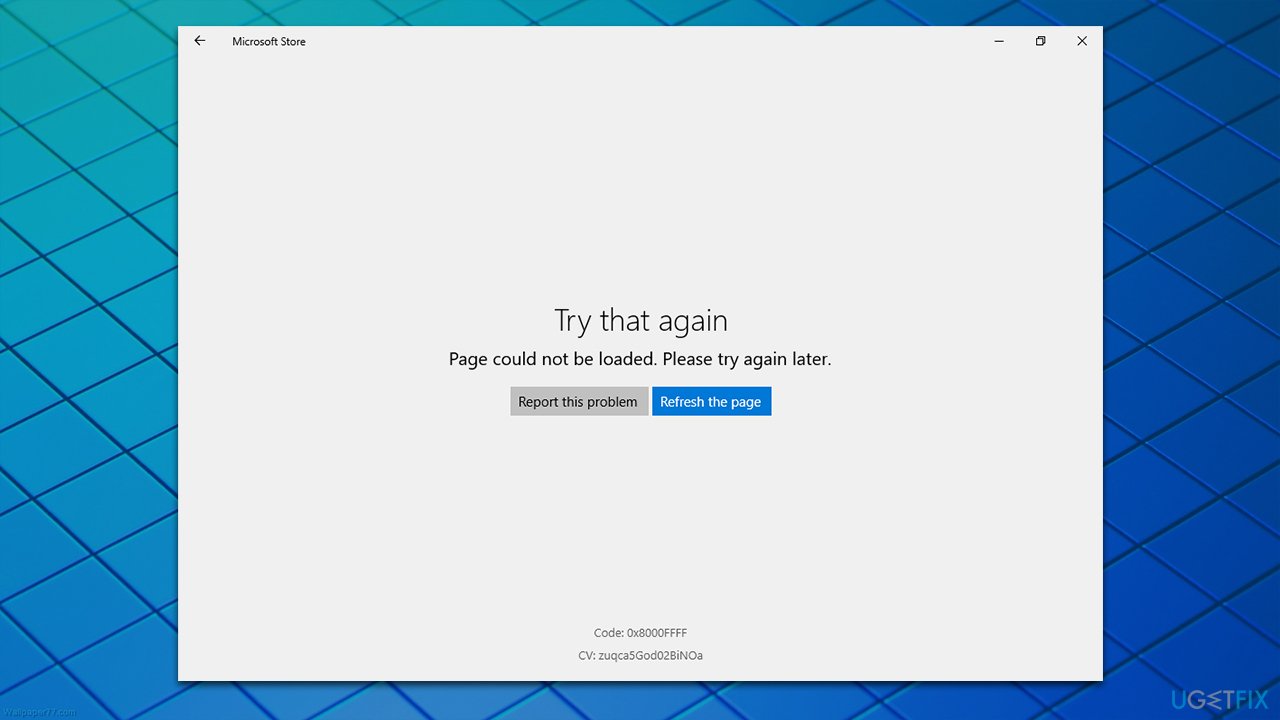
Therefore, there could be many reasons for the "Page could not be loaded" error in Windows to occur. For example, corrupted system files could result in malfunctioning Windows apps, bugged caches,[ref en-3] virus infections, general bugs,[ref en-1] and more. Since it might sometimes be difficult to determine the main cause, we recommend first running a scan with PC repair and maintenance utility [d1] - it might be possible to fix the error automatically.
Fix 1. Run Windows Store Apps troubleshooter
As we mentioned many times, Windows troubleshooters are great tools to start your recovery from various computer issues. Since the problem lies within Microsoft Store, we recommend running the appropriate troubleshooter first:
- Type troubleshoot in Windows search and hit Enter
- On the right side of the window, click Additional troubleshooters
- Scroll down to find the Windows Store Apps section and select it
- Click Run the troubleshooter and wait till the scan is complete
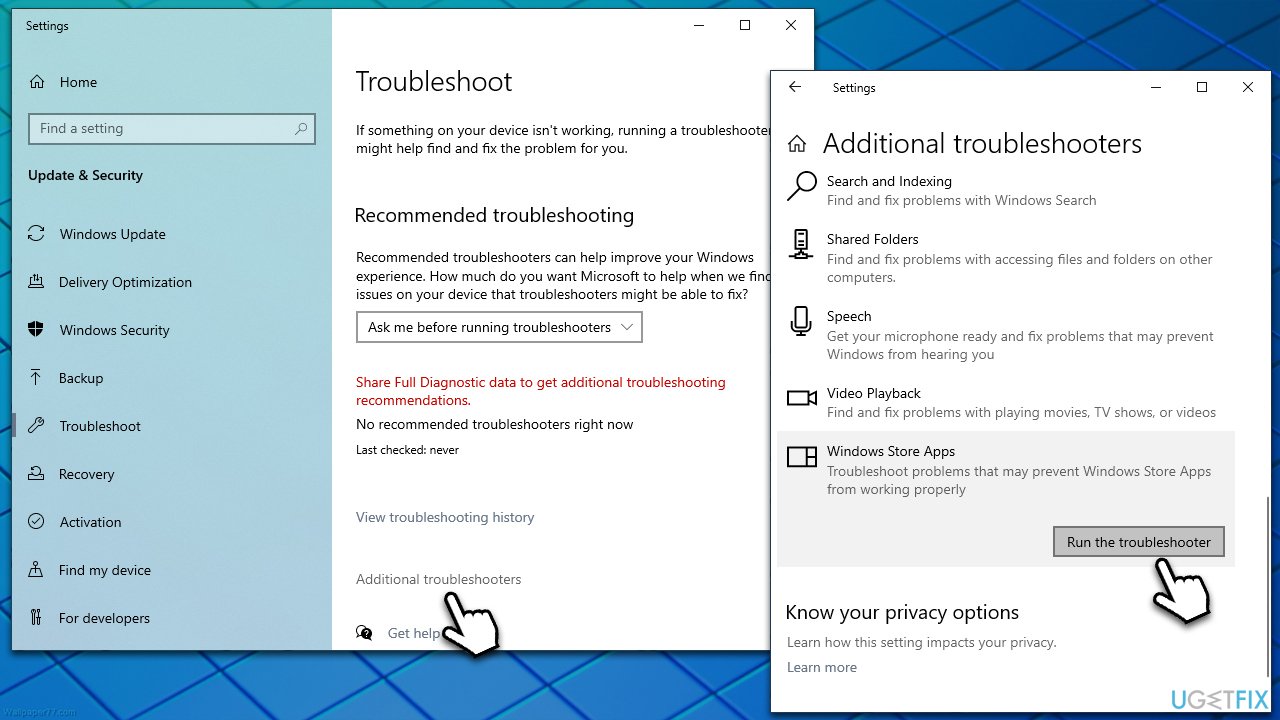
How to fix page could not be loaded in microsoft store run troubleshooter - Apply the recommended fixes and restart your system.
Fix 2. Reset Windows Store App cache
- In Windows search, type in wsreset.exe and hit Enter
- At this point, a black pop-up window will show up – do not close it
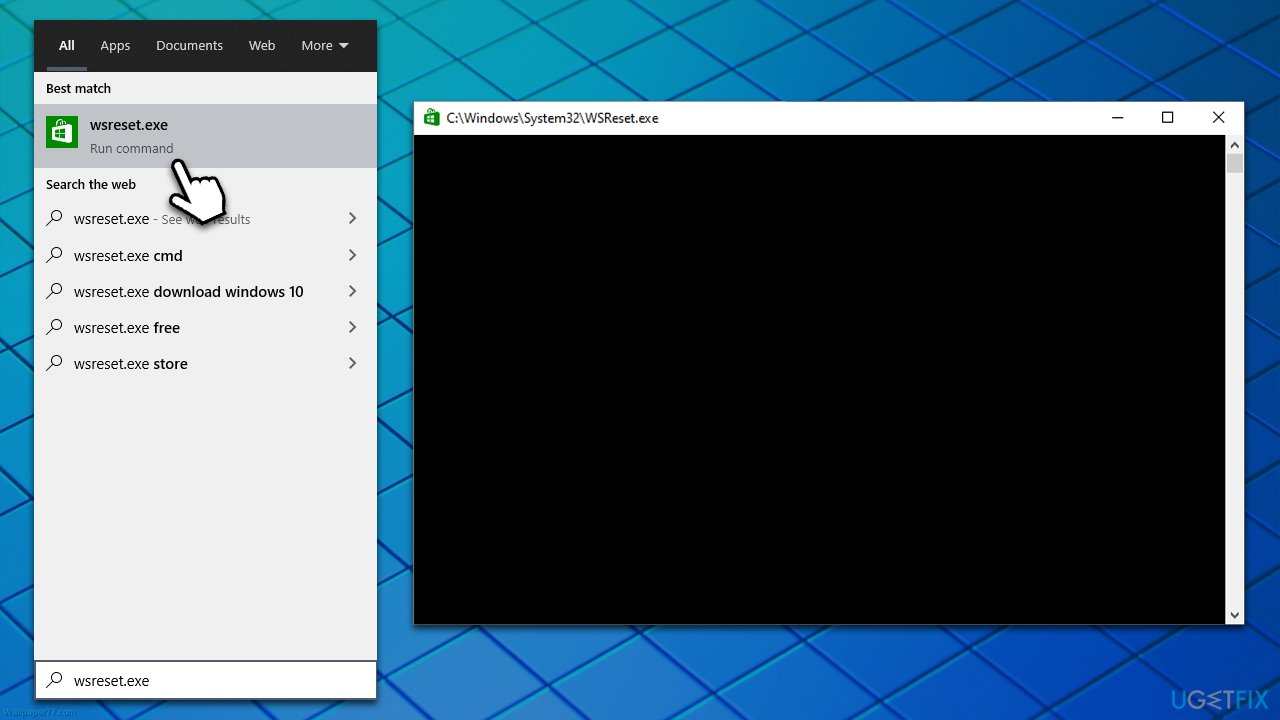
How to fix page could not be loaded in microsoft store reset store cache - Once the cache reset is complete, the Store will reopen.
Fix 3. Run SFC and DISM
System file corruption could be one of the main causes of malfunctions on Windows. Proceed with the following steps to repair damaged system files:
- Type cmd in Windows search
- Right-click on Command Prompt and select Run as administrator
- When User Account Control shows up, click Yes
- Paste in the following command and press Enter:
sfc /scannow - Wait for the scan to finish
- As soon as the scan finishes, Windows will report whether integrity violations were found and if they could be fixed. Regardless of the outcome, use these commands next, pressing Enter after each:
Dism /Online /Cleanup-Image /CheckHealth
Dism /Online /Cleanup-Image /ScanHealth
Dism /Online /Cleanup-Image /RestoreHealth - Restart the system.
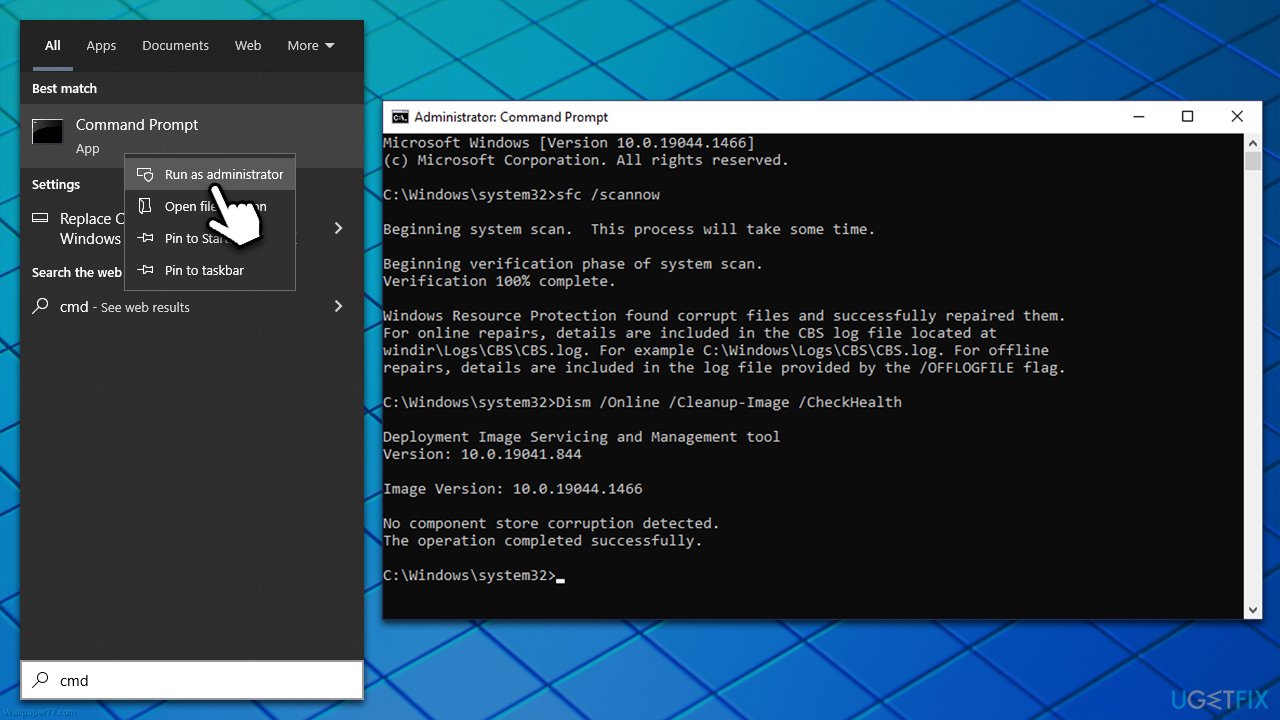
How to fix page could not be loaded in microsoft store run sfc dism
Fix 4. Reset internet connection
In some cases, the issue can be caused by an unstable internet connection. You can reset it via Command Prompt:
- Open Command Prompt as administrator as explained above
- Copy and paste the following commands, pressing Enter after each:
ipconfig /flushdns
ipconfig /registerdns
ipconfig /release
ipconfig /renew
netsh winsock reset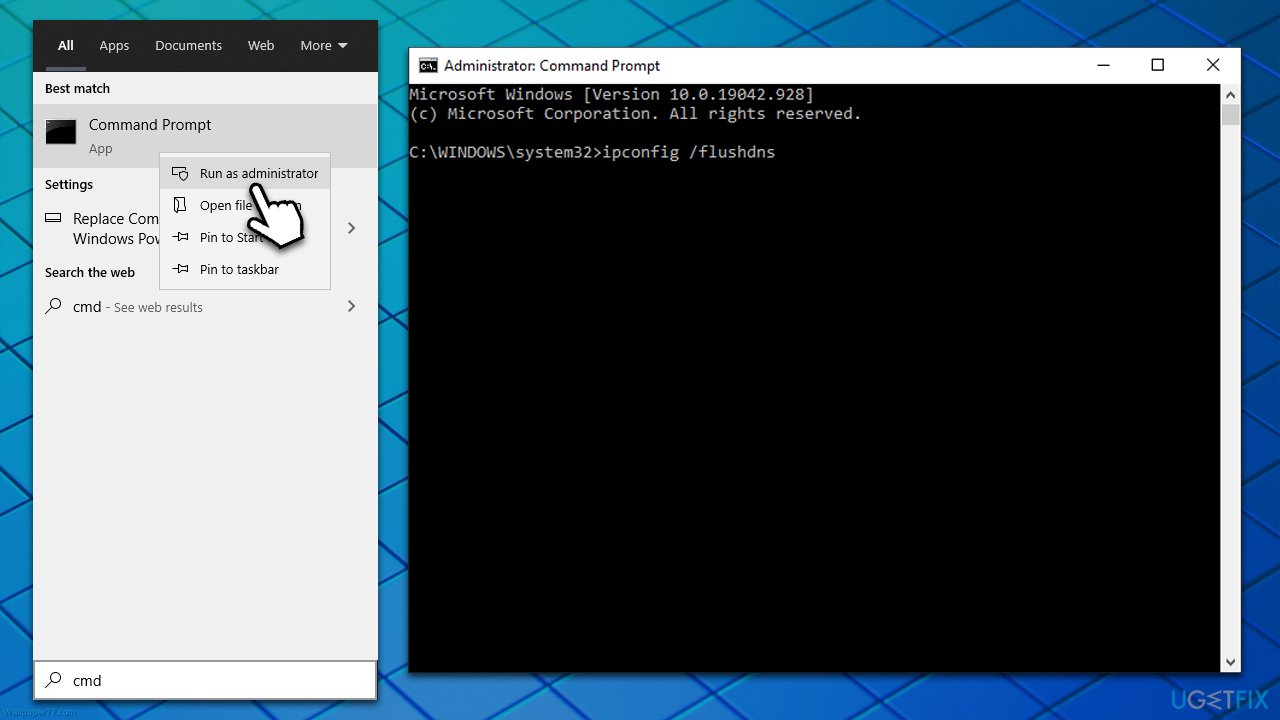
How to fix page could not be loaded in microsoft store run reset internet - Restart your machine.
Fix 5. Use TLS 1.2
- Type Internet options in Windows search and press Enter
- Here, navigate to the Advanced tab
- Scroll down to find the Security section
- Find the Use TLS 1.2 option - click the checkbox to enable it
- Click Apply and OK.
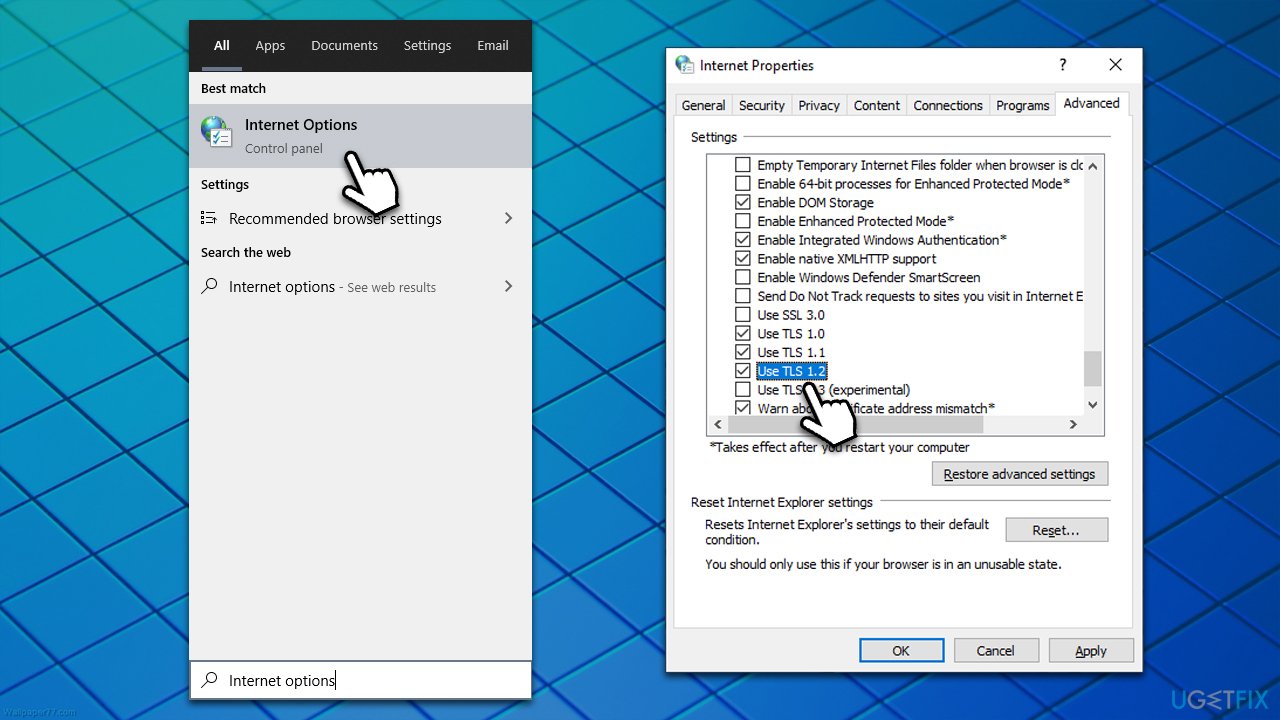
How to fix page could not be loaded in microsoft store use tls 1
Fix 6. Reinstall the latest Windows update
If the issue shows up soon after Windows was updated, you should try uninstalling the latest update. Keep in mind that this option is only available for a limited amount of time after the last update was performed.
- Type in Control Panel in Windows search and press Enter
- Go to Programs > Uninstall a program
- Click on View installed updates on the left
- Sort the updates by date
- Uninstall every single entry that has been installed recently.
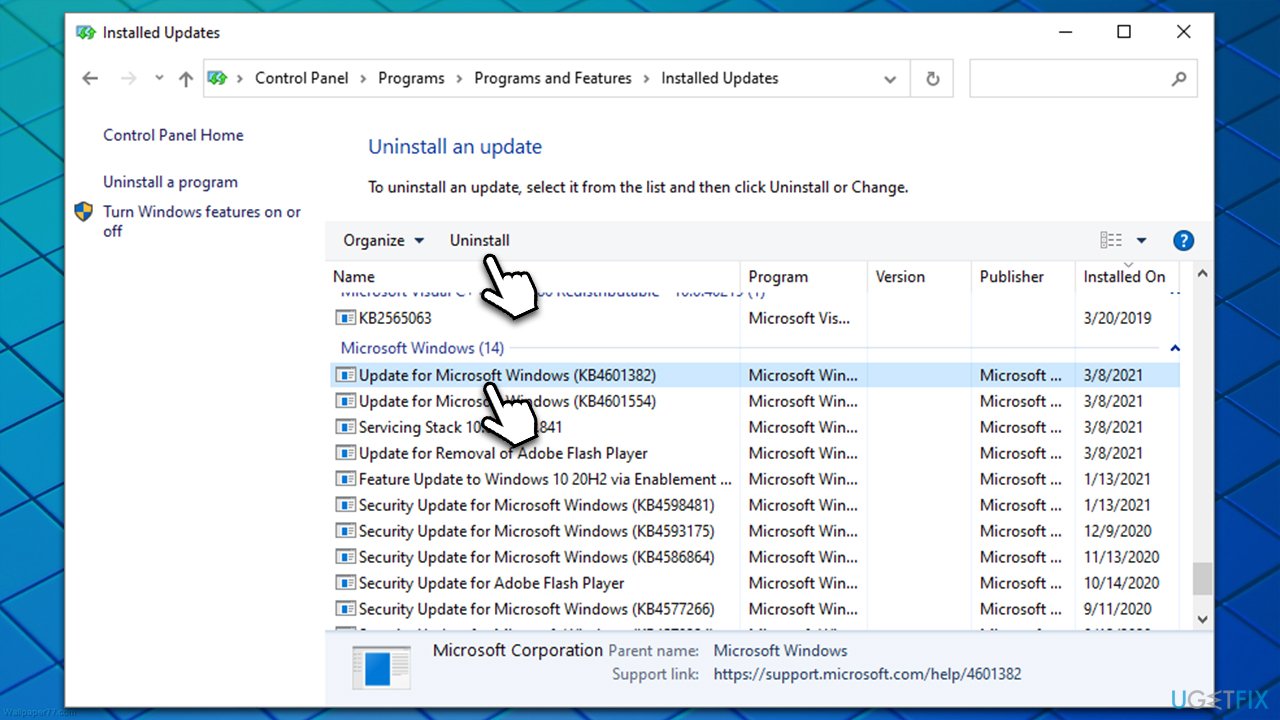
How to fix page could not be loaded in microsoft store uninstall updates - Next, type in Windows Update in Windows Search and press Enter. In here, click on Check for updates and wait till the updates are installed
- Restart your computer and see if the problem persists.
Fix 7. Delete SoftwareDistribution folder files
- Open Command Prompt as administrator
- Copy and paste the following command lines, pressing Enter after each:
Net Stop bits
Net Stop wuauserv
Net Stop appidsvc
Net Stop cryptsvc
Ren %systemroot%\SoftwareDistribution SoftwareDistribution.bak
Ren %systemroot%\system32\catroot2 catroot2.bak
Net Start bits
Net Start wuauserv
Net Start appidsvc
Net Start cryptsvc - Restart your system.
Fix 8. Reset or repair the Store
- Right-click on Start and pick Apps & Features
- Scroll down to locate Microsoft Store and click Advanced options
- Click Terminate and pick Repair
- If that does not fix the Page could not be loaded error, try using Reset instead.
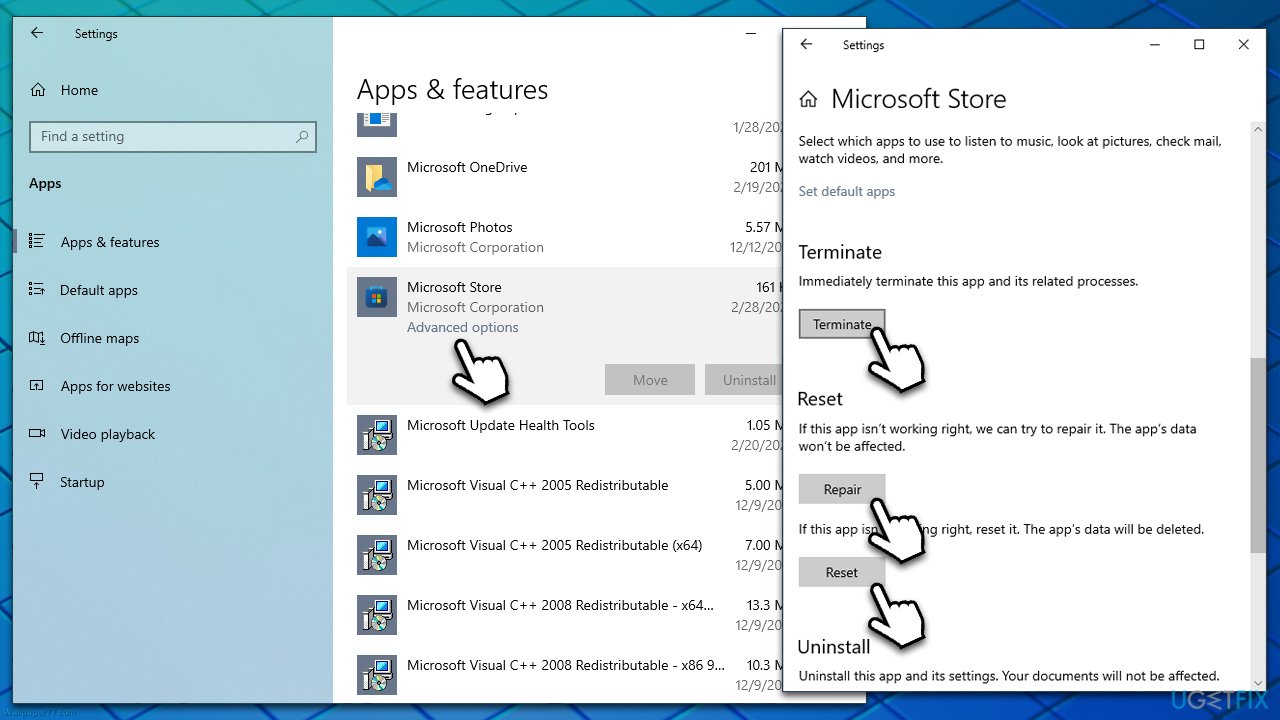
How to fix page could not be loaded in microsoft store repair or reset store
Fix 9. Reinstall Microsoft Store
You can't uninstall Microsoft Store in a regular way, as it is a built-in component. However, you can do that by using PowerShell commands:
- Right-click on Start and pick PowerShell (Admin)
- When User Account Control shows up, click Yes
- Copy and paste the following command:
Get-AppXPackage *WindowsStore* -AllUsers | Foreach {Add-AppxPackage -DisableDevelopmentMode -Register "$($_.InstallLocation)\AppXManifest.xml"} - Press Enter.
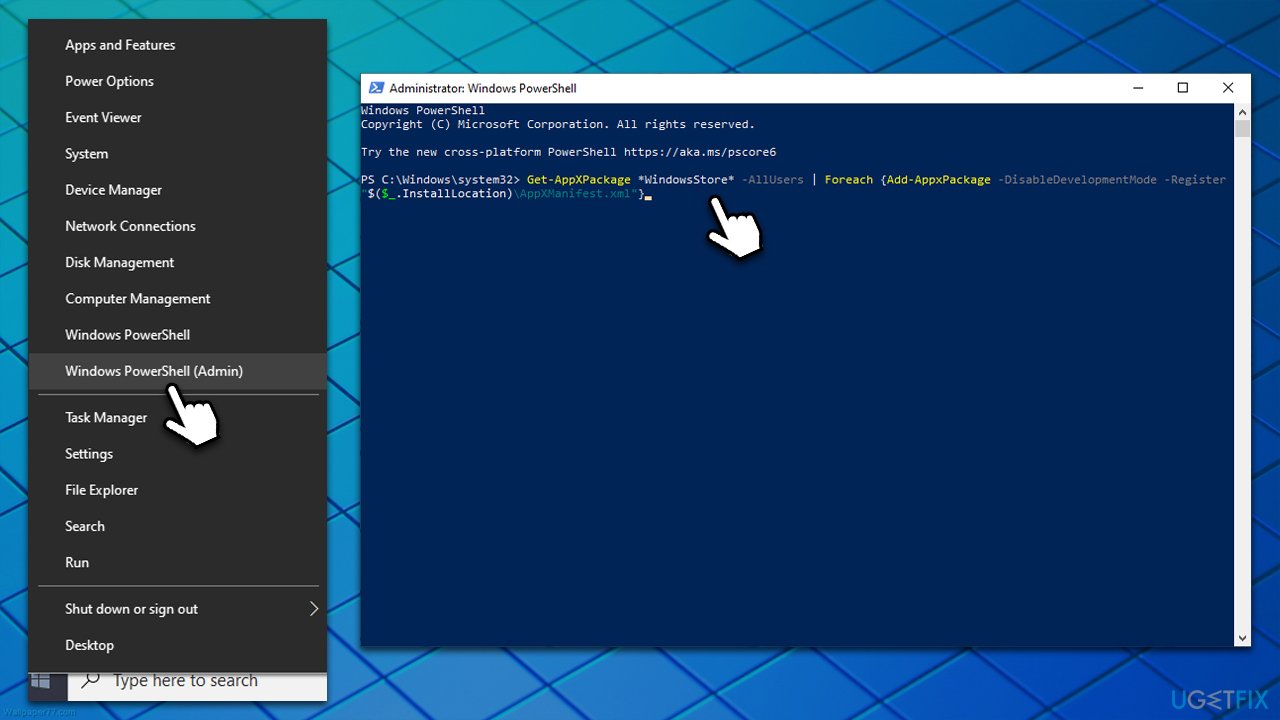
How to fix page could not be loaded in microsoft store reinstall store app
Bottom line
To fix the 'Page could not be loaded' error in Microsoft Store, try running a scan with a PC repair and maintenance utility, as it may automatically resolve the issue. Additionally, consider checking for corrupted files or clearing the cache. If none of these solutions work, further troubleshooting may be necessary.
Frequently asked questions
Try resetting the Microsoft Store cache by pressing Win + R, typing 'wsreset.exe', and hitting Enter. This will refresh the Store and may resolve the loading issue.
Ensure that your Windows 11 is up to date by checking for updates in Settings > Windows Update. If the issue persists, consider running the Windows Store Apps troubleshooter.
Yes, check your internet connection and try switching to a different network if possible. Additionally, you can reset your network settings by going to Settings > Network & Internet > Status > Network reset.




Report an issue
What's wrong with this guide? We review every report and update or remove content.
Report received — thank you. We'll review and fix it.
You need a free account to submit a report.
Be the first to comment