How to fix
Paint is not updating
on Windows
Resolve Paint not updating in Windows 10 or 11 with easy fixes. Get your creativity flowing again and enjoy a seamless experience—expert-tested.

What causes How to fix Paint is not updating in Windows?
- Issues with Windows services
- Bugged Store cache
- Corrupted system files
- Faulty updates
- User permissions issues
Repairs Windows system files, removes malware, and restores a clean OS state — without reinstalling.
I was trying to update Paint and I received an error saying that something went wrong. Why is Paint not updating for me? I am running Windows 11 version 22H2.
Paint not updating could be a result of many different issues, including issues with Windows services, bugged Store cache, corrupted system files, faulty updates, and more. If you have run into this problem, you have come to the right place because you will find direct instructions on how to resolve this relatively annoying issue.
Since Microsoft Windows' creation, Paint has been a basic graphical painting application that comes with every version of the operating system. It is well known for being simple to use and having basic graphical functions that let users add text to images, edit pictures by cutting, cropping, and rotating them, and draw artwork in a variety of colors and formats.
While Paint's functionality and user interface have improved over time, its fundamental features have stayed mostly the same. Even with the introduction of more sophisticated graphic design tools, Paint is still widely used by users to quickly modify images and create basic artwork.
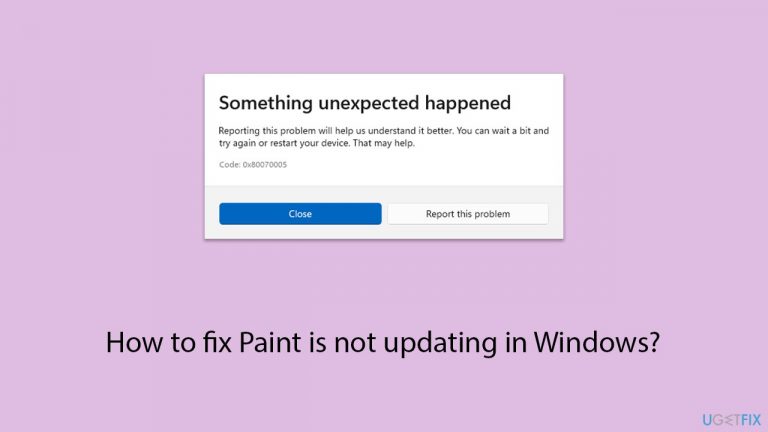
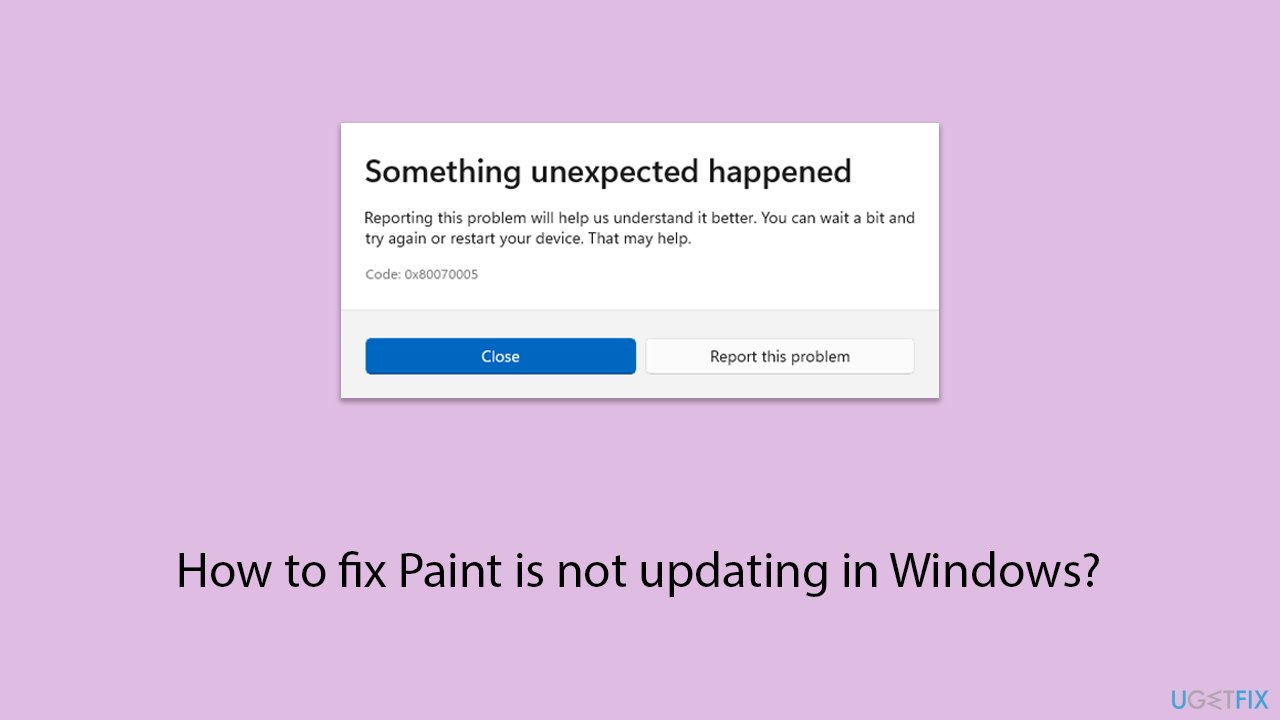
Since 2017, it has been considered a standalone application that can be downloaded and updated through the Microsoft Store. Unfortunately, for some users Paint not updating can be a real issue, as they are unable to access new features and improvements to the program. At this time, they might receive a message that "Something went wrong," and receive an error code (such as 0x8007005, 0x800f0805, or similar).
If you can't update Paint, you could try several troubleshooting steps we provide below, including resetting the Microsoft Store cache, checking relevant services, repairing corrupted files, resetting or even reinstalling the app. If you are less tech-savvy or would rather seek an automatic solution, you should try running a PC repair app [d1].
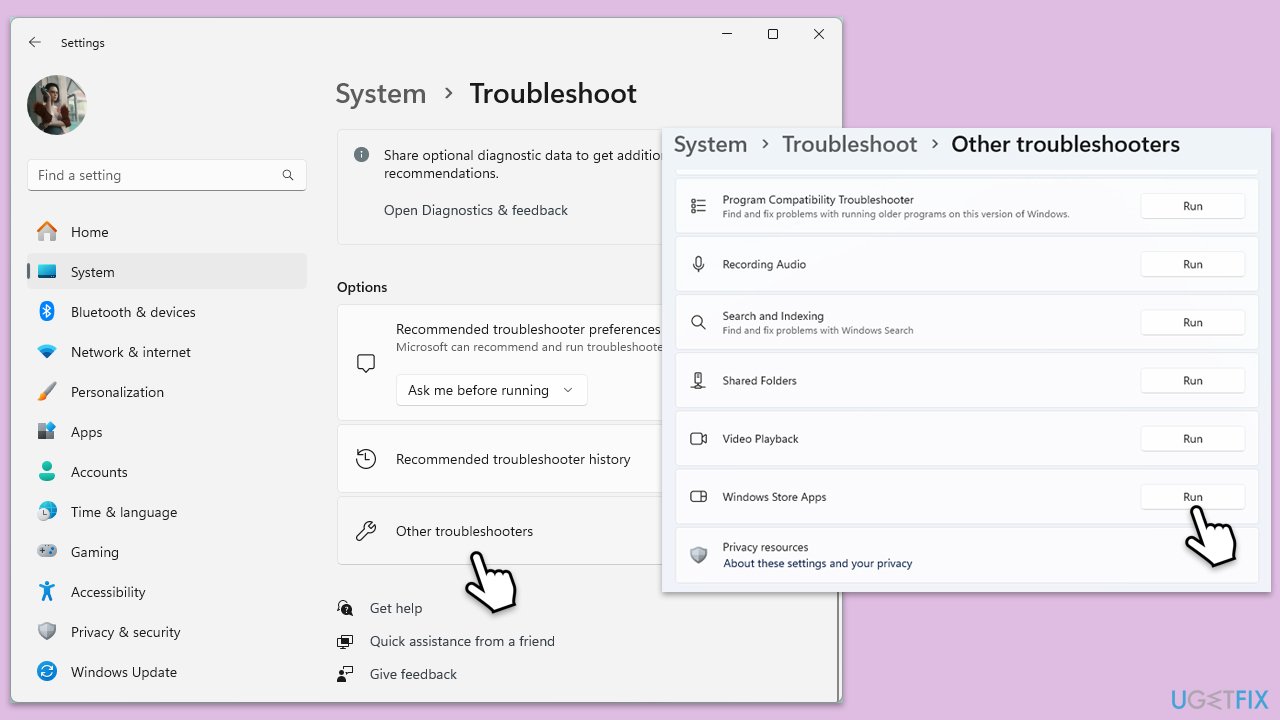
Fix 1. Run Windows Store apps troubleshooter
When having trouble with certain Windows-native apps, running Windows Store Apps troubleshooter should be the first step.
- Type troubleshoot into the Windows search bar, then press Enter.
- In the options that appear, select Additional troubleshooters or Other troubleshooters (depending on your Windows version).
- Scroll through the list until you locate Windows Store Apps, then click on Run the troubleshooter/Run.
- Wait as the process runs to completion, then apply any recommended changes to resolve the issue.
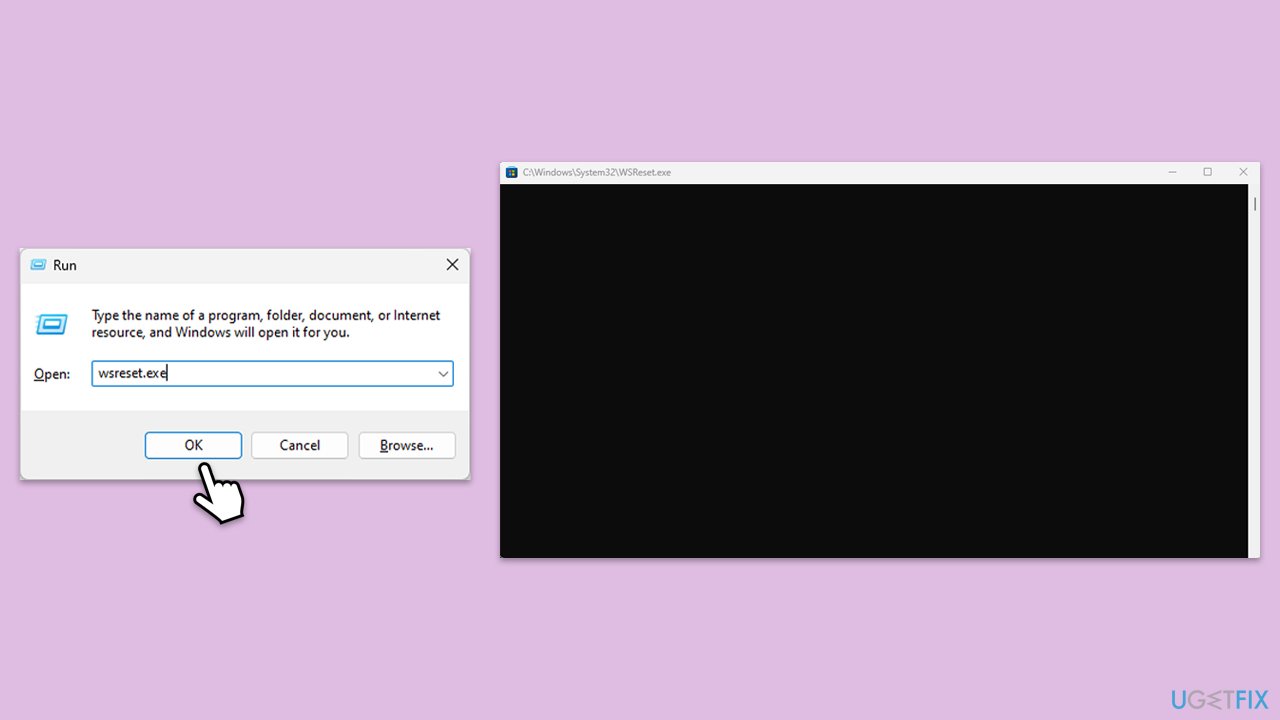
Fix 2. Clear Windows Store cache
- Press the Win + R on your keyboard to open the Run dialog box.
- In the dialog box, type wsreset.exe and then hit Enter or click OK.
- A blank Command Prompt window will open (do not close it), and after about ten seconds, the window will close, and the Microsoft Store will open automatically.
Fix 3. Check relevant services
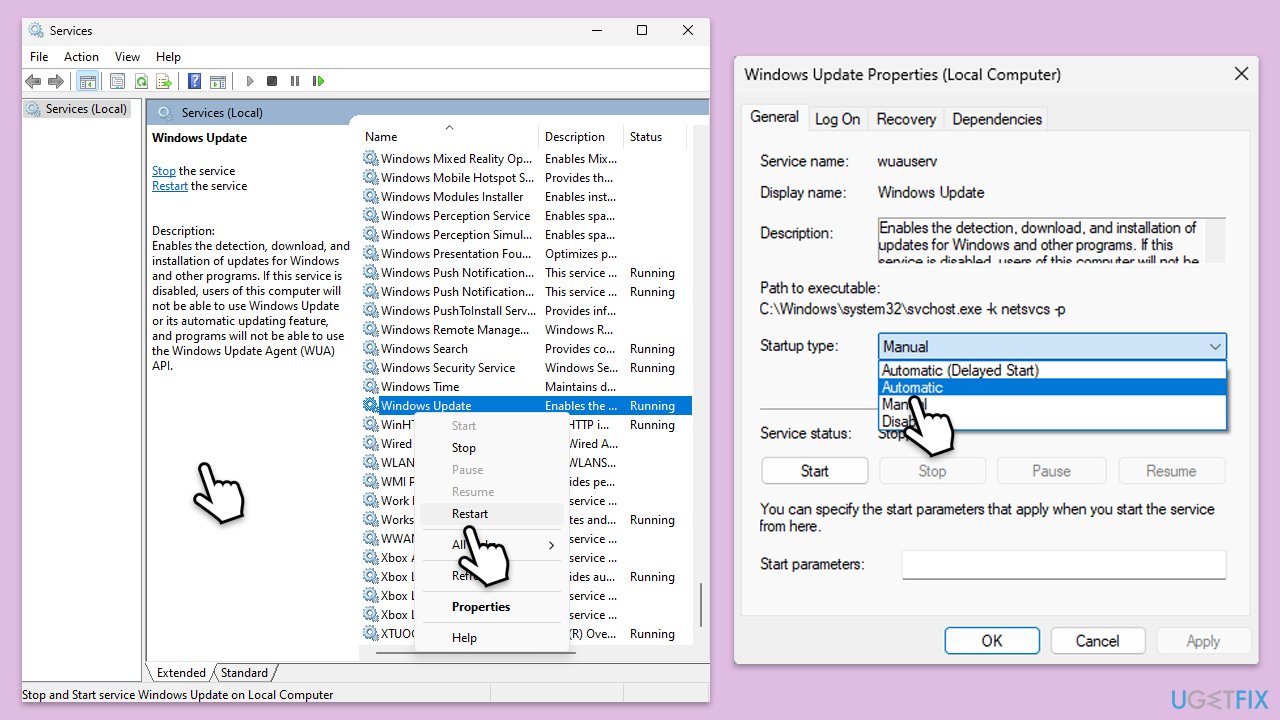
- Type in Services in Windows search and press Enter.
- Scroll down to locate Background Intelligent Transfer Service (BITS).
- If it is already running, right-click and pick Restart.
- If the service is not running, double-click it, select Automatic under the Startup type from the drop-down menu.
- Click Start, Apply, and OK.
- Perform the same steps with Windows Update, Cryptographic, and Windows Installer services.
Fix 4. Run SFC and DISM scans
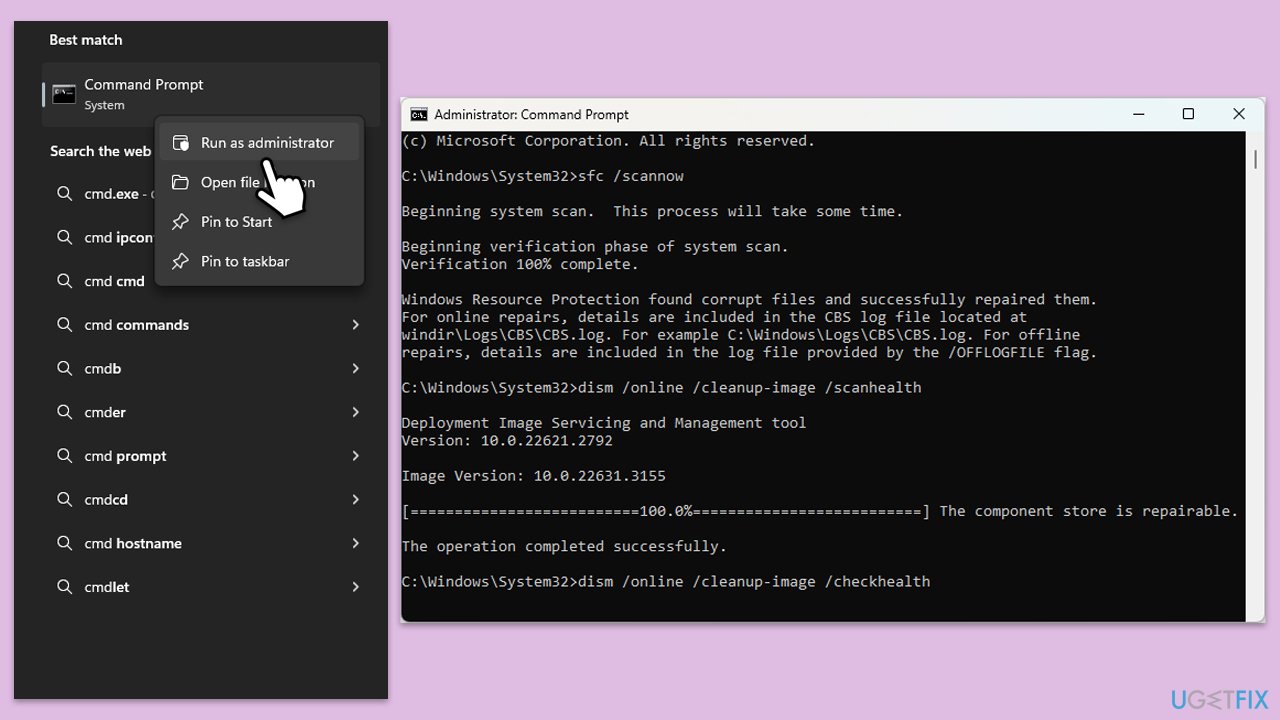
To repair Windows corrupted and image files, running special commands in Command Prompt can help.
- Type cmd in Windows search.
- Right-click on Command Prompt and pick Run as administrator.
- User Account Control will ask you whether you want to allow changes – click Yes.
- Copy and paste this command and hit Enter:
sfc /scannow - Wait for the scan to finish.
- As soon as it finishes, Windows will report whether integrity violations were found and if they could be fixed. Regardless of the outcome, use these commands next, pressing Enter after each:
Dism /Online /Cleanup-Image /CheckHealth
Dism /Online /Cleanup-Image /ScanHealth
Dism /Online /Cleanup-Image /RestoreHealth - Close down the Command Prompt and restart your system.
Fix 5. Reset Windows update components
- Open Command Prompt as administrator.
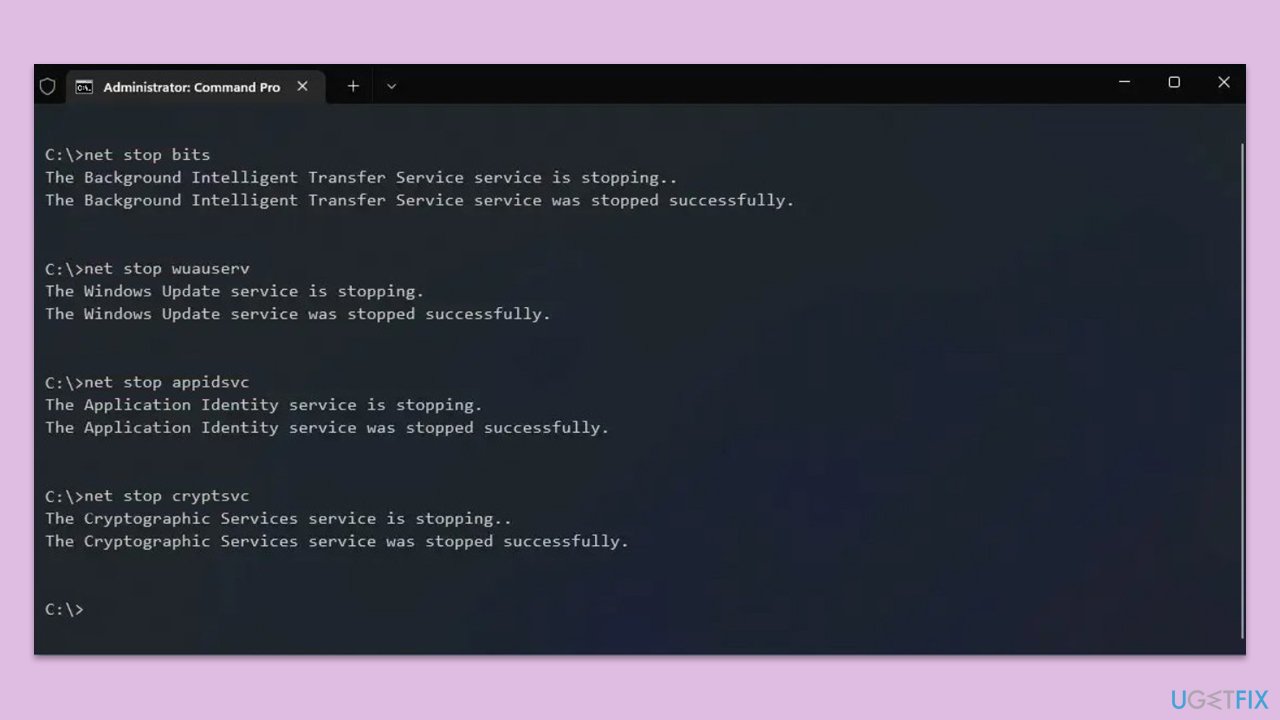
- Stop the Windows Update-related services by running the following commands one at a time, pressing Enter after each one:
net stop wuauserv
net stop cryptSvc
net stop bits
net stop msiserver - Rename the SoftwareDistribution and Catroot2 folders by running the following commands:
ren C:\Windows\SoftwareDistribution SoftwareDistribution.old
ren C:\Windows\System32\catroot2 Catroot2.old
Note: If your Windows installation is not on the C drive, replace "C" with the appropriate drive letter. - Restart the Windows Update-related services by running the following commands:
net start wuauserv
net start cryptSvc
net start bits
net start msiserver - Reboot your computer.
Fix 6. Reset your internet connection
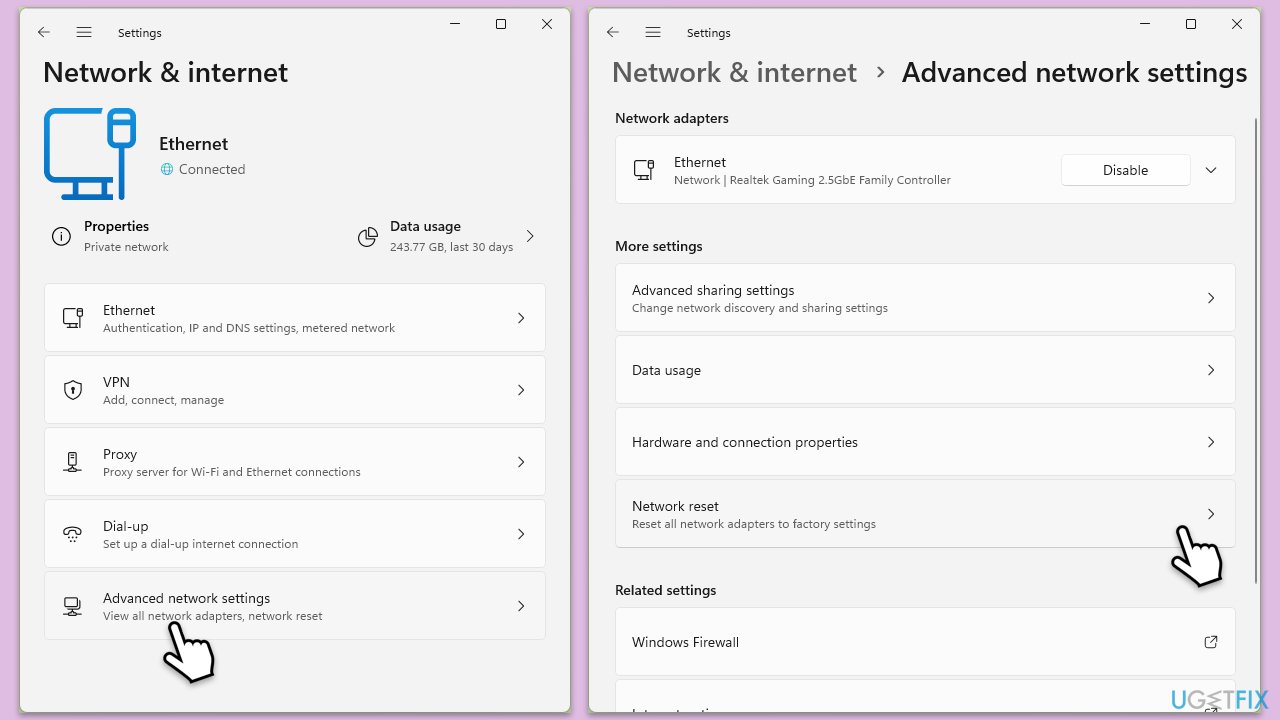
- Right-click on Start and pick Settings.
- Go to Network & Internet.
- Under Advanced network settings, click Network reset.
- Click Reset Now.
- Confirm the action and then restart your system.
Fix 7. Perform in-place upgrade
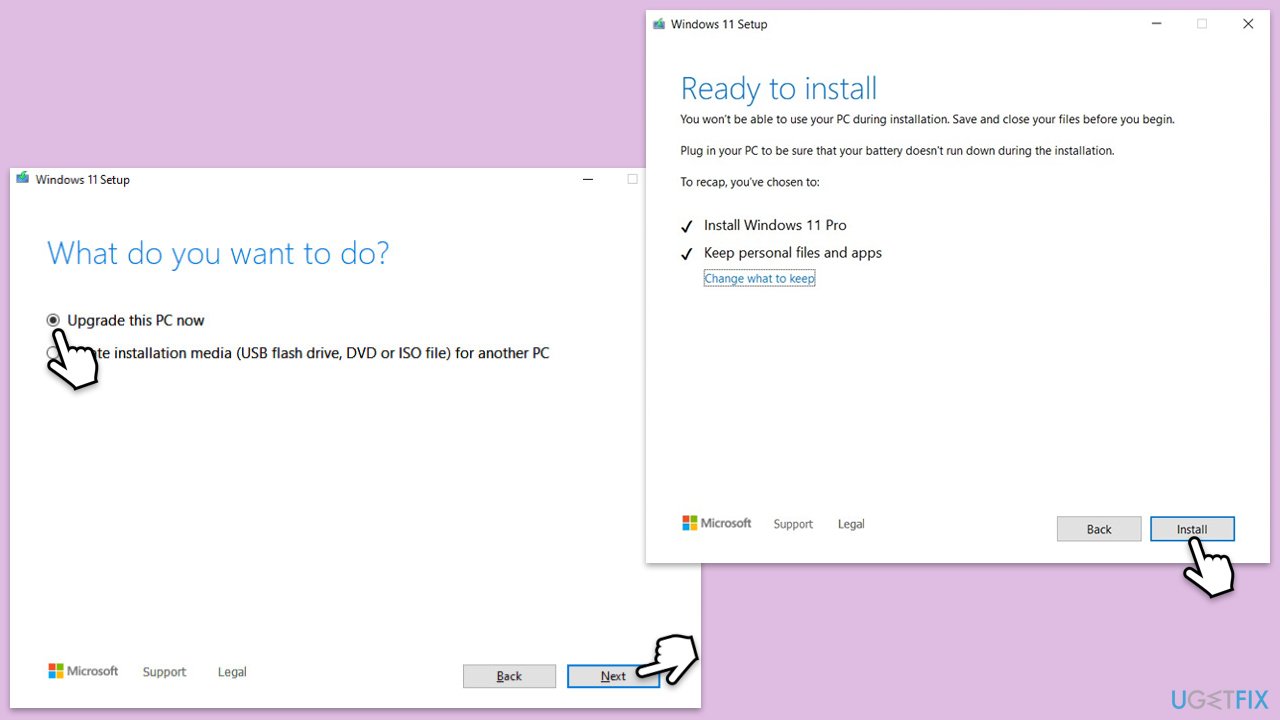
This method can help you repair all system files without you losing any personal files or apps. For this, you'll have to download the Media Creation Tool.
- Visit the official Microsoft website and download Windows 10 installation media (Windows 11 version).
- Double-click the installer and select Yes when UAC shows up.
- Agree to the terms and click Next.
- Select Upgrade this PC now and select Next
- Windows will now download all the necessary files, which might take some time.
- Agree to the terms once again and click Next.
- Before installing, ensure you are happy with your choices (otherwise, you can click Change what to keep option).
- Click Install to begin the upgrade process.
- Your computer will restart as required.
Bottom line
To fix the issue of Paint not updating, you can try several troubleshooting steps such as resetting the Microsoft Store cache, checking relevant services, repairing corrupted files, or reinstalling the app. If you prefer an automatic solution, consider using a PC repair app. If none of these solutions work, further assistance may be needed.
Frequently asked questions
Paint may not be updating due to a corrupted installation, outdated drivers, or conflicts with other software. Checking for Windows updates and reinstalling Paint can often resolve this issue.
To reset Paint, go to Settings > Apps > Apps & features, find Paint, click on it, and select 'Advanced options' to reset the app. This can often restore its functionality.
Ensure that your graphics drivers are updated and that Paint has the necessary permissions under Settings > Privacy & security. Additionally, check if any recent updates have affected its performance.




Report an issue
What's wrong with this guide? We review every report and update or remove content.
Report received — thank you. We'll review and fix it.
You need a free account to submit a report.
Be the first to comment