How to fix
Printer Driver Is Unavailable
on Windows
Resolve the "Printer Driver Is Unavailable" error on Windows 10 and 11 easily. Get expert-tested solutions for a smooth printing experience. Fixed in mi…


What causes How to fix Printer Driver Is Unavailable on Windows?
- Outdated drivers
- Corrupted drivers
- Incompatible printer with available drivers
- Connection issues
- Malware leftovers
- Corrupted system files
Repairs Windows system files, removes malware, and restores a clean OS state — without reinstalling.
Hello. I get the printer driver problem, and this error occurs in a couple of devices in my office. We try to connect to different HP printer models and it fails every time. I would like to know how to fix this Printer Driver Is Unavailable on Windows error. Can this be done?
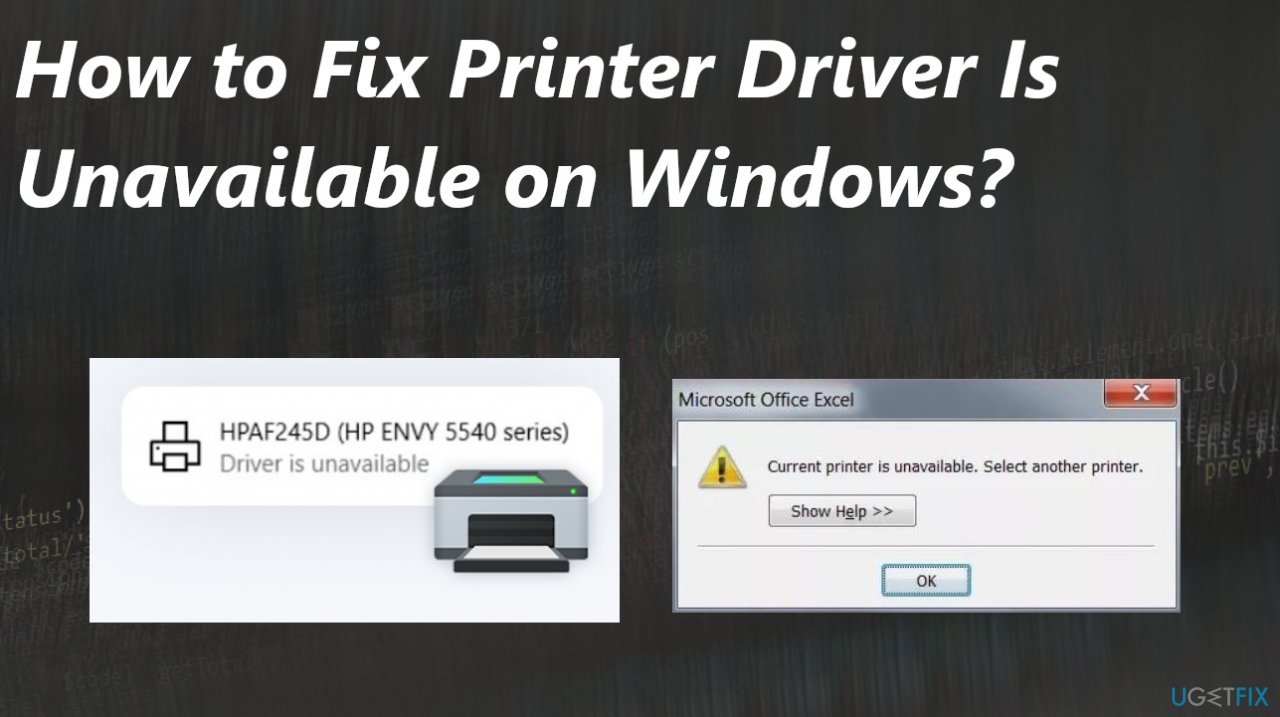
Printer Driver Is Unavailable on Windows is one of the common problems with printers. These messages generally indicate the problem with the drivers needed for the printer connection and recognition. Users[ref en-1] report these issues with outdated or corrupted drivers that eventually lead to the failure of connection to the device.
It can sound easy just to reinstall the driver that you need, but it is not as simple as it may seem. The issue may indicate that the printer is not compatible with the drivers available or the machine fails to recognize the machine properly. The problem is common and can be fixed, but solutions can vary since there are various reasons for the error.
The error that states about the driver issues can be related to connection issues. The Printer Driver Is Unavailable on Windows might get fixed by checking for the wi-fi connection and other hardware issues. If you recently upgraded to a newer version of the operating system or updated the OS, that can be the reason for the error.[ref en-2]
Compatibility issues are common when it comes to errors related to the additional devices and tools. You might solve the issue by updating the Windows or drivers manually, but the root cause can be related to system files and corruption on the machine. Printer Driver Is Unavailable on Windows can occur due to the issue with malware[ref en-3] leftovers, corrupted files, and altered settings.
This way, the fix for this error is possible with applications like [d1]. These tools are capable of fixing issues with corrupted files and missing or altered pieces that are damaged on the machine and in system folders particularly. This is a quick way to solve issues with the PC or even to fix the Printer Driver that Is Unavailable on Windows or overall improve the performance of the computer.
1. Uninstall the Printer Driver
- Press Windows + R, type control in the dialogue box, and press Enter.
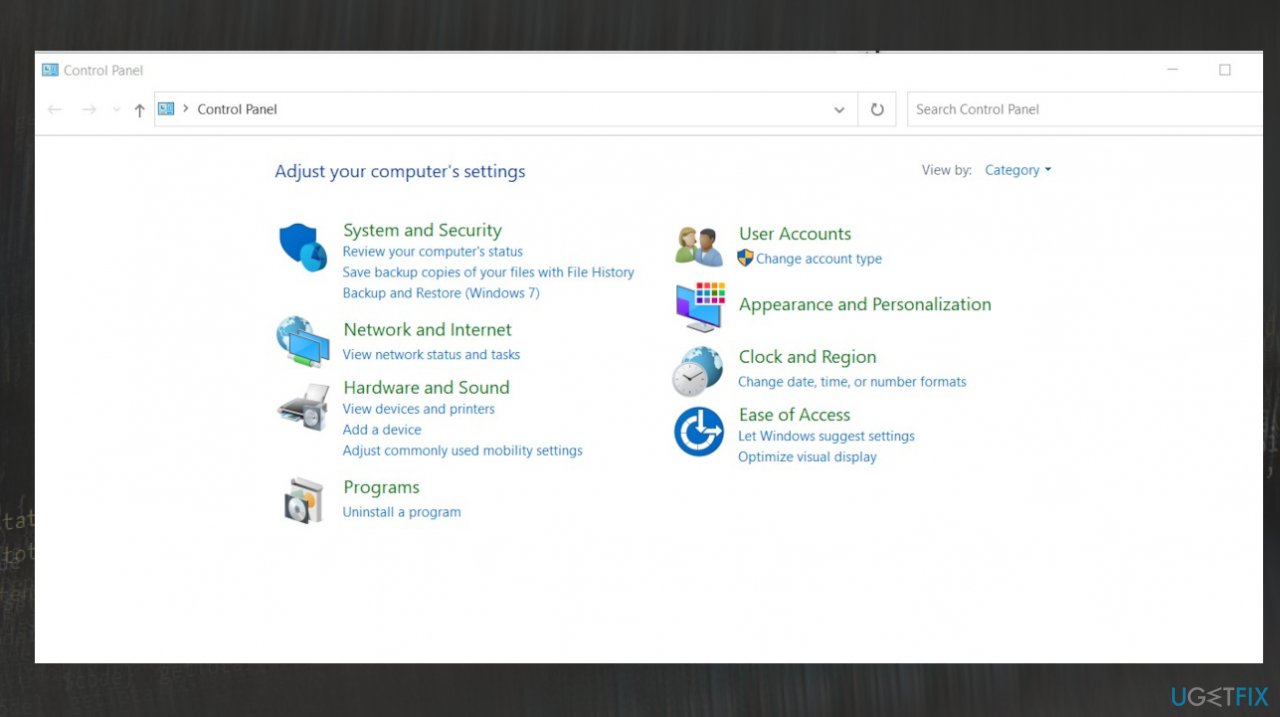
Printer driver unavailable control panel - Once in the control panel, make sure that the option View by: Large icons is selected.
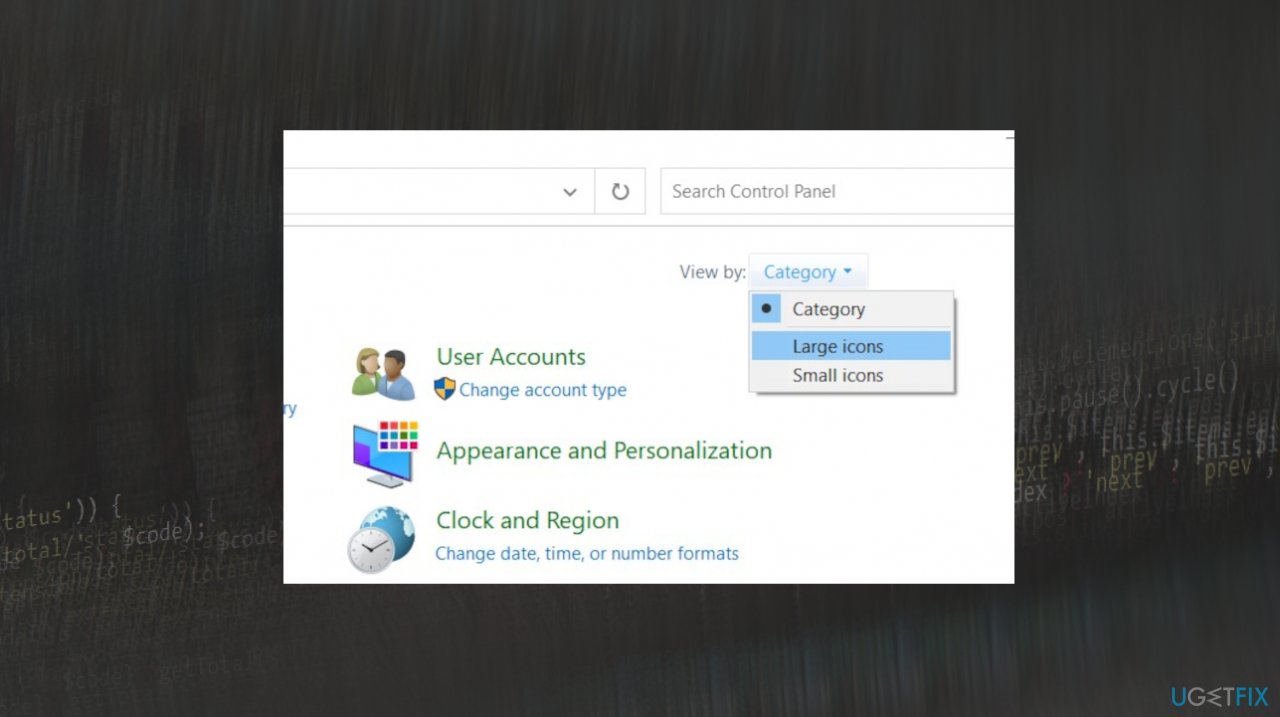
Printer driver unavailable large icons - Click Devices and Printers.
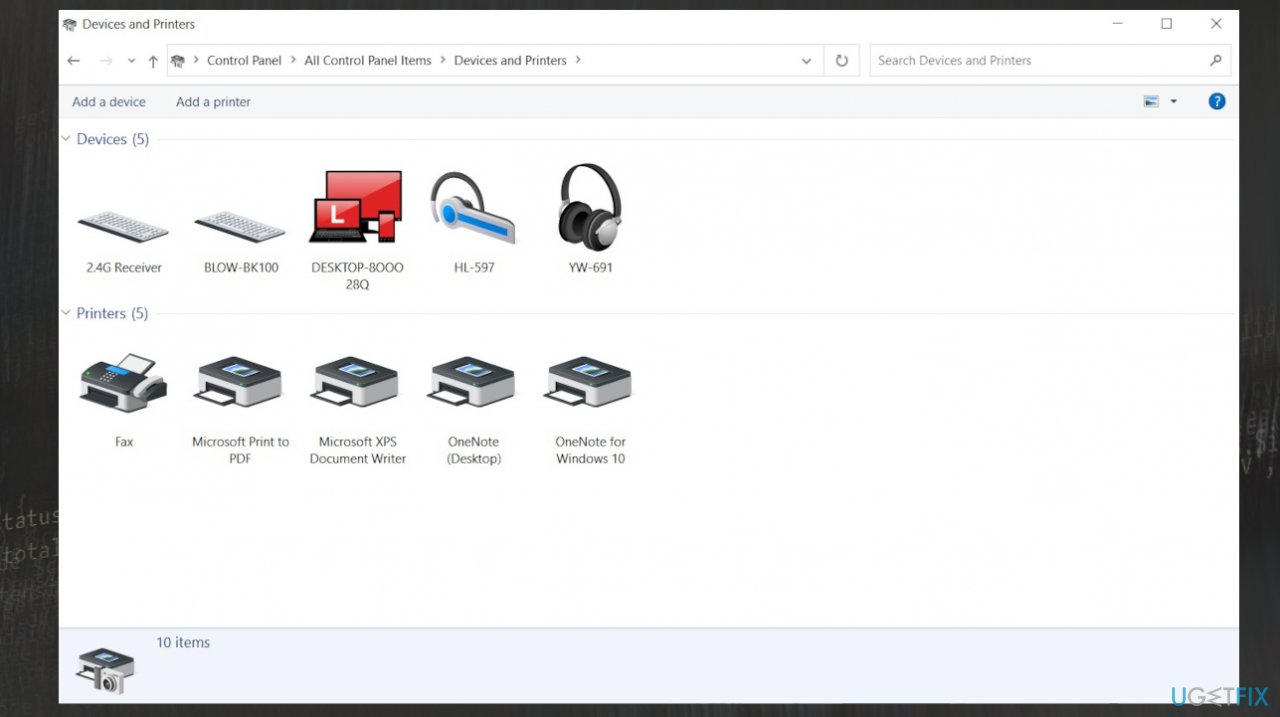
Printer driver unavailable devices printer - Right-click on the printer which is causing the problem and select Remove device.
- Now press Windows + R again and type devmgmt.msc.
- Navigate to the category Print queues, right-click your printer and select Uninstall device.
- Press Windows + R, type appwiz.cpl in the dialogue box, and press Enter.
- Right-click on all your printer applications and select Uninstall.
- After performing all the above steps, disconnect your printer from your computer or disconnect it from the router if it is using wireless.
- Shut down your computer, printer, and your router. Plug out the power supply of all of them.
- Plug everything back in and start.
- Navigate back to the control panel, right-click on the device, and select Set as default printer. Now try printing a test page and check if the problem is solved.
2. Find the latest drivers
- Press Windows + R to launch the Run.
- Type devmgmt.msc in the dialogue box and hit Enter. This will launch your computer’s device manager.
- Navigate through all the hardware, open the sub-menu Print queues.
- Right-click on your printer hardware, and select Update driver.
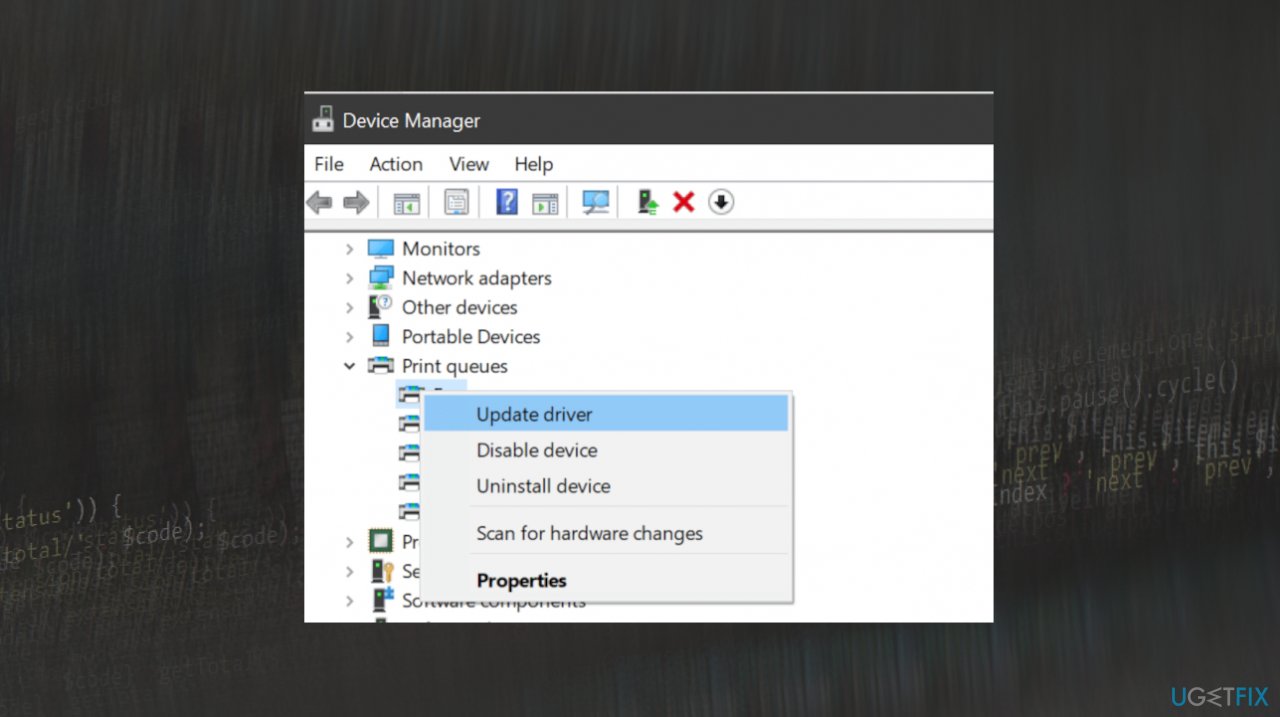
Printer driver unavailable update driver - Search automatically for drivers.
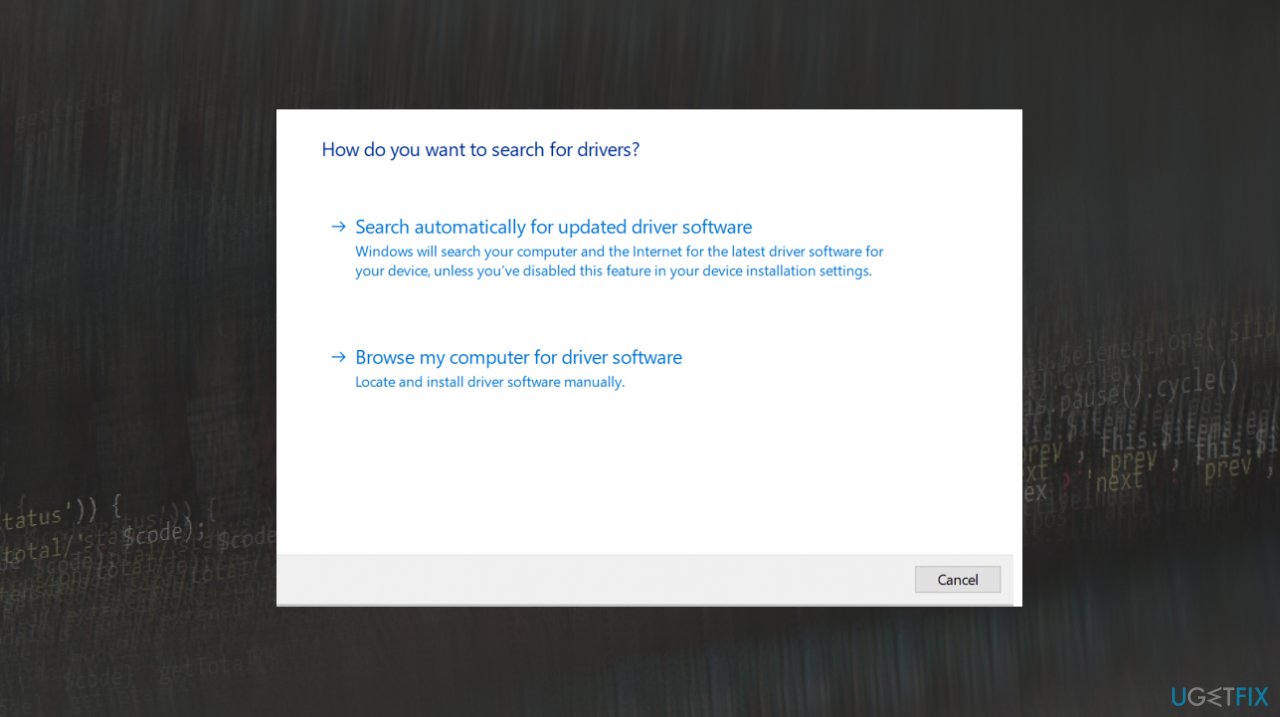
Printer driver unavailable search automatically
You can always rely on tools like [rev id="DriverFix"] that can help with automatic driver updates and constant maitenance.
3. Update Windows
- Open the Settings menu by pressing Windows + I.
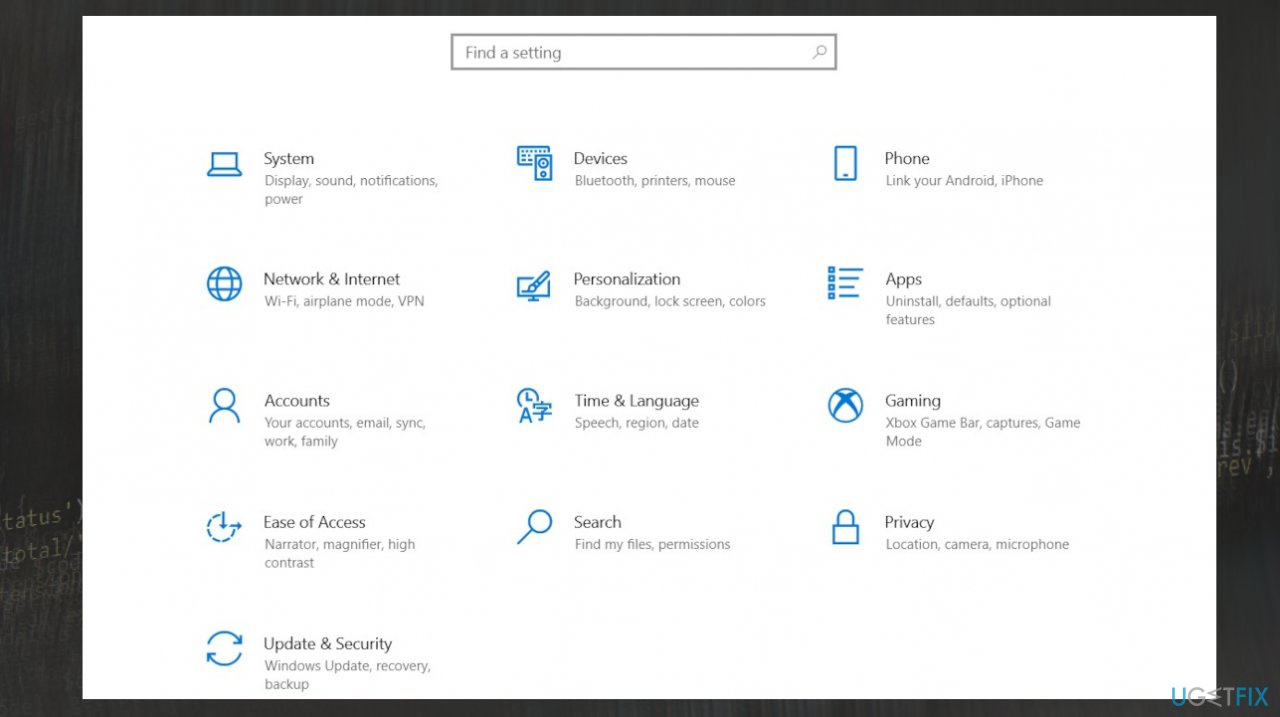
Printer driver unavailable settings - Select Update & Security options.
- Click on Check for updates.
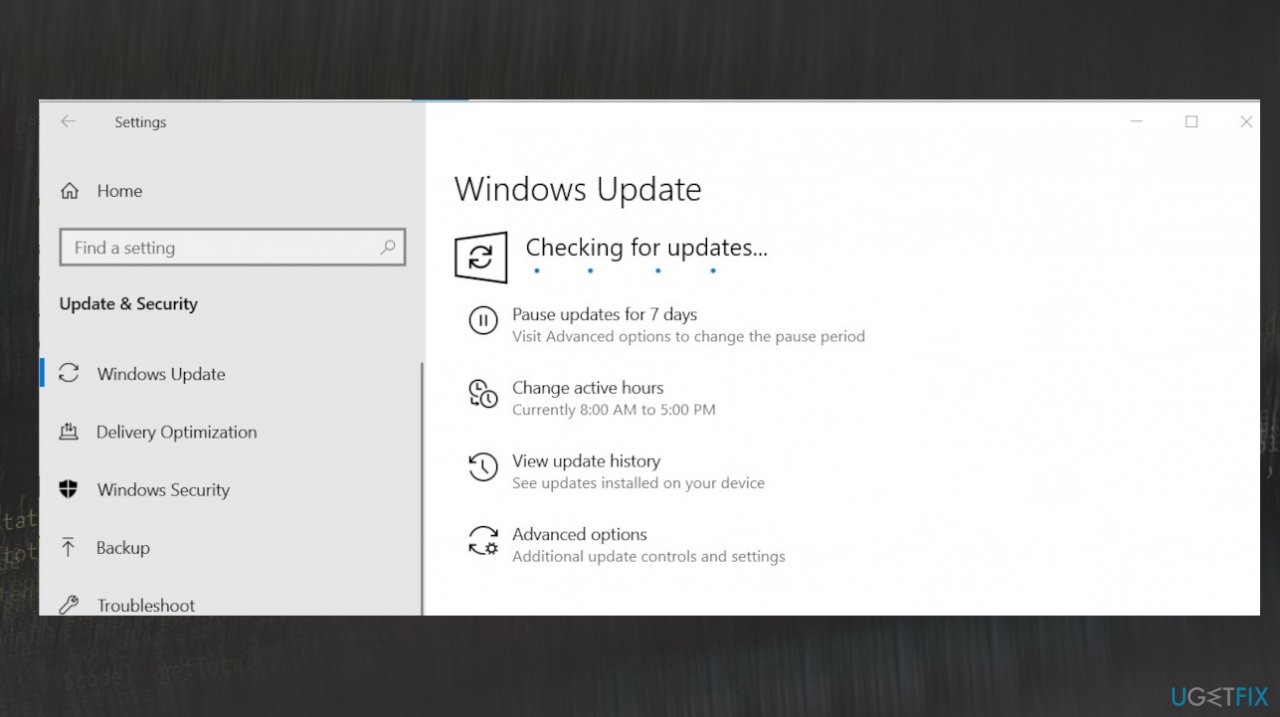
Printer driver unavailable update - If an update is pending, you will see the Download option.
Bottom line
To fix the Printer Driver Is Unavailable error, users can update Windows or drivers manually, check wi-fi connections, and use applications designed to repair corrupted files. If these solutions do not resolve the issue, further investigation into system settings and compatibility may be necessary.
Frequently asked questions
You can try reinstalling the printer driver from the manufacturer's website, ensuring it's compatible with Windows 10. Additionally, check for any pending Windows updates that might address driver issues.
To fix this error on Windows 11, go to Settings > Devices > Printers & Scanners, remove the printer, and then add it again to reinstall the driver. Make sure to download the latest driver directly from the printer manufacturer's website.
Yes, you can run the built-in Printer Troubleshooter by going to Settings > Update & Security > Troubleshoot > Additional troubleshooters, then select Printer. This tool will help identify and fix common printer driver problems.




Report an issue
What's wrong with this guide? We review every report and update or remove content.
Report received — thank you. We'll review and fix it.
You need a free account to submit a report.
Be the first to comment