How to fix
PxHlpa64.sys Memory Integrity error
on Windows
Resolve the PxHlpa64.sys Memory Integrity error on Windows 10 or 11 effortlessly with expert-tested solutions. Fixed in minutes!

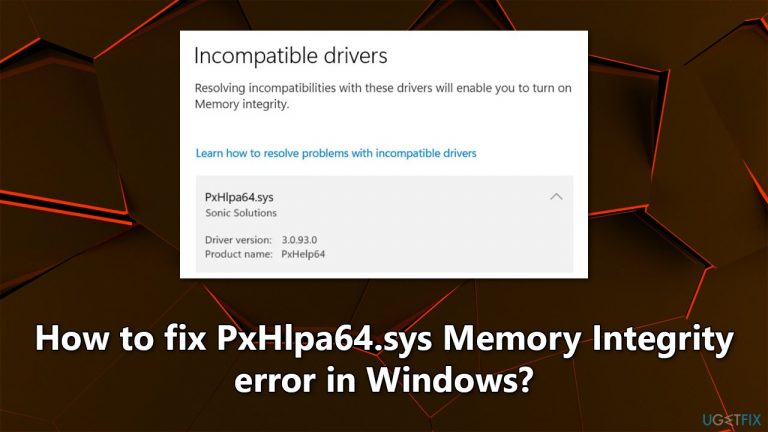
What causes How to fix PxHlpa64.sys Memory Integrity error in Windows?
- Incompatible driver preventing Memory Integrity activation
- PxHlpa64.sys driver related to DVD drive software from Hewlett-Packard
- Windows security checks detecting unsuitable drivers
- Users may not have the DVD drive software installed but still encounter the issue
- Memory Integrity stops working suddenly due to driver conflicts
Repairs Windows system files, removes malware, and restores a clean OS state — without reinstalling.
Hi, I have recently purchased a new PC and attempted to turn on Memory Integrity, but I received an error that says that an incompatible driver prevents it from activating and shows PxHlpa64.sys as an incompatible driver. I am not sure what it is why it is preventing Memory Integrity from starting because I only have a few programs and games installed on my PC.
Included within the Windows operating system, Microsoft Defender is a security software that offers a variety of features to protect against malicious software and other threats. One such feature is memory integrity, which safeguards the data stored in a computer's memory from being corrupted or modified by harmful programs.
Memory integrity is a crucial component of Microsoft Defender as it offers extensive protection against a wide range of security threats. This includes preventing malware from modifying the data in memory to avoid detection or injecting itself into running processes. Additionally, it protects against attacks that exploit vulnerabilities in the operating system or other software by maintaining the unmodified state of data in memory.
However, some users have reported issues with turning on or maintaining memory integrity in Core isolation. Specifically, they have experienced problems with the PxHlpa64.sys driver, which can cause memory integrity to stop working suddenly or prevent it from being enabled.
Enabling Core isolation can prove to be a challenge for users due to a problem related to Memory integrity and the PxHlpa64.sys driver. This is because Windows conducts security checks to ensure that all drivers are suitable before allowing the feature to be enabled. In cases where incompatible drivers are detected, the system generates a list of these drivers and recommends possible fixes to rectify the issue.
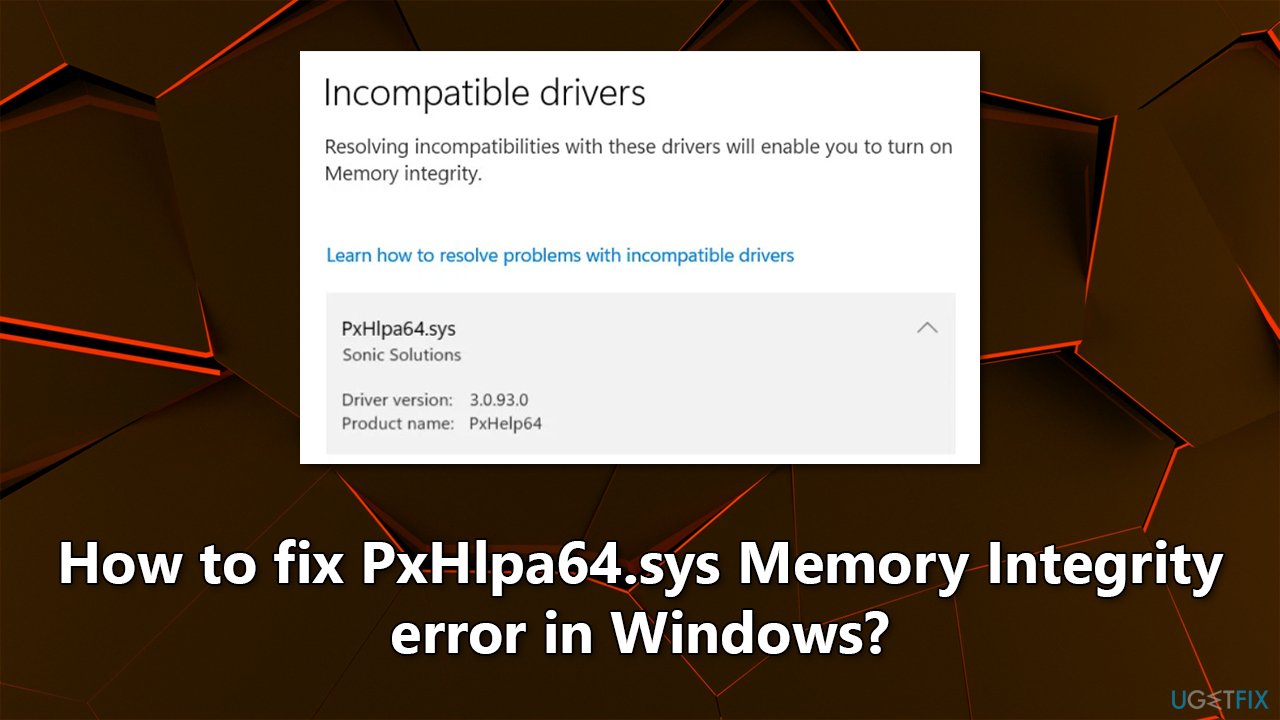
While it may seem like PxHlpa64.sys is a Windows file, it is actually a driver related to DVD drive software from Hewlett-Packard, which some users reported not even having installed on their systems. Luckily, there are several ways you can remove this driver (or resolve the matter in another way) and enable Memory Integrity.
Fix 1. Uninstall related software
You should first try uninstalling the software related to the PxHlpa64.sys driver. There could be several apps using it, for example, Roxio software for DVD burning.
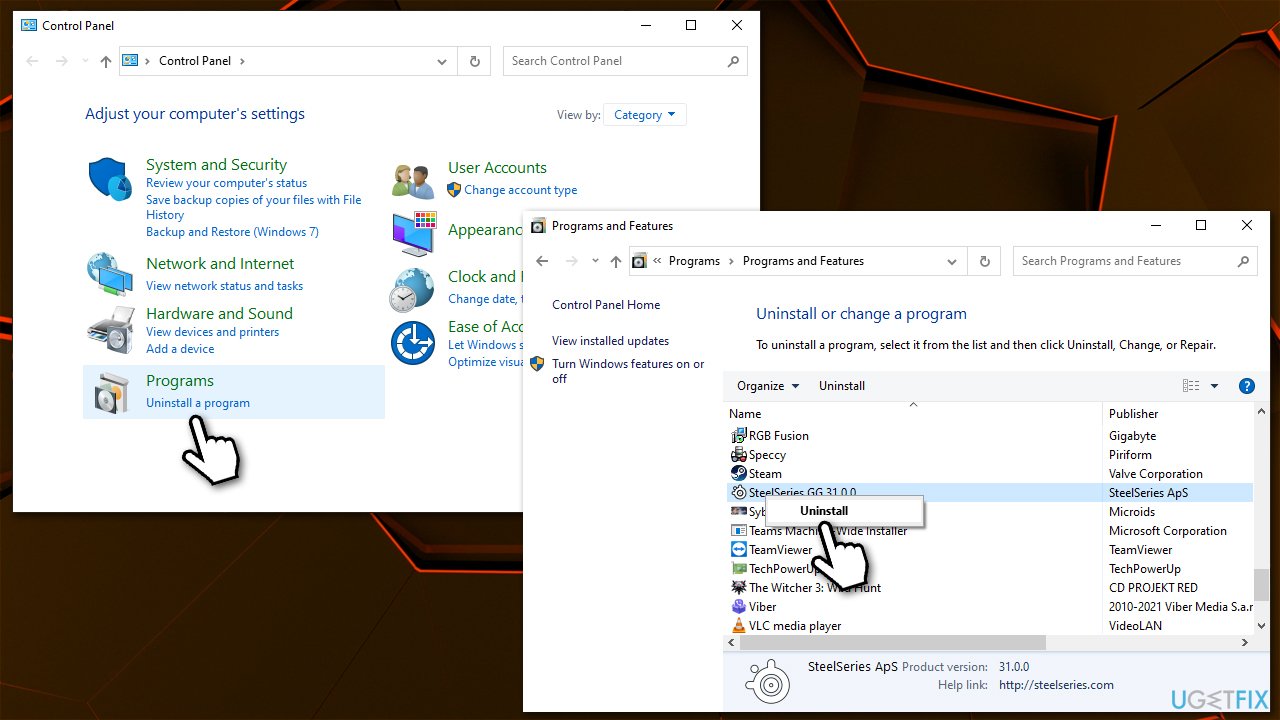
- Type Control Panel in Windows search and press Enter.
- Go to Programs > Uninstall a program.
- From the list, locate associated software, for example, Roxio.
- Right-click and select Uninstall.
- Follow on-screen instructions to remove the program.
- Restart your system and see if PxHlpa64.sys Memory Integrity error is gone.
Fix 2. Install driver updates
In some cases, the PxHlpa64.sys driver might not pass security checks because it is simply outdated. Therefore, you should update the drivers on your system. You can start by installing Windows updates:
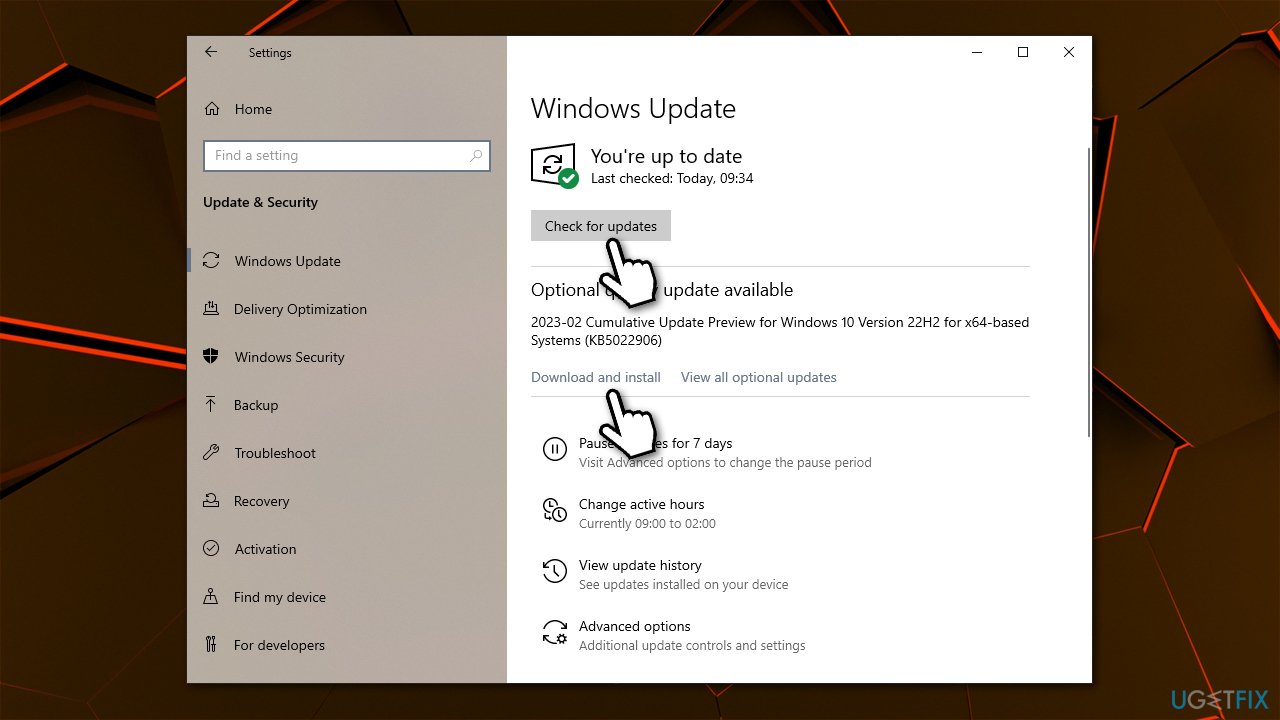
- In Windows search, type Updates and hit Enter.
- In the new window, click Check for updates.
- Wait till Windows downloads and installs all the necessary files.
- Installing optional updates is particularly important because that's where driver updates are located.
- Once done, reboot your device.
While Windows can download and install basic driver updates, it is not always successful. Thus, we recommend downloading driver updates from the associated software's website or employing an automatic driver updater such as [rev id="DriverFix"].
Fix 3. Get rid of the driver
This set of actions will help you to get rid of the driver with the use of elevated Command Prompt and Autoruns. Follow these steps:
- Type in cmd in Windows search.
- Right-click on Command Prompt result and pick Run as administrator.
- When User Account Control window asks you whether you want to make changes, click Yes.
- Next, copy and paste the following command, pressing Enter after:
dism /online /get-drivers /format:table - Your goal is to find the "Published Name" based on the "Original File Name" in the table. In this case, it should be "oem5.inf," but it may differ in some cases, so verify it.
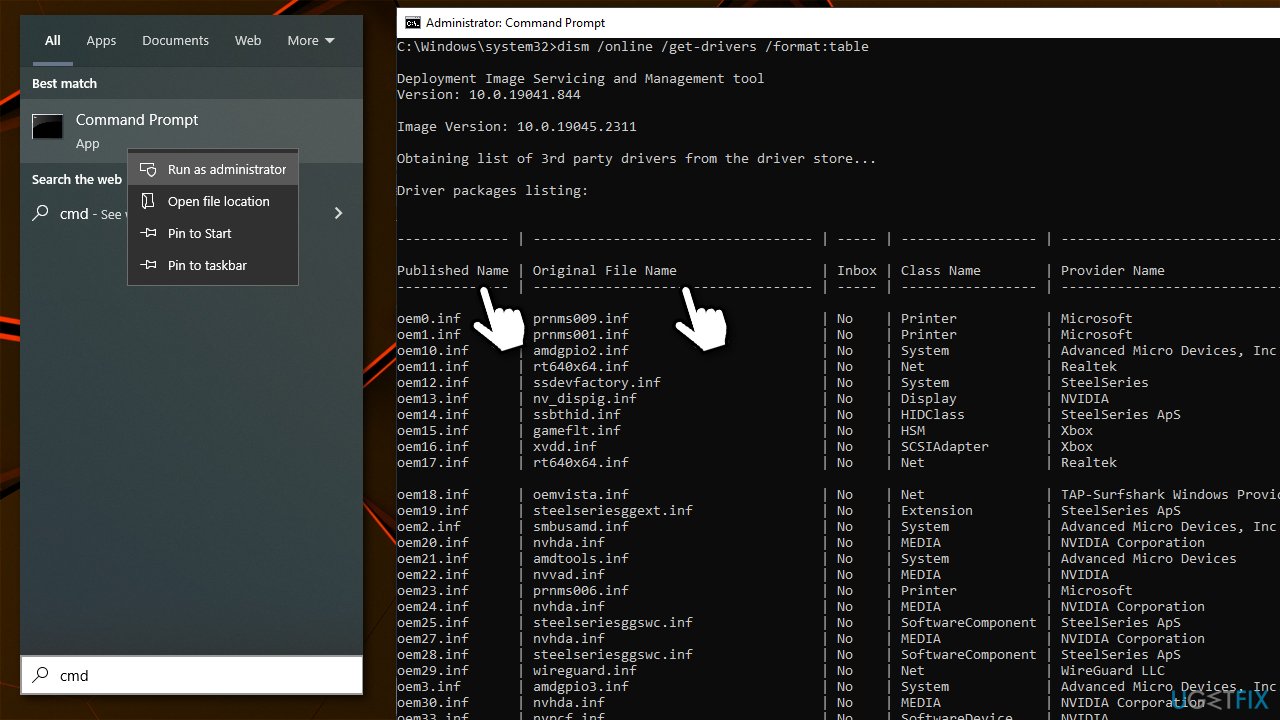
- Next, copy and paste the following command, and press Enter:
pnputil /delete-driver oem5.inf /uninstall /force - Restart your computer.
Your next task is to get rid of the remnants. The easiest way is by using the official tool from Microsoft.
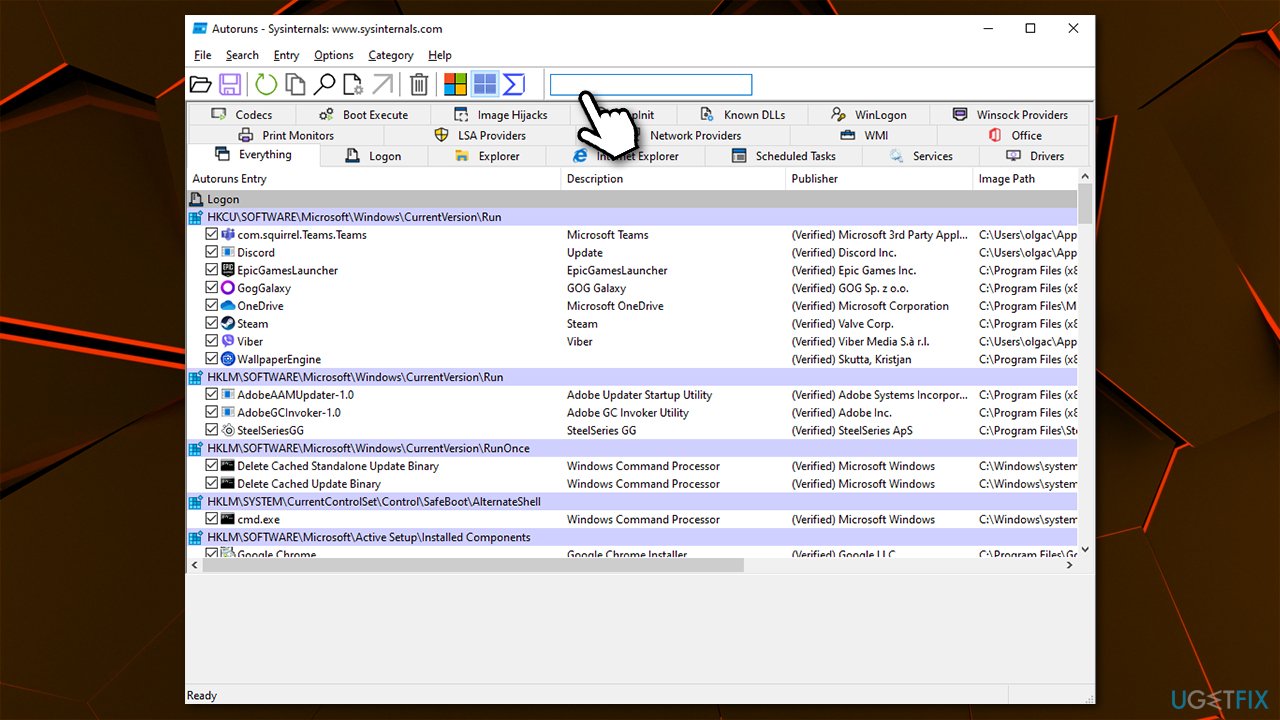
- Download Autoruns for Windows from the official website.
- Go to the Downloads folder or anywhere else your files are directed to be placed.
- Right-click on the ZIP file and select Extract to Autoruns and enter the folder when done.
- Select the right version: Autoruns.exe if you are using 32-bit Windows or go for Autoruns64.exe if you are using 64-bit Windows.
- Right-click on the correct EXE file and select Run as administrator.
- When the UAC window shows up, click Yes.
- In the search box, type the name of the driver causing problems - PxHlpa64.sys in this case.
- Right-click on any related entries and select Delete.
Related topics:
Bottom line
To fix the PxHlpa64.sys Memory Integrity error, users can remove the incompatible driver or resolve the issue through various methods. If these solutions do not work, consider checking for driver updates or consulting further technical support.
Frequently asked questions
The PxHlpa64.sys Memory Integrity error is often caused by outdated drivers or conflicts with third-party software, impacting system stability in Windows 10 and Windows 11.
You can update drivers by going to Device Manager, right-clicking on the device, and selecting 'Update driver', or using Windows Update to check for recommended updates on Windows 10 and 11.
Yes, disabling Memory Integrity can temporarily resolve the PxHlpa64.sys error, but it is recommended to find and fix the underlying driver issues for a permanent solution in Windows 10 and 11.




Report an issue
What's wrong with this guide? We review every report and update or remove content.
Report received — thank you. We'll review and fix it.
You need a free account to submit a report.
Be the first to comment