How to fix
“Realtek Semiconductor Corp – Extension” keeps showing up
on Windows
Resolve the "Realtek Semiconductor Corp - Extension" error in Windows 10 or 11 quickly and easily with our expert-tested solutions. Fixed in minutes!

What causes How to fix “Realtek Semiconductor Corp – Extension” keeps showing up in Windows?
- Driver installation errors
- Repeated installation attempts
- Driver version conflicts
- Windows update failures
- Optional driver updates not installed
Repairs Windows system files, removes malware, and restores a clean OS state — without reinstalling.
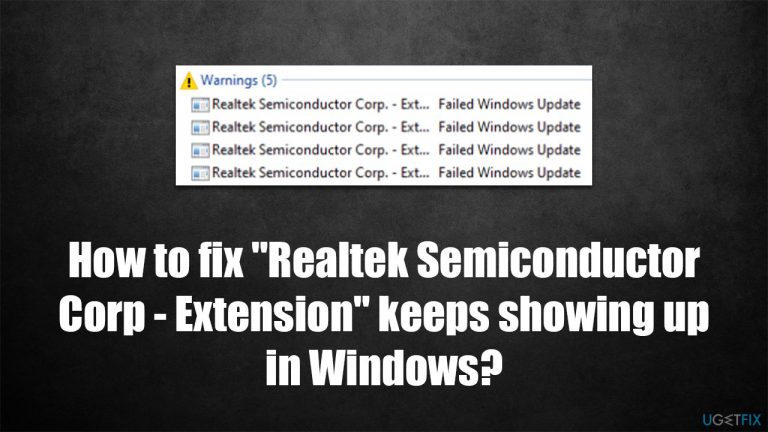
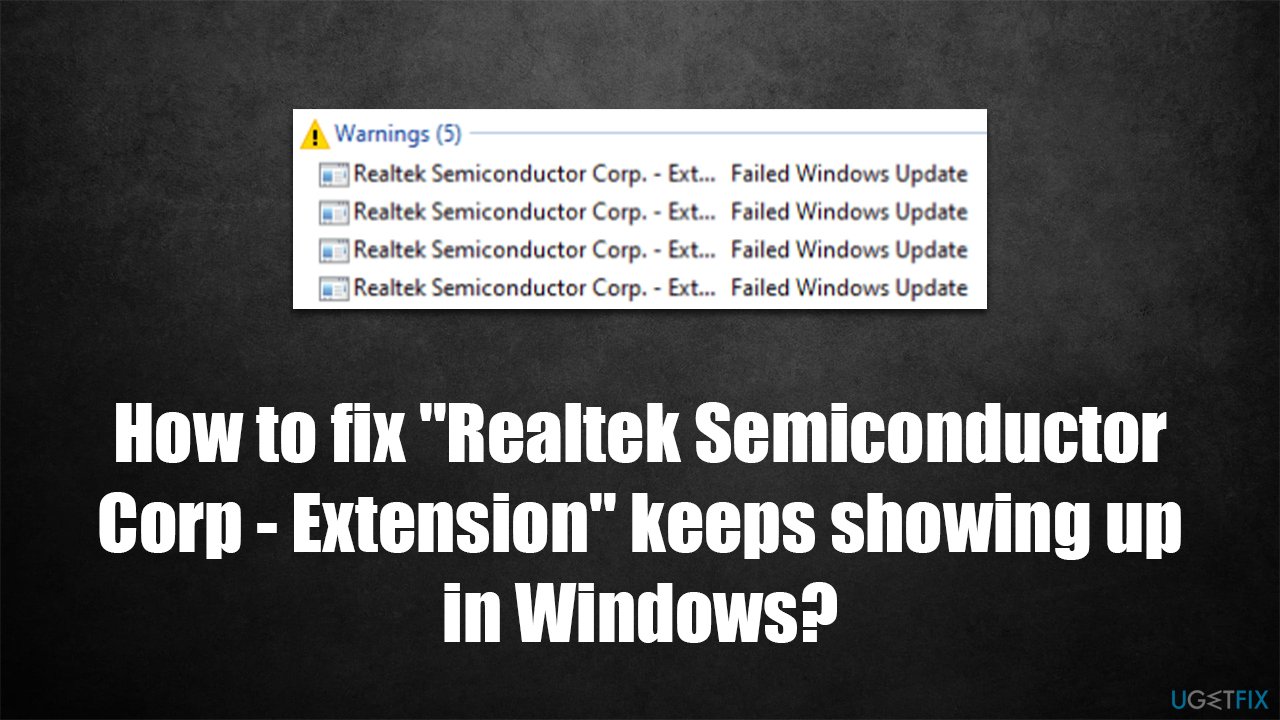
I have a problem with Windows updates, or rather - driver updates. Whenever I check the Windows updates section, it says Realtek Semiconductor Corp - Extension Driver update has been installed. Every time I initiate this process, I receive the same message that the driver has been installed. However, if I check the Reliability Monitor, I see numerous messages with the "Failed Windows Update" notification. This is pretty annoying, and I wonder if this could be solved. I really appreciate any help you can provide.
Windows updates are regular occurrences that all users with Windows systems are accustomed to. Microsoft usually ships updates every second Tuesday of every month and can include all types of improvements. This process is often referred to as "Patch Tuesday" and can include all sorts of updates, including security, feature, quality, and more.
Drivers are particularly important to any Windows operating system, as they allow hardware and software to communicate properly, allowing users to achieve the maximum potential of their machines. Once installed, drivers can serve for a long time before they need to be updated, although this highly depends on the system component and what the users are using their computers for. That being said, it is recommended to update drivers whenever possible.
In order to provide users with as much convenience as possible, Windows also offer driver updates, although they are shown as optional, so users have to install them intentionally. Realtek drivers are among the most common sound (and other) drivers that can be offered for users, and those who have trouble with sound should make sure that their drivers are up to date.
Many users have reported that whenever they tried to install Realtek Semiconductor Corp - Extension Driver, the process failed, usually with errors such as 0x80070103. In other cases, people said that the installation process was completed successfully, only for them to see it being repeated over and over again. In this case, the warning about failed Windows update was also reported. The driver version, such as 6.0.9366.1 or 6.0.9369.1, is also present in the message.
When Realtek Semiconductor Corp - Extension Driver fails to install, it does not seem to impact people in any major ways, and they can continue to operate their computers as usual. However, it can be pretty frustrating when the update keeps spamming you all the time, especially when the process repeats several times a day. Without a doubt, this should not be happening, and there are ways to fix this issue.
Before proceeding with the solutions below, we strongly recommend you run a full system scan with [d1] utility to check the system for malware and repair any damaged files to exclude system corruption. If you would like to go the manual route, proceed with the solutions below.
Fix 1. Hide the update using a special troubleshooter
If you are looking for a quick solution, you can simply hide the update via Microsoft's troubleshooter, and it shouldn't bother you again.
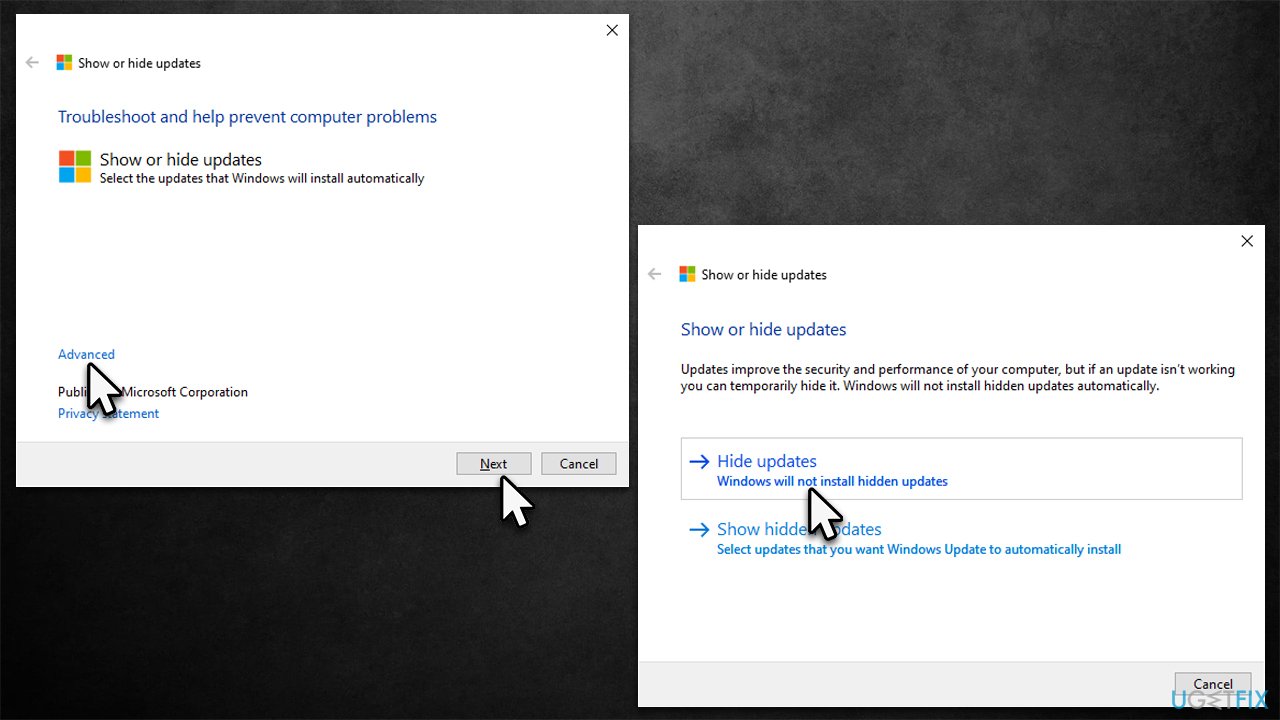
- Download the Show or Hide Updates Troubleshooter from the Microsoft website [direct download link]
- Launch the wushowhide.diagcab file to begin the installation
- Select Advanced and then Apply updates automatically, clicking Next after
- Pick Hide updates, and select the update which continues to offer you "Realtek Semiconductor Corp - Extension," then click Next
- Apply changes and hit Close.
Fix 2. Run Windows Update Troubleshooter
If updates fail to install, it may be a huge problem. For example, Windows ships updates to fix bugs and patch security vulnerabilities. Thus, you should try fixing the problem instead by running the troubleshooter:
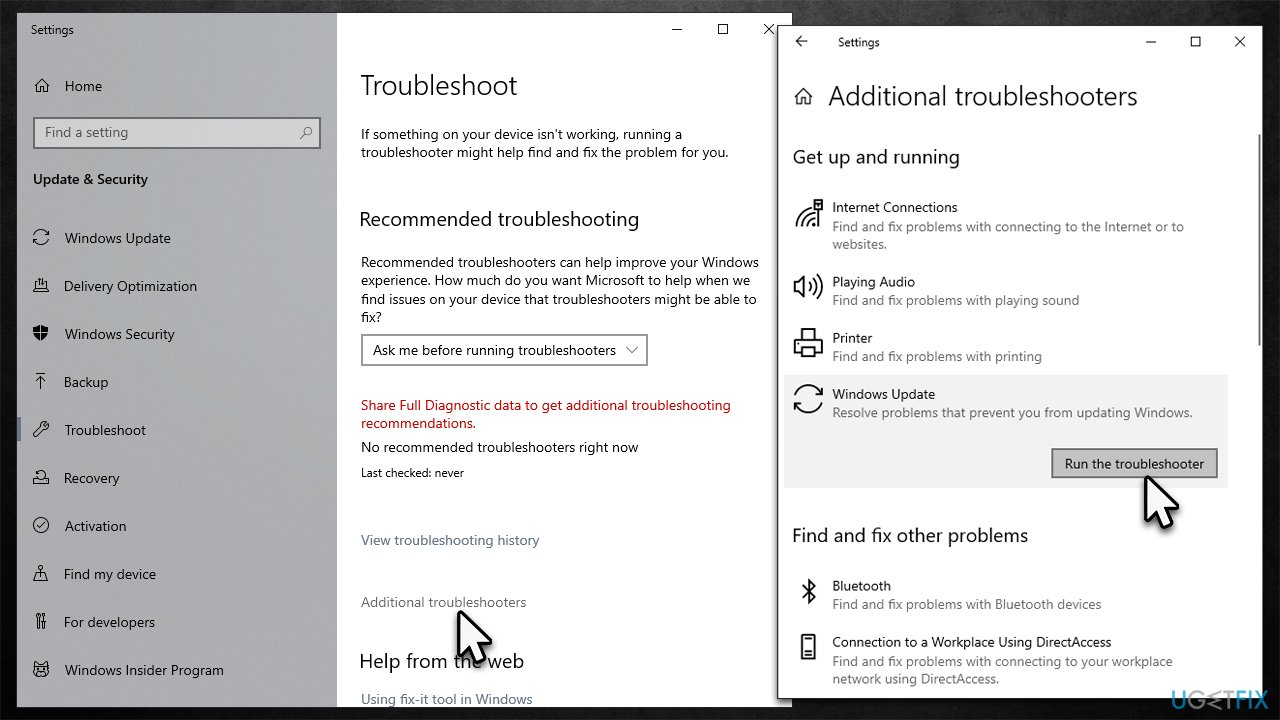
- Type Troubleshoot in Windows search
- Select Additional troubleshooters
- Find Windows Update from the list
- Click it and select Run the troubleshooter
- Apply the suggested fixes and restart your computer
- Try updating again and see if it fixes the problem.
Fix 3. Download the driver in an alternative way
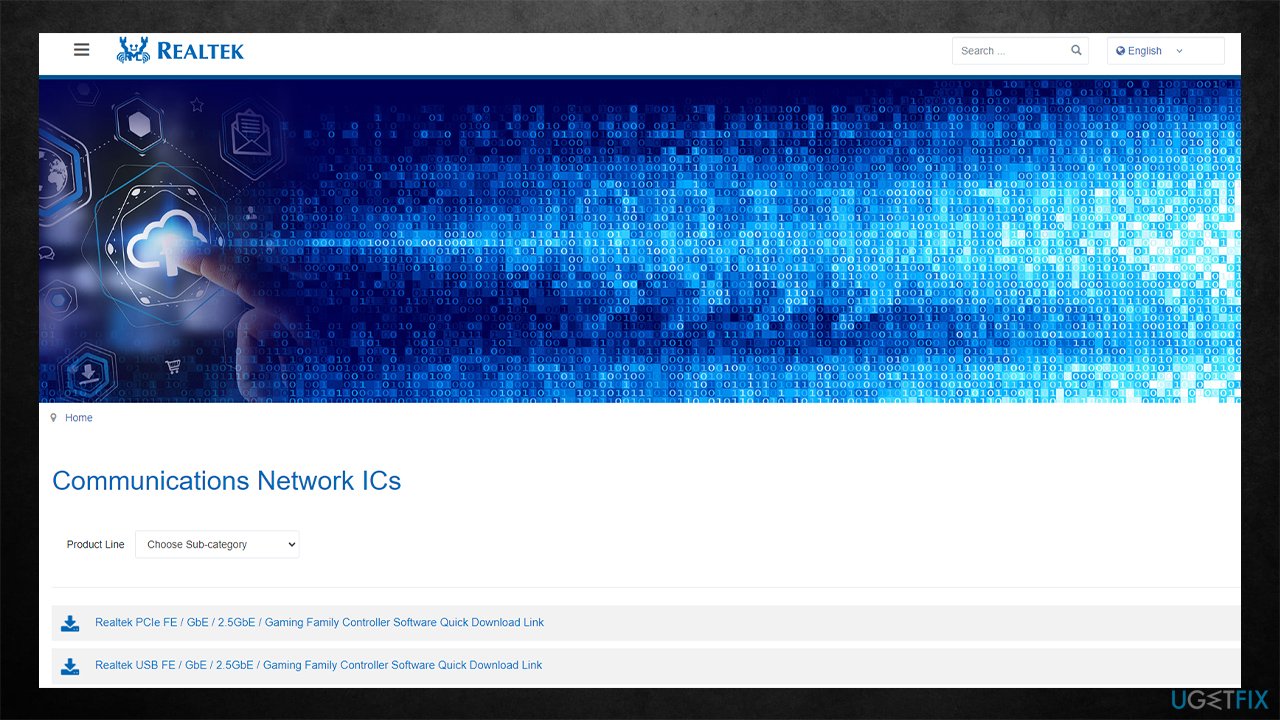
If you are facing an installation error while trying to install drivers, there are alternative ways how you could install them - either using an automatic driver updater like [rev id="DriverFix"] or visiting the official Realtek download website and installing the update from there.
Fix 4. Roll back drivers
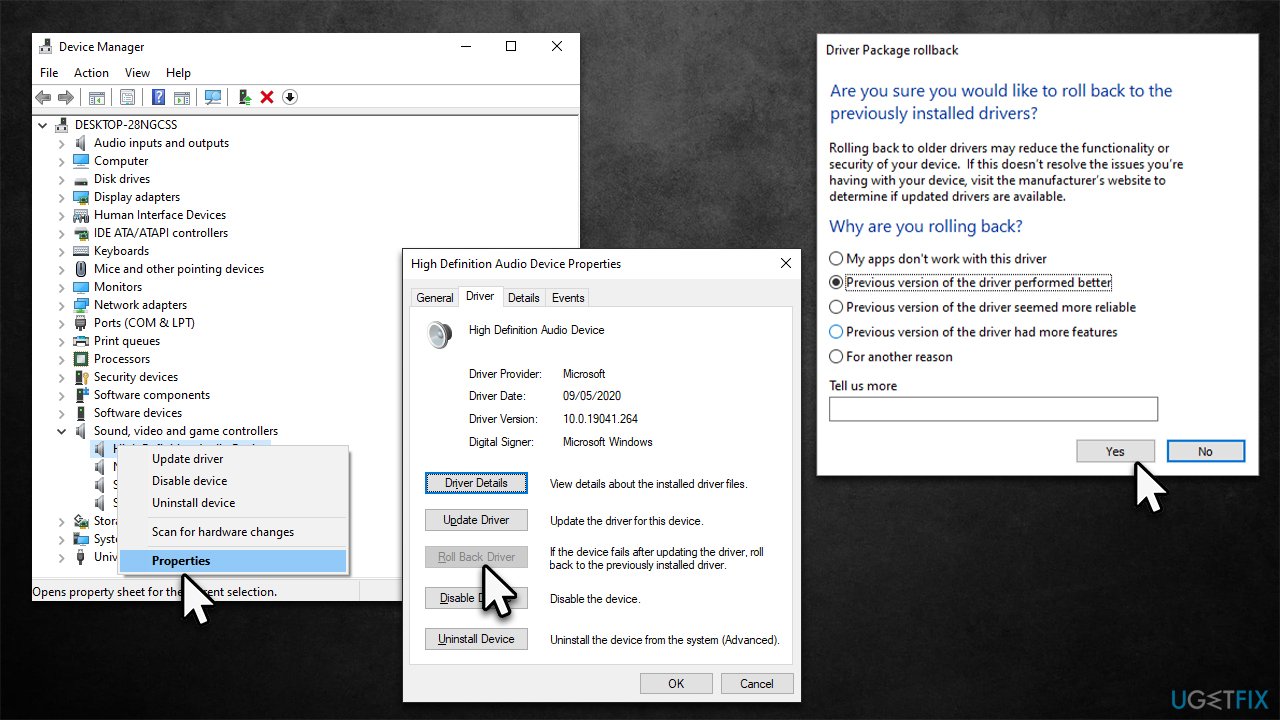
Some users said that they managed to fix the Realtek Semiconductor Corp - Extension keeps installing issues by rolling back Realtek drivers to the previous version.
- Right-click on Start and pick Device Manager
- Expand the Sound, video and game controllers section
- Right-click Realtek HD Audio Device and select Properties
- Go to the Driver tab
- Click the Roll Back Driver button
- Select the reason and then click Yes
- Restart your system.
Bottom line
To resolve the issue, users can try updating the Realtek drivers manually, checking for Windows updates, or using the Device Manager to uninstall and reinstall the driver. If these steps do not work, consider seeking further assistance or checking for additional updates.
Frequently asked questions
This issue usually occurs due to outdated or corrupted audio drivers that need updating or reinstalling. It's essential to keep your Realtek audio drivers up to date to prevent this notification from reappearing.
You can disable the notification by going to Device Manager, finding the Realtek audio device, and adjusting its properties or uninstalling the driver. After uninstalling, restart your PC, and Windows will reinstall the driver automatically.
If updating the drivers doesn't help, try performing a clean installation of the Realtek drivers or using the Windows Troubleshooter for audio devices to identify and fix any underlying issues.




Report an issue
What's wrong with this guide? We review every report and update or remove content.
Report received — thank you. We'll review and fix it.
You need a free account to submit a report.
Be the first to comment