How to fix
Rzudd.sys BSOD
on Windows
Resolve the rzudd.sys BSOD issue on Windows 10 and 11 with our expert-tested solutions. Fix it quickly and confidently—zero traces left!

What causes How to fix rzudd.sys BSOD in Windows?
- Driver incompatibility
- Memory corruption
- Software bugs
- Conflicts with other drivers
- Corruption of the rzudd.sys file
Repairs Windows system files, removes malware, and restores a clean OS state — without reinstalling.
I'm encountering a BSOD error (rzudd.sys) on my Windows 10 due to my Razer Anansi keyboard. Whenever I press a key on it, the system crashes. Switching to a different keyboard solves the problem, but as soon as I connect and press any button on the Anansi, the issue resurfaces.
The Blue Screen of Death, often abbreviated as BSOD, is a common but daunting sight for Windows users. This full-screen error, typically depicted in a shade of blue, indicates a fatal system error from which the operating system cannot safely recover. The BSOD is usually a symptom of a low-level software or hardware issue, such as driver incompatibility, memory corruption, or system resource conflicts. The nature of the problem that caused the crash is often hinted at by an error code or the name of a file, such as rzudd.sys.
Some users may experience a BSOD crash specifically due to a file named rzudd.sys - a device driver developed by Razer Inc. for its range of peripherals, including keyboards and mice. As a driver, this file's primary function is to facilitate communication between the operating system and the hardware device it is associated with. When functioning properly, the rzudd.sys file ensures that input from a Razer device is accurately translated into signals that Windows can understand and respond to.
However, crashes can occur when this file encounters issues. These could stem from various causes, including software bugs, conflicts with other drivers, or corruption of the rzudd.sys file itself. The crashes can affect any Razer device connected to the system, which could be detrimental to the user experience, especially for gamers and other users who heavily rely on these peripherals.
While these crashes may seem daunting, they are not insurmountable problems. Solutions can range from updating or reinstalling the driver to scanning for malware or even replacing the hardware, depending on the cause. These steps are usually enough to rectify the issue, and detailed instructions on how to execute them can be found below.
Finally, it's worth mentioning that automated tools, such as the [d1] PC repair tool, can often simplify the process of diagnosing and resolving these issues. It's a potentially valuable asset for those seeking an expedient and user-friendly solution to their BSOD problems.
Fix 1. Update your Razer device driver
An outdated or incompatible driver could be the cause of the rzudd.sys BSOD. Updating the driver can provide patches for known issues and enhance system compatibility, which can potentially resolve the problem.
- Open Device Manager by right-clicking on the Start Menu and selecting it from the list.
- Find your Razer device in the list of hardware, right-click it, and select Update Driver.
- Choose Search automatically for updated driver software and follow the prompts.
- Once done, restart your system to implement the changes.

Unfortunately, Windows might not locate the latest driver for your software. Thus, you should either download the driver from the Razer website manually or employ automatic options, such as [rev id="DriverFix"].
Fix 2. Reinstall the Razer device driver
Sometimes, certain files associated with the driver could become corrupt. Reinstalling the driver could replace these files and possibly fix the rzudd.sys BSOD.
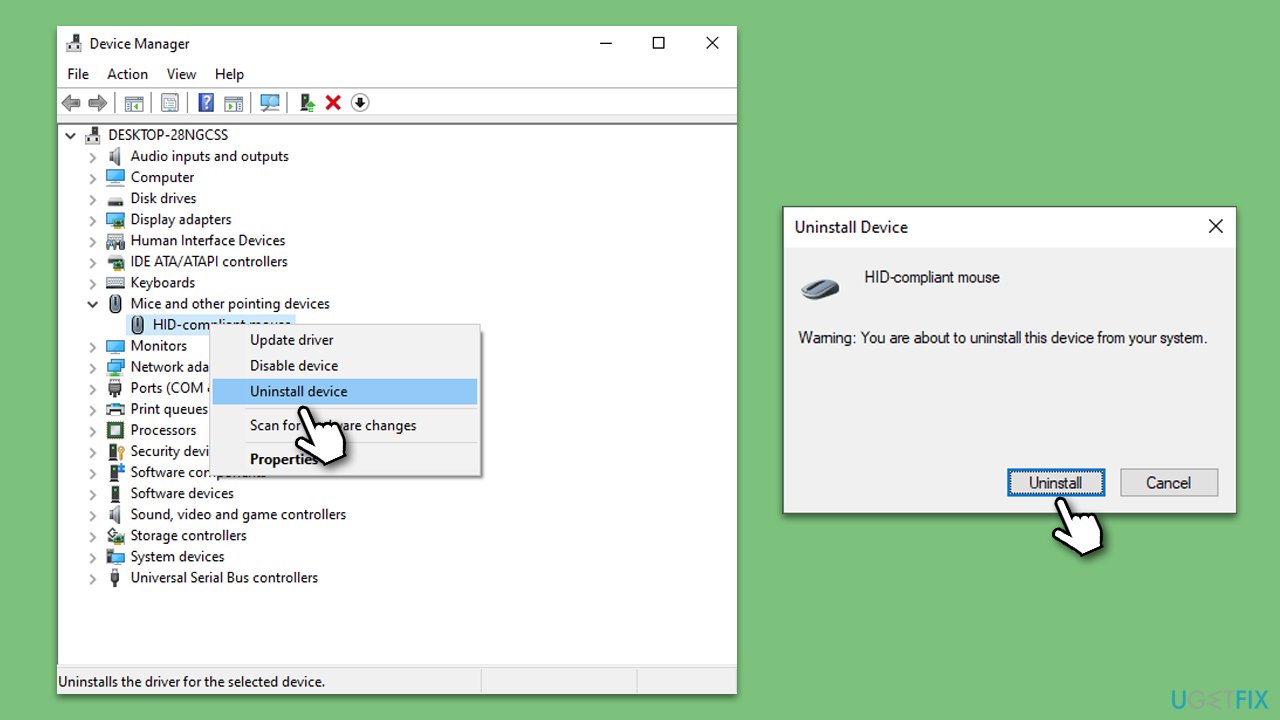
- Right-click on Start and pick Device Manager.
- Expand the section with malfunctioning driver, for example, Mice and other pointing devices.
- Right-click the device and select Uninstall device.
- In the confirmation window, tick the Delete the driver software for this device checkmark and click Uninstall.
- Restart your system and use one of the above methods to install the newest driver for your system.
Fix 3. Scan for malware
Malware can often interfere with system files and cause a myriad of PC issues, including crashes with BSOD. While you can employ any reputable third-party security software, using Microsoft Security Scanner is a free option, as well as the built-in Windows Defender. If you choose the latter, follow these steps:
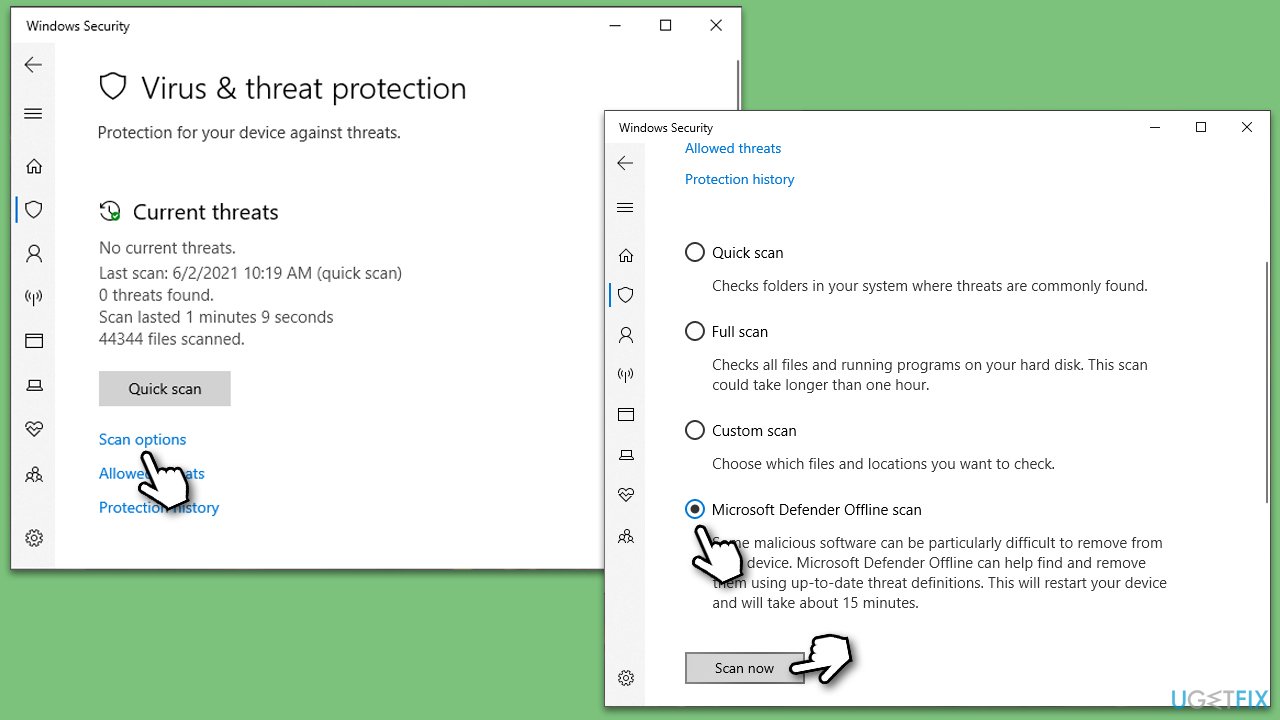
- Type in Windows Security in Windows search and press Enter.
- Select Virus & threat protection.
- Pick Scan options.
- Select Microsoft Defender Offline scan and click Scan now.
- The computer will now restart, and the scan begin.
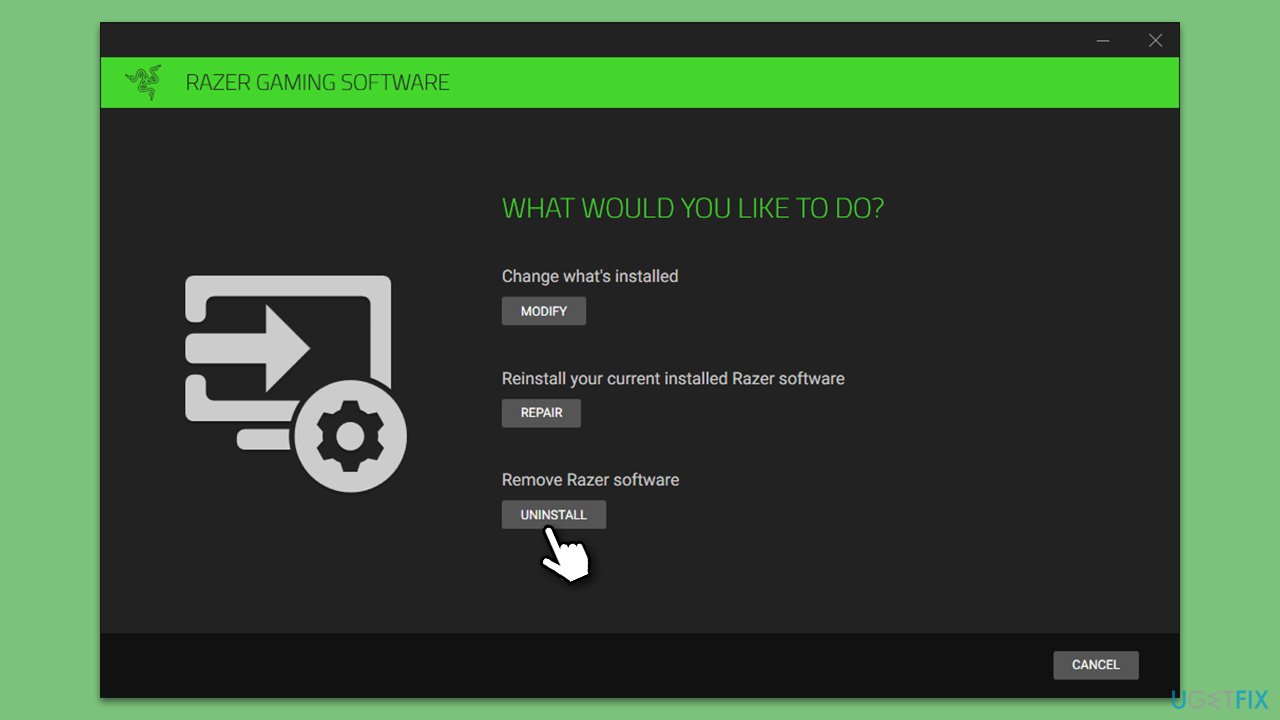
Fix 4. Reinstall Razer Synapse
Razer Synapse is the software used to manage and configure Razer devices. Corruptions or errors within this software can lead to issues like the rzudd.sys BSOD. Uninstalling and reinstalling Razer Synapse can help resolve these issues.
- Open the Control Panel by pressing Win+X and choosing it from the menu.
- Go to Programs and Features.
- Find Razer Synapse in the list, click it, and select Uninstall.
- Follow the prompts to uninstall the software.
- Press Win + E to open File Explorer.
- Go to the View tab and tick the Hidden items checkbox.
- Go to the following locations and delete the contents of these folders:
C:\Program Files (x86)\Razer
C:\ProgramData\Razer

- Restart your computer.
- Go to the official Razer website and download the latest version of Razer Synapse.
- Install the downloaded software and follow the prompts to complete the installation.
- Restart your computer and check if the rzudd.sys BSOD issue has been resolved.
Some users said that keeping the software off their computers helped to resolve all issues, although this is not optimal.
Others said that removing Razer Synapse, reinstalling drivers, and then reinstating software stopped BSODs.
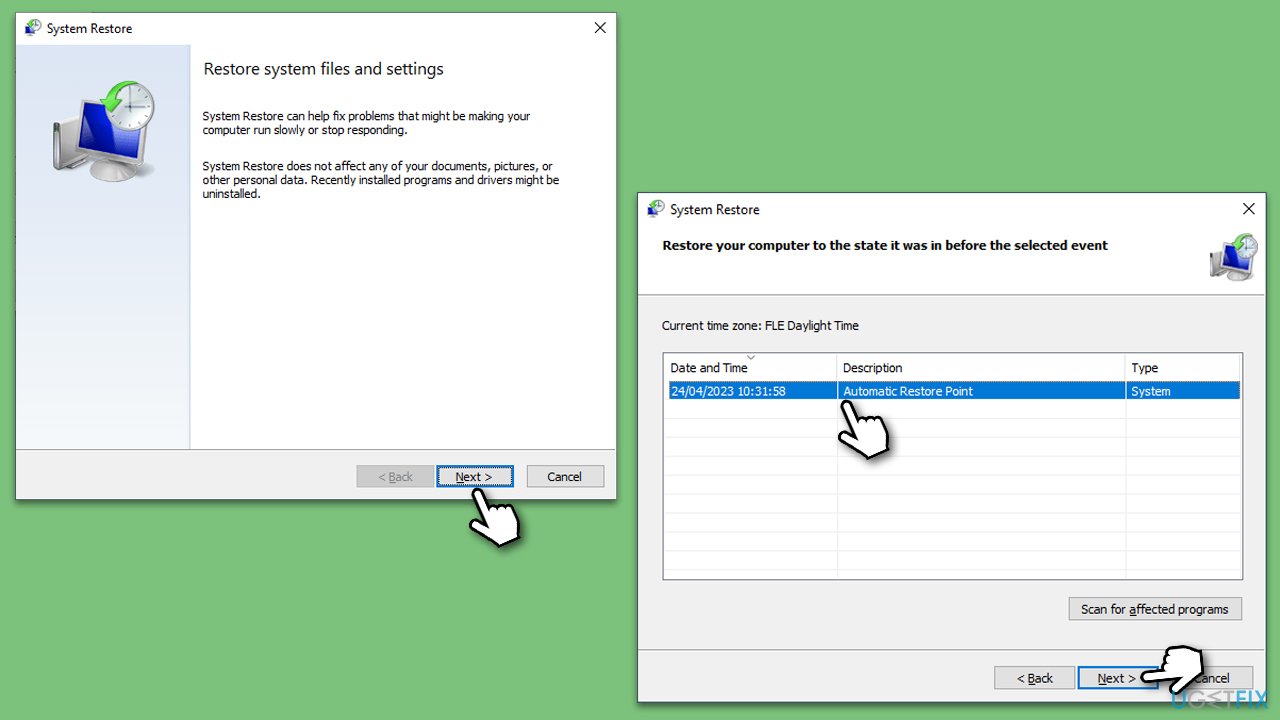
Fix 5. Perform a System Restore
If the rzudd.sys BSOD started appearing recently, a change in your system could be the cause. System Restore can revert these changes.
- Type in Create a Restore point in Windows search and hit Enter.
- Go to the System Protection tab and pick System Restore.
- Click Next.
- Click Show more restore points (if available).
- Pick the time before the problem occurred and click Next.
- Follow the prompts to finish the process.
A related article that might be helpful: How to fix Razer Synapse not opening: mouse, keyboard, and other device problems?
Bottom line
To fix the rzudd.sys BSOD error, you can update or reinstall the Razer driver, scan for malware, or consider replacing the hardware. If these solutions do not resolve the issue, further troubleshooting may be necessary.
Frequently asked questions
Rzudd.sys is a driver file associated with Razer devices, and it can trigger a Blue Screen of Death (BSOD) if it becomes corrupted or incompatible. Issues often arise after updates or hardware changes.
You can fix the rzudd.sys BSOD error by updating or reinstalling the Razer driver through Device Manager. Additionally, running a system file check can help restore any corrupted files.
Disabling the rzudd.sys driver can temporarily stop the BSOD, but it may also limit the functionality of Razer peripherals. It's recommended to update the driver instead for a permanent solution.




Report an issue
What's wrong with this guide? We review every report and update or remove content.
Report received — thank you. We'll review and fix it.
You need a free account to submit a report.
Be the first to comment