How to fix
Sandbox copy paste not working
on Windows
Resolve Sandbox copy-paste issues in Windows 10 or 11 effortlessly. With expert-tested solutions, get back to seamless productivity in minutes.

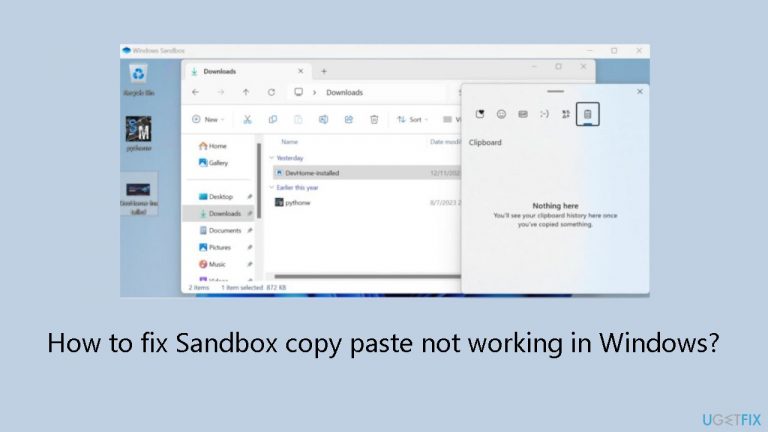
What causes How to fix Sandbox copy paste not working in Windows?
- Clipboard sharing not enabled
- Windows Sandbox configuration issues
- Group Policy settings not configured
- Windows Feature settings not updated
Repairs Windows system files, removes malware, and restores a clean OS state — without reinstalling.
Hello. When I copy a file from the host, nothing happens when pressing Ctrl + V in the sandbox. I use Windows 11. Is there a fix for this?
Users are becoming concerned about the reported problem of the Windows Sandbox copy/paste function not functioning. Many have experienced a situation where copying a file from the host system and trying to use Ctrl + V to paste it into the sandbox does not work. Users are looking for answers and explanations for this problematic behavior.
The smooth transfer of files between the host system and the sandbox environment, as well as user productivity, can be greatly impacted by the inability to use Windows Sandbox's copy/paste feature. The seamless movement of data, documents, or files between the two places is a capability that users frequently depend on, and its malfunction can cause workflow inefficiencies.
This can be especially problematic for people who use Windows Sandbox as a solitary environment or for testing. It impedes the easy and rapid transfer of files for testing, which could cause development or experimentation procedures to suffer.
Users have looked for several solutions to this issue, taking into account possible workarounds or system modifications. Some have looked into sandbox configurations and clipboard-sharing options. To reset or update the features, people have also looked into Windows Feature settings to toggle Sandbox options. However, some have found it difficult to come up with a definitive answer due to the intricacy of Windows setups.
In this guide, you will find 3 steps that should help you fix Sandbox copy paste not working in Windows. If you experience any other OS issues, you can run a maintenance tool like [d1] that can fix most system errors, BSODs, corrupted files, and registry issues. Otherwise, follow the step-by-step instructions below.
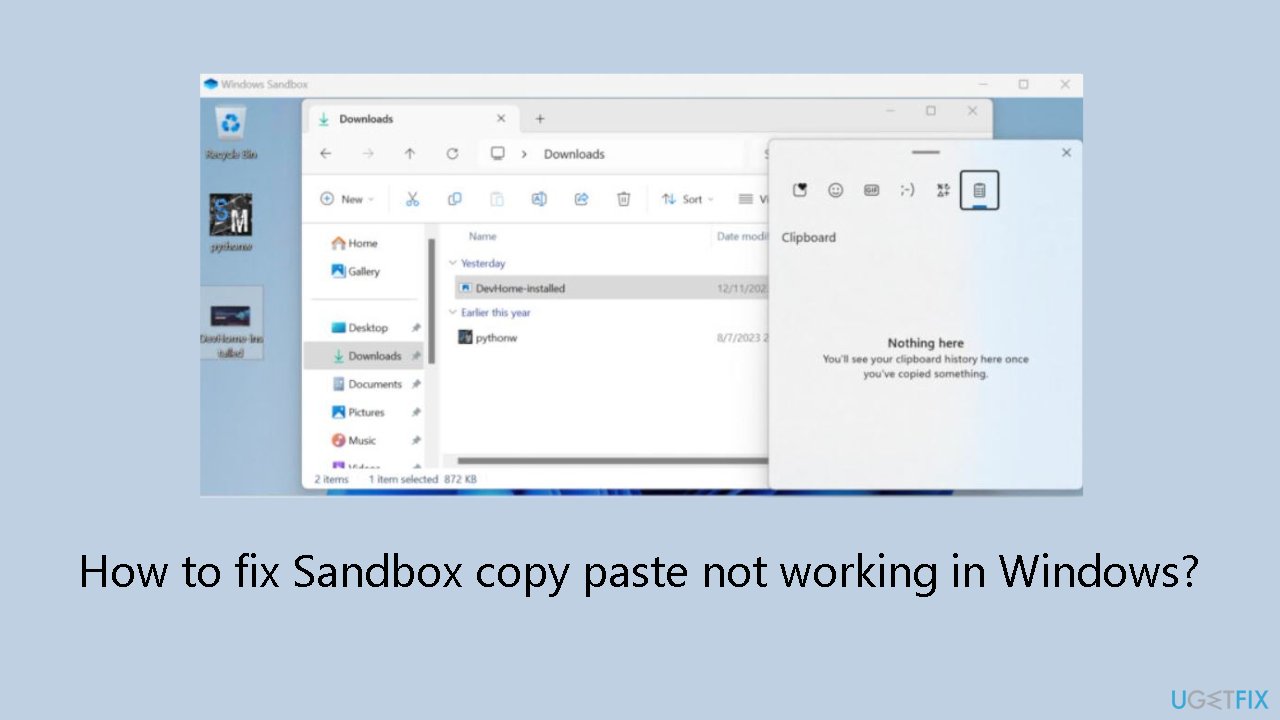
Method 1. Enable Clipboard Sharing via Group Policy Editor
- Press the Windows key + R shortcut to open the Run dialog box.
- Type gpedit.msc and press Enter to launch the Local Group Policy Editor.
- Navigate to the following location:
Computer Configuration
Administrative Templates
Windows Components
Windows Sandbox
- Double-click on Allow clipboard sharing with Windows Sandbox.
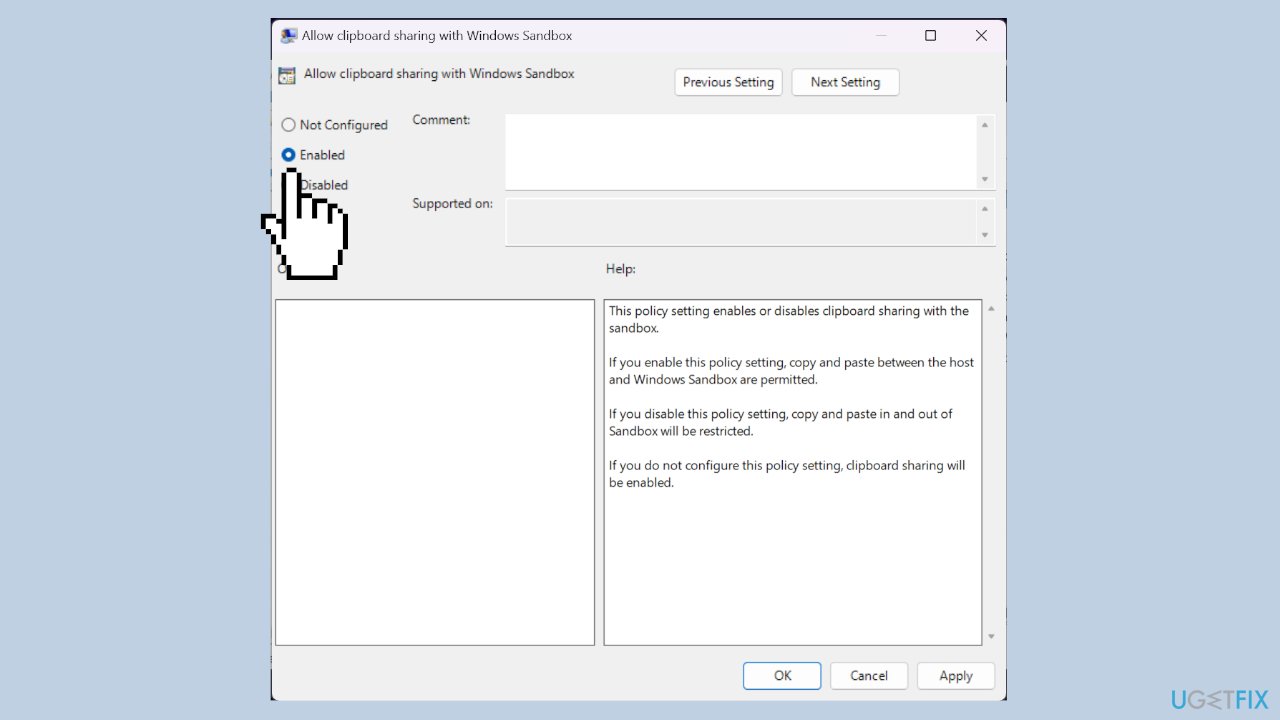
- Check the Enable option.
- Click Apply and then OK to confirm the changes.
- Restart your PC.
- After restarting, check if copy-paste functionality is now enabled in Windows Sandbox.
Method 2. Enable Clipboard Sharing via Registry Editor
- Press the Windows key + R to open the Run dialog box.
- Type regedit and press Enter to access the Registry Editor.
- Navigate to the following key:
HKEY_LOCAL_MACHINE
SOFTWARE
Policies
Microsoft
Windows
Sandbox
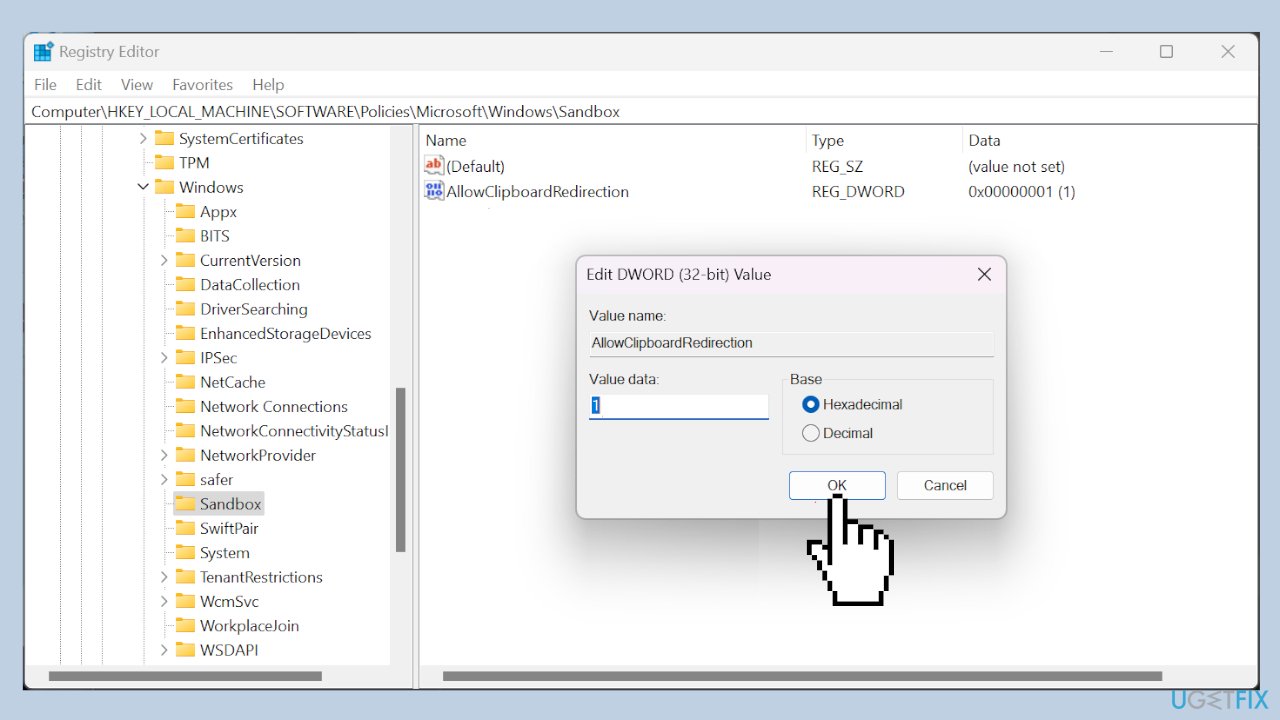
- Double-click on the AllowClipboardRedirection DWORD.
- Set its value to 1 to enable clipboard redirection.
- Optionally, you can delete the AllowClipboardRedirection DWORD for the same effect.
Method 3. Re-enable Windows Sandbox
- Click on the Search tab on the taskbar.
- Type turn Windows features on and off and select the app from the search results.
- Scroll down in the Windows Features window.
- Find Windows Sandbox and uncheck its box.
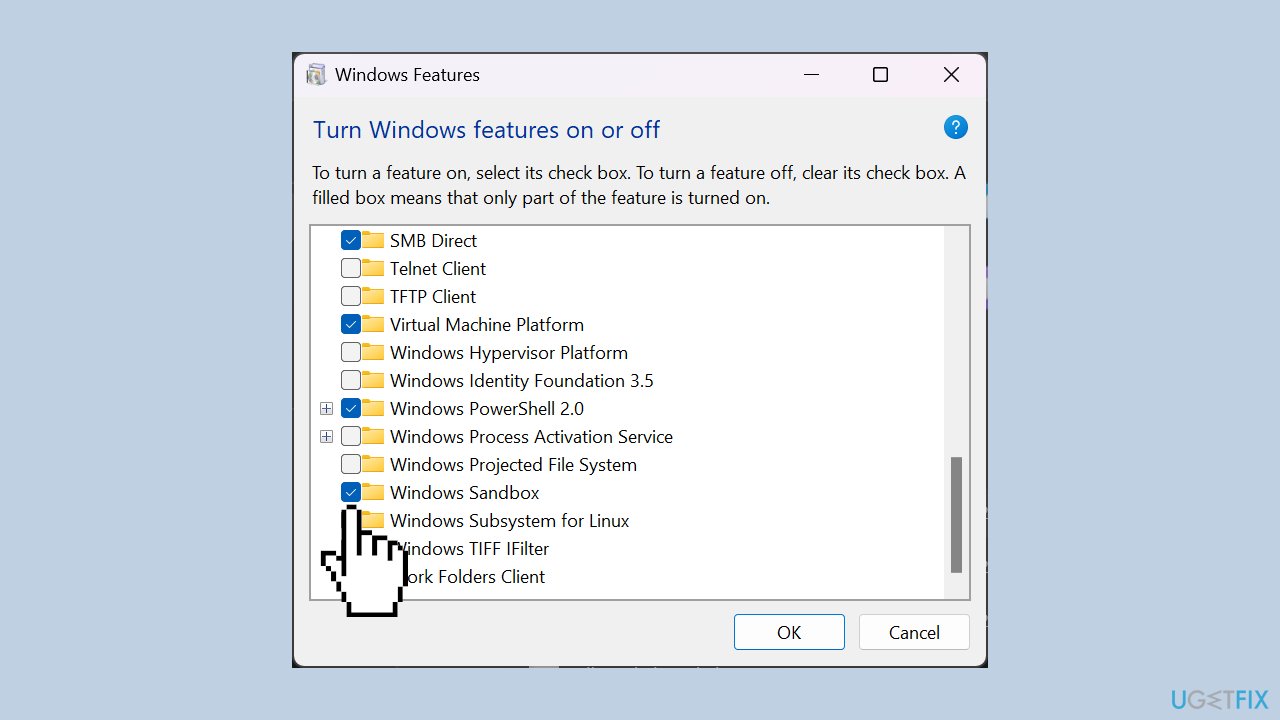
- Acknowledge the change and restart your computer when prompted.
- After the restart, open Windows Features again.
- Enable Windows Sandbox.
- Restart your computer once more.
- Check if copy and paste functionality is now working in Windows Sandbox.
Bottom line
To fix the Sandbox copy/paste issue, you can enable clipboard sharing via the Group Policy Editor, check sandbox configurations, and update Windows Feature settings. If these methods do not resolve the problem, consider using a maintenance tool to address other potential system errors.
Frequently asked questions
Copy-paste issues in Windows Sandbox can occur due to configuration settings or system resource limitations. Ensure that clipboard sharing is enabled in the Sandbox settings and that your Windows 10 or Windows 11 system is up to date.
To enable clipboard sharing, open Windows Sandbox and go to the settings, then check the option for clipboard sharing. This feature allows you to copy and paste between the host and the Sandbox environment in Windows 10 or Windows 11.
If you're experiencing clipboard issues in Windows 11 Sandbox, try restarting the Sandbox environment or your host machine. Additionally, check for Windows updates, as they may resolve compatibility issues.




Report an issue
What's wrong with this guide? We review every report and update or remove content.
Report received — thank you. We'll review and fix it.
You need a free account to submit a report.
Be the first to comment