How to fix
Server error „Logon failure: The user has not been granted the requested logon type at this computer“
on Windows
Resolve the "Logon failure" error on Windows 10/11 easily. Follow expert-tested solutions to regain access without hassle. Fixed in minutes!

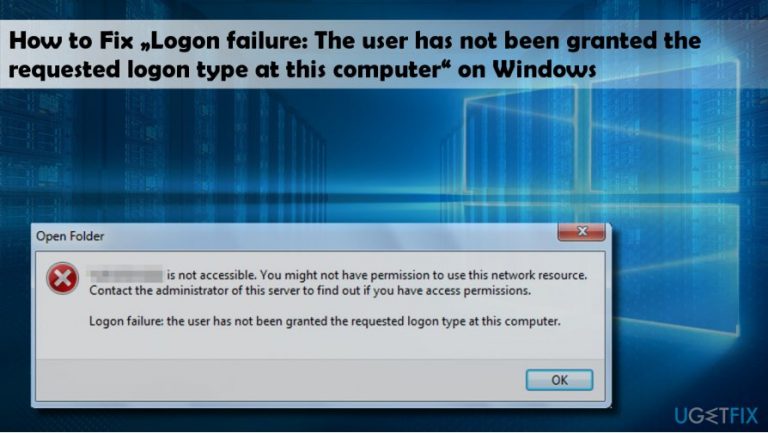
What causes How to fix server error „Logon failure: The user has not been granted the requested logon type at this computer“ on Windows?
- User's privileges not configured properly
- User does not have privileges to run JAMS Jobs
- File and Printer Sharing is turned off
- Password Protected Sharing is turned on
- User is not granted Log on as a batch job rights
Repairs Windows system files, removes malware, and restores a clean OS state — without reinstalling.
6.Hello all. When I try to connect a different user to make some simulations, I get the error saying „Logon failure: The user has not been granted the requested logon type at this computer.“ What can I do to fix that?
Few people contacted us with a question how to solve the „Logon failure: The user has not been granted the requested logon type at this computer“ error on Windows 10. Therefore, we have conducted a research and found out that this problem is long-lasting, but no fixes have been provided since 2010. People encounter this error when trying to access NAS, domain or HomeGroup.
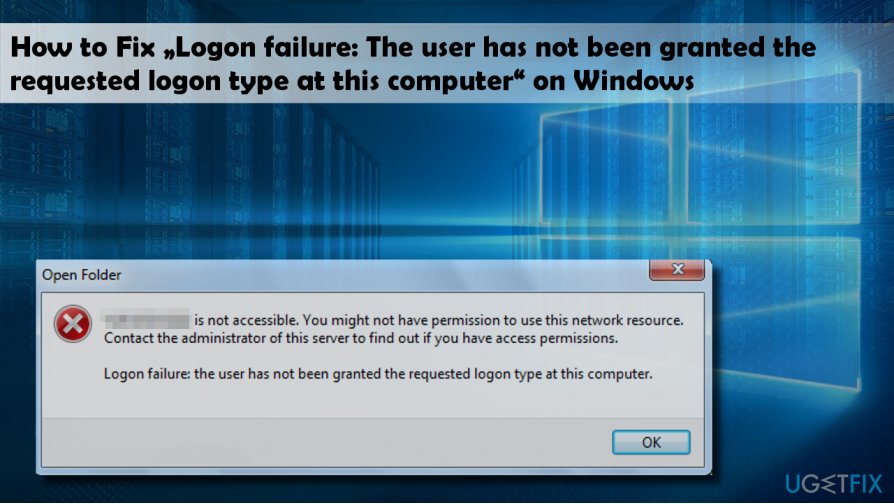
The culprit of the „Logon failure: The user has not been granted the requested logon type at this computer“ is related to the user‘s privileges that may not be configured properly. According to Windows experts, the problem happes when the user does not hape privileges to run JAMS Jobs. Besides, sometimes the issue may be resolved by simply turning on the File and Printer Sharing and turning off Password Protected Sharing on the machine that cannot be connected successfully.For this purpose, you should:
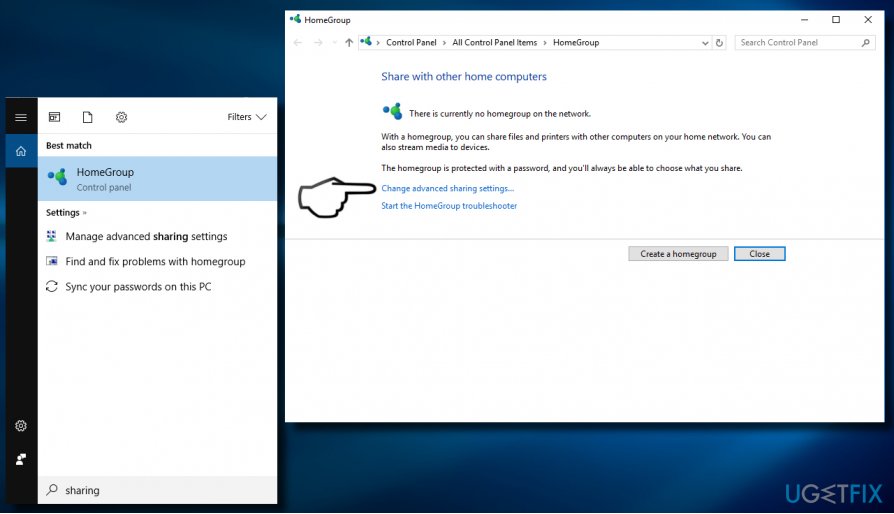
1. Open Windows search and type Sharing.
2. Select HomeGroup option from the search results and click the Change advanced sharing settings link.
3. Locate File and printing sharing section and check the Turn on file and printing sharing box.
4. Then scroll down and expand All networks section.
5. Find the Password protected sharing section and check the Turn off password protected sharing box.
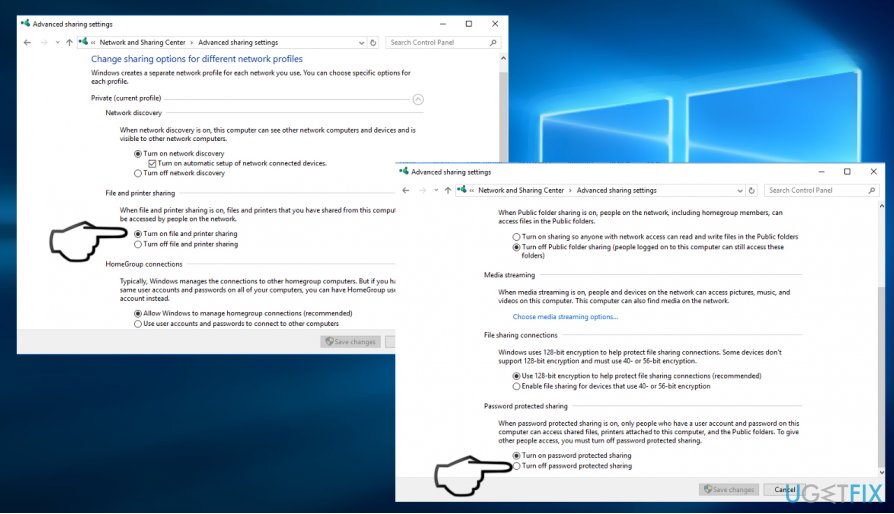
6. Finally, click Save changes button.
If these steps did not help, please try the following „Logon failure: The user has not been granted the requested logon type at this computer“ error fixes:
Grant Log on as a batch job rights on Windows 10
NOTE: the following instructions can only be applied on PCs running Windows Pro, Enterprise, and Education editions.
1. Press Windows key + R, type secpol.msc, and hit Enter.
2. When Local Security Policy window opens, click Security Settings.
3. Open Local Policies and select User Rights Assignment.
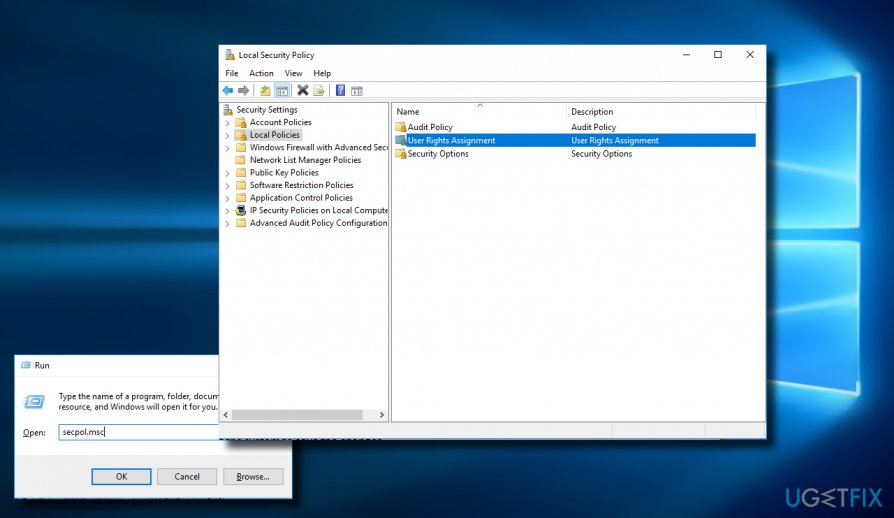
4. Locate the Allow log on locally option on the right pane and click it.
5. Now open Local Security Setting tab and click Add User or Group button.
6. Enter the name of the user who encounter the „Logon failure: The user has not been granted the requested logon type at this computer“ error and click Apply > OK to save the changes.
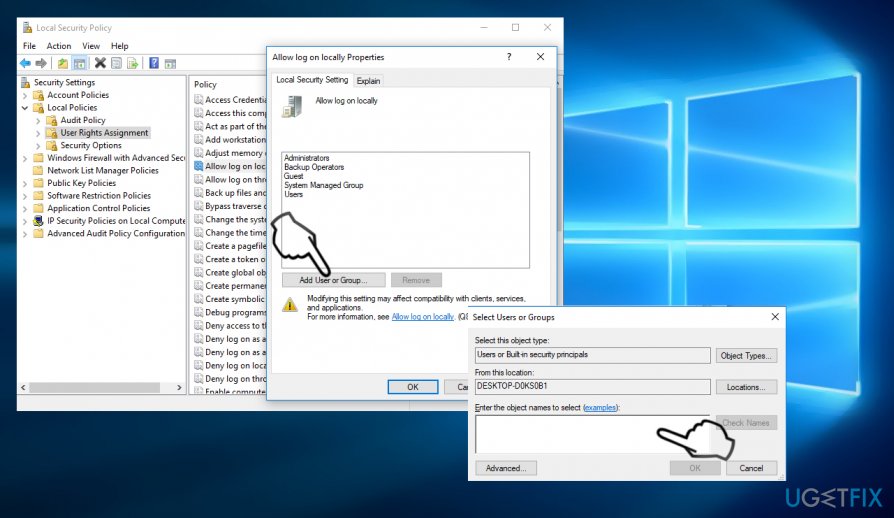
7. After that, make sure that the affected user is not included in the list of Local Security Setting properties. To check that, open Security Settings on the Local Security Policy panel.
8. Open Local Policies and click User Rights Assignment. If the user occurs on the list, exclude it and then close Local Security Policy.
9. Finally, reboot the system to save the changes.
Bottom line
To fix the error, ensure that File and Printer Sharing is enabled and Password Protected Sharing is turned off. Additionally, grant Log on as a batch job rights if applicable. If these steps do not resolve the issue, further investigation may be needed.
Frequently asked questions
This error typically occurs due to incorrect user permissions or group policies that restrict logon access. It can also happen if the user account is not assigned the necessary rights for the specific logon type.
To resolve this issue in Windows 11, navigate to Local Security Policy, then to Local Policies > User Rights Assignment, and add the user to the appropriate logon rights. Ensure the user is granted 'Log on locally' or 'Access this computer from the network' as needed.
Yes, you can use the Command Prompt to check user permissions by running 'whoami /priv' to view the privileges assigned to the logged-in user. Additionally, reviewing the Event Viewer for security logs can provide insights into failed logon attempts.




Report an issue
What's wrong with this guide? We review every report and update or remove content.
Report received — thank you. We'll review and fix it.
You need a free account to submit a report.
Be the first to comment