How to fix
SPECIAL POOL DETECTED MEMORY CORRUPTION BSOD
on Windows
Resolve the SPECIAL POOL DETECTED MEMORY CORRUPTION BSOD on Windows 10 and 11 easily. Expert-tested solutions to fix the issue in minutes.

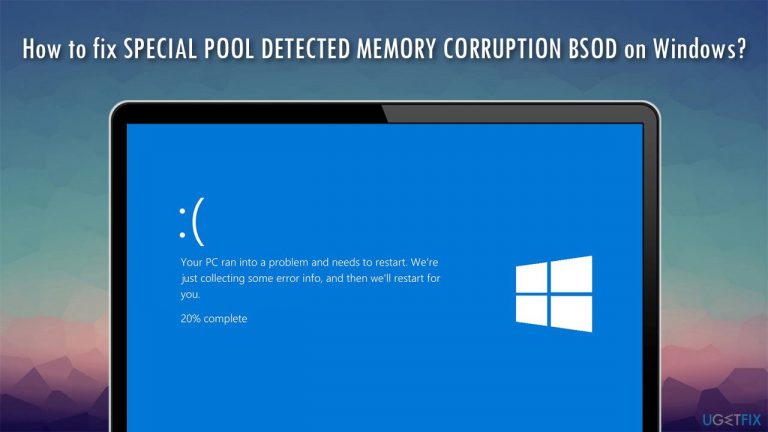
What causes How to fix SPECIAL POOL DETECTED MEMORY CORRUPTION BSOD on Windows?
- Corrupted Drivers
- Malware Infection
- Software Incompatibility Issues
- System File Corruption
- Failing RAM
Repairs Windows system files, removes malware, and restores a clean OS state — without reinstalling.
Hello, I keep getting the SPECIAL POOL DETECTED MEMORY CORRUPTION Blue screen at random intervals when using my Windows 10 PC. This started happening just a few days ago, and I don't think I have changed something within my computer. Please help!
SPECIAL POOL DETECTED MEMORY CORRUPTION is a Blue Screen of Death[ref en-1] error on Windows that interrupts users' work and reboots the computer immediately. This code has a bug check value of 0x000000C1 and can be caused by nvlddmkm.sys, rtwlanu.sys, brusbmdm.sys, and others. Just like with many other similar errors, this can be triggered on various versions of the Windows operating system, including Windows XP, Windows 7, Windows 8, or Windows 10.
While Blue Screen errors can be extremely annoying and even frustrating (since users who experience them might lose the unsaved work or be interrupted during a video game), it serves an extremely important function on a computer. To be precise, the SPECIAL POOL DETECTED MEMORY CORRUPTION BSOD indicates that the system has crashed and that further operation would cause damage to it.
In essence, Blue screen errors are a safeguard implemented by Microsoft to prevent some major damage to Windows computers (hence it is also commonly called a Stop error). While some of such errors occur randomly and end at that, the repeated BSODs might indicate that something is very wrong. Because of this, it is very important to fix SPECIAL POOL DETECTED MEMORY CORRUPTION as soon as possible.
To be precise, the error code might be the indication of a failing RAM (Random Access Memory)[ref en-2] - a hardware component that is responsible for reading and writing various data when needed. Luckily, it is not the only reason for this BSOD to appear, so do not panic and not rush to the shop to buy new RAM components.
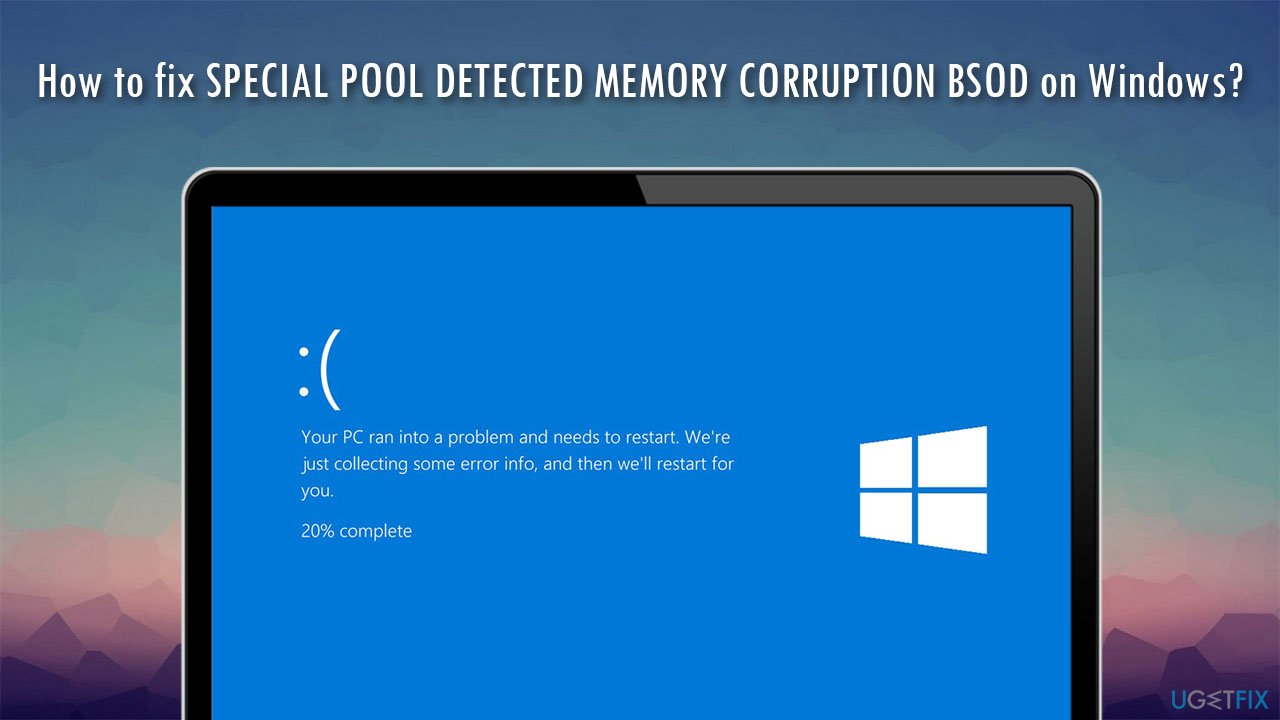
Other reasons that could be causing this Blue Screen to include:
- corrupted drivers[ref en-3]
- malware infection
- software incompatibility issues
- system file corruption, etc.
Thus, in order to fix SPECIAL_POOL_DETECTED_MEMORY_CORRUPTION error on Windows, you will have to perform several troubleshooting steps we provide below. Alternatively, you can employ the Windows repair tool [d1], which could locate and repair corrupted files and fix other underlying issues automatically within just a few minutes.
Fix 1. Run Program Compatibility troubleshooter
In some cases, incompatible programs might cause various errors, thus you should run the Program Compatibility troubleshooter:
- Type in troubleshoot in Windows search and press Enter
- If you can't see listed troubleshooters on the right side of the Settings window, click Additional troubleshooters
- Find Program Compatibility troubleshooter, click on it once and select Run the troubleshooter
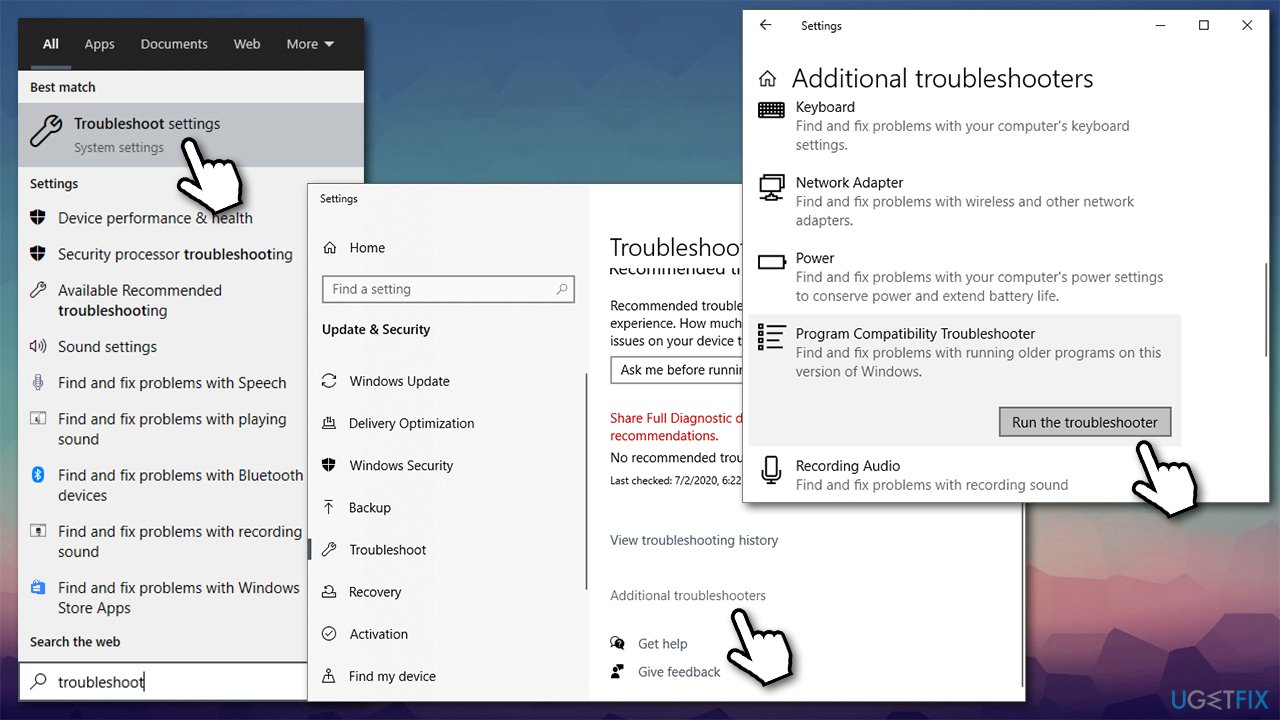
How to fix special pool detected memory corruption bsod on windows run compatibility troubleshooter - Wait till Windows finishes the scan and reports the results.
Fix 2. Check your disk for errors
- Press Win + E on your keyboard to open File Explorer
- Go to This PC that you can find on the left side of the window
- Right-click on your main drive (C: by default) and pick Properties
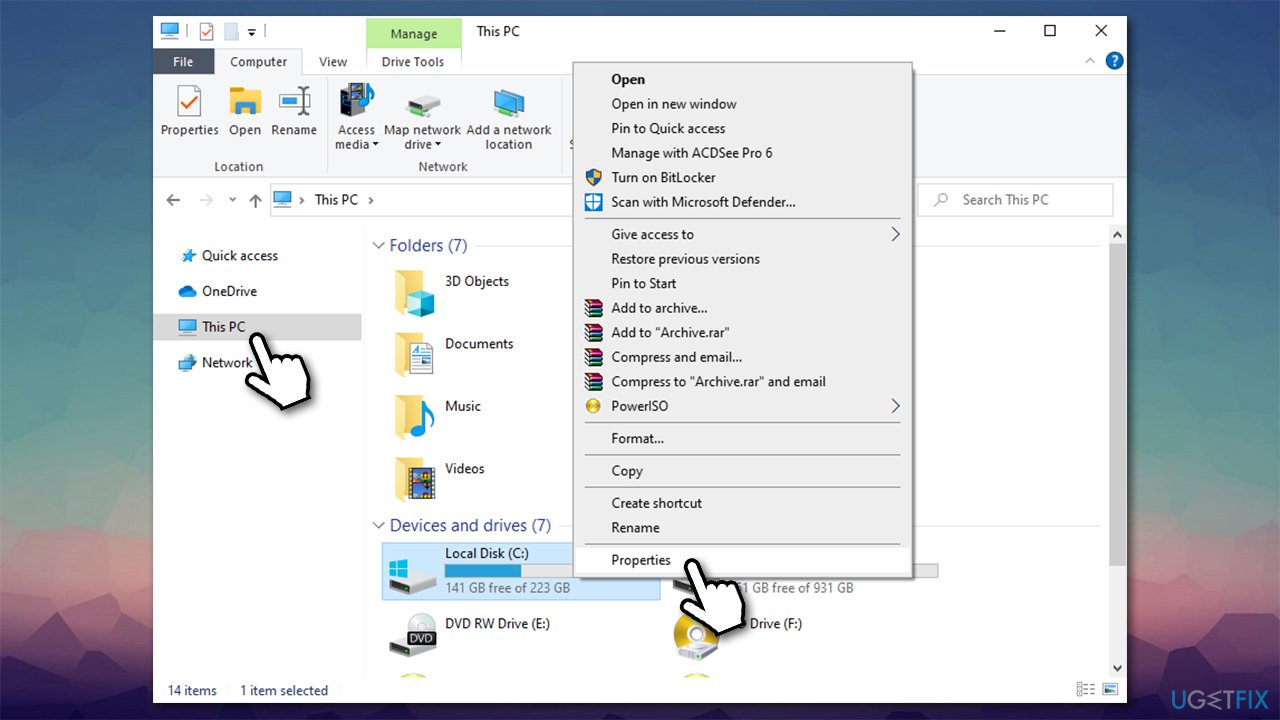
How to fix special pool detected memory corruption bsod on windows check your disk for errors - Go to Tools tab
- Under Error checking, click Check
- Pick Scan Drive and wait for the results.
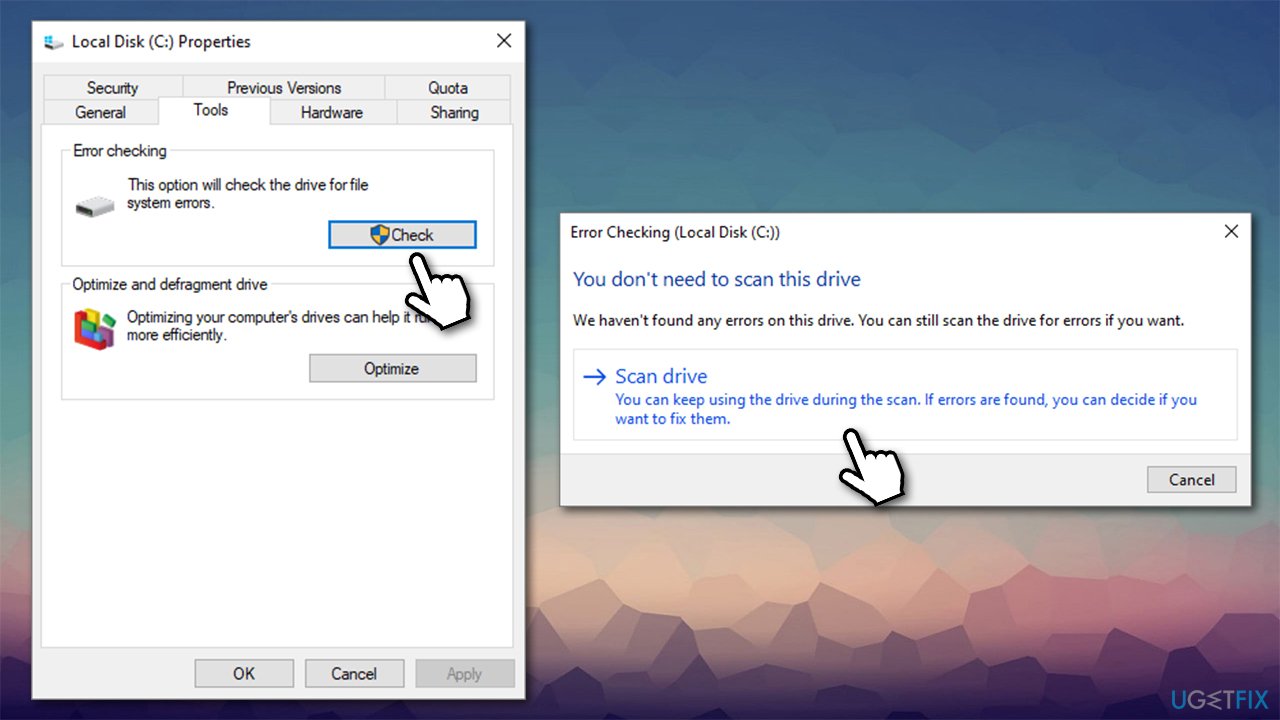
How to fix special pool detected memory corruption bsod on windows check your disk for errors2
Fix 3. Run an SFC scan
System File Checker is a great built-in tool that can find and fix corrupted system files. To run it, you need to access Command Prompt as admin:
- Type in cmd in Windows search
- Right-click on Command Prompt and select Run as administrator
- Type in sfc /scannow in the new window and press Enter
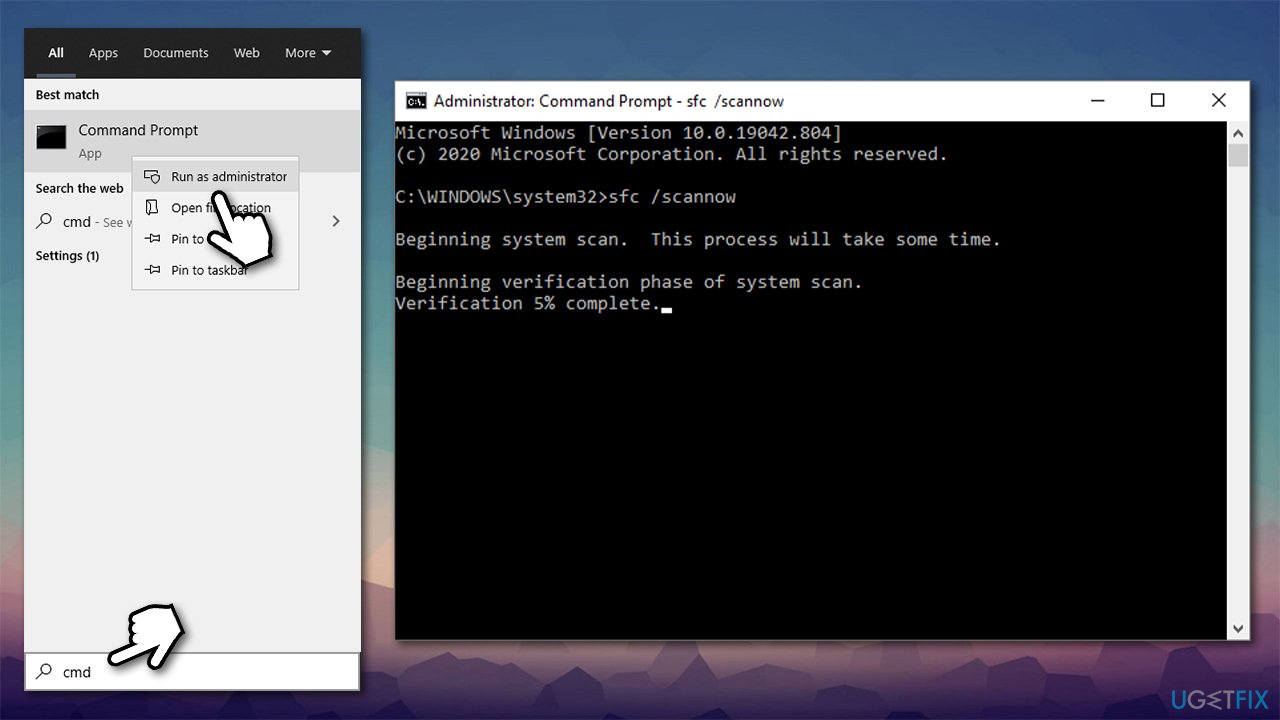
How to fix special pool detected memory corruption bsod on windows run sfc scan - Wait till Windows executes the scan and reports whether or not it managed to fix corrupted files.
If the SFC scan was not successful in fixing corrupted data, you can try running Dism /Online /Cleanup-Image /RestoreHealth command instead.
Fix 4. Check RAM with Windows Media Diagnostic Tool
As previously mentioned, failing RAM could be the main cause of the BSOD. You can check whether it is the case by running Windows Media Diagnostic Tool:
- Click on Windows search bar, type in Memory, and hit Enter
- When Windows Media Diagnostic pop-up opens, select Restart now and check for problems (recommended)
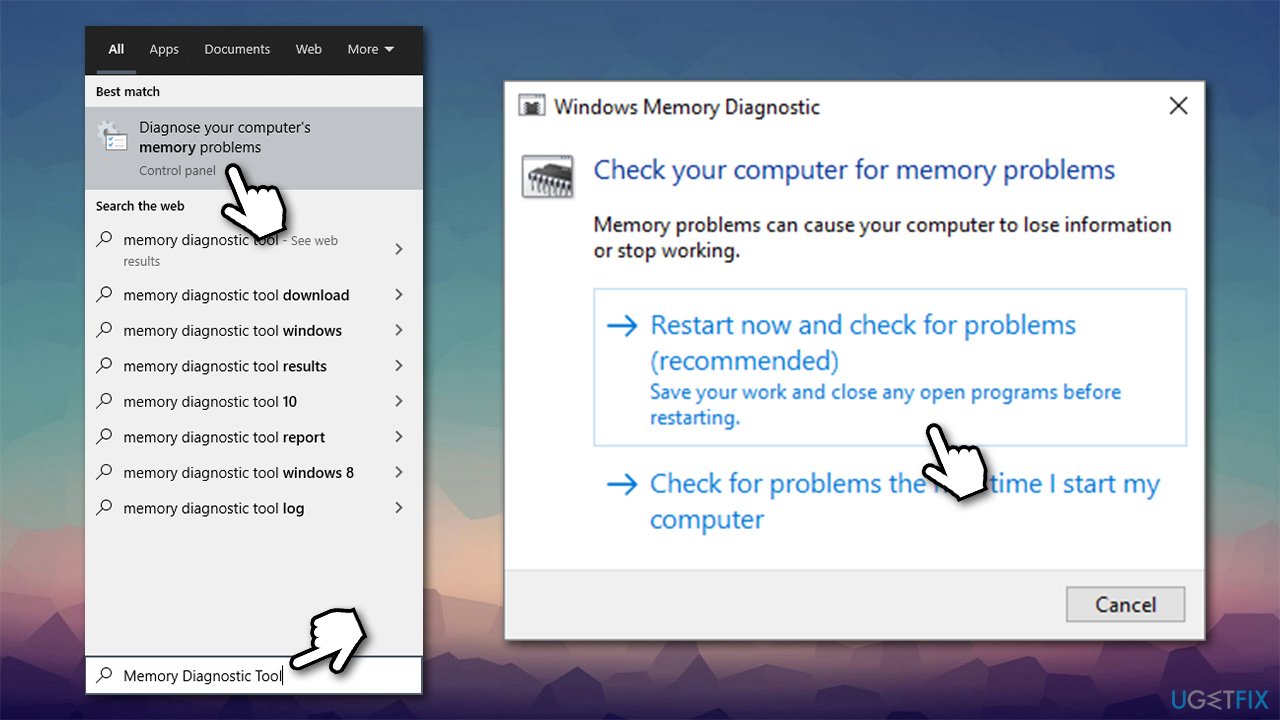
How to fix special pool detected memory corruption bsod on windows run windows memory diagnostic - Keep in mind that this will immediately restart your PC so ensure you save your work.
Fix 5. Check for problematic drivers/update drivers
Some users said that the main cause of the SPECIAL POOL DETECTED MEMORY CORRUPTION BSOD was the Realtek Wireless USB 2.0 adapter driver. Therefore, you should check whether there is a yellow exclamation mark next to it or reinstall it completely. Here's how to do it:
- Right-click on Start and pick Device manager
- Expand the Network adapters section
- Located your Realtek network adapter driver, right-click and select Uninstall device
- When the warning shows up, confirm with Uninstall and then reboot your PC.
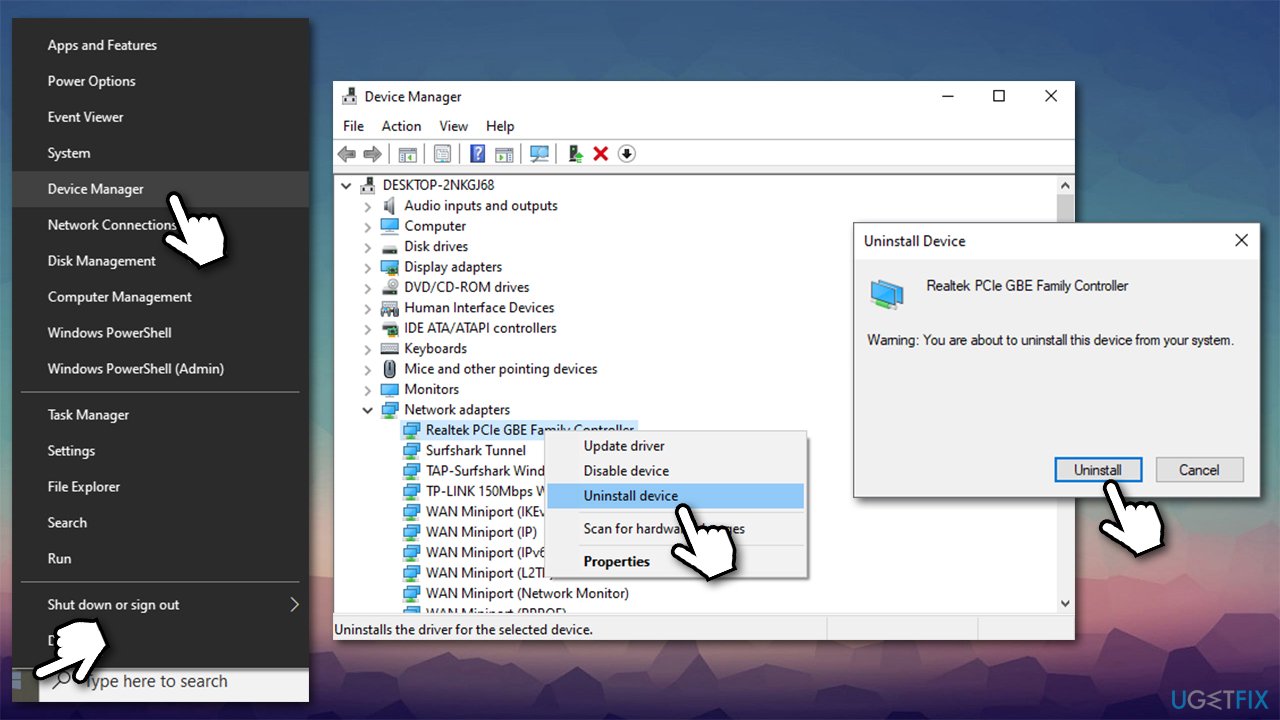
How to fix special pool detected memory corruption bsod on windows reinstall drivers
Now, you should ensure that your drivers are up-to-date. To install the newest drivers for your system, you can use the Device Manager, although this method is far from optimal (it might not find the most recent driver or might not find one at all). Thus, you should either visit your device manufacturer's website and download the compatible software from there. However, if you are not sure which version or type your device is, we highly recommend an automatic driver updater [rev id="DriverFix"] instead - you will never have to worry about driver problems with it again.
Fix 6. Check your PC for malware
Malware infections can cause serious problems on any Windows machine and cause various errors, crashes, and other issues. You can run a full system scan with a third-party anti-malware, although Windows Defender can also do the job, especially the Offline scan option:
- Type in Windows Security in the search bar and press Enter
- Here, select Virus & threat protection
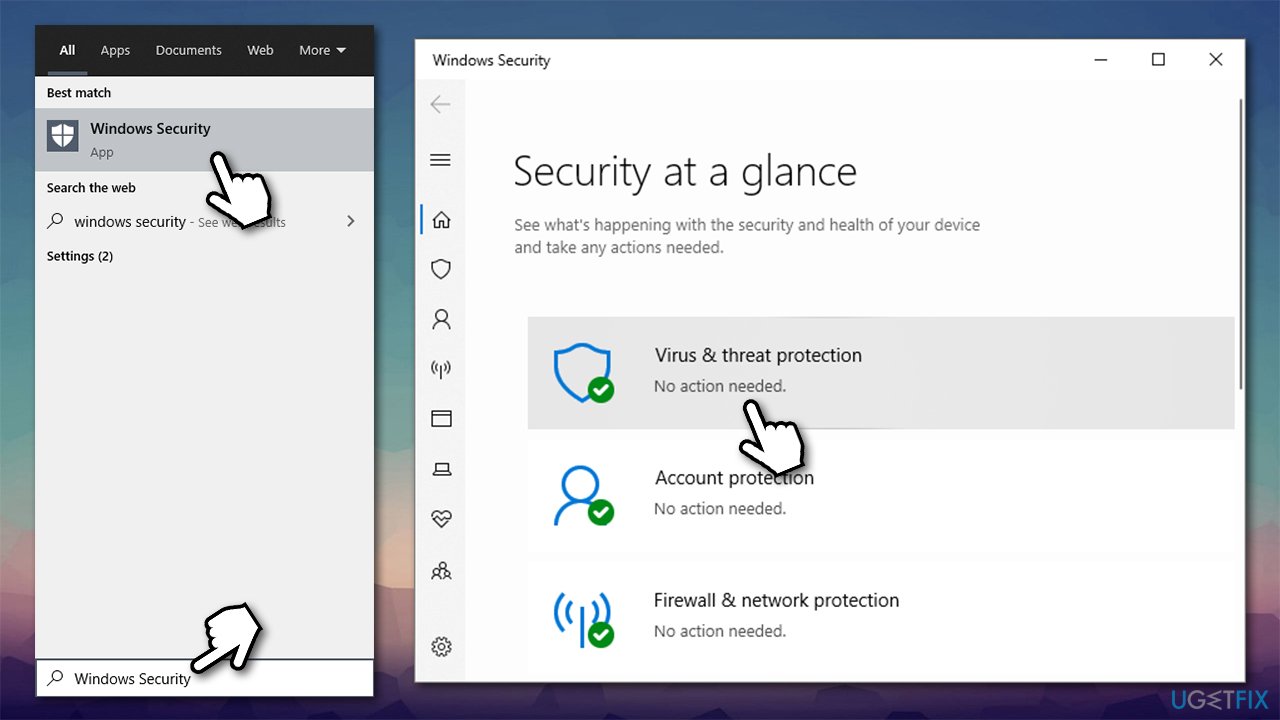
How to fix special pool detected memory corruption bsod on windows scan for malware - Go to Scan options, where you should pick Microsoft Defender Offline scan
- Finally, click Scan now (this will immediately restart your PC).
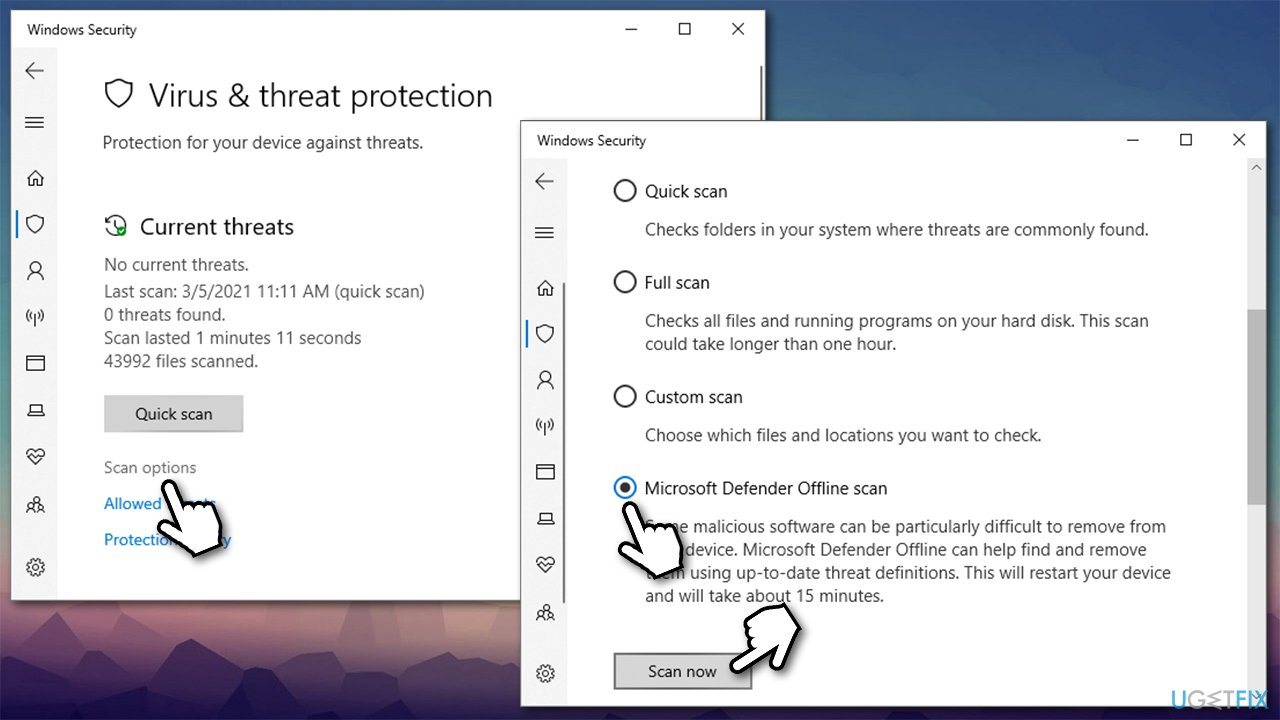
How to fix special pool detected memory corruption bsod on windows scan for malware2
Bottom line
To fix the SPECIAL POOL DETECTED MEMORY CORRUPTION error, you can perform several troubleshooting steps such as updating drivers, scanning for malware, checking for software compatibility, and repairing system files. If these solutions do not resolve the issue, consider using the Windows repair tool or seeking professional assistance.
Frequently asked questions
This BSOD error is often caused by faulty drivers or hardware issues, particularly related to memory management. Updating your drivers or checking for hardware malfunctions can help resolve the issue.
To troubleshoot this error on Windows 11, you can use the Windows Memory Diagnostic tool to check for memory issues and update your system drivers. Additionally, running a system file check may help fix corrupted files.
To prevent this BSOD from reoccurring on Windows, ensure that all drivers are up to date and consider disabling problematic startup programs. Regularly running system updates and maintaining hardware can also help mitigate this issue.




Report an issue
What's wrong with this guide? We review every report and update or remove content.
Report received — thank you. We'll review and fix it.
You need a free account to submit a report.
Be the first to comment