
How to fix STATUS_INVALID_IMAGE_HASH error in Chrome or Edge?

Prefer to fix it yourself? The manual steps follow.
- 8methods
- 5 to 30 minutes
- Intermediate
Applies to Google Chrome and Microsoft Edge on Windows 11 and Windows 10 22H2
8 methods in this guide
Hi, suddenly I have a serious problem: I can't use the internet properly because of the "Aw, Snap!" message with the error STATUS_INVALID_IMAGE_HASH. I can't even open Chrome's settings. Please help.
STATUS_INVALID_IMAGE_HASH means Windows refused to load a code file into a Chrome or Edge tab because the file failed a signature check. That file almost always belongs to another program, most often security software. Find which program it is and update it or exclude the browser from it.
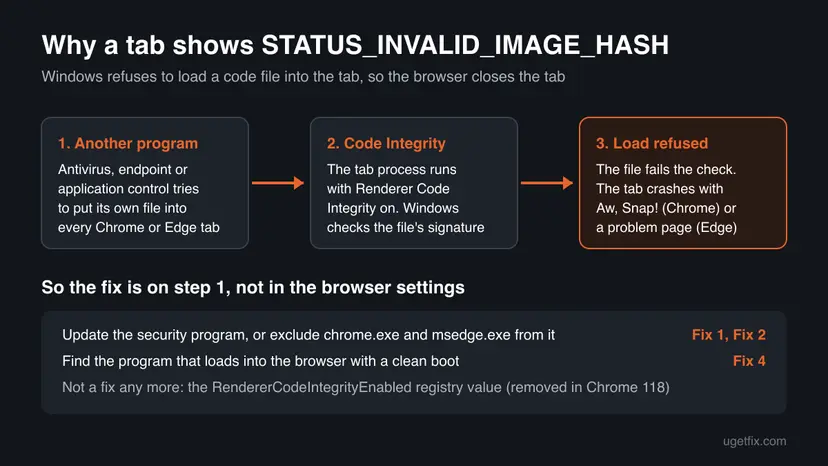
Chrome and Edge run every tab with Renderer Code Integrity, so Windows blocks code files that are not properly signed. When an antivirus, endpoint or application control program pushes its own file into the tab, the tab crashes with this code. Read which file was blocked (Fix 1), then update that program or exclude chrome.exe and msedge.exe from it. The old registry fix no longer works: Chrome removed it in version 118, Edge in 119.
| Error | Aw, Snap! in Chrome or a problem page in Edge, with the line Error code: STATUS_INVALID_IMAGE_HASH. |
|---|---|
| Where it appears | In the tab, as soon as a page loads. Often on every page, and Chrome's or Edge's own Settings pages crash too. |
| Main cause | A security or monitoring program loads its own file into the browser's tab processes, and Windows Code Integrity refuses it. |
| Fastest fix | Update the program that the Code Integrity log names (Fix 1 and Fix 2). On a work PC, ask IT for an exception for the browser (Fix 3). |
| Also written as | status invalid image hash, Error code: STATUS_INVALID_IMAGE_HASH, Aw, Snap! Something went wrong while displaying this webpage. |
| Affects | Chrome 78 and later and Chromium-based Edge 78 and later on Windows. Windows 10 left support on 14 October 2025, so a Windows 10 PC gets no more security updates. |
| Vendor status | Known since version 78. Broadcom fixed it for Symantec Endpoint Protection in 14.2 RU2 MP1 (build 14.2.5569.2100). Other security products fix it in their own updates. |
| Old registry fix | RendererCodeIntegrityEnabled = 0 worked in Chrome 78 to 117 and Edge 78 to 118 only. Google and Microsoft both say the value is now ignored. |
| Time to fix | 5 minutes when the log names the program and an update exists. Up to 30 minutes with a clean boot. |
Facts checked on 15 October 2026. Steps written for Steps read against Windows 11 25H2 and Windows 10 22H2 with current Chrome and Edge. The crash page itself was not reproduced by us; its text is quoted from the old guide's screenshot and from Broadcom's knowledge base..
What STATUS_INVALID_IMAGE_HASH means in Chrome and Edge
Chrome and Edge show web pages in separate tab processes, which Google and Microsoft call renderer processes. Since version 78 both browsers start these processes with Renderer Code Integrity turned on. Windows then checks every code file that tries to load into the tab and refuses one whose signature does not pass.
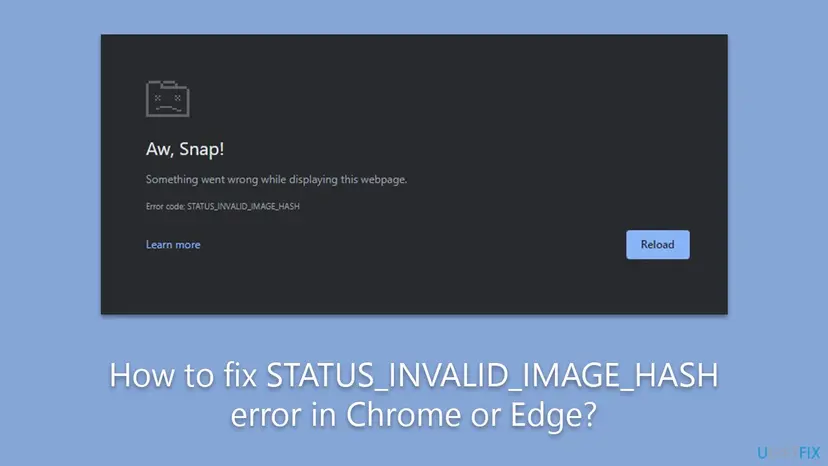
STATUS_INVALID_IMAGE_HASH is the Windows status code for that refusal: the hash of the file (the "image") could not be matched to a valid signature. The browser cannot keep a tab running after such a failure, so it shows the crash page with the code at the bottom.
| Browser | What you see |
|---|---|
| Google Chrome | Aw, Snap! Something went wrong while displaying this webpage. and below it Error code: STATUS_INVALID_IMAGE_HASH |
| Microsoft Edge (current) | This page is having a problem with the same error code |
| Microsoft Edge 78 (2019) | Page cannot be displayed or the code alone, as Broadcom documented it |
| Other Chromium browsers | The same code on their own crash page, because they share Chrome's tab process design |
The code does not depend on the page you open. If it appears on every site and on the browser's own Settings, the blocked file comes from a program on your PC. Clearing the cache, cookies or history does not change that.
What causes STATUS_INVALID_IMAGE_HASH, from most to least likely
Google publishes no numbers for this error. The order below follows how the error is produced and what the vendors document. Each cause points to one fix.
| Cause | How you recognise it | Fix |
|---|---|---|
| An antivirus, endpoint protection or application control program injects a file into the tab. Broadcom documents this for Symantec Endpoint Protection with Application Control. | Every page crashes in Chrome and Edge alike. The Code Integrity log names a file of that program. | Fix 1, Fix 2, Fix 3 |
| The browser updated before the security program did. | The error started right after a browser update, with no other change on the PC. | Fix 2, then Fix 4 |
| Another tool that hooks into browsers: a screen reader add-on, a parental control, a VPN or proxy client, an old toolbar or ad injector. | The error started after installing such a tool, or the log names its folder. | Fix 5, Fix 6 |
| Damaged browser files. | Only one browser fails, and the log names a file in the browser's own folder. | Fix 7 |
| Malware that injects into browsers. | A file in a random-looking folder, often under your user profile. | Fix 8 |
Until 2023, admins could turn Renderer Code Integrity off with the policy RendererCodeIntegrityEnabled. Google's policy list says it was removed in Chrome 118 and is ignored if set. Microsoft says the same for Edge from version 119. Turning the check off also let unknown and potentially hostile code load into the tab, as both vendors warn.
How to fix STATUS_INVALID_IMAGE_HASH in Chrome or Edge
Fix 1 tells you which program causes the crash, and Fix 2 and Fix 3 deal with it. Fix 4 is a two-minute update of the browser. Fix 5 and Fix 6 find and remove the program when the log names nothing. Fix 7 and Fix 8 cover damaged browser files and malware.
| What you see or have | Start with |
|---|---|
| You do not know which program causes it. | Fix 1 |
| You use Norton, Symantec, McAfee, Bitdefender, Kaspersky, ESET, Trend Micro or another third-party antivirus. | Fix 2 |
| A work or school PC with endpoint protection that you cannot change. | Fix 3 |
| The error started right after Chrome or Edge updated. | Fix 4, then Fix 2 |
| The log shows nothing and you have several background tools. | Fix 5 |
| Only one browser fails and the other works. | Fix 7 |
| The blocked file sits in a folder you do not recognise. | Fix 8 |
Fix 1. Read which file Windows blocked in the Code Integrity log
3 minutesNo riskEveryone, before changing anything: it often names the program in one minute.
Code Integrity is a Windows feature, not a Chrome one, and Windows keeps its own log of what it checked. A blocked load names the browser process and the path of the file that failed, and the folder of that file tells you which program it belongs to.
- Open Chrome or Edge and let the tab crash once, so a fresh entry is written.
- Right-click Start and select Event Viewer.
- In the left pane, open Applications and Services Logs > Microsoft > Windows > CodeIntegrity > Operational.
- In the middle pane, select the newest entries from the minute of the crash.
- Look for an entry that names
chrome.exeormsedge.exeand a second file path, usually a.dll. - Write down the folder of that file, for example a folder under
C:\Program Files\named after a security product.
| The folder of the blocked file | Next |
|---|---|
| Belongs to an antivirus or endpoint protection product | Fix 2 (home PC) or Fix 3 (work PC) |
| Belongs to another tool you installed (VPN, parental control, screen recorder) | Fix 6 |
| Inside the Chrome or Edge folder | Fix 7 |
A random name under C:\Users\ or AppData | Fix 8 |
| No matching entry at all | Fix 4, then Fix 5 |
Type chrome://conflicts in the address bar. Chrome lists every module loaded into it and marks third-party ones. A module of a security product near the top of that list is a strong lead. When even this page crashes, the Event Viewer log is the way.
It worked if: You have a file path and know which program it belongs to.
If not: We could not confirm from Google or Microsoft that every blocked load is written to this log. If you find no entry, go on with Fix 4 and Fix 5.
Fix 2. Update the antivirus or endpoint protection program
5 to 15 minutesLow riskA third-party security program is installed, or the log names its folder.
The vendors fix this by signing the file they put into browsers, or by no longer loading it there. Broadcom did exactly that for Symantec Endpoint Protection in version 14.2 RU2 MP1. A current version of the product is the clean way out.
- Open the security program from its icon in the notification area or from Start.
- Find Update, Check for updates or About and install every program update, not only the virus definitions.
- Restart Windows when the program asks, and also when it does not.
- Open Chrome or Edge and load two or three sites.
- If no newer version is offered, check the vendor's support site for the product's current release and install it over the old one.
- Symantec Endpoint Protection
- Fixed in 14.2 RU2 MP1, build 14.2.5569.2100, per Broadcom. Older builds crash Chrome and Edge 78 and later.
- Other products
- We found no vendor statement with a version number. Install the newest release and test.
- Work PCs
- The update is usually pushed by IT. Go to Fix 3.
It worked if: Pages load and the tab no longer shows Aw, Snap! or the problem page.
If not: If you are already on the newest version, add an exception for the browser (Fix 3), or test without the product (Fix 6).
Fix 3. Add an exception for chrome.exe and msedge.exe, or ask IT for one
5 minutesLow riskThe security product cannot be updated, or it is managed by your employer or school.
Broadcom's workaround for Symantec is an Application Control exception for Chrome.exe and MSEdge.exe. The exception stops the product from injecting into the browser, so Code Integrity has nothing to refuse.
- Open the security program's settings and find the module that hooks into apps: names like Application Control, Exploit protection, Behavior monitoring or Application rules.
- Add an exception for Chrome:
C:\Program Files\Google\Chrome\Application\chrome.exe. - Add an exception for Edge:
C:\Program Files (x86)\Microsoft\Edge\Application\msedge.exe. - Save, close every browser window and open the browser again.
- On a work or school PC, send IT the file path from Fix 1 and the error code instead, and ask for the exception or an updated agent.
Put the exception only in the module that hooks into programs. A full scan exclusion for the browser lets downloads pass unchecked. If the product offers only a full exclusion, prefer Fix 2 or Fix 6.
It worked if: The browser opens pages again while the security product keeps running.
If not: If the exception has no effect, the injecting file belongs to another program. Go back to Fix 1 or try Fix 5.
Fix 4. Update Chrome or Edge and restart Windows
5 minutesNo riskThe error started after a browser or Windows update, or you want to rule out an old build.
A restart reloads the security product's drivers in a clean state, and a current browser is the version vendors test against. Restarting also ends background browser processes that keep the old state.
- In Chrome, type
chrome://settings/helpin the address bar and press Enter. In Edge, typeedge://settings/help. - Wait while the browser checks for updates, then select Relaunch.
- If the Settings page crashes too, download the current Chrome from Google's site and run it over the installed copy. For Edge, use Fix 7.
- Select Start > Power > Restart. Do not use Shut down, which can keep parts of the old session with Fast Startup.
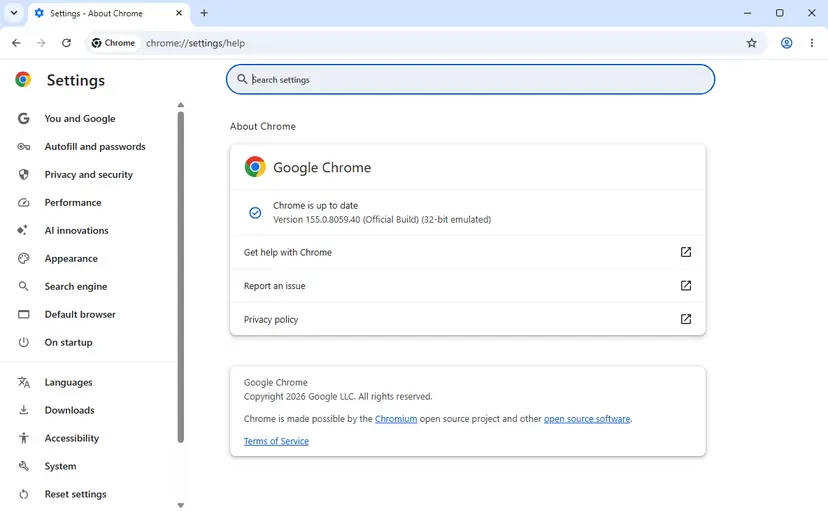
It worked if: The browser shows that it is up to date and pages load after the restart.
If not: If the crash comes back, the injecting program is still there. Go to Fix 5.
Fix 5. Find the program with a clean boot
15 to 30 minutesLow riskFix 1 named nothing, or you have several background tools and do not know which one to blame.
A clean boot starts Windows with only Microsoft's services. If Chrome or Edge works then, one of the third-party services or startup apps injects into the browser, and turning them back on in halves finds it.
Step by step: How to perform a clean boot in Windows. Test the browser after every restart.
- Open System Configuration. Select Search on the taskbar, type msconfig and select System Configuration from the results.
- Hide Microsoft services. On the Services tab, select the Hide all Microsoft services check box. Only services from other companies stay in the list.

With Hide all Microsoft services ticked, only third-party services stay in the list. Screenshot: Windows 11 26H2. - Disable the remaining services. Select Disable all, then select Apply.
- Open Task Manager. On the Startup tab of System Configuration, select Open Task Manager.

The Startup tab only links to Task Manager. Screenshot: Windows 11 26H2. - Disable the startup apps. On the Startup apps tab in Task Manager, select each item whose status is Enabled and select Disable. Write down or take a screenshot of the items you disable: you need the list to turn them back on.

Select an app, then Disable. Screenshot: Windows 11 26H2. - Confirm the changes. Close Task Manager. On the Startup tab of System Configuration, select OK.
- Restart and test. Restart the PC. Windows now starts in a clean boot environment: try again the thing that failed (run the app, install the update, uninstall the program).
These steps were written for Windows 11 25H2 and 26H2. The full page with the other versions and what each result means: How to perform a clean boot in Windows
Some antivirus services protect themselves and stay on in a clean boot. If the crash continues in a clean boot and you run such a product, test without it in Fix 6.
It worked if: Pages load in the clean boot, and after the halving tests one service or app brings the crash back.
If not: Update or remove the program you found (Fix 2 or Fix 6). Return to normal startup when you are done.
Fix 6. Remove the third-party security program and let Microsoft Defender take over
10 minutesLow riskYour own PC, the program is already up to date, and an exception did not help.
Removing the program removes the file it injects. Microsoft Defender Antivirus turns on by itself when no other antivirus is registered, so the PC stays protected.
Step by step: Uninstall a program or app in Windows. Many vendors also offer a removal tool for leftovers; use the one from the product's own support site.
- Uninstall from the Start menu. Select Start > All apps and find the app. Right-click it (or press and hold) and select Uninstall.
- Or uninstall in Settings. Select Start > Settings > Apps > Installed apps. Find the app, select More (the three dots) > Uninstall, and confirm.
- Or uninstall from Control Panel. Some programs can only be removed here. Type Control Panel in the search box on the taskbar and open it, then select Programs > Programs and Features. Right-click the program and select Uninstall or Uninstall/Change, then follow the program's own uninstaller.
- Restart if the uninstaller asks. Some programs finish removing their files only after a restart.
These steps were written for Windows 11 24H2 and 25H2. The full page with the other versions and what each result means: Uninstall a program or app in Windows
- After the restart, open Windows Security > Virus & threat protection and check that real-time protection is on.
- Open Chrome or Edge and test several sites.
- If the crash is gone, reinstall the newest version of the product only if you need it, and test again at once.
It worked if: Pages load, and Windows Security shows Microsoft Defender as the active antivirus.
If not: If the crash continues without the product, look at the other tools named in the causes table, or go to Fix 7.
Fix 7. Repair Edge or reinstall Chrome
10 minutesLow riskOnly one browser fails, or the log names a file inside the browser's own folder.
A browser file damaged on disk also fails its hash check. A repair or a fresh install puts back signed copies of every file.
- Edge: press Win + I, open Apps > Installed apps and find Microsoft Edge.
- Select the three dots next to it (on Windows 10, select the entry), then Modify, and confirm the prompt.
- Select Repair and wait while Edge is downloaded and installed again.
- Chrome: in Apps > Installed apps, select the three dots next to Google Chrome and Uninstall.
- In Chrome's uninstall box, leave Also delete your browsing data unchecked if you want to keep your profile.
- Download Chrome from Google's site, install it and restart Windows.
It worked if: The repaired or reinstalled browser opens pages without the error.
If not: If a fresh install fails the same way, the cause is outside the browser. Go back to Fix 1 or Fix 5.
Fix 8. Scan for malware that injects into browsers
15 minutes to 2 hoursNo riskThe log names a file in a folder you do not recognise, or the browser also shows ads or a changed start page.
Adware and banking trojans push their own unsigned files into browsers. Code Integrity then blocks them, and the crash is the visible sign.
Step by step: How to scan for malware with Microsoft Defender. Run a full scan, not only a quick scan.
- Open Windows Security. Select Start, type Windows Security and open the app.
- Open Virus & threat protection. Select Virus & threat protection. Under Current threats you see when the last scan ran, how long it took and how many files it checked.
- Run a quick scan. Select Quick scan. If Windows Security thinks a deeper scan is needed, it tells you when the quick scan is done.
- Open Scan options. If the quick scan finds nothing and you still suspect an infection, select Scan options under Current threats.
- Run a full scan. Select Full scan and start it. It checks every file and program on the device, so it takes much longer than a quick scan. Leave the PC on until it ends.
- Or scan one folder. To check only a download or a USB drive, select Custom scan in Scan options and choose the folder. You can also right-click a file or folder in File Explorer and select Scan with Microsoft Defender. On Windows 11 you may have to select Show more options first.
- Read Protection history. Go back to the first page of Windows Security and select Protection history. Select a card to expand it and see the details.
These steps were written for Windows 11 25H2 and 26H2, Windows 10 22H2. The full page with the other versions and what each result means: How to scan for malware with Microsoft Defender
It worked if: The scan finds and removes the threat, or finds nothing, and the browser works after a restart.
If not: If the scan finds nothing and the crash continues, read the section below.
Chrome or Edge still shows STATUS_INVALID_IMAGE_HASH: what to check and who can help
If the crash survives all fixes, collect what Windows recorded and give it to the people who can change the injecting program.
- In Event Viewer, right-click the CodeIntegrity entry from Fix 1 and select Copy > Copy Details as Text.
- Note the browser version from
chrome://settings/helporedge://settings/help, or from Apps > Installed apps if those pages crash. - Note the name and version of every security, VPN and parental control program on the PC.
- Check whether the browser says Managed by your organization at the bottom of its menu.
| Situation | Who can fix it | What to send |
|---|---|---|
| The log names a security product | That product's support | The log entry and the browser version |
| Work or school PC | Your IT department | The log entry and the error code |
| The log names a browser file and a reinstall did not help | Google or Microsoft through the browser's help forum | The log entry and your Windows version |
Nothing in this error points to a failing disk or memory. It is a signature check on one file, so the answer is always which program put that file there.
How to stop STATUS_INVALID_IMAGE_HASH from coming back
- Keep the security product's program version current, not only its definitions.
- After a big browser update, test a page before you start work; a crash on every tab means the security product lags behind.
- Use one antivirus at a time. Microsoft Defender is enough for most home PCs.
- Remove browser helper tools you no longer use.
- Do not add
--no-sandboxto the browser shortcut. It turns off the tab sandbox for every site. - Do not set
RendererCodeIntegrityEnabledin the registry. Current browsers ignore it. - Do not exclude the whole browser from virus scanning to silence the crash.
Frequently asked questions
What does Error code: STATUS_INVALID_IMAGE_HASH mean?
It means Windows refused to load a code file into a Chrome or Edge tab because its hash did not match a valid signature. Both browsers run tabs with Renderer Code Integrity since version 78, which lets Windows reject such files. The file usually comes from another program, most often an antivirus or endpoint protection product that hooks into browsers. The tab cannot run without it, so you see the crash page. Fix 1 shows how to read which file was blocked.
Does the RendererCodeIntegrityEnabled registry fix still work?
No. Google's policy list says the policy was supported in Chrome 78 to 117, removed in Chrome 118 and ignored if set. Microsoft's Edge policy page says it is obsolete after Edge 118 and ignored from 119. Many older guides, including the old version of this page, still give the REG ADD command. On a current browser it changes nothing. If you added the value earlier, you can delete it from HKLM\Software\Policies\Google\Chrome or HKLM\Software\Policies\Microsoft\Edge.
Should I use the --no-sandbox switch to fix it?
No. The switch turns off the sandbox that keeps a hostile web page away from the rest of your PC, for every site you visit. Chrome shows a warning bar when it runs with it, saying that stability and security will suffer. Even when the crash goes away, the cause is still there. Find the program that injects into the browser with Fix 1 and update or exclude it instead.
Why does Edge show the same error as Chrome?
Because Edge is built on Chromium, the same engine as Chrome, and uses the same tab process design and the same Renderer Code Integrity. A program that injects into both browsers breaks both. Broadcom's article lists Chrome 78 and later and Edge 78 and later for the Symantec case. When only Edge fails and Chrome works, the injecting program may target Edge alone, or Edge's files may be damaged, which Fix 7 repairs.
Why can I not even open Chrome's settings?
Chrome's own pages, such as Settings and History, also run in tab processes. When a program injects into every tab process, those pages crash the same way as websites. That is why the fixes here do not depend on Chrome's settings: Event Viewer, the security program, a clean boot and Installed apps all work outside the browser. To update Chrome without its Settings, install the current version from Google's site over the old one.
Can an extension cause STATUS_INVALID_IMAGE_HASH?
We found no vendor source that links this code to browser extensions. Extensions run inside Chrome's own extension system and do not load Windows code files into the tab. The old advice to remove extensions is dropped for that reason. A desktop program that installed an extension along with its own files can still be the cause, through its files, not through the extension. Fix 1 shows which program it is.
Will clearing the cache or using compatibility mode help?
Not for this code. The cache holds web content, not code files that load into the tab, so clearing it leaves the blocked file in place. Compatibility mode changes how Windows starts the browser, not which programs inject into it, and it can cause other problems in a modern browser. Both methods came from the old version of this page and are dropped. Start with Fix 1 instead.
Chrome does not start at all. Is it the same problem?
Not always. STATUS_INVALID_IMAGE_HASH shows inside a Chrome window, on the crash page of a tab, so Chrome itself starts. If no window appears at all, the cause is different: a stuck background process, a damaged profile or an install problem. Check Task Manager for chrome.exe processes, end them and start Chrome again. If Chrome opens but every tab crashes with this code, the fixes on this page apply.
Is No image hash supplied the same error?
No. That text is not the crash code of Chrome or Edge, and we could not find it documented as a browser message. It usually comes from developer tools or image tools that expect a hash value. This page is only about STATUS_INVALID_IMAGE_HASH, the code on Chrome's Aw, Snap! page and Edge's problem page.
Is STATUS_INVALID_IMAGE_HASH a virus?
Not by itself. In most documented cases the blocked file belongs to a legitimate security product. Still, malware that injects into browsers also produces unsigned files that Windows refuses. If the file in the Code Integrity log sits in a folder you do not recognise, or the browser also shows ads you did not see before, run a full Microsoft Defender scan as in Fix 8.
Sources
- Chrome Enterprise: Enable Renderer Code Integrity (RendererCodeIntegrityEnabled, Chrome 78 to 117, removed in Chrome 118) (chromeenterprise.google)
- Microsoft Learn: RendererCodeIntegrityEnabled for Microsoft Edge (obsolete after version 118, ignored from 119) (learn.microsoft.com)
- Broadcom Knowledge Base 175842: Chrome and Edge 78 or later show Aw, Snap! or STATUS_INVALID_IMAGE_HASH with Symantec Endpoint Protection (knowledge.broadcom.com)
Did this fix work?
One click, no account. It tells the next reader which guides are worth their time.
Questions and experiences: fix STATUS_INVALID_IMAGE_HASH error in Chrome or Edge
Still broken, or found a fix we did not cover? Ask here: members and our editors answer. Reading is open; writing needs a free account.
…