How to fix
Steam Games not showing up in Library
on Windows
Resolve the issue of Steam games not appearing in your Windows 10 or Windows 11 library quickly and easily. Expert-tested solutions provided.

What causes How to fix Steam Games not showing up in Library?
- Incorrect installation path
- Applied filters on the platform
- Game hidden on the computer
- Pending transaction issue
- Hard drive SATA cable issue
Repairs Windows system files, removes malware, and restores a clean OS state — without reinstalling.
Hello, yesterday I purchased a few games on Steam, and they did not show up in my Library, even though I made the transaction. I did use a different laptop rather than my main PC, but it was my Steam account that I used. Do I have to re-purchase these games in order to play them? Surely this can't be right?!
Once the game is purchased on Steam, it should appear directly in your Library, so you can start playing immediately. Unfortunately, some users claimed that it is not the case at all and said that Steam games were missing from Library.
Many players rushed to various IT forums to find solutions for this problem. According to many user reports, there could be many different scenarios where Seam games are not showing up in Library. For example, some users said that they had to replace their hard drive SATA[ref en-1] cable, which resulted in the issue occurring.
Gamers also claimed that they have had the game installed already, but it suddenly simply dissipated. Also, it seems like so users could not access just newly purchased games on the platform.
In most cases, the issue can be resolved by checking that the game is installed in the correct path/location - users can create several locations that games on Steam can be installed to. Alternatively, the game might be simply missing due to filters applied on the platform itself, or it could be hidden somewhere within your computer.
In some cases, you might be facing the pending transaction issue, which is a completely different scenario. If so, you should cancel your transactions and then re-do the payment or try to purchase the game via the website instead. If that is not the case for you, you should follow the instructions below in order to fix Steam Games not showing up in Library issue.
Before you begin, we highly recommend you try a [d1] PC repair tool which can automatically fix various Windows problems, including system file corruption, registry[ref en-2] errors, BSODs, and much more. Besides, it can operate as a maintenance and security tool that can remove malware[ref en-3] and ensure your privacy by eliminating web data and browsing cookies regularly.
Fix 1. Run Steam as administrator
Sometimes insufficient permissions on Windows might result Steam to malfunction. Therefore, try running it as administrator:
- Type Steam in Windows search
- Right-click on the result and select Run as administrator
- If the games return, you should provide Steam admin rights at all times
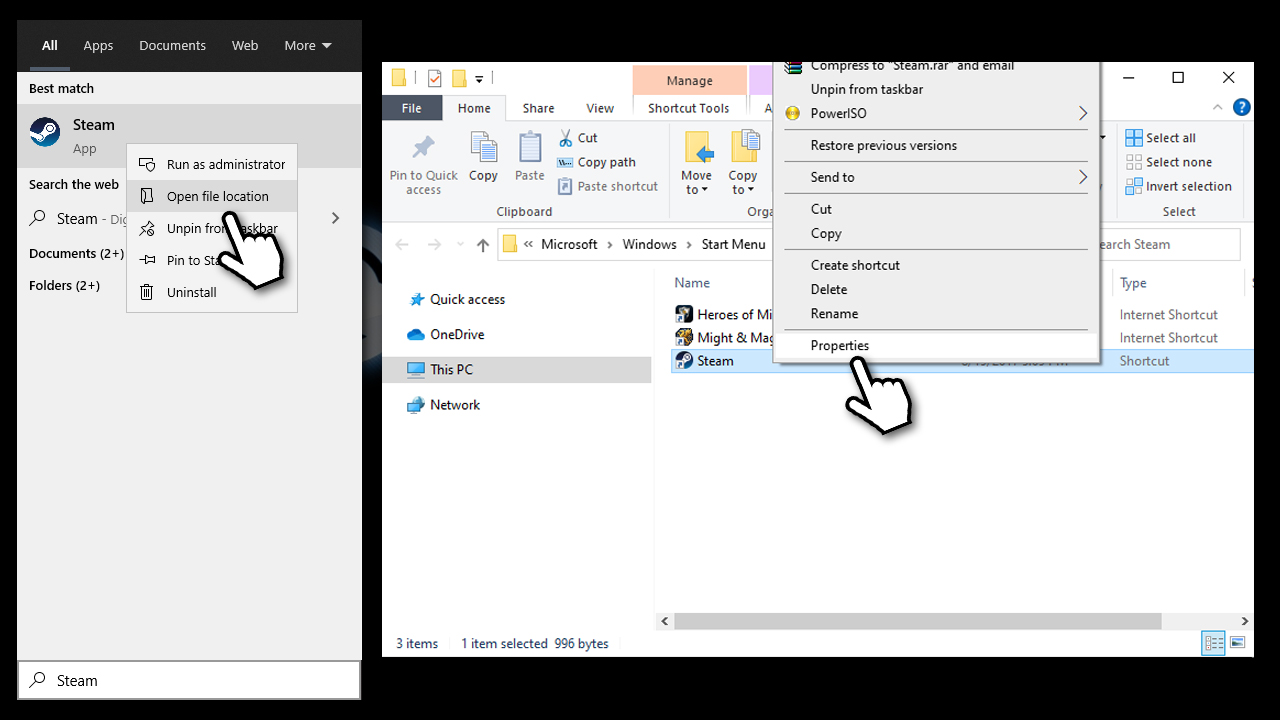
- To do that, type Steam in search bar once again, right-click and select Open file location
- Right-click on Steam.exe and select Properties
How to fix steam games not showing up in library run as administrator - Here, go to compatibility tab and tick the Run this program as an administrator and click OK.
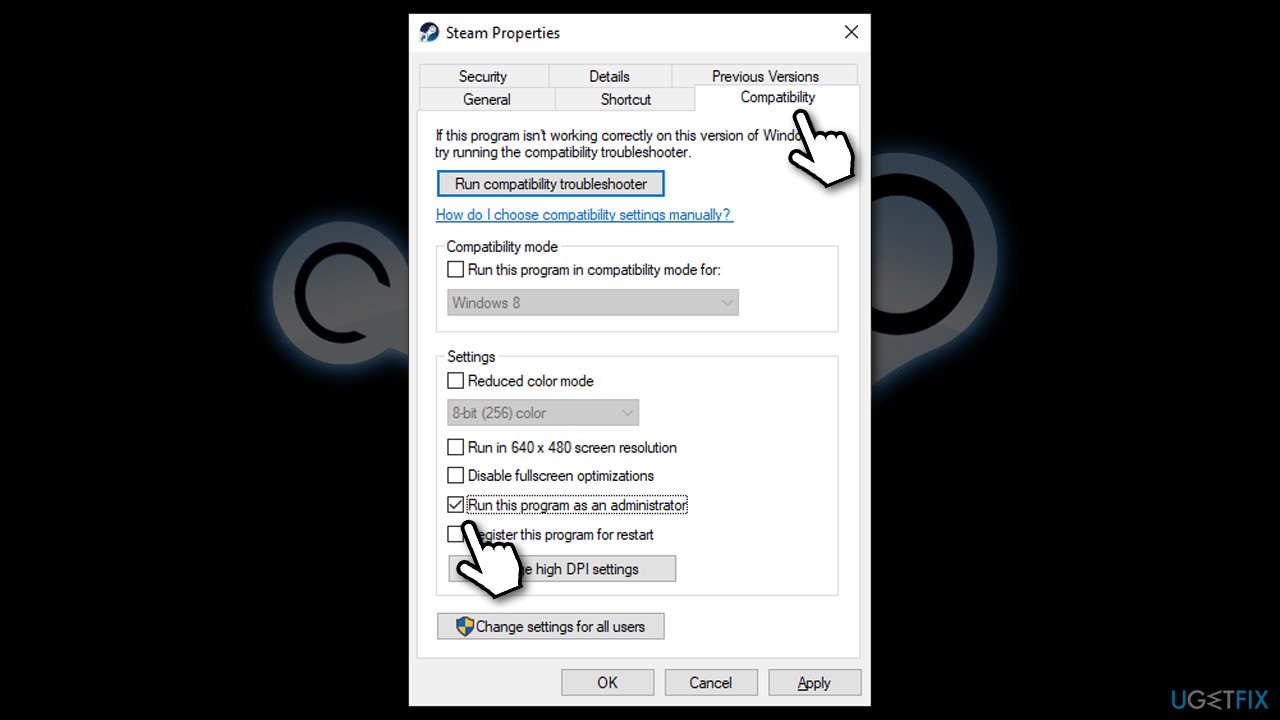
How to fix steam games not showing up in library run as administrator2
Fix 2. Check your filter settings in Library
If your games are filtered by whether or not they are installed, Steam does make sure that these filters are visible for you (shown in blue). However, there is a Show ready to play games button you could have accidentally pressed:
- Open Steam and go to your Library
- On the left side, above filters, make sure that Show ready to play games option is not marked.
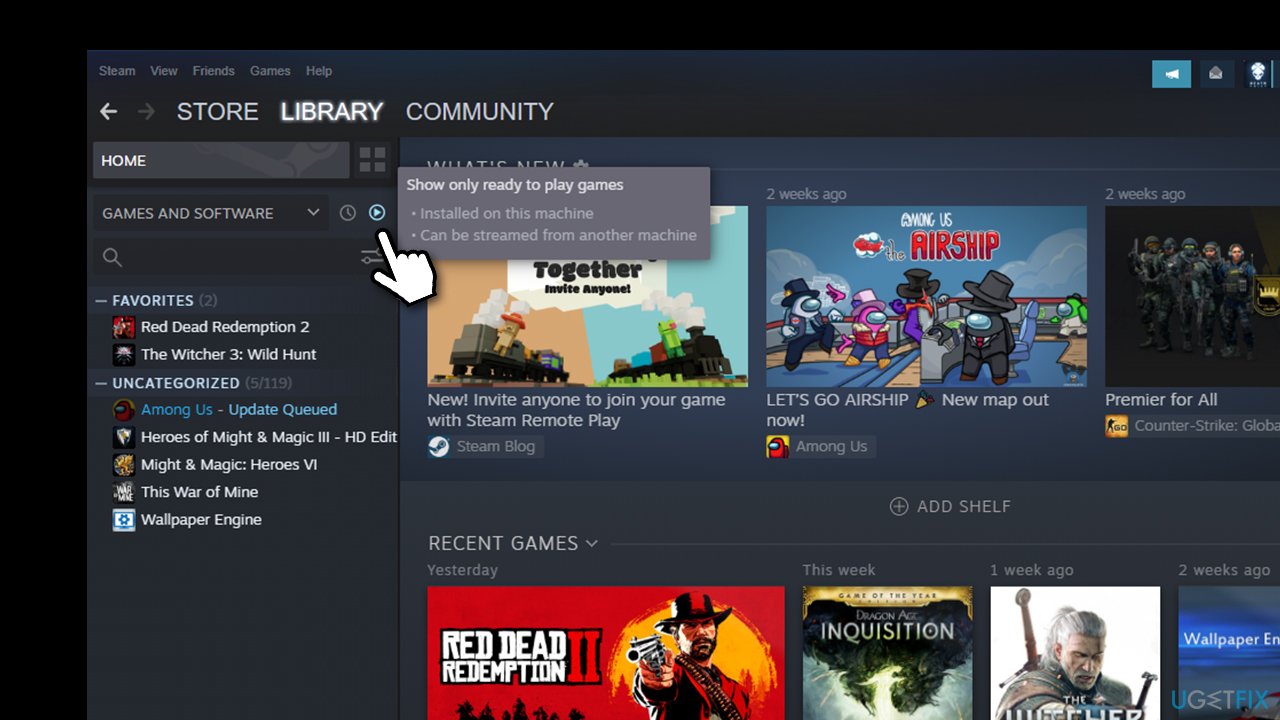
How to fix steam games not showing up in library show only ready to play games
Fix 3. Ensure you have the game license
In some cases, your transaction might not go through and your license to play the game would be missing. Therefore, you should first ensure that you have definitely purchased the game in the first place. To do that, you can Use Steam's search bar and look up the title. If you have paid for the game, there should be no option to buy it anymore.
If you see that the license if missing, then you simply have to perform the payment action once more. Before doing that, you should restart your PC. Do not worry, you will not be charged a second time for this.
Fix 4. Unhide the game from the Library
If you have accidentally hidden a game for some reason, there is an easy way to recover it via the client:
- Open Steam
- At the top-left of the window, select View > Hidden Games
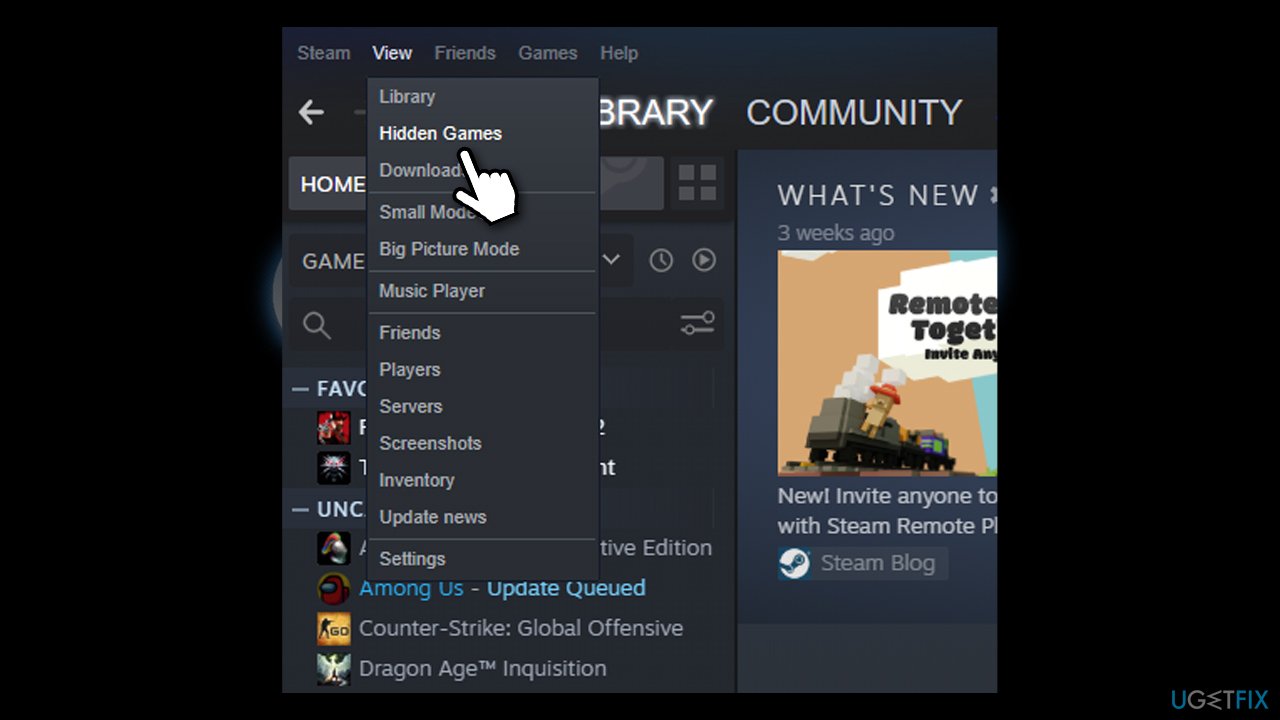
How to fix steam games not showing up in library show hidden games - All hidden games should be shown once again.
Fix 5. Correct the installation path (game is not showing up as installed)
If a game was previously installed and worked fine but is now prompting your to install it once again, do the following:
- Go to Steam > Settings
- Select Downloads section on the left
- Click on Steam library folders
- Here, select Add Library folder
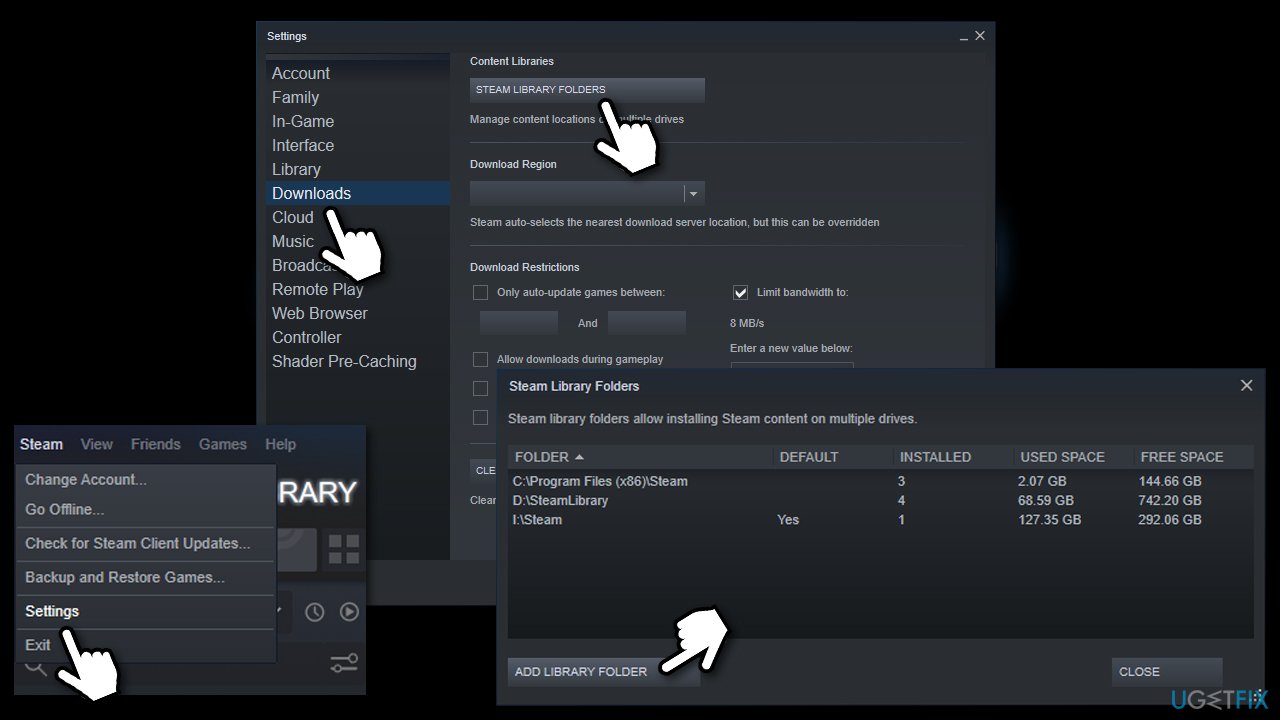
How to fix steam games not showing up in library add the correct path - Pick the location where you previously installed the game
- Now go back to Library, select the game on the left and click Install button
- The location of your install is picked by default
- Click on the drop-down menu and select the library folder that you just added
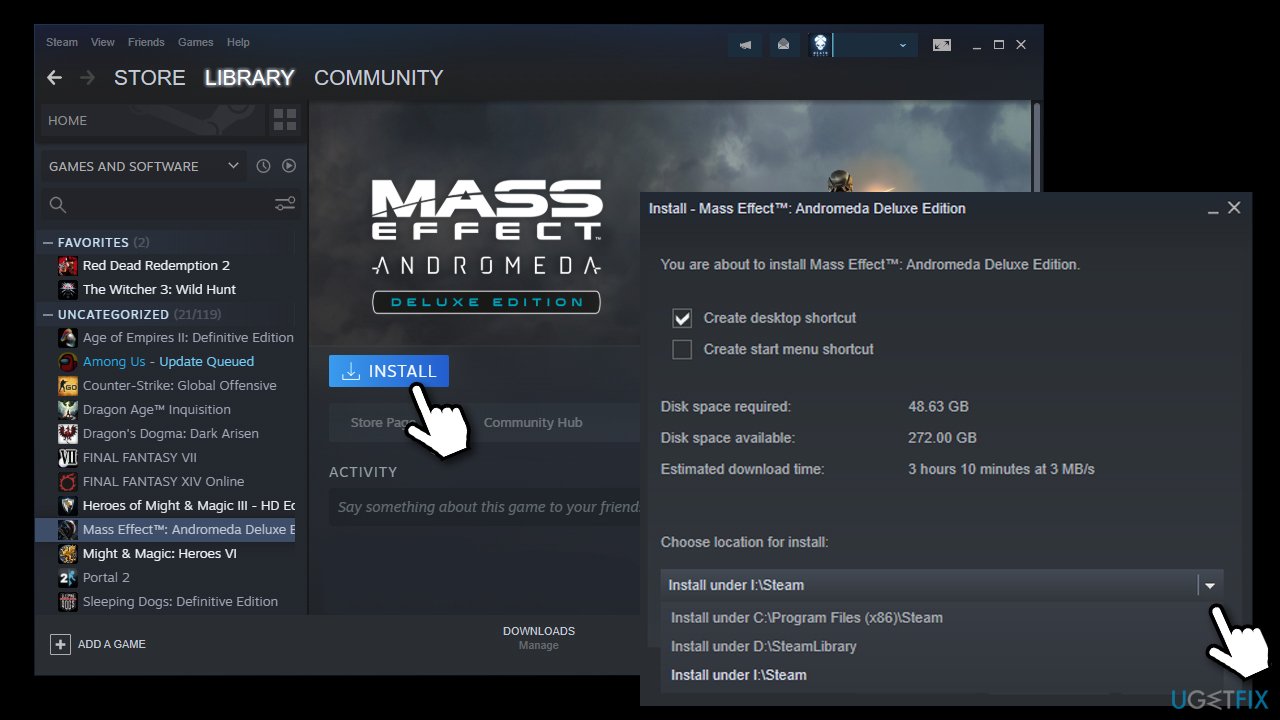
How to fix steam games not showing up in library add the correct path2 - The game should show up as installed once again.
Fix 6. Reset your internet connection
Try resetting your internet connection as follows:
- Type cmd in Windows search
- Right-click on Command Prompt result and pick Run as administrator
- Paste the following commands, pressing Enter after each of them:
ipconfig /flushdns
ipconfig /registerdns
ipconfig /release
ipconfig /renew
netsh winsock reset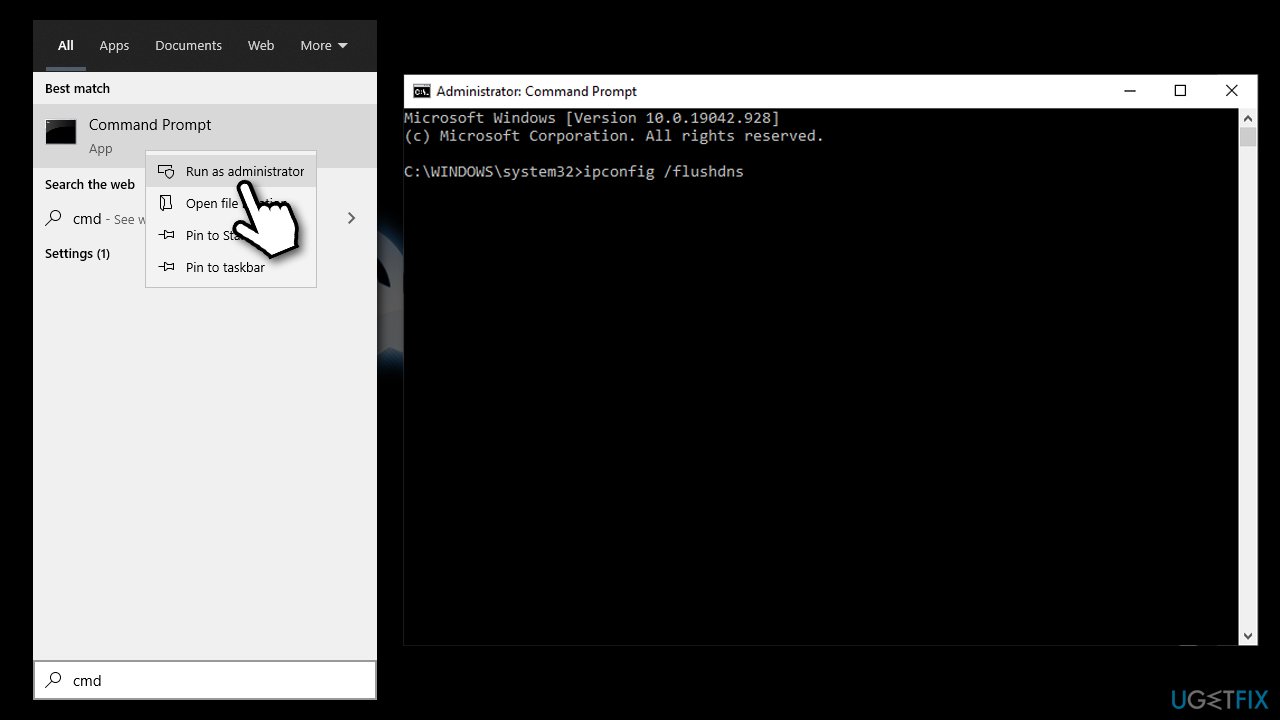
How to fix steam games not showing up in library reset your internet connection
Bottom line
To resolve the issue of Steam games not showing up in your Library, check that the game is installed in the correct location, ensure no filters are applied, and verify that the game is not hidden. If you suspect a pending transaction, cancel it and try purchasing the game again. If none of these solutions work, consider using a PC repair tool to address potential system issues.
Frequently asked questions
This issue can occur due to corrupted files or incorrect installation paths; try verifying the integrity of your game files in Steam settings.
You can refresh your Library by logging out and back into your Steam account or by restarting the Steam client.
Check if the games are still installed on your system, and if not, reinstall them from the Steam client to restore their visibility.




Report an issue
What's wrong with this guide? We review every report and update or remove content.
Report received — thank you. We'll review and fix it.
You need a free account to submit a report.
Be the first to comment