How to fix
“Task Scheduler service is not available” error
on Windows
Resolve the "Task Scheduler service is not available" error on Windows 10 and 11 with our expert-tested solutions. Fixed in minutes!

What causes How to fix “Task Scheduler service is not available” error in Windows?
- Task Scheduler service is not running
- Task Scheduler service is not set to start automatically
- Corrupted system files
- Conflicting software or services
- Previous system state issues
Repairs Windows system files, removes malware, and restores a clean OS state — without reinstalling.
Hello. Task Scheduler is not working on my Windows PC because I get the "Task Scheduler service is not available" error. Is there a way to fix this?
Task Scheduler is a built-in Windows utility that allows users to schedule and automate various computer tasks and processes. It allows users to schedule tasks such as launching programs, running scripts, performing system maintenance, and more for specific times or conditions. Task Scheduler is a powerful tool that assists users in streamlining their workflow and automating routine tasks, thereby increasing efficiency and productivity.
However, some users may experience a problem in which they are unable to run tasks due to an error message stating that the "Task Scheduler service is not available." This error indicates that the Task Scheduler service, which manages scheduled tasks, is either not running or is experiencing a problem.
Users who rely on Task Scheduler for automated tasks or critical operations may be adversely affected by the "Task Scheduler service is not available" error. It can interfere with scheduled backups, prevent software updates or installations, disrupt system maintenance routines, and obstruct other scheduled operations. As a result, users may encounter delays, inefficiencies, or failures in their workflow, potentially resulting in productivity issues and data loss if critical tasks are not completed as intended.
Resolving the "Task Scheduler service is not available" error usually entails determining and addressing the root cause of the problem. Restarting the Task Scheduler service, ensuring the service is set to start automatically, repairing any corrupted system files, checking for conflicting software or services, or performing a system restore to a previous working state are all possible solutions.
In this guide, you will find 5 steps that should help you fix "Task Scheduler service is not available" error. You can also run a system repair tool like [d1] that can fix most system errors, BSODs,[ref en-1] corrupted files, and registry[ref en-2] issues. Otherwise, follow the step-by-step instructions below.
Solution 1. Change the Network Condition
- Open the Run dialog by pressing the Windows key + R.
- In the text box, type taskschd.msc and click OK.
- Click on Task Scheduler Library in the left sidebar.
- Find the task for which the error occurs and right-click on it.
- Select Properties from the context menu.
- In the task's properties window, select the Conditions tab.
- If the Start only if network connection is available checkbox is selected, deselect it to disable the setting.
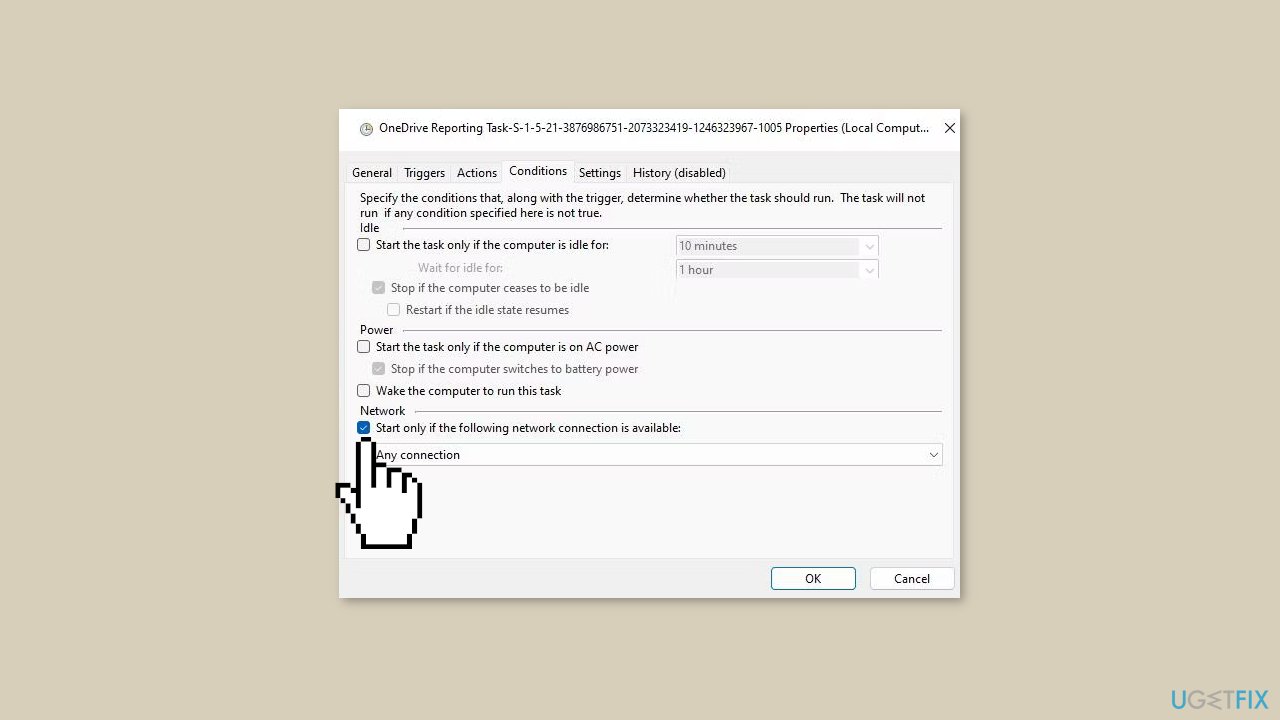
- Click OK to save the changes.
- Close Task Scheduler.
- Restart your PC.
- Click on the Windows Search box or button on the taskbar.
- Search for PowerShell.
- Right-click on the PowerShell result in the search tool.
- Select Run as administrator to open PowerShell with elevated system rights.
- Copy the following command:
gci -path c:\windows\system32\tasks* -recurse | select-string -pattern "</Id>" | select-object filename,line
- Press Ctrl + V to paste the command into PowerShell.
- Press Enter to execute the command.
- You will see a list of filenames for tasks with specific network conditions.
- Double-click each of those tasks in Task Scheduler.
- Follow the instructions above to disable their network conditions.
- Repeat steps for all the tasks with specific network conditions.
Solution 2. Edit the Schedule Registry Key
- Press the Windows key + S to open the Windows Search bar.
- Type regedit in the search bar and press Enter to open the Registry Editor.
- In the Registry Editor, clear the current path in the address bar.
- Input the following key location: Computer\HKEY_LOCAL_MACHINE\SYSTEM\CurrentControlSet\Services\Schedule
- In the left sidebar, select the Schedule key.
- Double-click on the Start DWORD within the Schedule key.
- If the Start DWORD is set to a value other than 2, enter 2 in the Value data box.
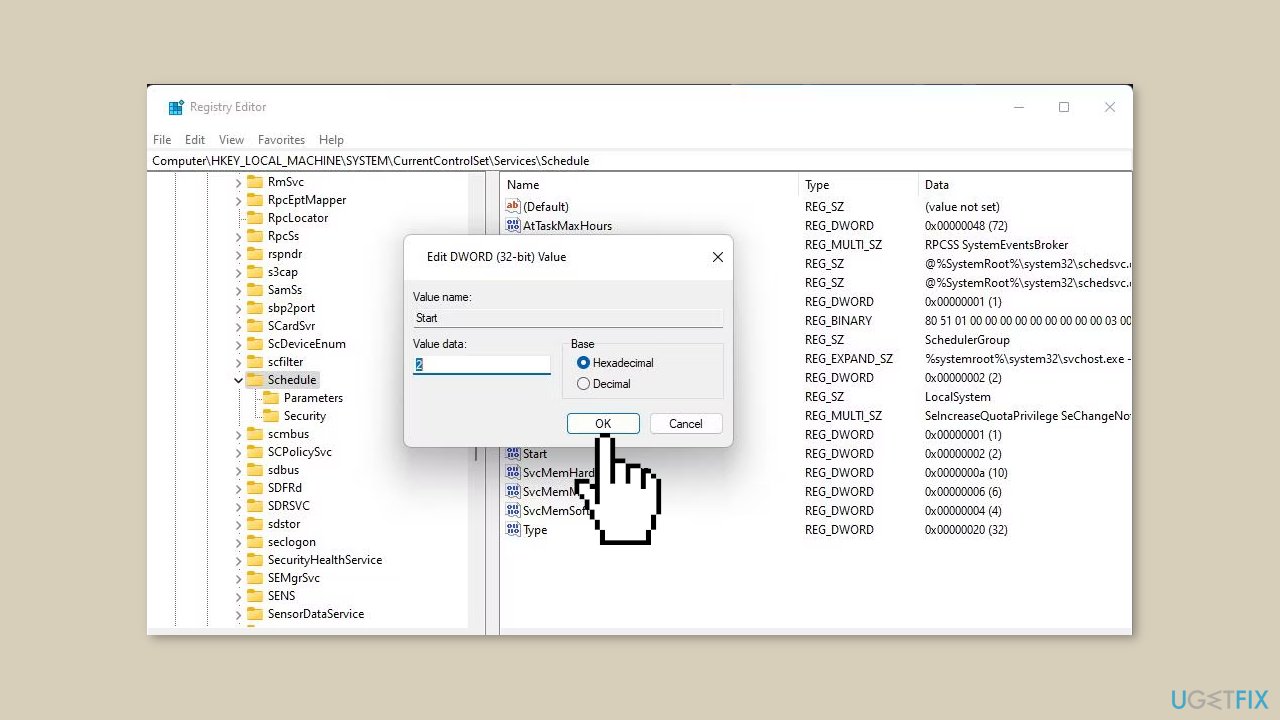
- Press OK to set the new Start DWORD value.
- Close the Registry Editor app.
- Restart Windows to apply the changes.
Solution 3. Edit the TimeBrokerSvc Registry Key
- Open the Registry Editor.
- Navigate to the following registry key: HKEY_LOCAL_MACHINE\SYSTEM\CurrentControlSet\Services\TimeBrokerSvc
- Double-click on the Start DWORD within the TimeBrokerSvc registry key.
- Check if the Start DWORD value is set to 3.
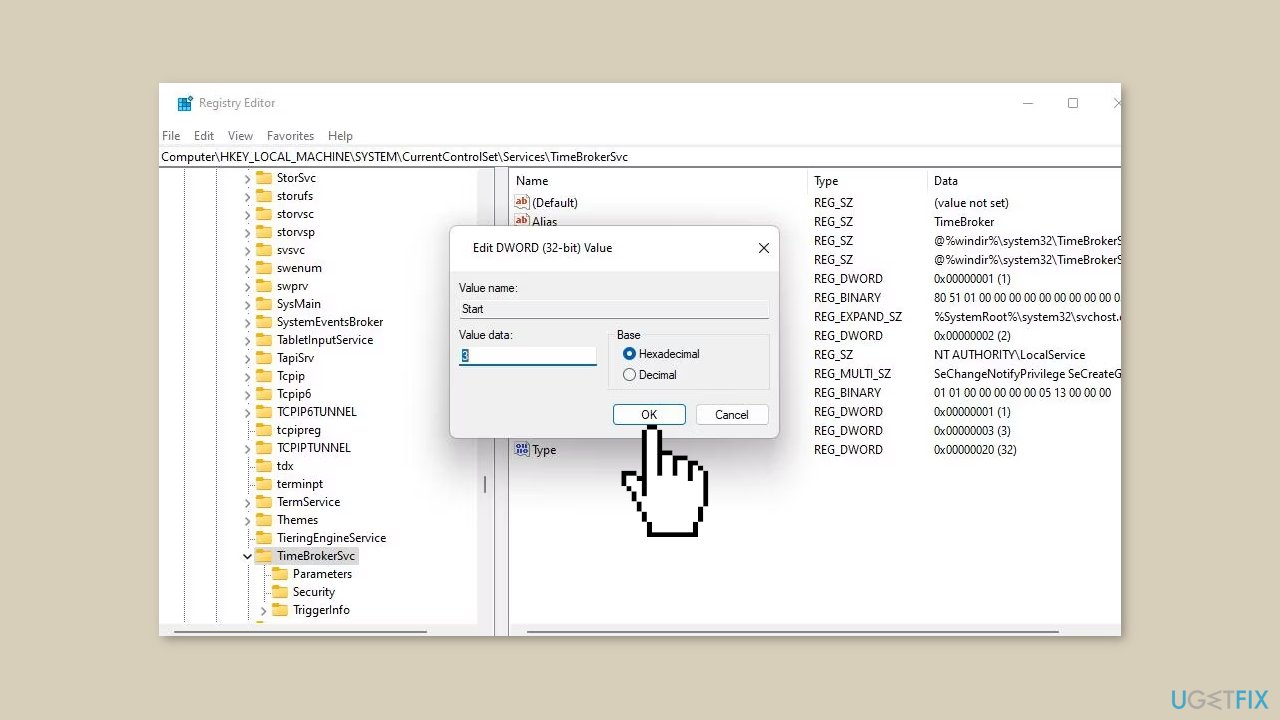
- Select OK to save the value and exit the DWORD window.
- Close the Registry Editor window
- Press the Start button, then select Power and choose Restart from the options.
Solution 4. Rename the Tree Registry Key
- Start the Registry Editor.
- Go to the following key location:
Computer\HKEY_LOCAL_MACHINE\SOFTWARE\Microsoft\Windows NT\CurrentVersion\Schedule\TaskCache\Tree
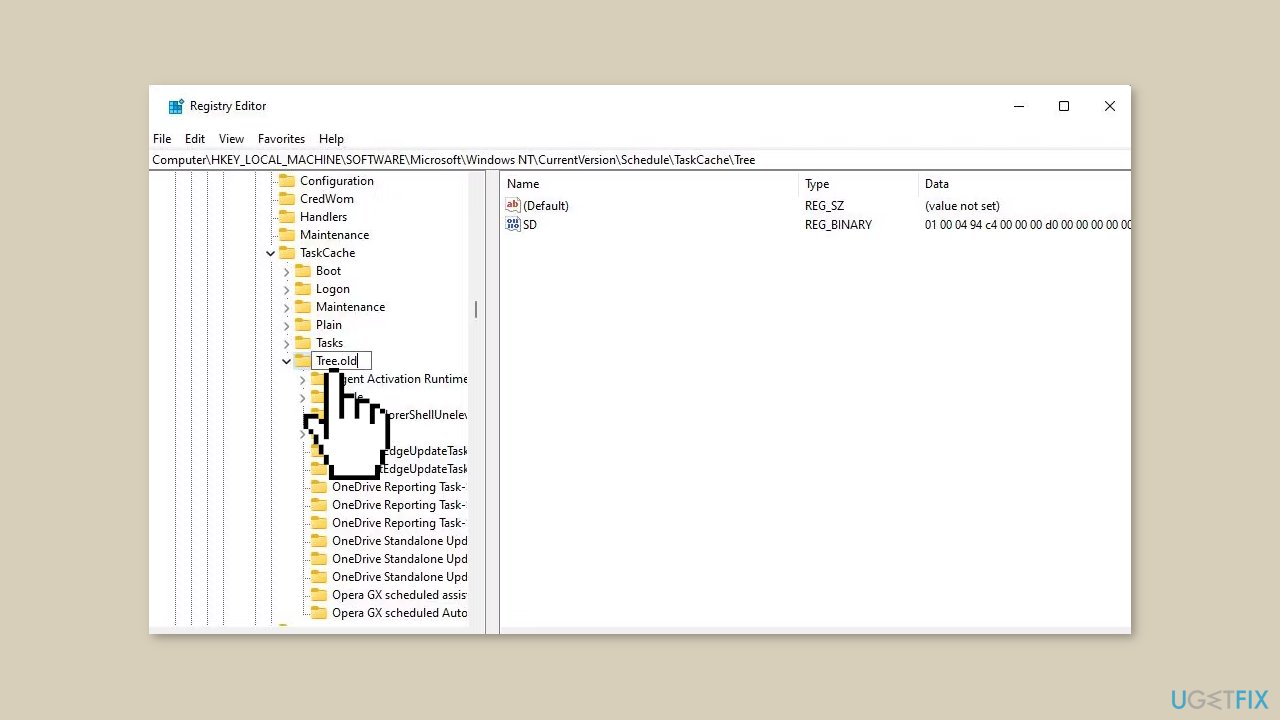
- Right-click on the Tree registry key and select Rename.
- Enter Tree.old as the new name for the key.
- Open Task Scheduler and try running the affected tasks to check if the issue persists.
- If the error no longer occurs after renaming the Tree key, it indicates a corrupted task is causing the issue. In this case, you'll need to identify and delete that task's key. Make sure to perform a registry backup before proceeding.
- Rename the Tree.old key back to Tree.
- Double-click on the Tree key to expand it.
- Right-click on the first task subkey and select Rename.
- Add a .old suffix to the end of the key's name.
- Return to Task Scheduler and run an affected task to see if the error message reappears.
- If the error still occurs, change the key you just renamed back to its original name by removing the .old suffix.
- Repeat steps for other task subkeys within the Tree key.
- Right-click on the last corrupted key you renamed and select Delete > Yes to erase it.
Solution 5. Reset Windows
- Open the Settings menu.
- Select System.
- Click on Recovery.
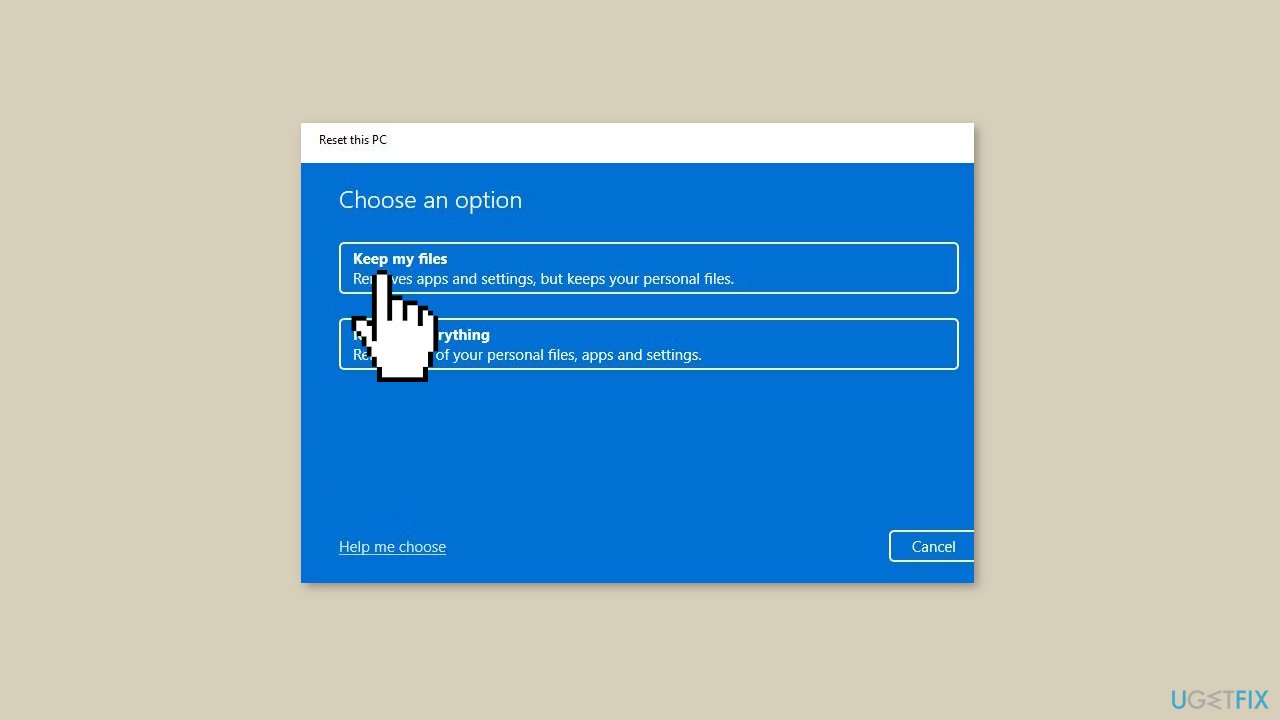
- Look for the Reset this PC option and click on it.
- This will initiate the reset process for your PC.
Bottom line
To fix the 'Task Scheduler service is not available' error, you can restart the Task Scheduler service, ensure it is set to start automatically, repair corrupted system files, check for conflicting software, or perform a system restore. If none of these solutions work, consider using a system repair tool that can address various system errors.
Frequently asked questions
First, ensure that the Task Scheduler service is running by searching for 'services' in the Start menu, finding 'Task Scheduler,' and starting it. If the issue persists, try running the System File Checker to repair any corrupted system files.
Yes, you can reset the Task Scheduler by navigating to the Task Scheduler Library, right-clicking on the task, and selecting 'Delete.' Then, recreate the task to see if that resolves the error.
Common causes include corrupted system files, misconfigured services, or issues with Windows updates that affect system functionality. Checking for updates and running the DISM tool can help resolve these issues.




Report an issue
What's wrong with this guide? We review every report and update or remove content.
Report received — thank you. We'll review and fix it.
You need a free account to submit a report.
Be the first to comment