How to fix
Teams error code 0
on Windows
Resolve Teams error code 0 on Windows 10 and 11 quickly and effectively. Our expert-tested solutions ensure a smooth experience, fixed in minutes.


What causes How to fix Teams error code 0 in Windows?
- Connectivity problems due to unstable internet connections
- Corrupted or outdated Teams application files
- Misconfigured firewall settings
- Antivirus software blocking the app’s communication
- Outdated Windows components
- Conflicts with user profiles
Repairs Windows system files, removes malware, and restores a clean OS state — without reinstalling.
I keep getting an error that tells me to log in to Teams every time I try to enter the app. It says that it is Error code 0. I am using the latest version of Windows 10 Home. It is the first time this has happened to me after using Teams for years.
Microsoft Teams is a vital collaboration tool for many, but encountering error code 0 can interrupt your workflow unexpectedly. This error often prevents the application from launching or restricts access to essential features, resulting in a frustrating experience.
Users commonly report seeing this issue when attempting to start Teams on Windows, noting that it appears without a clear explanation of what went wrong. While the exact reasons behind this error can vary, understanding its potential causes and methods to address it may help restore normal operations.
Error code 0 in Microsoft Teams generally stems from several common issues. Often, it relates to connectivity problems, such as unstable internet connections that disrupt the app's ability to communicate with Microsoft servers. Corrupted or outdated Teams application files can also lead to this issue, causing conflicts that prevent proper functioning.
In some cases, system-level settings, such as a misconfigured firewall or antivirus software blocking the app’s communication, are responsible for triggering this error. Additionally, glitches caused by outdated Windows components or conflicts with user profiles can contribute to the problem.
Fixing Teams error code 0 typically involves a mix of connectivity checks, application repairs, and system configuration adjustments. Ensuring that your internet connection is strong and consistent is a practical first step, as it helps eliminate network-related causes.
Checking for app updates and repairing or resetting the Teams application may also prove helpful, as it resolves any corrupt files or settings. For some, modifying system configurations like adjusting firewall or antivirus settings, or performing a clean reboot, can eliminate potential conflicts. It's also worth considering user profile-specific issues - creating a new Windows profile and accessing Teams through it might reveal underlying profile-specific conflicts.
If the issue persists after trying basic steps, performing more in-depth system maintenance, including resetting Windows networking settings or reinstalling Teams, may be necessary. In some instances, lingering system corruption may exacerbate the problem, requiring tools to scan and repair Windows files.
Utilizing [d1] repair for in-depth diagnostics and system repair may help ensure the smooth operation of Teams. Below, we’ll outline manual solutions to troubleshoot and resolve Teams error code 0, from straightforward methods to more advanced steps.

1. Restart Microsoft Teams
- Close Microsoft Teams completely by right-clicking its icon in the system tray and selecting Quit.
- Reopen the app and check if the issue persists.
2. Clear Microsoft Teams cache
- Press Win + E to open File Explorer.
- Ensure Hidden files are visible.
- In the address bar, type in %appdata%\Microsoft\teams and press Enter.
- Delete the contents of the following folders:
%appdata%\Microsoft\teams\application cache\cache
%appdata%\Microsoft\teams\blob_storage
%appdata%\Microsoft\teams\Cache
%appdata%\Microsoft\teams\databases
%appdata%\Microsoft\teams\GPUcache
%appdata%\Microsoft\teams\IndexedDB
%appdata%\Microsoft\teams\Local Storage %appdata%\Microsoft\teams\tmp - Make sure you empty the Recycle Bin (or use Shift + Del combination to delete these files).
- Restart your computer.

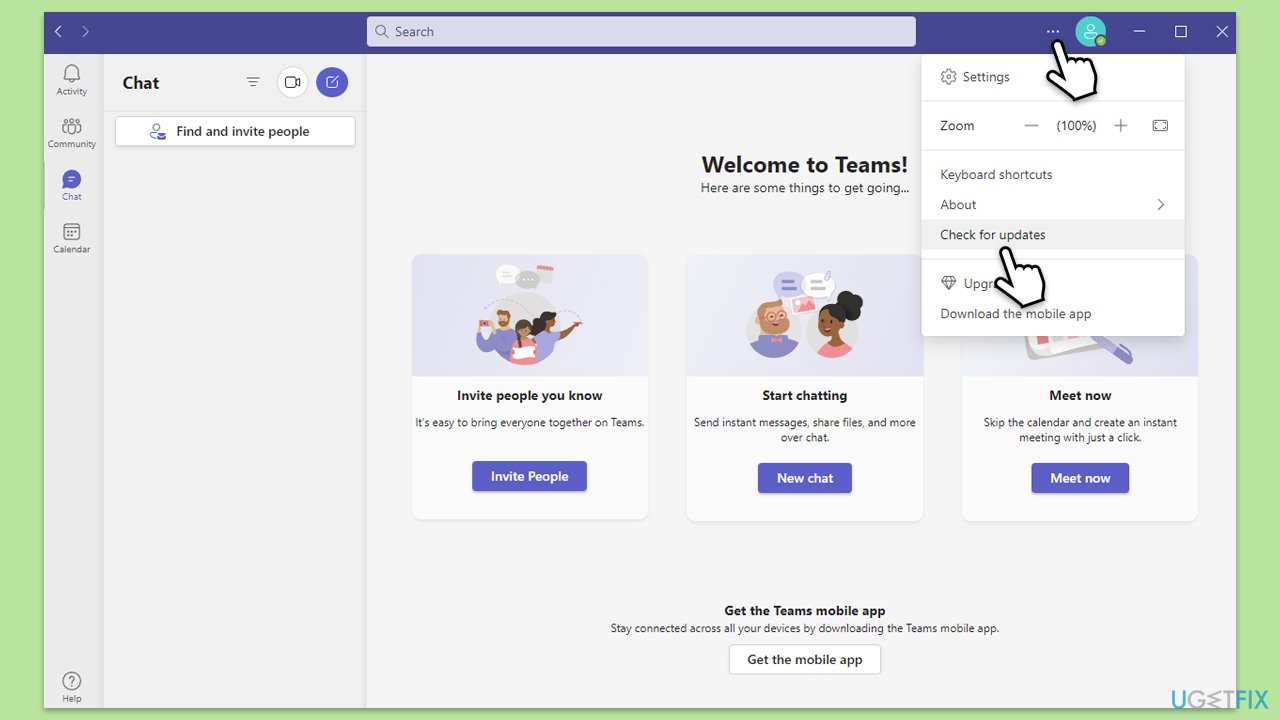
3. Update Microsoft Teams
- Open Microsoft Teams.
- Click on the Settings and more button at the top-right corner.
- Select Check for updates.
- Teams will automatically download and install any available updates.
- Restart Teams after the update is completed.
4. Repair or reset the Teams app
- Click on Start and pick Settings.
- Go to the Apps section.
- Locate Microsoft Teams from the list.
- Click on the three vertical dots and pick Advanced options.
- Click Terminate to ensure that the app is not running.
- Under the Reset section, click Repair and see if that solved your issue.
- If not, then try the Reset option.

5. Adjust Firewall and antivirus settings
- Open the Control Panel and navigate to System and Security > Windows Defender Firewall.
- Select Allow an app or feature through Windows Defender Firewall.
- Click Change settings and enter your administrator password if prompted.
- Find Microsoft Teams in the list and check both the Private and Public boxes.
- Click OK to save your changes.
- Temporarily disable your third-party antivirus and see if the issue persists.
6. Reinstall Microsoft Teams
- Type Control Panel in Windows search and press Enter.
- Go to Programs > Uninstall a program.
- Find Microsoft Teams, right-click, and select Uninstall.
- Follow the prompts to remove the app.
- Once done, press Win + E to open File Explorer.
- In the View tab at the top of the window, enable Hidden Files.
- Go to C:\Program Files\WindowsApps location.
- Scroll down to find the Microsoft Teams folder and delete it (alternatively, you can rename it).
- Now type %AppData% in Windows search and press Enter.
- Delete the Teams folder here.
- Finally, restart your system and reinstall the app.

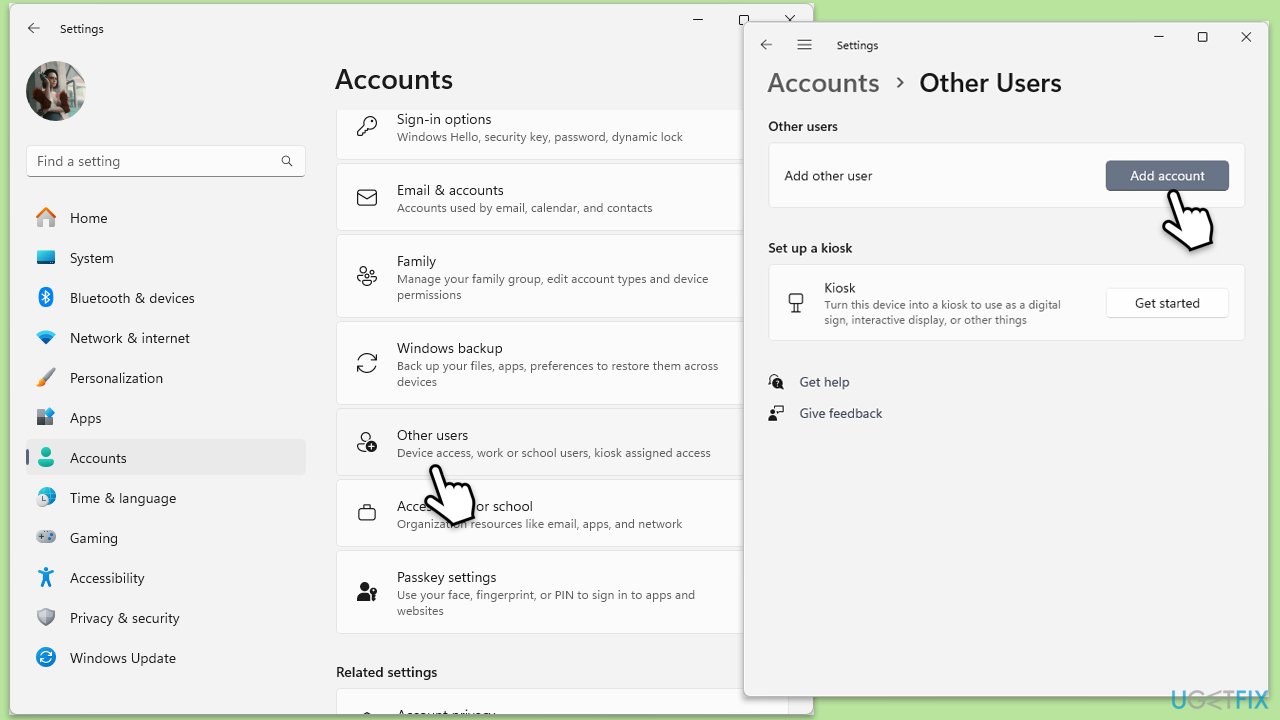
7. Create a new Windows user profile
- Open Windows Settings.
- Go to Accounts then Family/Family & other users.
- Under Other users, click Add account/Add someone else to this PC.
- Follow the prompts to create a new user account. If you don't have Microsoft account details, you can choose I don't have this person's sign-in information followed by Add a user without a Microsoft account.
- Assign a username and password for the new account and complete the setup.
- Log out of your current account and log into the new account.
8. Reset Network settings
- Right-click on Start and pick Settings.
- Go to Network & Internet.
- Under Advanced network settings, click Network reset.
- Click Reset Now.
- Confirm the action and then restart your system.

9. Perform SFC and DISM scans
- Type cmd in Windows search.
- Right-click on Command Prompt and pick Run as administrator.
- When UAC asks you whether you want to make changes, agree by pressing Yes.
- Next, copy and paste the following commands, pressing Enter each time:
sfc /scannow
DISM /Online /Cleanup-Image /CheckHealth
DISM /Online /Cleanup-Image /ScanHealth
DISM /Online /Cleanup-Image /RestoreHealth
(Note: if you get an error executing the last command, add /Source:C:\RepairSource\Windows /LimitAccess to it and try again.) - Restart your computer.

Related: How to fix Microsoft "Something went wrong 1200" error in Windows?
Bottom line
Fixing Teams error code 0 typically involves checking your internet connection, updating the Teams application, and repairing or resetting it. Additionally, adjusting firewall or antivirus settings and creating a new Windows profile may help. If the issue persists after trying these steps, consider performing more in-depth system maintenance.
Frequently asked questions
Teams error code 0 typically occurs due to corrupted application files, issues with the Microsoft Teams cache, or problems with the internet connection.
To clear the Teams cache, close the application, navigate to %appdata%\Microsoft\Teams in File Explorer, and delete the contents of the folder, then restart Teams.
Yes, ensure that your Windows 10 or Windows 11 is up-to-date, as updates often include fixes for known issues with Microsoft Teams.




Report an issue
What's wrong with this guide? We review every report and update or remove content.
Report received — thank you. We'll review and fix it.
You need a free account to submit a report.
Be the first to comment