How to fix
Teams Error code – signInRestriction:1
on Windows
Easily resolve Teams error code signInRestriction:1 in Windows 10 or 11 with our expert-tested solutions to get you back on track in minutes.


What causes How to fix Teams Error code – signInRestriction:1 in Windows?
- User permissions issues
- Security policy restrictions
- User location limitations
- Device security status requirements
- Licensing information discrepancies
Repairs Windows system files, removes malware, and restores a clean OS state — without reinstalling.
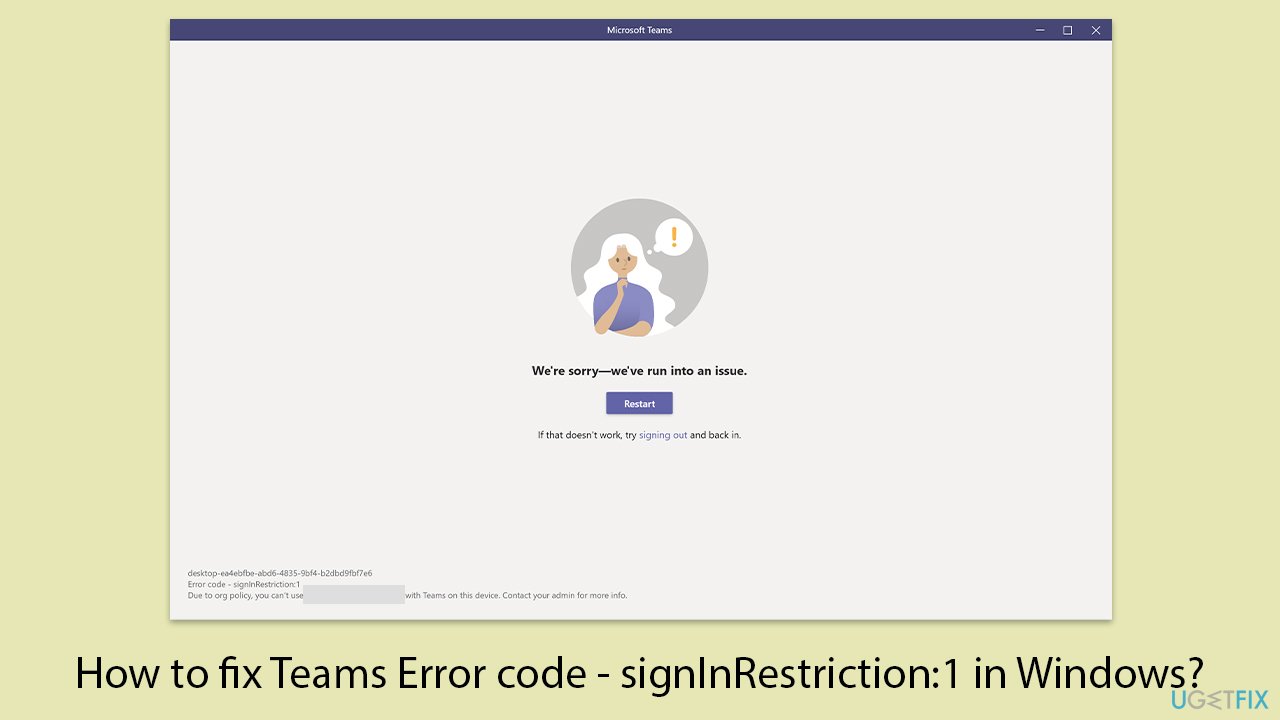
I have an issue where I can't log in to Teams due to the error code - signInRestriction:1. I have been trying all day today and nothing is changing. I tried restarting the app and the PC and it's still not working. Do you have any advice for me, maybe?
Teams Error Code - signInRestriction:1 is a common issue that users may encounter when trying to log into Microsoft Teams. This error typically indicates a restriction placed on the user's account, which can arise due to various reasons including policy settings or account configuration issues.
The primary cause behind the signInRestriction:1 error usually relates to user permissions and security policies that are configured to restrict access under certain conditions. This might involve limitations based on user location, device security status, or time of access. Additionally, this error can occur if there is a discrepancy in the user's licensing information, or if the account setup is incomplete or improperly configured.
Such restrictions are often used as a security measure to prevent unauthorized access and ensure that only eligible users can log into their Microsoft Teams accounts under specific circumstances. These settings are crucial for maintaining the security of personal data and communication channels.
If you encounter the signInRestriction:1 error, it is important to check your account status and ensure that all user information is correctly entered and up-to-date. Verify that your device complies with any required security measures and that you are attempting to sign in under conditions that meet the specified requirements set for your account.
Likewise, clearing Teams cache, running relevant troubleshooters, or repairing the app can also be a potential fix for the signInRestriction:1 error. For those would would rather take a more hands-off approach, we recommend running a scan with an automatic PC repair application [d1].
Fix 1. Clear Teams cache
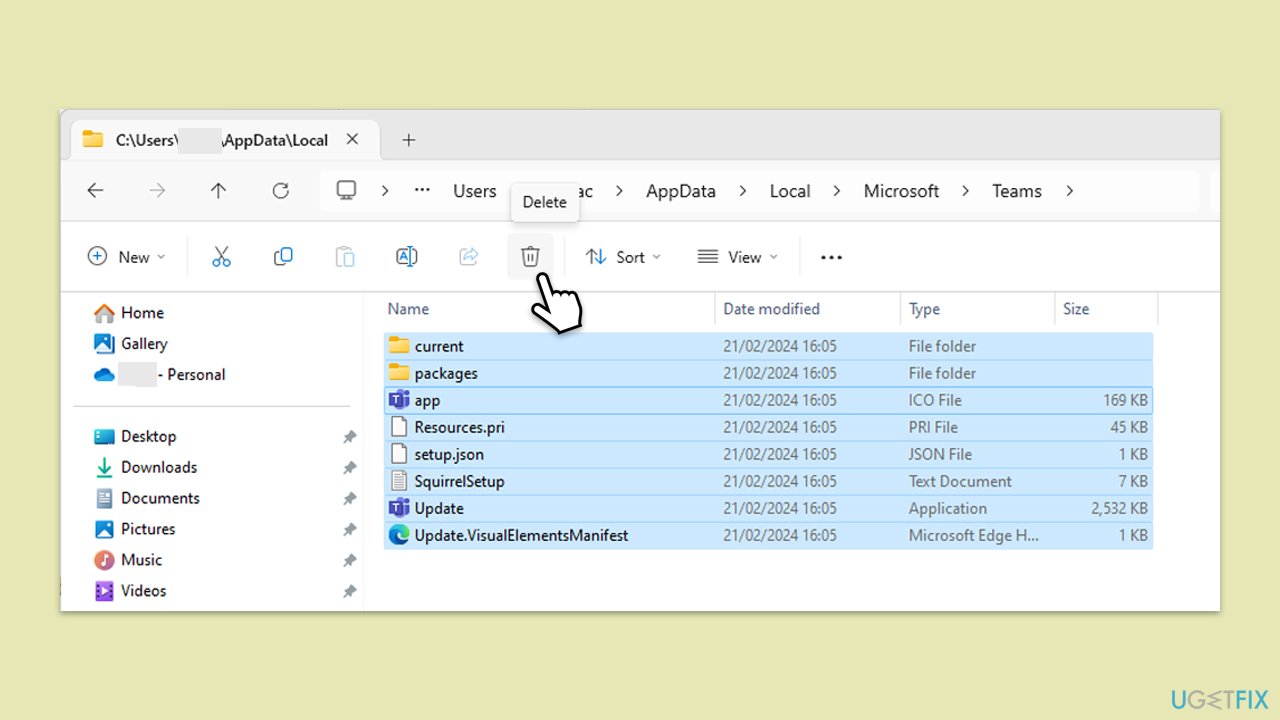
Clearing the cache in Microsoft Teams can resolve issues related to old or corrupted data that might be causing the signInRestriction:1 error. This process removes temporary files and forces the application to refresh and reload its operational settings.
- Ensure that Teams is closed and no related processes are running.
- Press Win + R on your keyboard to open the Run dialog.
- Type AppData and press Enter or click OK.
- Go to the following location:
C:\Users\User\AppData\Local\Microsoft - Delete all the files and folders located in the Teams folder.
Fix 2. Run network troubleshooter
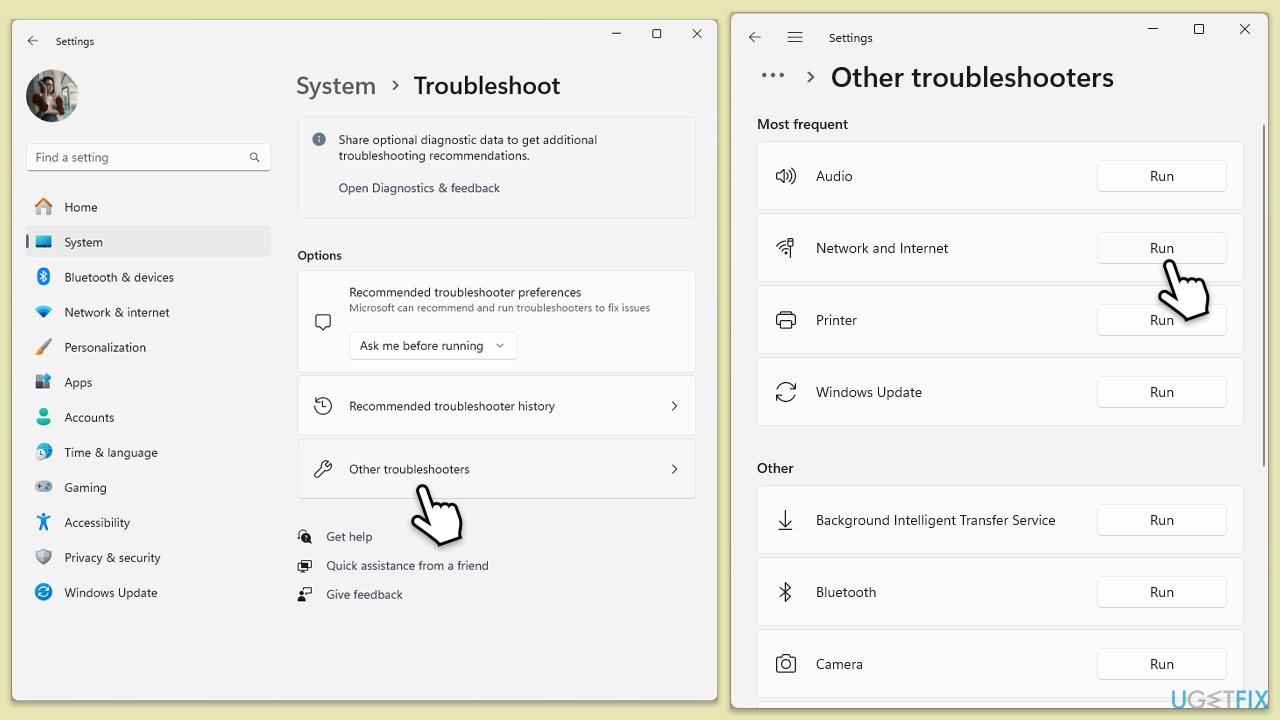
The network troubleshooter can help diagnose and fix problems with your internet connection that might be preventing Teams from signing in properly.
Windows 11
- Type Troubleshoot in Windows search and press Enter.
- Select Other troubleshooters.
- Find Network & Internet troubleshooter from the list and select Run.
- Wait till the process is finished and apply the offered fixes.
- Restart your device.
Windows 10
- Right-click on Start and pick Settings.
- Go to the Network & Internet section.
- On the right side, find the Advanced network settings section.
- Click Network troubleshooter and wait.
- The fixes will be automatically applied.
Fix 3. Update Windows
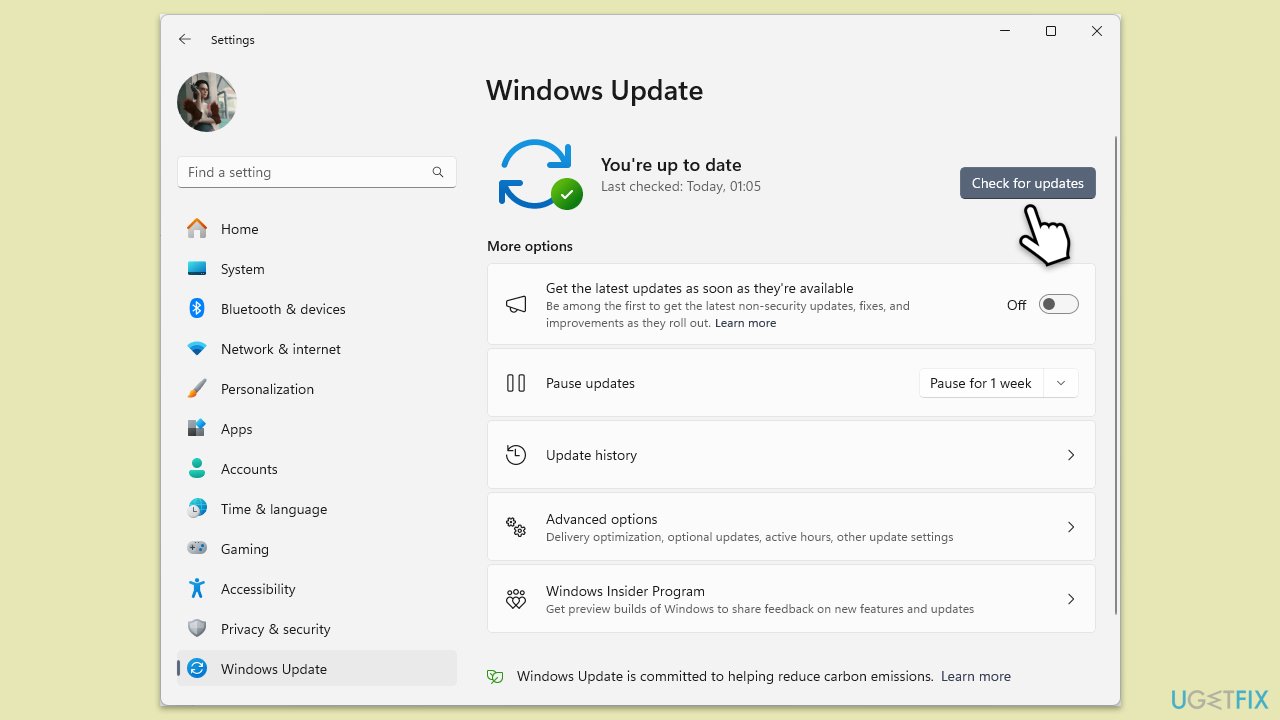
Keeping Windows up to date ensures that you have the latest security patches and performance improvements, which can help resolve compatibility issues with applications like Teams.
- Type Updates in Windows search and press Enter.
- In this window, click Check for updates.
- If optional updates are available, install them too.
- When everything is installed, restart your system.
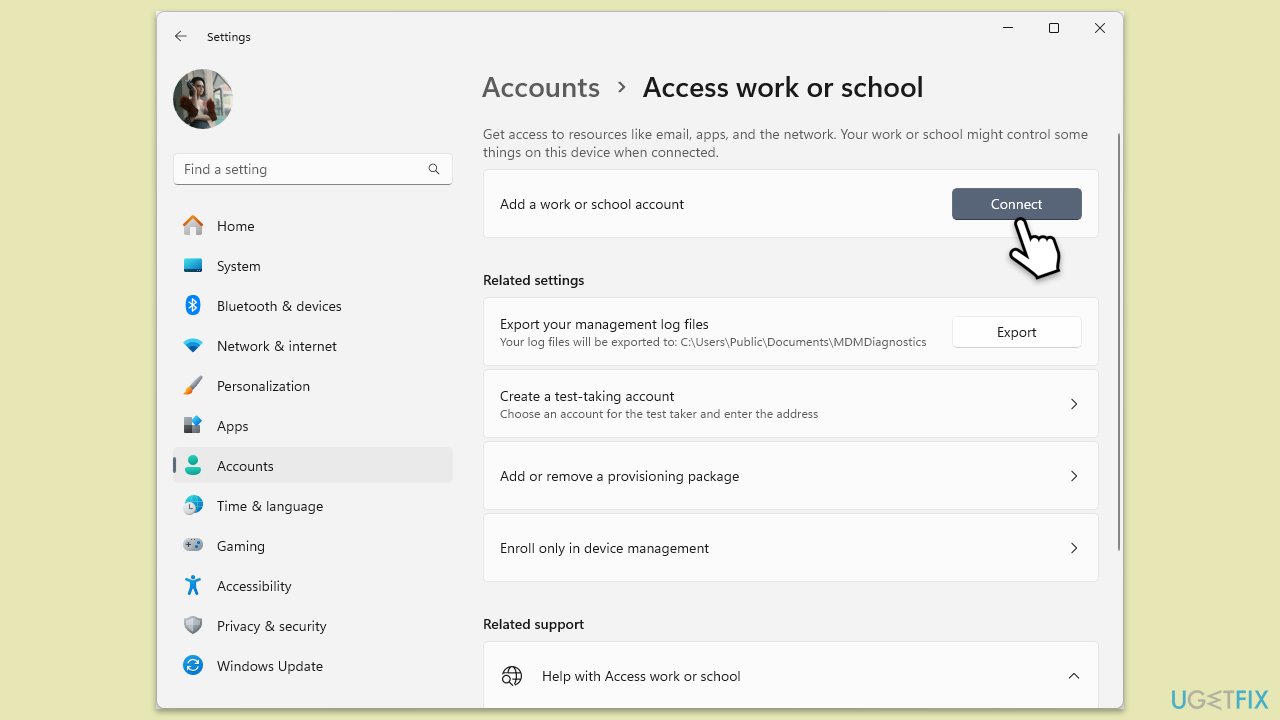
Fix 4. Reconnect your work or school account via Windows settings
Reconnecting your account can resolve issues related to account credentials or permissions that may be causing the signInRestriction:1 error.
- Go to Windows Settings (Win + I).
- Click on Accounts.
- Select Access work or school.
- Click on your connected account and select Disconnect.
- Restart your PC.
- After restarting, go back to Access work or school and select Connect to re-add your account.
- Follow the prompts to complete the reconnection.
Fix 5. Repair or reset Teams
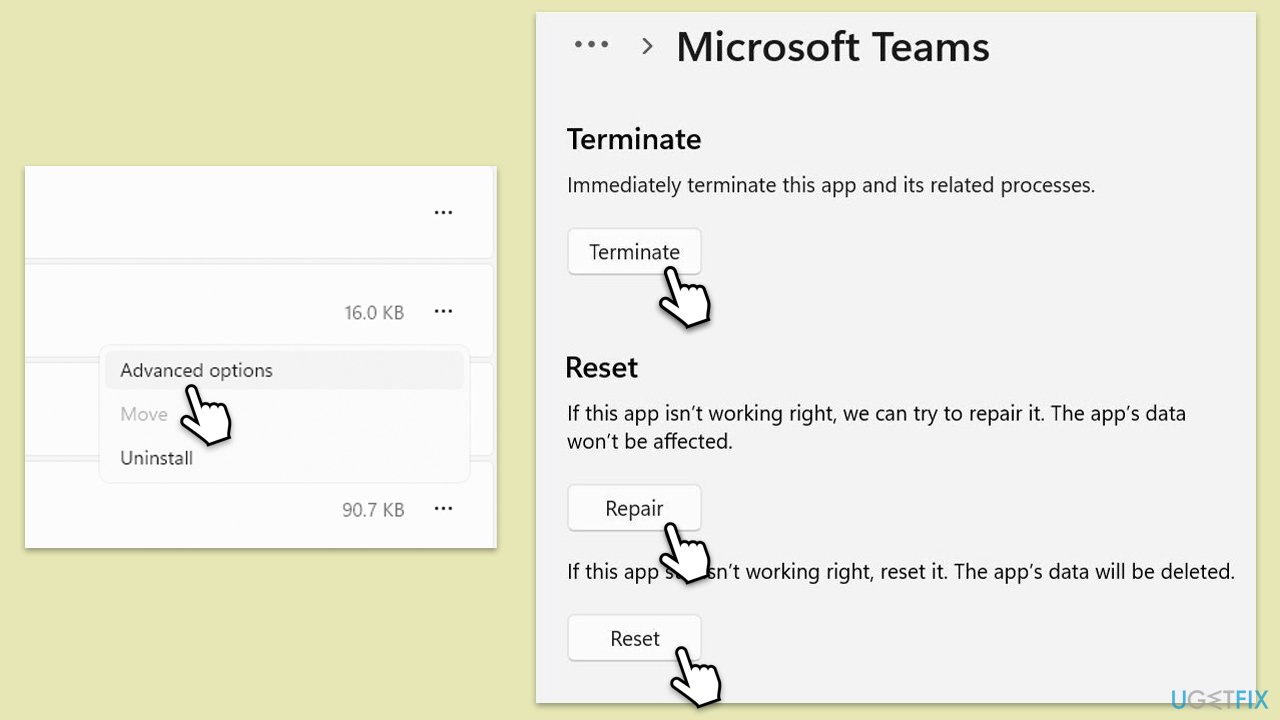
Repairing or resetting the Teams application can fix issues without deleting your data, restoring the app's functions to their default state.
- Click on Start and pick Settings.
- Go to the Apps section.
- Locate Microsoft Teams from the list.
- Click on the three vertical dots and pick Advanced options.
- Click Terminate to ensure that the app is not running.
- Under the Reset section, click Repair and see if that solved your issue.
- If not, then try the Reset option.
Fix 6. Reinstall Teams
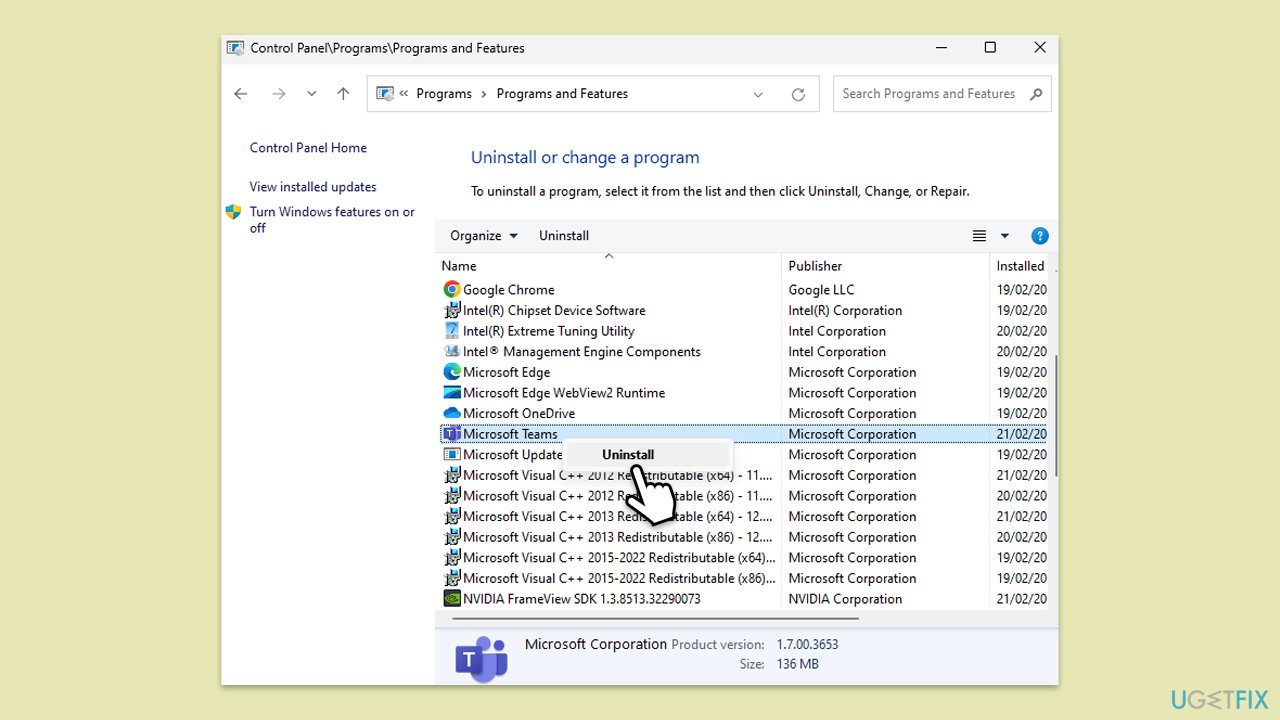
A fresh installation of Teams can ensure that all components are correctly installed and that there are no corrupted files left behind.
- Type Control Panel in Windows search and press Enter.
- Go to Programs > Uninstall a program.
- Find Microsoft Teams, right-click, and select Uninstall.
- Follow the prompts to remove the app.
- Once done, press Win + E to open File Explorer.
- In the View tab at the top of the window, enable Hidden Files.
- Go to C:\Program Files\WindowsApps location.
- Scroll down to find the Microsoft Teams folder and delete it (alternatively, you can rename it).
- Now type %AppData% in Windows search and press Enter.
- Delete the Teams folder here.
- Finally, restart your system and reinstall the app.
Bottom line
To resolve the signInRestriction:1 error, you can try clearing the Teams cache, running relevant troubleshooters, or repairing the app. If these solutions do not work, consider using an automatic PC repair application for further assistance.
Frequently asked questions
The signInRestriction:1 error typically indicates that there are restrictions placed on your account, preventing you from signing into Microsoft Teams. This can happen due to organization policies or licensing issues.
To fix this error, ensure that your Microsoft account is properly licensed for Teams and check with your IT administrator if there are any restrictions on your account. Additionally, updating Teams and clearing the app cache can also help.
Yes, verify that your Windows Firewall or antivirus settings are not blocking Microsoft Teams, and ensure that your network connection is stable. Also, check that your Windows account is properly synced with your Microsoft account.




Report an issue
What's wrong with this guide? We review every report and update or remove content.
Report received — thank you. We'll review and fix it.
You need a free account to submit a report.
Be the first to comment