How to fix
Temp.dll missing or not found error
on Windows
Resolve the temp.dll missing error in Windows 10 and 11 effortlessly. Follow our expert-tested solutions for quick fixes and smoother performance.

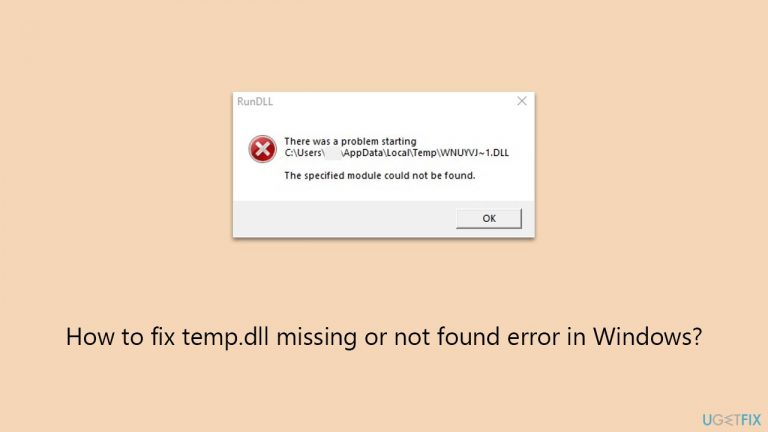
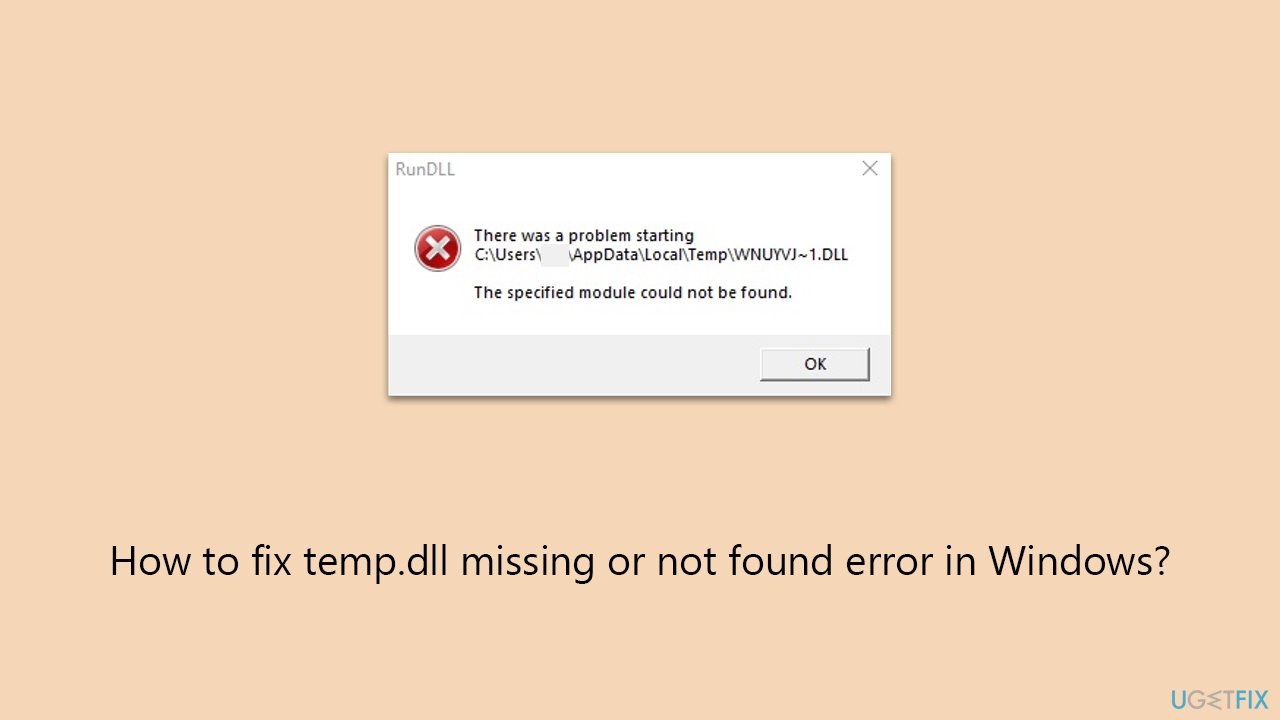
What causes How to fix temp.dll missing or not found error in Windows?
- Missing temp.dll file
- Corrupted temp.dll file
- Accumulation of corrupted temp files
- Malware infection
- File system corruption
Repairs Windows system files, removes malware, and restores a clean OS state — without reinstalling.
Seemingly out of nowhere, I started receiving this error message that I can't seem to get rid of, even if I press "OK" every time. It's a RunDLL error, which says that temp.dll is missing and could not be found. It shows up several times a day and I'm not sure how it affects (if it does) Windows. What should I do?
When you encounter a 'temp.dll missing or not found' error on your Windows system, it can be a source of frustration, especially because this error may appear during system startup or at random intervals. To understand and resolve this issue effectively, it's important to grasp what DLLs are and how they function, as well as the role of temp files in this context.
DLL stands for Dynamic Link Library. These are essential files in the Windows operating system, acting as libraries that contain code and data used by multiple programs simultaneously. DLLs are crucial for efficient memory usage and modular program design, enabling applications to share resources and functionalities. When a DLL file like temp.dll is missing or corrupted, it disrupts the smooth functioning of applications and can lead to errors.
Temp files, or temporary files, are created to temporarily hold information while a new file is being made. These files often assist in backup and recovery processes and are not intended for long-term use. Temp files can become problematic if they are corrupted or if too many accumulate, potentially leading to system errors such as the one you're experiencing.
To fix a temp.dll missing or not found error, several approaches can be employed, such as cleaning temp files from the device, using Autoruns, checking the system for file corruption, scanning for malware, and more. Below you will find the step-by-step guide you should refer to if you want to remediate the issue. Alternatively, you could try employing the [d1] utility, which is capable of fixing various Windows issues automatically.
Fix 1. Scan your system for malware
Malware can often cause .dll errors by corrupting or deleting files. A comprehensive malware scan can detect and remove these harmful programs, potentially resolving the DLL issue. For those not very familiar with PCs, malware is malicious software that can disrupt normal computer operations, steal data, or gain unauthorized access to system resources.
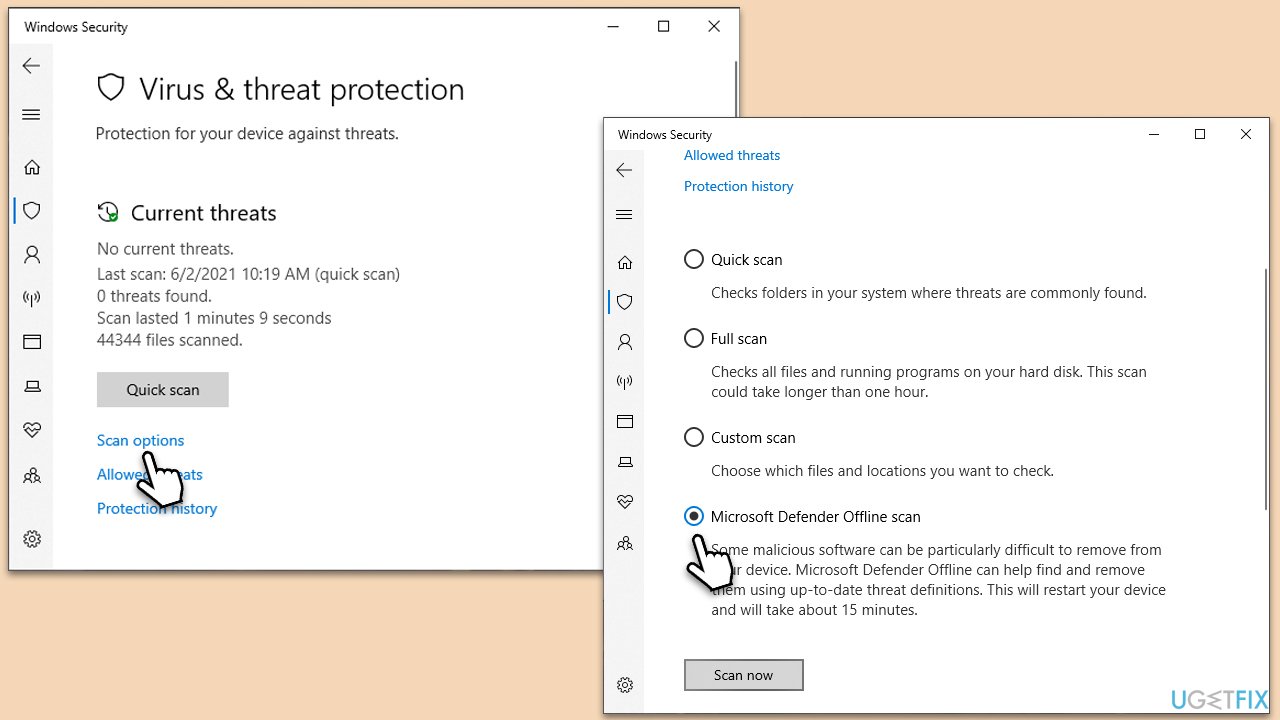
You can use Microsoft Safety Scanner or the built-in Windows Defender:
- Type Windows Security in the Windows search bar and hit Enter.
- Select Virus & threat protection.
- Pick Scan options.
- Choose Microsoft Defender Offline scan and click Scan now.
- Your computer will immediately reboot and begin a deep scan.
Fix 2. Perform Disk Cleanup
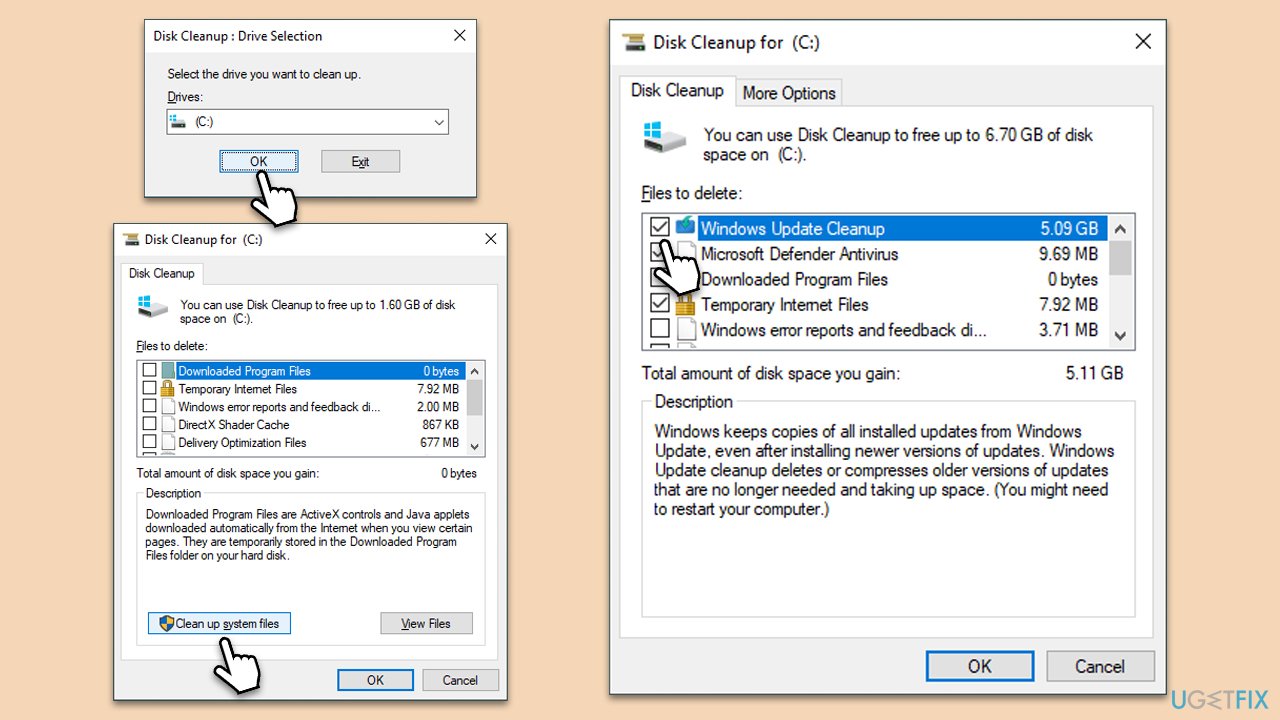
Disk Cleanup is a utility built into Windows that removes unnecessary files, including temporary files that could be causing the temp.dll error. Cleaning these files frees up disk space and can resolve conflicts.
- Open the Windows search bar and type Disk Cleanup. Press Enter to open the Disk Cleanup utility.
- In the Disk Cleanup window, select the drive where your Windows operating system is installed (usually drive C:) and click OK.
- Click Clean up system files.
- Select the drive again and click OK.
- In the list of files that can be cleaned up, select the largest portions of data, such as Temporary Internet Files, Windows Update, Temporary Files, and others.
- Click OK to begin the cleanup process.
Fix 3. Repair corrupted system files
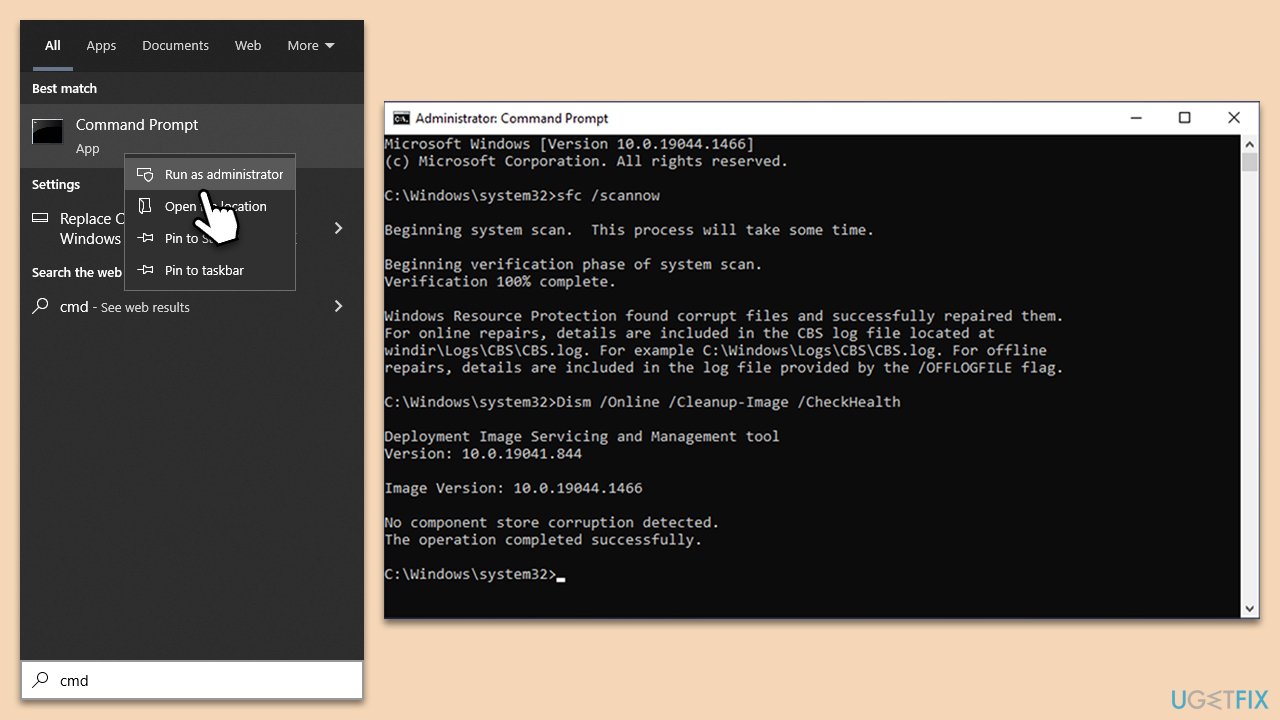
The System File Checker (SFC) and Deployment Image Servicing and Management (DISM) are tools that fix corrupted system files and restore missing or damaged DLL files.
- Type cmd in Windows search.
- Right-click on Command Prompt and pick Run as administrator.
- When UAC asks you whether you want to make changes, agree by pressing Yes.
- Next, copy and paste the following commands, pressing Enter each time:
sfc /scannow
DISM /Online /Cleanup-Image /CheckHealth
DISM /Online /Cleanup-Image /ScanHealth
DISM /Online /Cleanup-Image /RestoreHealth
(Note: if you get an error executing the last command, add /Source:C:\RepairSource\Windows /LimitAccess to it and try again.) - Restart your computer.
Fix 4. Install all Windows updates
Keeping Windows up to date ensures that you have the latest drivers, security updates, and system files, which can resolve DLL errors.
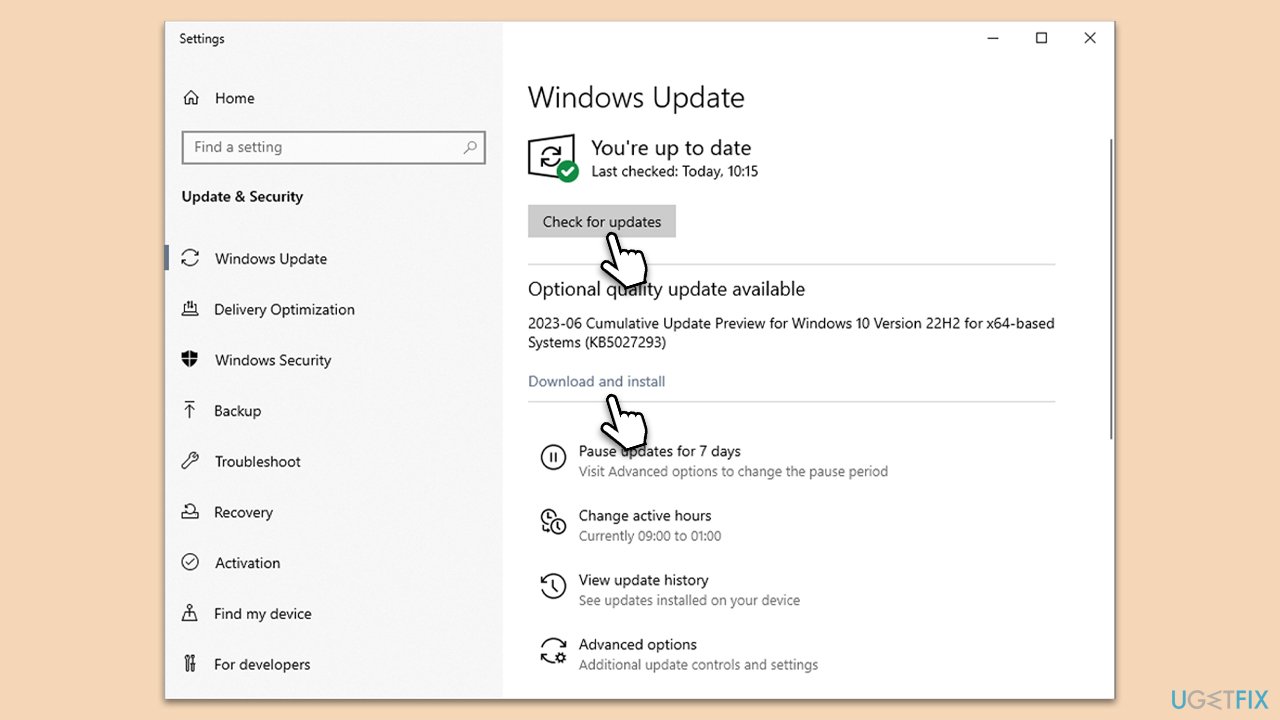
- Type Updates in Windows search and press Enter.
- When the new window opens, click Check for updates and wait.
- If there are optional updates available, install them as well.
- Restart your computer to implement the changes.
Fix 5. Get rid of pop-up with Autoruns
Autoruns is a utility that shows all programs configured to run during system startup. Disabling unnecessary or suspicious programs can eliminate DLL error pop-ups.
- Download and install Autoruns from the Microsoft website.
- Open Autoruns as an administrator.
- Carefully examine the list of programs that start up automatically. Look for any suspicious or unknown applications.
- If there is a path provided on the error message, enter that into the search box. You can also try "temp.dll."
- When the process is found, right-click and select Delete.
- After making changes, close Autoruns and restart your computer.

Bottom line
To fix the temp.dll missing or not found error, you can clean temp files, use Autoruns, check the system for file corruption, and scan for malware. If these methods do not resolve the issue, consider using a utility designed to fix various Windows problems automatically.
Frequently asked questions
The temp.dll missing error can be caused by corrupted system files, incomplete installations, or malware infections. It may also occur if the DLL file was accidentally deleted or moved.
You can restore the temp.dll file by running the System File Checker tool with the command 'sfc /scannow' in the Command Prompt. Additionally, you can reinstall the application that is prompting the error.
Yes, downloading temp.dll from unverified third-party websites poses significant risks, including malware infections and system instability. It's always safer to restore the file using official Windows tools.




Report an issue
What's wrong with this guide? We review every report and update or remove content.
Report received — thank you. We'll review and fix it.
You need a free account to submit a report.
Be the first to comment