How to fix
“The disk does not have enough space to replace bad clusters”
on Windows
Resolve the "disk does not have enough space to replace bad clusters" issue in Windows 10 and 11 easily. Expert-tested solutions ensure zero traces left.

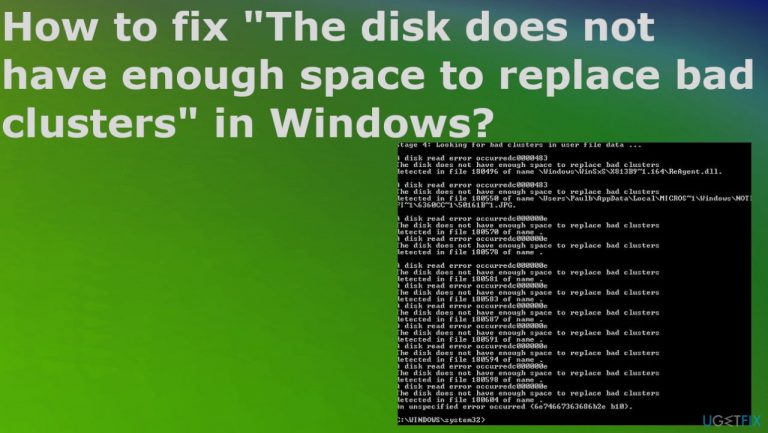
What causes How to fix “The disk does not have enough space to replace bad clusters” in Windows?
- Disk crash due to power loss
- Unexpected machine shutdown
- Malware causing disk issues
- Failure of the hard drive
- Lack of backup drive replacement
Repairs Windows system files, removes malware, and restores a clean OS state — without reinstalling.
Hello. I tried to run the disk check while troubleshooting on my Windows computer and received - The disk does not have enough space to replace the bad clusters issue report in the Windows command prompt. This disk read error appeared and has left me speechless. I do not know what those bad clusters are and how to solve the issue.
The issue that users report[ref en-1] pretty commonly is the "The disk does not have enough space to replace bad clusters" message in Windows. This is the disk check utility result that reports that the drive has some files backed on another drive. This is the message that Disk check shows after looking for bad clusters on the machine. It means that the drive has not have enough good sectors that are free and accessible, so there is no way to redirect bad sectors to free ones.
In simpler words, this means that the hard disk is potentially damaged and can crash at any time due to such trouble. Trying to repeat the procedure of checking the disk does not change this result, so the solution may require some advanced processes. This problem is not related to a particular Windows version, so Windows 10 or 11 issues are not related here.[ref en-2]
This is not the regular free disk space issue. The space needed for bad sector replacement is totally different free space. The problem with this report in the Command Prompt can be related to the disk crash, so the problem occurs when the power loss, unexpected machine shutdown, or different problems like malware,[ref en-3] trigger the disk crash and damage those clusters. "The disk does not have enough space to replace bad clusters" in Windows can also occur due to failure of the hard drive when bad clusters are indicated continuously, and the drive can become unusable pretty quickly.
Some data altered on the machine can lead to other drive problems, and lack of backup drive replacement can cause this issue with bad clusters and the lack of space. Drives are designed to never run out of such space, so when the issue occurs, you are recommended to create the backup, so the data loss is avoided.
If you notice any additional issues on the machine, you might want to run a tool like [d1] that locates and repairs system data issues and damaged parts. This is a good first check before moving on with in-depth fixes. You can possibly fix "The disk does not have enough space to replace bad clusters" in Windows without causing any damage, but too many bad clusters lead to imminent drive failure. Make sure to follow the steps below to solve the issue. 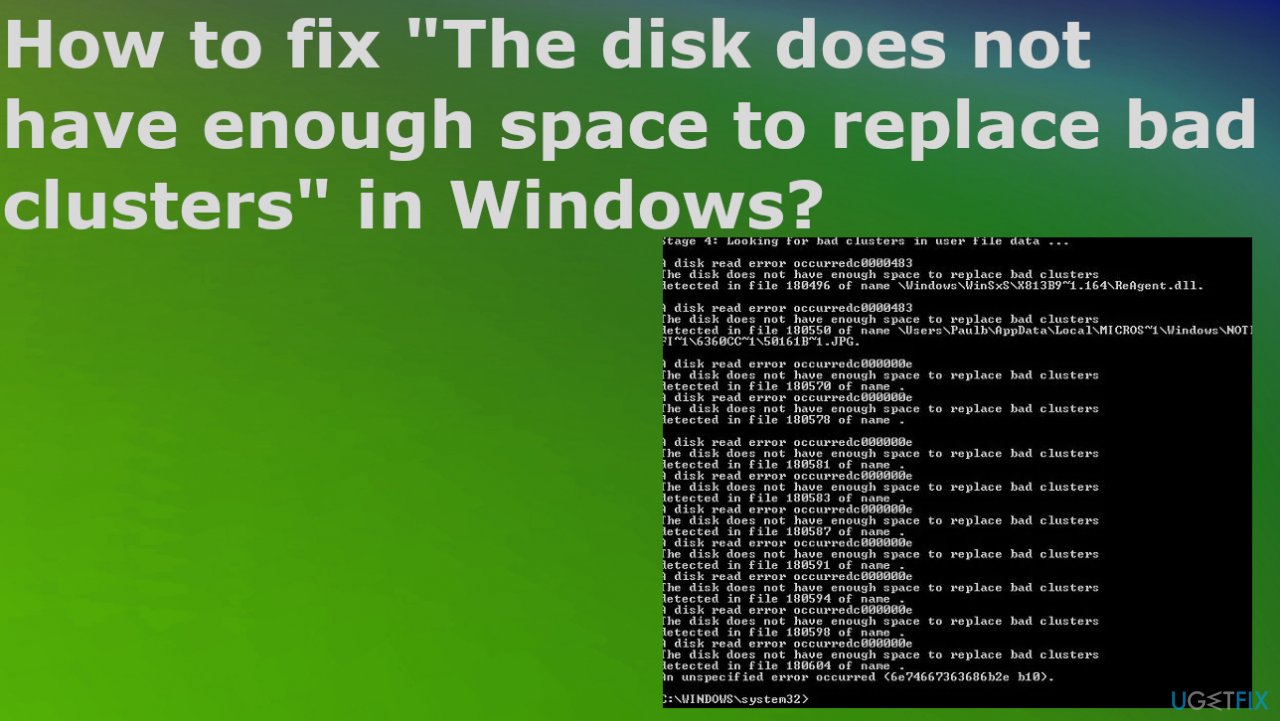
Method 1. Wait for the process
- If you get the error, do not close the CHKDSK because you interrupt the process.
- Run the command again and wait potentially. That makes take hours, but the process can repair the drive when properly launched.
- Type cmd in the Windows search box.
- Then select Run as administrator
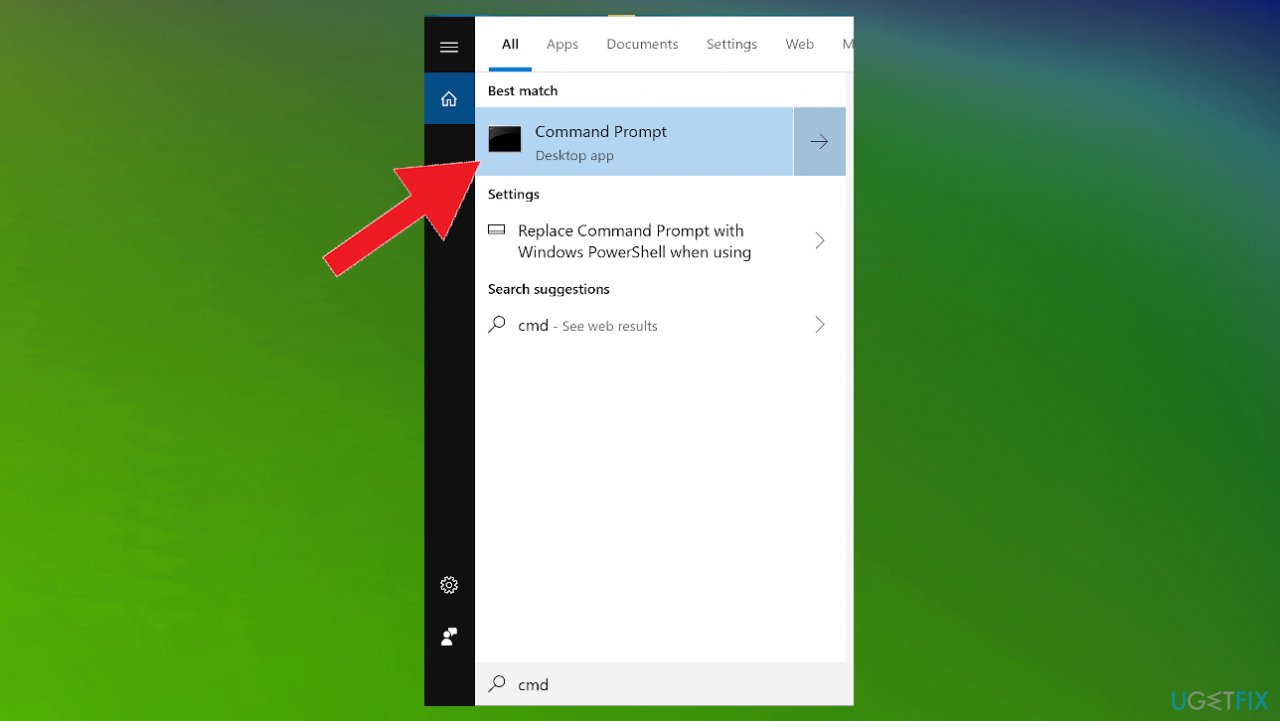
Bad clusters space cmd - Choose Yes on the UAC prompt to continue.
- Type chkdsk /f /r in the CMD window, and then hit Enter.
- Press Y on the keyboard.
- Then restart your PC to initiate the disk check.
Method 2. Regenerate bad clusters
- Victoria is a free third-party app that can detect and fix bad clusters from the hard drive or external drive.
- You can find the proper Victoria downloads here, here. Download archives and install the latest version, no older than 4.2.
- Use the extraction app to un-zip the contents.
- Right-click the executable file and select Run as administrator and provide admin rights to the program.
- Select the hard drive that is causing the error by going to Standard and selecting the drive from the right-hand panel.
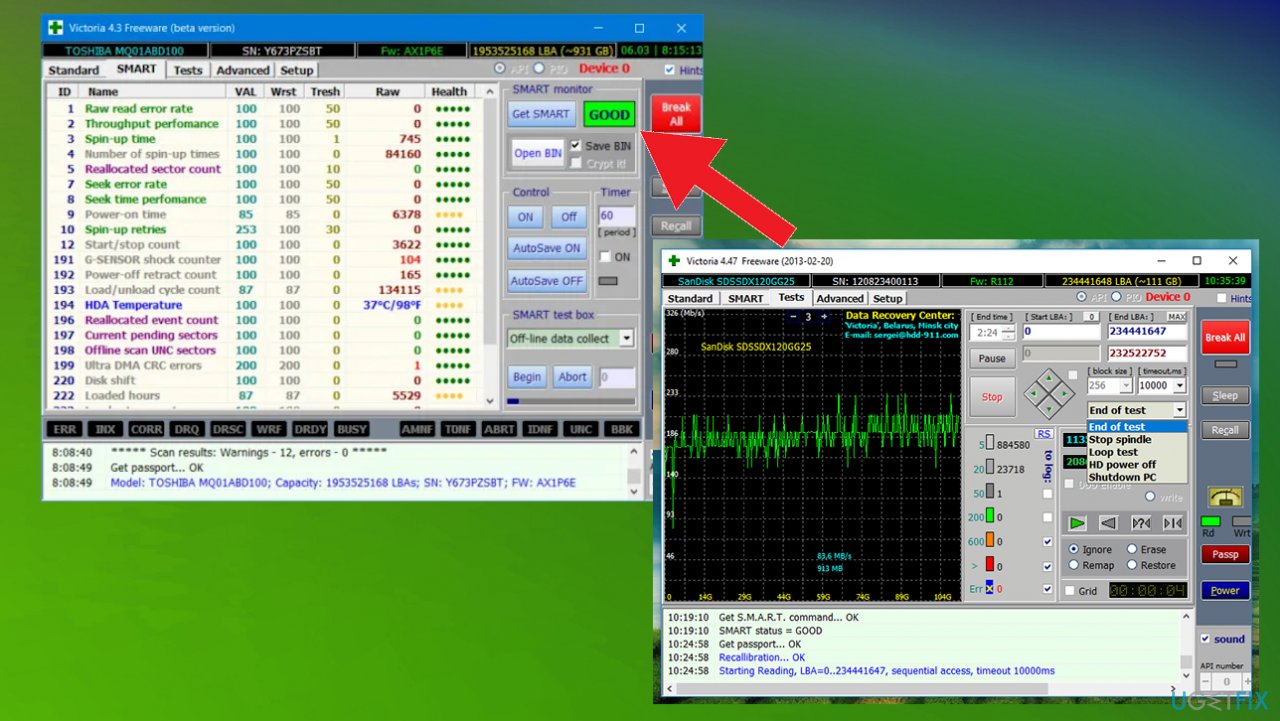
- Go over to the Smart tab and click the Get SMART button.
- After the analysis is complete, check the Reallocated sector count.
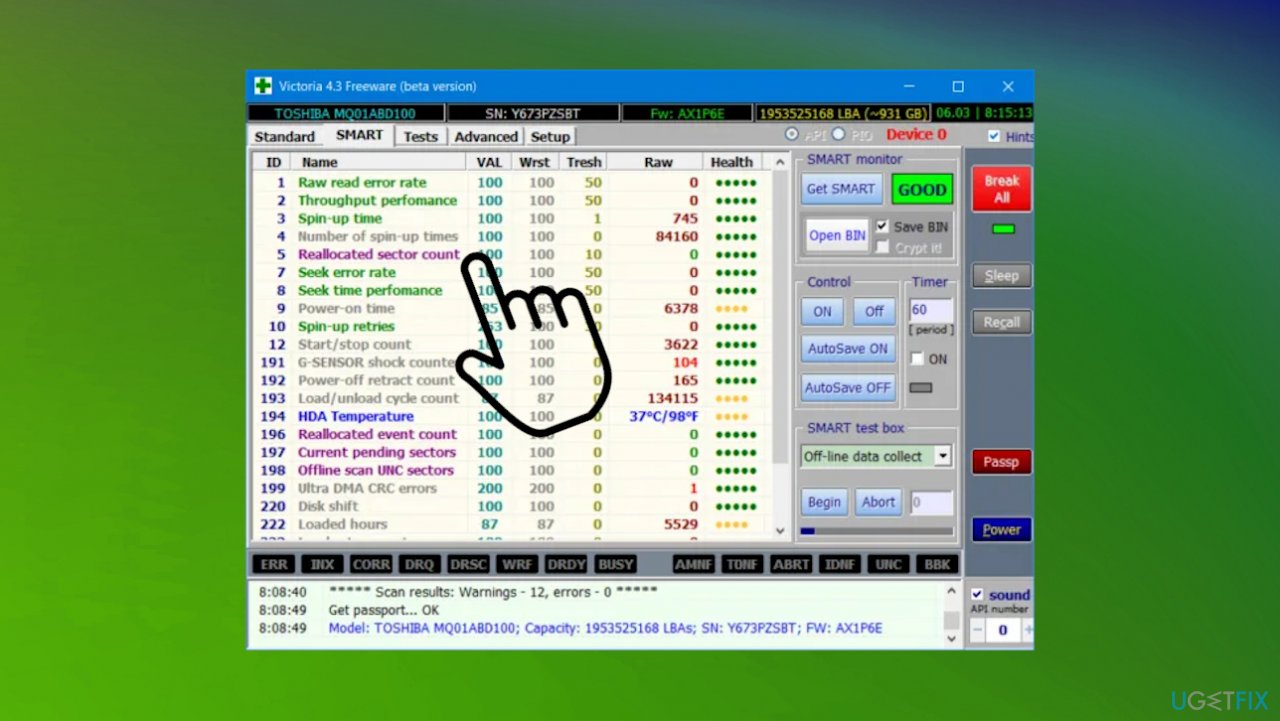
Bad clusters space victoria rellocated - If the number is higher than 10, it’s clear that the error is not a false positive.
- Check the state of your drive – if the status is GOOD, you might resolve the issue and continue using the HDD.
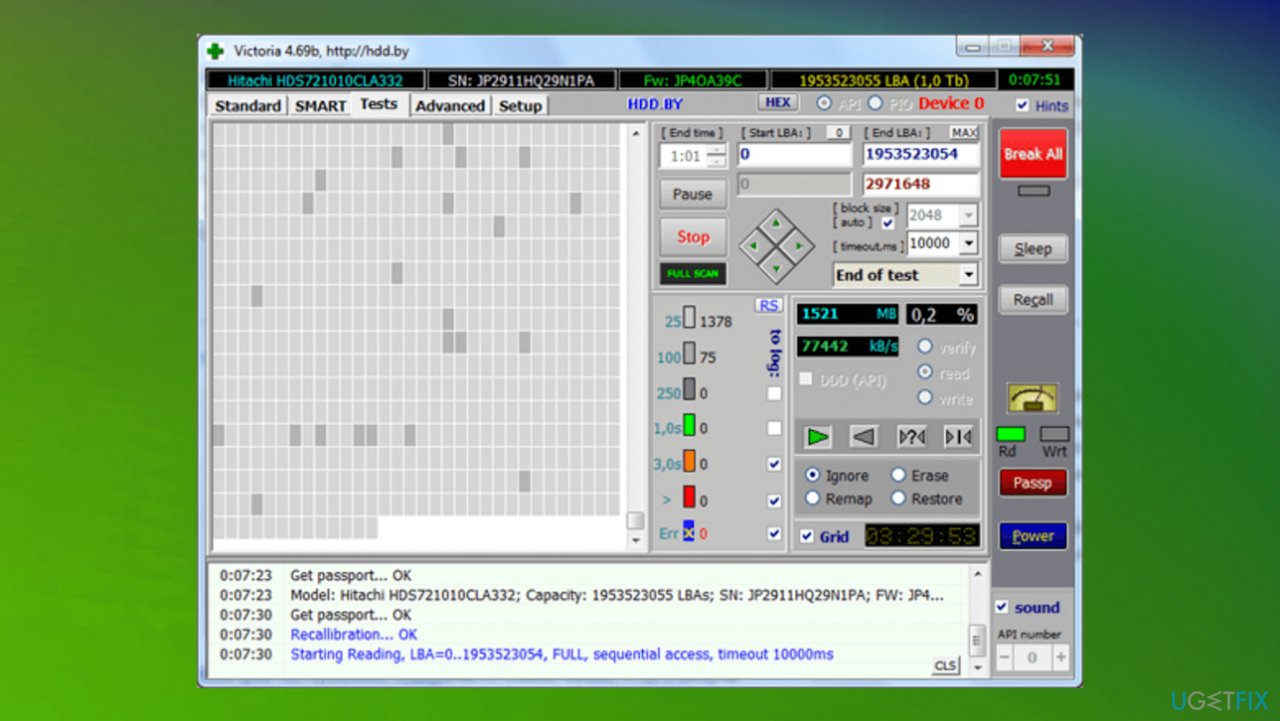
Bad clusters space victoria status - Move over to the Tests tab.
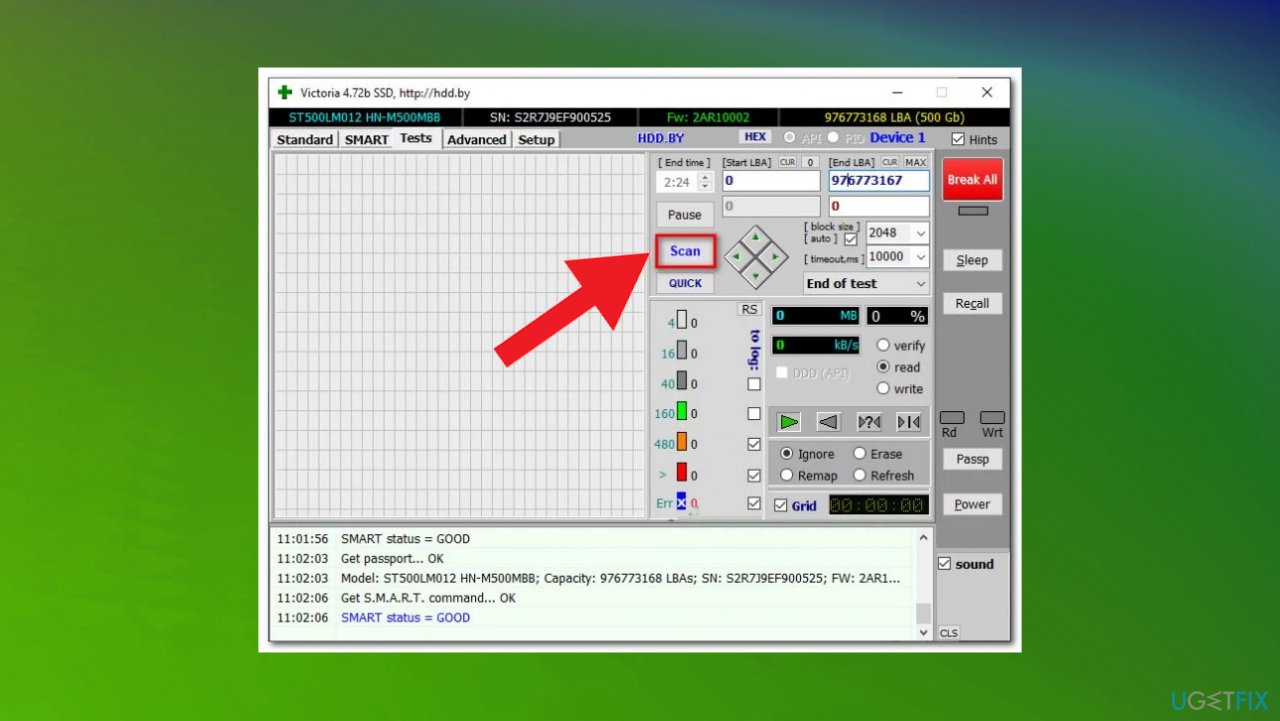
Bad clusters space victoria tests - Click on Scan to scan begin scanning.
- By default, the utility is configured to cover the entire drive, but you can adjust the Start LBA and END LBA attributes to focus the search where the bad sectors are located.
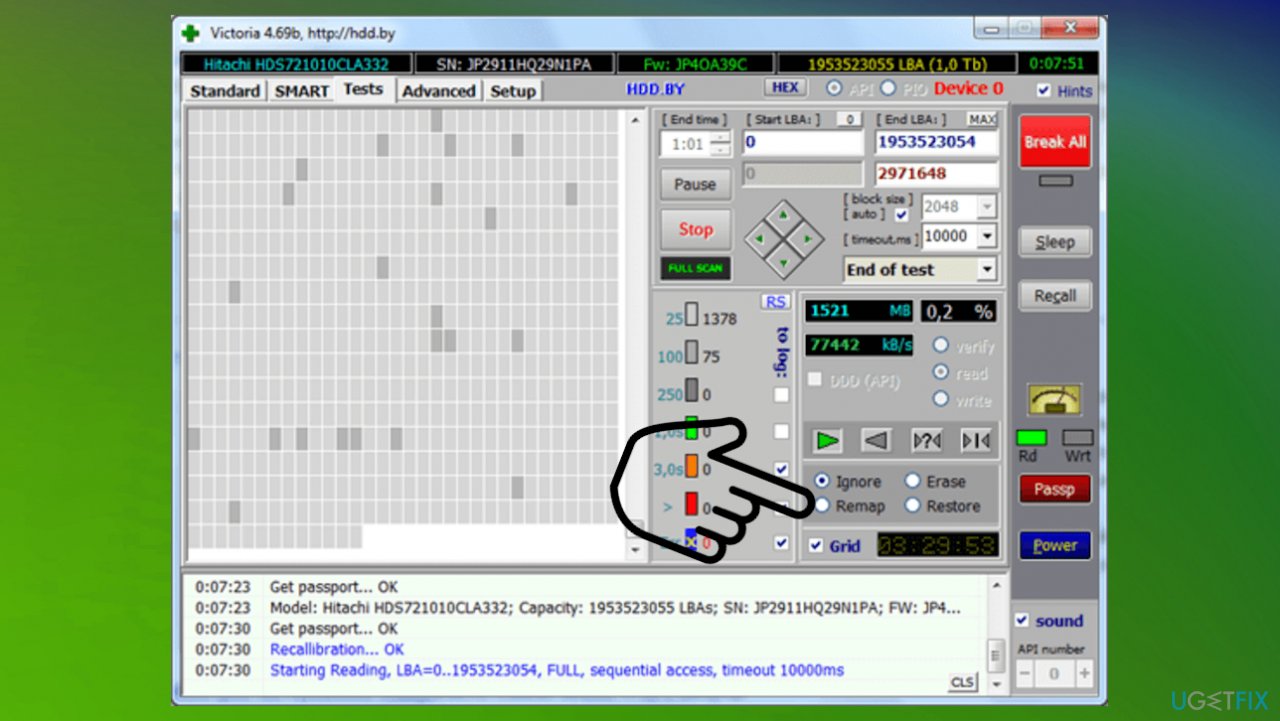
Bad clusters space victoria scan - Choose the Remap toggle from the list to ensure that the program will replace the bad sectors with good sectors.
Bad clusters space victoria remap - Close Victoria and run another CHKDSK scan again.
- If you’re still encountering the same issue, open Victoria again, run another scan and this time choose Refresh.
- This will repair any sectors that are damaged at a software level.
- Restart your computer and see if the issue persists.
Bottom line
To resolve the 'The disk does not have enough space to replace bad clusters' issue, users may need to check for disk errors, ensure adequate free space, and consider backing up data. If these solutions do not work, further advanced processes may be required to address potential hard drive damage.
Frequently asked questions
You can try freeing up disk space by deleting unnecessary files or using the Disk Cleanup tool. Additionally, running the CHKDSK utility can help fix disk errors and potentially recover bad sectors.
Yes, you can use the built-in Storage Sense feature to clear temporary files and optimize space. It's also advisable to back up your data before attempting any repairs or disk formatting.
Regularly maintaining your disk by checking for errors and keeping it defragmented can help mitigate this issue. Additionally, consider upgrading your storage device if you're frequently running low on space.




Report an issue
What's wrong with this guide? We review every report and update or remove content.
Report received — thank you. We'll review and fix it.
You need a free account to submit a report.
Be the first to comment