How to fix
The javaw.exe error
on Windows
Solve the javaw.exe error on Windows 10 and 11 easily. Get quick fixes and expert tips to restore functionality, all with zero traces left.


What causes How to fix the javaw.exe error?
- Malware infection
- Corrupted Windows registry entries
- Javaw.exe was deleted or moved
- Install or uninstall problems with related applications
Repairs Windows system files, removes malware, and restores a clean OS state — without reinstalling.
Could you please tell me what is javaw.exe? I keep receiving notification that Windows cannot find this file. Please advice.
Javaw.exe is a legitimate Windows file that is necessary for the network security and smooth performance of Java-based programs. The file is associated with programs created by Sun Microsystems.[ref en-1] The executable can find on all Windows OS versions, Windows Vista, XP, 7, 8, 8.1, and 10.
The file is closely related to Internet Explorer web browser and is set to inform people about important system updates by delivering a pop-up window in the bottom left corner of the screen. However, it can be used by many other programs that use Java to perform specific activities, for instance, chat programs, web browsers, animations, etc.
However, frequently Javaw.exe gets broken and starts delivering error message, such as:
Windows cannot find javaw.exe.
The main reasons why Windows cannot find javaw.exe error occurs can be:
- malware infection;
- corrupted Windows registry entries;
- Javaw.exe was deleted or moved;
- install or uninstall problems with related applications.
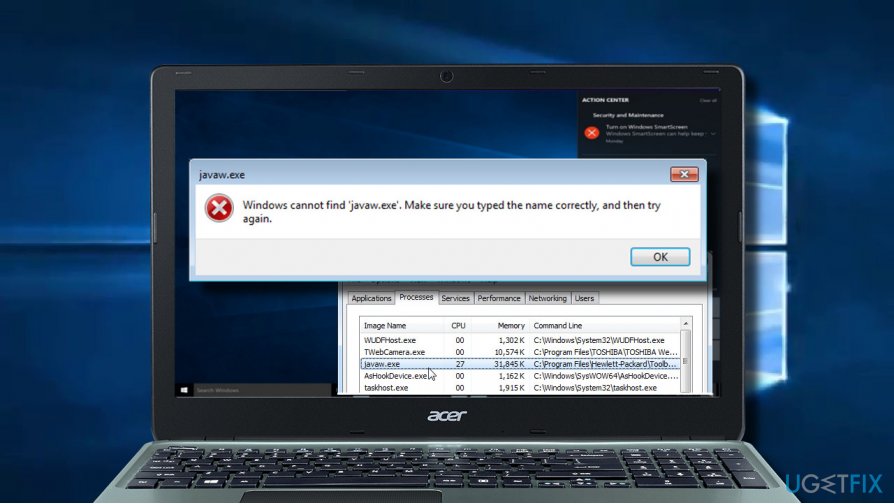
According to cyber security experts,“Windows cannot find javaw.exe” error message may indicates a malware infection,[ref en-2] which is currently misusing this executable file and makes it work abnormally.
There's no need to expatiate on the reasons why you should fix Javaw.exe error ASAP, but you must know several facts anyway. First of all, a corrupted file may diminish your PC's performance severely. That is because one of the crucial system files is taken out, and the rest have to take over its tasks.
Also, it may cause your PC's system to freeze and crash more frequently. It goes without saying that sometimes you may face difficulties in performing the simplest operations on your machine. Besides, Javaw.exe error continuously prompts emergence of Blue Screen of Death.[ref en-3] Finally, this file may start causing issues with registries and other .exe files, so make sure that you react to this issue appropriately. If you want to fix it without putting any effort, then you can download [d1] and fix Javaw.exe with one click.
Methods to fix Windows cannot find javaw.exe error
The first thing that you should do is to make sure whether Javaw.exe file is installed on your PC. For that, open C:\\\\Program Files\\\\Java\\\\jdk1.5.0_09\\\\ jre\\\\ bin\\\\ and check if the file is located in this directory. If you cannot find this file or it is in a different location, you should check the device for malware.
This video will help you with the issue:
[youtube kVt-gHkKxk4]
Step 1. Check if your computer is not infected with a virus
As we have already mentioned, the most frequent reason for this error is malware infection, so system check with anti-malware should help you to detect the cause and get rid of it.
Therefore, if you receive a pop-up window that informs about missing Javaw.exe error, you should download a reliable anti-spyware, such as Reimage [rev id=“Reimage”], and initiate a full system check.
If the culprit of the error is not a virus, Javaw.exe error most probably is triggered by a corrupted Javaw.exe file. To check that, you should open Windows Task Manager and check your PC's CPU usage. Actually, you should check CPU usage quite frequently. To do that, you have to:
- Click Ctrl+Alt+Del at once and open Task Manager;
- Open Processes tab and find the javaw.exe file.
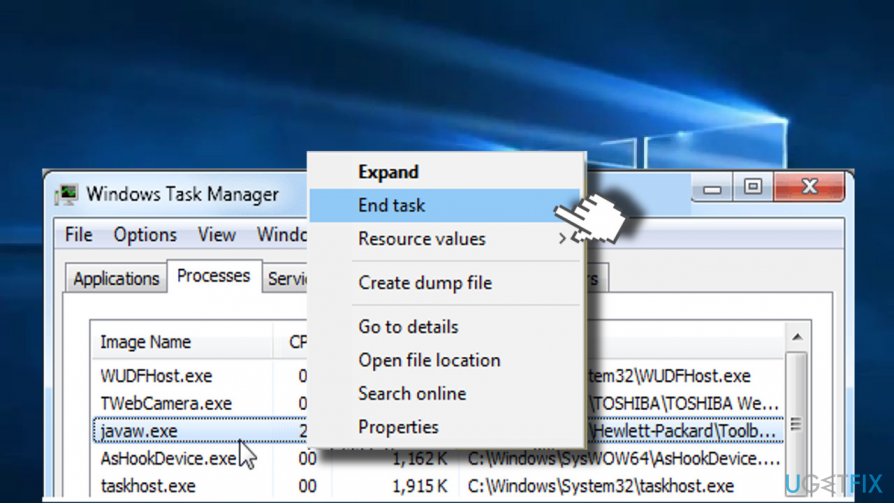
Check javaw exe in task manager
The genuine javaw.exe file does not consume huge amount of memory, so if the file that you have found uses an excessive amount of memory, most probably you are encountering a fake one.
In case malware is not the culprit of the javaw.exe error, the problem was probably caused by old version of system files. To check and fix that, please try the following methods.
Step 2. Make sure that location to the Environment variable path is correct
- Press Win+R keys.
- Type sysdm.cpl in the Run window and click Enter.
- Navigate to the Advanced tab.
- Click on Environment Variable button at the end of the window.
- In the category System Variables click New… button.
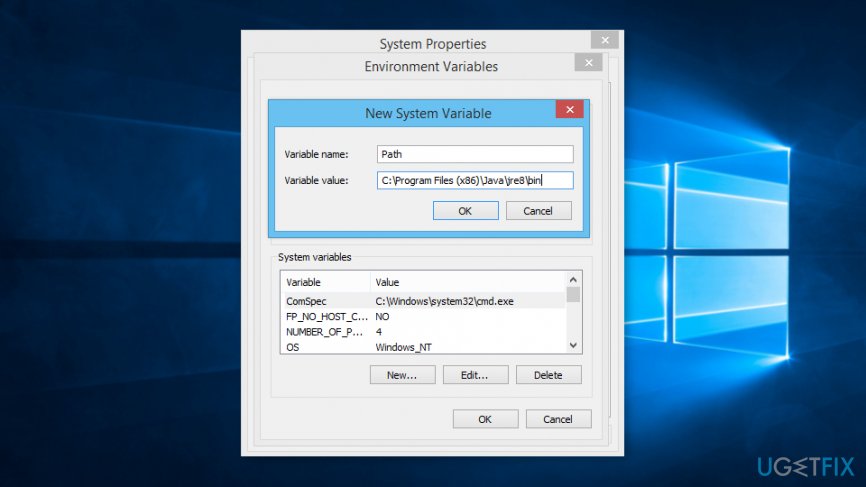
Environment variables settings - In the Variable name box enter Path.
- In the Variable value type the correct path which by default is C:\\Program Files\\Java\\jre7\\bin for java 1.7.x on a 32-bit version of Windows, C:\\Program Files (x86)\\Java\\jre8\\bin for java 1.8.x on a 64-bit version of Windows, etc.
Step 3. Reinstall Java
First of all, you have to uninstall Java:
- Open Control Panel.
- Navigate to Uninstall a program (or Add/Remove Programs).
- Find Java, select it and click Uninstall button.
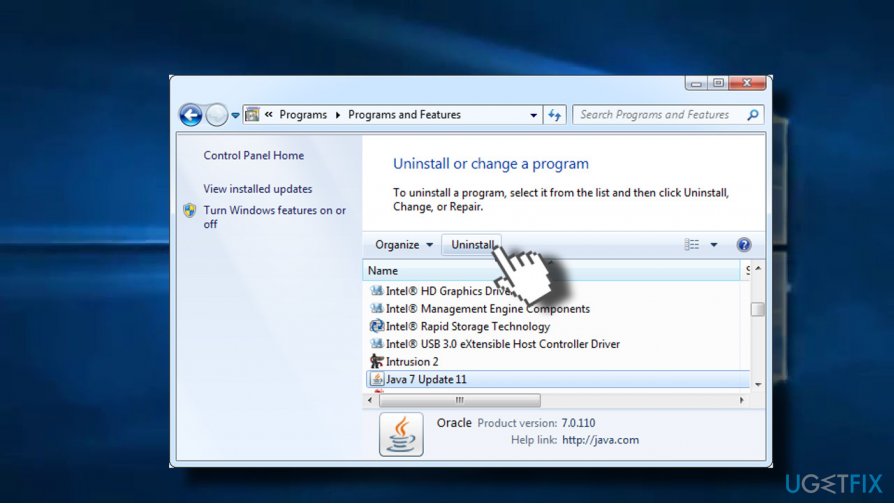
Uninstall java
Once you uninstall it, go to java.com website and download the latest version of the program which is compatible with your computer.
Step 4. Fix Windows Registry problems
The following steps require making changes to Windows Registry. We highly recommend creating backups of the Registry in case something goes wrong.
- Click Win + R.
- In the Run box, enter regedit and click Enter.
- Navigate to HKEY_LOCAL_MACHINE\\SOFTWARE\\Microsoft\\Windows\\CurrentVersion\\App Paths\\javaws.exe.
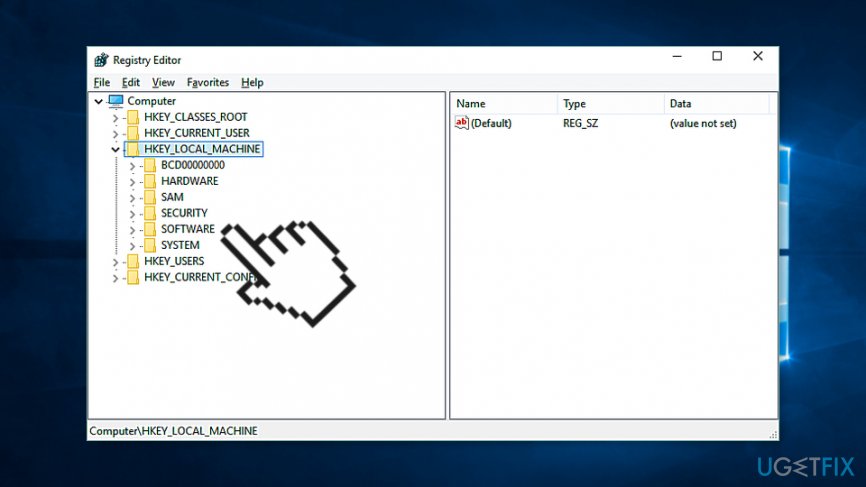
Navigate to hkey local machine - Right-click javaw.exe folder and delete it from the system.
- Restart your PC.
In case the methods provided above did not help, we would recommend you to reinstall Internet Explorer because it may be the cause of the javaw.exe error. For this purpose, perform the steps regarding Java removal, except that you have to uninstall Internet Explorer (or another web browser).
Bottom line
To fix the 'Windows cannot find javaw.exe' error, you can attempt to restore the file, repair the Windows registry, or reinstall Java-related applications. If these methods do not resolve the issue, consider downloading a specialized tool to fix the problem automatically.
Frequently asked questions
The javaw.exe error can be caused by corrupted Java installations, missing files, or conflicts with other software. Additionally, outdated Java versions can also trigger this error.
To fix the javaw.exe error on Windows 10, try uninstalling and reinstalling Java, ensuring you download the latest version from the official website. You may also want to check for Windows updates and ensure your system is up to date.
To prevent the javaw.exe error on Windows 11, regularly update your Java software and Windows operating system. Additionally, avoid installing untrusted applications that may conflict with Java.




Report an issue
What's wrong with this guide? We review every report and update or remove content.
Report received — thank you. We'll review and fix it.
You need a free account to submit a report.
Be the first to comment