How to fix
“The Spotify application is not responding” error
on Windows
Resolve the "Spotify application not responding" error on Windows 10 and 11 effortlessly. Get your music flowing again with expert-tested solutions!

What causes How to fix “The Spotify application is not responding” error in Windows?
- Hardware Acceleration setting in Spotify
- Windows Defender Firewall
- Cache issues
- Corrupted files
- Registry issues
Repairs Windows system files, removes malware, and restores a clean OS state — without reinstalling.
Hello. When I tried to open Spotify I received the "The Spotify application is not responding" error on my Windows computer. What should I do to fix this?
With 406 million monthly active users and 180 million paying subscribers as of December 2021, Spotify is one of the world's most popular music streaming service providers. It has a library with digital recordings of copyrighted songs, podcasts, and even learning material.
However, when trying to use the Spotify application on Windows, users can encounter various issues. We previously wrote about song change notifications not working on Windows 11, and the "Something went wrong" error. One of the most common issues that users encounter when trying to open Spotify on Windows is "The Spotify application is not responding" error.
It is unknown what exactly causes this problem. It could be the Hardware Acceleration setting in Spotify, the Windows Defender Firewall, etc. In this guide, you will find
"The Spotify application is not responding" error in Windows could also be caused by cache[ref en-1] which is often the culprit of many malfunctions. We suggest employing a maintenance tool like [d1] that can clear cookies and cache automatically. This powerful software can also fix various system errors, BSODs,[ref en-2] corrupted files, and registry[ref en-3] issues which can help in keeping the system running smoothly. Otherwise, follow the step-by-step instructions below.
Solution 1. Force Quit Spotify App
For most people, going to the Task Manager and ending the Spotify process helped solve the issue.
- Hold down Ctrl + Shift + Esc keys to open Task Manager
- Right-click Spotify and click End task
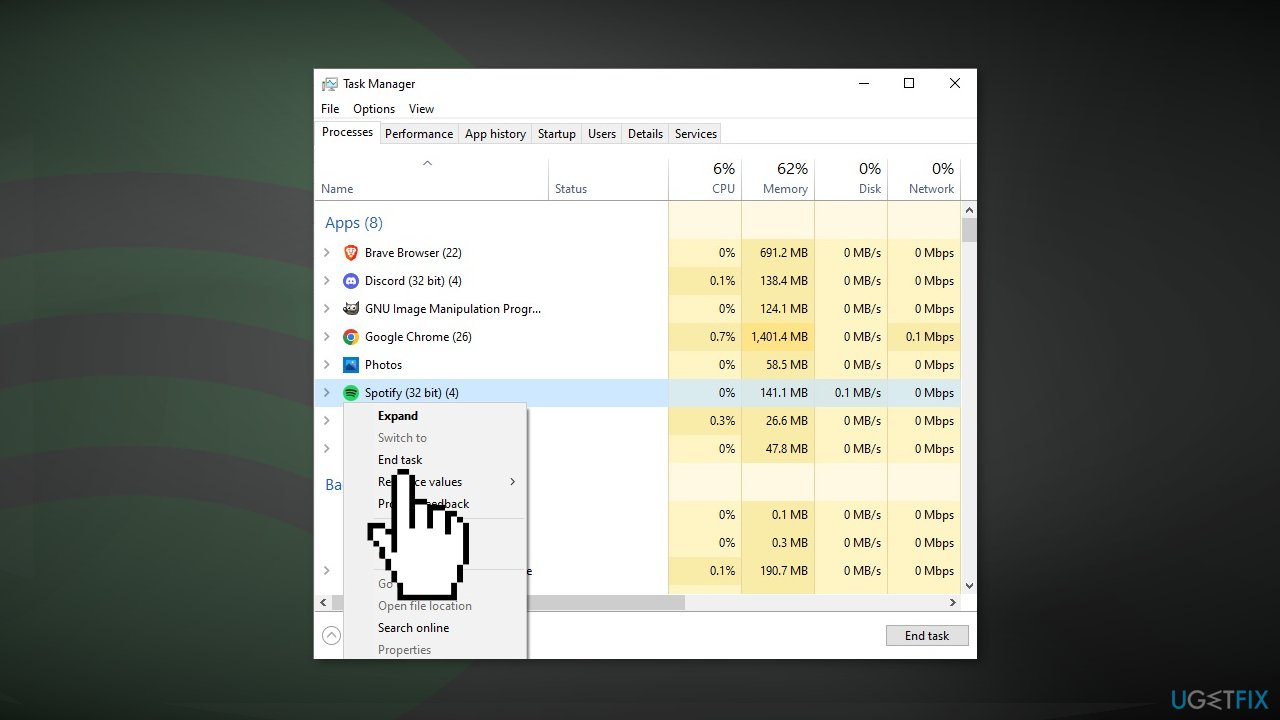
- Close the Task Manager and relaunch Spotify
Solution 2. Disable Hardware Acceleration
Hardware acceleration in Spotify helps optimize the performance of the app on top of the software, which should lead to an overall better quality music listening experience. However, some people found that disabling this feature helped in resolving "The Spotify application is not responding" error.
- Open Spotify
- In the top-left corner, click the three dots to open the drop-down menu
- Select Edit and click Preferences
- In the Settings window, scroll to find the Compatibility section
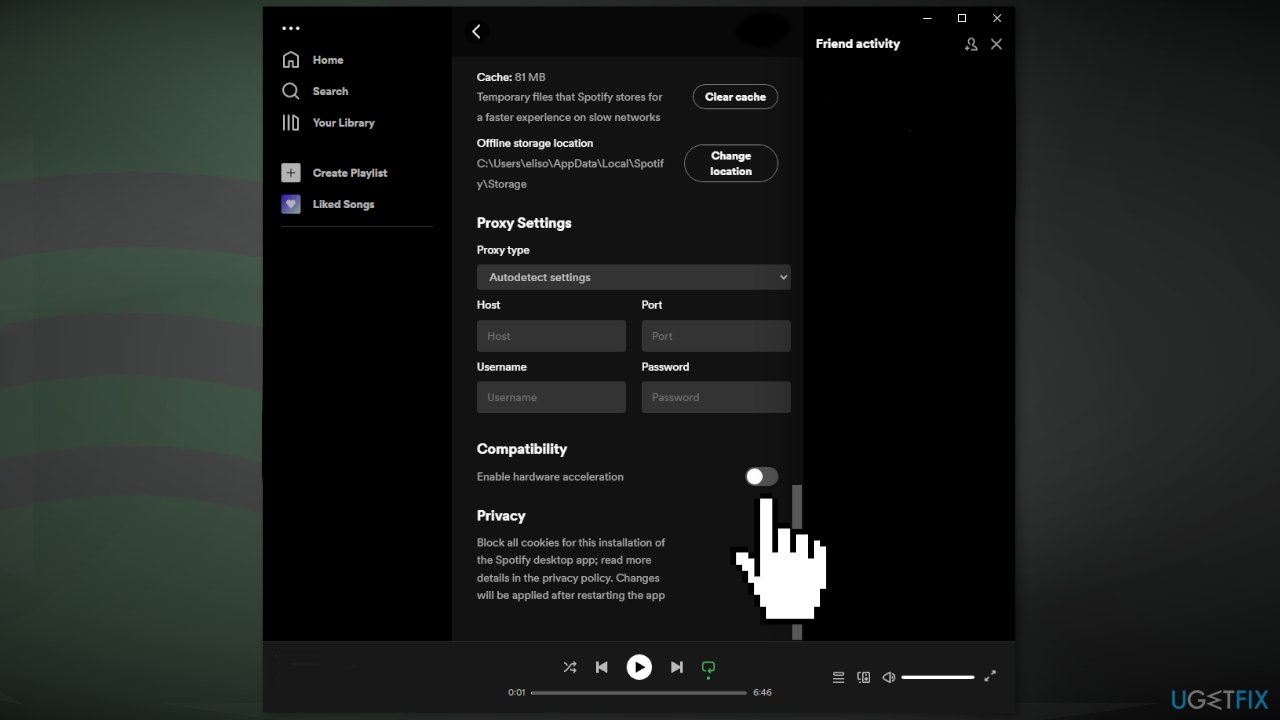
- Toggle off the slider next to Hardware acceleration
- Restart Spotify
Solution 3. Allow Spotify to Run through the Firewall
The Windows Defender Firewall might be blocking Spotify from launching because it mistakenly perceives it as a threat. Follow the steps below to check your Firewall settings:
- Press the Windows key + R to open the Run box
- Type in firewall.cpl and click OK
- Click Allow an app or feature through Windows Defender Firewall
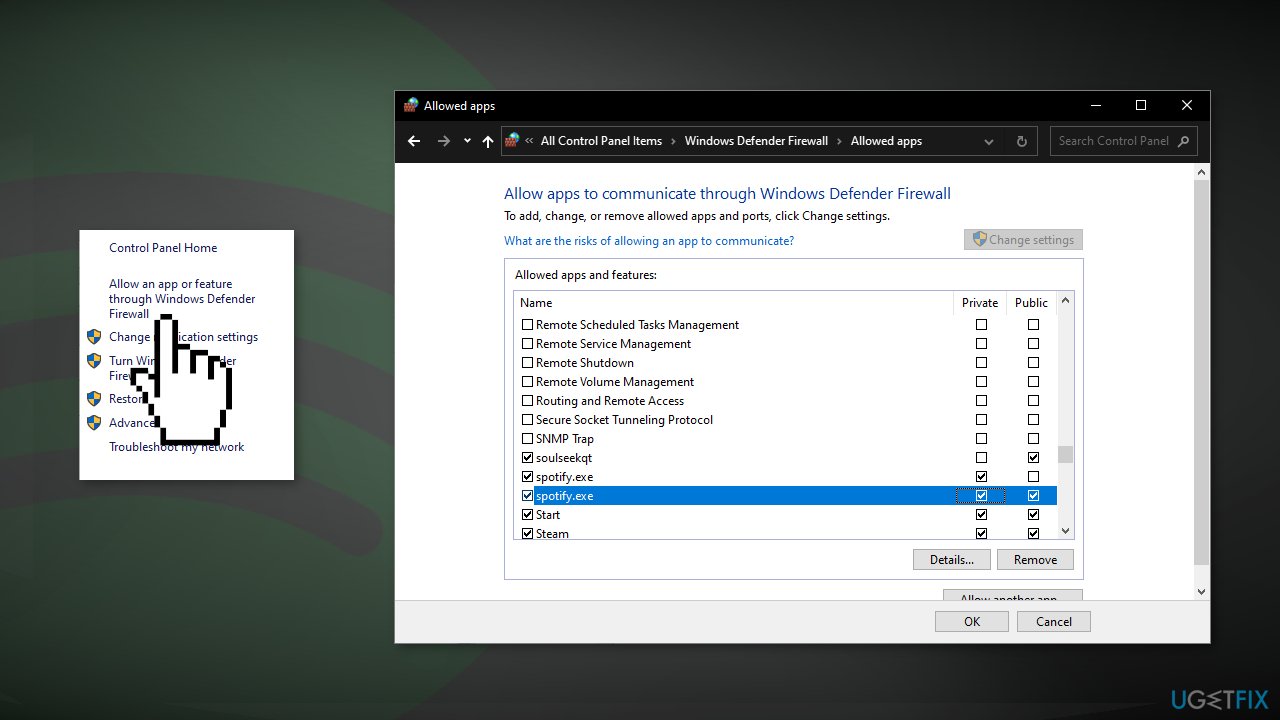
- Click Change settings
- Scroll down and locate Spotify.exe
- Mark the Private and Public checkboxes next to Spotify.exe and click OK
Solution 4. Clear Spotify’s Cache
Cache is a software component that stores data so that future requests for that data can be served faster. However, the buildup of cache is known to cause various malfunctions.
- Close Spotify if it is running
- Press the Windows key + R to open the Run dialog
- Type %AppData% and click OK
- Access the Spotify folder and then open the Users folder
- Go to your user folder
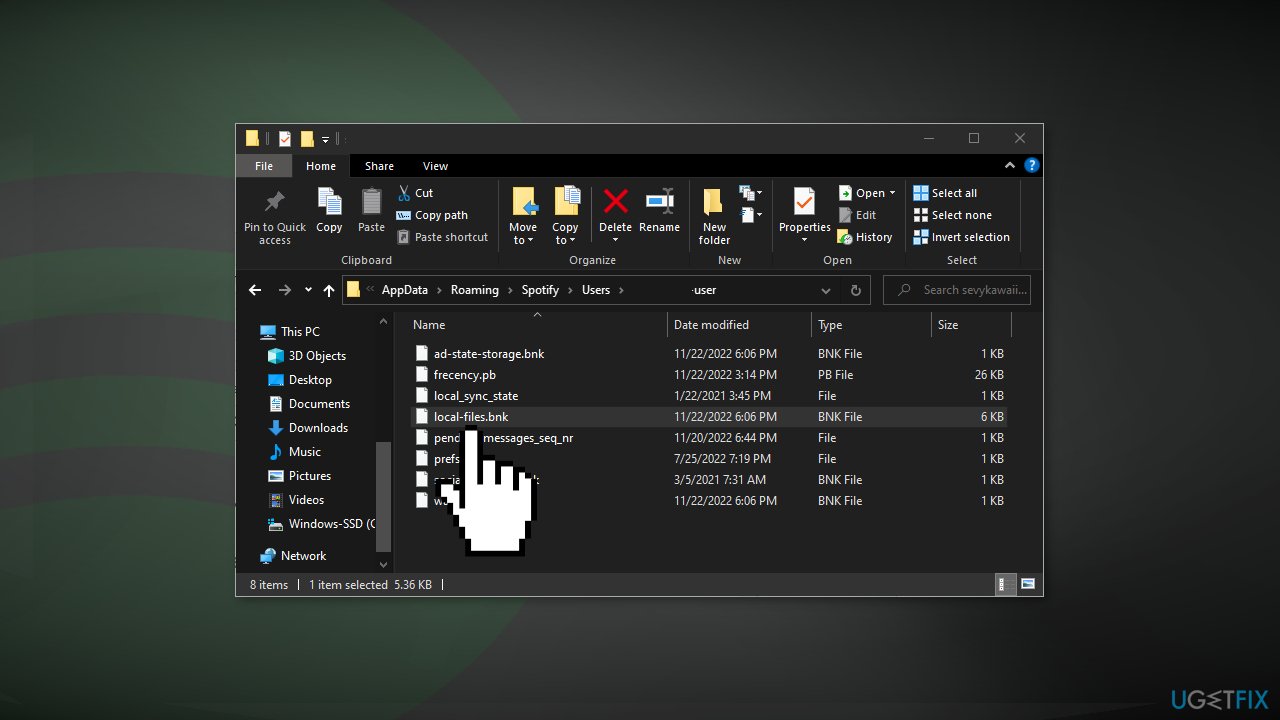
- Right-click the local-files.bnk file and click Delete
- Restart Spotify
Solution 5. Reinstall Spotify
If none of the above methods fixed the error, uninstall Spotify and see if it get rids of the problem:
- Go to Apps and Features
- Locate Spotify in the list, press on it, and click Uninstall
- Click Uninstall again to confirm the removal
- Click OK when prompted and restart your PC
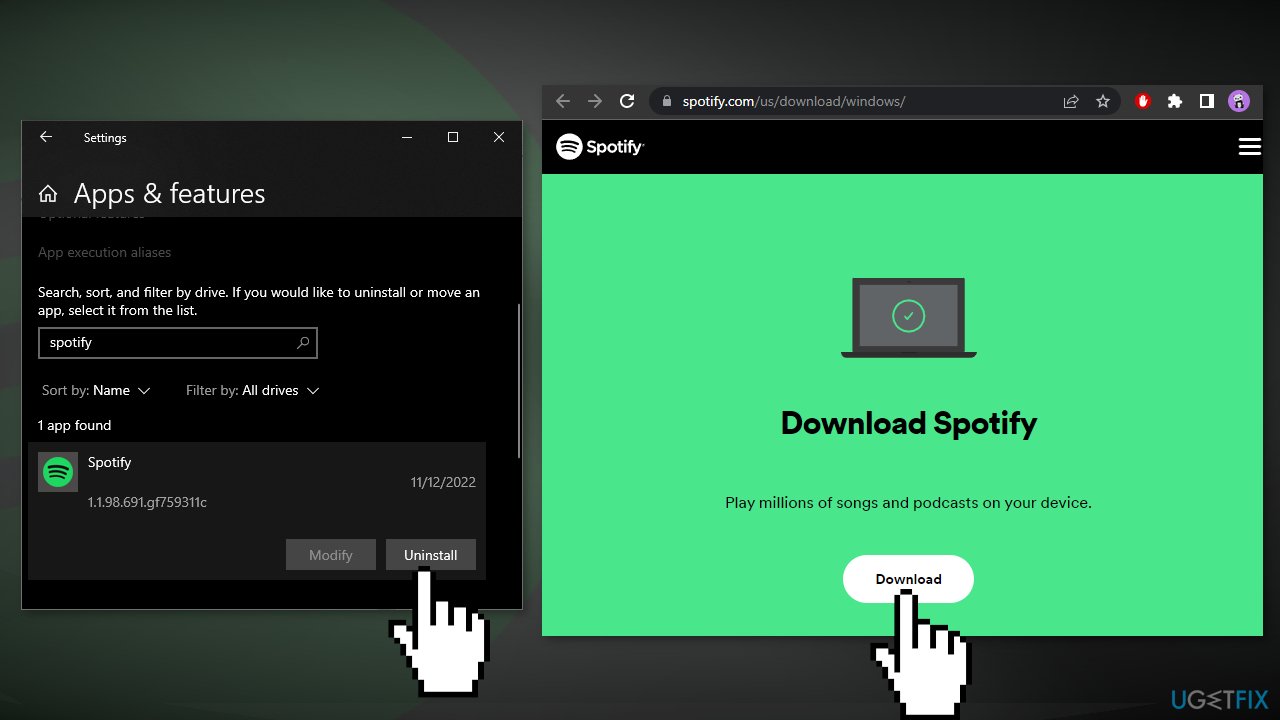
- Open your web browser and go to the official Spotify website
- Click on the Download button
- Once downloaded, run SpotifySetup.exe
- Click Log In
- Check if the issue disappeared
Bottom line
To fix the "The Spotify application is not responding" error, you can force quit the Spotify app using Task Manager or disable Hardware Acceleration in the app settings. If these solutions do not resolve the issue, consider using a maintenance tool to clear cache and fix system errors.
Frequently asked questions
Try restarting the Spotify app by closing it from the Task Manager and then reopening it. If the issue persists, consider reinstalling Spotify to ensure you have the latest version.
You can clear the app cache by navigating to Settings > Apps > Apps & features, selecting Spotify, and then clicking on 'Advanced options' to reset it. Additionally, check for Windows updates that might improve app performance.
Ensure that Spotify is allowed through Windows Firewall by checking the firewall settings and adding it as an exception if necessary. Also, make sure your audio drivers are updated, as outdated drivers can cause app conflicts.




Report an issue
What's wrong with this guide? We review every report and update or remove content.
Report received — thank you. We'll review and fix it.
You need a free account to submit a report.
Be the first to comment