How to fix
The VIDEO_TDR_FAILURE error
on Windows
Resolve the VIDEO_TDR_FAILURE error on Windows 10 and 11 effortlessly. Follow our expert-tested solutions for a smooth computing experience. Fixed in mi…

What causes How to fix the VIDEO_TDR_FAILURE error?
- Upgrade to Windows 10
- Driver update
- Excessive GPU power usage
- Malware infection
- Outdated graphics drivers
Repairs Windows system files, removes malware, and restores a clean OS state — without reinstalling.
Hello guys. Recently I have been getting a VIDEO_TDR_FAILURE error on the blue screen on my Windows 10. I am not sure what that means. I never used to have this problem with previous Windows versions. I tried to restart my computer, but it did not help. Any advice what I can do?
VIDEO_TDR_FAILURE is a Blue Screen of Death[ref en-1] (in short - BSOD) message that appears as a full screen that is locked. BSOD is considered to be a stop error as you can’t simply close it and save your data. The only thing you can do at that point is to restart your computer. Thus, data loss is possible when encountering it.
VIDEO_TDR_FAILURE is directly related to graphics display drivers.[ref en-2] TDR stands for Timeout, Direction, and Recovery and it is an essential component in Windows OS. When the graphics driver stops responding, Windows brings up BSOD error message to prevent OS from possible damage. The restart will attempt to fix the problem.
There few reasons why the graphs card driver might stop responding. It might happen after an upgrade to Windows 10, driver update or when an excessive amount of GPU power is used, for example rendering HD video[ref en-3] files or playing high-end games.
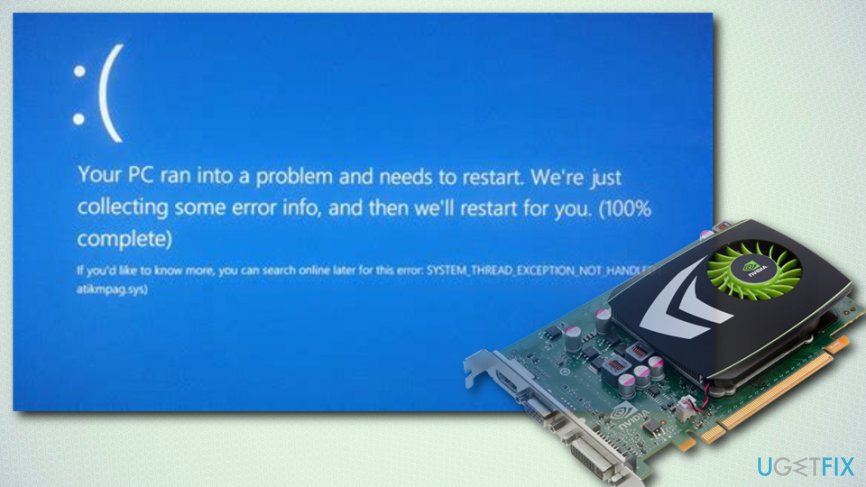
VIDEO_TDR_FAILURE can be accompanied by the further explanation of the error, depending on the graphics card used. In case Intel card is used, Windows can also indicate the file name of the error, which would be “igdkmd64.sys”. AMD[ref en-4] graphic cards would display “atikmpag.sys.” Thus, pay attention to this information as it can lead to an easier solution.
In some cases, a VIDEO_TDR_FAILURE fix might only be achieved by scanning your computer with [d1] as malware can be the cause of well-known Windows errors. Therefore, you have to make sure that your computer is not infected first.
Nevertheless, whatever the root cause of your problem is, we will help you solve it. Our security experts prepared a guide, offering few solutions to this problem, so keep reading.
Fix 1. Update your graphics drivers
Outdated or corrupted graphics drivers is the main culprit for this error. GPU driver is software which determines how hardware and operating system interacts with each other. Therefore, if drivers are outdated, they might cause a VIDEO_TDR_FAILURE error.
- Click on Start button and type Device Manager into the search box
- Expand the category of your Display Adapter, select the correct video card (if you have integrated graphics, you will only have one choice), right-click on it and pick Update Driver
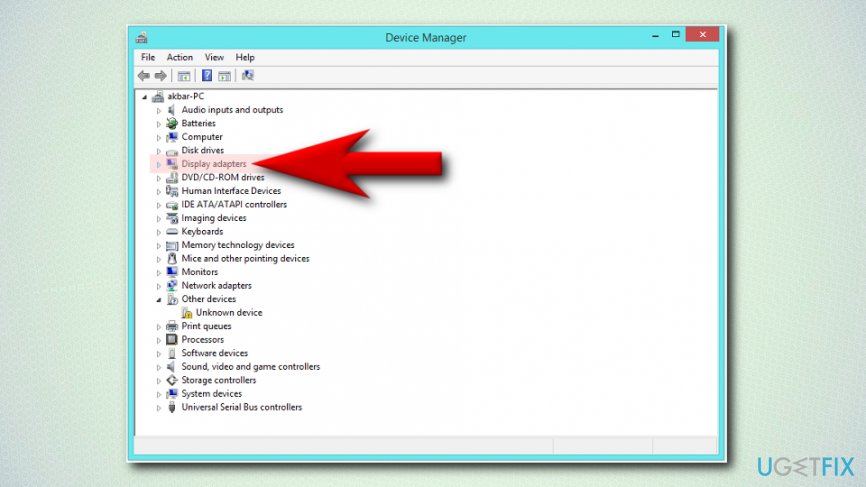
- Choose the Search automatically for updated driver software option
- Windows will perform a search online and automatically update the driver
- Restart your computer
Alternatively, you can also download the latest display driver from the manufacturer’s website. Make sure you select the correct driver though.
Fix 2. Reinstall your display drivers
Sometimes drivers might get corrupt and not function properly. In this case, remove the current driver and install the new one:
- Go to Device Manager again and find your Display Adapters
- Rick-click on your graphics device and select Uninstall device
- A warning might pop-up. Before clicking Uninstall, make sure you have Delete the driver software for this device ticked.
- Then, install new drivers and reboot your PC
Fix 3. Adjust your video settings
Sometimes the cause of the problem is GPU overload. That means that you are running way too intense graphics processes that your graphics processor cannot handle. The easiest way to fix it is by adjusting graphics settings. Go to your graphics card’s control panel and decrease the settings to medium or low.
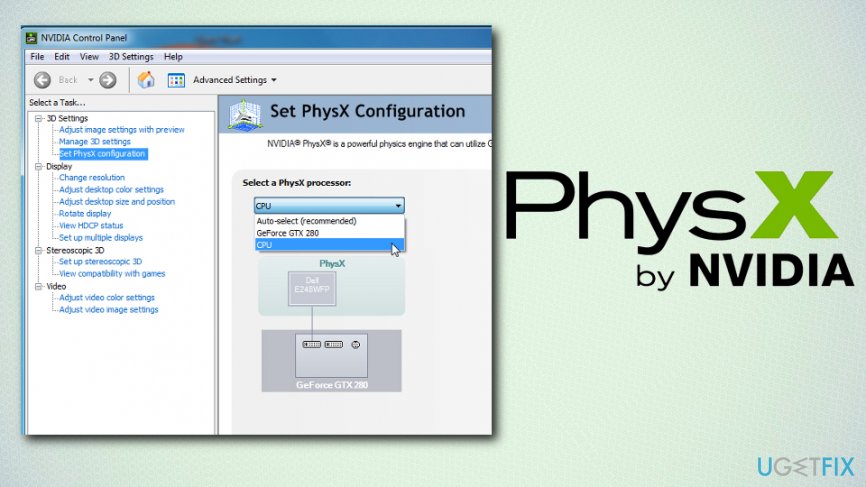
Fix 4. Check if your computer is using the correct GPU for PhysX
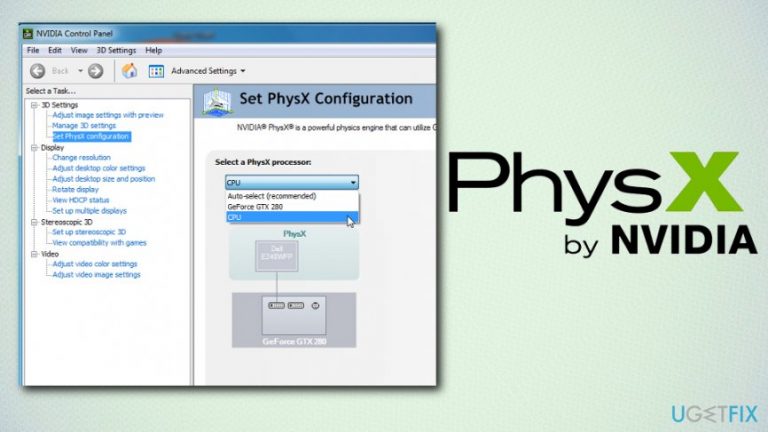
In some cases, the selected graphics card for PhysX[ref en-5] GPU acceleration might not be your primary one. Go to Nvidia control panel and pick PhysX configuration and then select the preferred GPU.
Fix 5. Check for programs conflict
Sometimes VIDEO_TDR_FAILURE error might be caused by recently installed programs or drivers. Try removing or reinstalling these applications.
Additionally, it has been reported that Logitech webcam might cause the BSOD. Thus, remove the webcam drivers and see if it helps.
Fix 6. Manage your workload
Manage your graphics intensive programs correctly. For example, if you are editing an HD video, make sure you do not have any background programs running. Additionally, if you are playing video games, some anti-virus software has the Game mode function that disables all the unused background processes during gaming sessions.
Fix 7. Upgrade your graphics processing unit
If you are continually using programs that use a lot of GPU power, you should merely upgrade your graphics card to the newer model. This way, the upgrade to hardware can help you manage the workload without errors.
Bottom line
To fix the VIDEO_TDR_FAILURE error, you can update your graphics drivers, scan for malware, and check for excessive GPU usage. If these solutions do not resolve the issue, further troubleshooting may be necessary.
Frequently asked questions
The VIDEO_TDR_FAILURE error is often caused by issues with your graphics card drivers, hardware malfunctions, or system file corruption. It indicates that the Timeout Detection and Recovery (TDR) feature has failed to reset your graphics card.
To update your graphics drivers in Windows 10 or Windows 11, go to Device Manager, expand the Display adapters section, right-click your graphics card, and select 'Update driver'. You can also visit the manufacturer's website for the latest drivers.
Yes, you can troubleshoot hardware issues by checking the physical connection of your graphics card, running Windows Memory Diagnostic, or using the built-in troubleshooter in Windows to identify potential hardware conflicts.




Report an issue
What's wrong with this guide? We review every report and update or remove content.
Report received — thank you. We'll review and fix it.
You need a free account to submit a report.
Be the first to comment