How to fix
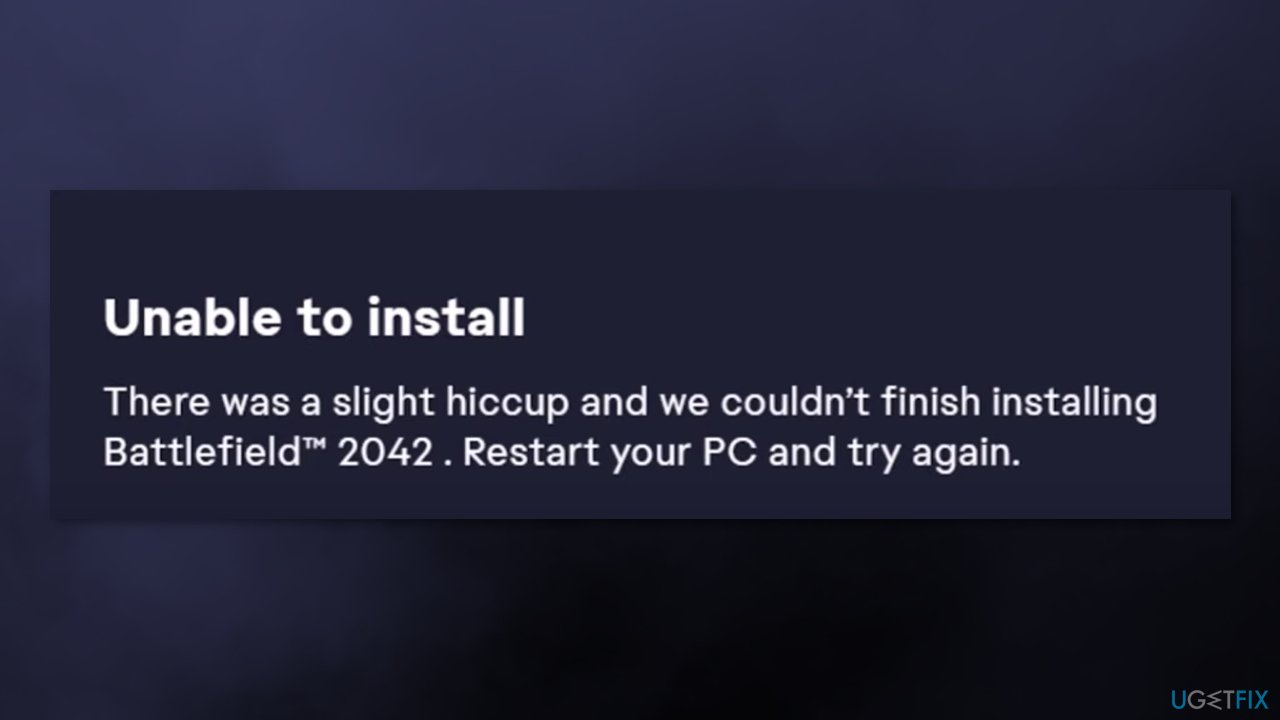
“There was a slight hiccup and we couldn’t finish installing” error in EA app
on Windows
Resolve the "There was a slight hiccup" error in the EA app on Windows 10 and Windows 11 quickly. Expert-tested solutions included!

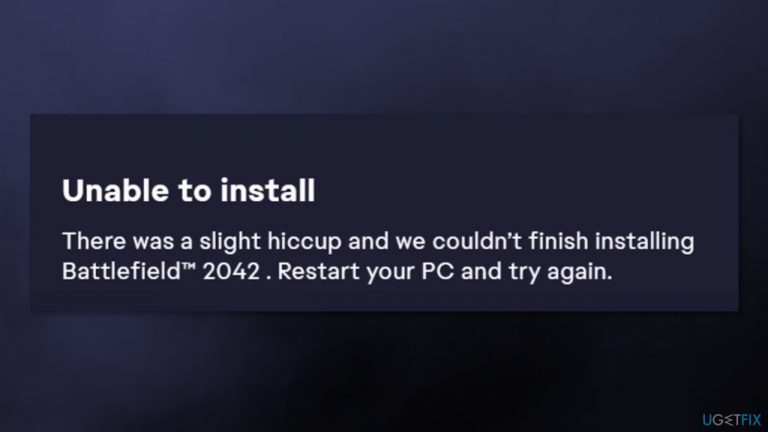
What causes How to fix “There was a slight hiccup and we couldn’t finish installing” error in EA app?
- Minor system issues
- Glitch in the EA Play app
- Corrupted files
- Registry issues
- Interference from other downloads
Repairs Windows system files, removes malware, and restores a clean OS state — without reinstalling.
Hello. I have been trying to install a game from the EA app but I keep getting an error message "There was a slight hiccup and we couldn’t finish installing." What should I do?
Electronic Arts is a video game company that develops and publishes games, including Battlefield, Need for Speed, The Sims, and many more. It has its' own subscription-based video game service EA Play. It is available for Xbox One, Xbox Series X/S, PlayStation 4, PlayStation 5, and Microsoft Windows users.
While the EA app has nearly 13 million active players, not all of them have a smooth experience. Some people run into issues when trying to install new games on the EA app. "There was a slight hiccup and we couldn’t finish installing" is a message that appears when trying to download various games. The error is not related to any specific game as people have reported about it with a number of games, like FIFA 22, Battlefield 2042, etc.
It is not exactly clear why the message "There was a slight hiccup and we couldn’t finish installing" appears but it might be a minor glitch[ref en-1] in the EA Play app that can hopefully be fixed by completing simple troubleshooting steps. However, if you want to keep your system running smoothly, a repair tool like [d1] will surely help. It can fix various system errors, BSODs,[ref en-2] corrupted files, and registry[ref en-3] issues.
Method 1. Restart your PC
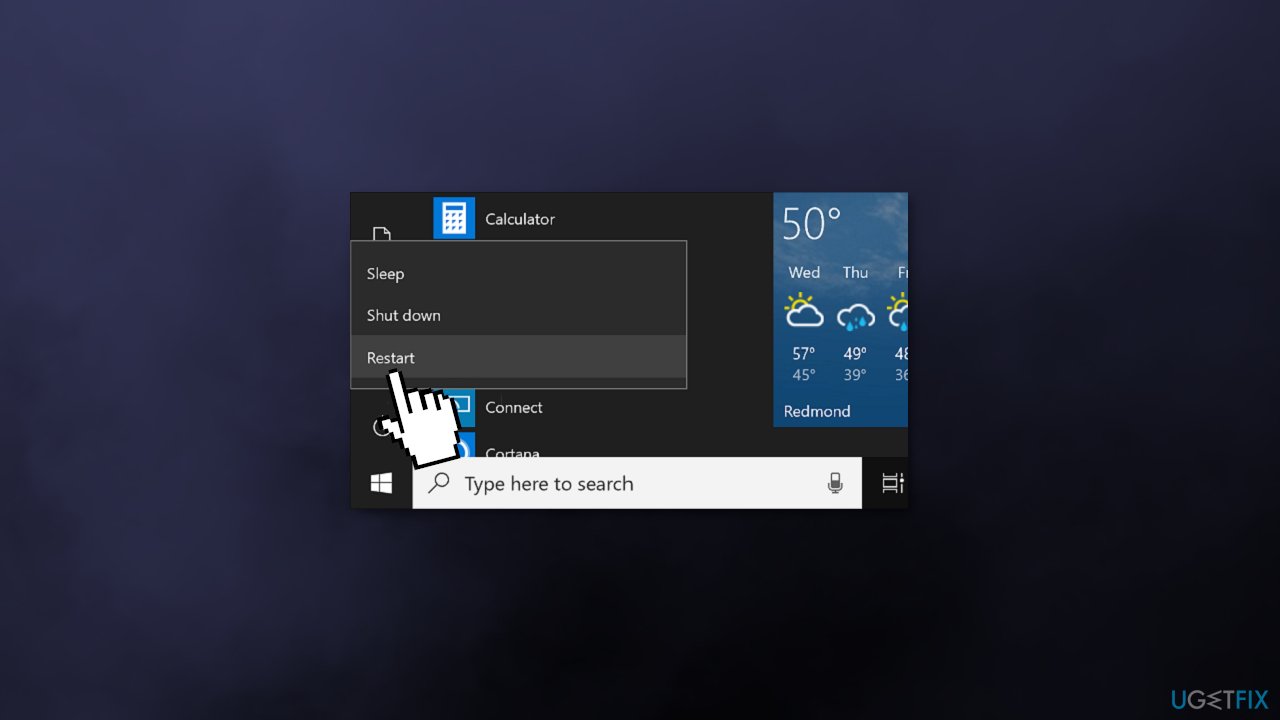
Restarting your Windows device may fix minor system issues so it is always worth a try.
- Click on the Windows logo button and choose Restart
Method 2. Download Another Game and Cancel
To fix the EA Play app glitch, try choosing another game to download. You can pick a free game like Apex Legends.
- Find a free game to download, and press the Download button
- Wait till the installation process begins and then click Cancel download
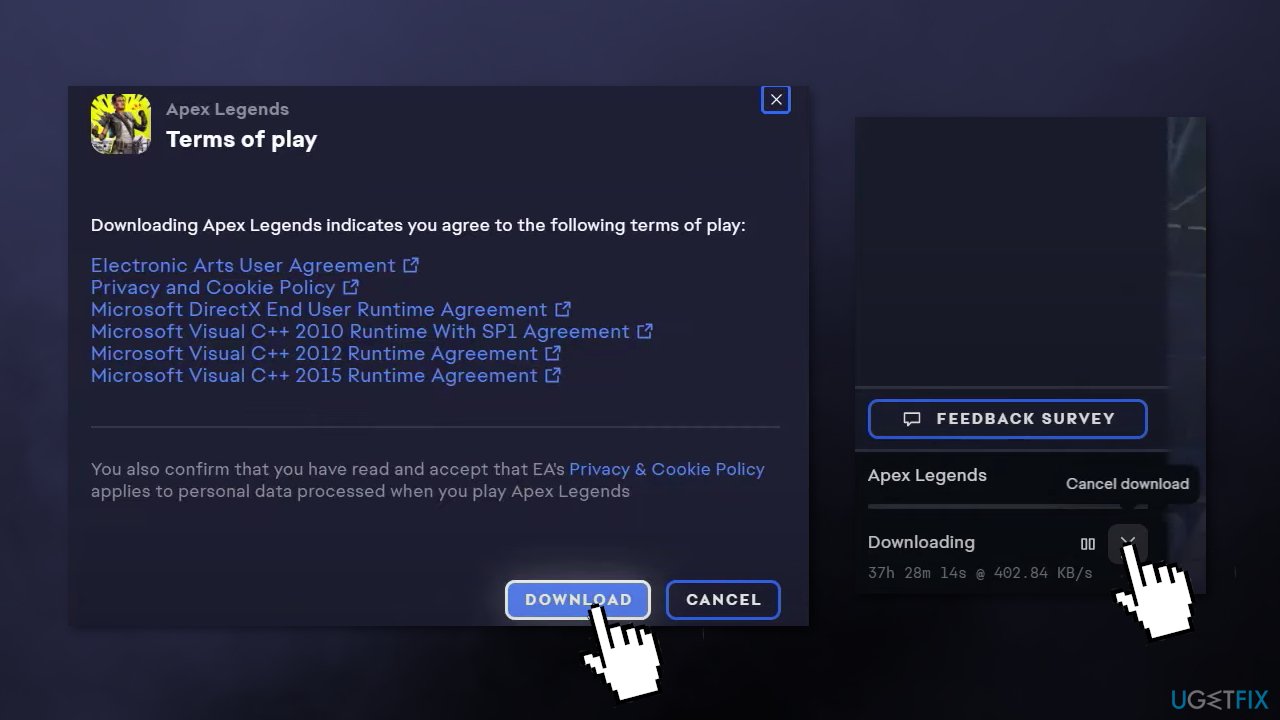
- Now go back to the game that you were having problems with, and try to download it again
Method 3. Log out of the EA app and Log in again
- Log out of your EA account
- Open the Task Manager by typing into the search
- Find EA Background Service in the list, right-click and choose End task
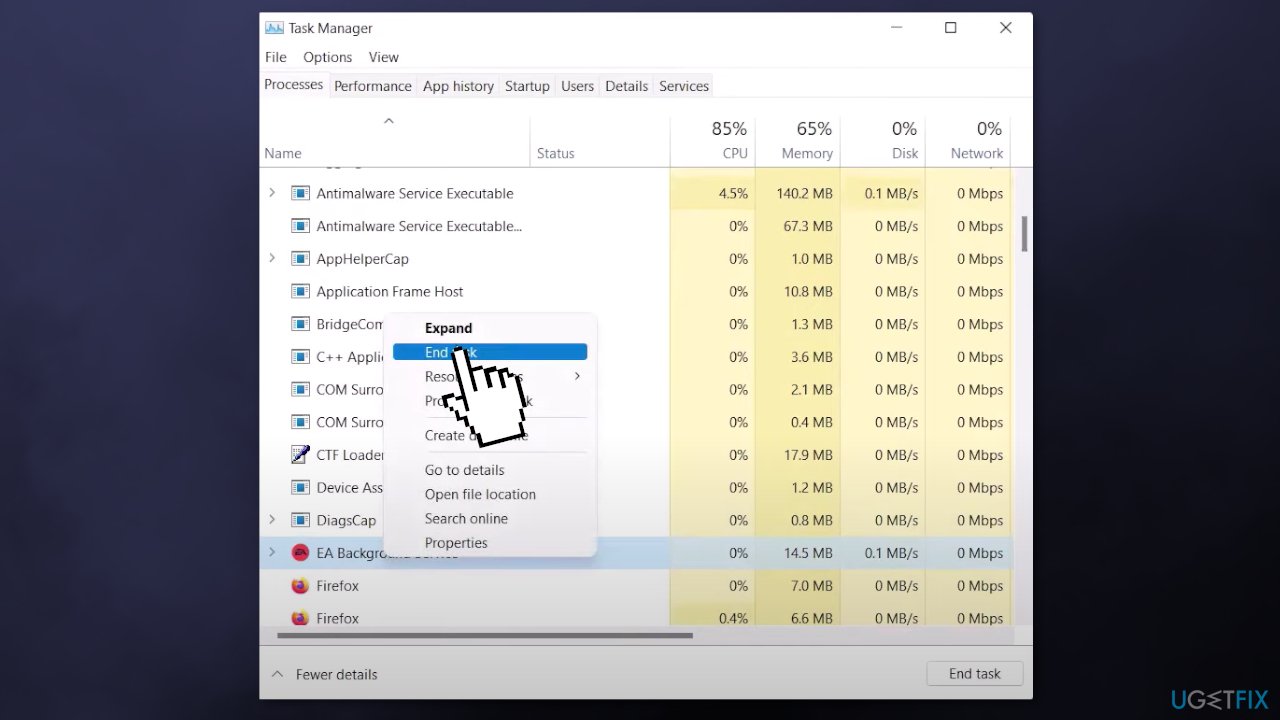
- Wait a few moments, open the EA Play app again and Log in
- Check if the issue persists
Method 4. Reinstall EA Play
- Type Apps & Features into the Windows search and click on the first result
- Find EA Play in the list, click on it, and choose Uninstall
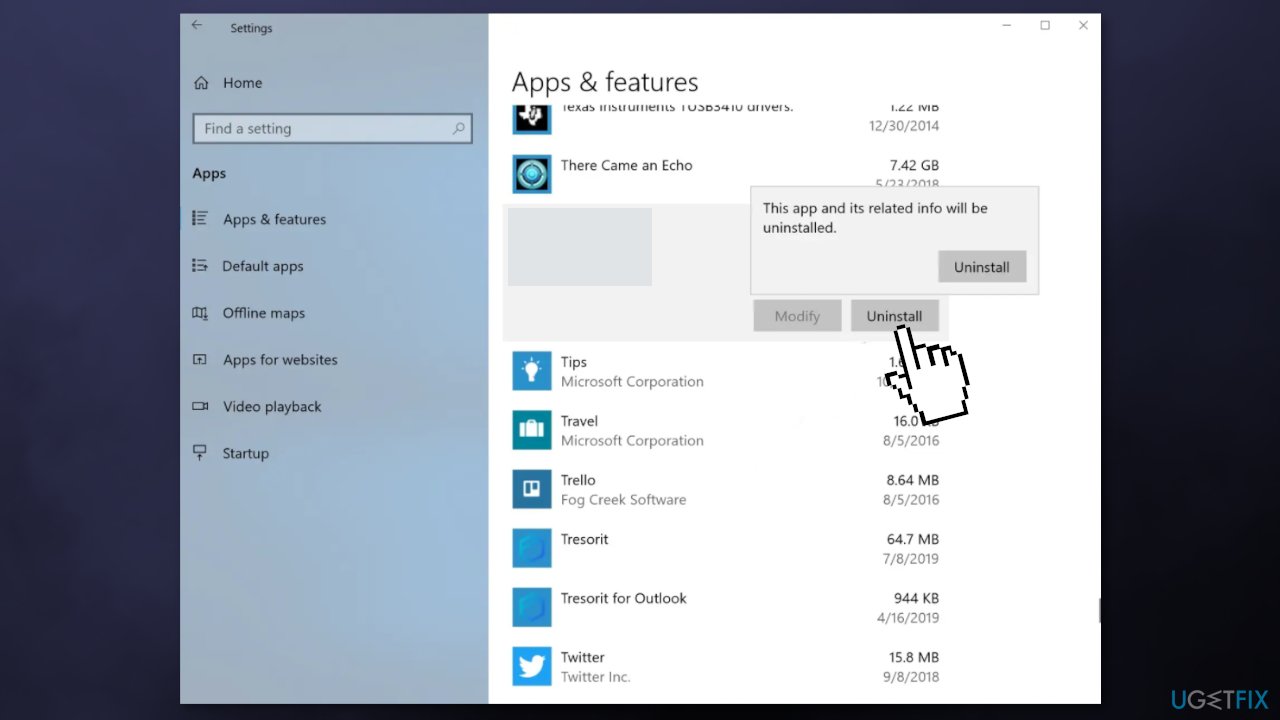
- Now download the app again and check if the error is fixed
Method 5. Use Origin to Install the Game
You can try using the Origin app to download the game you want:
- Download Origin from the official website if you do not have it already
- Use the same username and password you use with EA Play to Log in
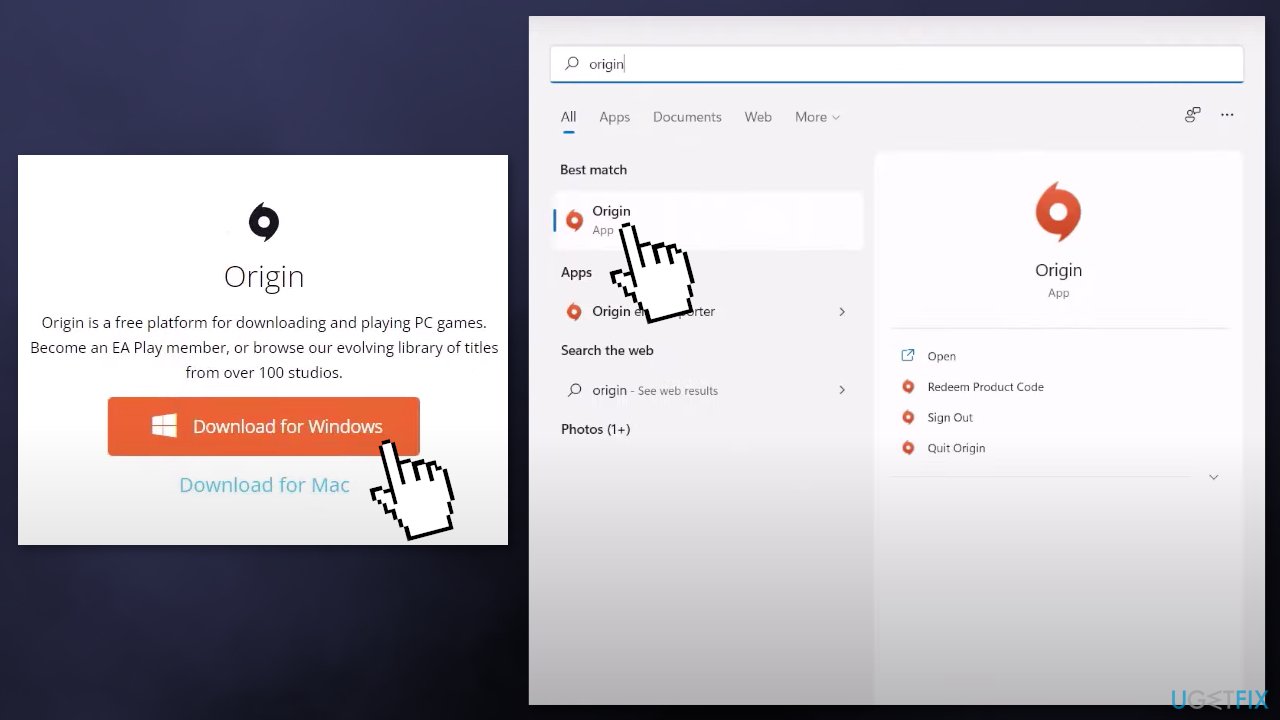
- Try downloading the problematic game
Bottom line
To resolve the error message "There was a slight hiccup and we couldn’t finish installing," you can try restarting your PC, downloading another game and canceling it, or logging out and back into the EA app. If these methods do not work, consider using a repair tool to fix system errors.
Frequently asked questions
Try restarting your computer and running the EA app installer as an administrator to resolve potential permission issues.
Ensure that your Windows 11 is fully updated and temporarily disable any antivirus software that might be interfering with the installation process.
Yes, you can clear the cache by navigating to the EA app settings and selecting the option to reset or clear cache, which may help resolve installation errors.




Report an issue
What's wrong with this guide? We review every report and update or remove content.
Report received — thank you. We'll review and fix it.
You need a free account to submit a report.
Be the first to comment