How to fix
“This user wasn’t added to this PC” 0x800b0109 error
on Windows
Resolve the "This user wasn’t added to this PC" 0x800b0109 error in Windows 10/11 quickly and effectively with expert-tested solutions. Fixed in minutes!

What causes How to fix “This user wasn’t added to this PC” 0x800b0109 error in Windows?
- Underlying system problems
- Configuration issues
- User account control settings misconfiguration
- Network connectivity problems
- Registry or system file corruption
Repairs Windows system files, removes malware, and restores a clean OS state — without reinstalling.
Hello. When I try to add a new account on my Windows PC, I get the "This user wasn’t added to this PC" message with a 0x800b0109 error code. Is it possible to fix this issue?
When trying to add a new user account on their Windows 11 or Windows 10 PC, users frequently run into the error message "This user wasn't added to this PC" with the error code 0x800b0109. Due to the fact that it stops users from adding or establishing new user accounts on their computers, this issue can be irritating and perplexing. This problem is especially troublesome because it may prevent users from creating extra accounts for friends, family members, or other uses.
The error message indicates an issue with the user account creation procedure, which is frequently brought on by underlying system or configuration problems. Regardless of whether they are using Windows 11 or Windows 10, users may get this issue while attempting to add a new local or Microsoft account.
Users may be impacted by this problem if it restricts their ability to manage and personalize user accounts on their PCs. Where several users require separate accounts in order to access the system with their settings and preferences, such as in shared or familial settings, this could be extremely problematic. Additionally, if users run across this problem when attempting to establish a new account, they can run into difficulties if they need different accounts for work and personal use.
Checking for Windows updates, making sure user account control settings are set up properly, and testing network connectivity are all potential fixes for this problem. Users might also need to investigate any potential registry or system file corruption.
In this guide, you will find 4 steps that should help you fix "This user wasn’t added to this PC" error in Windows. You can also try running a maintenance tool like [d1] that can fix most system errors, BSODs,[ref en-1] corrupted files, and registry[ref en-2] issues. Otherwise, follow the step-by-step instructions below.
Method 1. Sign in as an Administrator
- Start or restart your computer if it's not already powered on.
- Wait for the computer to boot up completely, and you'll be presented with the Windows login screen.
- Click on the user account you want to log in as an Administrator. This account should have administrative privileges.
- If the account is password-protected, type in the password associated with the selected account.
- After entering the correct password, click the Sign In button to proceed.
- Once logged in, if the account has Administrator privileges, you will now have access to administrative functions.
Method 2. Modify Local Group Policy Settings
- Press the Windows key + R to open the Run prompt.
- Type gpedit.msc and click the OK button.
- Navigate to this path: Computer Configuration > Windows Settings > Security Settings > Local Policies > Security Options.
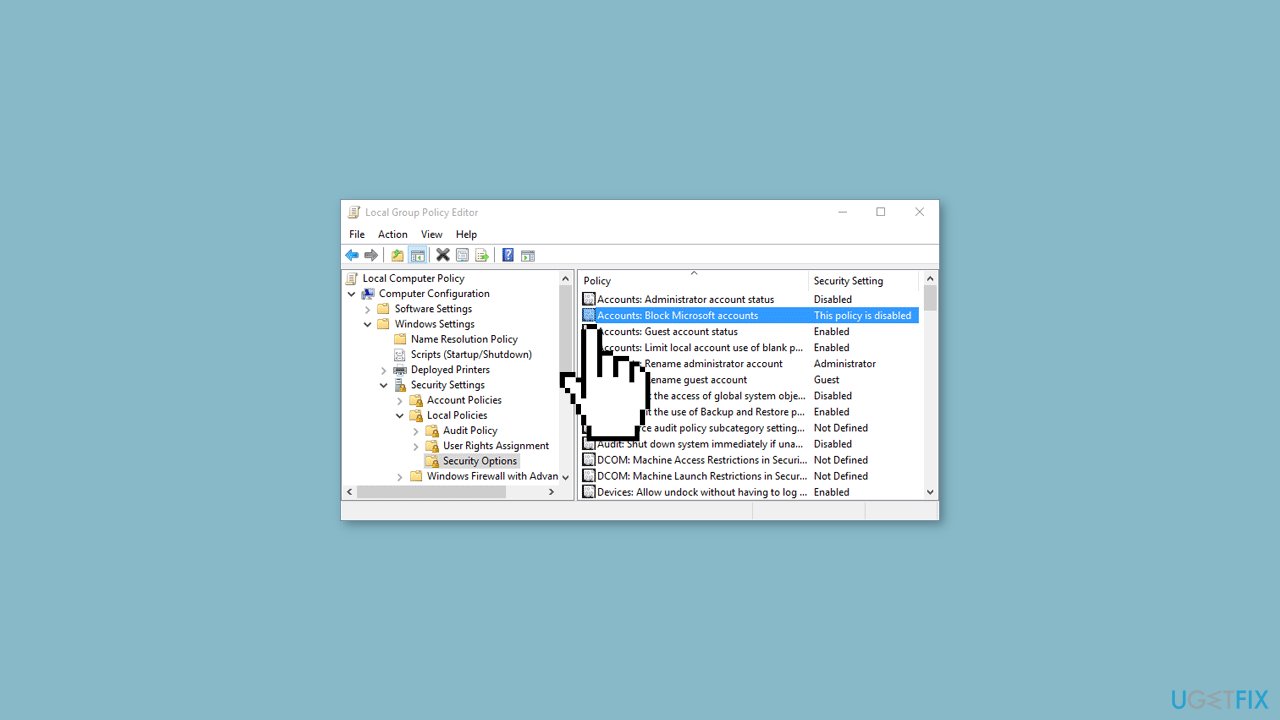
- Double-click on the Accounts: Block Microsoft accounts setting.
- Choose the This policy is disabled option.
- Click the OK button.
Method 3. Check Windows Registry
- Search for regedit in the Taskbar search box.
- Click on the individual search result.
- Click the Yes button on the UAC prompt.
- Navigate to this path: HKEY_LOCAL_MACHINE\SYSTEM\CurrentControlSet\Control\Lsa.
- Double-click on the Security Packages REG_MULTI_SZ value.
- Add these values after the existing Value data: pku2u and livessp.
- Click the OK button.
- Close all windows and restart your computer.
- Search for regedit in the Taskbar search box.
- Click on the individual search result.
- Click the Yes button on the UAC prompt.
- Navigate to this path: HKEY_LOCAL_MACHINE\SYSTEM\CurrentControlSet\Control\Lsa.
- Right-click on the Lsa key, select New, and choose the Multi-String Value option.
- Name it Security Packages.
- Double-click on the newly created Security Packages value.
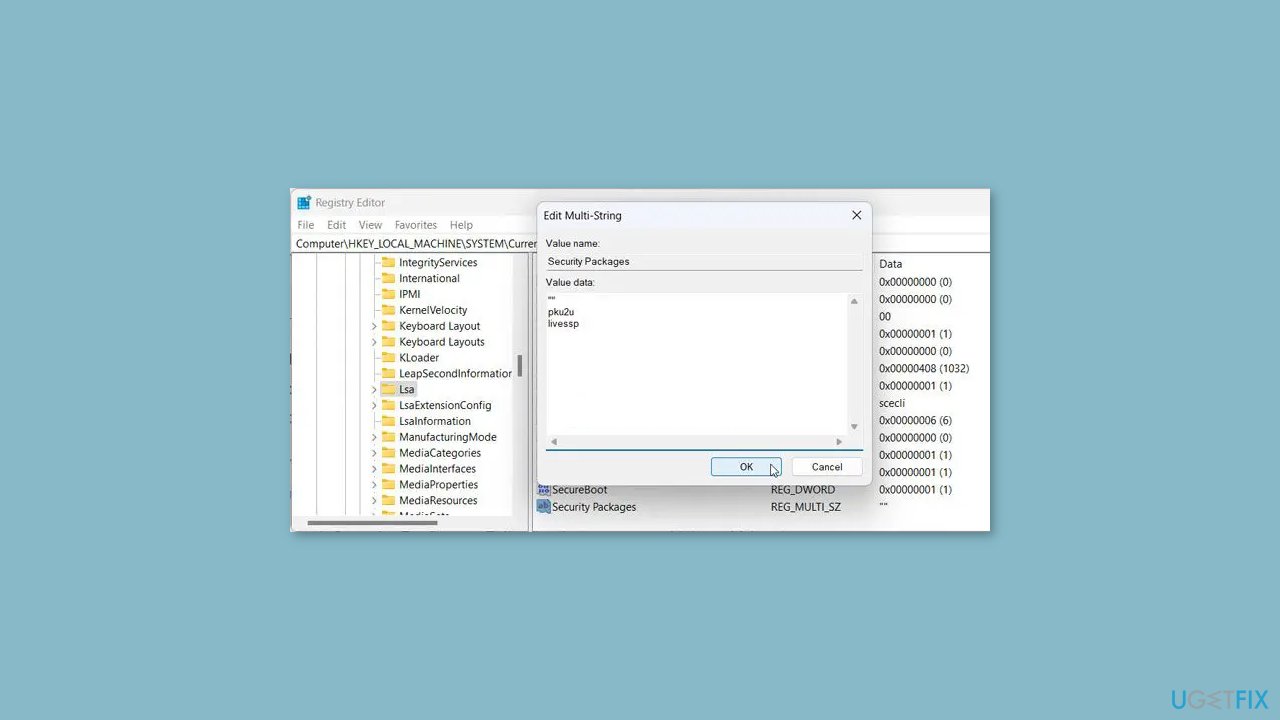
- Add these values: pku2u and livessp.
- Click the OK button.
- Close all windows and restart your computer.
Method 4. Add the Account using Control Panel
- Press the Windows key + R to open the Run prompt.
- Type control userpasswords2 and press Enter.
- Click the Add button.
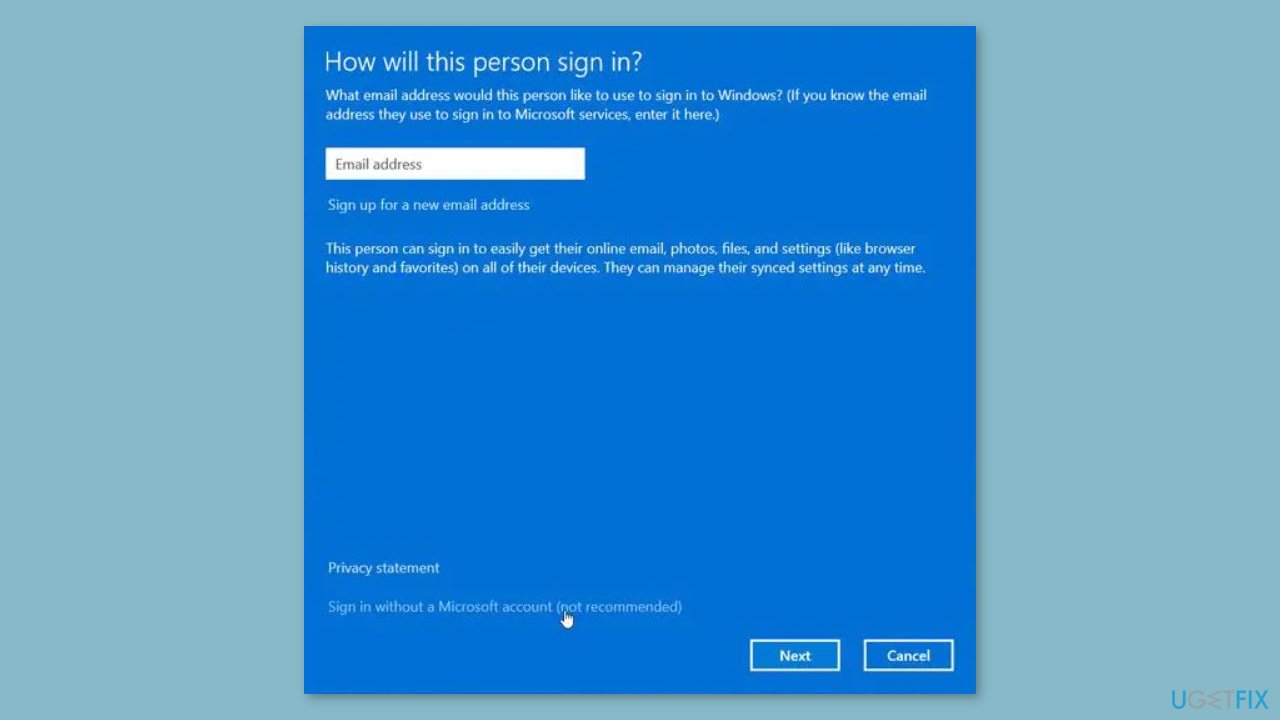
- Select the Sign in without a Microsoft account option and click Next.
- Provide the necessary details for the local user account.
Bottom line
To fix the 'This user wasn’t added to this PC' error, users should check for Windows updates, ensure user account control settings are properly configured, and test network connectivity. Additionally, investigating potential registry or system file corruption may be necessary. If these steps do not resolve the issue, consider using a maintenance tool to address system errors.
Frequently asked questions
The 0x800b0109 error indicates that a user account is not recognized by the system, often due to corruption or misconfiguration in user settings.
You can resolve this issue by accessing the Settings app, navigating to Accounts, and ensuring that the user account is correctly added or creating a new user profile.
Yes, you can use the Command Prompt to run commands like 'sfc /scannow' or 'DISM /Online /Cleanup-Image /RestoreHealth' to repair system files that may be causing the error.




Report an issue
What's wrong with this guide? We review every report and update or remove content.
Report received — thank you. We'll review and fix it.
You need a free account to submit a report.
Be the first to comment