How to fix
Two-finger scroll not working
on Windows
Resolve two-finger scroll issues on Windows 10 and 11 effortlessly. Boost your touchpad performance with expert-tested solutions and quick fixes!

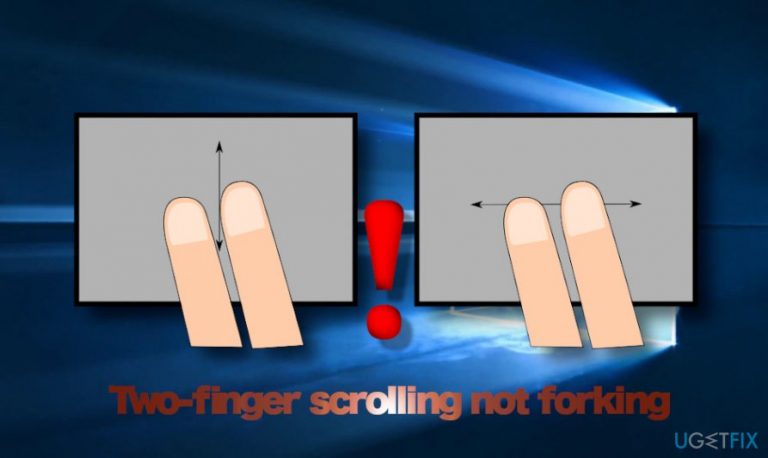
What causes How to fix two-finger scroll not working?
- Synaptics drivers not installed
- Supported gestures not enabled
- Two-Finger Scrolling option not marked
- Settings tab not visible
- Touchpad settings not configured properly
Repairs Windows system files, removes malware, and restores a clean OS state — without reinstalling.
Touchpad Two Finger scroll is not working for me. I used it for ages and really don't know what has happened. Could you please help?
Two-finger scrolling is a default feature on MacBook, iMac, and Macs with Magic Trackpad. It allows users to scroll a webpage vertically or horizontally by using two fingers. It’s a convenient feature and becomes habitual for Mac OS users.
Luckily, Windows OS supports two-finger scrolling feature as well. Regardless of the OS version, advanced scrolling and other gestures can be enabled if the system has the latest Synaptics drivers installed.
However, installing Synaptics drivers is not the best solution for people who are not IT savvy enough. Besides, there are many negative comments of people who have tried enabling two-inter scrolling by installing the Synaptics[ref en-2]. There are alternative solutions, such as projects on GitHub[ref en-1] providing third-party tools for Windows platform supplementing two-finger gestures to Synaptics Touchpads that are not working or working abnormally.
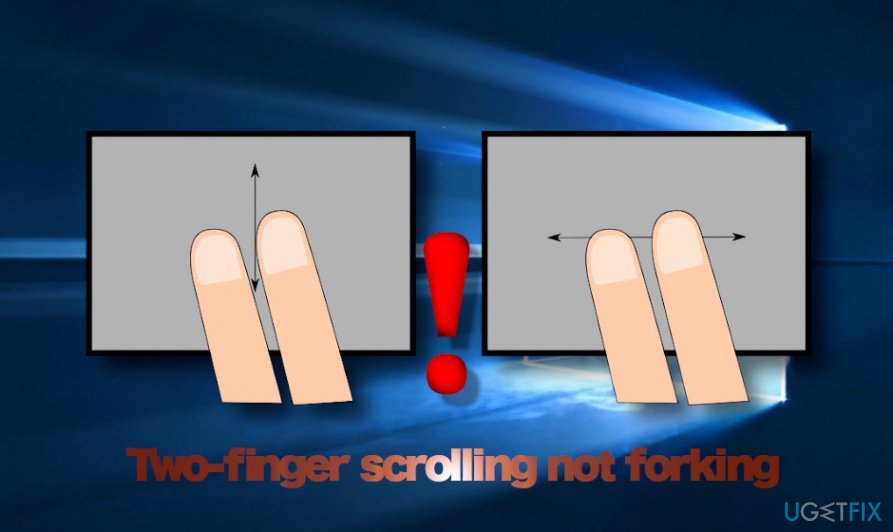
Besides, if you cannot use two-finger scrolling on Windows, check if the supported gestures are enabled on your PC. To enable two-finger scrolling, please follow these steps:
- Press Windows key + I and open Devices and Printers settings.
- You can do the same on Control Panel.
- Under Devices and Printers, select Mouse.
- Then under Devices open Device Settings tab.
- Mark Synaptics TouchPad option and click the Settings button.
- If the Settings tab did not show, not means that the Synaptics driver is not installed.
- Then expand the MultiFinger Gestures option and mark the Two-Finger Scrolling option.
- Click Apply to finish.

If the above method failed, try these steps:
- Press Windows key + R, type main.cpl, and hit Enter.
- On the Mouse Properties window, navigate to the Touchpad tab or Device Settings.
- Click on the Settings button and open Properties.
- Mark Two-Finger Scrolling option.
- Click OK and Apply and OK one more time.
- After all, restart your PC.
However, in most of the cases, people ask how to fix two-finger scrolling not working. If you have this feature enabled, but it stopped working for an unknown reason, some settings on the Windows system must have been changed. If you cannot drag two fingers across any part of the touchpad and scroll anymore, it might be that Windows updates have recently installed or driver updates are missing. The following are the most common reasons why two-finger scrolling is not working:
- Incorrect Mouse Pointer settings
- Incompatible, outdated, missing touchpad driver[ref en-3]
Before initiating any activities to fix a two-finger scroll not working, please check if this feature is enabled by initiating the steps listed above. If the function is activated, the Synaptics driver is supported, then the first thing that you can do is to change Mouse Pointer settings.
Change Mouse Pointer settings
- If you are using Windows 10, click Windows key and type Mouse in the search bar.
- In case you are using older Windows versions, navigate to Control Panel. Open Windows search and type Control Panel.
- Find and open the Hardware and Sound section.
- Under Devices and Printers category, click on Mouse option.
- At the top-right corner click Additional mouse options.
- Now open Properties tab and select Windows Black (system scheme) under Scheme section.
- Select the scheme that you prefer and click Apply to save the changes.
Check the status of the touchpad driver
If mouse pointer settings did not help to fix two-finger scroll stopped working issue, then most probably the culprit is related to touchpad drivers. There are two variants:
- Drivers were automatically updated and the bugs in the update triggered two-finger scroll not working
- Touchpad driver is missing the latest updates
You can either reinstall the touchpad driver, roll back its updates or update it depending on the situation on your device. We recommend checking if the driver is up-to-date.
Update touchpad drivers
- Open Start and type Device Manager in the Search box
- Hit Enter to open the Device Manager.
- After that, expand Mice and other Pointing devices option.
- Right-click on the touchpad option and select Update.
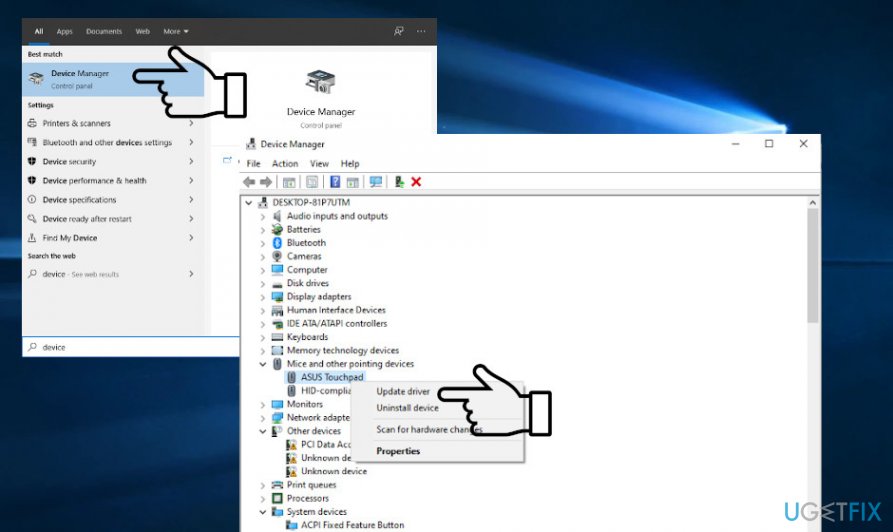
Update driver software - Select Search automatically for updated driver software and wait for the process to finish.
If updating did not help and it seems that the culprit may be previously installed touchpad driver updates, you should do the following:
- Open Start and type Device Manager in the Search box
- Hit Enter to open the Device Manager.
- After that, expand Mice and other Pointing devices option
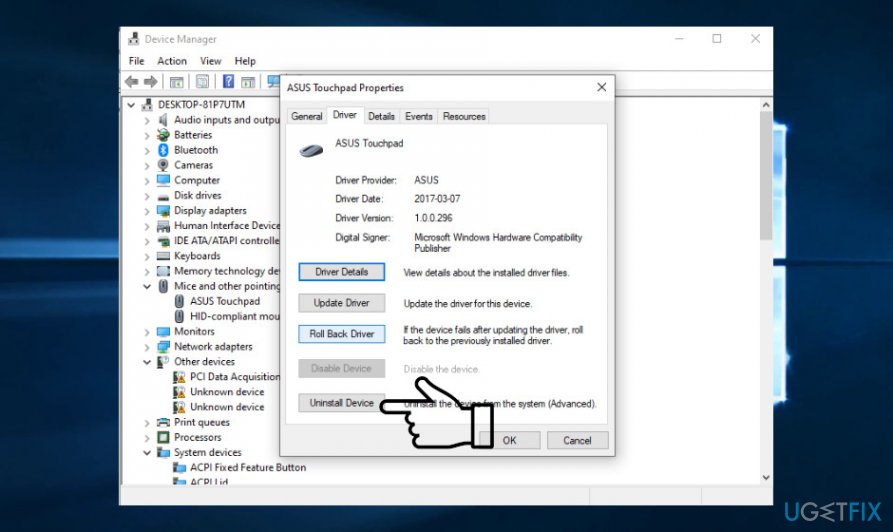
- Right-click on the touchpad option and select Properties.
- Open the Driver tab and select Roll Back Driver.
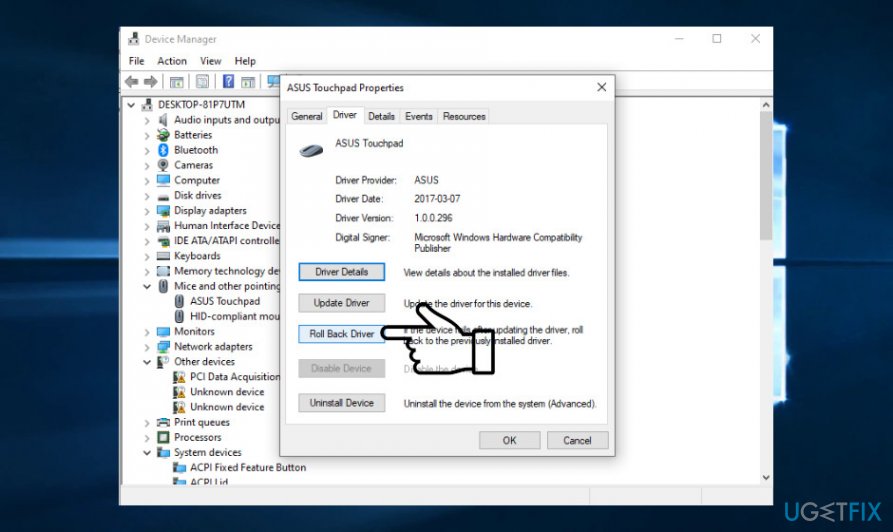
Finally, you can try reinstalling the driver by initiating the same steps as explained above except select the option Uninstall driver instead Roll Back Driver. After removal, navigate to the official website of the manufactured and download the corresponding touchpad driver manually.
Bottom line
To fix the two-finger scrolling issue, ensure that the Synaptics TouchPad option is marked and the Two-Finger Scrolling option is enabled in the Device Settings. If the problem persists, try accessing the Mouse Properties through the Run dialog and check the Touchpad settings. If none of these solutions work, consider exploring third-party tools or checking for driver updates.
Frequently asked questions
The two-finger scroll feature may not be working due to outdated touchpad drivers or incorrect touchpad settings in Windows 10. Check your device manager for driver updates and ensure the touchpad settings are properly configured.
To enable two-finger scrolling on Windows 11, go to Settings > Devices > Touchpad and ensure the scrolling option is turned on under 'Scroll and zoom.' You may also need to check your touchpad manufacturer's software for additional settings.
If updating drivers doesn't resolve the issue, try uninstalling the touchpad driver and restarting your computer to allow Windows 10 or Windows 11 to reinstall it automatically. Additionally, check for any Windows updates that might include fixes for touchpad functionality.




Report an issue
What's wrong with this guide? We review every report and update or remove content.
Report received — thank you. We'll review and fix it.
You need a free account to submit a report.
Be the first to comment