How to fix
UnityPlayer.dll was not found error
on Windows
Resolve the UnityPlayer.dll error quickly on Windows 10 or Windows 11 with expert-tested solutions. Fix it in minutes and enjoy smooth gameplay!


What causes How to fix UnityPlayer.dll was not found error in Windows?
- Incomplete game installation
- Accidental deletion of the DLL file
- Registry issues
- Virus or malware infection targeting UnityPlayer.dll
- Outdated device drivers
Repairs Windows system files, removes malware, and restores a clean OS state — without reinstalling.
Hello. I keep experiencing constant crashes while playing Genshin Impact. The error message keeps saying that UnityPlayer.dll was not found. Any tips on how to fix this would be appreciated.
Unity, a prominent game development platform, has recently been in the spotlight due to its controversial monetization tactics. This led to a significant backlash, forcing Unity to modify its monetization approach. Despite this, Unity remains a popular choice for game developers, with notable titles like Rust, Subnautica, Cult of the Lamb, and Firewatch being developed using this engine.
However, players of these games have increasingly encountered a critical issue: the "UnityPlayer.dll was not found" error, often accompanied by the general error code 0xc0000005, resulting in game crashes.
To understand this error, one must grasp the role of DLL files. Short for Dynamic Link Library, DLLs are crucial in running complex software efficiently, providing a repository of instructions for various programs. Specifically, UnityPlayer.dll is a DLL file associated with Unity-engine games, containing vital code and procedures for their execution. The absence or corruption of UnityPlayer.dll, crucial for the smooth running of these games, often triggers the error.
The disruption of in-game functionality due to the "UnityPlayer.dll was not found" error can stem from various causes, such as incomplete game installation or accidental deletion of the DLL file. Other potential culprits include registry issues, a virus or malware infection targeting UnityPlayer.dll, or outdated device drivers that interfere with the game’s operation.
For players encountering this game crash issue, understanding that resolving it hinges on addressing the core problem is essential. The focus should be on ensuring the UnityPlayer.dll file's integrity and availability in the system. Solutions may vary, but they generally revolve around rectifying issues related to this specific DLL file.
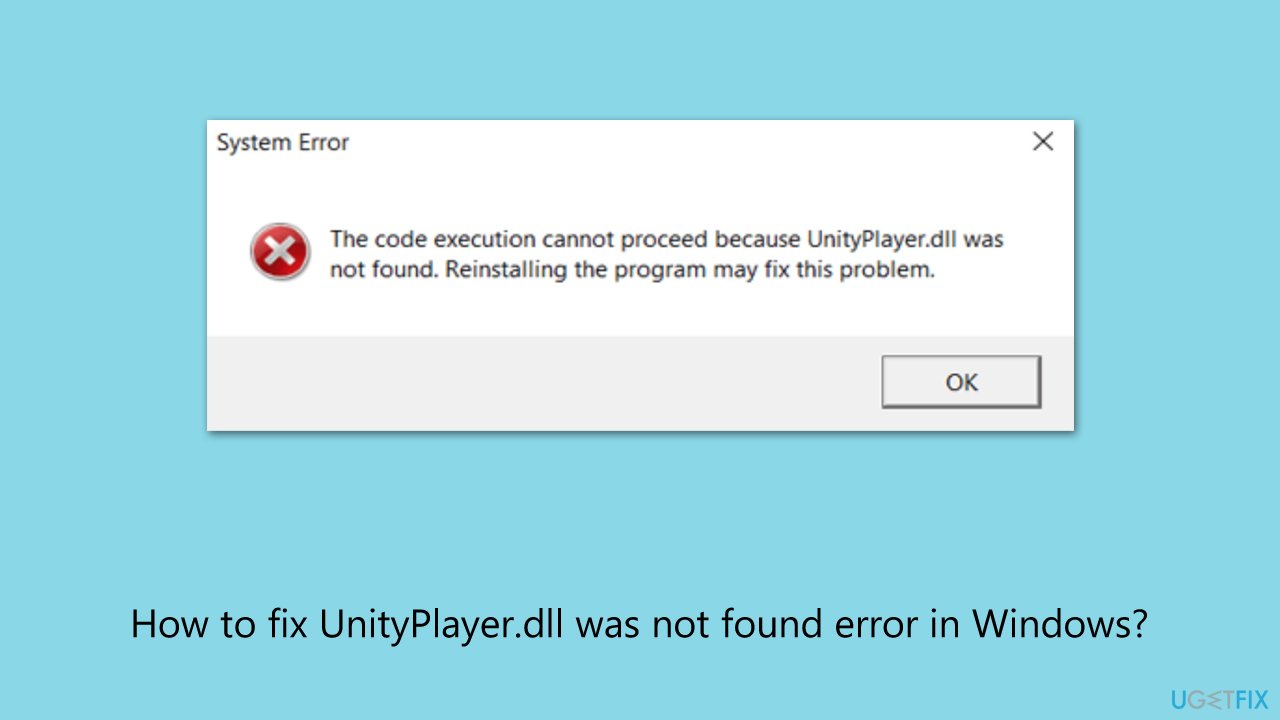
In conclusion, encountering the "UnityPlayer.dll was not found" error can significantly hinder the enjoyment of Unity-based games. For an all-encompassing approach to resolving underlying Windows issues, a PC repair tool [d1] can be an effective solution. Such tools are designed to automatically fix various system problems, potentially resolving the UnityPlayer.dll error and enhancing the overall gaming experience.
Fix 1. Reinstall the game
This solution works by completely removing the game and its associated files, including any potentially corrupted UnityPlayer.dll files, and then reinstalling it to ensure all files are correctly in place.
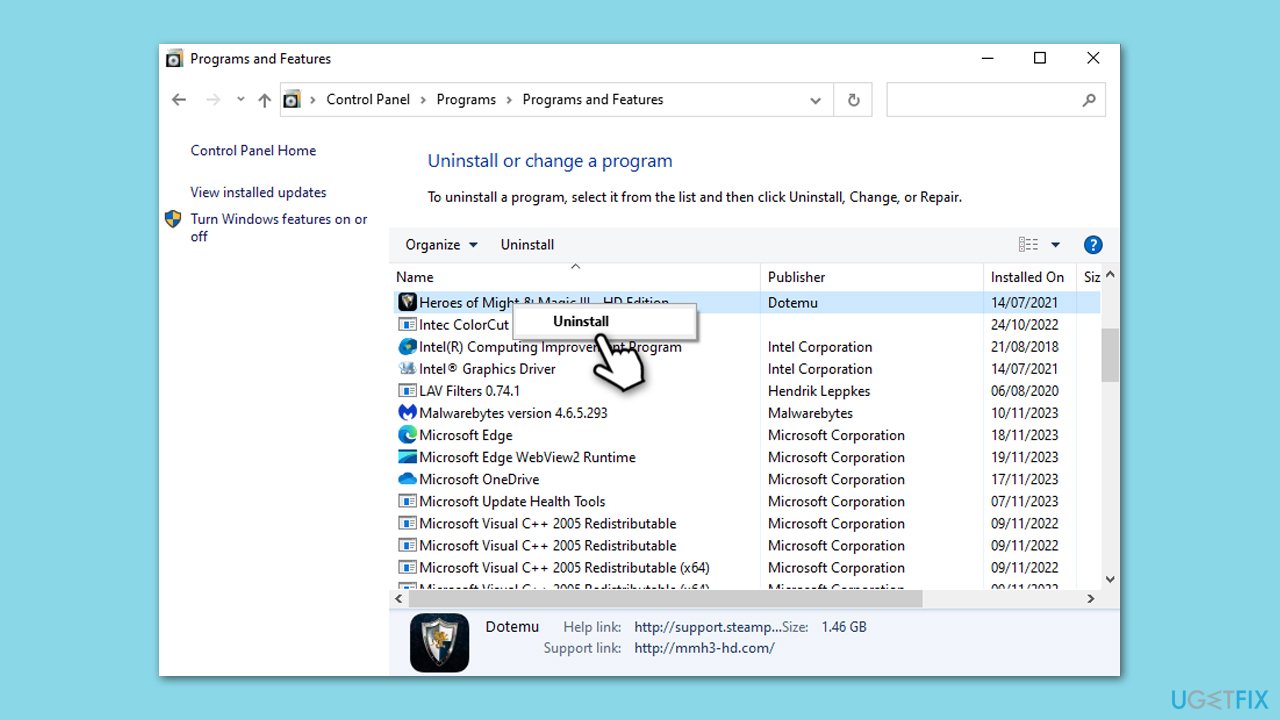
- Go to the Control Panel and select Programs and Features.
- Find the game in the list and click Uninstall.
- Follow the on-screen instructions to complete the uninstallation.
- Restart your computer.
- Reinstall the game from the original installation source.
Fix 2. Run a virus scan
Running a virus scan can detect and remove any malware or viruses that might have corrupted the UnityPlayer.dll file. If you don't have a third-party anti-virus, you can rely on Microsoft Security Scanner, or the built-in Microsoft Defender:
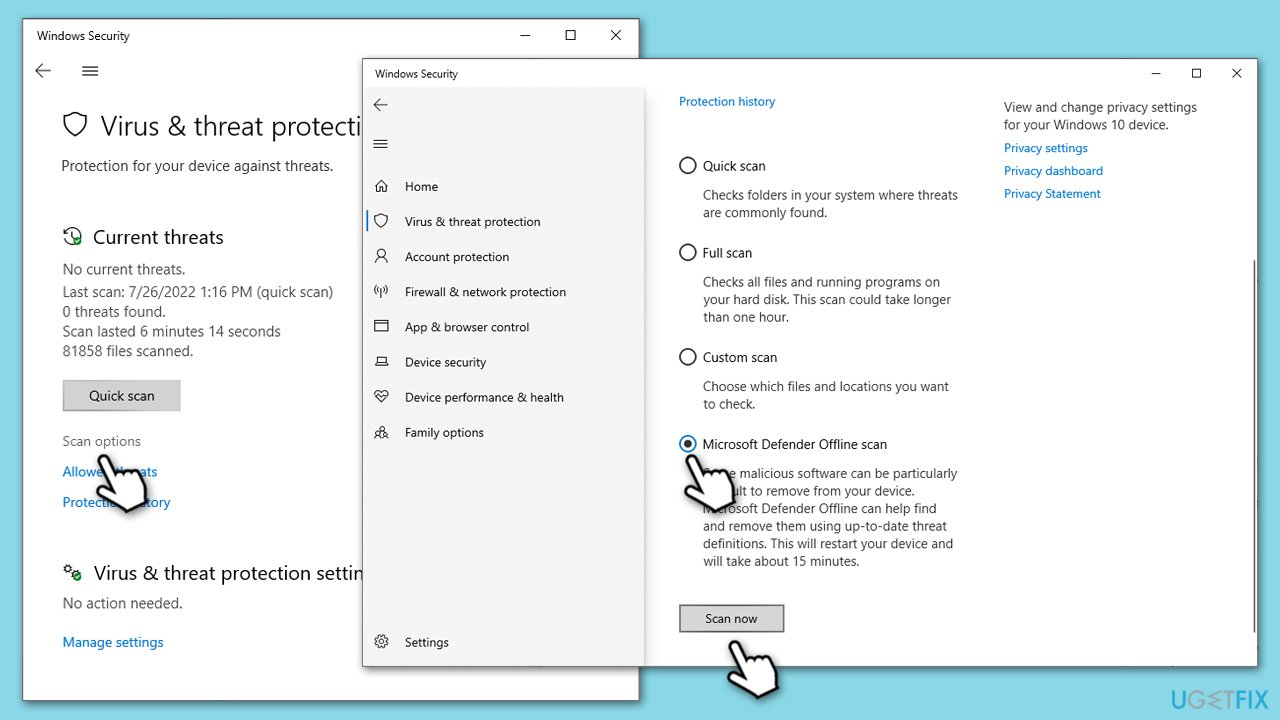
- Type Windows Security in the Windows search bar and hit Enter.
- Select Virus & threat protection.
- Pick Scan options.
- Choose Microsoft Defender Offline scan and click Scan now.
- Your PC will immediately reboot and begin a deep scan.
Fix 3. Update device drivers
Outdated or corrupt device drivers, especially graphics drivers, can cause compatibility issues with games. Updating them ensures optimal game performance.
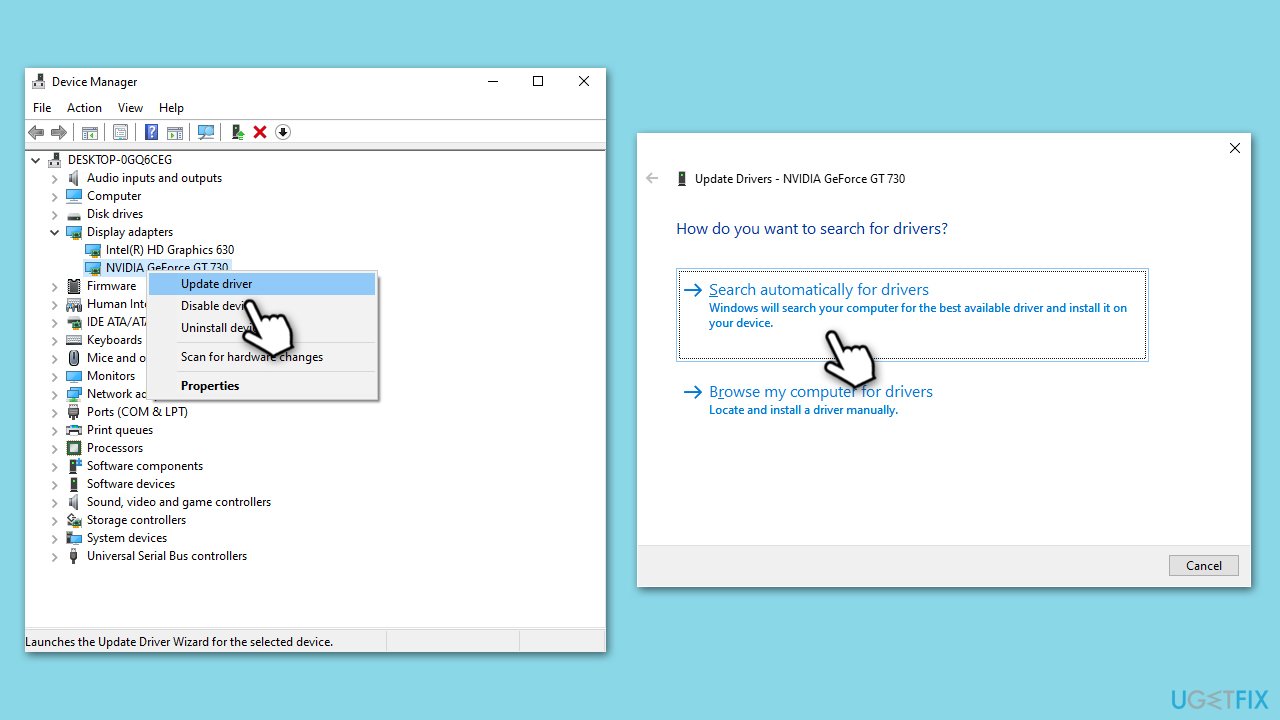
- Right-click on Start and pick Device Manager.
- Find your printer under the Display adapters category.
- Right-click on your GPU and choose Update Driver.
- Select Search automatically for drivers.
- Follow the prompts to install any available updates.
To ensure that all drivers are up to date effortlessly, you can use [rev id="DriverFix"] to automatically update drivers.
Fix 4. Perform SFC and DISM scans
Corrupted system files can be fixed by using several command lines in the elevated Command Prompt. Perform the following steps:
- Type cmd in Windows search.
- Right-click on Command Prompt and pick Run as administrator.
- When UAC asks you whether you want to make changes, agree by pressing Yes.
- Next, copy and paste the following commands, pressing Enter each time:
sfc /scannow
DISM /Online /Cleanup-Image /CheckHealth
DISM /Online /Cleanup-Image /ScanHealth
DISM /Online /Cleanup-Image /RestoreHealth
(Note: if you get an error executing the last command, add /Source:C:\RepairSource\Windows /LimitAccess to it and try again.) - Restart your computer.

Fix 5. Restore UnityPlayer.dll from the Recycle Bin
If the UnityPlayer.dll file was accidentally deleted, it might still be in the Recycle Bin, from where it can be restored.
- Open the Recycle Bin by double-clicking its icon on your desktop.
- Look for UnityPlayer.dll in the list of deleted files.
- Right-click on the file and select Restore.
- Restart your computer to check if the issue is resolved.
Fix 6. Update Windows
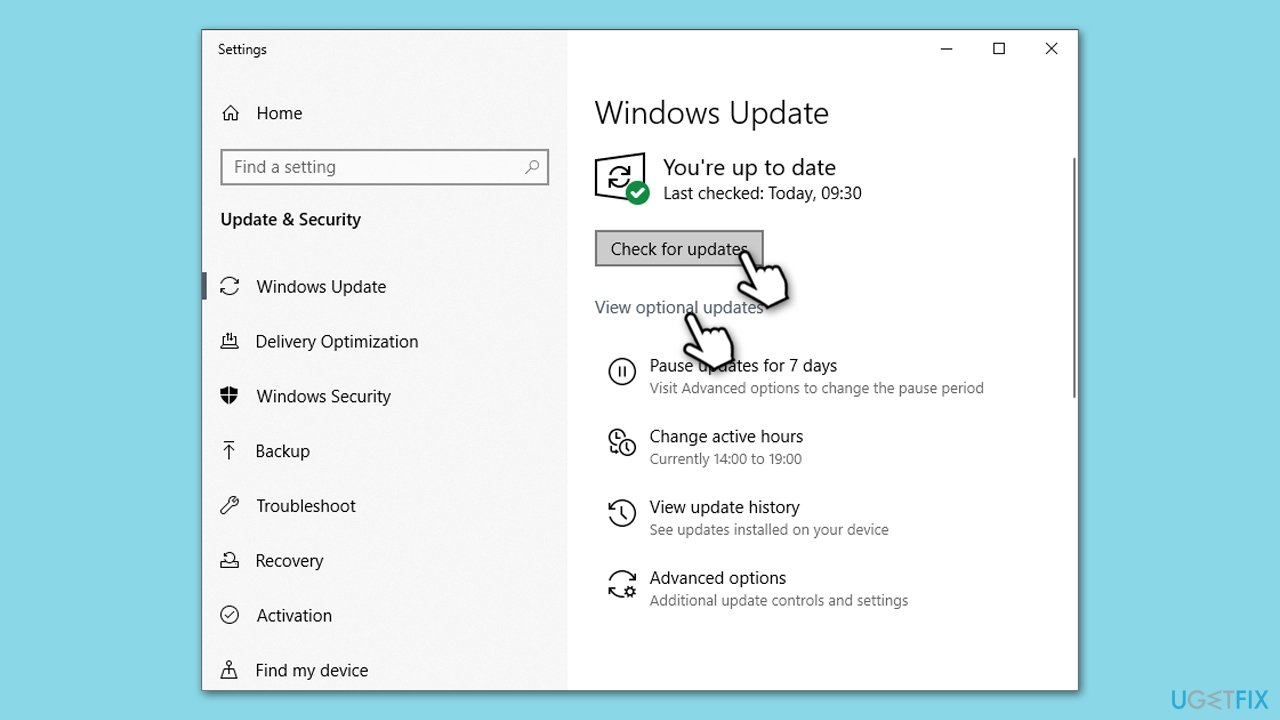
Ensuring your Windows is up to date can fix compatibility issues and patch any known bugs that might be causing the error.
- Type Updates in Windows search and press Enter.
- Here, click Check for updates.
- Wait till Windows downloads and installs all the files.
- If optional updates are available, install them as well.
- Reboot your device.
Fix 7. Re-register UnityPlayer.dll
Re-registering the UnityPlayer.dll file can fix the issue if the file is present but not properly registered in the system.
- Open Command Prompt as administrator.
- Type regsvr32 UnityPlayer.dll and press Enter.
- Restart your computer after the command executes.
Fix 8. Install the game in a different directory
Installing the game in a different directory can resolve issues related to permissions or conflicts with other files in the original directory.
- Uninstall the game (as in Fix 1).
- During reinstallation, choose a different location when prompted for the installation directory.
- Complete the installation and restart your computer.
Bottom line
Encountering the 'UnityPlayer.dll was not found' error can significantly hinder the enjoyment of Unity-based games. Solutions generally involve ensuring the integrity and availability of the UnityPlayer.dll file, which may include reinstalling the game, using a PC repair tool, or updating drivers. If these solutions do not work, consider seeking further technical support.
Frequently asked questions
You can try reinstalling the game to restore the missing UnityPlayer.dll file, or download the file from a reliable source and place it in the game's installation directory.
Ensure that all Windows updates are installed, as these updates might include necessary system files, and then verify the game's files through the game launcher.
Regularly updating your games and system, as well as performing routine maintenance like disk checks, can help prevent this error in the future.




Report an issue
What's wrong with this guide? We review every report and update or remove content.
Report received — thank you. We'll review and fix it.
You need a free account to submit a report.
Be the first to comment