How to fix
Update error 0x80248007
on Windows
Resolve update error 0x80248007 on Windows 10 quickly and easily. Follow our expert-tested solutions and get your system back to normal in minutes.


What causes How to fix update error 0x80248007 on Windows 10?
- Windows Update lacks crucial files
- Windows Update cannot find Microsoft Software License Terms
- Corrupted system files
- Issues with installed apps
- Configuration settings unique to each machine
Repairs Windows system files, removes malware, and restores a clean OS state — without reinstalling.
Hello. I need help with error 0x80248007 - it pops up every single time I'm trying to update Windows. Is there anything I can do to fix this? Thanks in advance.
Windows error codes like 0x80248007 are designed to help users with finding a solution for the issue that their operating system encountered. These problems might stem from a variety of different triggers, and Windows updates are precisely where this error code is coming from.
Windows update errors are relatively common - the vast majority prevent users from installing or even downloading updates, while other cases may result in endless boot loops, such as 0x800f084. Luckily, error code 0x80248007 does not possess such a negative side-effect, so it makes it much easier to troubleshoot.
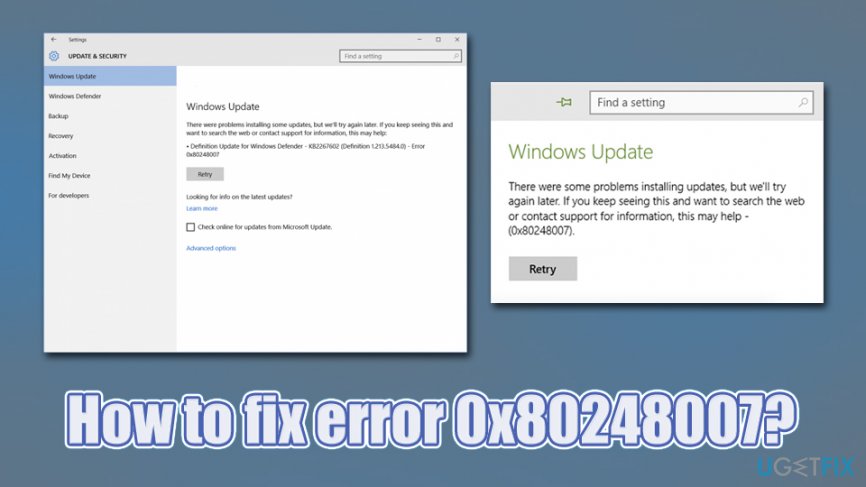
0x80248007 shows up when the users are trying to update the Windows system or drivers[ref en-1] via Windows Update. At first, the update starts running successful, but at some point is terminated by 0x80248007 error message, which claims:
There were problems installing some updates, but we’ll try again later. If you keep seeing this and want to search the web or contact support for information, this may help - (0x80248007)
The emergence of this error indicates the fact that Windows Update lacks some crucial files or Windows Update can find Microsoft Software License Terms. Nevertheless, because all Windows machines are unique when it comes to their configuration settings, installed apps, and other traits, there is one universal solution that would help all users fix 0x80248007 error.
It is important to mention that Windows systems should be updated as soon as new patches come out - updates fix various stability, usability, and other issues, as well as fix occasional bugs.[ref en-2] Another reason to perform an error 0x80248007 fix as soon as possible is personal and computer safety, as malware can be used to penetrate vulnerable machines without user interaction.
Before you proceed with manual 0x80248007 error solutions, we would like to suggest you scan your computer with PC repair software [d1] - it can replace corrupted system files, fixing issues automatically.
Solution 1. Run Windows Update troubleshooter
Whenever you have Windows update-relate issues such as 0x80248007 error, you should always start with the built-in troubleshooter. Before using the tool, ensure that the internet connection is present on your machine. Here's how to run Windows Update troubleshooter:
- Right-click Start (bottom-left corner of the screen) and select Settings
- From the list, pick Update & Security option
- Click on Troubleshoot at the left side of the window
- Locate Windows Update on the right side and click on it once
- Click on Run the troubleshooter
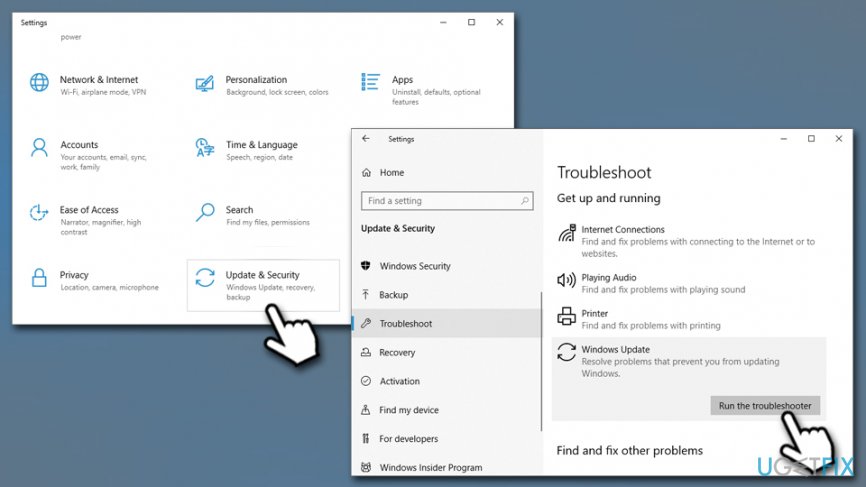
How to fix error 0x80248007 run windows update troubleshooter
In case Windows Update troubleshooter returns another error and does not fix 0x80248007, proceed with the next solution.
Solution 2. Reset Windows Update Components
Most users said that clearing some subfolders inside the SoftwareDistribution folder helped them fix the issue. However, the Windows Update service needs to be stopped first for this method to be effective.
- Press Win + R, type services.msc, and press Enter
- Scroll down to locate Windows Update, right-click on it, and select Stop
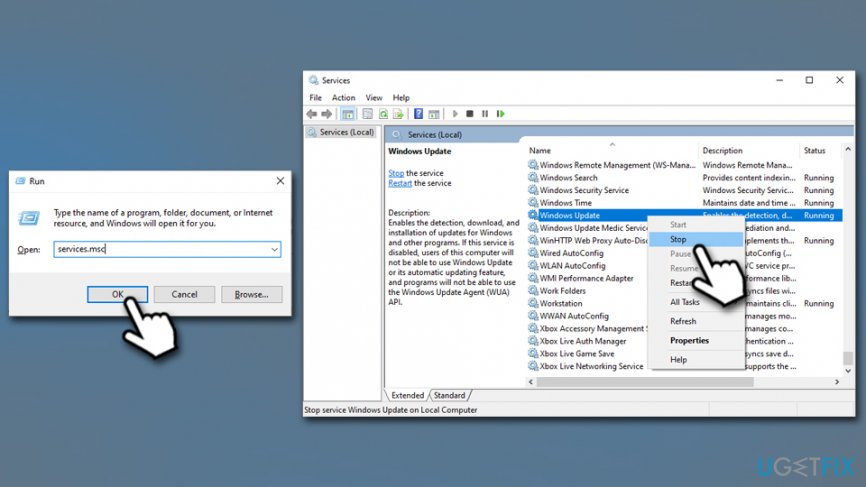
How to fix error 0x80248007 stop windows update service - Press Win + E and go to the following folder: C:\\Windows\\SoftwareDistribution
- Delete the contents of Download and DataStore folders (administrator privileges required)
- Now open Services once again, right-click on Windows Update and pick Start
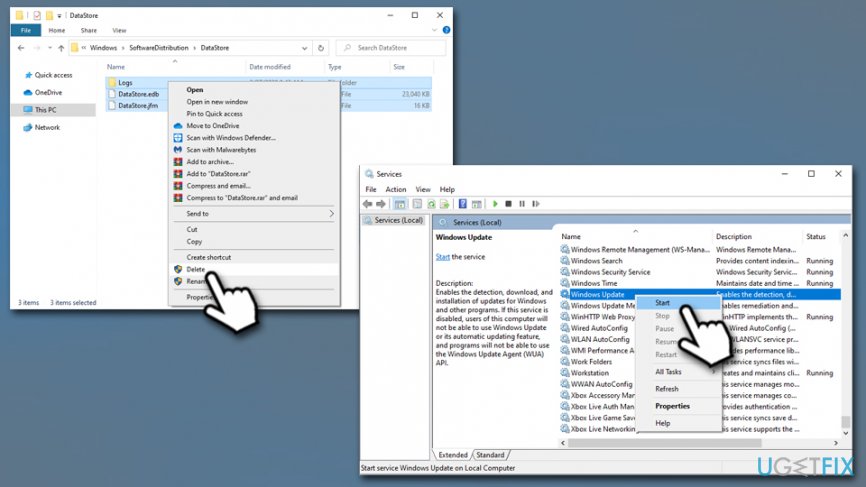
How to fix error 0x80248007 deletesoftware distribution folder contents
Solution 3. Restart Windows Installer service
In some cases, starting Windows Installer Service resolves the problem:
- Press Win + R, type services.msc, and press Enter
- Locate Windows Installer service, right-click and select Restart
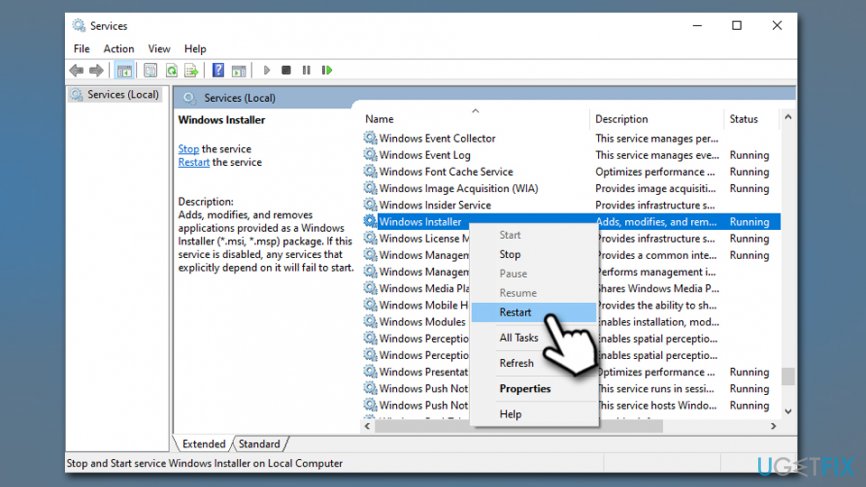
How to fix error 0x80248007 restart windows installer service
Solution 4. Install Windows updates manually
If you are unable to install certain updates, you can try doing it manually. However, you should first find out which KB[ref en-3] number is that you need - here's how to do it:
- Right-click on Start and pick Settings
- Go to Update & Security
- On the right side of the window, click on View update history
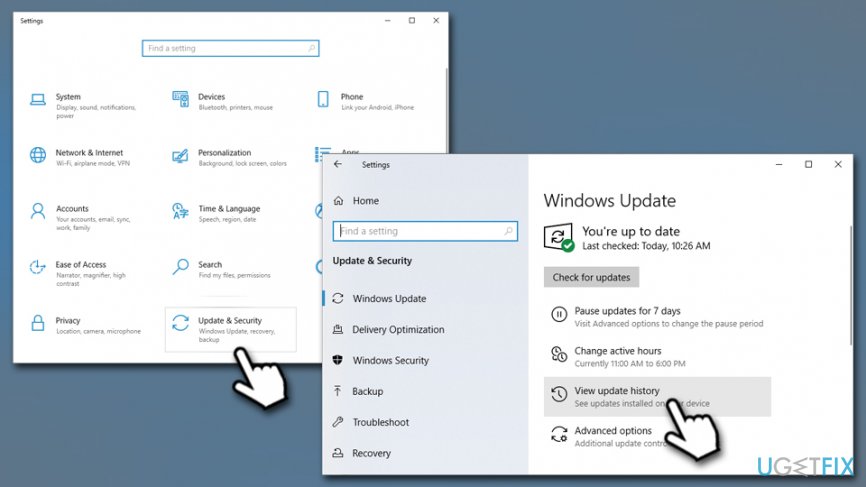
How to fix error 0x80248007 update windows manually - In here, you will see the list of successfully installed and failed updates. Write down the KB number that recently failed
- Go to Microsoft Update Catalog, type in the update code and hit Search
- Download the appropriate update and install it manually
- Reboot your machine
Solution 5. Reset Windows
If none of the above methods helped you, we suggest you reset Windows. While it may seem like a complicated process that will erase your operating system - it is far from the truth. Microsoft improved the reinstallation process drastically, and there are several methods you can do it without losing your personal files. To find out more, please visit this article.
Bottom line
To fix error 0x80248007, you can run the Windows Update troubleshooter and consider scanning your computer with PC repair software to replace corrupted system files. If these solutions do not resolve the issue, further investigation or contacting support may be necessary.
Frequently asked questions
This error typically occurs due to issues with the Windows Update components or corrupted files in the Windows Update cache.
You can reset Windows Update components by running a series of commands in the Command Prompt, including stopping services, renaming folders, and restarting services.
Yes, you can use the Windows Update Troubleshooter found in Settings under Update & Security, which can automatically detect and fix common update issues.




Report an issue
What's wrong with this guide? We review every report and update or remove content.
Report received — thank you. We'll review and fix it.
You need a free account to submit a report.
Be the first to comment