How to fix
Usbport.sys Blue Screen
on Windows
Resolve the Usbport.sys Blue Screen error on Windows 10 and 11 effortlessly. Follow our expert-tested guide and get your system running smoothly in minu…


What causes How to fix Usbport.sys Blue Screen in Windows?
- Malfunctioning hardware
- Damaged device driver
- Outdated keyboard drivers
- Outdated mouse drivers
- Disk damage
Repairs Windows system files, removes malware, and restores a clean OS state — without reinstalling.
Hello. Earlier today I encountered a Usbport.sys Blue Screen in Windows. What could have caused it?
Blue Screen errors[ref en-1] can be a nightmare for Windows users. Usually, they appear seemingly out of nowhere and interrupt users' work. If the progress of whatever people were doing was not saved, it gets lost. So, if Blue Screen errors are tormenting you frequently, you should take care of the issue as soon as possible.
BSODs can appear for a variety of different reasons. The most worrying part is that Blue Screen errors can be a symptom of a bigger problem - hardware issues. If you experience these crashes often, there is a chance that you may have to bring your device to a repair shop.
Recently, some users reported that they encounter a Usbport.sys Blue Screen in Windows. Usbhub.sys is a system driver file for the Default Hub Driver. The Universal Serial Bus (USB) hub is a device used to expand a USB port into various gateways to allow multiple devices to connect.
The error message signals that this crash may be caused by malfunctioning hardware or a damaged device driver. On a more positive note, it is possible that your keyboard or mouse drivers[ref en-2] are outdated and they just need updates. In this guide, you will find 3 steps that should help you fix Usbport.sys Blue Screen in Windows.
Keep in mind, that the manual troubleshooting process can be lengthy. We recommend you try out a maintenance tool like [d1]. It can fix most system errors, corrupted files, and registry[ref en-3] issues. Otherwise, follow the step-by-step instructions below.

Method 1. Check Disk
Ensure that your disk is not damaged. You can perform checks using Administrative Command Prompt:
- If you are using an HDD as your main driver (where your operating system is installed - C: by default), use the following command and press Enter:
chkdsk c: /f - If you are using SSD, use this command:
chkdsk c: /f /r /x
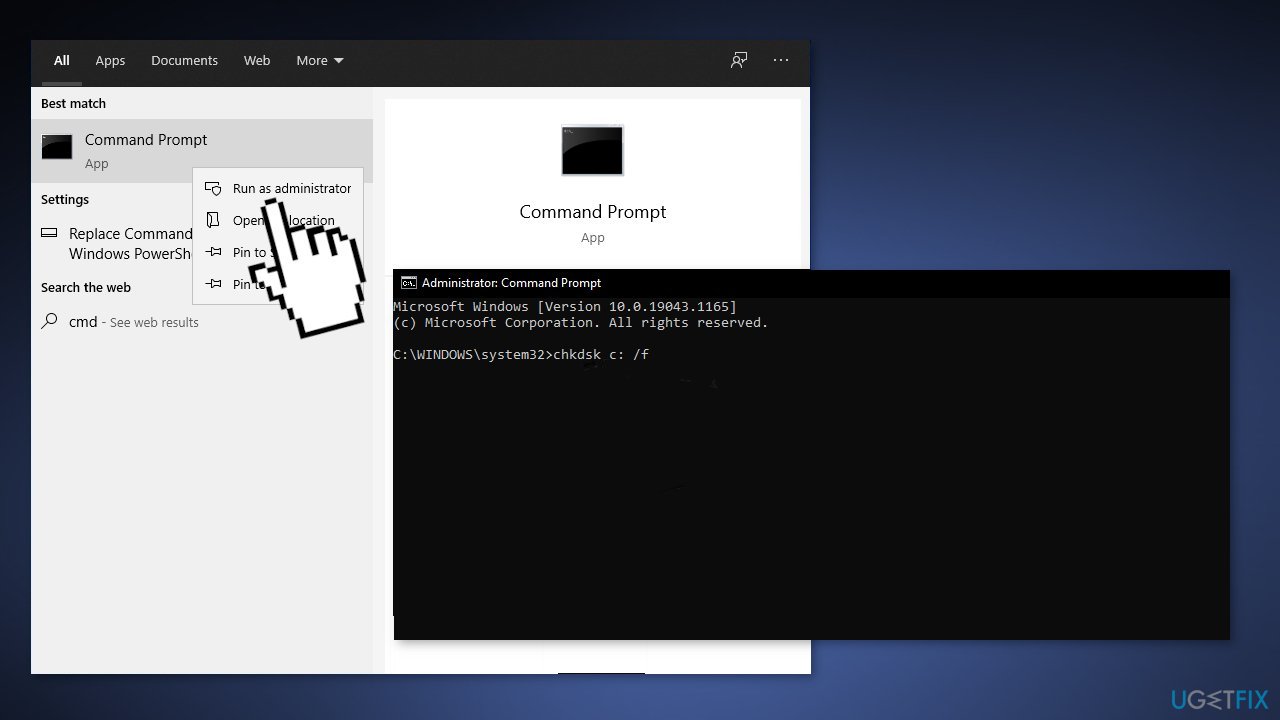
- If you receive an error, type in Y and hit Enter
- Restart your device to perform the check
Method 2. Perform System Restore
System Restore allows users to reverse a Windows system to a previous point before any issues started occurring.
- Go to the search bar and type Create a restore point
- Click the System Restore button
- Select Choose a different restore point and click Next
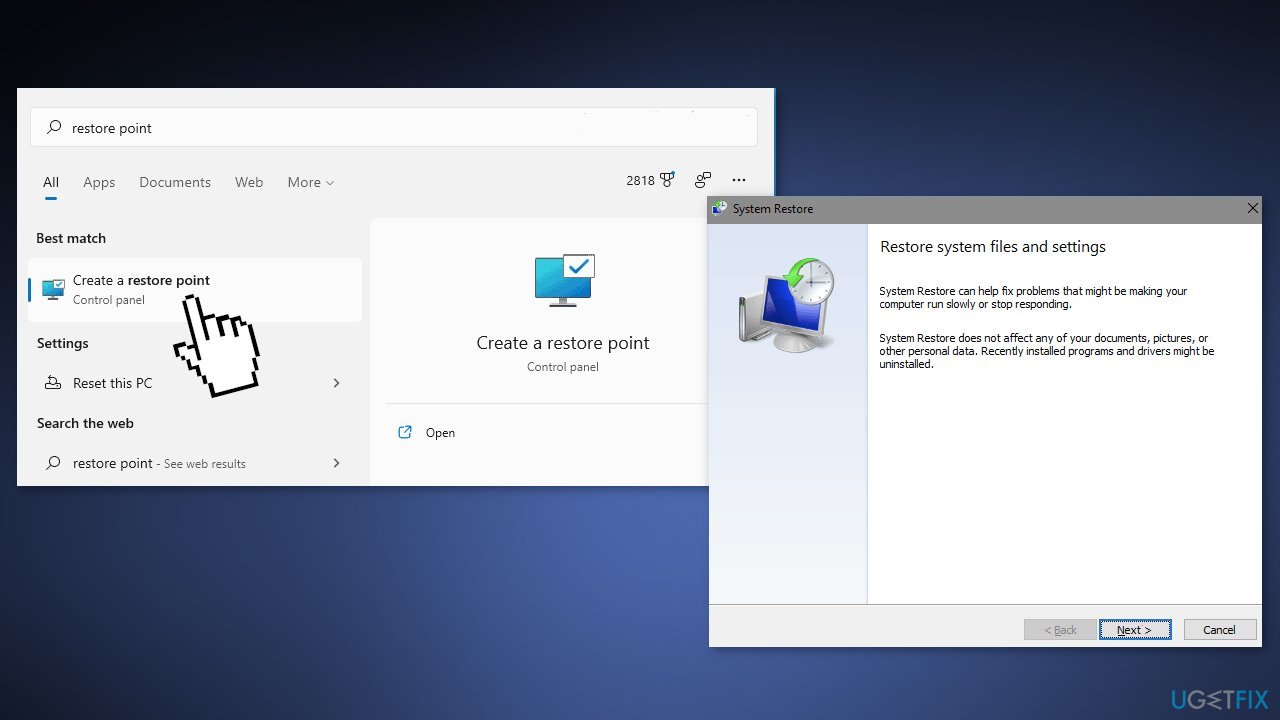
- Select a date for restore before the issue occurred, then click on Next
- Enter your password if asked and follow the on-screen steps to choose a restore location
- Reset your device
Method 3. Update Keyboard and Mouse Drivers
- Press the Windows key + X, select Device Manager, and open it
- Go to the Universal Serial Bus controllers category or USB Root Hub category
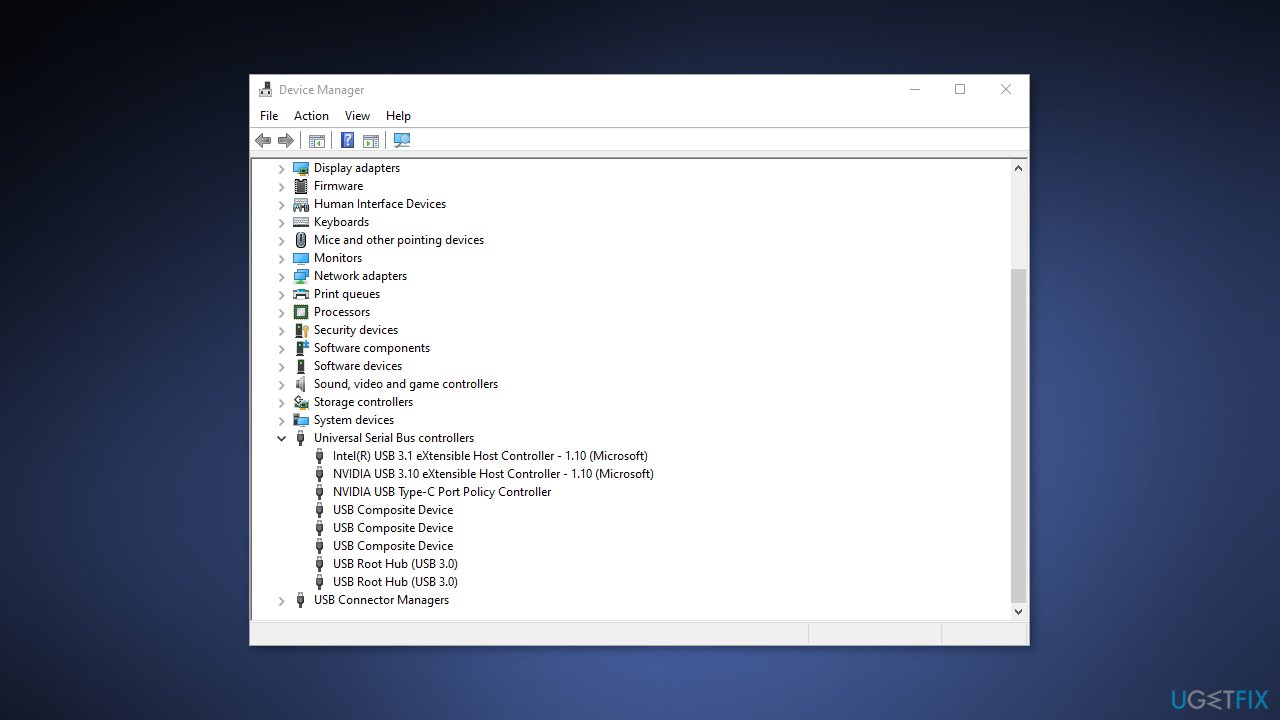
- Double-click on it and check for the unrecognized devices
- Right-click on USB hubs one by one and select the Update Driver option
- Press on the option to Search automatically for drivers
- Wait for Windows to look for updates; if available, it will be updated in the background
- Restart your PC to apply the changes
- You can also use a dedicated utility like [rev id="DriverFix"]. It can find the best drivers for your device automatically and install them
Bottom line
To fix the Usbport.sys Blue Screen in Windows, you can check your disk for errors using the Command Prompt with specific commands for HDDs and SSDs. If the issue persists, consider using a maintenance tool to address system errors and corrupted files. If none of these solutions work, you may need to bring your device to a repair shop.
Frequently asked questions
The Usbport.sys blue screen error in Windows 10 is often caused by faulty USB drivers, hardware conflicts, or corrupted system files.
To troubleshoot the Usbport.sys blue screen error on Windows 11, you can update your USB drivers, run the Windows Memory Diagnostic tool, or perform a system file check using the 'sfc /scannow' command.
Yes, uninstalling and then reinstalling USB drivers can help fix the Usbport.sys error, but ensure you restart your Windows 10 or Windows 11 device to allow the system to reinstall the drivers automatically.




Report an issue
What's wrong with this guide? We review every report and update or remove content.
Report received — thank you. We'll review and fix it.
You need a free account to submit a report.
Be the first to comment