How to fix
Valorant VAN error code 1067
on Windows
Resolve Valorant VAN error code 1067 quickly on Windows 10 or 11. Enjoy uninterrupted gameplay with expert-tested solutions that fix issues in minutes.

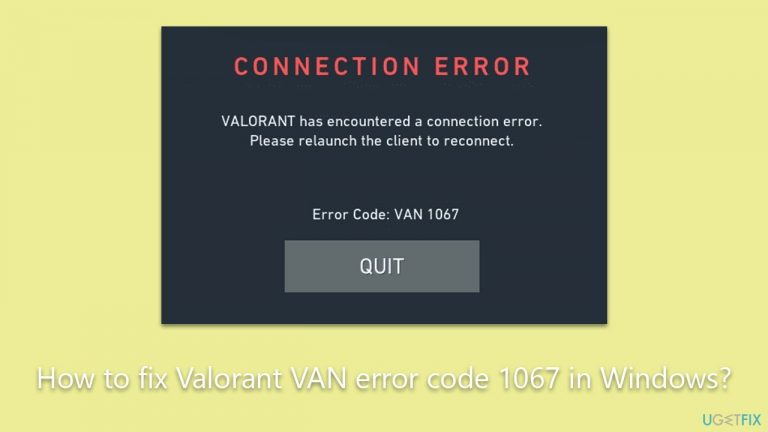
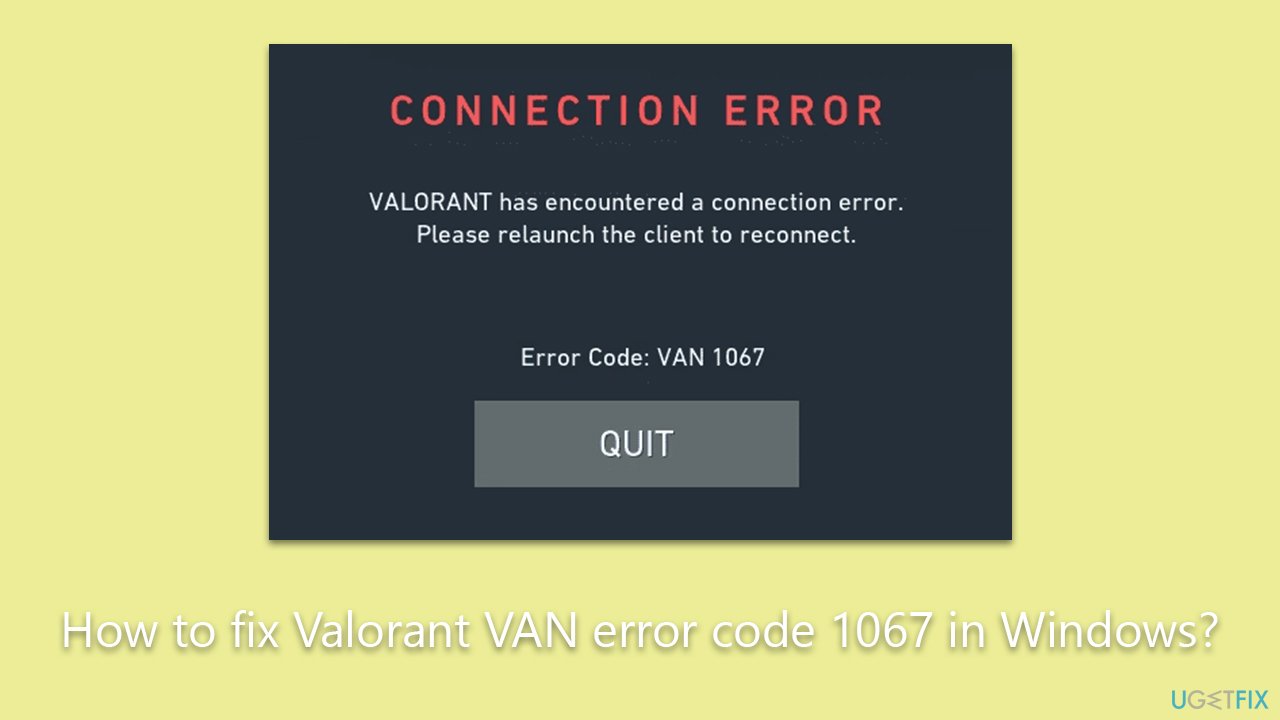
What causes How to fix Valorant VAN error code 1067 in Windows?
- Disabled Trusted Platform Module (TPM) 2.0
- Disabled Secure Boot
- Corrupted game files
- System compatibility issues
- Improper system specifications
Repairs Windows system files, removes malware, and restores a clean OS state — without reinstalling.
Hi. I can't launch Valorant for the past few days - I keep getting VAN error code 1067. Any idea on how to resolve this?
Valorant, developed by Riot Games, is an acclaimed multiplayer first-person shooter that has captured the attention of players around the world. Despite its immense popularity and a large amount of effort the developers put into creating a smooth gaming experience, players can occasionally run into issues. One such problem that Valorant players on Windows encounter is the VAN error code 1067.
At the heart of this error often lie the settings of the computer's hardware security features, specifically the Trusted Platform Module (TPM) 2.0 and Secure Boot. The TPM is a dedicated microcontroller designed to secure hardware by integrating cryptographic keys into devices. Secure Boot is a security standard developed by members of the PC industry to help ensure that a device boots only using software that is trusted by the Original Equipment Manufacturer (OEM). When these are disabled, it might cause the VAN error code 1067.
However, other reasons could also be the cause of this issue. Sometimes, corrupted game files could be the root of the problem, as Valorant heavily relies on these data sets to run properly. System compatibility issues could also bring about this error if the game doesn't properly align with the current system specifications or settings.
Fortunately, there are instructions to fix this error, which include verifying the status and potentially enabling TPM 2.0 and Secure Boot, checking for and repairing corrupted game files, and ensuring system compatibility with the game. These are direct steps that can be followed to address the VAN error code 1067.
In addition to these steps, utilizing a PC repair tool like [d1] could contribute to a solution. While it may not directly resolve the VAN error code 1067, it could improve overall system performance by detecting and repairing system file errors, thus potentially eliminating some of the underlying causes that might lead to such issues. This tool is useful in maintaining system health and preventing various PC-related issues.
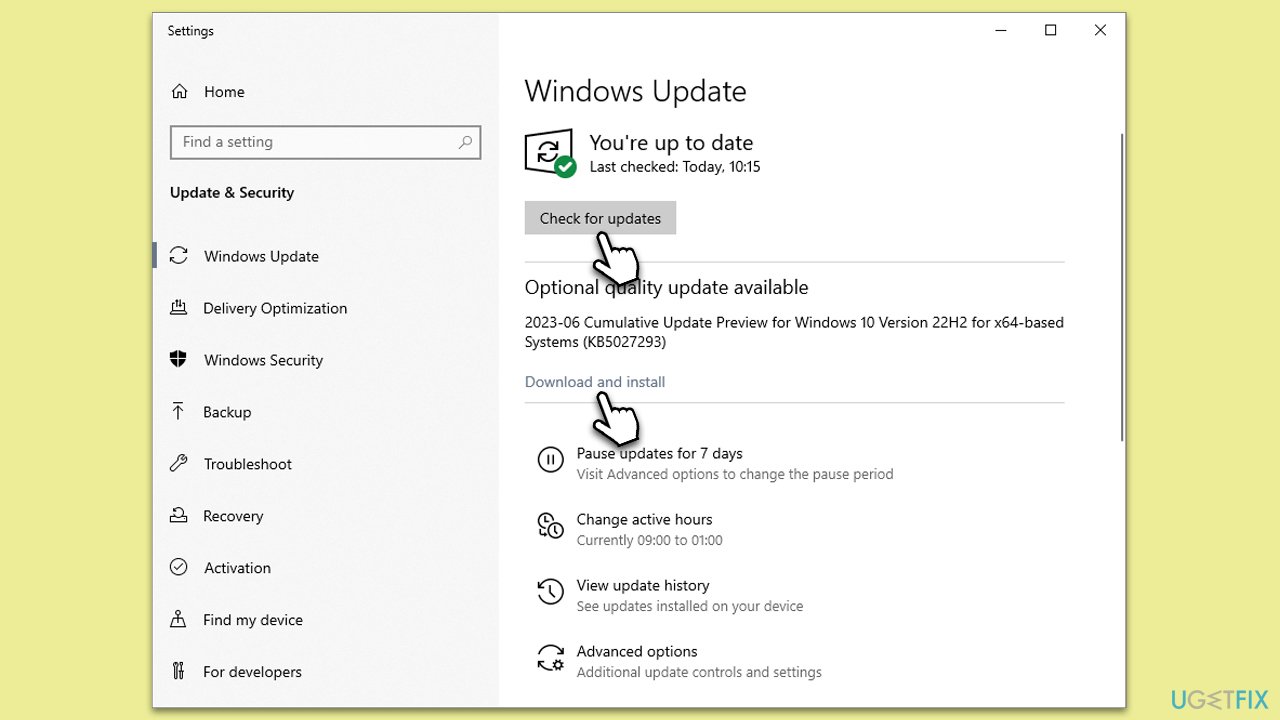
Fix 1. Install all Windows updates
Your PC might be missing vital updates that can interfere with running the game. Ensuring that your computer is up-to-date allows for the latest compatibility and performance improvements.
- Type Updates and press Enter.
- In the new window, click Check for updates.
- Wait till all the files and download and installed.
- If optional updates are available, install them as well.
- Restart your system to implement these changes.
Fix 2. Run the game as administrator
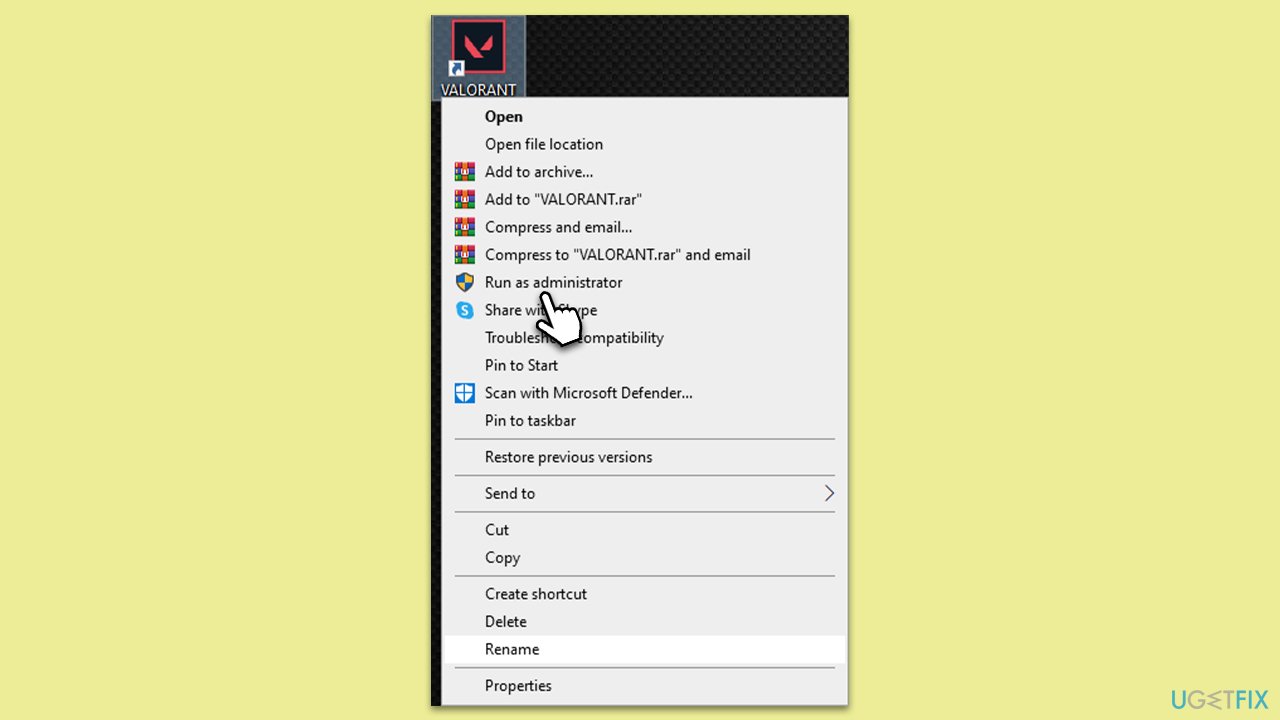
Some game features may require administrator privileges to run correctly. This action provides the game with the necessary permissions.
- Find the Valorant shortcut on your desktop.
- Right-click on it and select Run as administrator.
- If User Account Control shows up, click Yes.
- Check if the issue persists.
Fix 3. Run Valorant in compatibility mode
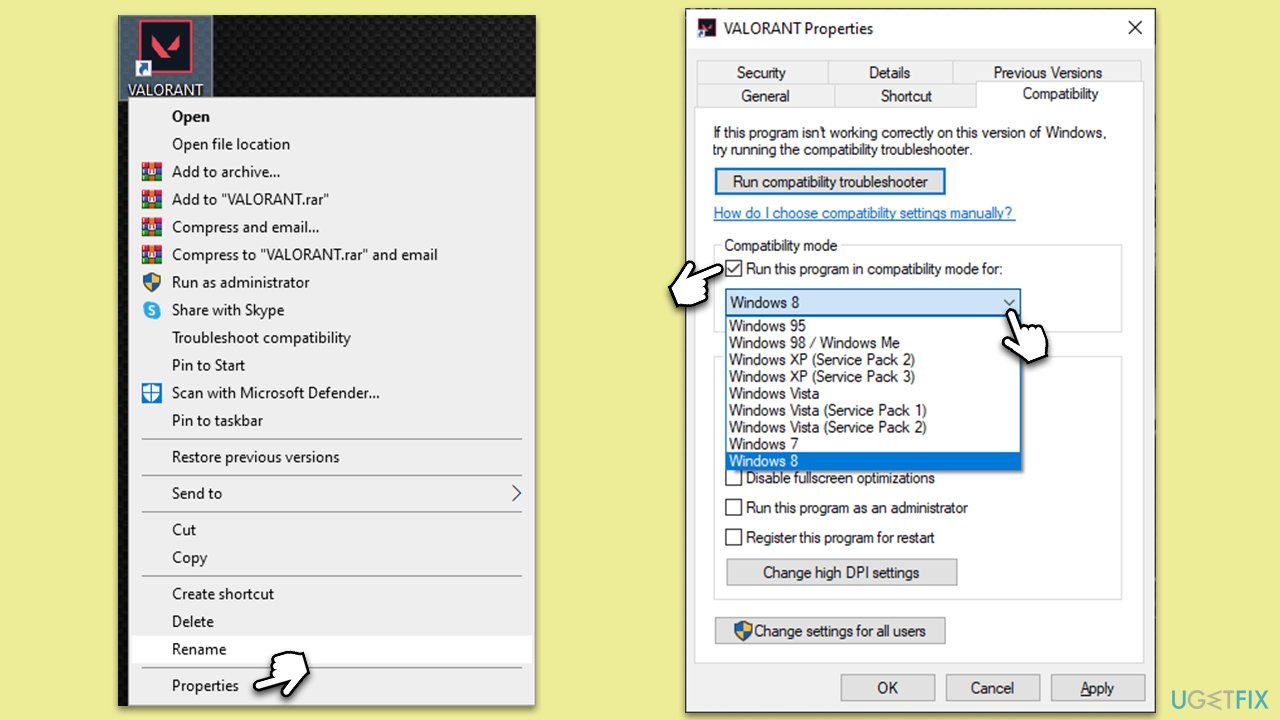
Compatibility mode allows Valorant to run on settings best suited to older versions of Windows, helping to resolve potential conflicts.
- Right-click on the Valorant icon and select Properties.
- Go to the Compatibility tab.
- Check Run this program in compatibility mode for.
- Choose an older version of Windows.
- Click Apply and then OK.
Fix 4. Repair Valorant
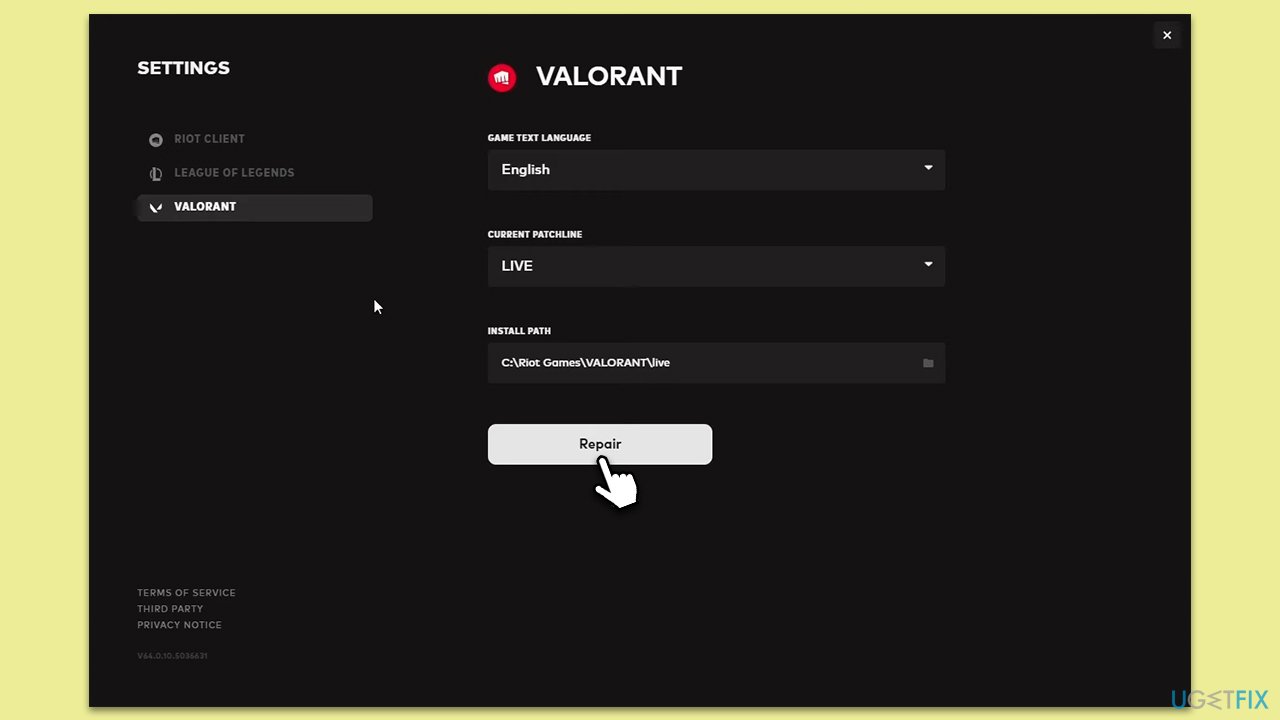
The game could have corrupted or missing files. Repairing the game checks for these issues and fixes them if found.
- Open the Riot Games client and select Valorant.
- Click on your profile picture and pick Settings.
- Click on Repair and wait till the process is finished.
- Launch the game as normal once done.
Fix Check VGC service
The Valorant Game Client (VGC) service handles many of the game's operations. Restarting or setting it to automatic startup type can solve many issues.
- Type Services in Windows search and hit Enter.
- Scroll down to locate the VGC service.
- If it's already running, Right-click and select Restart.
- If it isn't running, double-click the service to open its Properties.
- In the new window, under Startup type, select Automatic from the drop-down menu.
- Click Start and OK.
Fix 6. Enable TPM 2.0 and Secure Boot
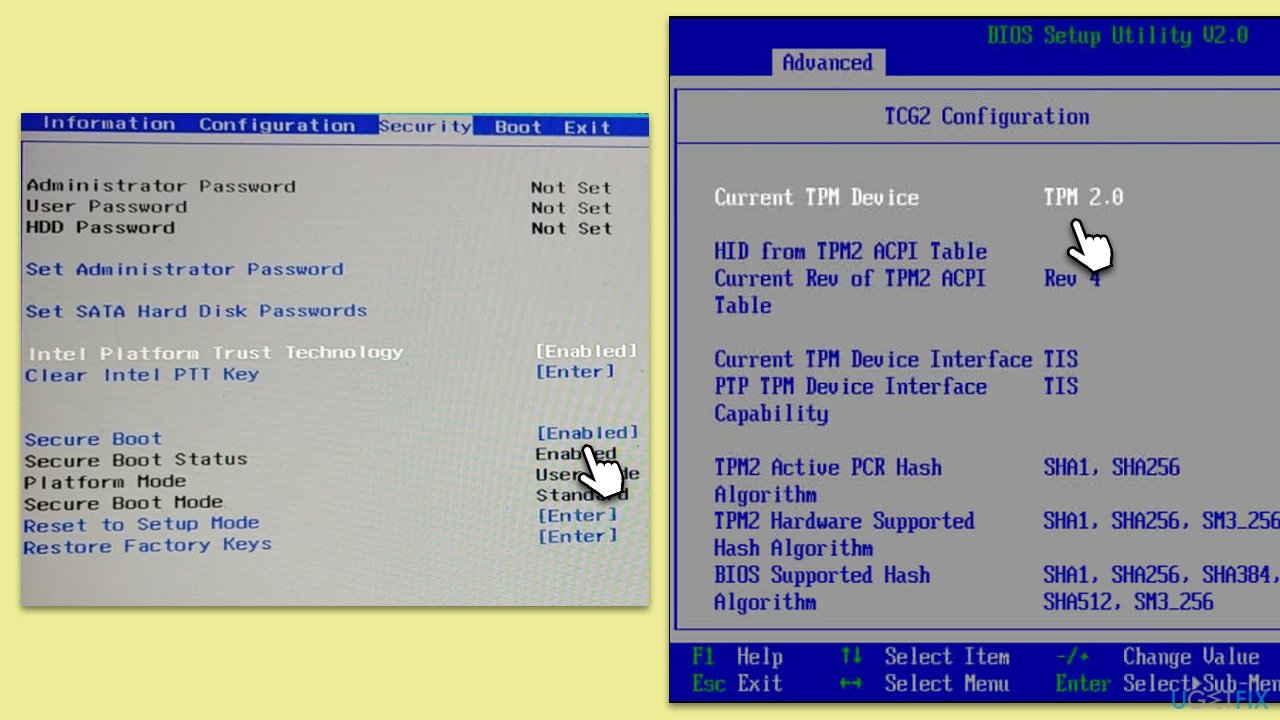
These security features need to be enabled for certain games to run properly, including Valorant.
- Open your system BIOS. You can usually do this by restarting your computer and pressing a specific key (like F2, F10, or Del - it depends on your motherboard or laptop manufacturer) as it boots up.
- Look for an option related to TPM, likely found under a Security or Advanced tab.
- Enable the TPM option.
- In the Boot, Advanced, Security, or similar sections, you should also be able to turn on Secure Boot.
- Save and exit BIOS, usually by pressing F10.
- Your computer will restart.
Fix 7. Run Clean Boot to check for software conflicts
Other software running on your system, such as MasterPlus+, might conflict with Valorant. A clean boot ensures that only necessary services are running.
- Press the Win + R to open the Run dialog.
- Type msconfig and press Enter.
- In the System Configuration window, select the Services tab.
- Check the box that says Hide all Microsoft services.
- Click on Disable all.
- Go to the Startup tab and click on Open Task Manager.
- Disable all startup items.
- Restart your computer.
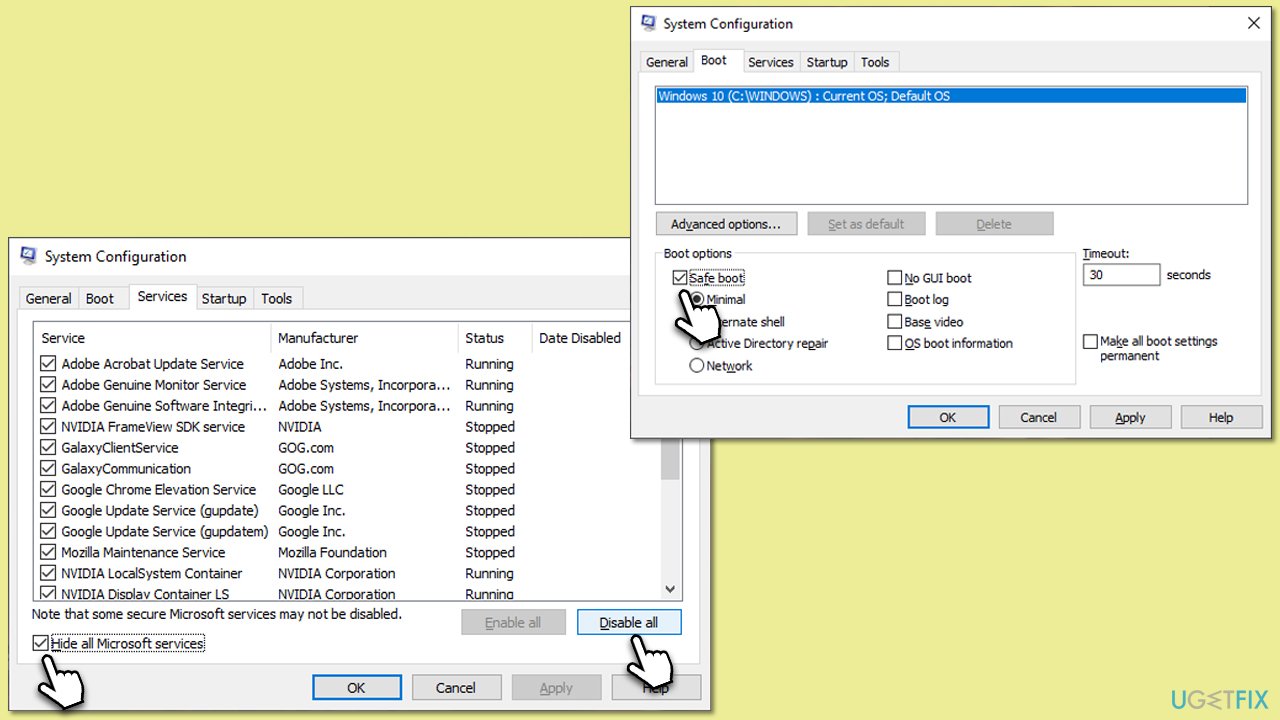
After entering the Clean Boot state, verify the presence of the Valorant VAN error code 1067. If the error no longer occurs, it indicates a third-party app or service is responsible. To pinpoint the specific culprit, systematically enable them one by one (or in groups), launch the game, and observe if the error reappears. Once the problematic app or service is identified, you can disable, uninstall it, or seek an update from the provider. To conclude, exit the clean boot state by re-enabling all services and apps and then perform a system restart.
Bottom line
To fix the VAN error code 1067, you should verify and potentially enable TPM 2.0 and Secure Boot, check for and repair corrupted game files, and ensure your system is compatible with Valorant. If these steps do not resolve the issue, consider using a PC repair tool to improve overall system performance.
Frequently asked questions
The VAN error code 1067 usually occurs due to issues with the Vanguard anti-cheat service, such as it not running properly or being blocked by security software.
To restart the Vanguard service, press Windows + R, type 'services.msc', locate 'Riot Vanguard', right-click on it, and select 'Restart'.
You can try disabling any third-party antivirus software temporarily and ensure that Windows Firewall allows Valorant and Vanguard through its settings.




Report an issue
What's wrong with this guide? We review every report and update or remove content.
Report received — thank you. We'll review and fix it.
You need a free account to submit a report.
Be the first to comment