How to fix
VLC Player not working
on Windows
Resolve VLC Player issues on Windows 10 or 11 quickly and effectively. Get back to seamless playback with our expert-tested solutions. Fixed in minutes!

What causes How to fix VLC Player not working in Windows?
- Update not installed correctly
- Update interrupted
- File corruption
- Bugged caches
- Malware infection
Repairs Windows system files, removes malware, and restores a clean OS state — without reinstalling.
Whenever I try to play a movie via the VLC media player, it is simply not starting. Even after clicking the same video file several times - nothing is happening, and it seems like VLC is not responding at all. Any idea on what is happening and what can I do to fix it?
While Windows has been offering its own built-in media player since Windows 3.0 was released back in 1991[ref en-2], initially, there was not much to choose from, and people stuck with whatever played video files on their computers. Over the years, the technology moved forward, and new tech companies and releases came to be.
VLC media player, otherwise known as VideoLAN Client, was first introduced to the public in 1996, the app has since evolved and is used by millions of users worldwide as an alternative for Windows Player.
Not only is the player capable of supporting various audio and video compression methods and file formats, but it is also available on multiple platforms, including Windows, macOS, iOS, and Android, which makes it extremely versatile. The app is also open-source[ref en-3] and free, which makes it an extremely attractive media player overall.
Unfortunately, some users may still encounter issues and bugs when using it. VLC Player not working is a huge problem for many, as people simply don't want to go back to the default Windows Player after having the convenience and functionality of VLC.
There could be different issues plaguing the app, such as sound not working and video being laggy.[ref en-1] However, the biggest problem users reported was that VLC Player was not responding at all, which prevented them from watching any multimedia content.
Since some people claimed that the issue occurred after an update, likely, that it wasn't installed correctly or was interrupted. There could also be several underlying issues why the issue may occur, including file corruption, bugged caches, or even malware infection. Thus, we recommend you check your system for underlying issues automatically with [d1] before you proceed with the manual solutions below.
Method 1. Check for duplicate processes
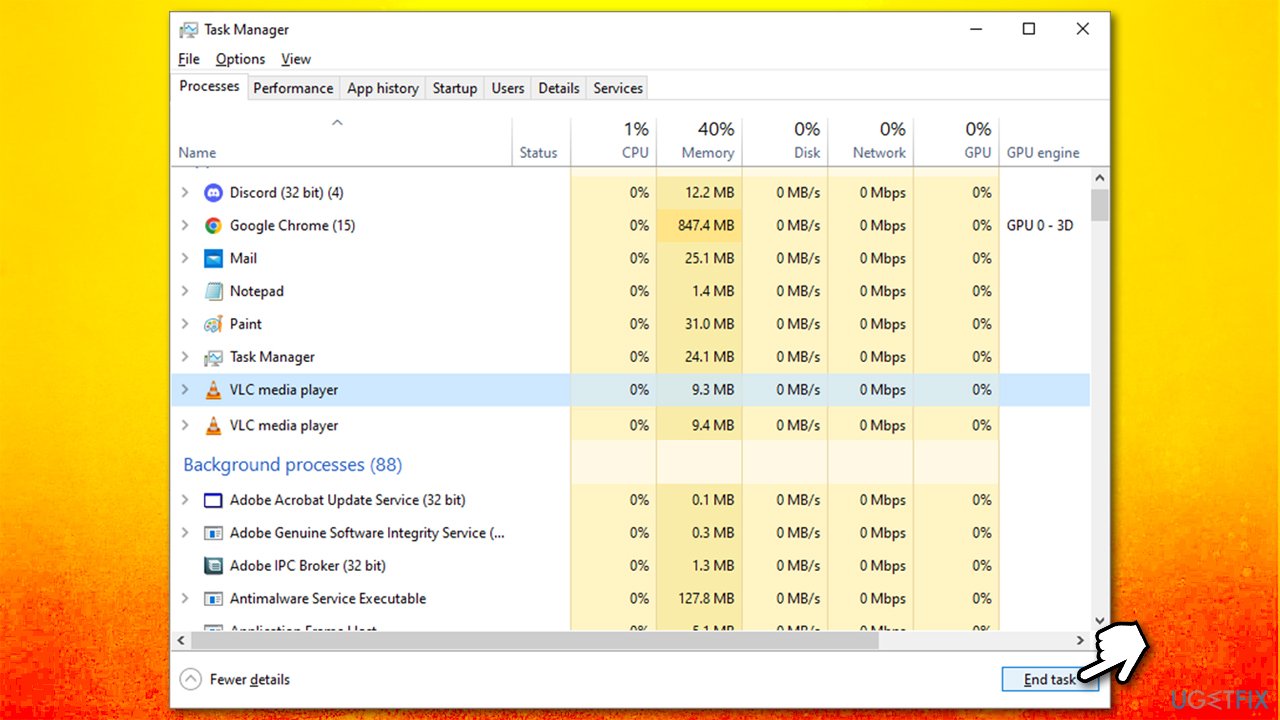
Programs are well known to bug out whenever another process is already running in the background, and a new instance is being initiated. Discord, for example, has a similar problem that users sometimes encounter. Thus, we recommend you check for duplicate processes and shut them down first.
- Press Ctrl + Shift + Esc on your keyboard to open the Task Manager
- Press More details (if required)
- Under Apps, find VLC Media Player, and shut down all its related processes by selecting them and clicking End task
- Try launching the app once again and see if it worked.
Method 2. Change cache values
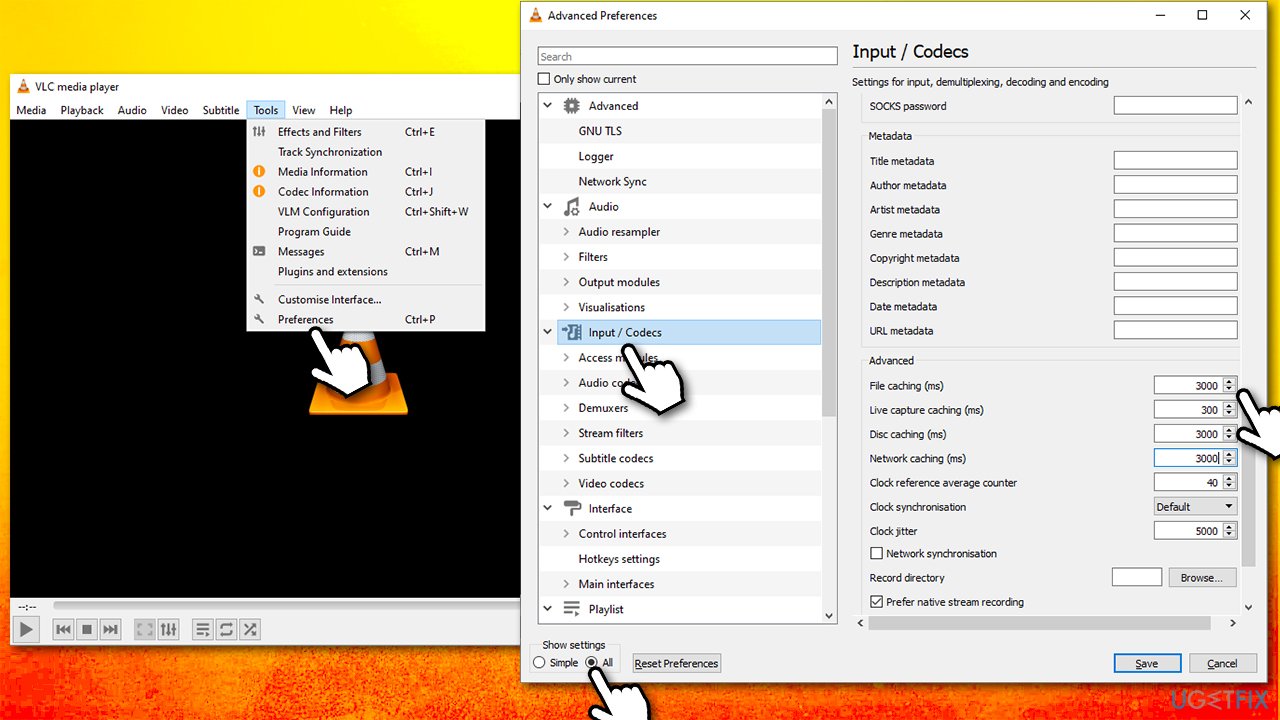
Incorrect cache values might cause all sorts of issues with VLC.
- Open VLC Player, click on Tools, and select Preferences
- At the bottom of the window, under Show Settings, select All
- Now click Input/Codecs on the left side of the window
- On the right side, scroll down until you reach the Advanced section
- Here, increase the values of File caching, Disc caching, and Network caching
- Click Save.
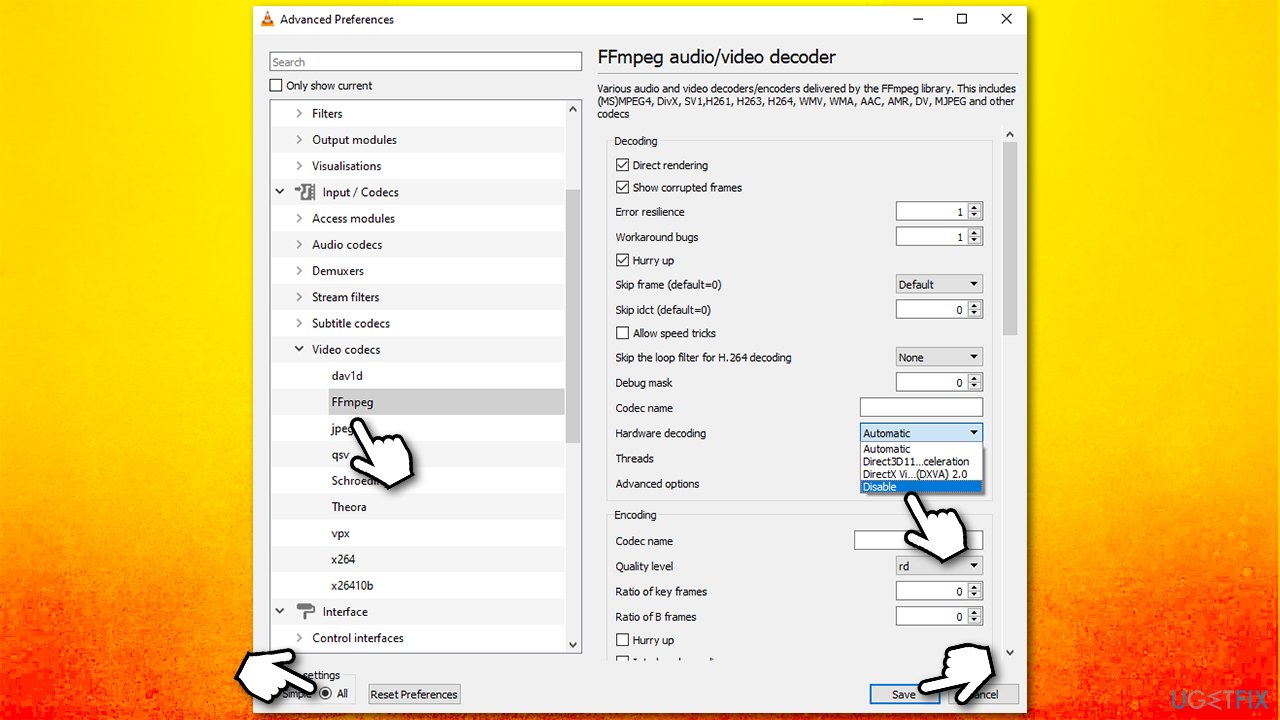
Method 3. Disable the Hardware Video Decoding option
- Open VLC Player, click on Tools, and select Preferences
- At the bottom of the window, under Show Settings, select All
- Expand the Video codecs section and select FFmpeg
- Under Hardware decoding, pick Disable option from the drop-down menu
- Click Save.
Method 4. Reinstall the app
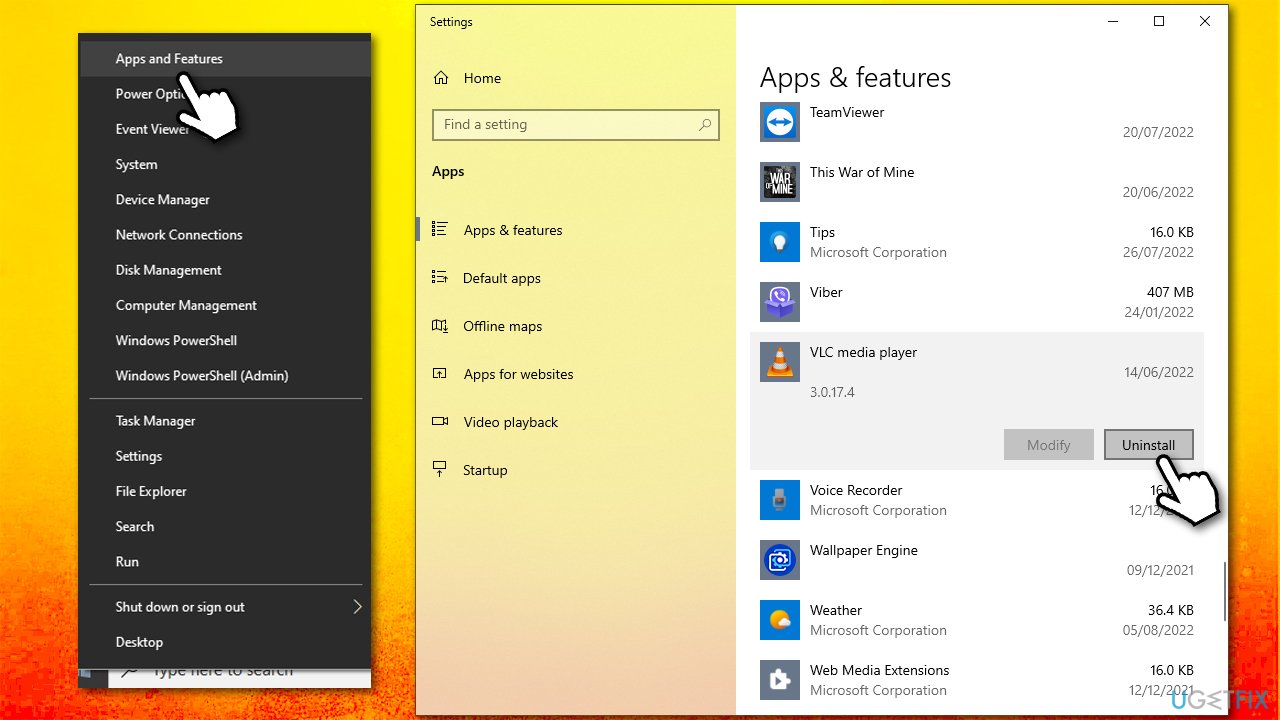
In some cases, the issue may lie within the corruption of the app itself, so we recommend simply reinstalling it. Follow these steps:
- Right-click on Start and pick Apps and Features
- Scroll down until you locate VLC Media Player
- Click Uninstall > Uninstall and follow on-screen instructions
- Restart your system, then download the app from the official website and install it once again.
Bottom line
To fix VLC Player not working in Windows, check for issues related to updates, file corruption, and caches. If these solutions do not resolve the problem, consider running a system check for underlying issues.
Frequently asked questions
Try updating VLC to the latest version, as updates often fix bugs and compatibility issues. If the problem persists, consider reinstalling VLC Player.
Check the audio output settings in VLC, ensuring the correct device is selected under 'Audio' > 'Audio Device.' Additionally, confirm that your system's audio drivers are up to date.
Ensure that your Windows 11 is up to date, as system updates can resolve compatibility issues. If VLC still won't open, try running it as an administrator or resetting its preferences.




Report an issue
What's wrong with this guide? We review every report and update or remove content.
Report received — thank you. We'll review and fix it.
You need a free account to submit a report.
Be the first to comment