How to fix
“We Can’t Find Your Camera” Error Code 0xA00F4244(0Xc00DABEO)
on Windows
Resolve the "We Can't Find Your Camera" error code 0xA00F4244 on Windows 10 quickly with expert-tested solutions. Fixed in minutes!

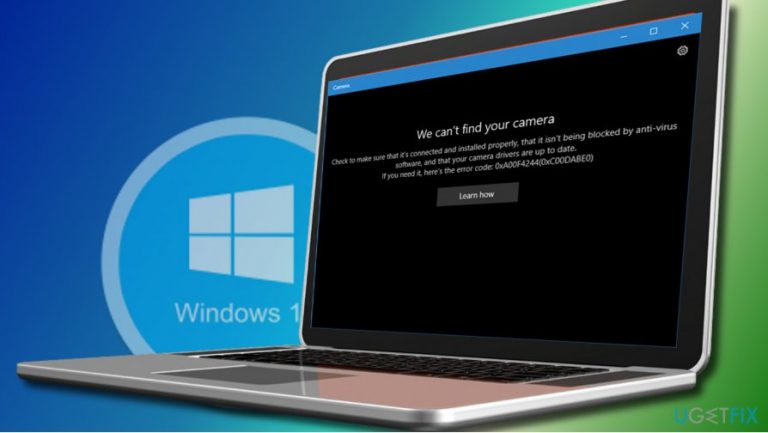
What causes How to Fix “We Can’t Find Your Camera” Error Code 0xA00F4244(0Xc00DABEO) on Windows 10?
- Webcam drivers may be damaged
- Software conflicts triggered by updates
- Issues following the installation of Tuesday Patch update KB4038788
- Inbuilt camera problems common in laptops
- External camera problems on PCs
Repairs Windows system files, removes malware, and restores a clean OS state — without reinstalling.
.When I try to use my built in Camera, I am receiving an error code 0xA00F4244 (0Xc00DABEO). I cannot find a similar threat online, so I guess that I’m the only one affected. Could you please help? Running Windows 10 Pro.
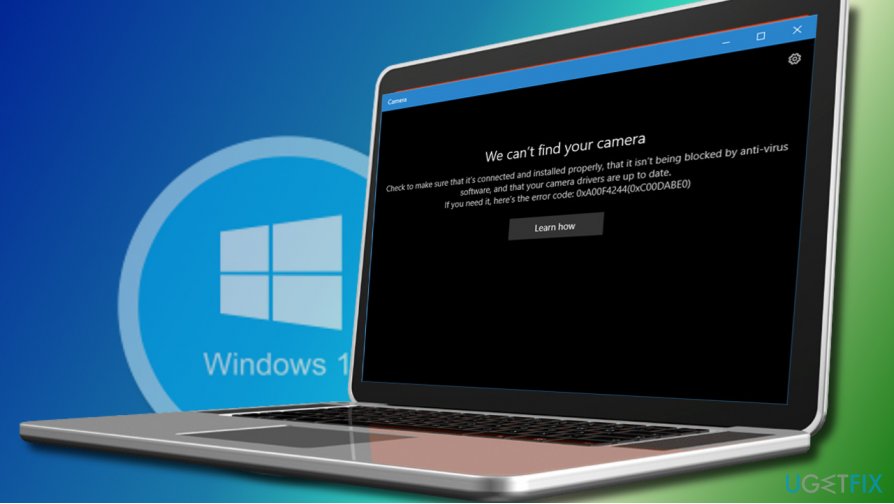
Camera errors are very common in Windows 10 OS. Although PC users can encounter various problems with the external camera connected to the PC, usually problems occur on laptops with an inbuilt front camera. One of the latest webcam errors registered in Windows 10 OS is 0xA00F4244 (0Xc00DABEO). Few people reported it right after the installation of Tuesday Patch update KB4038788 (OS Build 15063.608). Therefore, it can be assumed that the 0xA00F4244 (0Xc00DABEO) error might have been fostered by the update, which might have damaged webcam drivers, triggered software conflicts, and similar problems.
Microsoft hasn’t yet acknowledged the issue as it’s too fresh. However, we have a couple of solutions that can help you to fix 0xA00F4244 (0Xc00DABEO) error, but you have to remember that they are unofficial and by performing them you take all the responsibility for your PC’s health. Nevertheless, none of the methods provided below can trigger serious damage to your OS, so we would recommend you to try them on-by-one.
A Guide on How to Fix WebCam Error Code 0xA00F4244 (0Xc00DABEO)
Method 1. Reset your webcam
- Click Windows key + I and open App and Features.
- Locate Camera and click it.
- Select Advanced options and then Reset.
- Reboot the PC.
Method 2. Update webcam’s drivers
- Right-click Windows key and select Device Manager.
- Expand Imaging devices and right-click on your system webcam entry.
- Select the Update Driver Software option.
- Then click on opBrowse my computer for software driver.
- Select Let me pick from a list of device drivers on my computer option and check the Show compatible hardware option.
- Select USB Video Device and click Next.
- The system will automatically update/install the driver. Once done, close Device Manager.
- Reboot the system.
In case the 0xA00F4244 error showed up right or soon after driver update, try to roll back the driver to fix the problem:
- Right-click Windows key and select Device Manager.
- Click twice on Imaging devices and then right-click on the name of your webcam.
- Select Properties and click on Driver tab.
- Click Roll Back Driver and then Yes to confirm the changes.
- Finally, reboot your PC.
Method 3. Check privacy settings
- Press Windows key + I to open Settings.
- Go to the Privacy category and select the Camera option.
- Make sure that the Let apps use my camera option is turned on.
Method 4. Enable "Let apps use my camera" option
If you are confronting with 0xA00F4244(0Xc00DABEO) error when trying to use camera for a particular application, for example Skype, check if the "Let apps use my camera" option is enabled on your PC.
- Click Windows key + I and select Privacy.
- Open Camera and click Turn On.
- Enable the option Let apps use my camera (in case it was disabled).
- Turn off all applications except the ones that you are using with the Camera, for example, Skype and check if the error has been fixed.
If you did not perform any system changes before the camera error 0xA00F4244 (0Xc00DABEO) emergence, we would recommend you to check the system for malware. Malicious programs can turn certain apps down, and inbuild camera is not an exception. We would recommend running a scan with [d1], but you are free to use another professional security tool.
Bottom line
To fix the error code 0xA00F4244 (0Xc00DABEO), you can try resetting your webcam and updating the webcam's drivers. If these methods do not resolve the issue, consider rolling back the driver or seeking further assistance.
Frequently asked questions
This error often occurs due to outdated drivers, disabled camera permissions, or hardware issues with the camera itself.
You can check camera permissions by going to Settings > Privacy > Camera and ensuring that access is allowed for apps that need to use the camera.
If updating the driver doesn't help, try uninstalling the camera device in Device Manager and then restarting your computer to allow Windows to reinstall it automatically.




Report an issue
What's wrong with this guide? We review every report and update or remove content.
Report received — thank you. We'll review and fix it.
You need a free account to submit a report.
Be the first to comment