How to fix
“We couldn’t complete the updates. Undoing changes. Don’t turn off your computer” error
on Windows
Resolve the "We couldn't complete the updates" error on Windows 10 and 11 quickly. Expert-tested solutions to get you back on track, fixed in minutes.

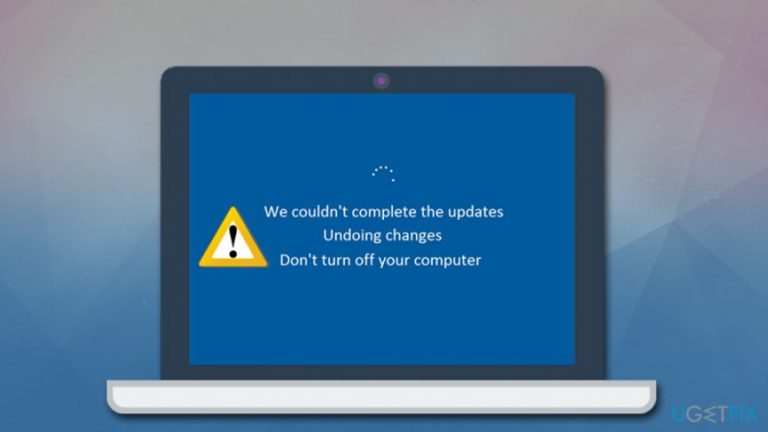
What causes How to fix “We couldn’t complete the updates. Undoing changes. Don’t turn off your computer” error?
- Corrupted system files
- Some Windows update components could not be downloaded
- Interrupted update process
- Insufficient HDD/SSD space
Repairs Windows system files, removes malware, and restores a clean OS state — without reinstalling.
Hello. I have my Windows 10 updates set to the automatic setting and never had trouble with it since I got my computer a few years ago. However, for the past week, I am unable to install the most recent updates - it loads to 100% and then returns error "We couldn't complete the updates. Undoing change," and then I'm back at square one. Is there any way I could fix this?
"We couldn't complete the updates. Undoing changes. Don't turn off your computer" error is obviously related to Windows patching system - in case something goes wrong during the update process, the OS will simply not finish the installation and instead revert the changes. While this might be frustrating, it is important to note that "We couldn't complete the updates. Undoing changes" error is an effective way of stopping ruining your operating system, as incorrectly installed updates can lead to serious problems.
Windows updates are significant from various points of view, as they improve system stability, fixes bugs,[ref en-1] implement new features, and otherwise enhance user experience. However, possibly the most crucial function of updates is security, as software vulnerabilities can be used by malicious actors to inject malware into machines without user interaction whatsoever.[ref en-2] Due to this, it is imperative to fix "We couldn't complete the updates. Undoing changes. Don't turn off your computer" error as soon as possible.
There are many different reasons why "We couldn't complete the updates. Undoing changes" error might show up on your computer. It is important to note that each of the Windows systems is unique, as it uses personal settings, has different apps installed, runs on hardware manufactured by different companies, which also changes the drivers[ref en-3] used for it. In other words, there are millions of configuration combinations each of the computers might have, so error fixers are not universal either.
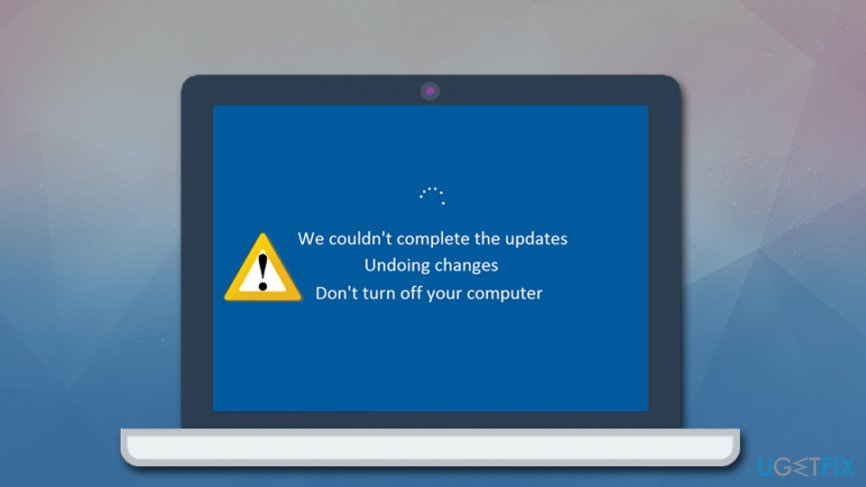
These are the most common causes of the "We couldn't complete the updates. Undoing changes" issue:
- Corrupted system files
- Some Windows update components could not be downloaded
- Interrupted update process
- Insufficient HDD/SSD space
Because of these and other reasons that could cause the issue, one "We couldn't complete the updates. Undoing changes" fix that worked for somebody may not work for you. Therefore, we provide several different methods below - follow each step carefully, and you will find the solution for your particular case eventually.
Unfortunately, "We couldn't complete the updates. Undoing changes. Don't turn off your computer" might also cause an endless loop in some cases, where users are unable to access the computer at all - they receive the same error over and over again. The good news is that this issue can be bypassed by using the Advanced Startup feature and accessing Safe Mode.
"We couldn't complete the updates. Undoing changes. Don't turn off your computer" is not the only Windows update issue that users encountered. Here are a few other problems that are related:
- We can’t install some updates because other updates are in progress
- Windows 10 stuck on checking for updates
- Getting Windows ready. Don’t turn off your computer
How to fix "We couldn't complete the updates. Undoing changes. Don't turn off your computer" endless loop issue?
If you are having the "We couldn't complete the updates. Undoing changes" reboot loop issue, you should access Safe Mode and proceed with troubleshooting options from there. The easiest way to do it is by interrupting the Windows boot process three times in a row - it will then automatically enter the Advanced Startup mode. To do that, press the Reset or Power button (and hold it for at least four seconds) on your computer as soon as the Windows logo shows up after the reboot. On the fourth attempt, Windows should inform you that it is performing an automatic repair (Preparing Automatic Repair).
After that, do the following to access Safe Mode:
- In the Choose an option screen, select Troubleshoot
- Go to Advanced Settings > Startup Settings and select Restart
- After a reboot, press F4 on your keyboard (F5 if you want networking as well), and restart the machine one more time.
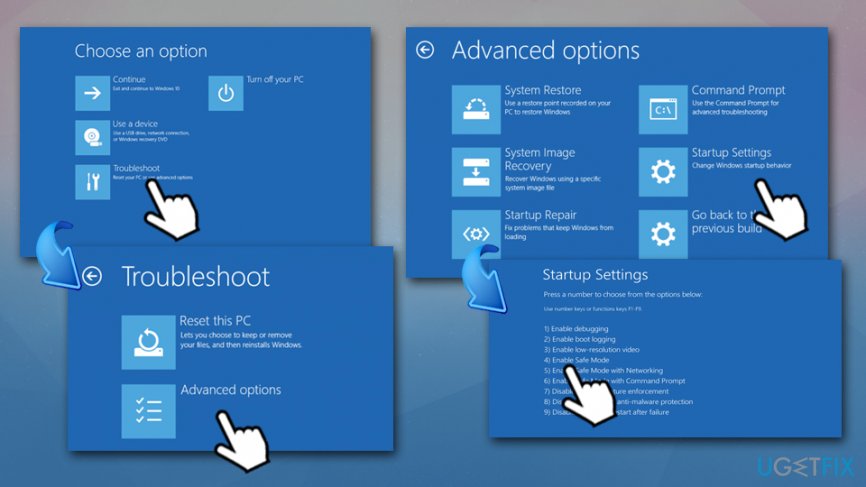
Fix we couldnt complete the updates undoing changes dont turn off your computer error access safe mode
Once you are in Safe Mode, proceed with the below-listed "We couldn't complete the updates. Undoing changes. Don't turn off your computer" error fixes. If you want a quick fix, or the methods below did not work for you, employ automatic repair software [d1].
Fix 1. Run Windows Update troubleshooter
Troubleshooter is a very effective tool that comes pre-installed on all Windows operating systems. Since the "We couldn't complete the updates. Undoing changes" error is related to updates, you should employ the appropriate Windows Update troubleshooter:
- Right-click on Start button and pick Settings
- Go to Update & Security
- On the left, select Troubleshoot
- Scroll down till you see Windows Update
- Click on it once and then select Run the troubleshooter
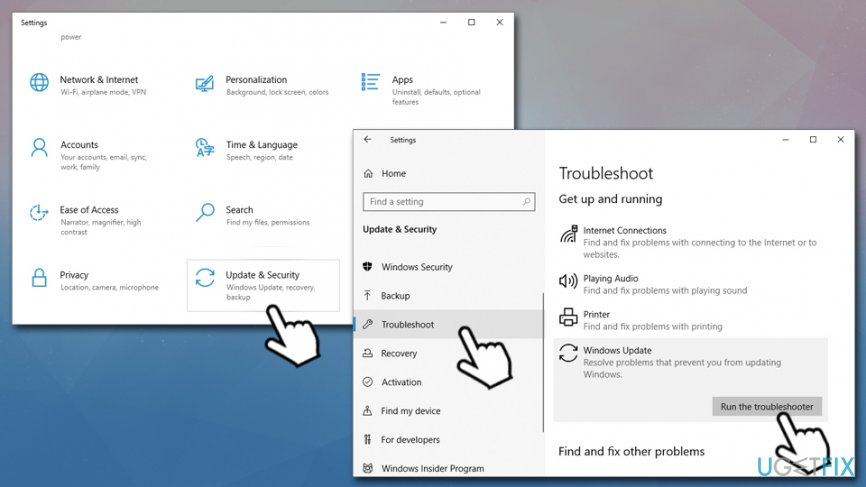
Fix we couldnt complete the updates undoing changes dont turn off your computer error run windows updates troubleshooter - Wait till Windows diagnoses and attempts to repair the issues
Fix 2. Delete contents of SoftwareDistribution folder
SoftwareDistribution folder holds Windows updates files, and it may, in some cases, get damaged, causing various updating issues.
- Type in cmd into Windows search
- Right-click on Command Prompt and select Run as administrator
- In the Command Prompt window, type the following lines, pressing Enter after each:
net stop wuauserv
net stop bits
net stop cryptSvc
net stop msiserver - Press Win + E and go to C:\\Windows\\SoftwareDistribution folder
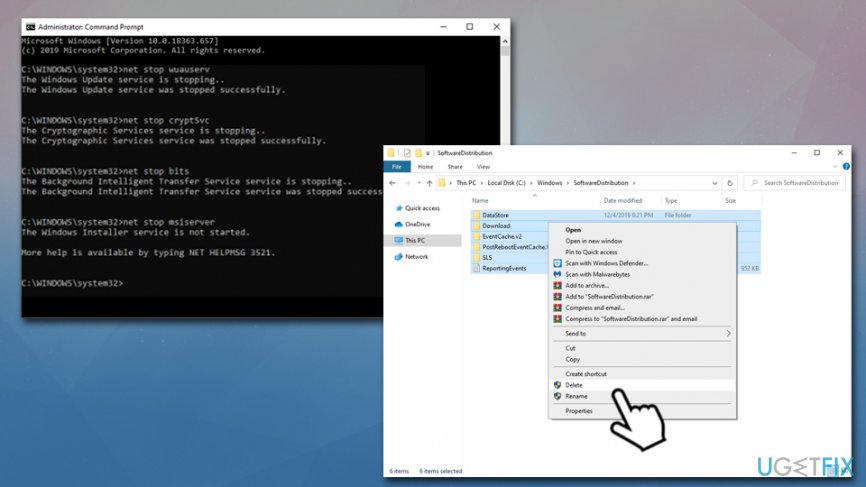
Fix we couldnt complete the updates undoing changes dont turn off your computer error delete softwaredistribution folder - Delete all the contents inside
- Open Command Prompt with administrator's rights again, and type in the following, hitting Enter after each line:
net start wuauserv
net start bits
net start cryptSvc
net start msiserver - Reboot the system and see if that helped you fix "We couldn't complete the updates. Undoing changes" error
Fix 3. Start App Readiness Service
Windows services are essential for it to operate as intended. In some cases, services might be turned off by malware or other causes. App Readiness Service is mandatory for a smooth Windows update process - so make sure it is enabled.
- Type in Services into Windows search and press Enter
- Locate App Readiness entry in the list
- Right-click and select Properties
- Under Startup type, click on the drop-drown menu and pick Automatic
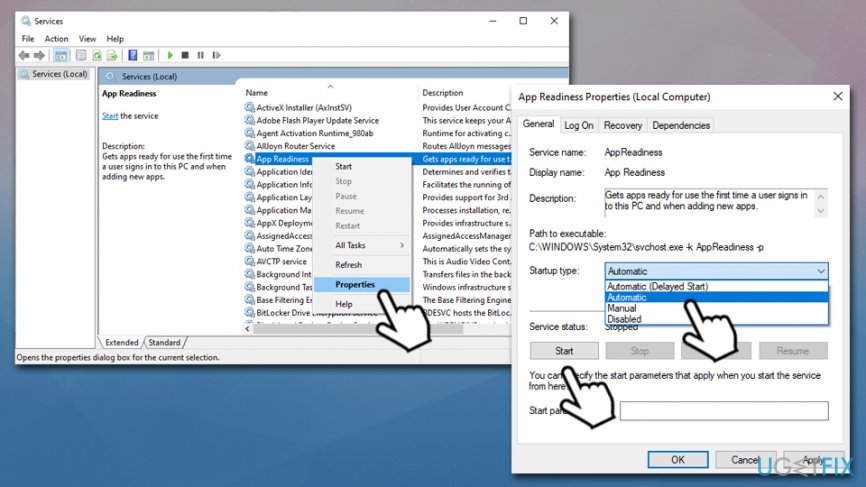
Fix we couldnt complete the updates undoing changes dont turn off your computer error start app rediness service - Press Start and then Apply + OK
- Reboot your PC
Fix 4. Run System File Checker via Command Prompt
If Windows system files are corrupted, it may result in update errors. To fix this, run the built-in SFC tool:
- Open Command Prompt with Administrator's rights as explained above
- Type in the following command and press Enter
sfc /scannow
- Wait till Windows finds corrupt system files and fixes them automatically
Fix 5. Install Windows updates manually
In some cases, installing Windows updates manually can fix the issue. Here's how to do it:
- Right-click on Start button and select Settings
- Go to Update & Security
- On the right side, click on View update history
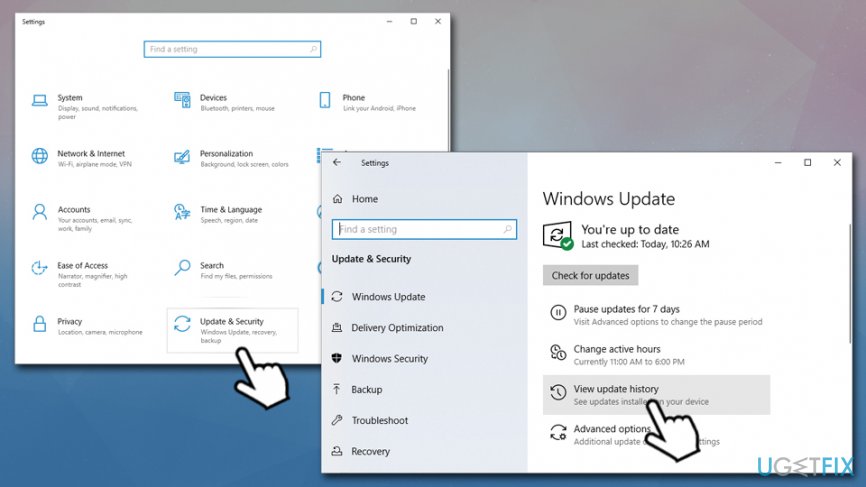
Fix we couldnt complete the updates undoing changes dont turn off your computer error check for update history - The failed and successfully installed updates will be shown there, so copy the the number of the updates that fail to install (for example, KB4537759)
- Go to Microsoft Update Catalog, type in the KB number and press search
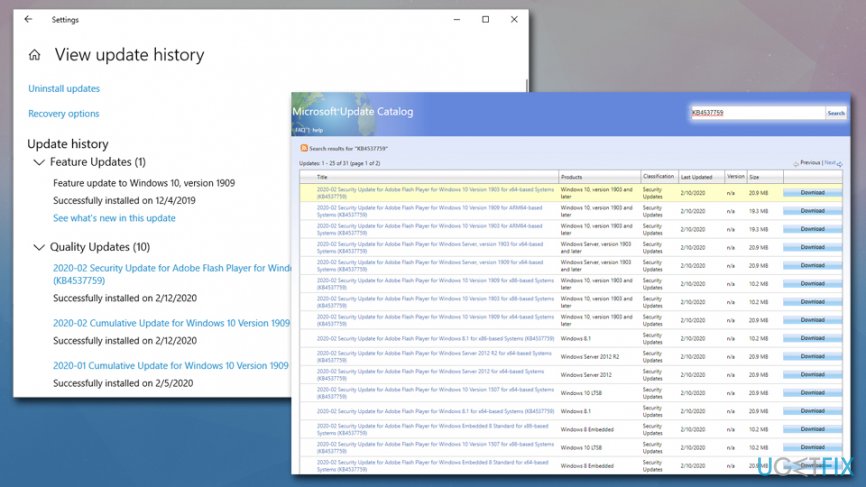
Fix we couldnt complete the updates undoing changes dont turn off your computer error install updates manually - Download and install updates manually
- Reboot your machine
Fix 6. Temporarily block automatic Windows updates until Microsoft fixes the issue
It is not a secret that Windows updates have ruined the mood of many users plenty of times - features stop working, icons disappear, drivers break, etc. And while frequent updates are mandatory for any computer security and stability, it is a good idea to prevent automatic Windows updates if you are having issues with "Undoing changes to your computer" prompts.
Now, there are several ways to do this by editing the registry or group policy or disabling the Windows update service. However, the easiest way to temporarily disable Windows updates is to enable metered connection via the settings menu.
- Right-click on Start and select Settings
- Pick Network & Internet
- Click Change connection properties
- Under Metered connection, toggle the switch to the right to enable it.
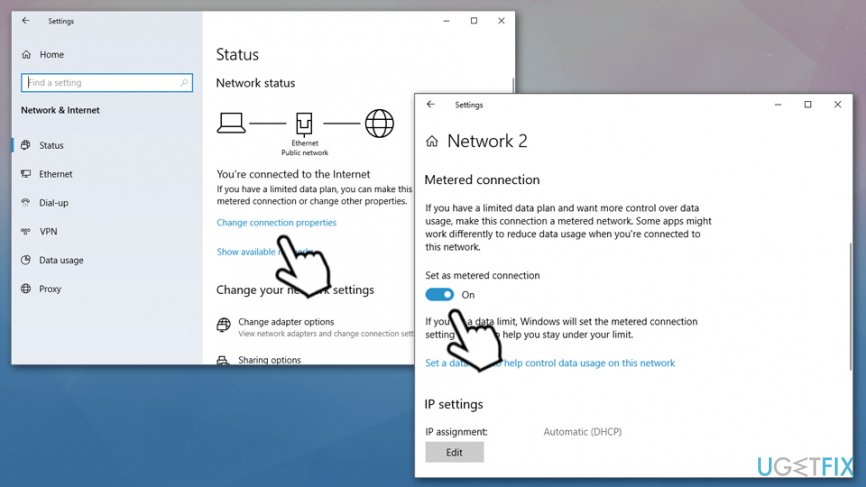
Fix we couldnt complete the updates undoing changes dont turn off your computer error pause automatic updates
Fix 7. Reset your computer
If nothing above worked, you should reset Windows. While the reset option might sound scary for many, it is important to note that you will not lose your files - Microsoft upgraded the reinstallation process of the OS drastically over the years. Since there are multiple different ways of doing this, you should check our "How to reset Windows 10 to factory settings?" article and choose the method that suits you the most.
Bottom line
To resolve the "We couldn't complete the updates. Undoing changes" error, you can try repairing corrupted system files, ensuring all update components are downloaded, checking for interruptions during the update process, and freeing up space on your hard drive. If none of these solutions work, consider seeking further technical support.
Frequently asked questions
You can try booting into Safe Mode and running the Windows Update Troubleshooter to resolve update issues. If that doesn't work, consider resetting the Windows Update components manually.
To prevent this error, ensure that your device has enough disk space and that all drivers are up to date before installing updates. Regularly check for Windows updates and install them promptly.
Yes, you can perform a system restore to revert your system to a previous state before the updates were applied, which typically does not affect your personal files.




Report an issue
What's wrong with this guide? We review every report and update or remove content.
Report received — thank you. We'll review and fix it.
You need a free account to submit a report.
Be the first to comment