How to fix
“we weren’t able to install the app” error
on Windows
Resolve the "we weren't able to install the app" error on Windows 10 and Windows 11 effortlessly. Expert-tested solutions to fix it in minutes!

What causes How to fix “we weren’t able to install the app” error in Windows?
- Insufficient privileges to install the app
- User not logged in with an administrator account
- System does not meet minimum requirements for the app
- App may be faulty or corrupted
- System may be infected with malware or other malicious software
Repairs Windows system files, removes malware, and restores a clean OS state — without reinstalling.
Hello. I tried to install Minecraft but I received an error "we weren't able to install the app" in Windows. What can I do?
Sometimes, when people try to install a new application on Windows, they receive the "we weren't able to install the app" error. There are several reasons why a Windows user might fail to install an app. One common reason is that the user does not have sufficient privileges to install the app. This can happen if the user is not logged in with an account that has administrator privileges, or if the administrator has disabled the ability to install apps.
Another reason could be that the user's system does not meet the minimum requirements for the app. This could be due to insufficient storage space, a lack of compatible hardware or software, or other limitations. In some cases, the app itself may be faulty or corrupted. This could happen if the app was not properly downloaded or if it was damaged during the download process.
Finally, the user's system may be infected with malware or other malicious software that is preventing the app from being installed. In this case, the user may need to scan their system for viruses and other threats and remove them before attempting to install the app again.
In this guide, you will find 8 steps that should help you fix "we weren't able to install the app" error in Windows. Keep in mind that the manual troubleshooting process can be lengthy. To avoid it, you can use a maintenance tool like [d1]. It can fix most system errors, BSODs,[ref en-1] corrupted files, and registry[ref en-2] issues. It can also clear cookies and cache[ref en-3] which should optimize the device. Otherwise, follow the step-by-step instructions below.
Method 1. Run Windows Store Apps Troubleshooter
- Press the Windows key + I to open Settings
- Navigate to System > Troubleshoot > Other troubleshooters
- Under the Other section, find Windows Store Apps
- Click on the Run button
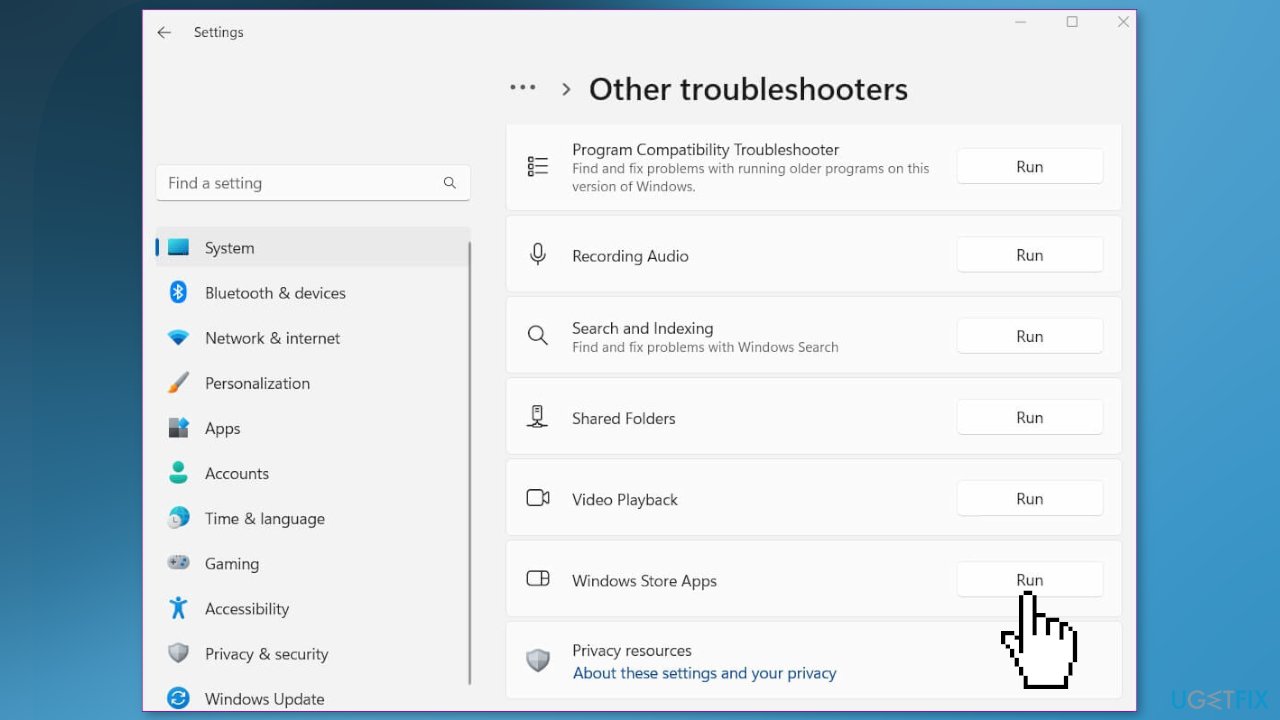
- Follow on-screen instructions and apply any recommended fixes
Method 2. Fix Corrupted System Files
Use Command Prompt commands to repair system file corruption:
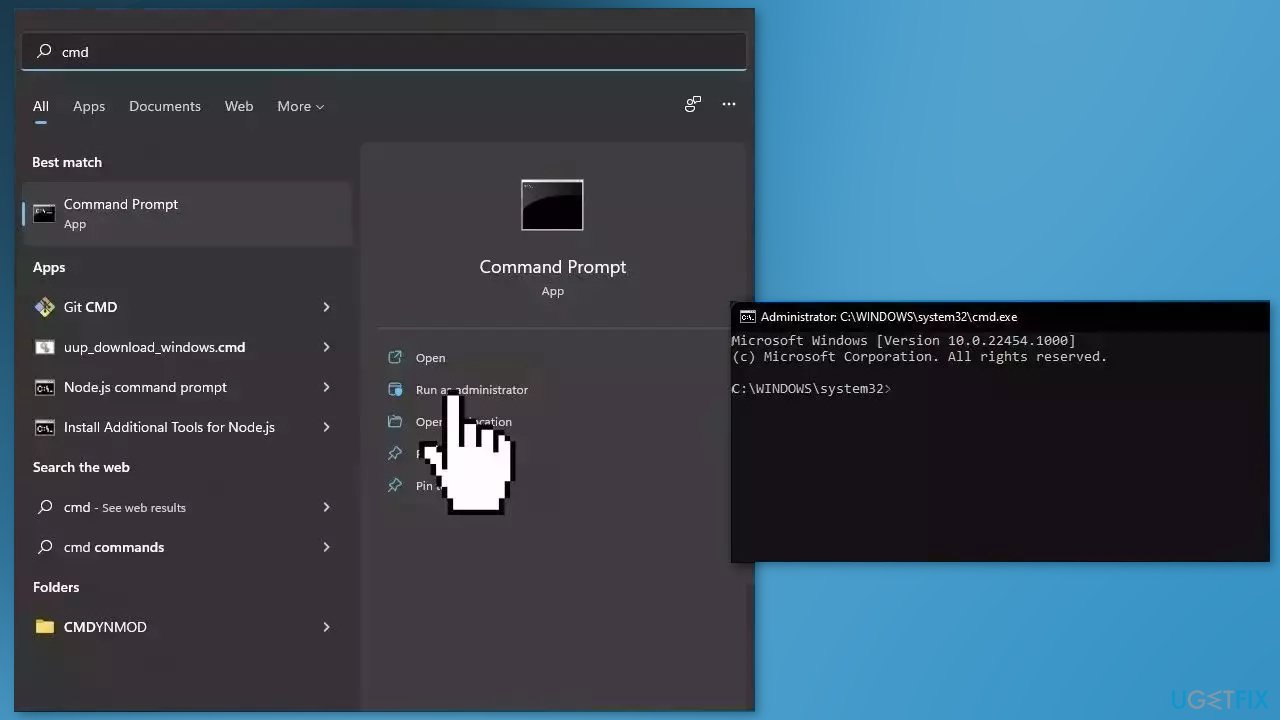
- Open Command Prompt as administrator
- Use the following command and press Enter:
sfc /scannow
- Reboot your system
- If SFC returned an error, then use the following command lines, pressing Enter after each:
DISM /Online /Cleanup-Image /CheckHealth
DISM /Online /Cleanup-Image /ScanHealth
DISM /Online /Cleanup-Image /RestoreHealth
Method 3. Disable Third-Party Antivirus
Sometimes antivirus software can block legitimate processes mistakenly. You should try disabling your antivirus and trying to install the app again.
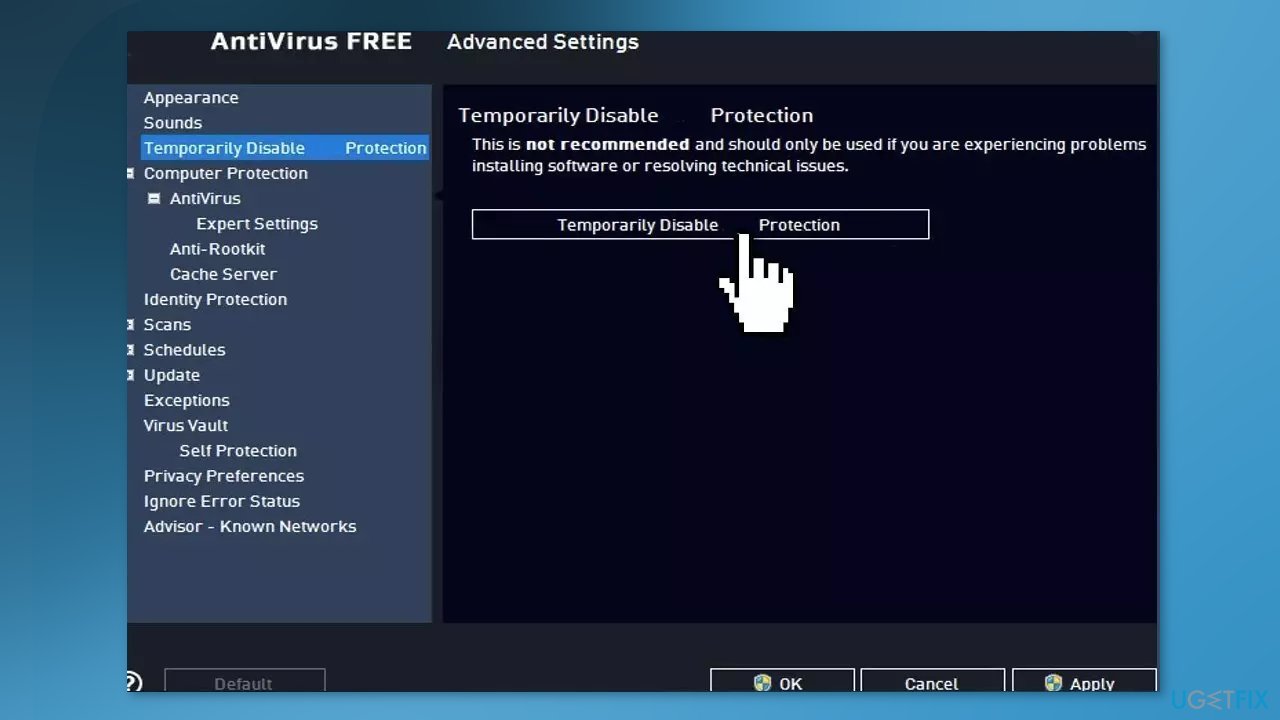
Method 4. Reset Microsoft Store
- Open the Settings app and click on Apps
- Go to Apps & Features
- Scroll down to Microsoft Store on the list
- Click on the three dots
- Select Advanced Options
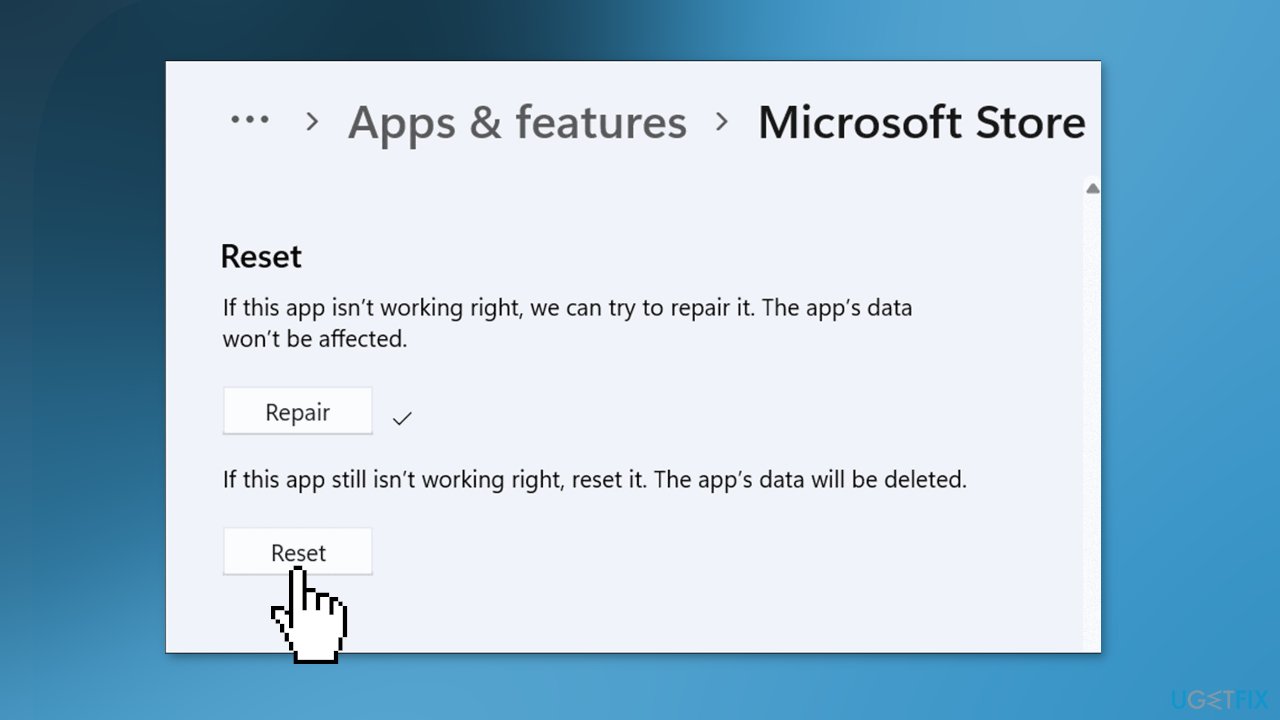
- Scroll down and click Reset
- Exit the Settings app when done
Method 5. Clear Cache
- Open the Windows Start Menu and type powershell
- Right-click on the search result and select Run as Administrator
- If a UAC opens, hit Yes to provide your consent
- Type WSReset.exe and hit Enter
- Press on the Windows key + R to open the Run box
- Type %temp% into the box and hit Enter
- The temp folder at C:\Users\<username>\AppData\Local\Temp should appear
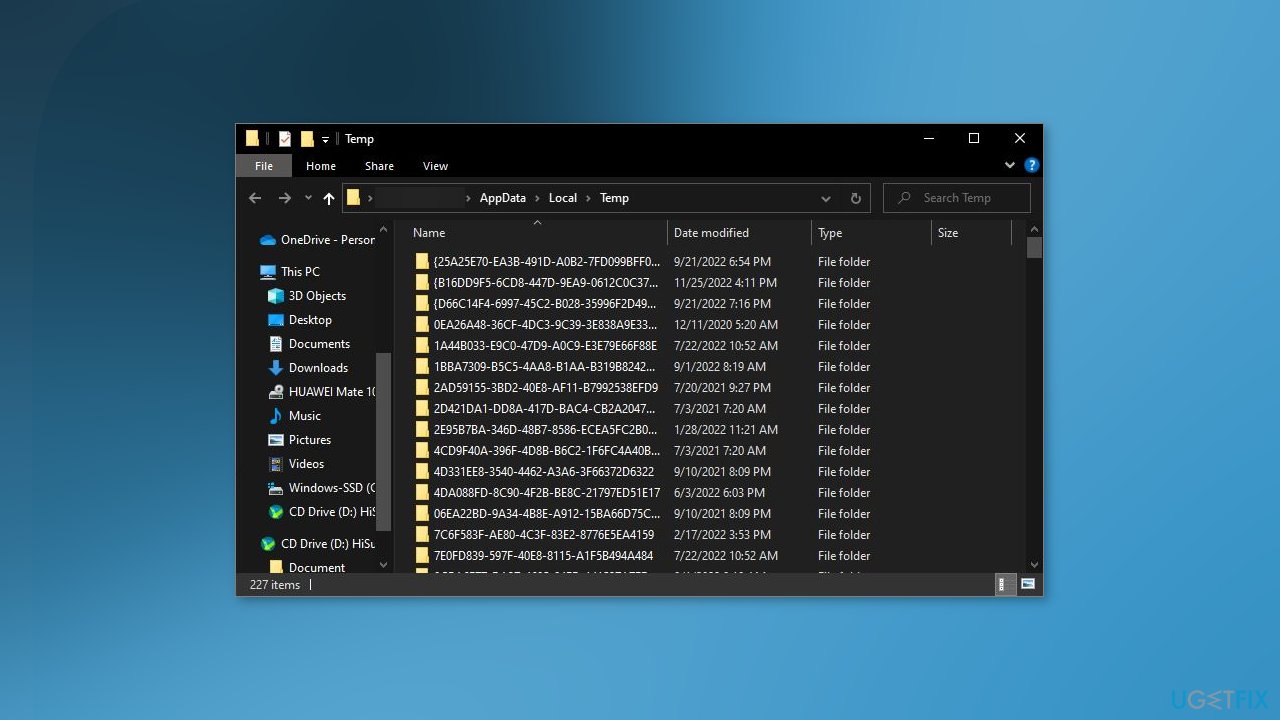
- Select all files in the folder, then delete them
Method 6. Install App in Another Drive
- Press the Windows key + I to open the Settings app
- Click on System, then Storage
- Scroll down and click Advanced storage settings to expand the section
- Now, click Where new content is saved option
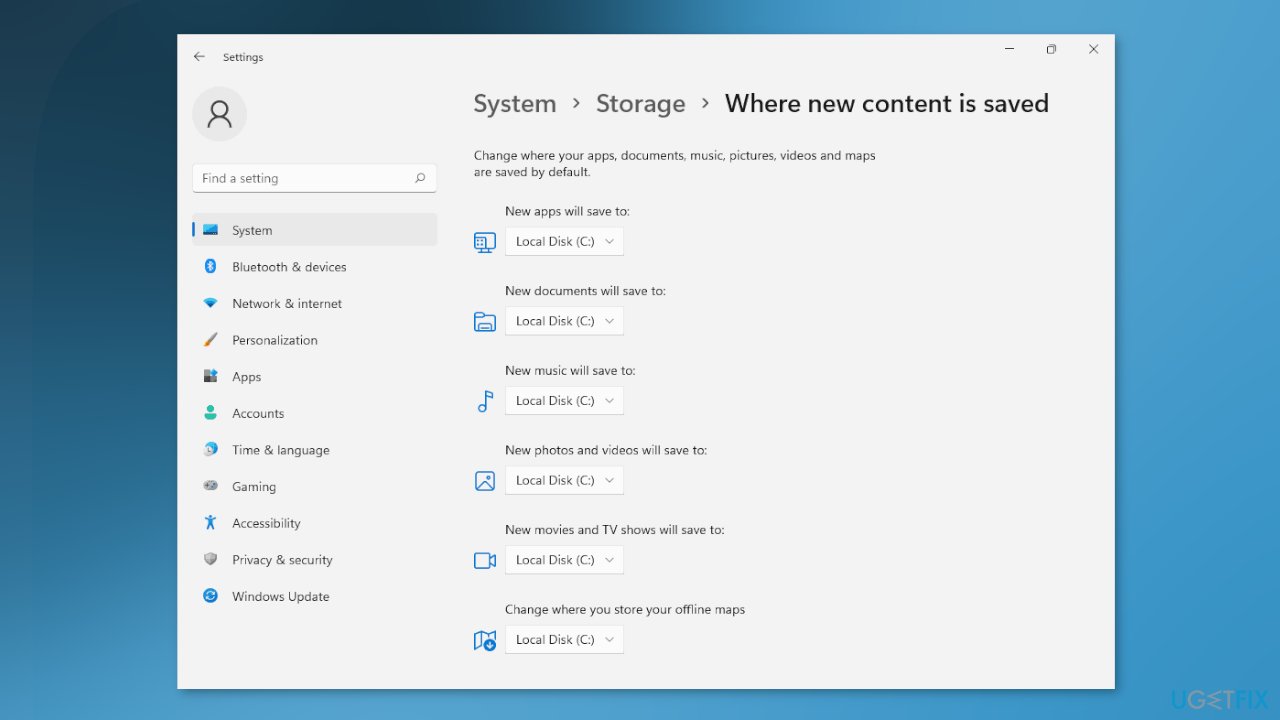
- In the next screen, click the New apps will save to dropdown
- Select another drive
- Exit the window when done
Method 7. Reinstall Gaming Services
- Right-click on the Start button and search for the Command Prompt
- Click on Run as administrator, and click Yes on a UAC prompt
- Enter the following commands and press Enter after each one:
get-appxpackage Microsoft.GamingServices | remove-AppxPackage -allusers
start ms-windows-store://pdp/?productid=9MWPM2CQNLHN
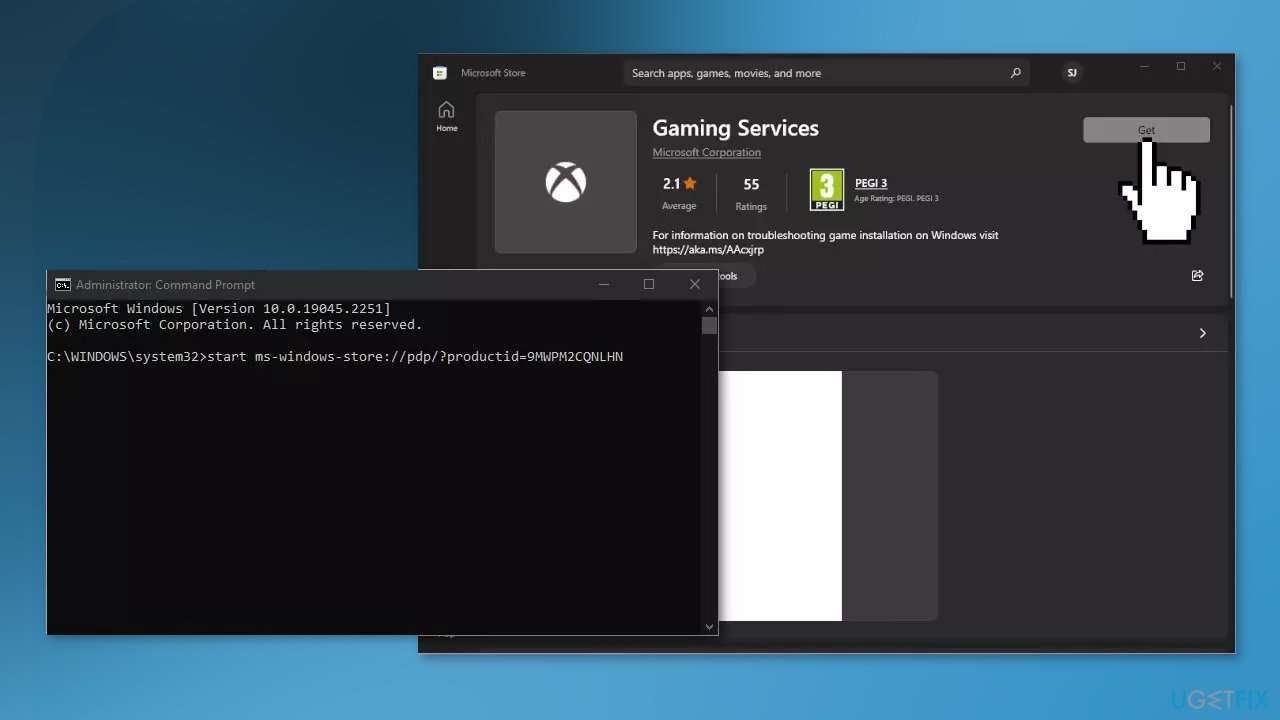
- You will be directed to the Microsoft Store where you should install Gaming Services
- Finish the process and see if the issue is fixed
Method 8. Create a Local Administrator Account
- Select the Start menu and go to Settings
- Click on Accounts
- Under Family & other users select Add someone else to this PC
- Select I don't have this person's sign-in information, and on the next page, select Add a user without a Microsoft account
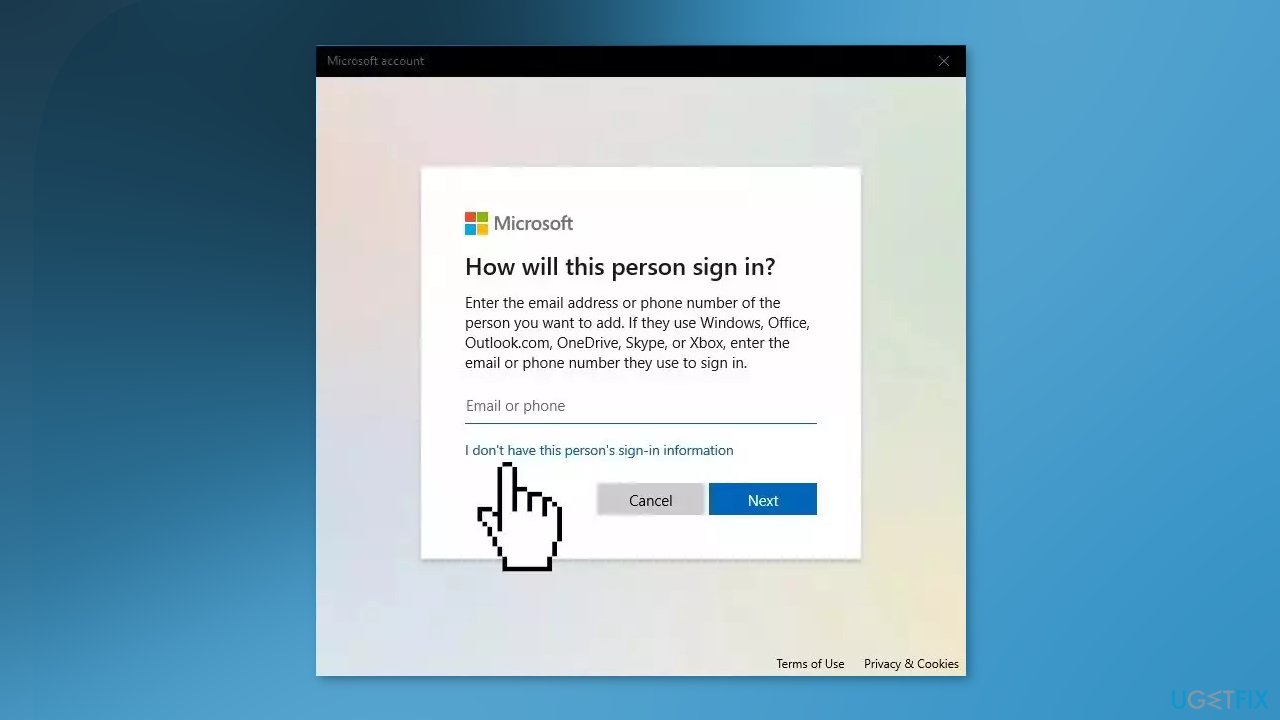
- Enter a user name, password, or password hint, or choose security questions and then select Next to finish the process
- Now, select Change account type
- Under Account type, select Administrator, and then select OK
- Sign in with the new administrator account and check if the issue is resolved
Bottom line
To fix the "we weren't able to install the app" error, you can run the Windows Store Apps Troubleshooter and follow the on-screen instructions. If these steps do not resolve the issue, consider using a maintenance tool to fix system errors or scanning your system for malware.
Frequently asked questions
You can try resetting the Microsoft Store cache by running 'wsreset.exe' in the Run dialog, which may resolve installation issues.
Ensure that your Windows 11 is updated to the latest version, as updates often fix bugs that could be causing the installation error.
Make sure that your device's date and time settings are correct, as incorrect settings can interfere with app installations on both Windows 10 and Windows 11.




Report an issue
What's wrong with this guide? We review every report and update or remove content.
Report received — thank you. We'll review and fix it.
You need a free account to submit a report.
Be the first to comment