How to fix
Weather App is showing temperature in Farenheit instead of Celcius
on Windows
Quickly switch your Weather App from Fahrenheit to Celsius on Windows 10 or 11. Get expert-tested solutions to enhance your experience today!

What causes How to fix Weather App is showing temperature in Farenheit instead of Celcius?
- Corrupted Weather app
- Build-up of Start Menu Tiles cache
- Incorrect Windows settings
- App not updating preferences
- Temporary system glitches
Repairs Windows system files, removes malware, and restores a clean OS state — without reinstalling.
Hello. I wanted to change how the temperature is displayed on my Windows computer. I set it to Celcius but the Weather app still shows it in Fahrenheit. Is there a way to fix this?
The Weather app in Windows is a program that provides users with current weather information for their location. The app displays the current temperature, humidity, and atmospheric pressure, as well as a forecast for the next few days. Users can enter their location manually or allow the app to automatically detect their location using their device's GPS.
The Weather app also provides alerts for severe weather conditions, such as thunderstorms, tornadoes, and hurricanes. Users can customize the app to receive notifications for specific types of weather events or locations. The app also includes a radar map that shows the location and movement of storms, as well as a satellite map that provides a detailed view of cloud cover.
However, some users have problems with the temperature display in the Weather app. People can choose how they want to see the temperature - in Fahrenheit or Celcius. However, people report setting the preferred option in Windows settings but the Weather app still showing the other temperature scale. For example, a user wanted to see the temperature in Celcius but the app still shows it in Fahrenheit.
It is unknown what exactly causes this issue. It could be a result of a corrupted Weather app, a build-up of Start Menu Tiles cache,[ref en-1] etc. In this guide, you will find 6 steps that should help you fix the Weather App showing temperature in Fahrenheit instead of Celcius.
Keep in mind that the manual troubleshooting process can be lengthy. You can use a repair tool like [d1] if you want to avoid it. It can fix most system errors, BSODs,[ref en-2] corrupted files, and registry[ref en-3] issues. Otherwise, follow the step-by-step instructions below.
Solution 1. Run the Windows Store Apps Troubleshooter
- Type Troubleshoot in Windows search and press Enter
- Click Additional troubleshooters if you can't see them listed
- Scroll down to find Windows Store Apps
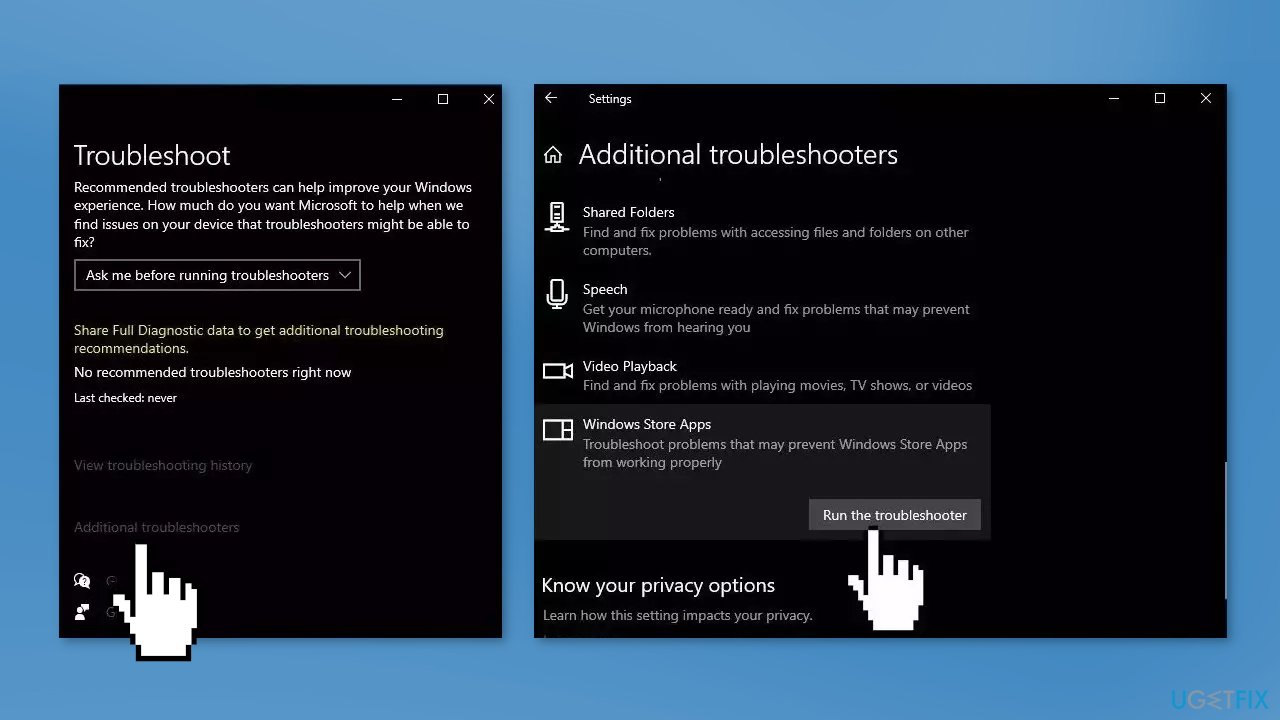
- Click and select Run the troubleshooter
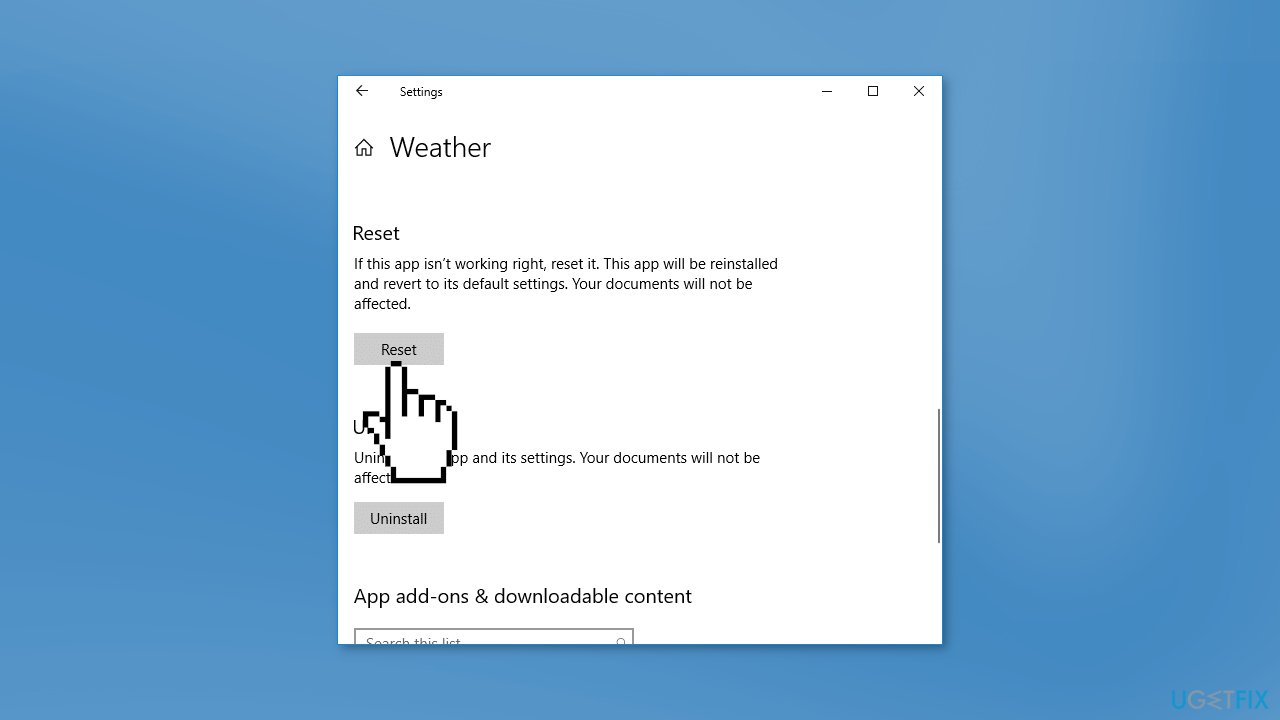
Solution 2. Reset the Weather App
- Go to Windows Settings and click Apps
- Search for the Weather app and click on it and then click the Advanced Options
- Scroll down and click on the Reset button
- Open the Microsoft Store and go to the Settings
- Make sure that the option to automatically download updates is turned on
Solution 3. Clear Start Menu Tiles Cache
This step involves modifying the Windows Registry. Users should be especially careful when modifying the registry as it contains a wide variety of settings and configurations for the Windows operating system and the programs that run on it. It is best to create a backup and restore it if something goes wrong. You can follow the steps in the How to back up and restore the Windows registry? article.
- Press the Windows key + R to open the Run box
- Type regedit and press Enter
- Go to the StateStore key. This key is available under ImmersiveShell key
- You can go to StateStore by expanding HKEY_CURRENT_USER, Software key, expanding Microsoft key, Windows, CurrentVersion, ImmersiveShell, and StateStore
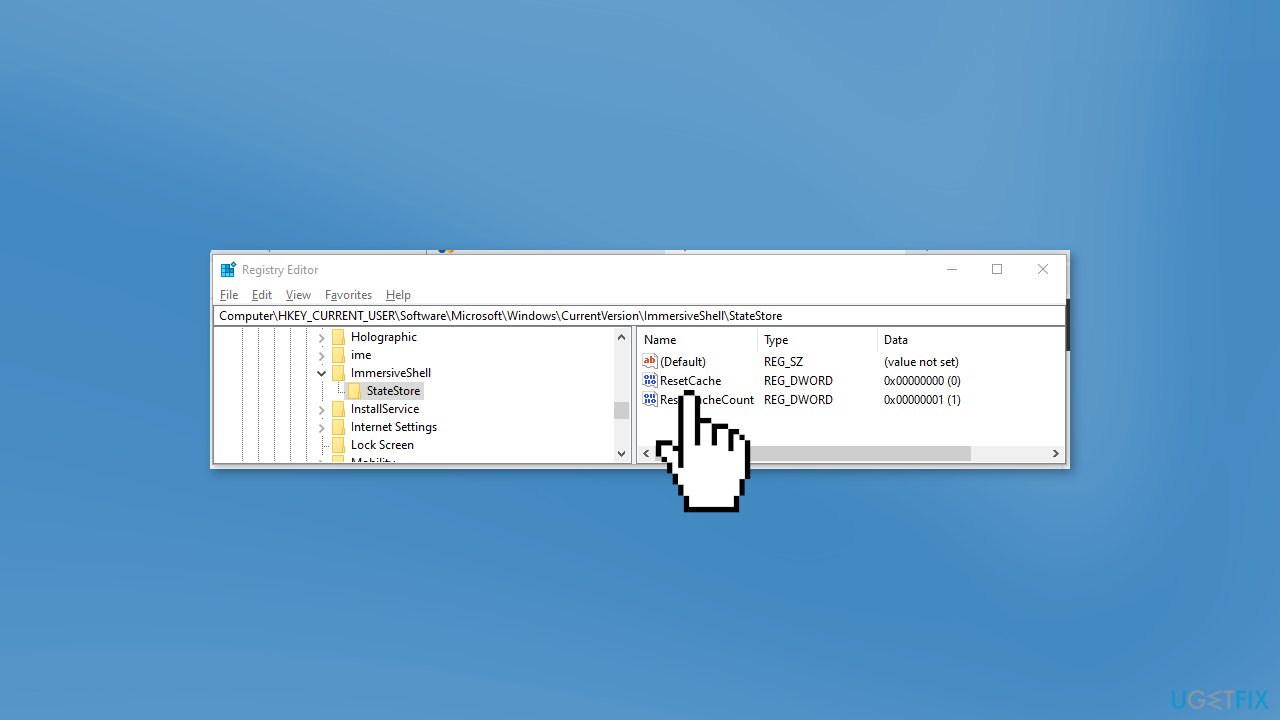
- When the StateStore key is selected, you will see 3 DWORD values on the right side
- To clear the live tile cache, double-click ResetCache DWORD value, and put 1 in the Value data box
- Click OK and then restart File Explorer
Solution 4. Create a New Local Account
- Select the Start menu and go to Settings
- Click on Accounts
- Under Family & other users select Add someone else to this PC
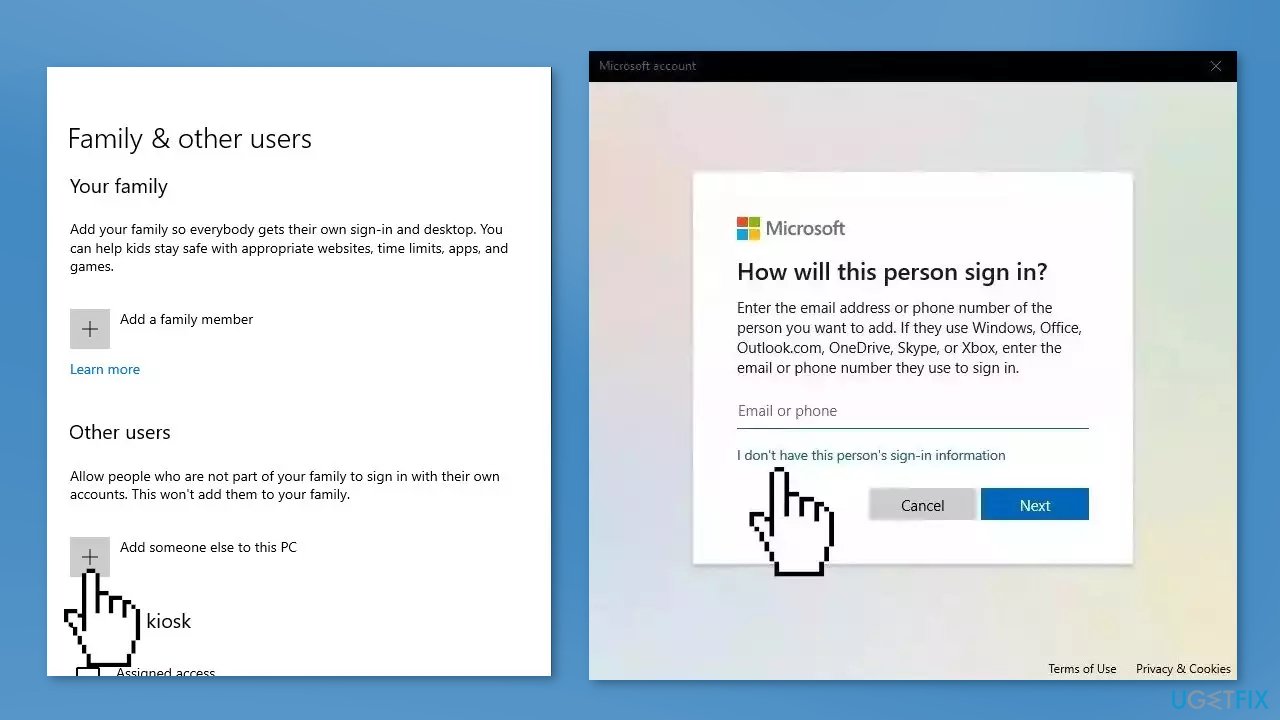
- Select I don't have this person's sign-in information, and on the next page, select Add a user without a Microsoft account
- Enter a user name, password, or password hint, or choose security questions and then select Next to finish the process
- If switching to a new local account fixed the problem, select Change account type
- Under Account type, select Administrator, and then select OK
- Sign in with the new administrator account and check if the issue is resolved
Solution 5. Uninstall the Most Recent Windows Update
- Click on the Start menu and type updates
- Press Enter to launch the Settings page
- Click on Update history
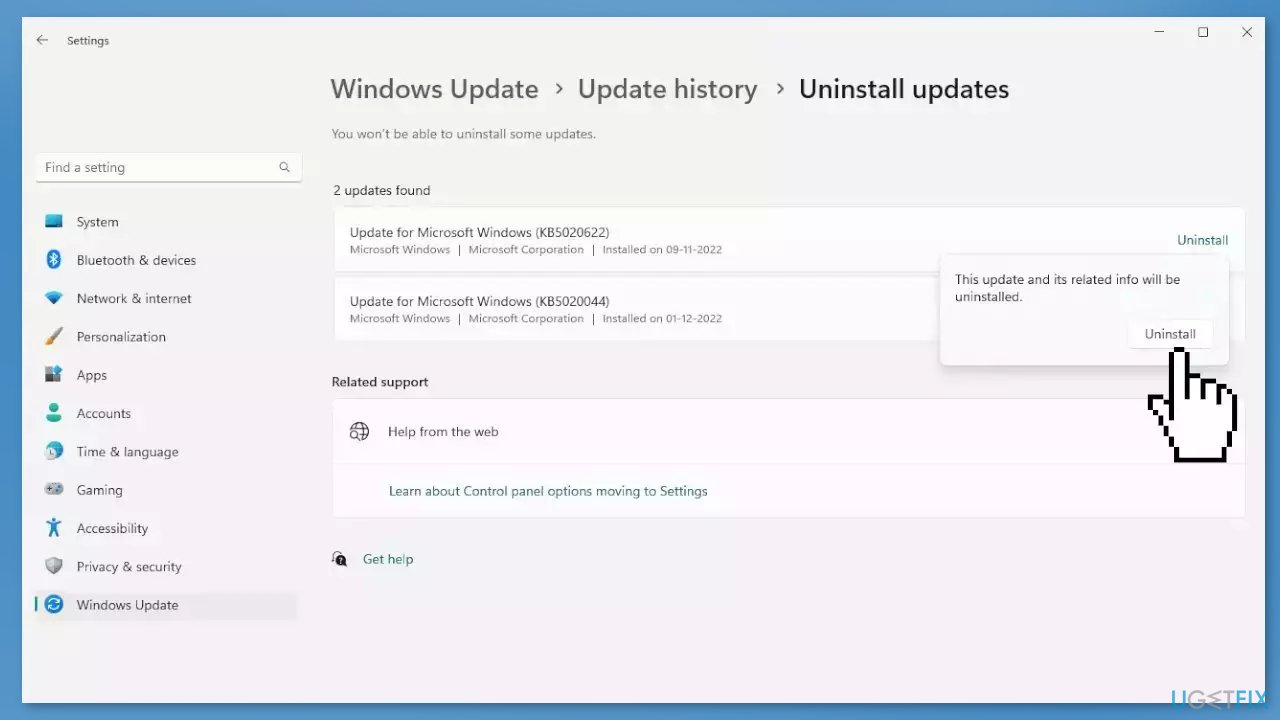
- From the next page, click on Uninstall updates
- Locate the patch you have recently installed and click on Uninstall
- Follow the on-screen instructions
Solution 6. Run System Restore
System Restore is a tool that can revert your system back to a previous point before a specific problem has occurred.
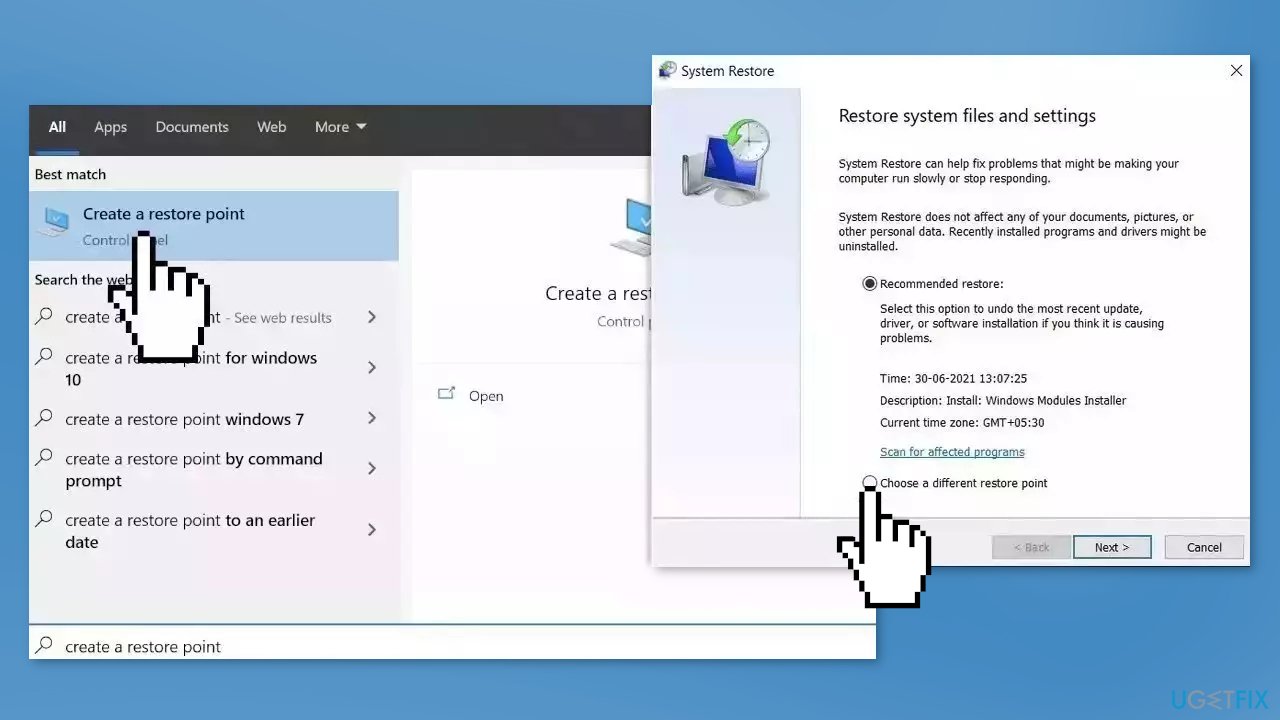
- Go to the Start menu, type restore, and click on Create a restore point
- Click System Restore, then follow the prompts until you can select a restore point
- Select the one you want (ideally before the issue started occurring) and go ahead with the process
Bottom line
To fix the Weather app showing temperature in Fahrenheit instead of Celsius, you can try running the Windows Store Apps Troubleshooter, checking your Windows settings, and clearing the app cache. If these steps do not resolve the issue, consider using a repair tool to address potential system errors.
Frequently asked questions
Open the Weather App, click on the three dots in the top right corner, select 'Settings', and then toggle the temperature unit to Celsius.
Yes, in Windows 11, you can change the temperature unit by accessing the Weather App settings and selecting Celsius under the temperature options.
Try restarting the Weather App or your Windows device, as this can refresh the settings and ensure the temperature displays correctly.




Report an issue
What's wrong with this guide? We review every report and update or remove content.
Report received — thank you. We'll review and fix it.
You need a free account to submit a report.
Be the first to comment