How to fix
Win32Bridge.Server.exe error
on Windows
Resolve the Win32Bridge.Server.exe error on Windows 10 and 11 quickly. Follow our expert-tested solutions for a seamless experience. Fixed in minutes!


What causes How to fix Win32Bridge.Server.exe error in Windows?
- Corrupted files after updating Windows
- Issues with certain applications failing to launch
- Cortana causing the error
- Random system startup triggering the error
- Incorrect file path leading to the error
Repairs Windows system files, removes malware, and restores a clean OS state — without reinstalling.
Hey. For a few weeks now, every time I start my Windows, I receive an error - Win32Bridge.Server.exe unable to start correctly. It can also sometimes pop up at random times, which is very annoying. Please help me fix this.
Windows 10 users have been reporting the Win32Bridge.Server.exe error for several years. Its most annoying trait is that it can show up at any time and disrupt all the computer work being done. The good thing is that the error is usually not critical and can be fixed after some troubleshooting steps.
Some users claim that the problem appears randomly, and they are not sure what causes it. On the other hand, there are users who tell about the issues with certain applications that won't launch after this issue occurs. Additionally, some people reported that they even started experiencing Blue Screen of Death[ref en-2] errors at times - this might be an indication of something more alarming.
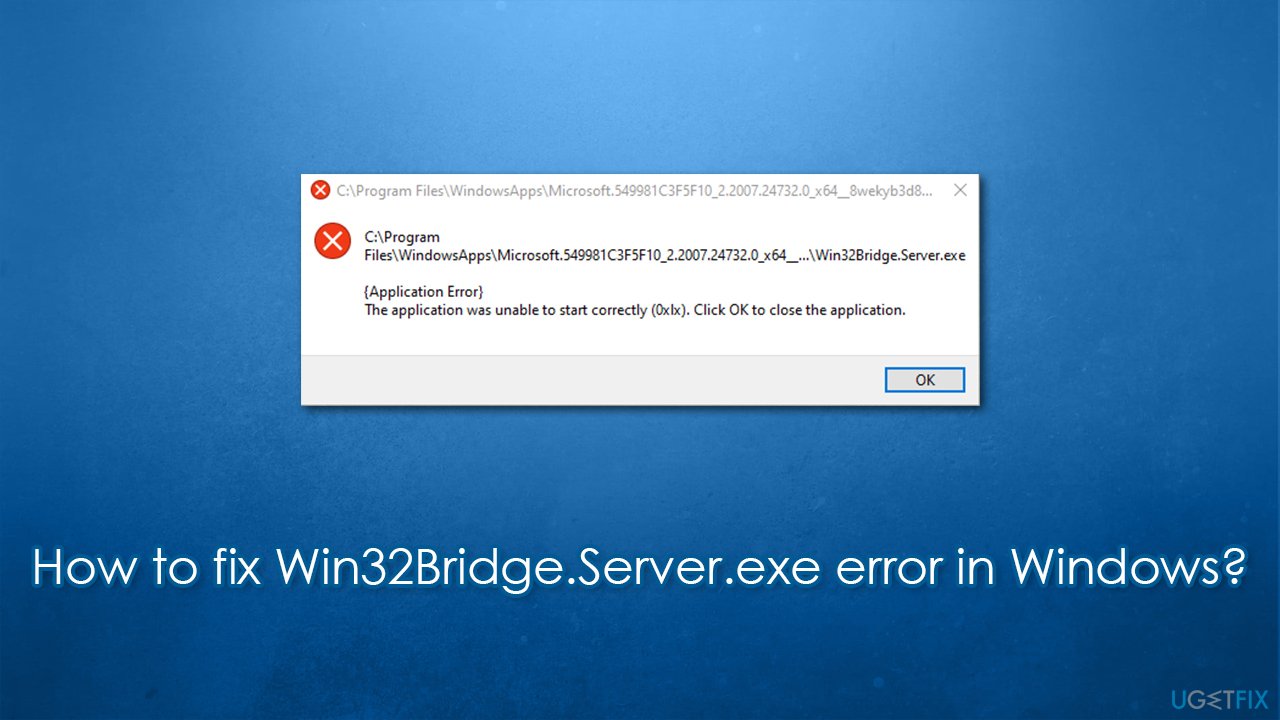
There are several variants of the error message, although the most common ones are:
Windows cannot find ‘C:\\Program Files\\WindowsApps\\Microsoft.549981C3F5F10_2.2101.15643.0_x64__8wekyb3d8bbwe\\Win32Bridge.Server.exe’. Make sure you’ve typed the name correctly, then try again.
or
C:\\Program Files\\WindowsApps\\Microsoft.549981C3F5F10_2.2101.15643.0_x64__8wekyb3d8bbwe\\Win32Bridge.Server.exe
The specified path does not exist. Check the path, and try again.
Also, users can commonly notice the Win32Bridge.Server Incorrect Function error. In any case, this might be extremely confusing, as the directory points towards Windows/Microsoft folder. Besides, users said that the error is not initiated by a program start or some other action, but rather a system startup or complete randomness.
Just like with a related Localbridge.exe error, there is no universal fix for this problem, as there could be several reasons for it to show up in the first place. For example, according to some reports, the issue showed up after updating Windows, which indicates that corrupted files might be at fault. Cortana, on the other hand, was one of the main reasons why users started encountering the error.
Below you will find several means to fix Win32Bridge.Server error on Windows 10. Go through each of the solutions carefully - you might have to use several methods before one works for you.
Fix 1. Use automatic repair software
Windows is an intricate operating system that consists of millions of files and other components. Considering how customizable the OS is (users can tweak settings, install different apps, schedule different tasks, etc.), there is no surprise there that sometimes not everything might work correctly due to incompatibility or simple bugs[ref en-3].
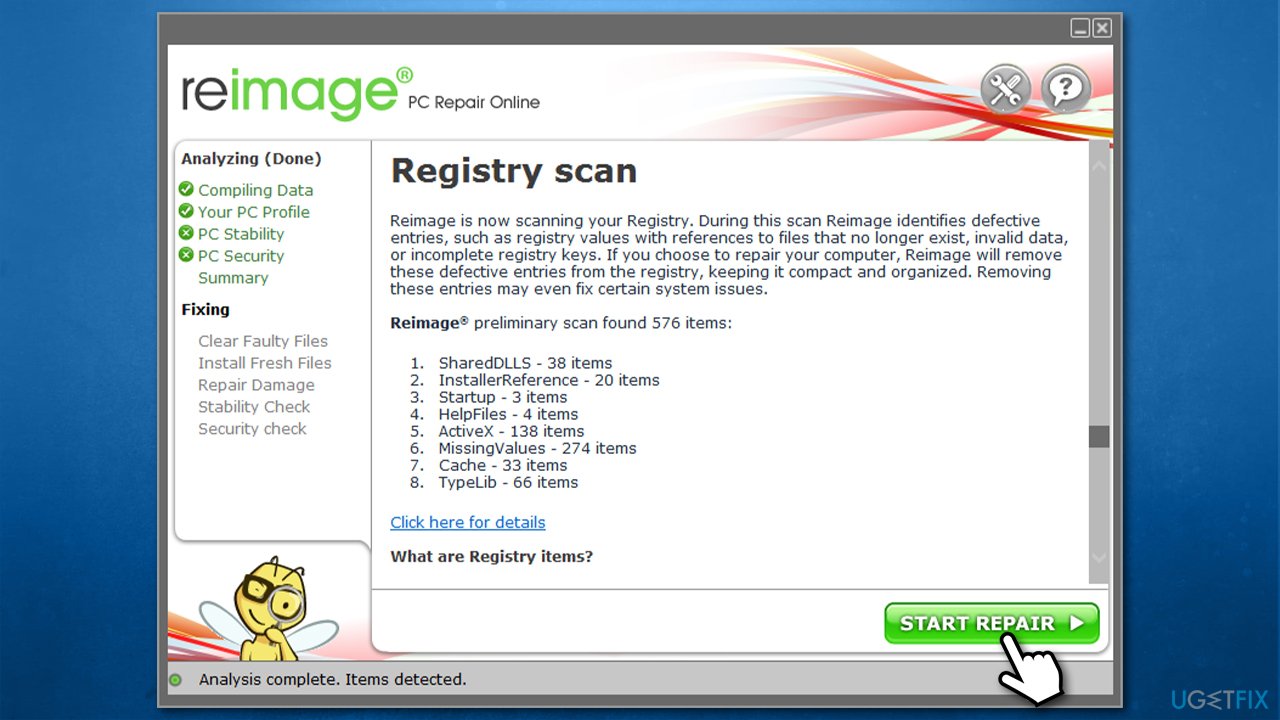
While sometimes fixing problems is simple, other times, especially when the issue is severe, it might be difficult to get to the root cause of it. Therefore, we recommend you try using a PC repair and maintenance utility [d1]. It can automatically help you find solutions for the most common Windows errors, BSODs, registry[ref en-1] issues, and much more. Besides, the app also uses an antivirus engine that can be used to remove malware and fix the damage done by it.
Fix 2. Reset Cortana
It turns out that man people managed to fix Win32Bridge.Server error after resetting Cortana. Here's how:
- Right-click on Start and pick Apps and Features
- Find Cortana - click on it
- Select Advanced options
- Scroll down, click Terminate and then Reset
- Restart your computer.
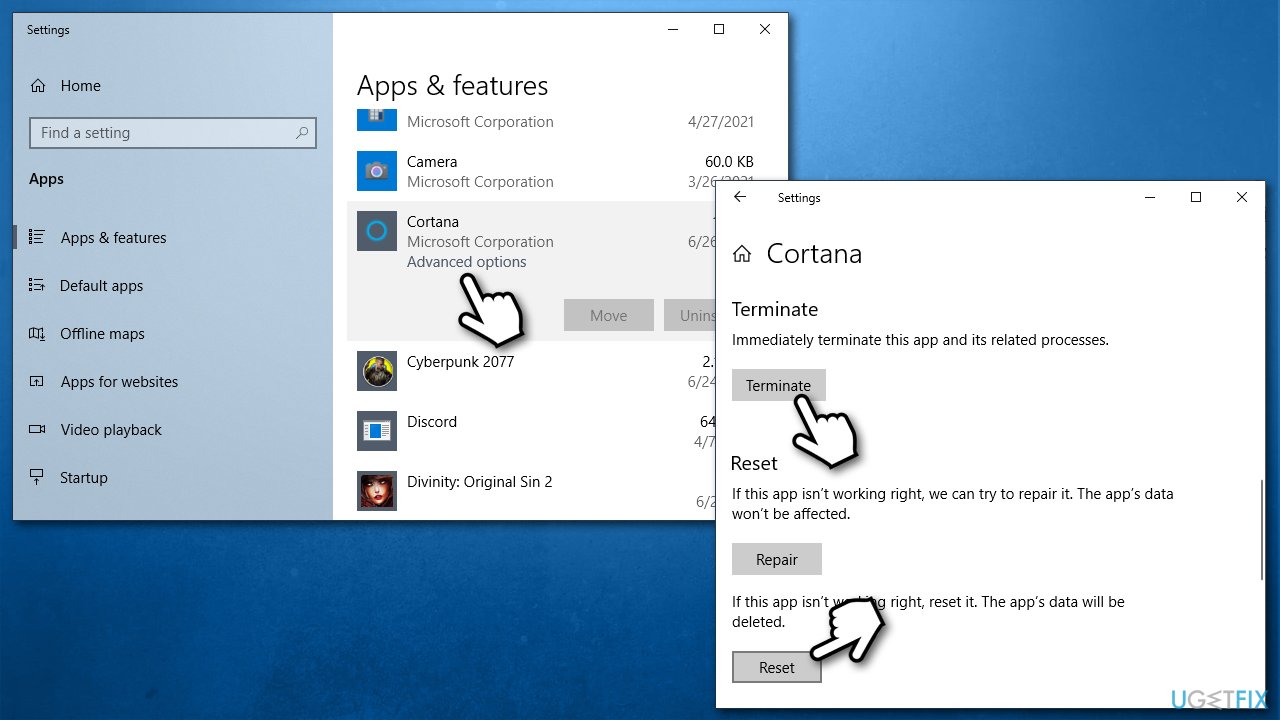
How to fix win32bridge server exe error in windows reset cortana
Fix 3. Use SFC and and DISM
System file corruption can be the cause of the problem. You can use Command Prompt to repair damaged system files:
- Type cmd in Windows search
- Right-click on Command Prompt and pick Run as administrator
- If User Account Control shows up, click Yes
- Use the following commands, pressing Enter after:
sfc /scannow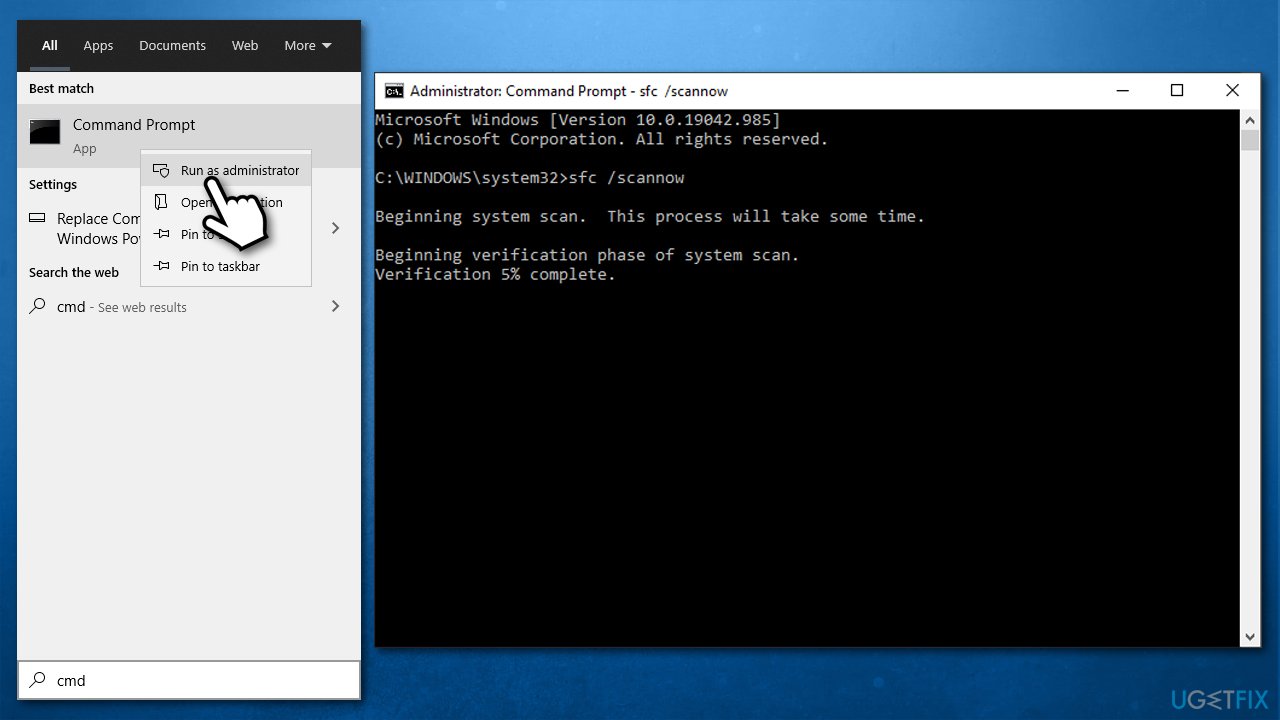
How to fix win32bridge server exe error in windows run sfc - If SFC managed to fix system file corruption, restart your PC. Otherwise, proceed with the following commands, pressing Enter after each:
DISM /Online /Cleanup-Image /CheckHealth
DISM /Online /Cleanup-Image /ScanHealth
DISM /Online /Cleanup-Image /RestoreHealth
Fix 4. Disable Cortana via Startup
If Cortana reset did not work, you can disable it so it wouldn't run at startup. Here's how:
- Press Ctrl + Shift + Esc to open the Task Manager
- Go to Startup tab and locate Cortana
- Right-click on it and select Disable
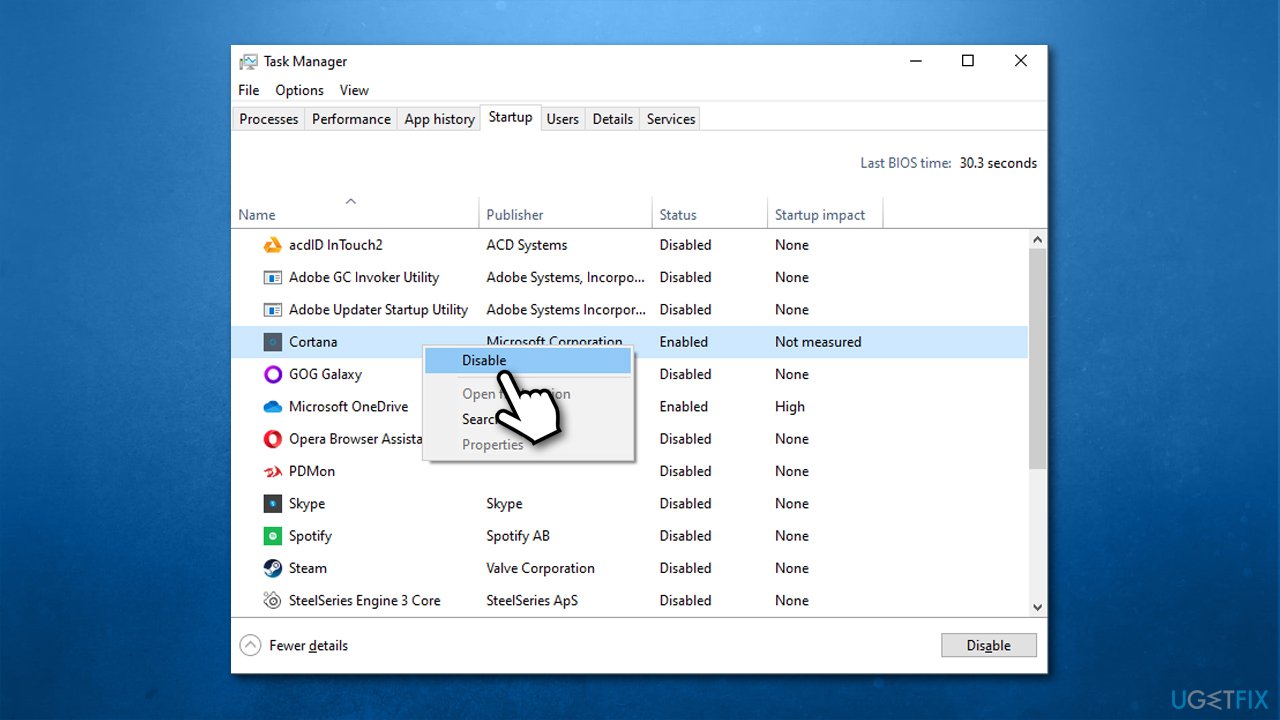
How to fix win32bridge server exe error in windows disable cortana - Restart your PC.
Fix 5. Use System Restore
If something triggered the error, you could try restoring Windows to the previous state.
- Type in Create a restore point in Windows search and hit Enter
- Go to System Restore
- Select Choose a different restore point (if available) > Next
- Mark the Show more restore points option
- Pick the time when the problem did not exist and click Next.
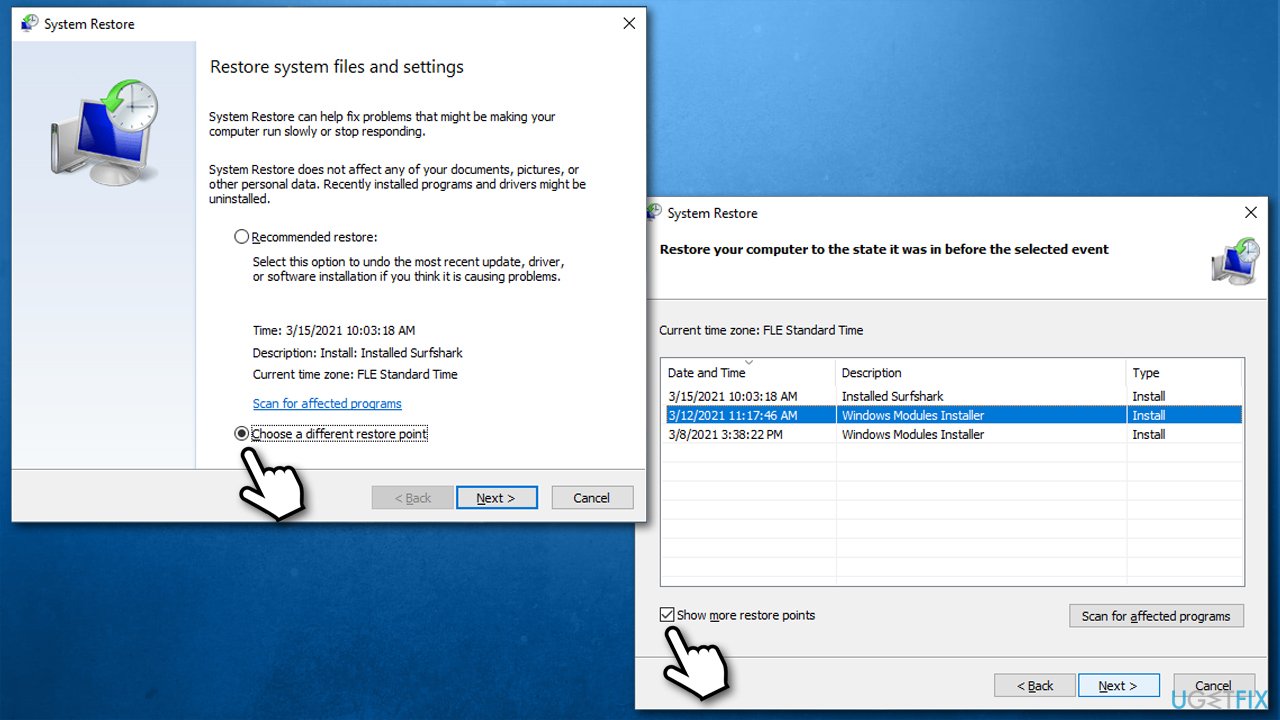
How to fix win32bridge server exe error in windows use system restore
Fix 6. Reset your PC
If none of the above managed to fix your issue, you could easily reset Windows. You won't lose any personal files in the process.
- Right-click on Start and pick Settings
- Go to Update & Security and pick Recovery
- Find Reset this PC section and click Get Started
- Select Keep my files > Cloud download
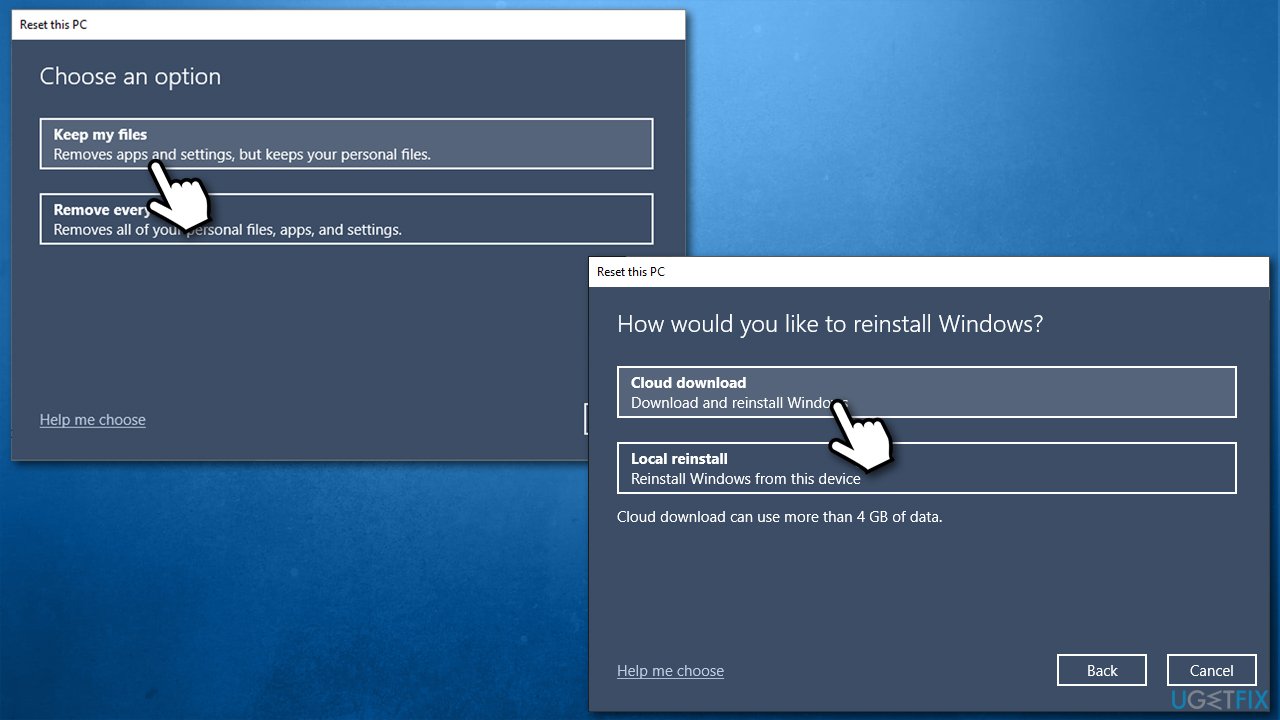
How to fix win32bridge server exe error in windows reset windows - Follow on-screen instructions - your PC will restart.
Bottom line
To fix the Win32Bridge.Server.exe error on Windows 10, users can try several methods such as checking for corrupted files, addressing application issues, and disabling Cortana. If none of these solutions work, further troubleshooting may be necessary.
Frequently asked questions
The Win32Bridge.Server.exe error can be caused by corrupted system files, outdated Windows updates, or issues with the Windows Store apps. It's important to ensure your system is fully updated and to run a system file checker scan.
To fix the error on Windows 11, try resetting the Windows Store by executing 'wsreset.exe' in the Run dialog. If the issue persists, consider reinstalling the problematic app or performing a repair installation of Windows.
To prevent the Win32Bridge.Server.exe error, regularly update your Windows 10 or Windows 11 system and keep your applications current. Additionally, avoid installing unverified software that may conflict with system processes.




Report an issue
What's wrong with this guide? We review every report and update or remove content.
Report received — thank you. We'll review and fix it.
You need a free account to submit a report.
Be the first to comment