How to fix
Windows 10 Anniversary Update Error Code 0xa0000400
on Windows
Resolve Windows 10 Anniversary Update Error Code 0xa0000400 quickly and effectively with our expert-tested solutions and clear, detailed guidance.


What causes How to fix Windows 10 Anniversary Update Error Code 0xa0000400?
- Missing Windows system updates
- Conflict with antivirus
- Corrupted registries
- Inconsistencies on the previous Windows version
- Third-party software interference
Repairs Windows system files, removes malware, and restores a clean OS state — without reinstalling.
Hi, I have been trying to install Windows Anniversary Update numerous time but it always fails due to due to 0xa0000400 error. Could someone help me please? Thanks in advance.
Unsurprisingly, Windows 10 update errors are quite common. While in some cases such issues occur due to buggy patches released by Microsoft, others might be due to the user's system configuration.
Windows 10 Anniversary Update[ref en-1] is praised for bringing a variety of innovations and improvements for Windows 10 operating system. While for some people the update worked adequately and improved the system’s performance a lot, the others bounced off the wall trying to install it. The error code 0xa0000400 stated the following:
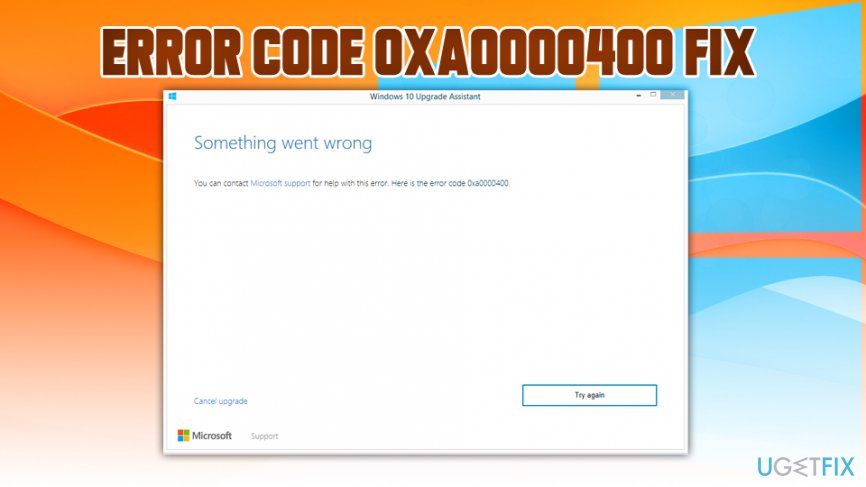
Something went wrong
You can contact Microsoft support for help with this error. Here is the error code 0xa0000400.
Thousands of people are asking for help to work around Windows 10 Anniversary Update installation errors, including 0xa0000400 on the list. It is very similar to the 0x80070057 bug, and it seems that these two errors are among the most common ones.
There are various speculations about the causes of 0xa0000400 error code, but most likely it is triggered by the missing Windows system updates, conflict with antivirus,[ref en-2] registry errors, and similar. Nevertheless, no matter how serious the causes and the issue itself may appear, there are several methods that help you to fix 0xa0000400 bug quite easily.
Solution 1. Run a PC optimization tool
Sometimes updates cannot be run due to the inconsistencies on the previous Windows version. For example, it might be that some critical Windows updates are missing, corrupted registries[ref en-3] lurking, or third-party software interfering. The easiest way to check that it to run a full system scan using a professional system cleaner, such as [d1]. If PC optimization did not help to fix 0xa0000400 bug and you still can’t install Anniversary Update, try the following methods.
Solution 2. Run System Maintenance
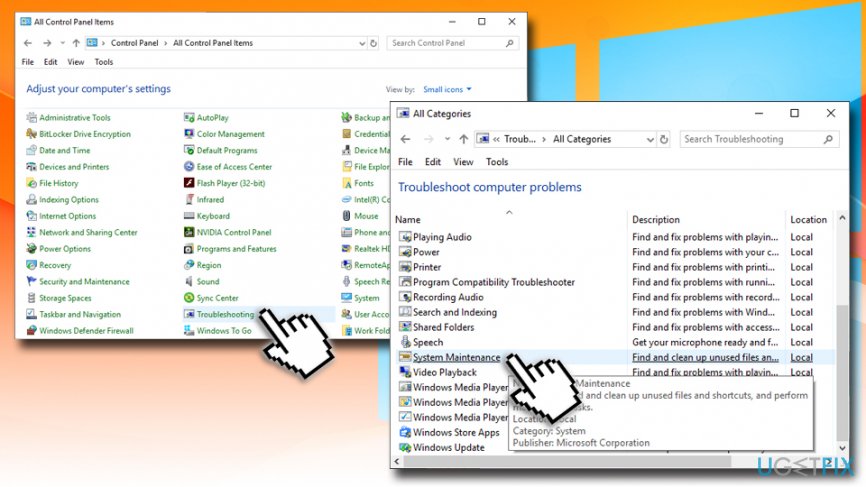
- Enter Control Panel into the search box and hit Enter.
- Sort the view by Small icons and select Troubleshooting.
- Click View All on the left pane.
- Scroll down to locate System Maintenance and click Next.
- The troubleshooter will run automatically. Wait for the process to finish and see if any problems have been found.
Solution 3. Close Skype before running Anniversary Update
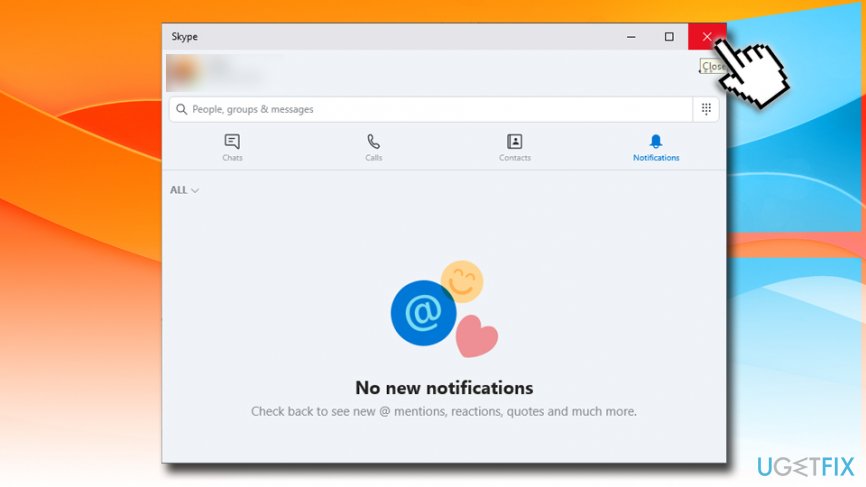
Lots of people have confirmed that running Skype was the reason why the Windows 10 Anniversary Update installation ended up with an error code 0xa0000400. Therefore, close Skype and make sure that all Skype-related processes have been terminated on Task Manager. After that, try to launch Anniversary Update installer.
Solution 4. Install the update manually
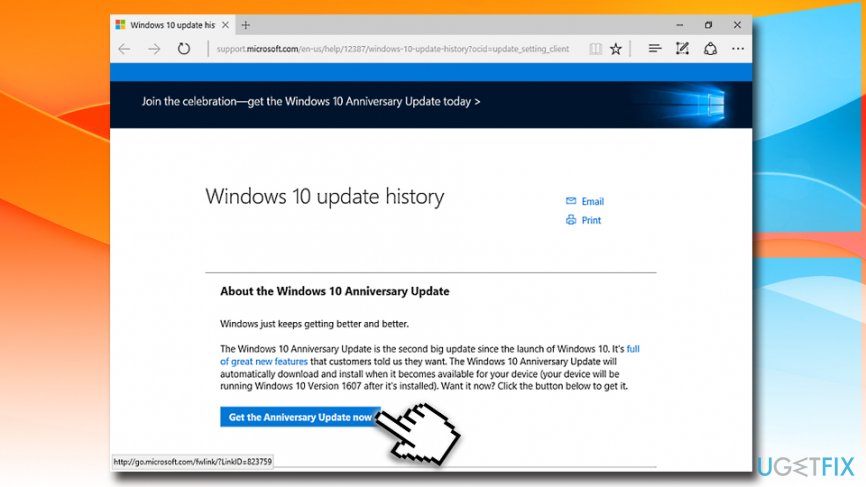
You can also try to install updates manually to fix 0xa0000400. For that purpose, you should navigate to the official Microsoft’s website and download the update manually. This can be done here.
Solution 5. Disconnect the Internet
Some people also claim that they have managed to work around 0xa0000400 bug by turning off the Internet connection immediately after the Windows 10 Anniversary Update is downloaded. For some reason, the system with no Internet connection allowed to run the update successfully, so since it does not require much effort, it’s worth trying.
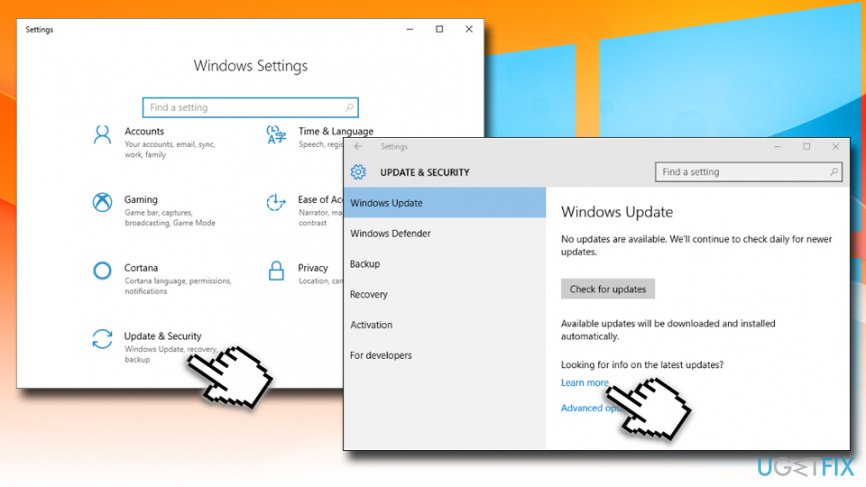
- Right-click on the Start button and select Settings.
- Go to Update & Security.
- Then click Check for Updates and Learn more.
- Now the system should redirect you to a web browser where you should select Get the Anniversary Update now.
- After that, open the folder Windows10Upgrade28084 and make sure that all files have been downloaded.
- Finally, click on the Internet connection icon on the toolbar and turn off your Internet or Wi-Fi.
Bottom line
To fix the 0xa0000400 error, you can run a PC optimization tool or perform system maintenance through the Control Panel. If these methods do not resolve the issue, consider contacting Microsoft support for further assistance.
Frequently asked questions
The error code 0xa0000400 typically occurs due to corrupted system files or issues with the update process itself. This can happen if the update is interrupted or if there are conflicting software installations.
You can resolve the error by running the Windows Update Troubleshooter, performing a system file check with the 'sfc /scannow' command, or manually resetting the Windows Update components.
To avoid the 0xa0000400 error, ensure that your system is fully updated before initiating the Anniversary Update and temporarily disable any third-party antivirus software during the installation.




Report an issue
What's wrong with this guide? We review every report and update or remove content.
Report received — thank you. We'll review and fix it.
You need a free account to submit a report.
Be the first to comment