How to fix
Windows 10 Stuck at Boot Loop Due to Dxgkrnl.sys Error
on Windows
Resolve the Windows 10 boot loop caused by the Dxgkrnl.sys error quickly with proven solutions. Expert-tested methods ensure zero traces left!

What causes How to Fix Windows 10 Stuck at Boot Loop Due to Dxgkrnl.sys Error?
- Cyber infections
- Corrupted Boot Configuration Data
- Driver issues
- Hardware failure
- Corruption of dxgkrnl.sys
Repairs Windows system files, removes malware, and restores a clean OS state — without reinstalling.
I can’t boot up my laptop except in Safe Mode. If I try to boot it up normally, it gets stuck in a boot loop forever. When in Safe Mode, everything works fine except MS Office programs, which seems strange to me. I ran all kinds of scans - the hard drive is not corrupted, other quick fixes didn't help. After many days of research, my only clue of various scanners is BOOTLOG_NOT_LOADED \SystemRoot\System32\drivers\dxgkrnl.sys. I have no ideas what does that mean, so I would highly appreciate your help.
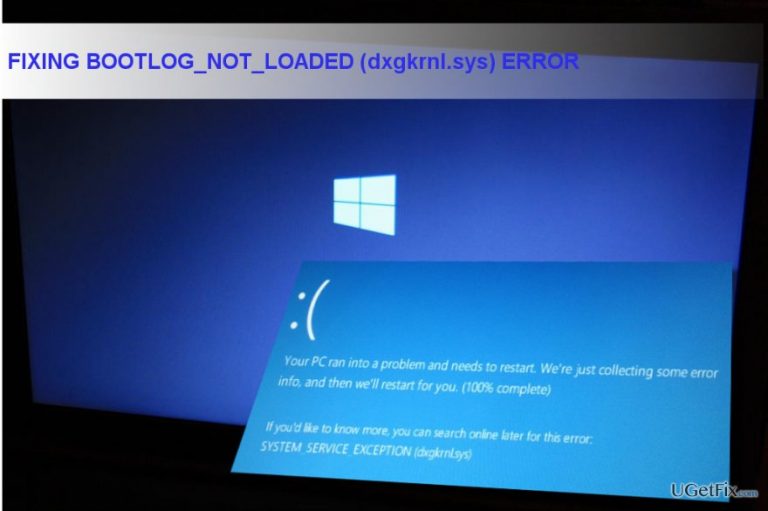
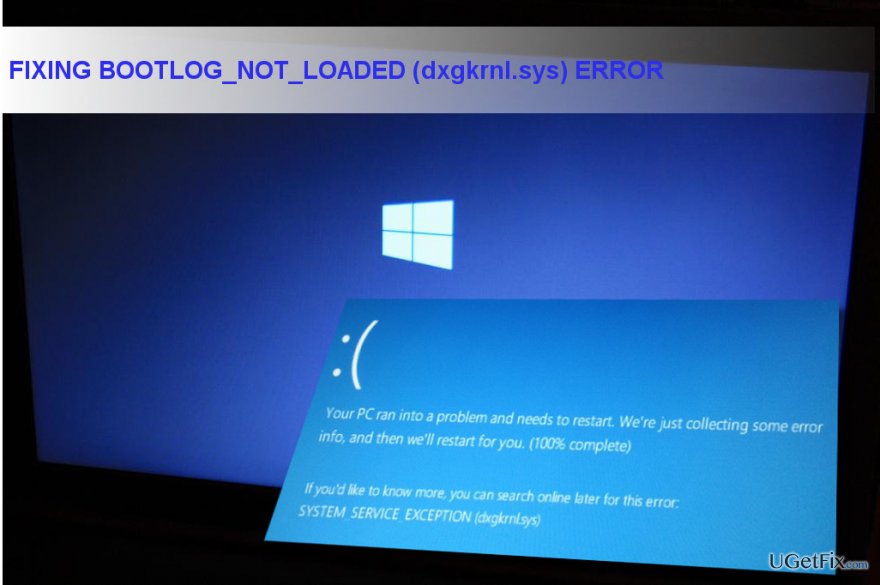
Windows 10 stuck in a boot loop is an ongoing issue, which, probably, will never come to an end. There are many reasons why Windows 10 may resist to boot, for example, cyber infections, corrupted Boot Configuration Data, driver issues, hardware failure, and so on. Recently, several people reported about a problematic dxgkrnl.sys file, which, if corrupted, prevents the system from booting up. It gets stuck in a boot loop and the only way to access the system is to boot it into Safe Mode. This issue can also be referred as BOOTLOG_NOT_LOADED.
The dxgkrnl.sys file is one of the default Windows files, developed by Microsoft Corporation and used for establishing the communication between hardware/attached hardware (e.g. printer, camera, etc.) and third-party software (Windows OS, web browser, etc.). If it gets corrupted due to recent system changes, malware or other reasons, Windows 10 may get stuck in boot loop. Usually, the dxgkrnl.sys error is related to graphics drivers, so it’s advisable to update/reinstall the Nvidia graphics driver. If that wouldn’t help, we would recommend you to use a System Restore Point or reinstall Windows without affecting personal files.
Fixing the dxgkrnl.sys error on Windows 10
Method 1. Reinstall Graphics Driver
If your PC got stuck into a boot loop due to the dxgkrnl.sys file, we would strongly recommend reinstalling graphics driver.
- Go to Start menu and type Device Manager in the search box.
- Expand Display Drivers and find your graphics card's drivers.
- Right-click on it and select Uninstall.
- Reboot your device.
- After that, open Start menu again and type Windows Update in the search box.
- Opt for Check for Updates option.
- You should be informed that there are no drivers installed for your graphics card, so select Run the Update and let the process to finish automatically.
- Reboot the system one more time.
Method 2. Use a System Restore Point or Reinstall Windows 10
If the BOOTLOG_NOT_LOADED BSOD started occurring after you performed some important system changes, it's a sign that you have damaged crucial system files. In this case, we would recommend using a System Restore Point.
- Hold the Power button to turn off your PC and then restart the system.
- Before Windows logo shows up, press F8 to boot into Safe Mode.
- Then right-click on Windows key and open Control Panel.
- Navigate to the All Control Panel Items and select Recovery.
- Select Configure System Restore, click on System Restore, and press Next.
- Select the latest system restore point and click Next.
- Finally, reboot your PC.
NOTE: If you don't have a System Restore Point, then the only thing that you can try is to reinstall Windows without losing files. Click this link to open the instructions.
Finally, we would strongly recommend optimizing the system by running a scan with [d1].
Bottom line
To fix the dxgkrnl.sys error on Windows 10, you can reinstall the graphics driver, use a System Restore Point, or reinstall Windows without affecting personal files. If these methods do not resolve the issue, further troubleshooting may be necessary.
Frequently asked questions
The Dxgkrnl.sys error is often caused by corrupted graphics drivers or system files, which can prevent Windows 10 from booting properly.
To access Safe Mode, restart your computer and repeatedly press the F8 key before Windows 10 loads, then select 'Safe Mode' from the menu.
If updating drivers doesn't help, try performing a System Restore to a point before the issue occurred, or use the Windows Recovery Environment to repair startup problems.




Report an issue
What's wrong with this guide? We review every report and update or remove content.
Report received — thank you. We'll review and fix it.
You need a free account to submit a report.
Be the first to comment