
How to fix Windows 10 stuck at "Choose your keyboard layout" screen?

Prefer to fix it yourself? The manual steps follow.
- 8methods
- 2 minutes for Continue, 10 to 30 minutes for the repairs, 1 to 2 hours for a reset
- Medium
Applies to Windows 11, Windows 10
8 methods in this guide
Hello. I upgraded to Windows 10, but the process did not succeed. I received the error ATTEMPTED_EXECUTE_OF_NOEXECUTE_MEMORY, followed by a forced restart. At boot, the system got stuck at the "Choose your keyboard layout" screen. I have no idea what to do. I need your help as soon as possible!
"Choose your keyboard layout" is the first screen of the Windows Recovery Environment, not an error. Windows shows it after it failed to start twice in a row. Pick your layout, select Continue to try a normal start, and if the PC comes back here, run Startup Repair from the same menu.
The "Choose your keyboard layout" screen means Windows started its recovery tools because it could not boot normally. Select your layout (for example US or Spanish), then on Choose an option select Continue (Fix 1). If the PC returns to the same screen, go to Troubleshoot > Advanced options and run Startup Repair (Fix 3). If the keyboard and mouse do not respond, plug a wired USB keyboard into another port first (Fix 2).
| Error | No error code. A blue full screen with the title Choose your keyboard layout and a list of layouts, at every start. |
|---|---|
| Where it appears | At startup, before the sign-in screen. It is the first page of the Windows Recovery Environment (WinRE), often right after Preparing Automatic Repair. |
| Main cause | Windows failed to start twice in a row, shut down unexpectedly twice within two minutes of boot, or restarted twice within two minutes. Microsoft lists these as the triggers that start WinRE on its own. |
| Fastest fix | Pick your layout, then select Continue (Fix 1). If it loops, run Startup Repair (Fix 3). |
| Also written as | Choose your layout, choose keyboard layout, select keyboard layout, choose your keyboard layout screen, choose your keyboard layout loop, blue screen keyboard layout. |
| Next screen | Choose an option with Continue, Use a device, Troubleshoot and Turn off your PC. |
| Affects | Windows 11 and Windows 10 desktop editions, where WinRE is preinstalled. Seen on Dell, Acer, ASUS and other laptops and desktops alike. |
| Microsoft's status | Normal recovery behaviour, not a bug. The 2018 case where update KB4074588 stopped USB keyboards and mice was fixed by KB4090913 for Windows 10 version 1709. |
| Time to fix | 2 minutes when Continue works. 10 to 30 minutes for Startup Repair or removing an update. 1 to 2 hours for a reset. |
Facts checked on 15 October 2026. Steps written for Windows 11 (25H2 and 26H2) and Windows 10 22H2, from Microsoft's Windows RE documentation.
What the "Choose your keyboard layout" screen means
The Windows Recovery Environment, or WinRE, is a small separate system that Microsoft preinstalls on Windows 10 and Windows 11. It holds Startup Repair, System Restore, Reset this PC, Uninstall Updates and a Command Prompt. When it starts, its first question is which keyboard layout you use, so that the commands and passwords you type later come out right.
So the screen itself is not broken. It tells you that Windows decided it could not start normally and opened the repair tools instead. After you pick a layout you get Choose an option: Continue (exit and continue to Windows), Use a device, Troubleshoot and Turn off your PC.
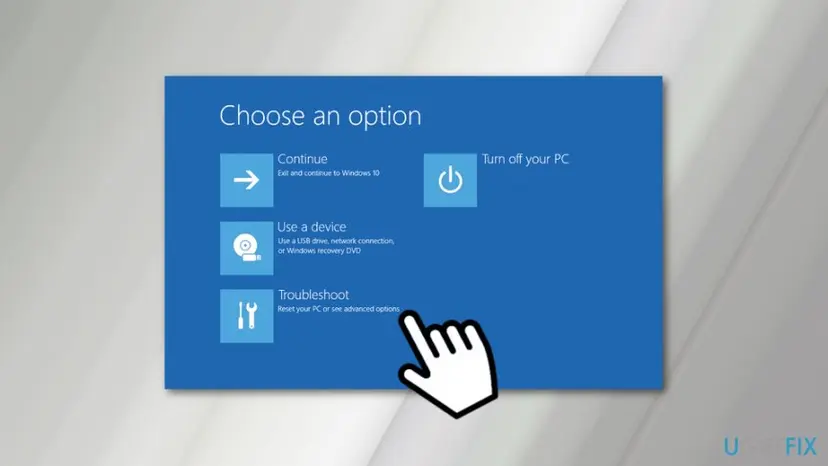
Either Windows fails again each time you select Continue, so it returns to the recovery screens. Or the keyboard and mouse do not work on the layout screen, so you cannot pick anything. The first needs a startup repair, the second needs a working input device first.
- Other spellings. People search "choose your layout", "choose keyboard layout", "select keyboard layout", "choose your keyboard layout screen" and "blue screen keyboard layout". All mean this one screen.
- Not a blue screen of death. The screen is blue, but it has no stop code. A stop code, like the ATTEMPTED_EXECUTE_OF_NOEXECUTE_MEMORY in the reader's question, may be what made Windows fail before it.
- Windows 10 or 11. The screen and the menus are the same. Windows 10 left support on 14 October 2025, so a Windows 10 PC no longer gets fixes for the cause unless it has Extended Security Updates.
Why Windows gets stuck at "Choose your keyboard layout": the causes, ranked
Microsoft documents when WinRE starts by itself: after two failed attempts to start Windows, two unexpected shutdowns within two minutes of boot, two restarts within two minutes of boot, a Secure Boot error, or a BitLocker error on touch-only devices. What made Windows fail is the real cause. Most often it is a one-off failure, such as a power cut or a forced shutdown. Less often a new update or driver stops Windows from starting. Rarely the boot files, the disk or the system files are damaged.
| Cause | How you recognise it | Fix |
|---|---|---|
| A one-off failed start: power loss, a forced shutdown, an interrupted update. | You can pick a layout and Windows starts after Continue. | Fix 1 |
| The keyboard or mouse does not work in WinRE. | Nothing moves or reacts on the layout screen, but the keys or the mouse light up. | Fix 2 |
| Damaged boot files or boot configuration. | Continue brings you straight back to the recovery screens. | Fix 3 |
| A new Windows update or driver. | The loop began right after an update, an upgrade or a new device. | Fix 4, Fix 5 |
| Damaged system files or disk errors. | Startup Repair cannot fix it, and its log names a disk or file test that failed. | Fix 6 |
| A Windows installation beyond repair. | Every repair fails, but the disk is healthy. | Fix 7, Fix 8 |
In February 2018 the Windows 10 update KB4074588 (version 1709) made some USB keyboards, mice and laptop cameras stop working. Microsoft fixed it with KB4090913 in March 2018. Old guides still tell you to install that update. It does not apply to any Windows version in use today.
How to fix the "Choose your keyboard layout" loop in Windows 10 and 11
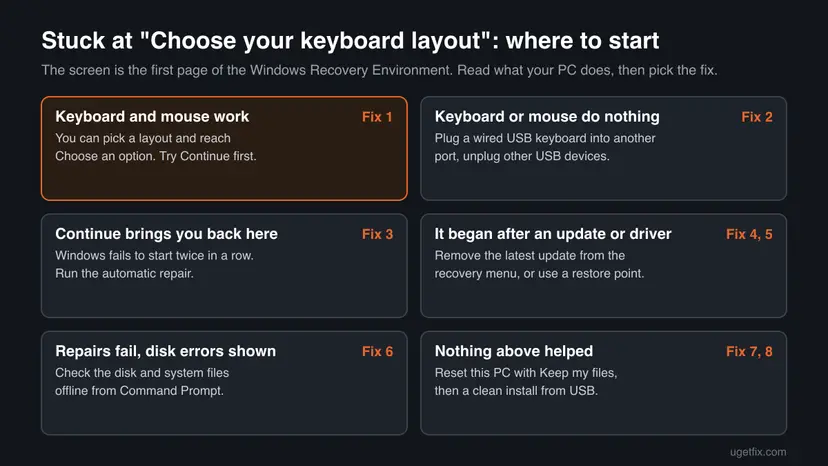
Fix 1 costs two minutes and works when the failed start was a one-off. Fix 2 is for a keyboard or mouse that does not respond. Fixes 3 to 6 repair Windows from the recovery menu without touching your files. Fixes 7 and 8 reinstall Windows and come last.
| What you see or have | Start with |
|---|---|
| You can pick a layout and see Choose an option. | Fix 1 |
| The keyboard or mouse does nothing on the layout screen. | Fix 2 |
| Continue brings you back to the recovery screens. | Fix 3 |
| The loop started right after an update or upgrade. | Fix 4 |
| You know a driver or program install caused it, and restore points exist. | Fix 5 |
| Startup Repair says it could not repair your PC. | Fix 6 |
| Every repair failed, or Reset this PC loops back to the layout screen. | Fix 7, then Fix 8 |
Fix 1. Pick your keyboard layout and select Continue
2 minutesNo riskEveryone who sees the screen and has a working keyboard or mouse. It is the shortest test of whether anything is broken.
WinRE opens after two failed starts, even when the reason was a power cut or a forced shutdown that will not happen again. Continue leaves the recovery tools and tries a normal start.
- On Choose your keyboard layout, select your layout, for example US. If yours is not on the first page, look for a link to more layouts below the list.
- On Choose an option, select Continue ("Exit and continue to Windows 11" or "Windows 10").
- Wait for the start to finish. Do not press the power button while the dots spin.
It worked if: Windows starts to the sign-in screen and the recovery screens do not come back on the next restart.
If not: If you cannot select a layout, go to Fix 2. If Continue brings you back to the recovery screens, go to Fix 3.
Fix 2. Make the keyboard and mouse work on the recovery screen
5 minutesNo riskThe pointer does not move, or keys do nothing, on the Choose your keyboard layout screen.
WinRE is a small system with its own drivers. Microsoft says its update adds the input device drivers of your Windows to it, but drivers it lacks stay missing, so some keyboards, mice and USB hubs that work in Windows do nothing here.
- Hold the power button until the PC turns off.
- Unplug every USB device you do not need: drives, hubs, docks, game controllers, printers.
- Plug a wired USB keyboard and mouse straight into the PC, not into a hub, dock or monitor port. On a desktop use the ports at the back.
- If you have a wireless set, plug its receiver straight into the PC. Users report that Bluetooth keyboards often do nothing in the recovery screens, so use a wired one if you can.
- On a laptop, try the built-in keyboard and touchpad, or touch the screen if it is a touchscreen.
- Turn the PC on and wait for Choose your keyboard layout, then try the keys and the pointer again.
Press the key for your PC's firmware setup at power-on (often F2 or Del, see your manufacturer's manual). If the keyboard works there but not in WinRE, the keyboard is fine and only the recovery drivers lack it. If it does not work even there, test it on another PC: the keyboard or the port may be faulty.
It worked if: The pointer moves and you can select a layout. Go back to Fix 1.
If not: If no keyboard works in WinRE at all, start the PC from a Windows installation USB made on another PC (Fix 8 shows how) and use its Repair your computer link, which has its own drivers.
Fix 3. Run Startup Repair from the recovery menu
5 to 30 minutesLow riskContinue brings you back to the recovery screens, or Windows restarts on its own during start.
Startup Repair checks the reasons that stop Windows from starting, such as damaged boot files, boot configuration and drivers, and repairs them. In Windows 11 26H2 the tile is called Quick machine recovery and its text says it was previously Startup Repair.
Start from Choose an option, which you reach after the layout screen:
- Select Troubleshoot. On Choose an option, select Troubleshoot.
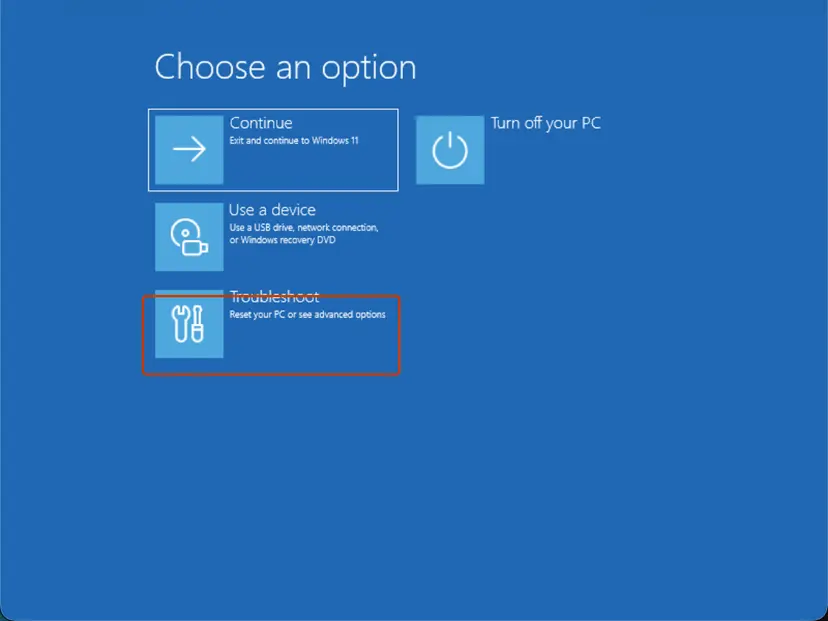
Choose an option: Troubleshoot. Screenshot: Windows 11 26H2. - Open Advanced options. Select Advanced options.
- Start the repair. Select Quick machine recovery (or Startup Repair on older versions).
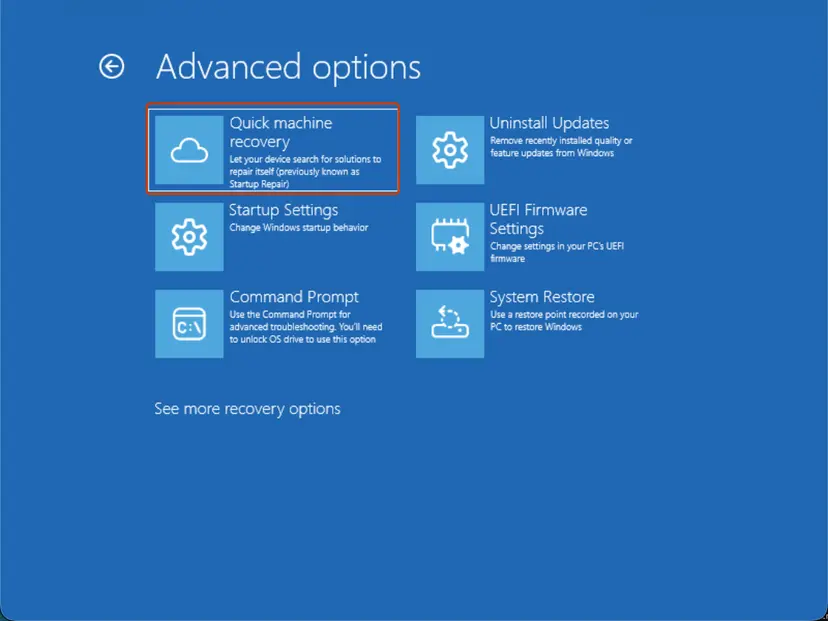
Quick machine recovery is the former Startup Repair tile. Screenshot: Windows 11 26H2. - Sign in if asked. Choose an administrator account and type its password. If Windows asks for the BitLocker recovery key, enter it.
- Wait for the result. The check can take a while. If it fixes the problem, the PC restarts into Windows. If it cannot, it says so and shows where its log file is; select Advanced options and continue below.
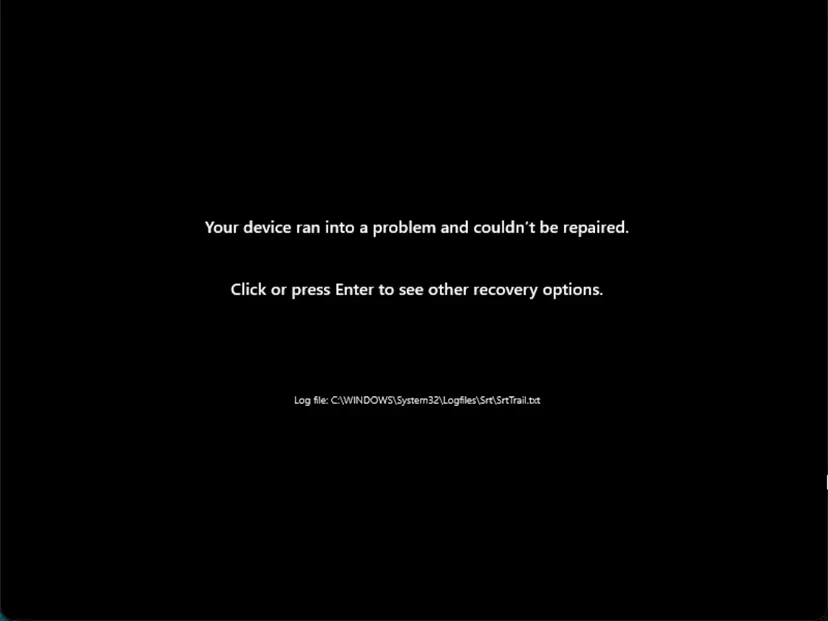
This message means the repair found nothing it could fix. Screenshot: Windows 11 26H2.
These steps were written for Windows 11 and Windows 10, from the Windows Recovery Environment. The full page with the other versions and what each result means: Run Startup Repair
If the drive is encrypted, WinRE may ask for the BitLocker recovery key. Microsoft says encrypted files are not accessible in recovery without it. A Microsoft account keeps the key at aka.ms/myrecoverykey; look it up on a phone or another PC.
It worked if: The repair ends and Windows starts normally on the next restart.
If not: If you see "Startup Repair couldn't repair your PC", note the log path it gives and go to Fix 4.
Fix 4. Uninstall the latest Windows update from the recovery menu
10 to 20 minutesLow riskThe loop began after a Windows update, a feature update or an upgrade, like the failed upgrade in the reader's question.
A half-installed or faulty update can stop Windows from starting. WinRE can remove the latest quality update or feature update without starting Windows, and your files stay where they are.
- On Choose an option, select Troubleshoot > Advanced options > Uninstall Updates.
- Select Uninstall latest quality update (the monthly update) and follow the prompts.
- If Windows still does not start and you upgraded Windows recently, come back and select Uninstall latest feature update if the page offers it.
- Once Windows starts, pause updates for a week so the same update does not return at once.
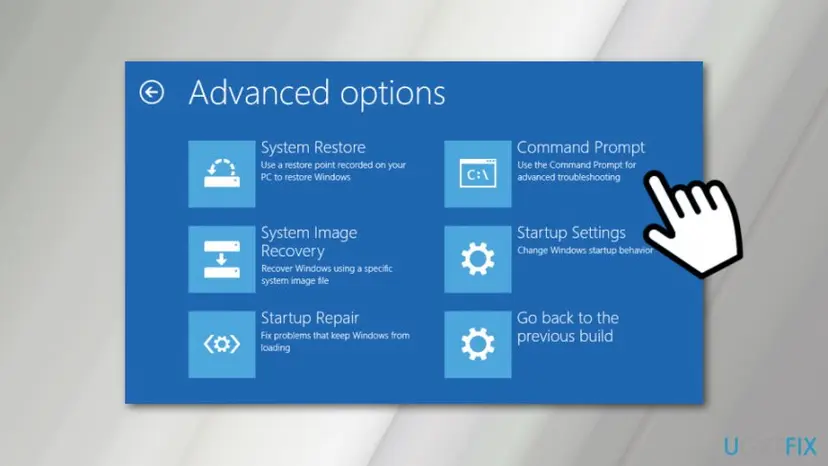
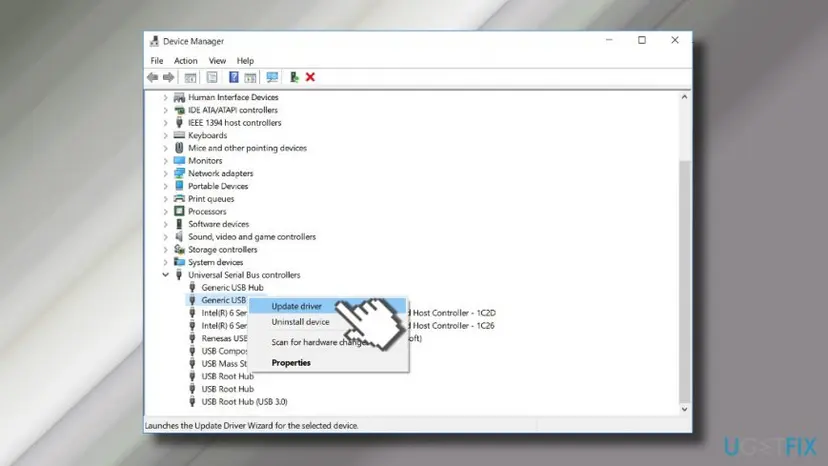
If a driver rather than an update is the suspect, start Windows in Safe Mode from Startup Settings with Start Windows or a Mac in Safe Mode, open Device Manager and roll back or uninstall the device you changed last. Safe Mode loads only basic drivers, so it often starts when a normal boot does not.
It worked if: Windows starts after the restart, without the recovery screens.
If not: If the update cannot be removed or Windows still loops, go to Fix 5.
Fix 5. Go back to a restore point with System Restore
15 to 45 minutesLow riskRestore points exist from before the problem, and you suspect a driver, a program or a setting.
Microsoft says System Restore rolls back system files and settings but not personal files. It undoes driver and program changes that stop Windows from starting.
- Go to Advanced options. Select Troubleshoot > Advanced options.
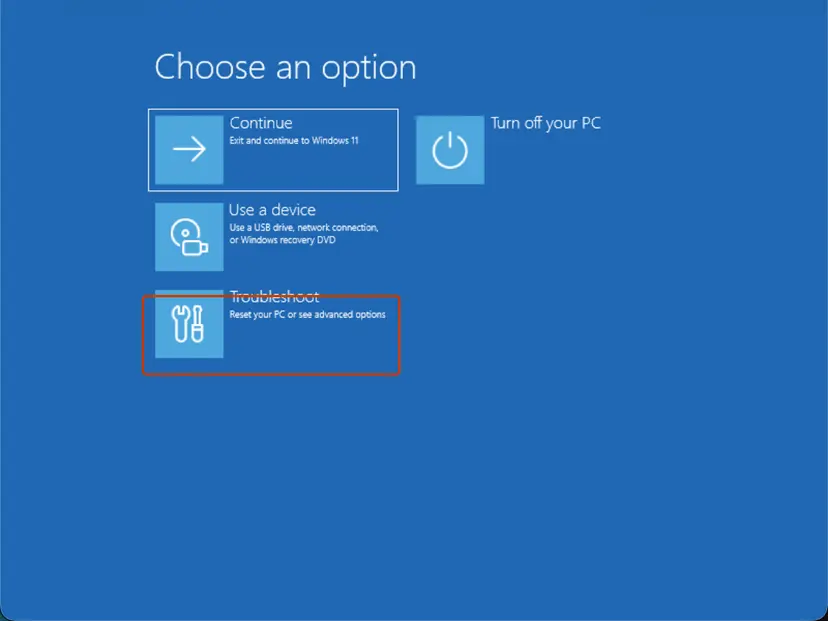
Choose an option: Troubleshoot. Screenshot: Windows 11 26H2. - Select System Restore. Select System Restore. If the drive is encrypted, enter your BitLocker recovery key when asked.
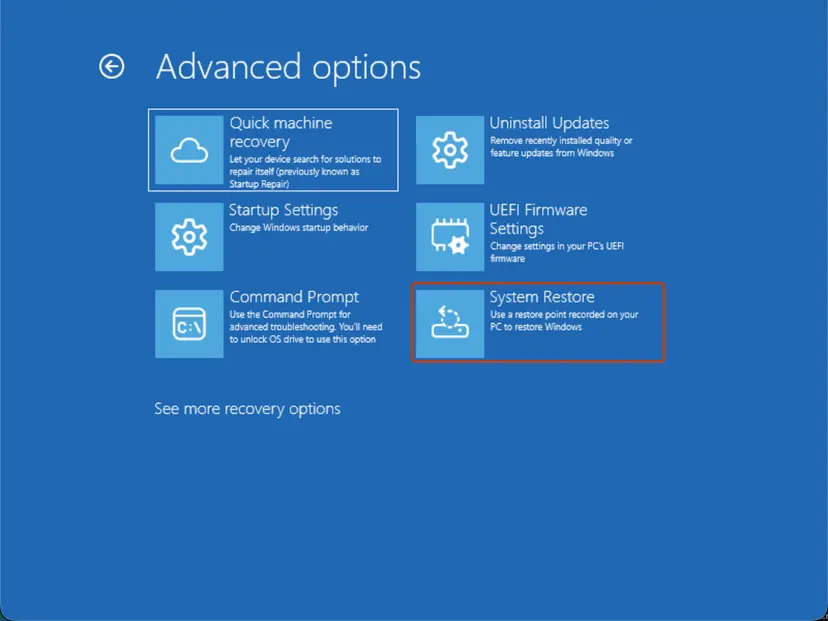
Advanced options: System Restore. Screenshot: Windows 11 26H2. - Choose a restore point and finish. Select a restore point from before the problem, optionally Scan for affected programs, then select Next and Finish.
- Restart. When the restore is done, select Restart.
These steps were written for Windows 11 and Windows 10, from the Windows Recovery Environment. The full page with the other versions and what each result means: Undo recent changes with System Restore
It worked if: System Restore reports that it completed, and Windows starts. Programs installed after the restore point are gone.
If not: If there is no restore point or the restore fails, go to Fix 6.
Fix 6. Check the disk and repair system files from the recovery Command Prompt
20 to 60 minutesLow riskStartup Repair could not fix the PC, or its log mentions a disk or system file test.
Damaged system files or file system errors make Windows fail every start, and WinRE then opens again. The checks run offline against the Windows drive, which in recovery often has another letter than C:.
Open Troubleshoot > Advanced options > Command Prompt, find the Windows drive and run the offline scan:
- Open Command Prompt. Select Troubleshoot > Advanced options > Command Prompt.
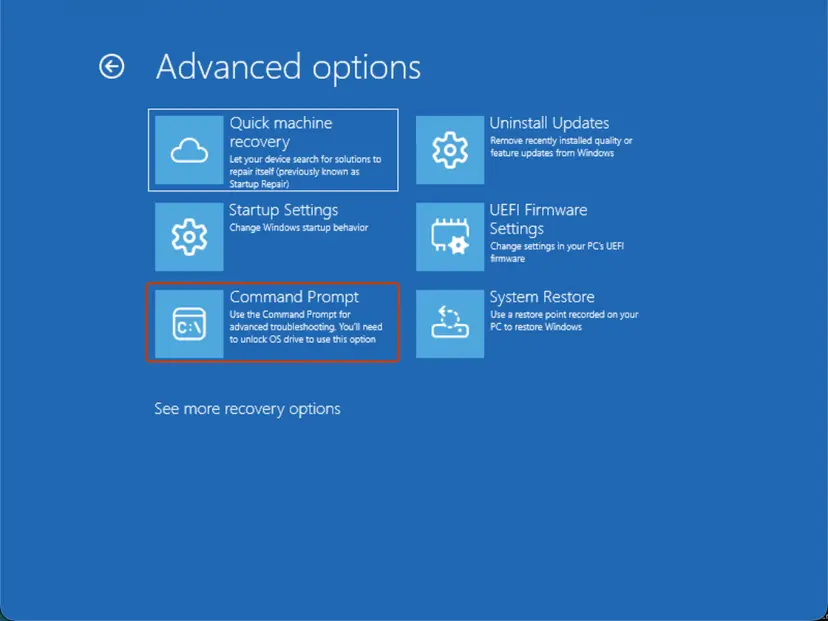
Advanced options: Command Prompt. Screenshot: Windows 11 26H2. - Find the drive letter of Windows. In the recovery environment the drive letters are often different from the ones you know. Try the commands below one by one: the right letter is the one that lists the Windows folder's contents (System32, WinSxS and so on).
dir C:\Windows
dir D:\Windows
dir E:\Windows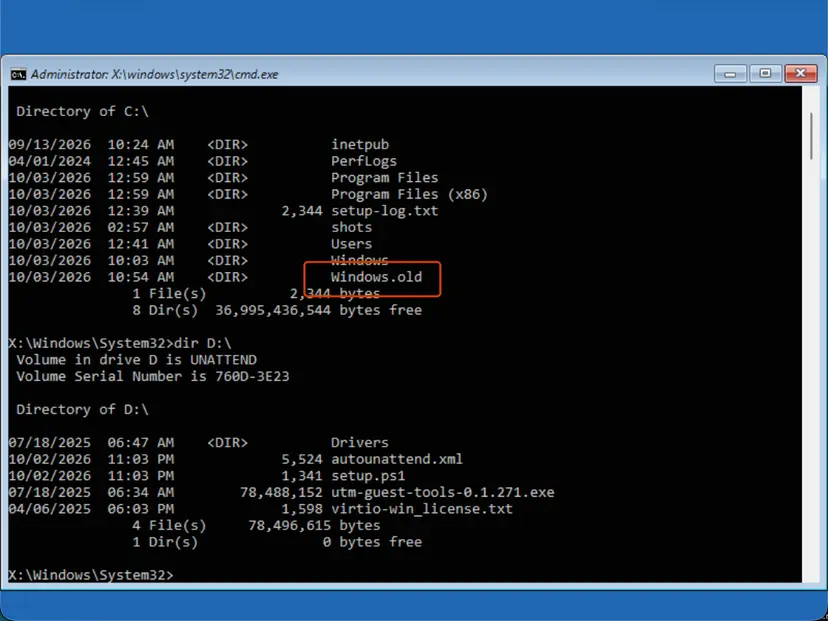
dir shows which letter holds the Windows folder. Screenshot: Windows 11 26H2. - Run the offline scan. Run SFC against that drive. Replace D: with the letter you found in both places.
sfc /scannow /offbootdir=D:\ /offwindir=D:\Windows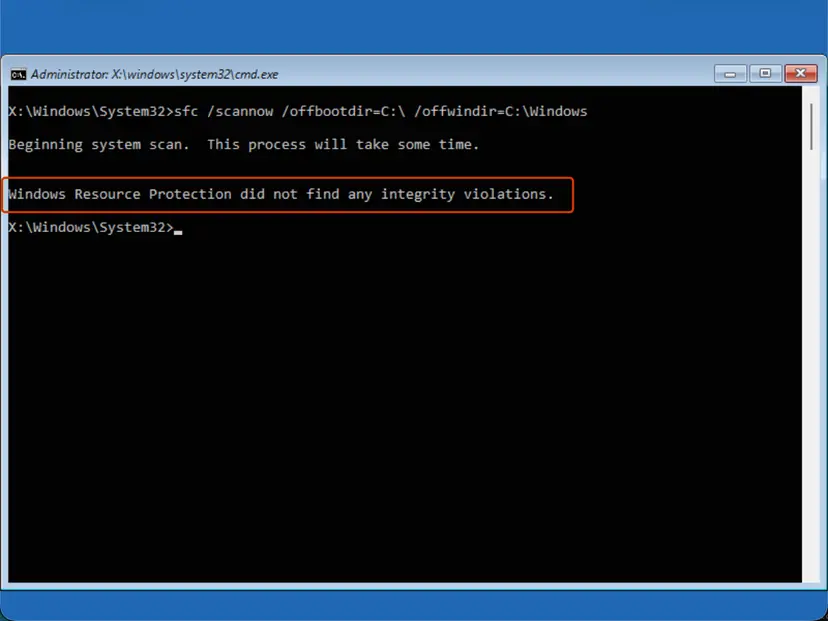
Offline SFC result. Screenshot: Windows 11 26H2. - Restart. Close Command Prompt and select Continue to start Windows.
These steps were written for Windows 11 and Windows 10, from the Windows Recovery Environment. The full page with the other versions and what each result means: Run DISM and SFC to repair Windows system files
Then check the disk itself with chkdsk D: /f, using the letter you found instead of D:. Step by step: Check a disk for errors (chkdsk).
It worked if: SFC finds no integrity violations or repairs them, chkdsk reports no remaining problems, and Windows starts after Continue.
If not: If chkdsk reports bad sectors or the drive is not found, read the section on hardware below. Otherwise go to Fix 7.
Fix 7. Reset this PC and keep your files
1 to 2 hoursRead the warningEvery repair above failed, but the disk works.
Reset this PC reinstalls Windows from the recovery menu. With Keep my files your personal files stay, while apps and settings go back to the default.
Installed apps and changed settings are removed; personal files in your user folders stay with Keep my files. Never choose Remove everything unless your files are backed up. If you can reach Windows or Safe Mode even once, copy your files first with Back up your files (Windows Backup, File History, Time Machine).
- On Choose an option, select Troubleshoot > Reset this PC.
- Select Keep my files.
- Choose Cloud download (needs internet) or Local reinstall.
- Check the summary and select Reset. The PC restarts several times.
The full procedure, with the same steps from a working Windows: Reinstall Windows without losing files.
It worked if: Windows starts to the setup screens and then to your desktop, with your files in place.
If not: If Reset this PC sends you back to Choose your keyboard layout, the recovery tools themselves are damaged. Users report exactly this loop. Go to Fix 8.
Fix 8. Repair or reinstall Windows from an installation USB
1 to 2 hoursRead the warningWinRE does not work, Reset this PC loops back to the layout screen, or no keyboard works in WinRE.
Installation media carries its own fresh copy of the recovery tools and of Windows. It works even when the WinRE on the disk is broken.
Deleting partitions during setup removes everything on them. Try Repair your computer on the USB first. Back up your files from Safe Mode or by connecting the drive to another PC before you choose a clean install.
- On a working PC, open Microsoft's Download Windows 11 page and use Create Windows 11 Installation Media with an empty USB drive of at least 8 GB.
- Plug the USB into the stuck PC and start from it through the boot menu key of your PC (often F12, F11 or Esc).
- On the first setup screen, select Next, then Repair your computer at the bottom left. Try Fixes 3 to 7 from there.
- If repair fails, start setup again and choose Install now. Keep your files only if setup offers it; otherwise choose a clean install.
It worked if: Windows installs and starts without the recovery screens.
If not: If setup cannot see the drive or fails while copying files, the drive may be failing. Read the next section.
If Windows still stops at "Choose your keyboard layout": logs and hardware
Startup Repair writes what it tested to C:\Windows\System32\LogFiles\Srt\SrtTrail.txt. In the recovery Command Prompt the drive letter is often different. Open it with notepad D:\Windows\System32\LogFiles\Srt\SrtTrail.txt, using your letter, and read the line that names the root cause.
- For support or a forum post, note the root cause line from SrtTrail.txt, any stop code you saw before the loop, the last update or device you added, and whether Reset this PC was tried.
- Signs of a failing drive: chkdsk reports bad sectors, the drive is missing in setup, or the PC clicks or freezes on start. Then copy what you can to another drive and replace it.
- Signs of a keyboard or port fault: the keyboard does not work in firmware setup either, or no port works with any keyboard.
- Signs of memory faults: different stop codes each time, such as the ATTEMPTED_EXECUTE_OF_NOEXECUTE_MEMORY in the question. Test the memory with How to test your RAM with Windows Memory Diagnostic once Windows starts, or ask the PC maker for a hardware test.
How to keep Windows from landing on this screen again
- Let updates finish. Do not hold the power button while Windows says it is working on updates. Two forced shutdowns within two minutes of boot are one of Microsoft's triggers for WinRE.
- Keep restore points on. System Restore is the cheapest way back after a bad driver. Turn on protection for C: with Undo recent changes with System Restore.
- Keep the BitLocker key outside the PC. Note where it is stored before you need it in recovery.
- Keep a wired USB keyboard at hand if you use a Bluetooth one, for the recovery screens.
- Plan for Windows 10. Without Extended Security Updates a Windows 10 PC gets no new fixes since 14 October 2025.
Frequently asked questions
What does "Choose your keyboard layout" mean on startup?
It is the first screen of the Windows Recovery Environment. Windows opens it when it could not start normally, for example after two failed starts or two restarts within two minutes of boot. It asks for your layout so that what you type in the recovery tools is right. It is not an error by itself. After you pick a layout, Choose an option offers Continue to try Windows again and Troubleshoot for the repairs.
Which keyboard layout should I choose?
Choose the layout printed on your keyboard: US for most English keyboards, United Kingdom for UK keyboards, Spanish or Latin American for Spanish keyboards, and so on. If yours is not on the first page, look for more layouts below the list. The choice only matters inside the recovery tools, for passwords, the BitLocker key and commands. It does not change the layout you use in Windows.
Why does my laptop keep going back to "Choose your keyboard layout"?
Because Windows fails to start each time you select Continue, so it opens the recovery tools again. The usual reasons are damaged boot files, a faulty update or driver, or damaged system files. Run Startup Repair first (Fix 3), then remove the latest update (Fix 4). On Dell, Acer, ASUS and other laptops the steps are the same, because the screen belongs to Windows, not to the maker.
My keyboard and mouse do not work on the "Choose your keyboard layout" screen. What now?
The recovery tools have fewer drivers than Windows, so some keyboards, mice and hubs do nothing there. Unplug other USB devices and plug a wired USB keyboard and mouse straight into the PC, on a desktop at the back. On a laptop use the built-in keyboard or touchscreen. If no keyboard works, start from a Windows installation USB, which has its own drivers.
Is the "Choose your keyboard layout" screen a blue screen of death?
No. It is blue, but it has no stop code and no sad face. It is a menu of the recovery tools. A real blue screen of death, with a stop code such as ATTEMPTED_EXECUTE_OF_NOEXECUTE_MEMORY, can come before it and be the reason Windows failed. Note that stop code, because it points to the cause, for example a driver or memory fault.
Will I lose my files if I fix this?
Fixes 1 to 6 do not touch your personal files. System Restore removes programs installed after the restore point, but not your documents. Reset this PC with Keep my files keeps personal files but removes apps and settings. Only Remove everything and a clean install erase the drive. Back up first if you can reach Windows or Safe Mode even once.
Does the KB4090913 update fix the "Choose your keyboard layout" screen?
Only on the old Windows 10 version 1709. In February 2018 the update KB4074588 made some USB keyboards, mice and laptop cameras stop working, and Microsoft fixed that with KB4090913 in March 2018. No supported Windows version needs it today. On a current PC, the screen means Windows failed to start for another reason, so use the fixes on this page instead.
Does this happen in Windows 11 too?
Yes. Windows 11 uses the same recovery tools, the same Choose your keyboard layout screen and the same Choose an option menu. The only visible change is in Windows 11 26H2, where Startup Repair is shown as Quick machine recovery. Every fix on this page works on Windows 11 25H2 and 26H2 as well as on Windows 10 22H2.
What is "Check your keyboard layout and try again"?
It is not the title of this screen. The words point to a password, PIN or recovery key that did not match, and a wrong layout is a common reason, because keys such as Y and Z or symbols sit in other places. We could not confirm in Microsoft's documentation which window shows this exact text. Go back, pick the layout printed on your keys, and type the password or BitLocker key again.
Sources
- Microsoft Learn: Windows Recovery Environment (Windows RE) (learn.microsoft.com)
- BleepingComputer: Microsoft Releases KB4090913 Update to Fix Critical USB Driver Issue (quotes Microsoft's KB text) (bleepingcomputer.com)
- Microsoft Q&A: How to fix "Choose your Keyboard Layout" recovery environment loop? (user report) (learn.microsoft.com)
Did this fix work?
One click, no account. It tells the next reader which guides are worth their time.
Questions and experiences: fix Windows 10 stuck at "Choose your keyboard layout" screen
Still broken, or found a fix we did not cover? Ask here: members and our editors answer. Reading is open; writing needs a free account.
…