How to fix
Windows 10 toolbar not working
on Windows
Resolve your Windows 10 toolbar issues quickly with expert tips and solutions. Get your tasks back on track, with zero traces left.

What causes How to fix Windows 10 toolbar not working?
- Malware infection
- Corrupted system files
- Windows Explorer not responding
- Taskbar settings misconfiguration
Repairs Windows system files, removes malware, and restores a clean OS state — without reinstalling.
I have encountered a problem with the user interface as the toolbar is unresponsive or freezes randomly. I've tried to troubleshoot the error, but it persists. Could you please help me fix Windows 10 toolbar not working issue?
Issues with Windows user interface (UI)[ref en-1] might significantly deteriorate user's experience. It is because Windows toolbar allows people to access numerous files, folders, and search for applications. Unfortunately, some people might encounter a problem as Windows 10 toolbar is not working.
We have received reports about Windows 10 taskbar not responding. However, people now complain about Windows toolbar issues which might be the following:
- Stops working randomly;
- Becomes unresponsive;
- Starts freezing.
If Windows toolbar is not working, users cannot open regular programs, browse system files or change settings. It might become exceptionally hard to use the computer as this feature is essential for great user experience. Fortunately, there are some methods listed below which will show you how to fix Windows 10 toolbar not working bug.
Ways to fix Windows 10 toolbar not working issue
Before you head to the instructions showing how to fix toolbar not working error on Windows 10[ref en-2], you should make sure that your computer is not infected with malware[ref en-3]. In this case, the malicious program might have compromised system files and damaged your PC.
We recommend you to scan your system with [d1] as it will not only get rid of the cyber threat but also help you fix Windows 10 toolbar not working bug automatically. If you are sure that your computer is clean, follow the guidelines to get rid of the issue.
This video has all the information for solving this problem:
[youtube zPNimA7w_cY]
Technique 1. Restart Windows Explorer in the Task Manager
- Press Windows + R and submit taskmgr.exe;
- Hit enter and go to the Processes tab;
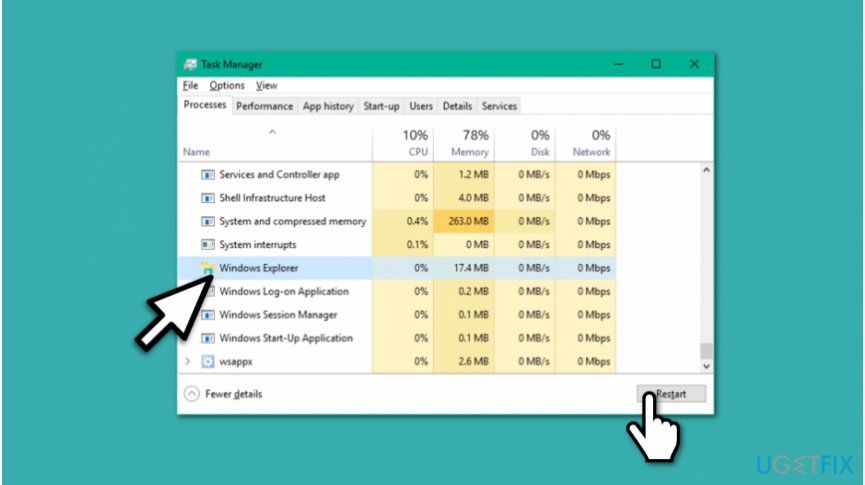
Restart windows explorer - Search for Windows Explorer;
- Click on it and press the Restart button.
Technique 2. Re-register Windows 10 toolbar
- Open Task Manager and go to File > Run new task;
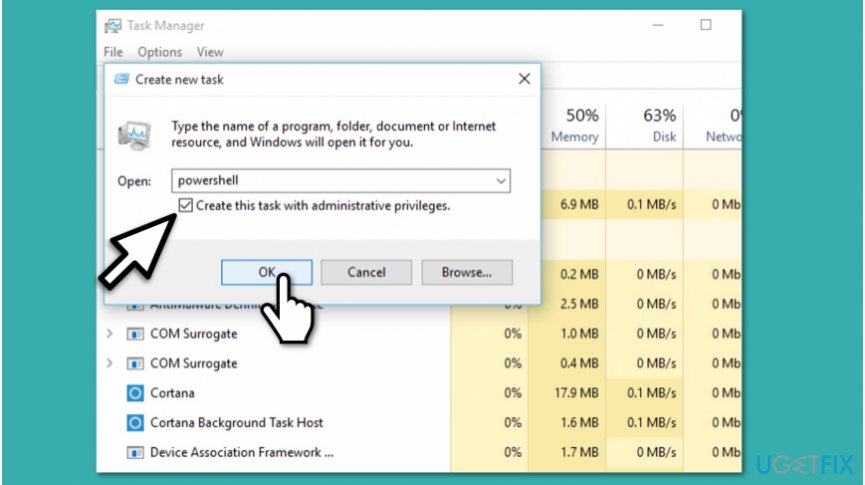
Get rid of windows 1o toolbar not working problem - Enter Powershell and tick Create this task with administrative privileges box;
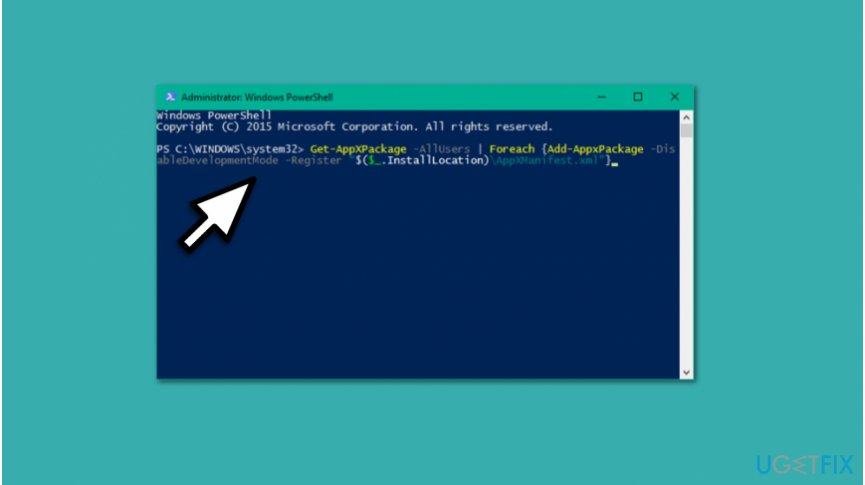
Re register windows toolbar - Submit the following command and hit Enter:
Get-AppXPackage -AllUsers | Foreach {Add-AppxPackage -DisableDevelopmentMode -Register “$($_.InstallLocation)\\\\AppXManifest.xml”} - Close the window and go to C:/Users/name/AppData/Local/ (name is your Account Username);
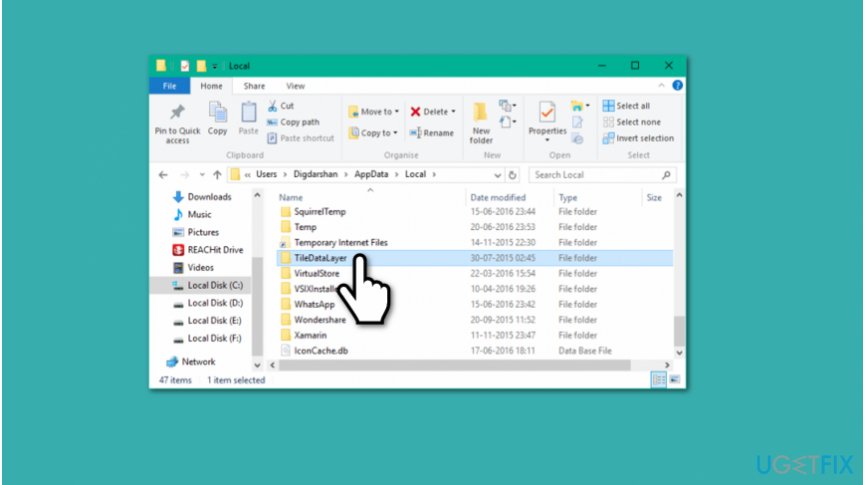
Delete tiledatalayer folder - Find TileDataLayer folder and delete it;
- Check if the toolbar is working properly again.
Technique 3. Use System File Checker
- Press Windows key + X and select Command Prompt (Admin);
- Type the following command and hit Enter:
sfc /scannow - Wait for the procedure to complete and make sure that the error was fixed.
Bottom line
To fix the Windows 10 toolbar not working issue, you can restart Windows Explorer through Task Manager or re-register the toolbar using PowerShell. If these methods do not resolve the problem, consider scanning your system for malware or seeking further technical assistance.
Frequently asked questions
Try restarting Windows Explorer through the Task Manager to refresh the toolbar. If that doesn't work, consider updating your Windows 10 system to the latest version.
Yes, certain third-party applications can interfere with the Windows 10 toolbar functionality. Uninstalling or disabling these applications may resolve the issue.
You can reset the toolbar settings by right-clicking on the taskbar, selecting 'Taskbar settings,' and then adjusting the settings or toggling features off and on.




Report an issue
What's wrong with this guide? We review every report and update or remove content.
Report received — thank you. We'll review and fix it.
You need a free account to submit a report.
Be the first to comment