How to fix
Windows 10 Update Error Code 0x8e5e03fa
on Windows
Resolve Windows 10 update error code 0x8e5e03fa quickly and efficiently with our expert-tested solutions. Fix it in minutes and enjoy seamless updates.

What causes How to Fix Windows 10 Update Error Code 0x8e5e03fa?
- Internet connectivity errors
- Corrupted elements in the system
- Malware imitating Windows updates
- Unstable Internet connection
- Issues with Windows Update Services
Repairs Windows system files, removes malware, and restores a clean OS state — without reinstalling.
Hello. I am having a particular problem with Cumulative update KB30814444. Despite several attempts, I try to install it.. It stops in the middle and “Windows 10 update error 0x8e5e03fa” message appears. Any ideas how to install this update?
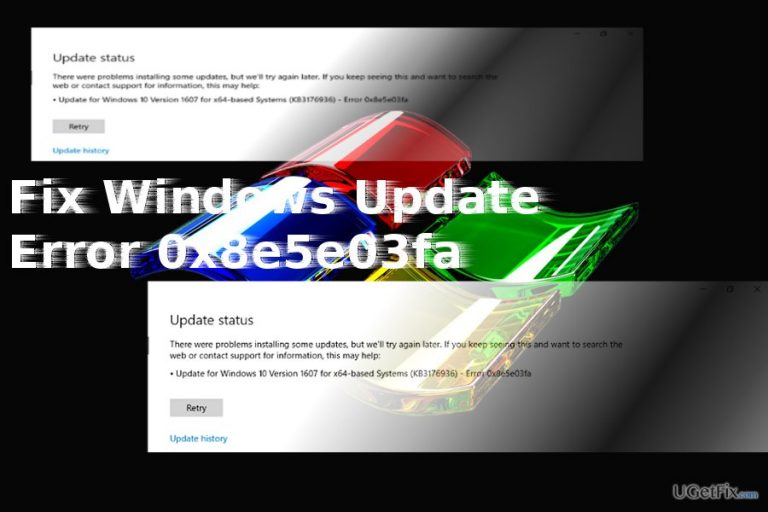
Windows 10 update error code 0x8e5e03fa might appear when users attempt to install various Windows updates. Either you attempt to install Windows 10 Version 1607 build (KB3176936) or Cumulative Update (KB308144444), you might run into this message. According to IT professionals, this issue lasts since the introduction of Windows 7 version. Additionally, the error might appear due to Internet connectivity errors. In that case, restarting the router may solve the issue. Furthermore, malware developers have managed to develop the ransomware which imitates Windows OS updates. Thus, it is crucial to identify the cause of such issue. First of all, you might want to scan the system with a security tool, such as [d1].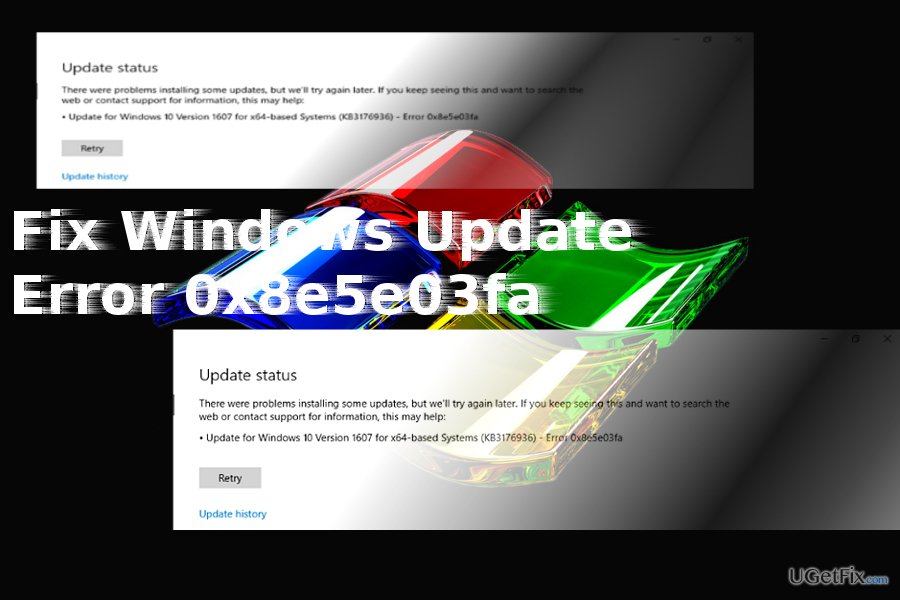
Option 1. Restart the Router
It is very likely that unstable Internet connection may be at fault for interrupting the update. In that case, you may find this method effective.
1. Locate the power button on the router and turn it off.
2. Wait for 30 seconds and turn the device on again.
3. Try installing the necessary update again.
Option 2. Use Command Prompt Method to Solve the Issue
It is likely that the Windows 10 update cannot be installed due to certain corrupted elements. Perform these steps:
- Press Windows Key + X. Click on the Command Prompt (Admin) option.
- Cancel BITS, Cryptographic, MSI Installer and the Windows Update Services tasks. Enter the latter commands. Press the Enter after each entry for it to take effect.
net stop wuauserv
net stop cryptSvc
net stop bits
net stop msiserver - Change the names of SoftwareDistribution and Catroot2 folders. Click on Enter after each subsequent command.
ren C:\Windows\SoftwareDistribution SoftwareDistribution.old
ren C:\Windows\System32\catroot2 Catroot2.old - Launch BITS, Cryptographic, MSI Installer and the Windows Update Services again. Type the following commands in the Command Prompt for this. Press ENTER key after you type each command.
net start wuauserv
net start cryptSvc
net start bits
net start msiserver - After each command completes, type Exit and reboot the device.
Option 3. Reset Windows Updates
Since this issue is quite common, cyber security specialists have found the workaround for the malware. In order to completely reset Windows Updates and its history, you will need to download the .bat file from this official website. Once you download, unlock the file. Then, right-click on file and choose Run as Administrator. Once the UAC message asks for your permission to launch the program. After the process finishes, restart the system.
Bottom line
To fix the Windows 10 update error code 0x8e5e03fa, you can restart your router to address potential Internet connectivity issues or use the Command Prompt to stop and restart various services and rename specific folders. If these solutions do not resolve the issue, consider scanning your system for malware or seeking further technical assistance.
Frequently asked questions
The error code 0x8e5e03fa typically indicates a problem with the Windows Update service, often related to a corrupted update file or issues with the update components.
You can reset the Windows Update components by running the Command Prompt as an administrator and executing a series of commands that stop the Windows Update services, rename the software distribution folder, and restart the services.
Yes, you can manually download and install the specific update from the Microsoft Update Catalog website, which can help bypass the error 0x8e5e03fa that occurs during automatic updates.




Report an issue
What's wrong with this guide? We review every report and update or remove content.
Report received — thank you. We'll review and fix it.
You need a free account to submit a report.
Be the first to comment