How to fix
Windows 11 23H2 fails to install
on Windows
Troubleshoot Windows 11 23H2 installation issues easily with our expert-tested solutions. Get your system running smoothly in minutes!

What causes How to fix Windows 11 23H2 fails to install?
- Insufficient storage space
- Corrupted system files
- Interference from third-party software
- Network issues
Repairs Windows system files, removes malware, and restores a clean OS state — without reinstalling.
I can't seem to install the 23H2 version for Windows 11. It keeps returning the 0x80070002 error code. Any fixes would be appreciated.
Windows 11 23H2 is a notable update from Microsoft, aiming to refine the overall performance and features of the operating system. However, challenges might arise during its installation and 23H2 fails to install for some users.
Windows 11 versions 22H2 and 23H2 are constructed on a shared core, meaning they possess the same fundamental system files. When you move from version 22H2 to 23H2, the new attributes already exist but are in a dormant state. To activate these features, Microsoft uses the "enablement package."
This master switch simplifies the upgrade, requiring only a single restart, thus minimizing update downtime. If you're on version 22H2 and connected directly to Windows Update, this package is automatically incorporated during the shift to the newest software version.
One of the most common reasons for the installation failure is insufficient storage space. To successfully install an update, your system needs adequate free space. Before starting the update, you should check the amount of available disk space and clear unnecessary files if needed.
Corrupted system files can also prevent the 23H2 update from being installed. During the installation process, if the system encounters files that are damaged or corrupted, it might halt the update. Running the built-in System File Checker and DISM tools can help identify and repair such files.
In some cases, third-party software, especially security or antivirus programs, can interfere with the update. This happens because these applications might consider certain elements of the update as threats, causing interruptions. To avoid this, you could temporarily disable these applications during the update process.
Network issues are another possible culprit. A stable internet connection is essential when downloading and installing updates. Any interruptions or drops in connectivity could result in a failed update. It's advisable to ensure a stable and reliable connection, possibly through a wired connection, before starting the update.
Lastly, for those who prefer automated solutions, using the [d1] PC repair tool can diagnose and rectify common issues preventing successful system updates.
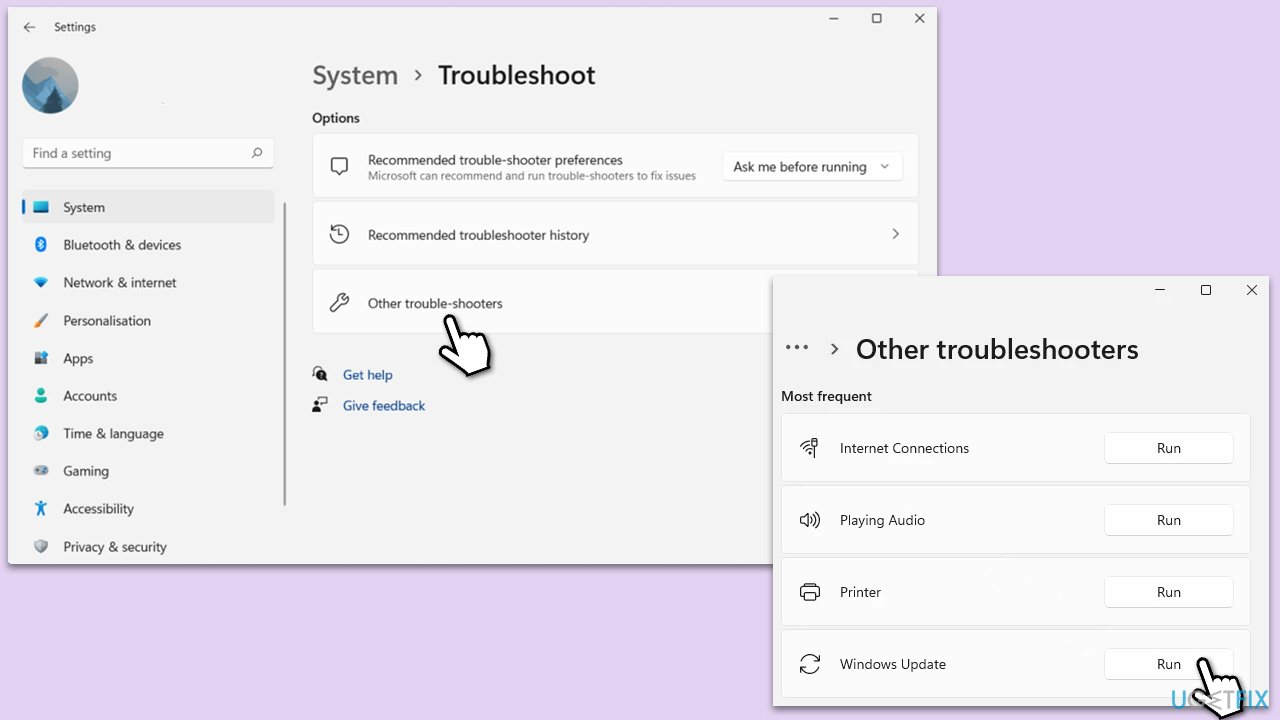
Fix 1. Run Windows update troubleshooter
Windows provides an integrated tool called the Update Troubleshooter, specifically designed to detect and resolve common problems associated with updates. This tool conducts an automated scan and offers solutions to fix any detected issues.
- Type Troubleshoot in Windows search and press Enter.
- Go to Other troubleshooters.
- Find Windows Update from the list and click Run.
- The troubleshooter will automatically scan your system for potential problems and display any issues it finds.
- If the troubleshooter finds any issues, it will provide recommended solutions.
- Follow the on-screen instructions to apply these recommended fixes.
Fix 2. Restart or start relevant services
Certain services are crucial for the smooth operation of Windows updates.
- Type in Services in Windows search and hit Enter.
- Locate Background Intelligent Transfer Service (BITS).
- If this service is already running, right-click and select Restart.
- If it is not running, double-click it, select Automatic under the Startup type from the drop-down menu.
- Click Start, Apply, and OK.
- Repeat the process with the Windows Update, Cryptographic, and Windows Installer services.
Fix 3. Perform Disk Cleanup
Over time, unnecessary files accumulate on your system, potentially hindering the update process. The Disk Cleanup tool can help you free up space by removing these files.
- Open the Windows search bar and type Disk Cleanup. Press Enter to open the Disk Cleanup utility.
- In the Disk Cleanup window, click Clean up system files.
- Select the drive again and click OK.
- In the list of files that can be cleaned up, select the largest portions of data, such as Temporary Internet Files, Windows Update, Temporary Files, and others.
- Click OK to begin the cleanup process.

Fix 4. Reset Windows Update components
Manually resetting the Windows Update components can help clear any glitches or issues preventing updates.
- Type cmd into Windows search.
- Right-click on Command Prompt and select Run as administrator.
- When User Account Control (UAC) window shows up, click Yes.
- Paste in each of these commands, pressing Enter every time:
- Stop the Windows Update-related services by running the following commands one at a time, pressing Enter after each one:
net stop wuauserv
net stop cryptSvc
net stop bits
net stop msiserver - Rename the SoftwareDistribution and Catroot2 folders by running the following commands:
ren C:\Windows\SoftwareDistribution SoftwareDistribution.old
ren C:\Windows\System32\catroot2 Catroot2.old
Note: If your Windows installation is not on the C drive, replace "C" with the appropriate drive letter. - Restart the Windows Update-related services by running the following commands:
net start wuauserv
net start cryptSvc
net start bits
net start msiserver - Restart your PC.

Fix 5. Use SFC and DISM
The System File Checker (SFC) and Deployment Image Servicing and Management (DISM) tools can repair corrupted or damaged Windows system files.
- Open Command Prompt as administrator.
- Type in the following command and press Enter:
sfc /scannow - When done, run the following commands as well:
dism /online /cleanup-image /scanhealth
dism /online /cleanup-image /checkhealth
dism /online /cleanup-image /restorehealth
(Note: if you get an error executing this last command, add /Source:C:\RepairSource\Windows /LimitAccess to it and try again). - Restart your system.

Fix 6. Manually reset the TCP/IP stack
If you are having network problems, resetting the TCP/IP stack might help you in this situation.
- Open Command Prompt as administrator.
- Copy and paste each of the following commands, pressing Enter after each:
netsh int ip reset
ipconfig /release
ipconfig /renew
ipconfig /flushdns
netsh winsock reset - Restart your PC.

Bottom line
To fix the installation failure of Windows 11 23H2, ensure you have adequate free disk space, run the System File Checker and DISM tools to repair corrupted files, and temporarily disable any security or antivirus programs. Additionally, check your internet connection for stability. If these solutions do not resolve the issue, consider using a PC repair tool.
Frequently asked questions
First, ensure that your device has enough storage space and that no third-party antivirus software is interfering with the installation. You can also try running the Windows Update Troubleshooter to identify and fix any issues.
Take note of the specific error code and search for it on the Microsoft support website for targeted solutions, or use the Windows Update Assistant to manually perform the update.
Yes, you can uninstall recent updates through the Settings app, which may resolve conflicts causing the installation failure, but make sure to back up your files first.




Report an issue
What's wrong with this guide? We review every report and update or remove content.
Report received — thank you. We'll review and fix it.
You need a free account to submit a report.
Be the first to comment