How to fix
Windows 11 can’t find Epson printer
on Windows
Resolve your Windows 11 Epson printer issues quickly with our expert-tested solutions. Get back to printing in minutes, with step-by-step guidance!


What causes How to fix Windows 11 can’t find Epson printer?
- Faulty drivers for the printer
- Installed faulty Windows updates
- Incompatibility between Windows 11 and certain Epson printer models
- Network connectivity issues
- Printer not set as default
Repairs Windows system files, removes malware, and restores a clean OS state — without reinstalling.
Hi, I have some printer issues in Windows 11. Every time I try to print something, my PC simply can't find the Epson printer, and I have to manually go into the Printer app and show the path for it to work. It then does some troubleshooting and only then goes on to printing. I have contacted Epson, but they said it's a problem with Windows. Any advice on this, please?
Epson is a Japanese technology company that produces a wide range of products, including printers. Epson printers are known for their high-quality printing and versatile features. Many of their printers are designed for use in both home and office settings, making them a popular choice for individuals and businesses alike.
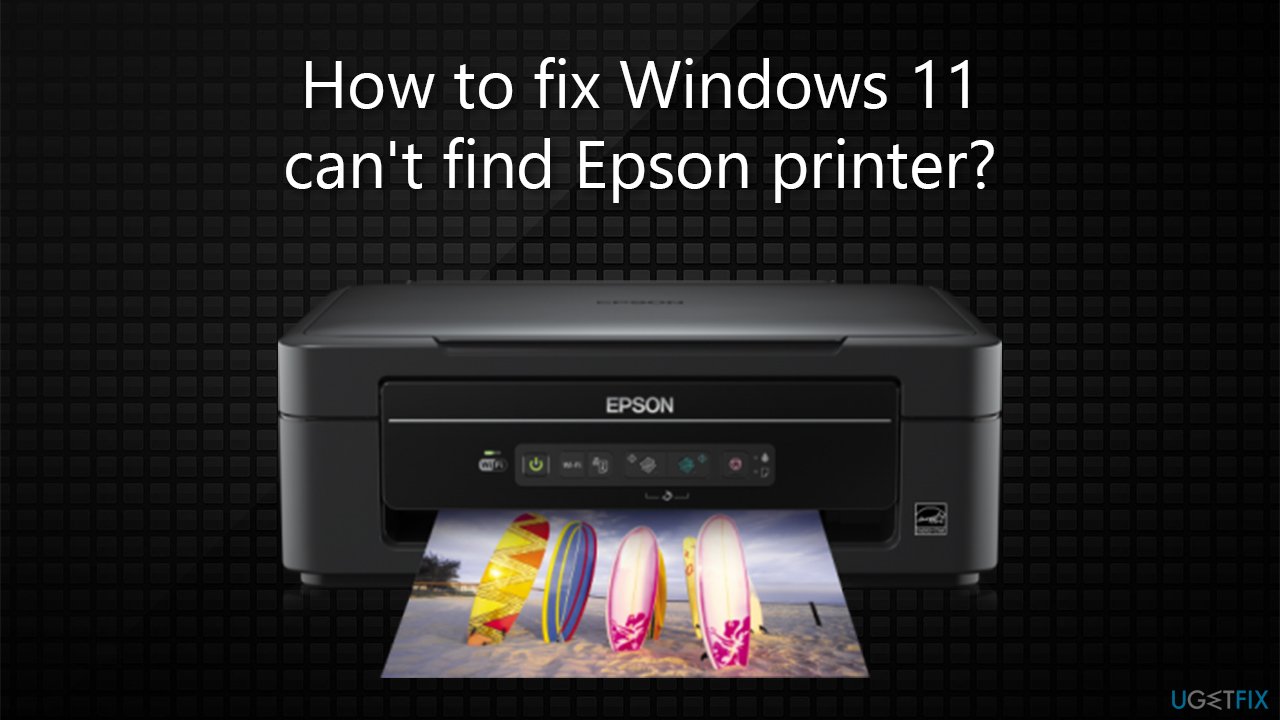
The printer is a useful device not only in the office but in the home environment as well - people might want to print out some documents, tickers, or simply photos. Unfortunately, this task becomes a nightmare when Windows 11 can't find an Epson printer, and users have to meddle with it every time they want to use the device.
Most commonly, users face printing issues whenever they encounter errors, such as 0x00000bc4 or 0x000003e3. With the error code, troubleshooting becomes much easier as it points to what the problem might be. Unfortunately, in this situation, users do not receive any error codes but instead have to "search out" the printer every time they want to use it.
It is worth noting that this problem affects various Epson printer models, including Epson XP-4100, ET-3760, ET-2750, ET2850, and many others. Most commonly, users encounter it on Windows 11 systems exclusively.
This can be particularly frustrating, especially when one is using a printer relatively often. While the problem may not lie within Epson per se, there are certain elements to this particular printer type that might result in Windows not finding an Epson printer. To be more precise, it's particular drivers that could be the reason for this, although issues with Windows, such as installed faulty updates, could also cause be the reason.
Below we provide several fixes for Windows not finding an Epson printer. Before proceeding, make sure you check your system with [d1] PC repair to ensure there are no underlying issues present on it. The app is excellent when dealing with common issues, including Windows update errors, BSODs, registry corruption, and more.
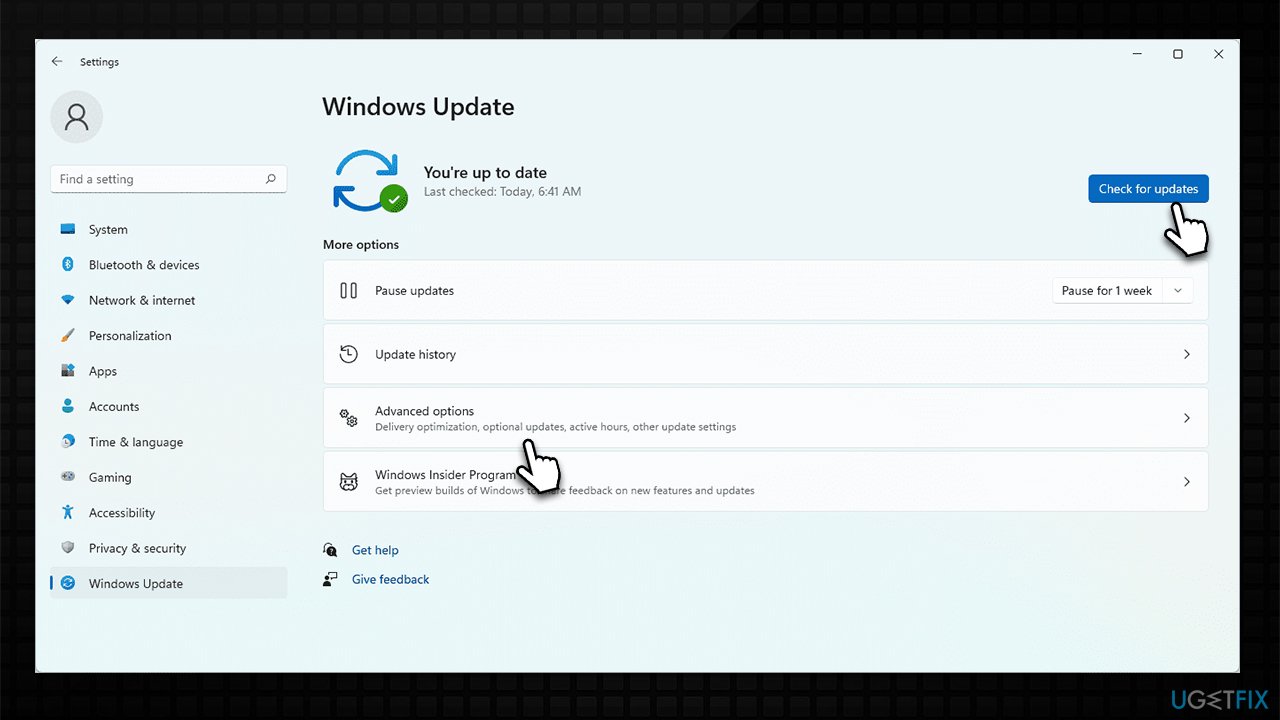
Fix 1. Install all available Windows updates
First off, make sure your Windows updates are all installed (including optional ones).
- Click Start and select Settings
- Go to the Windows Update section
- Click Check for updates and wait
- Go to the Advanced options and install optional updates
- Reboot your device.
Fix 2. Uninstall the most recent updates [workaround]
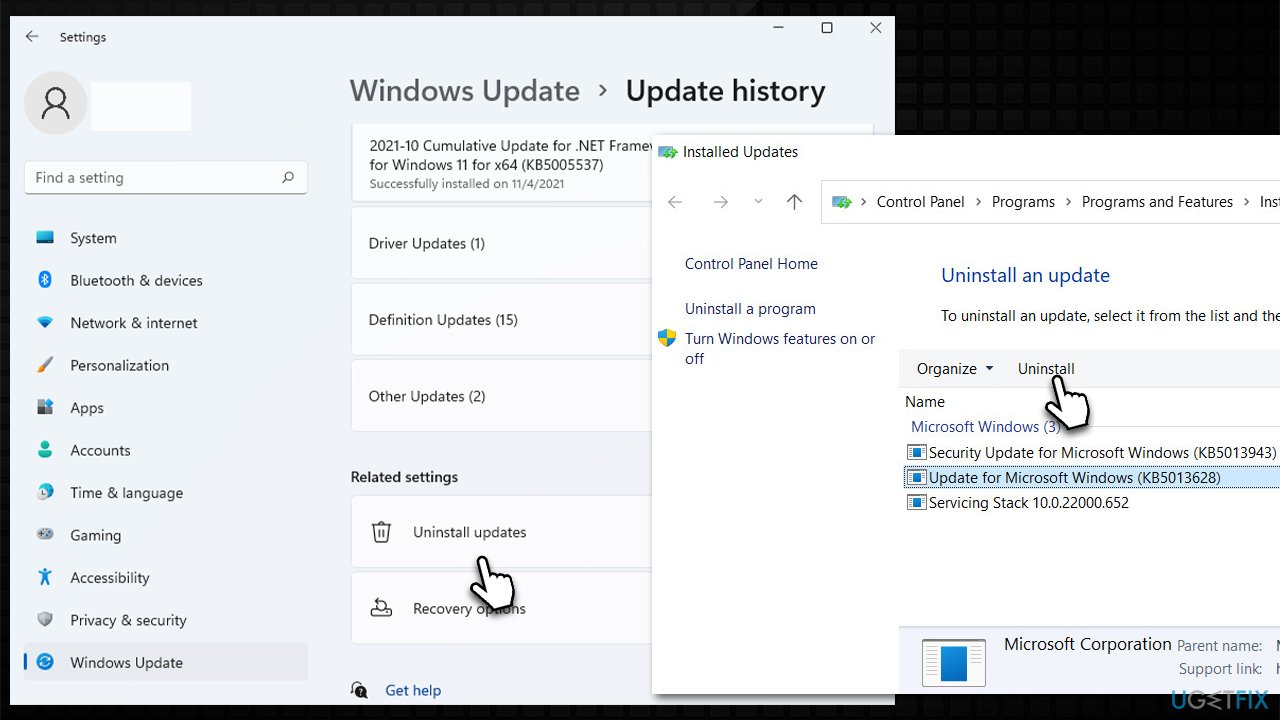
If your Epson printer issues on Windows 11 started after installing the newest update, you could uninstall it:
- Open Settings and go to Windows Update
- Select Update history and pick Uninstall updates
- When Control Panel opens, sort it by the date
- Select the most recent update and click Uninstall at the top
- Follow the on-screen instructions and reboot your system.
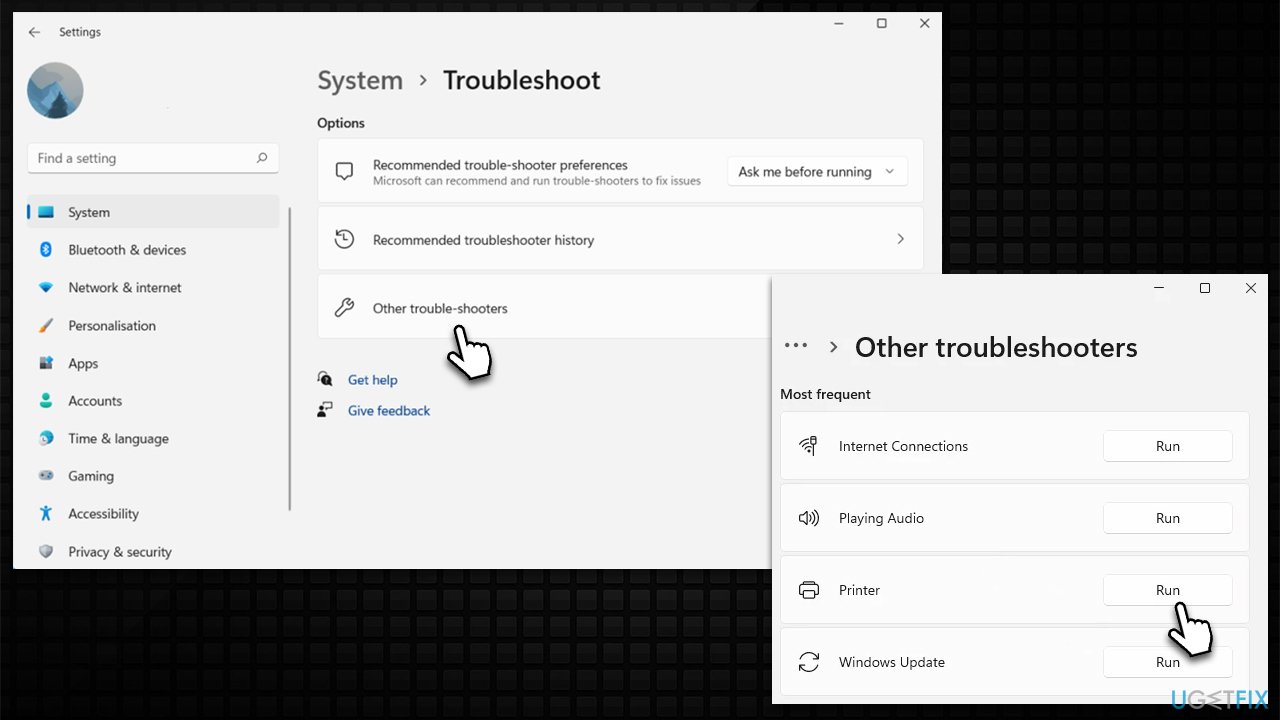
Fix 3. Run the troubleshooter
- Type Troubleshoot in Windows search and press Enter (or go to Start > Settings > System > Troubleshoot)
- Pick Other troubleshooters
- Find the Printer and click Run
- Wait till the scan is finished and fixes applied.
Fix 4. Reinstall printer drivers
If you have already used Windows update and still suffering from Epson not working in Windows 11, you could try reinstalling printer drivers.
- Type Device Manager in Windows search and hit Enter
- Expand the Printers section
- Right-click on your printer and select Uninstall device
- Mark the Delete the driver software for this device tickbox and click Uninstall
- Follow the on-screen instructions and restart your system.
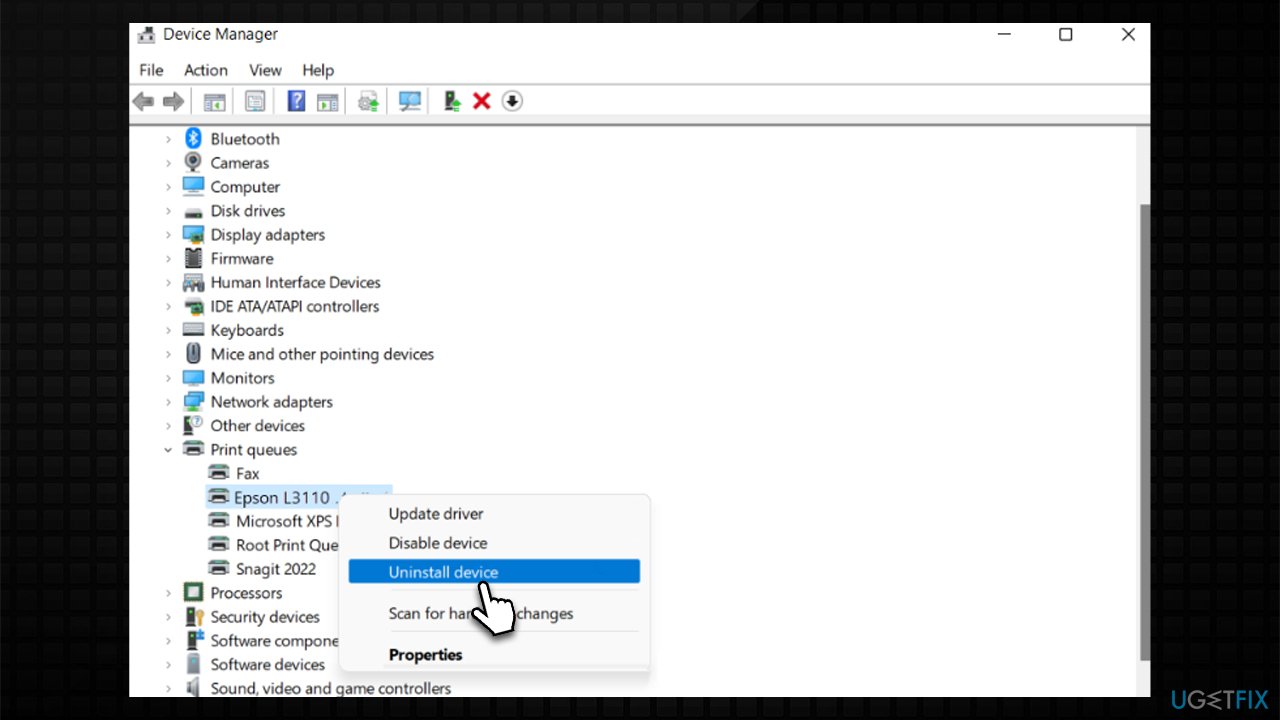
Once you have your printer drivers uninstalled, you can download the newest Epson driver from the official website or rely on an automatic driver updater such as [rev id="DriverFix"].
Fix 5. Clear and reset Print Spooler service
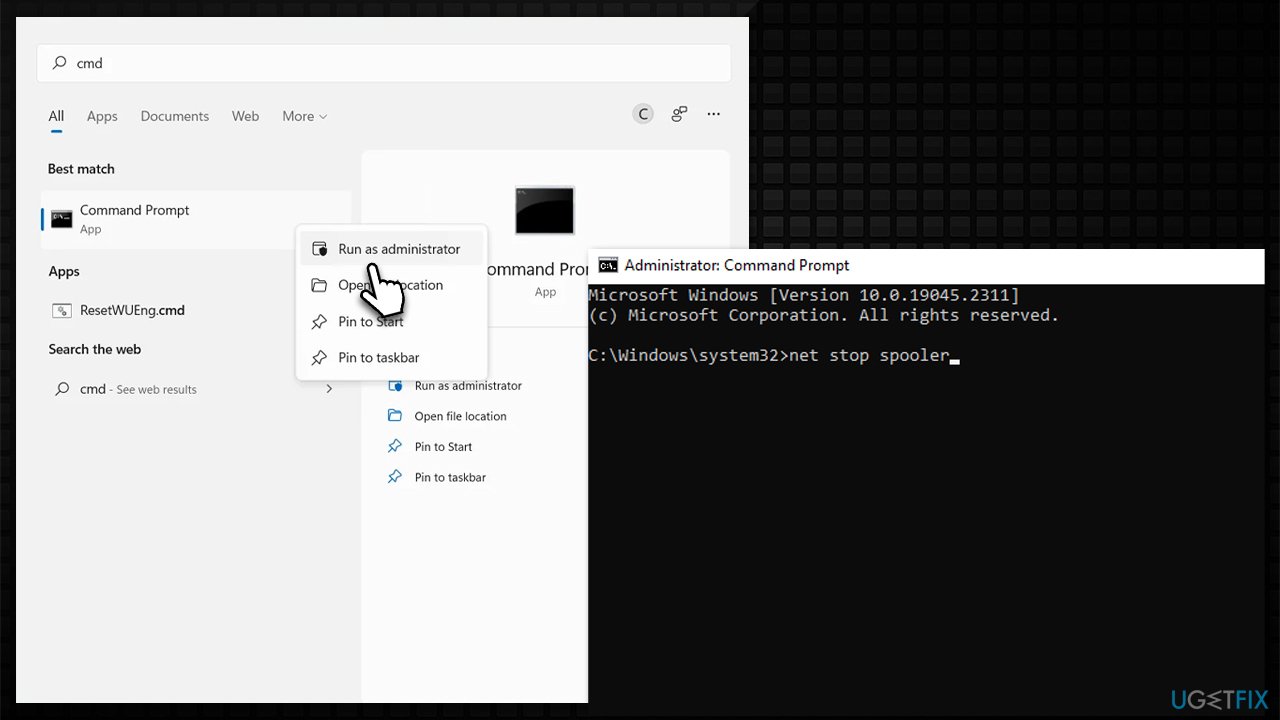
- Type cmd in Windows search
- Right-click on Command Prompt result and pick Run as administrator
- When User Account Control shows up, click Yes
- Type in the following command, and press Enter after each:
net stop spooler
del %systemroot%\System32\spool\printers* /Q”
net start spooler - Close down Command Prompt and restart your system.
Bottom line
To resolve the issue of Windows 11 not finding the Epson printer, users can try updating the printer drivers, checking for Windows updates, ensuring the printer is set as the default device, and verifying network connections. If none of these solutions work, further troubleshooting may be necessary, or users may need to contact support for additional assistance.
Frequently asked questions
Windows 11 may not find your Epson printer due to connectivity issues, outdated drivers, or incorrect printer settings.
You can update your Epson printer drivers by visiting the Epson support website, downloading the latest drivers compatible with Windows 11, and installing them.
If your Epson printer shows as offline, check the printer's connection, ensure it's powered on, and set it as the default printer in Windows 11 settings.




Report an issue
What's wrong with this guide? We review every report and update or remove content.
Report received — thank you. We'll review and fix it.
You need a free account to submit a report.
Be the first to comment