ACTIVE MALWAREWINDOWSTESTED: WINDOWS 10, WINDOWS 11
How to fix Windows 11 Installation Assistant error 0xc1900107 on Windows
Resolve the Windows 11 Installation Assistant error 0xc1900107 quickly with our expert-tested solutions. Get your system running smoothly again, fixed i…
Hello. I tried to upgrade my Windows 10 PC to Windows 11 through the Installation Assistant but I keep getting the 0xc1900107 error. Any tips on how to fix this would be appreciated.
Windows 11 was released at the end of 2021, but not everyone rushed to upgrade from Windows 10. Some users are attempting to upgrade their systems just now, however, not all are successful. Even though Microsoft has provided an Installation Assistant, people still run into issues when using it.
Recently, users reported that they received Windows 11 Installation Assistant error 0xc1900107 while trying to upgrade. While it is unknown what exactly could be causing this error, it is worth checking if you meet the minimum requirements[ref en-1] and if you have at least 64 GB of free space in your storage.
The same error code was previously recorded to appear in Windows 10 Update Error 0xc1900107 when people tried to install the Windows 10 Anniversary Update and the most common cause for it was that users did not meet the requirements.
Troubleshooting manually could take a while because it is unclear what is causing the issue, so you can try using an automatic solution [d1] to avoid going through all of the possibilities. The repair tool can identify the damaged system components, fix BSODs,[ref en-2] and registry[ref en-3] issues by scanning the system. This software could also be used to free up space by clearing cookies and cache, which should boost the device's performance.
How to fix windows 11 installation assistant error 0xc1900107
Below you will find a few manual methods that could fix the Windows 11 Installation Assistant error 0xc1900107 and let you upgrade your system. Note that this will take a while, so please follow all of the steps very carefully:
Solution 1. Repair Corrupted System Files
Use Command Prompt commands to repair system file corruption:
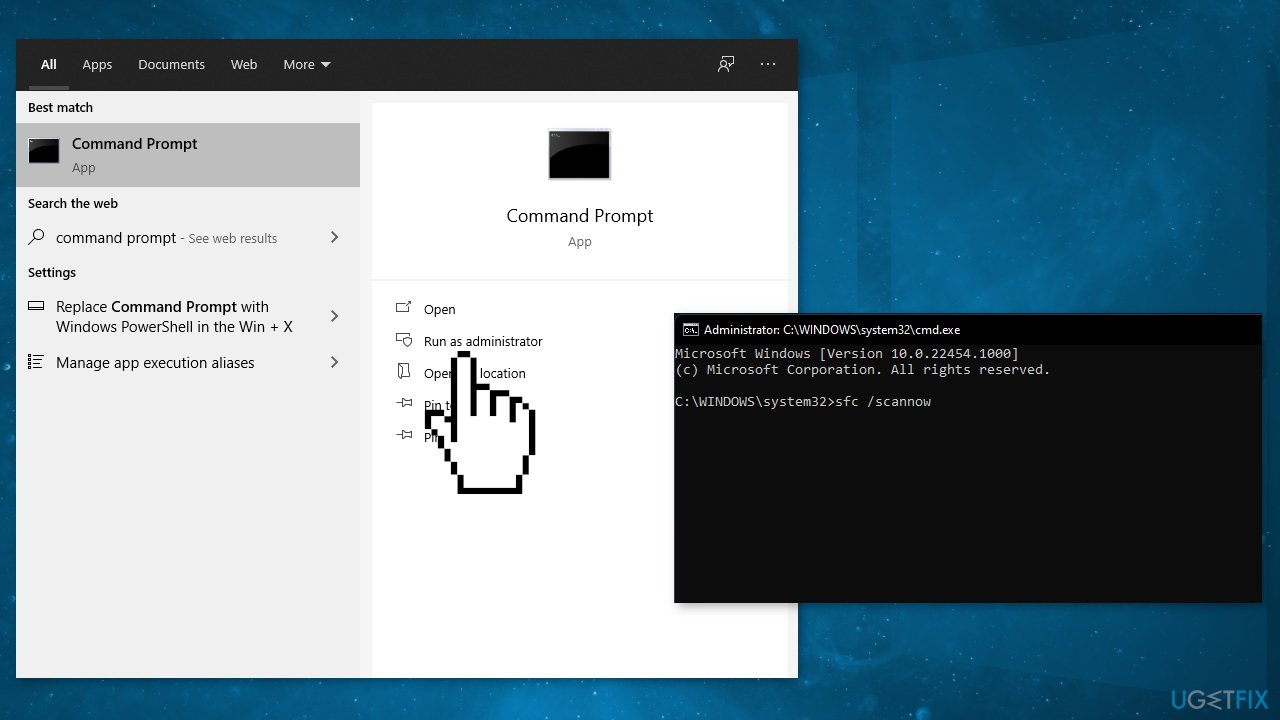
Open Command Prompt as administrator
Use the following command and press Enter: sfc /scannow
Repair corrupted system files
Reboot your system
If SFC returned an error, then use the following command lines, pressing Enter after each: DISM /Online /Cleanup-Image /CheckHealth DISM /Online /Cleanup-Image /ScanHealth DISM /Online /Cleanup-Image /RestoreHealth
Solution 2. Check Disk
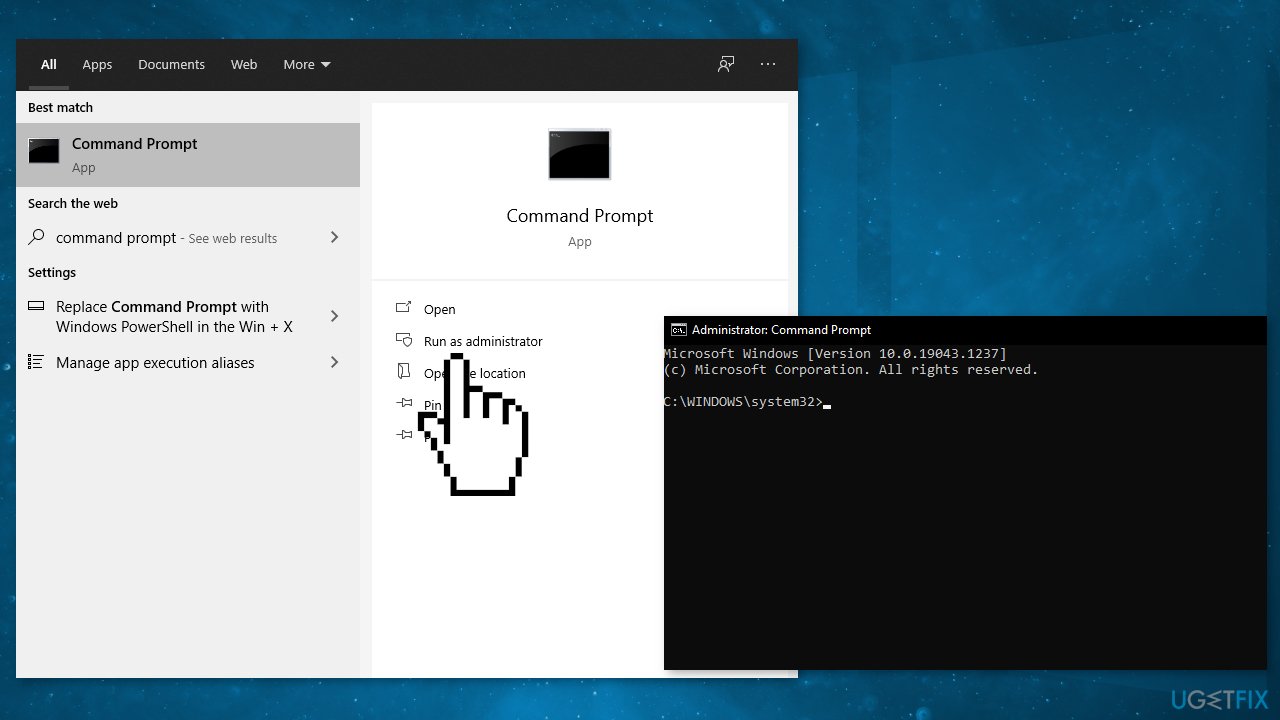
Ensure that your disk is not damaged. You can perform checks using Administrative Command Prompt:
If you are using an HDD as your main driver (where your operating system is installed - C: by default), use the following command and press Enter: chkdsk c: /f
If you are using SSD, use this command: chkdsk c: /f /r /x
Check disk
If you receive an error, type in Y and hit Enter
Restart your device to perform the check
Solution 3. Update Drivers
Outdated drivers could be the cause of the error. In this case, you can fix it automatically by using [rev id="DriverFix"], which will scan your PC for missing and out-of-date device drivers. Or you can update them manually:
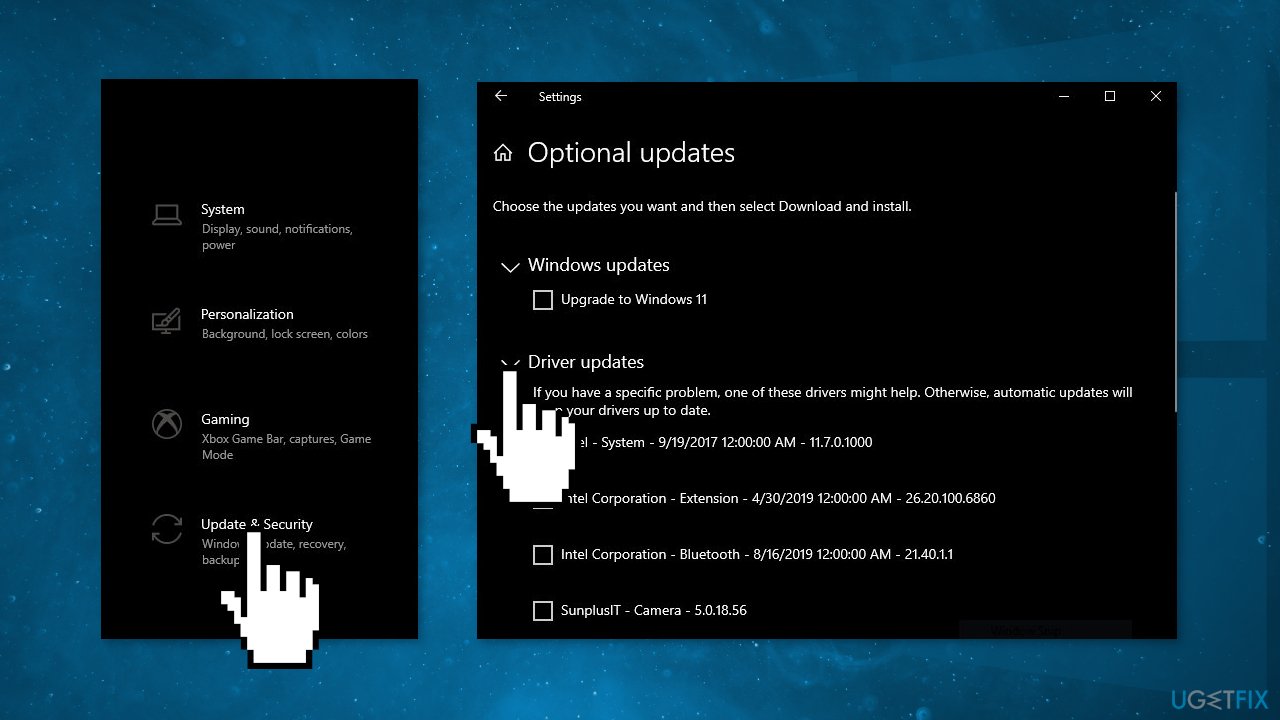
Open Settings
Click on Update & Security
Click on Windows Update
Click the Check for updates button
Click the View optional updates option
Click the Driver updates tab
Update drivers
Select the driver you want to update
Click the Download and install button
If the View optional updates link is not available after checking for updates, then Windows Update does not have any new drivers or any updates for other products at that particular time.
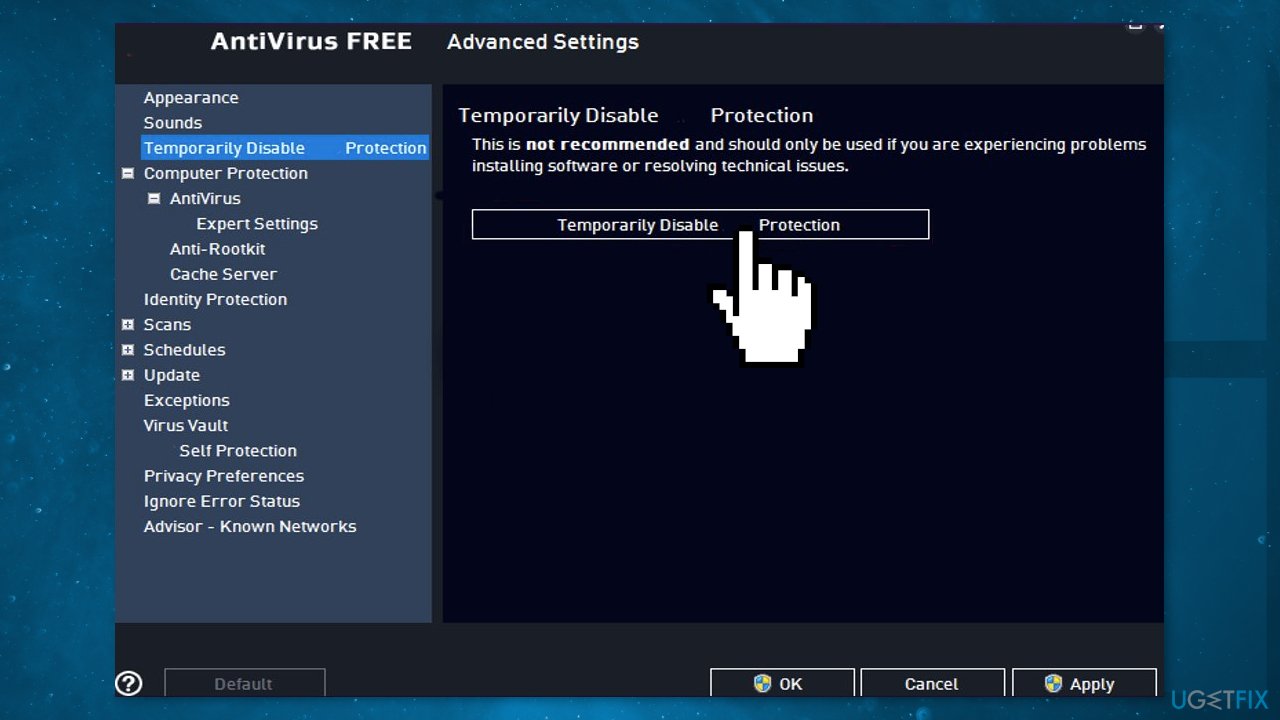
Some security programs might be conflicting with your applications, mistakenly perceiving some files as insecure. Thus, it is known that removing or disabling AV software helped some users when trying to upgrade Windows.
Right-click the antivirus icon and select Disable
You can also double-click the antivirus icon and look for a Disable option there
Disable third party antivirus software
Solution 5. Upgrade with Windows 11 Installation Media
Run the Media Creation Tool and select Create Installation Media for another PC
Select your USB drive
Let the Process complete of writing the Installation files to the USB drive
Click Finish
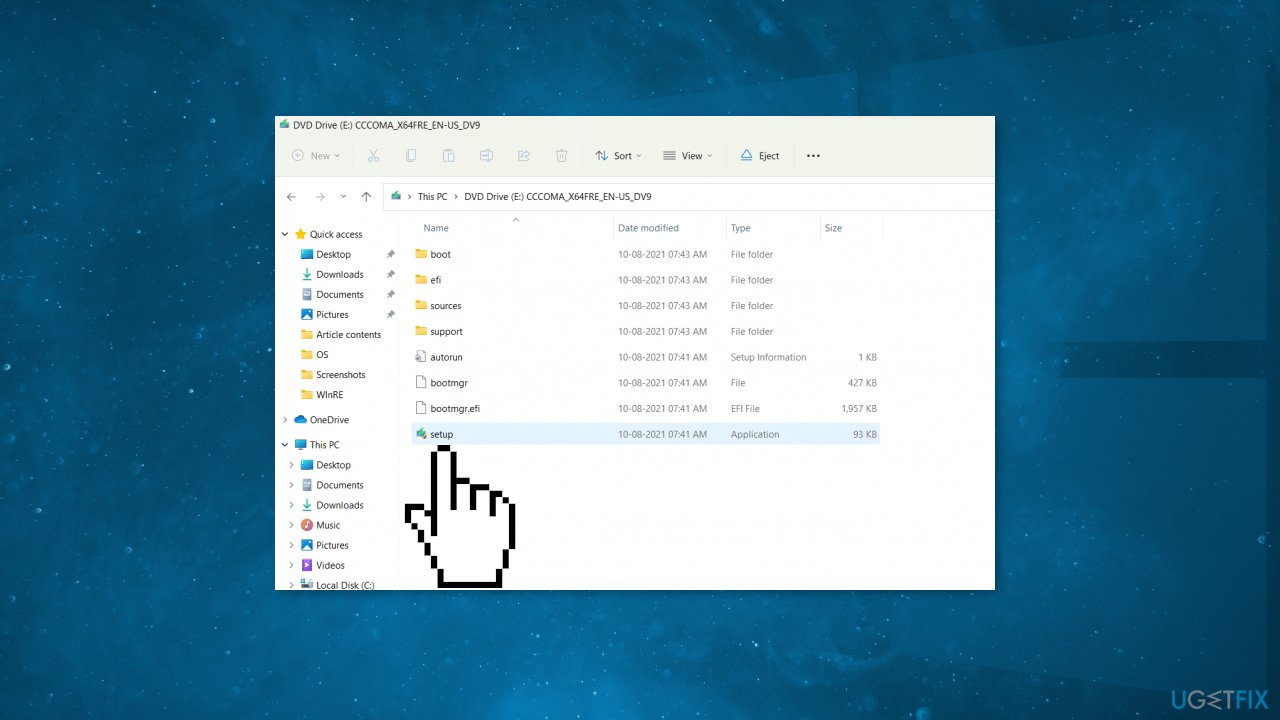
On the PC you wish to upgrade, Press Windows + E to open the File Explorer
Open the Removable drive and click Setup.exe
Upgrade with windows 11 installation media
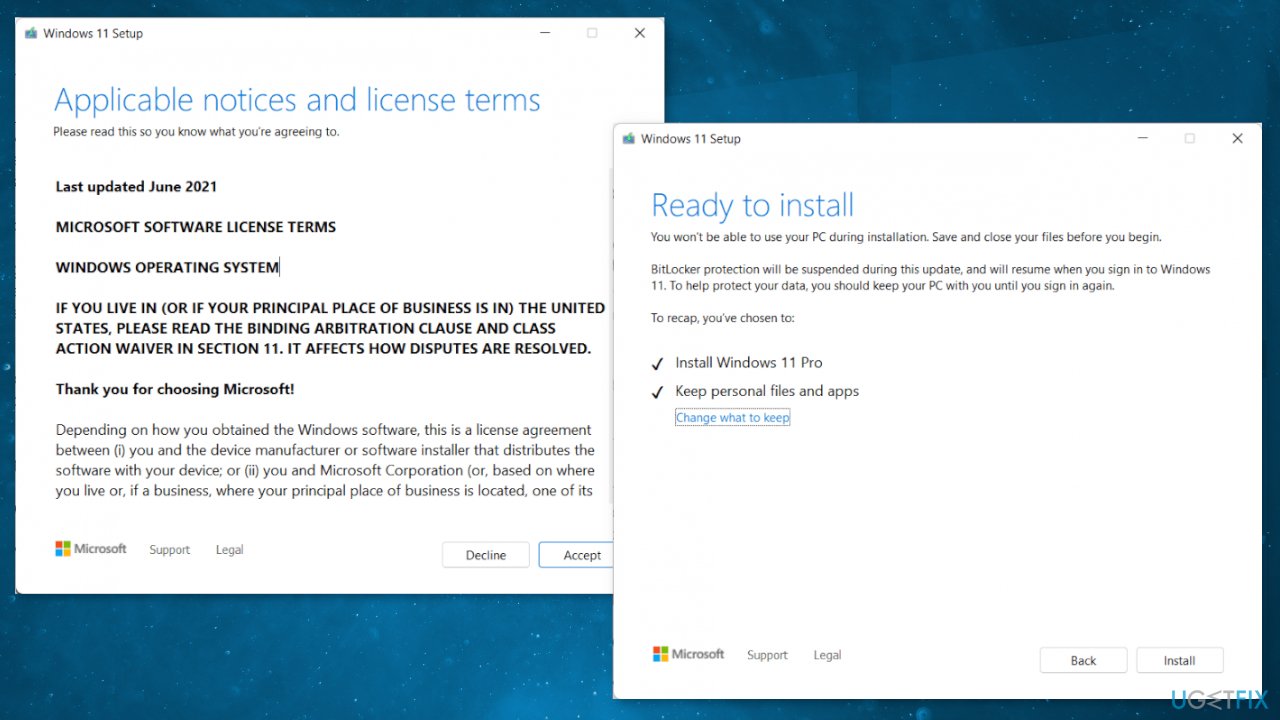
Accept the license terms on the next screen
Confirm the Upgrade options – Files, apps and Settings are kept
Click Install, and the upgrade should start
Upgrade with windows 11 installation media2
Bottom line
To fix the Windows 11 Installation Assistant error 0xc1900107, you can repair corrupted system files using Command Prompt commands, check your disk for errors, and ensure you have enough storage space. If these solutions do not resolve the issue, consider using an automatic repair tool or further troubleshooting methods.
Frequently asked questions
The error code 0xc1900107 typically indicates that there is an ongoing Windows update process or that the previous installation has not completed. This can prevent the Windows 11 Installation Assistant from proceeding.
To resolve this error, check for any pending Windows updates and complete or cancel them before attempting the upgrade again. You can also run the Windows Update Troubleshooter to fix any underlying issues.
Yes, deleting temporary files can help clear out any remnants of previous installations that may be causing the 0xc1900107 error. Use the Disk Cleanup tool to safely remove these files.
Browser troubleshootingExtension conflictsWeb app errorsBrowser performanceCache and cookie issues
Daniel Quinn specialises in browser troubleshooting and web application errors across Chrome, Firefox, Edge, and other major browsers on Windows. He covers browser crashes, extension conflicts, rendering failures, performance degradation, and compatibility errors with web-based tools. Daniel's guides help readers distinguish between a browser-level issue and an underlying Windows problem — narrowing down the cause before recommending a targeted fix. His writing is known for testing fixes across multiple browser versions and Windows editions, ensuring the steps work in real conditions.






Report an issue
What's wrong with this guide? We review every report and update or remove content.
Report received — thank you. We'll review and fix it.
You need a free account to submit a report.
Be the first to comment