How to fix
Windows 2023-01 updates cause speaker issues
on Windows
Resolve speaker issues caused by the January 2023 updates on Windows 10 and 11. Expert-tested solutions to restore sound in minutes!

What causes How to fix Windows 2023-01 updates cause speaker issues?
- Compatibility issues
- Driver issues
- Inconsistencies after updates
- Unrecognized speakers
- Update-related bugs
Repairs Windows system files, removes malware, and restores a clean OS state — without reinstalling.
Hello, I have recently installed 2023-01 Cumulative Update Preview for .NET Framework 3.5,4.8,4.8.1 for Windows 10 Version 21H2 for x64 (KB5022476) update on Windows, and now I am having issues with my speakers. They simply don't work anymore, and the computer does not recognize them. Any tips on what to do here?
Windows updates are crucial software upgrades and security fixes for the Windows operating system. These updates are significant as they eliminate security weaknesses in the system that could be taken advantage of by cybercriminals and malicious software to gain unauthorized entry into a computer.
In addition, they offer new features and enhancements to the operating system, ensuring that it operates smoothly and efficiently. By keeping the system updated, it will be protected against threats and perform at its best. It is therefore recommended to frequently check for and install Windows updates to maintain the system's security and stay up-to-date.
Unfortunately, this routine process sometimes backfires, as there have been numerous reports of how Windows updates break some previously working features. KB5022476 is one of the updates that was shipped on January's Patch Tuesday, and for some people, it started causing speaker issues.
In January, routine updates are meant to improve the overall system's security, reliability, and quality, although the broken speakers' issue is not a good outcome here. As such, there are plenty of users who would want to fix this issue as soon as possible, and we are here to help.
First of all, inconsistencies after Windows updates might come up from time to time, depending on your system configuration. If speakers stopped working after Windows 2023-01 update, it is likely to do with compatibility or driver issues. You can also opt to uninstall the latest update if things don't get fixed after applying the suggested fixes.
If you want to ensure your system's stability and fix various PC issues automatically, we recommend running a scan with [d1] Windows repair utility, which can quickly and easily deal with common issues such as BSODs, crashes, registry corruption issues, and more.
Fix 1. Run the troubleshooter
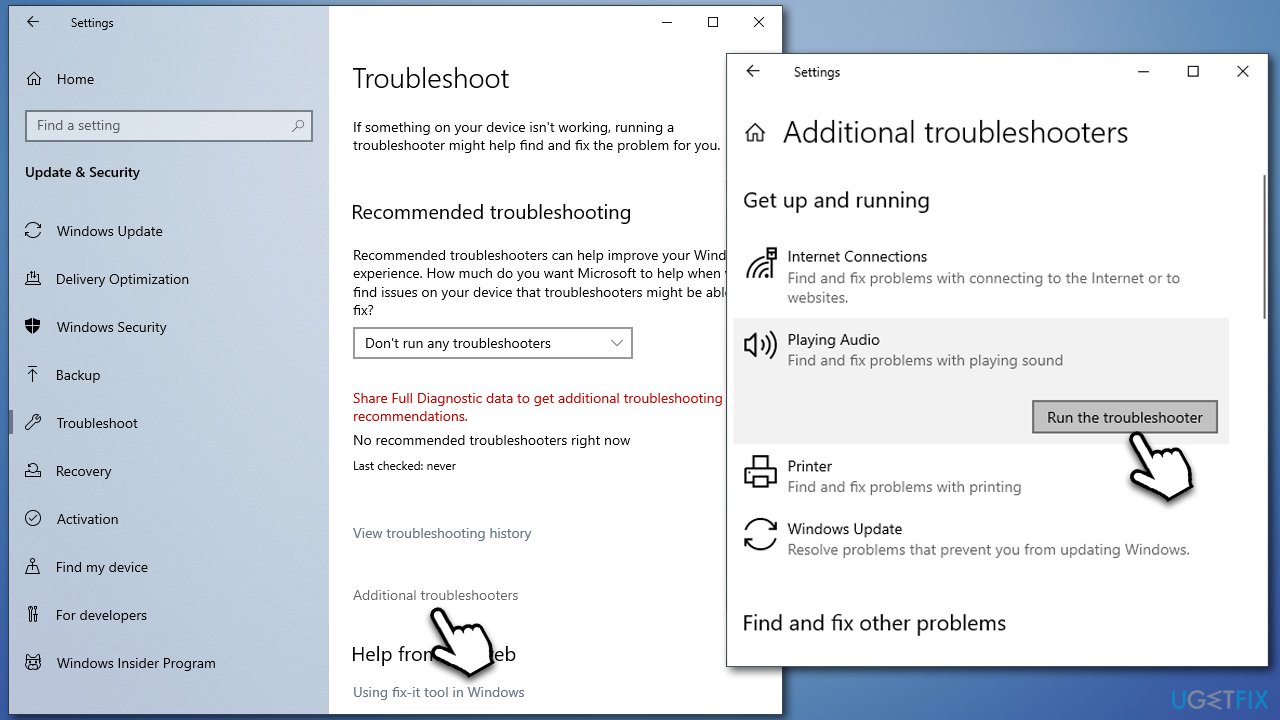
Troubleshooter is one of the most convenient tools that comes pre-built in Windows. Run Audio troubleshooter as follows:
- Type troubleshoot in Windows search and press Enter.
- Select Additional troubleshooters.
- Here, scroll down to locate the Playing Audio section - click it.
- Select Run the troubleshooter and wait till it finishes the scan.
- Apply the suggested fixes.
Fix 2. Reinstall audio drivers
Audio drivers might get corrupted after a Windows update, so reinstalling them might help you fix speaker issues after a Windows update.
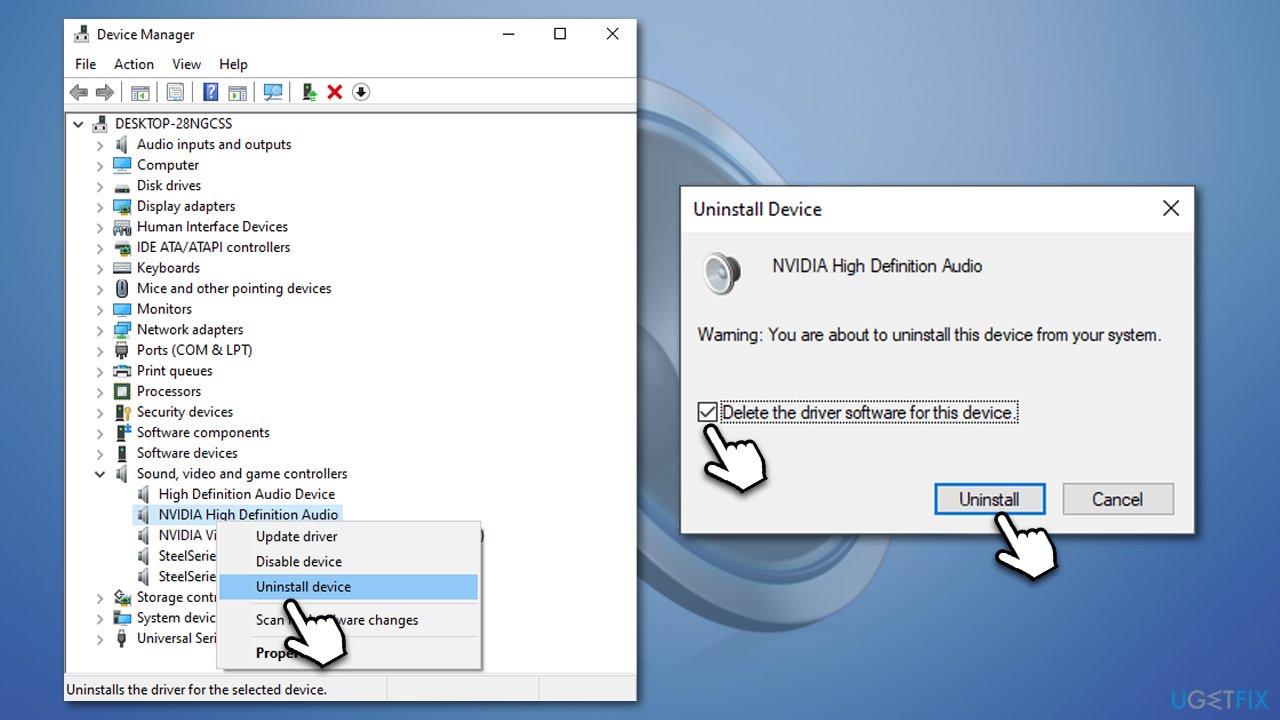
- Right-click Start and pick Device Manager.
- Expand Sound, video and game controllers section.
- Right-click on your audio device (for most users, it's Realtek High Definition Audio. For Nvidia, you have to reinstall the video driver package, as it is included) and select Uninstall device.
- In the prompt, mark the Delete the driver software for this device option.
- Click Uninstall and restart the PC.
Once Windows starts back up, you should install the latest driver. The easiest way to do so is by employing [rev id="DriverFix"], which can automatically scan your computer and install all the latest drivers for your system. Alternatively, you can go to the device manufacturer's website and download the drivers manually from there.
Fix 3. Uninstall Windows update [workaround]
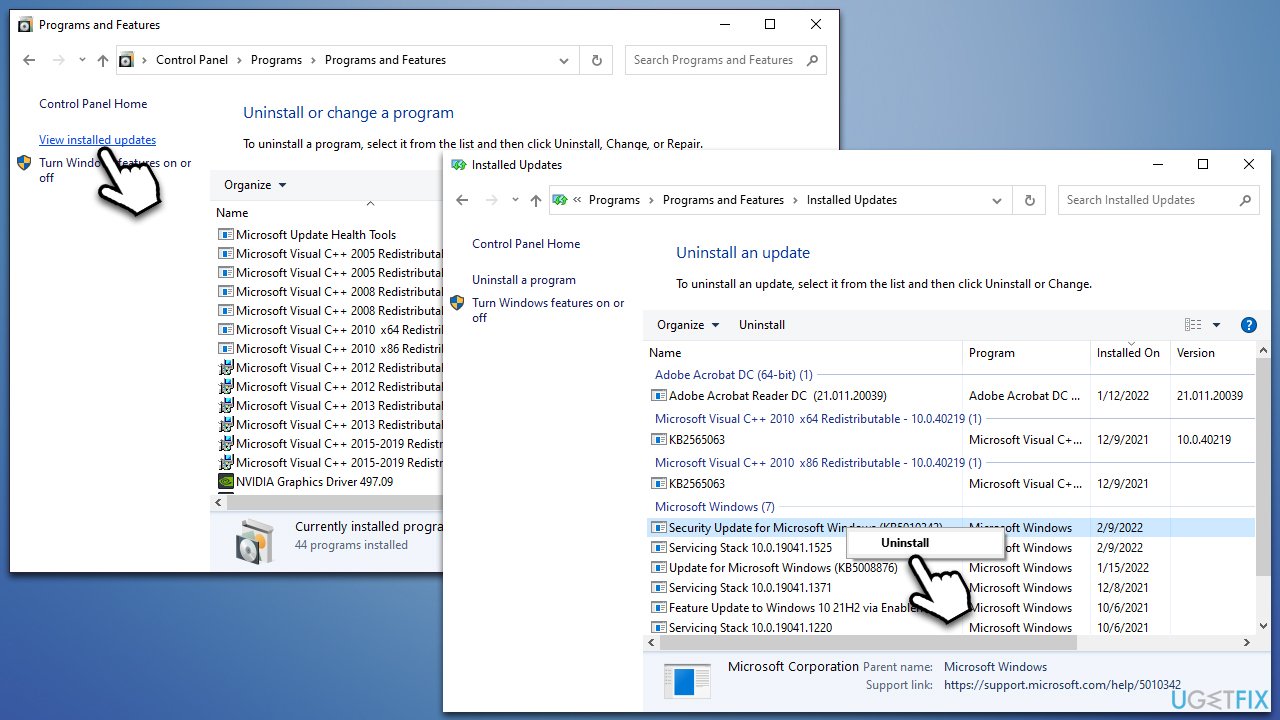
- Type in Control Panel in Windows search and press Enter.
- Go to Programs > Uninstall a program.
- Select View installed updates.
- Click on Installed On to sort all the updates by date.
- Scroll down until you see the Microsoft Windows section.
- Right-click on the most recent update and select Uninstall.
- Follow the on-screen instructions to uninstall the update.
- Go to Settings > Updates & Security.
- Pause the updates for a selected period of time.
- Restart your device.
Fix 4. Use System Restore
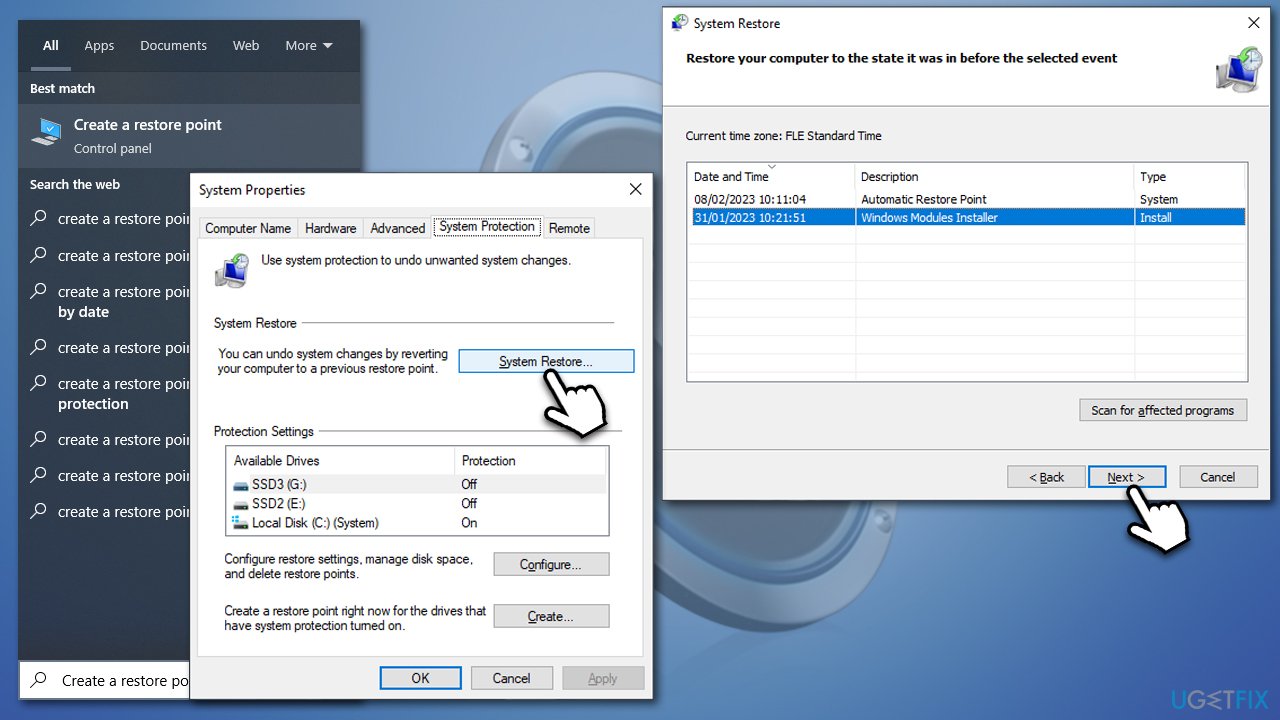
- Type in Create a restore point in Windows search and press Enter.
- Pick System Restore.
- Select Choose a different restore point (if available) and go for Next.
- If available, select the Show more restore points option.
- Pick the point in time when the problem did not exist and click Next.
- Follow on-screen instructions to finish the process.
Bottom line
To fix the speaker issues caused by the January 2023 update, you can try reinstalling or updating your audio drivers, checking your speaker connections, or running a Windows repair utility. If these steps do not resolve the problem, consider uninstalling the latest update as a last resort.
Frequently asked questions
Try updating your audio drivers through Device Manager, as the update may have caused compatibility issues. If that doesn't work, consider rolling back the update from the Windows Update settings in Windows 10 or Windows 11.
You can run the Windows Troubleshooter for audio playback, which is available in the Settings under System > Sound in both Windows 10 and Windows 11. This tool can help identify and fix common sound problems automatically.
Check the manufacturer's website for your audio device to find the latest compatible drivers for Windows 10 or Windows 11, as they may have released updates to address issues caused by the January update.




Report an issue
What's wrong with this guide? We review every report and update or remove content.
Report received — thank you. We'll review and fix it.
You need a free account to submit a report.
Be the first to comment