How to fix
Windows activation error 0xc004f210
on Windows
Solve Windows activation error 0xc004f210 quickly with our expert-tested solutions for Windows 10 and 11, designed to get you back on track in minutes.

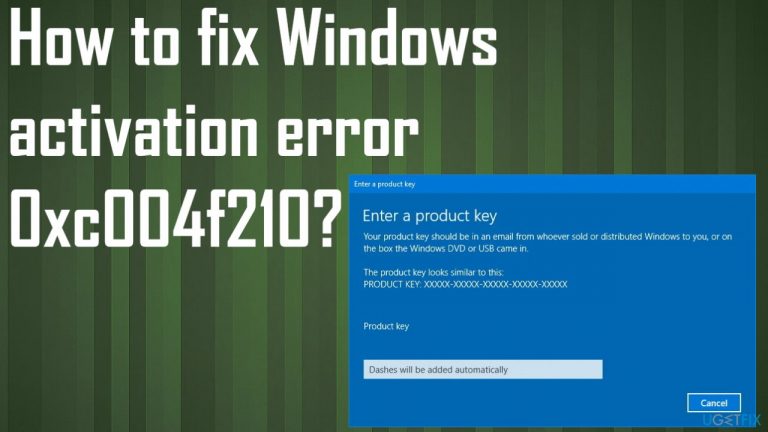
What causes How to fix Windows activation error 0xc004f210?
- Incorrect product key
- Incompatibility with Windows version
- Activation server flagged the license key
- Recent hardware upgrades
- System file failure or corruption
Repairs Windows system files, removes malware, and restores a clean OS state — without reinstalling.
Hello. I struggle. The Activation error 0xc004f210 occurs on Windows 10 for me. I tried to install them instead of my Windows 8. It seemed okay, but I cannot activate the operating system somehow, and the message about the product key appears. Can you help me?
Windows activation error 0xc004f210 is the particular problem occurring when the user tries to upgrade to Windows 10 version.[ref en-1] The issue is related to Windows 10 Home or Pro version installations on Windows 7 or Windows 8.1. The problem with Microsoft not allowing the activation is due to the incorrect key. There are possible triggers for the problem and some of them have the workaround or a full solution.
Recent changes on the machine can lead to common process failure if some of the hardware upgrades on the computer. The initial installation and license key incompatibilities also can be the trigger for the problem. You need to ensure that you install the Windows 10 version that is compatible with the key you are using from Windows 7 or Windows 8.1 version.
Activation error 0xc004f210 can also occur when the activation server flags the license key. Restrictions can appear due to the flagged key. You need to clear out these problems by contacting the agents and ensuring that you have a legitimate license key that you got by purchasing the OS yourself.
As common as update issues,[ref en-2] or malware infection caused problems,[ref en-3] system file failure or corruption can be blamed for the Windows installation error too. Such issues can lead to disrupted functions, features, and program work. Some affected users stated that rooting some system issues helped to get rid of the installation and activation issues.
You might be able to properly fix Windows activation error 0xc004f210 by recovering those damaged files and functions. Refreshing various Windows components with apps like [d1] could improve the performance of the later solutions. Also, a clean install or repair install could fix the issue. Various fixes and options are listed, so you should follow instructions until the issue is properly solved.
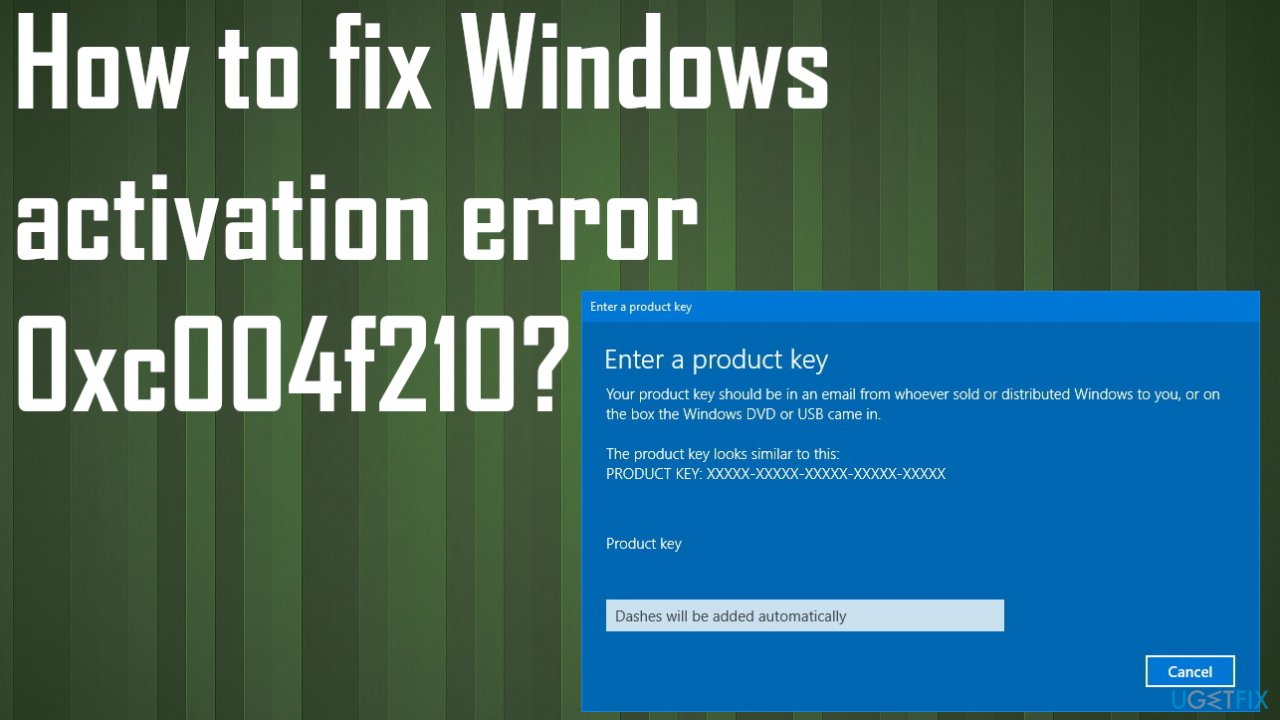
Method 1. Troubleshooting the activation
- Press Windows key + R to open up a Run dialog box.
- Type ms-settings:activation and press Enter to open up the Activation tab of the Settings menu.
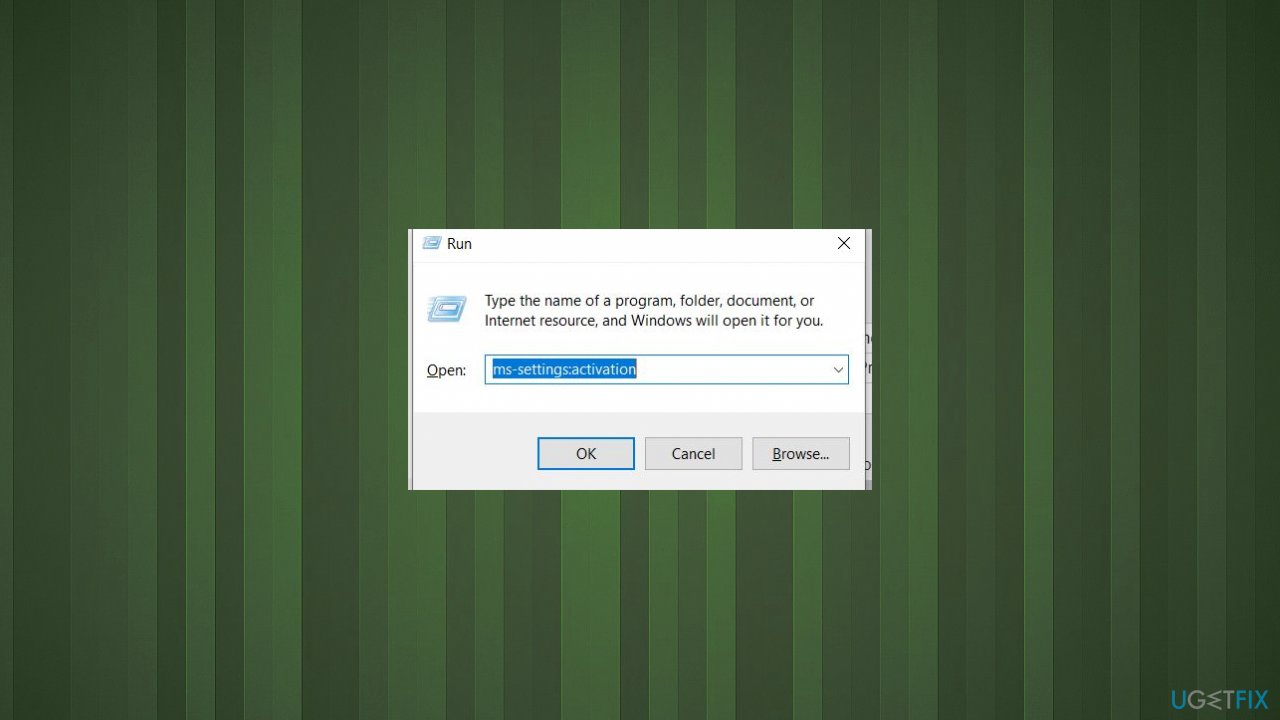
Windows activation error 0xc004f210 run - Move over to the right-hand pane and click on the Troubleshoot button under Activate Windows.
- Wait until the Activation Troubleshooter completes the initial scan.
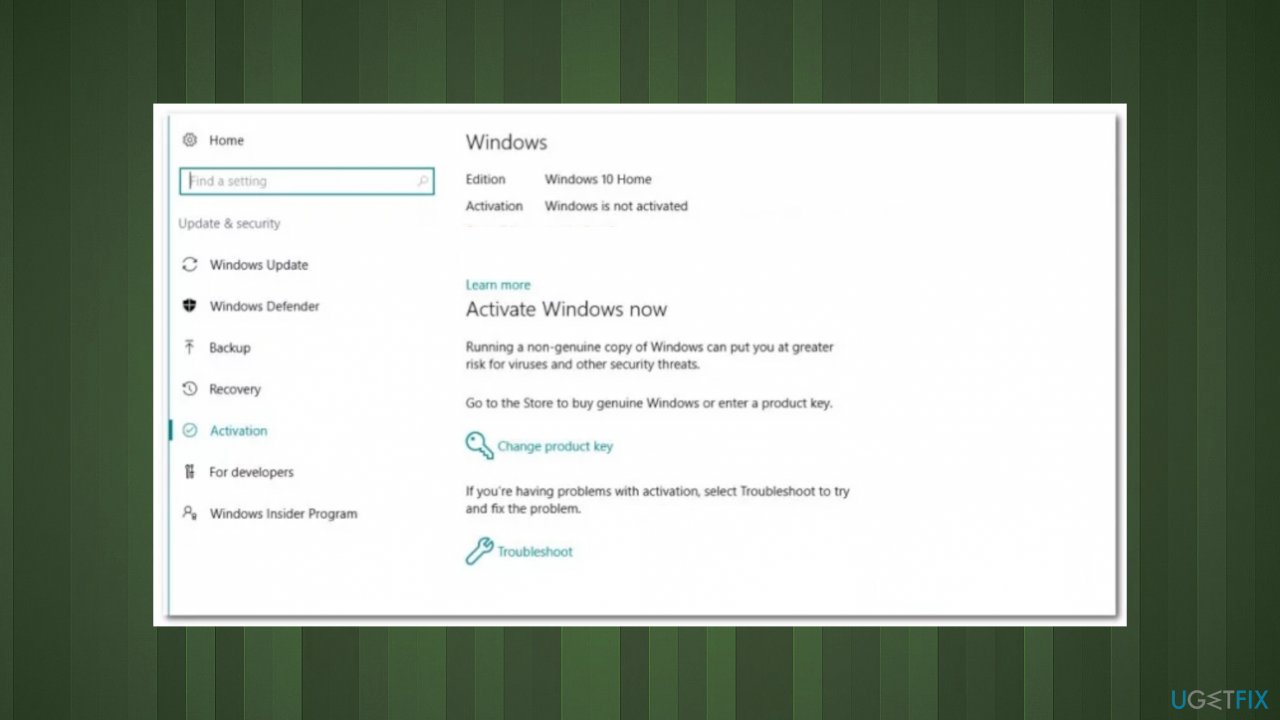
Windows activation error 0xc004f210 troubleshoot - If a viable fix is offered, click on Apply this Fix and wait until the operation is finished.
- Restart your computer once the next startup is completed.
- Then input the license key once again and see if the key gets accepted this time.
Method 2. Use the Default product key
- Press Windows+I keys to open the Windows Settings.
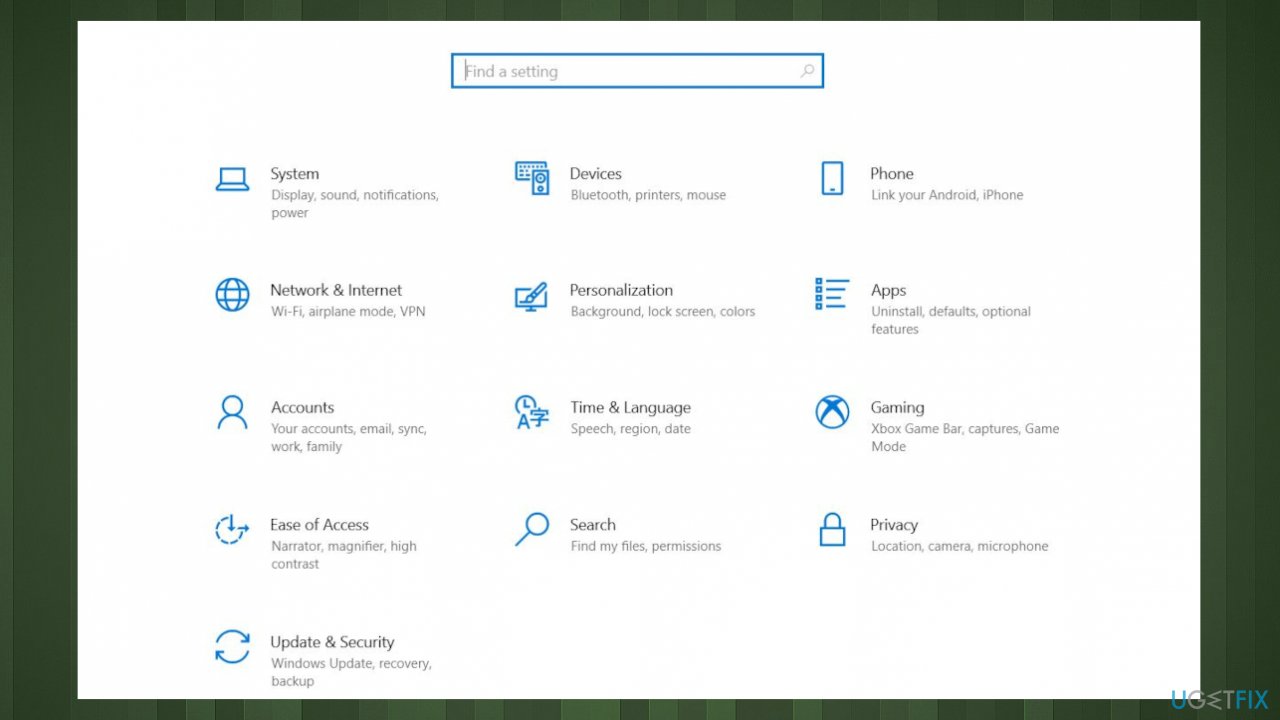
Windows activation error 0xc004f210 setting - Select the Update & Security option and then click on the Activation tab.
- Under the Update Product key section, click on the Change product key.
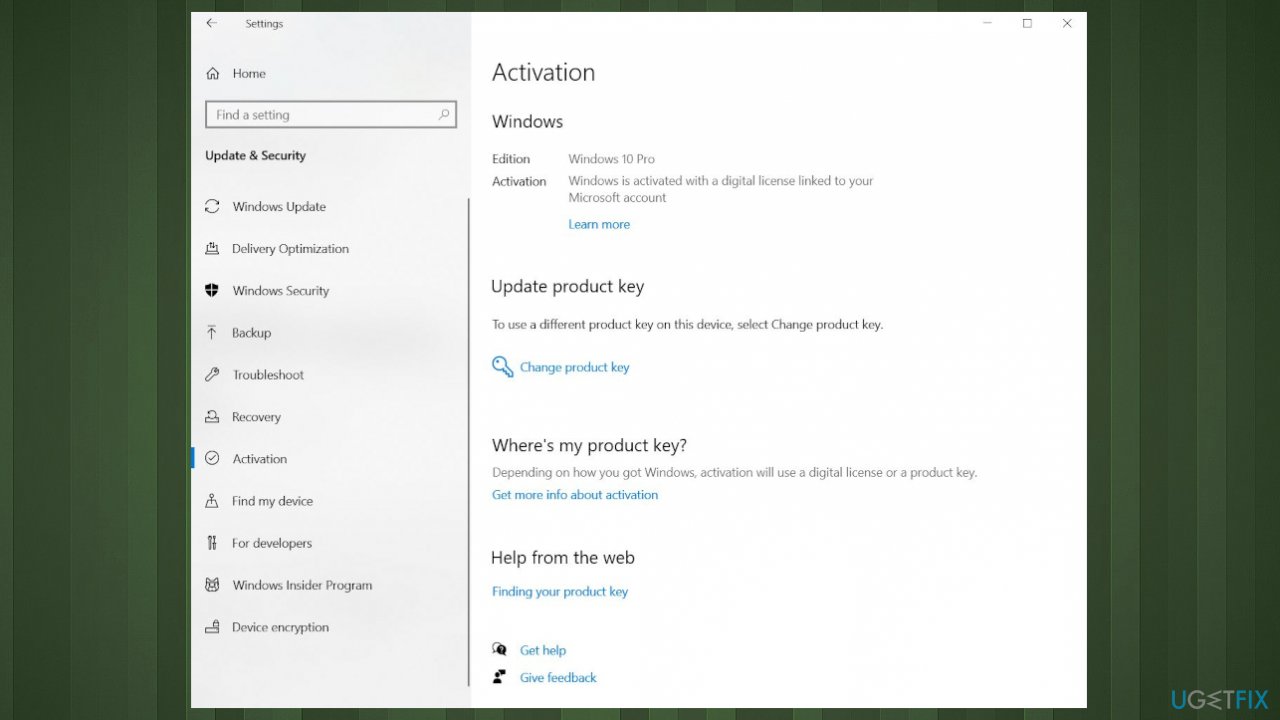
Windows activation error 0xc004f210 change key - Try any of the following default license keys according to the Windows 10 version installed on your device:
Windows 10 Home - YTMG3-N6DKC-DKB77-7M9GH-8HVX7
Windows 10 Home - N 4CPRK-NM3K3-X6XXQ-RXX86-WXCHW
Windows 10 Home Single Language - BT79Q-G7N6G-PGBYW-4YWX6-6F4BT
Windows 10 Pro - VK7JG-NPHTM-C97JM-9MPGT-3V66T
Windows 10 Pro N - 2B87N-8KFHP-DKV6R-Y2C8J-PKCKT
Windows 10 Pro for - Workstations - DXG7C-N36C4-C4HTG-X4T3X-2YV77
Windows 10 Pro N for Workstations - WYPNQ-8C467-V2W6J-TX4WX-WT2RQ
Windows 10 S - 3NF4D-GF9GY-63VKH-QRC3V-7QW8P
Windows 10 Education - YNMGQ-8RYV3-4PGQ3-C8XTP-7CFBY
Windows 10 Education N - 84NGF-MHBT6-FXBX8-QWJK7-DRR8H
Windows 10 Pro Education - 8PTT6-RNW4C-6V7J2-C2D3X-MHBPB
Windows 10 Pro Education N - GJTYN-HDMQY-FRR76-HVGC7-QPF8P66QFC
Windows 10 Enterprise - XGVPP-NMH47-7TTHJ-W3FW7-8HV2C
Windows 10 Enterprise G - YYVX9-NTFWV-6MDM3-9PT4T-4M68
Windows 10 Enterprise G N - FW7NV-4T673-HF4VX-9X4MM-B4H4T
Windows 10 Enterprise N - WGGHN-J84D6-QYCPR-T7PJ7-X766F
Windows 10 Enterprise S - NK96Y-D9CD8-W44CQ-R8YTK-DYJWX
Windows 10 Enterprise 2015 LTSB - WNMTR-4C88C-JK8YV-HQ7T2-76DF9
Windows 10 Enterprise 2015 LTSB N - 2F77B-TNFGY-69QQF-B8YKP-D69TJ
Windows 10 Enterprise LTSB 2016 - DCPHK-NFMTC-H88MJ-PFHPY-QJ4BJ
Windows 10 Enterprise N LTSB 2016 - RW7WN-FMT44-KRGBK-G44WK-QV7YK
Windows 10 Enterprise LTSC 2019 - M7XTQ-FN8P6-TTKYV-9D4CC-J462D
Windows 10 Enterprise N LTSC 2019 - 92NFX-8DJQP-P6BBQ-THF9C-7CG2H - After successful activation of the operating system, restart your computer.
Method 3. Reset the Windows Installation
- You can perform the Repair install or Clean install with the installation disc.
- Press Power button and then press any key to prompt the system’s startup using CD, DVD or USB drive.
- Then using the arrow keys go to the option Boot and then press Enter.
- After that, find CD, USB flash drive, or DVD under the Boot list and change its place from down below to the top using the arrow keys.
- Once done, hit Enter.
- Press F10 key to save the changes.
- When the confirmation window shows up, click Yes and wait for the system to restart.
- Select the language that you prefer, time, currency, keyboard, and other settings, and then press Next.
- Select Repair your computer option and wait for the System Recovery Options to open.
- Choose the Windows installation drive, and press Next.
- Click Startup Repair option and wait for the process to complete.
Method 4. Contact the Microsoft Agent for help
You might have an issue with restrictions and activation servers, so a support agent can help find the reason and remotely find the solution for you. Try to contact the support via the official contact page, for example.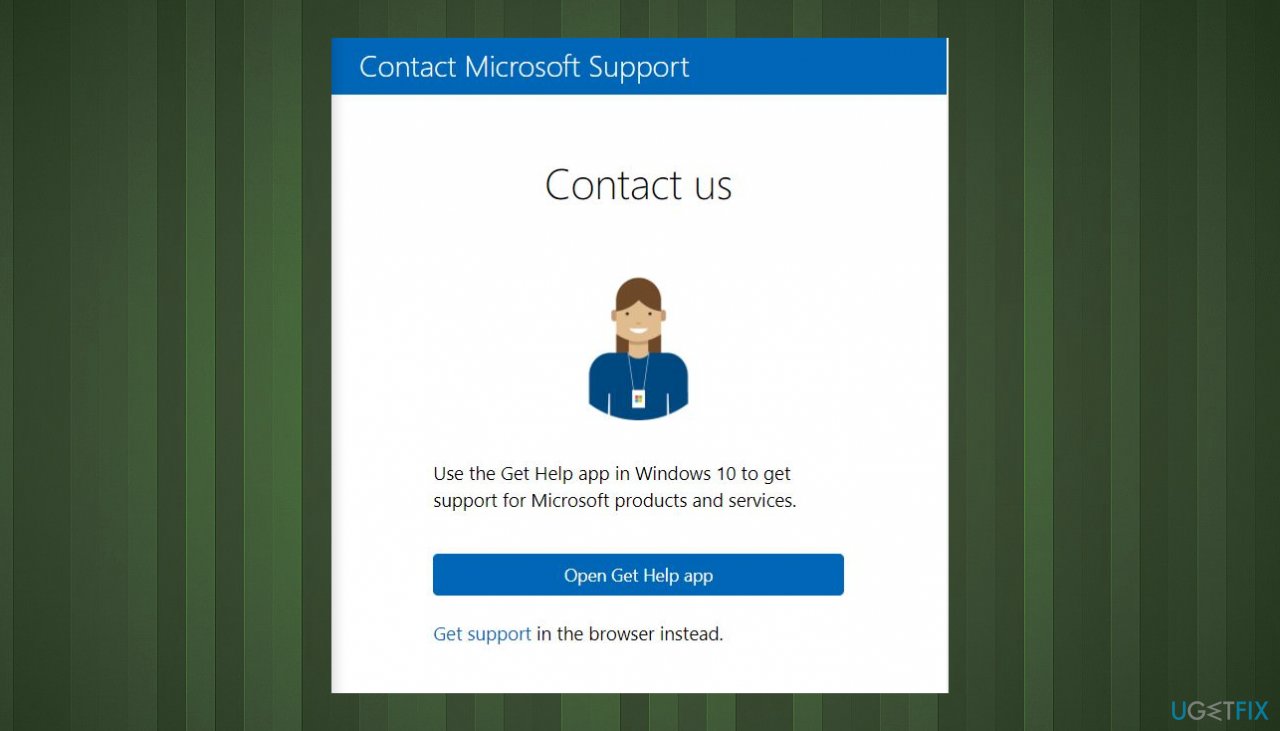
Bottom line
To fix Windows activation error 0xc004f210, you can try troubleshooting the activation process, ensuring compatibility of the Windows version with the key, or performing a clean or repair install. If these methods do not resolve the issue, consider contacting support for further assistance.
Frequently asked questions
The error 0xc004f210 usually indicates that the Windows activation server is unable to verify your product key. This can happen if there are issues with your internet connection or if the key is not valid for your version of Windows 10 or Windows 11.
To troubleshoot error 0xc004f210 in Windows 10, ensure that your internet connection is stable and try running the Activation Troubleshooter in the Settings under Update & Security. You may also want to check if your product key is correct and matches your Windows version.
Yes, on Windows 11, you can resolve activation error 0xc004f210 by going to Settings, selecting Update & Security, and then Activation to run the troubleshooter. Additionally, ensure your system is up-to-date and that your product key is valid.




Report an issue
What's wrong with this guide? We review every report and update or remove content.
Report received — thank you. We'll review and fix it.
You need a free account to submit a report.
Be the first to comment