How to fix
Windows activation error 0xC0EA000A
on Windows
Resolve Windows activation error 0xC0EA000A quickly with our expert-tested solutions for Windows 10 and 11. Fix it in minutes!

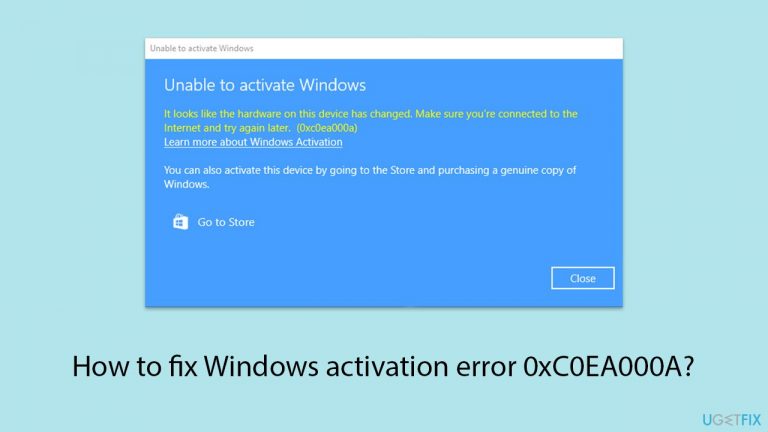
What causes How to fix Windows activation error 0xC0EA000A?
- Digital license not being correctly recognized
- Illegitimate version of the operating system
- Underlying issues such as malware infections
- Problems during the free upgrade process
- System requirements not being met
Repairs Windows system files, removes malware, and restores a clean OS state — without reinstalling.
Hello, I was experiencing frequent crashes with my PC, so I decided to reinstall the operating system. While the crashes have stopped, I noticed that Windows is no longer activated and there's an activation issue with error code 0xC0EA000A. I previously had a genuine copy of Windows, which I obtained as a free upgrade during the Windows 10 release. I don’t know what my product key is or how to retrieve it.
Microsoft has released many versions of its continuously evolving operating system, Windows. Some versions have been well-received by users, while others, like Windows Vista, have had a relatively negative reception. Technically, all these operating systems can still be run if a user really wants to, although software developers highly advise against it.
Consequently, system upgrades are something many users are eager to perform. However, this process can sometimes be hindered by errors such as 0xC0EA000A. Unlike some errors that completely halt the upgrade process, this particular error appears within the Activation section of the Settings panel and reads as follows:
OS activation issues became particularly common when users tried to take advantage of the free upgrade offer during the release of Windows 10 in 2015. We've previously covered similar problems in our articles on errors like 0x803fa067, 0x803F700F, 0xc004f069, and others. The release of Windows 11 saw a similar trend, with many eager users encountering activation issues, often related to system requirements that need to be met.
The crux of the problem is that the digital license is not being correctly recognized, leading to error 0xC0EA000A. There are several methods to fix this issue, although it's important to note that not all solutions will work for everyone. Additionally, if you are using an illegitimate version of the operating system, none of these methods will be effective.
Regardless of which operating system you are using, we recommend first checking it with a powerful PC repair tool like [d1]. This can help ensure there are no underlying issues, such as malware infections, that could be contributing to the activation error.

Fix 1. Run the Windows Activation Troubleshooter
Windows Activation Troubleshooter can automatically detect and fix many activation issues.
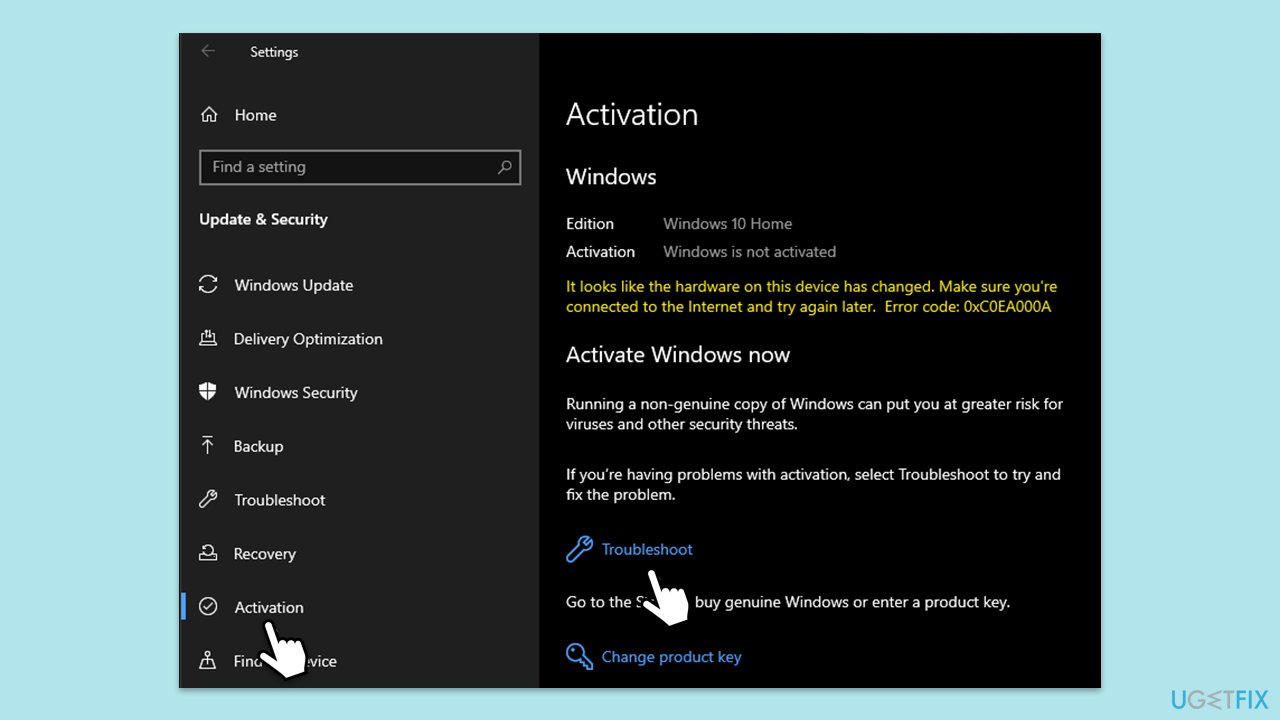
- Right-click on Start and pick Settings.
- Select Update & Security > Activation on Windows 10 or System > Activation on Windows 11.
- Here you will see the error (click on the Activation State on Win 11).
- Click on Troubleshoot.
- Follow the on-screen instructions.
- Restart your device as required.
Fix 2. Check which license you are using
Before proceeding to the next step, do the following:
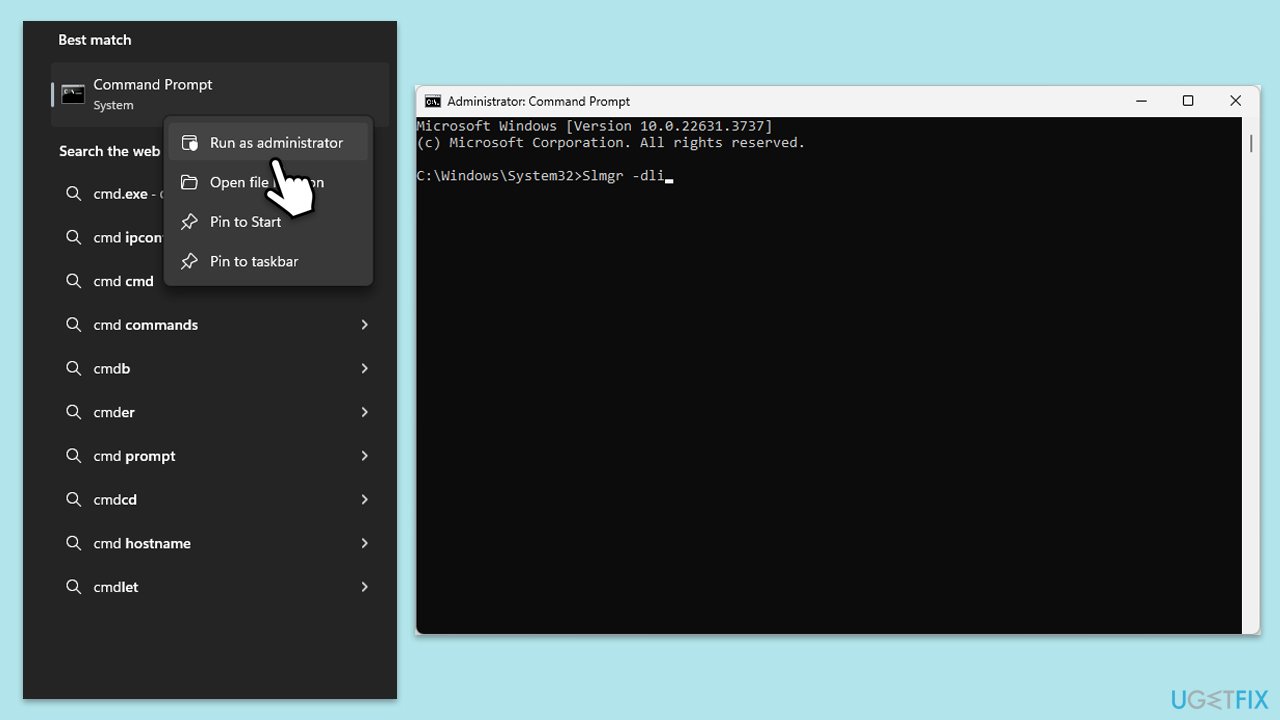
- Type cmd in Windows search.
- Right-click on Command Prompt and pick Run as administrator.
- When User Account Control shows up, click Yes.
- Copy and paste the following command, pressing Enter after:
Slmgr –dli - This should bring up a pop-up window with all the necessary licensing information.
- Check the Description section.
Fix 3. Use Command Prompt to activate Windows
Sometimes, using the command prompt can help activate Windows by forcing a recheck of the license.
Digital license:
- Open Command Prompt as administrator.
- When User Account Control shows up, click Yes.
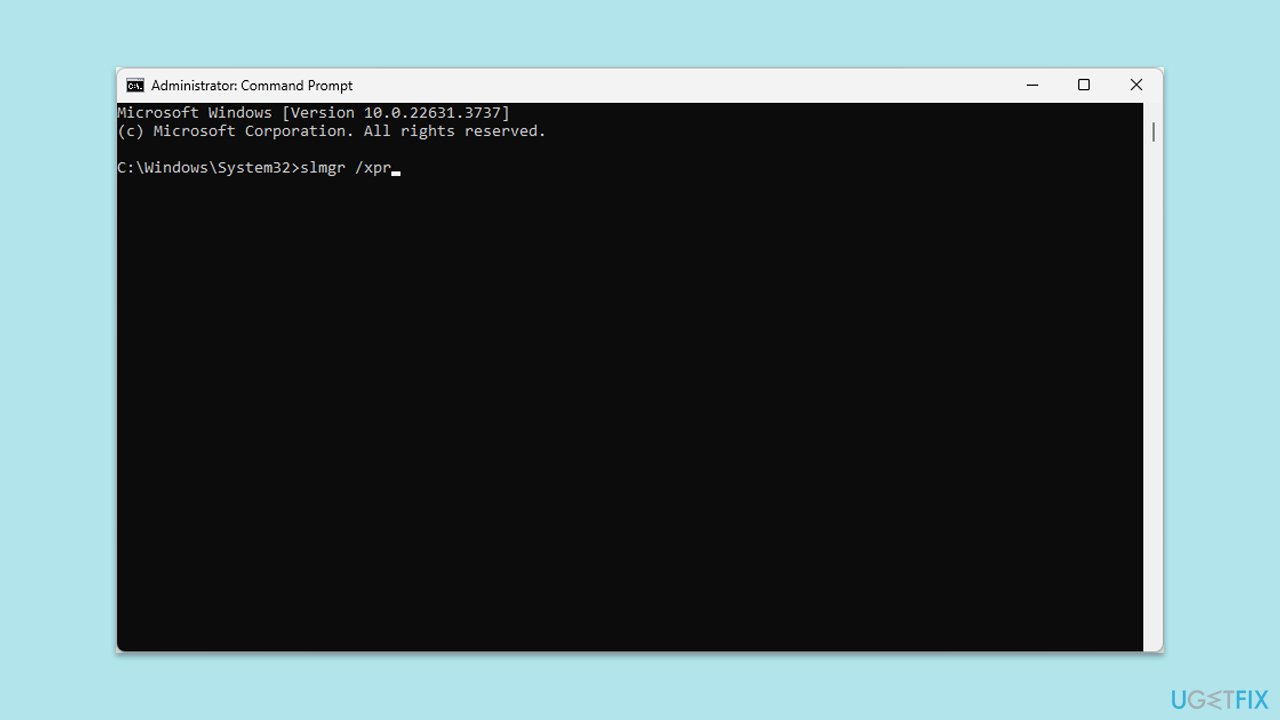
- Once Command Prompt opens, copy and paste the following command:
slmgr /xpr - Press Enter and click OK.
Product key:
- Open Command Prompt as administrator and use the following command:
wmic path softwarelicensingservice get OA3xOriginalProductKey - Paste the slmgr.vbs.ipk <product key> into the window, and press Enter
- Finally, use slmgr.vbs/ato command and hit Enter
- Restart your PC and see if the problem persists.
Fix 4. Check your internet connection
A stable internet connection is necessary for Windows to verify and activate your license.
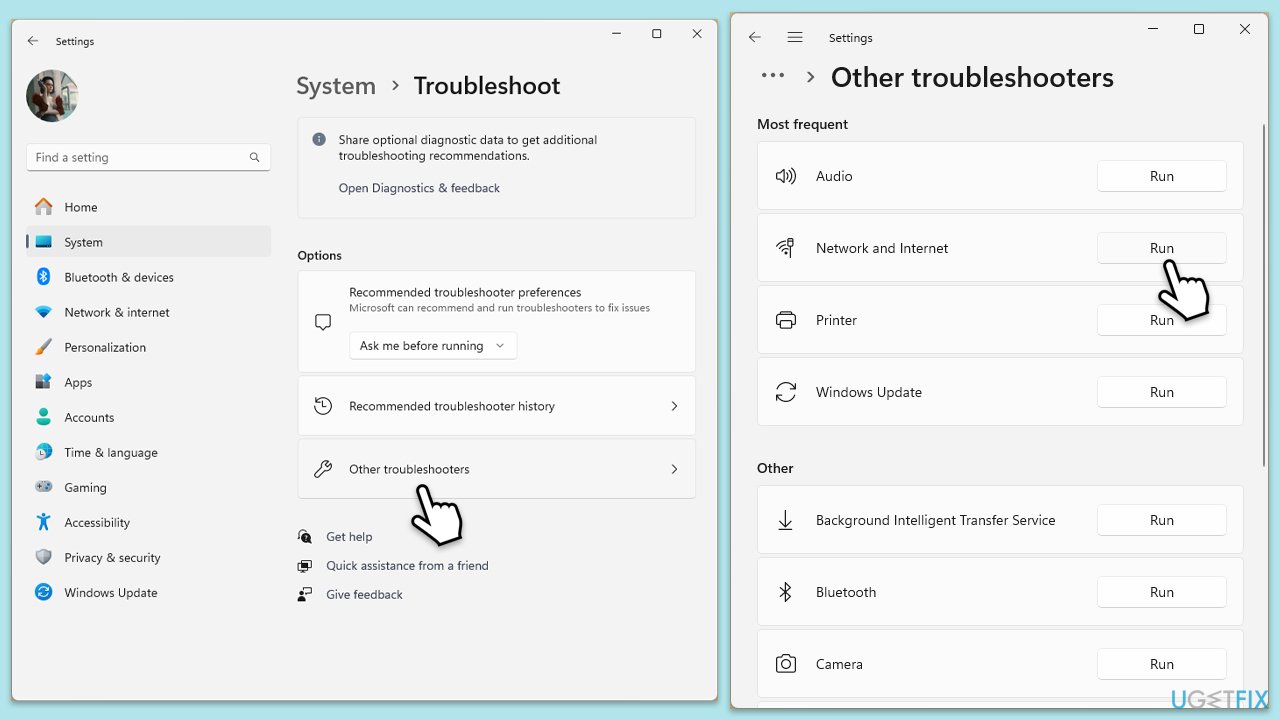
Windows 11
- Type Troubleshoot in Windows search and press Enter.
- Select Other troubleshooters.
- Find Network & Internet troubleshooter from the list and select Run.
- Wait till the process is finished and apply the offered fixes.
- Restart your computer.
Windows 10
- Right-click on Start and pick Settings.
- Go to Network & Internet section.
- On the right side, find the Advanced network settings section.
- Click Network troubleshooter, specify the problem, and wait till the scan is finished.
- When done, apply all the recommendations.
Fix 5. Contact Microsoft Support via phone
Microsoft Support can help resolve complex activation issues.
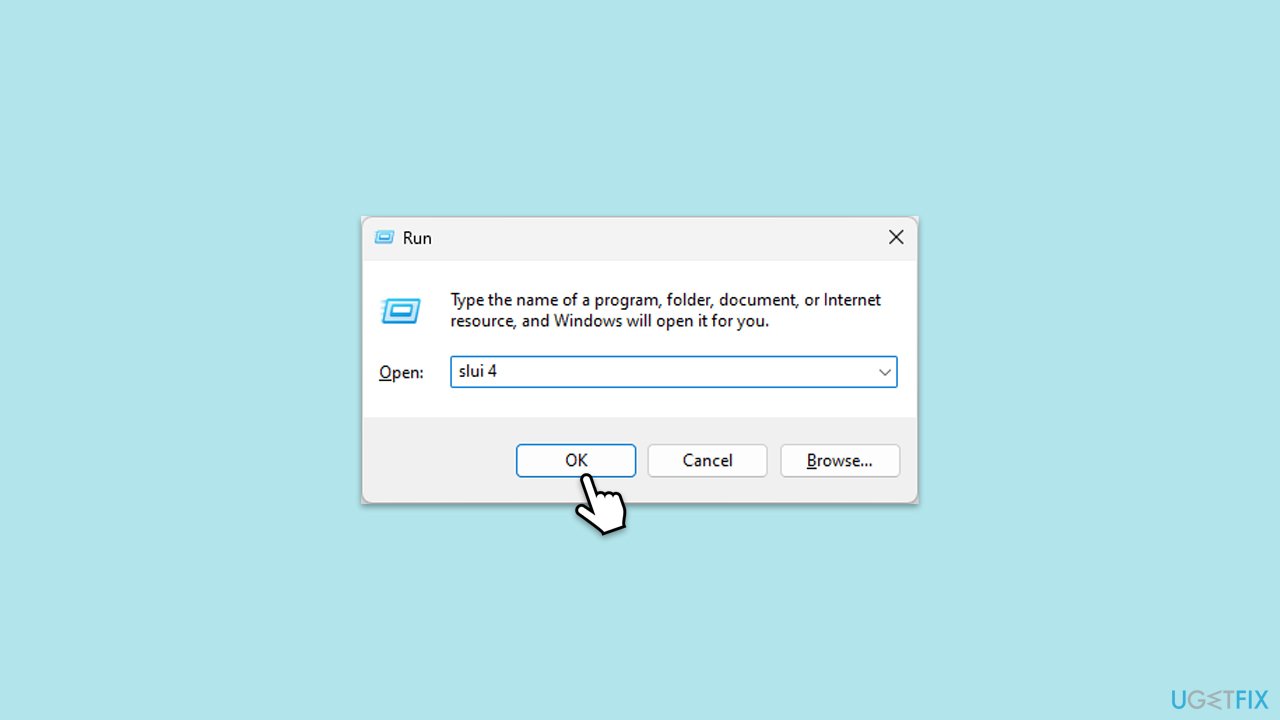
- Press Win + R on your keyboard and type slui 4, then press Enter.
- Select your country and click Next.
- Call the toll-free number provided.
- Follow the automated instructions or speak to a representative. Make sure you have your Windows product key/digital license number ready.
Fix 6. Check for Windows updates
Keeping Windows updated ensures you have the latest fixes and improvements, which can resolve activation issues.
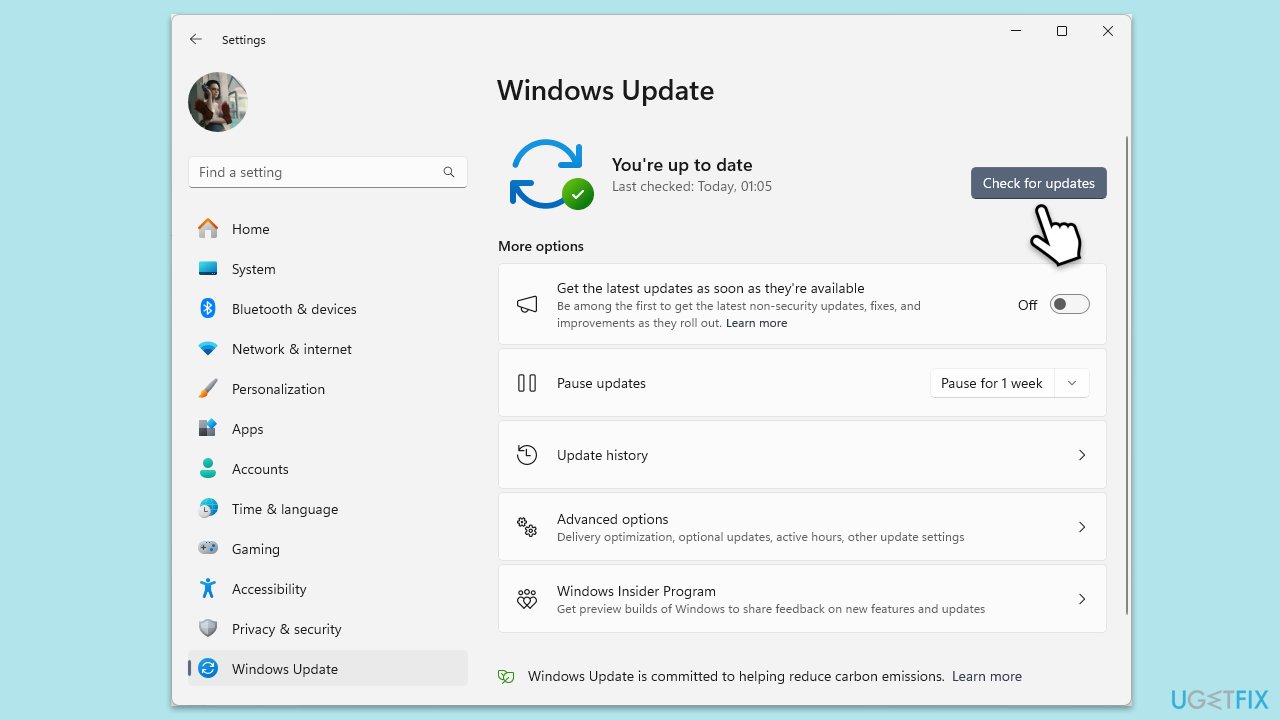
- In Windows search, type Updates and hit Enter.
- In the new window, click Check for updates and wait till everything is installed.
- Make sure you also install any available optional updates.
- When done, restart your system to implement the changes.
Fix 7. Perform a System Restore
Restoring your system to a previous point can fix activation issues caused by recent changes.
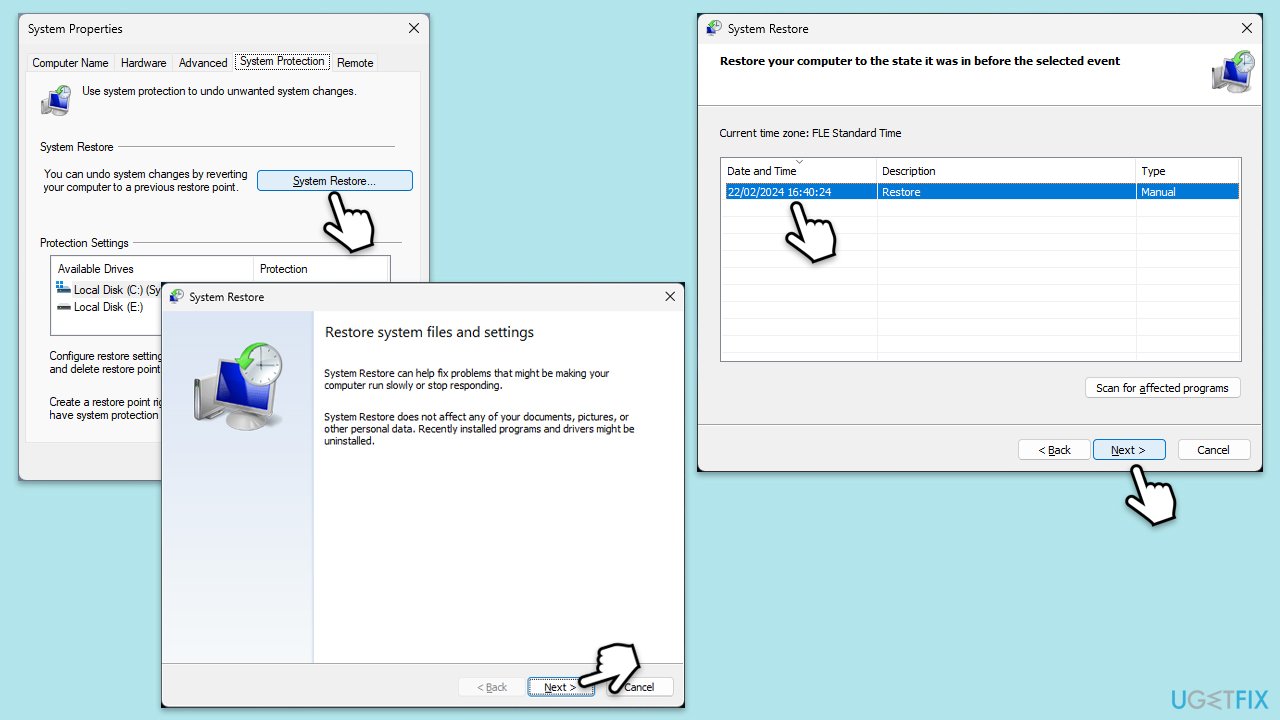
- Type Create a restore point in the Windows search bar and press Enter.
- In the System Properties window, click System Restore.
- Choose a restore point before the issues have begun.
- Click Next and follow the on-screen instructions to complete the system restore.
- Reboot your computer after the process is finished.
Bottom line
To fix the Windows activation error 0xC0EA000A, users can try several methods including checking for malware infections and ensuring their digital license is recognized. If these solutions do not resolve the issue, it may be necessary to seek further assistance or consider reinstalling the operating system.
Frequently asked questions
This error typically occurs due to issues with the activation server or when the system fails to recognize the product key. It can also arise from software conflicts or corrupted system files.
You can try running the Command Prompt as an administrator and executing the command 'slmgr.vbs /ato' to attempt reactivating Windows. If that does not work, consider running 'sfc /scannow' to fix any corrupted files.
Yes, you can go to Settings > Update & Security > Activation and click on 'Troubleshoot' to run the built-in troubleshooter, which may help resolve the activation issue automatically.




Report an issue
What's wrong with this guide? We review every report and update or remove content.
Report received — thank you. We'll review and fix it.
You need a free account to submit a report.
Be the first to comment